Repository: Donohue/alexa
Branch: master
Commit: 3ac18f148186
Files: 5
Total size: 13.8 KB
Directory structure:
gitextract_5t_1flm1/

├── .gitignore
├── README.md
├── speechAssets/
│   ├── IntentSchema.json
│   └── SampleUtterances.txt
└── src/
    └── index.js
================================================
FILE CONTENTS
================================================
================================================
FILE: .gitignore
================================================
*.swp
================================================
FILE: README.md
================================================
# Build your First Alexa Skill
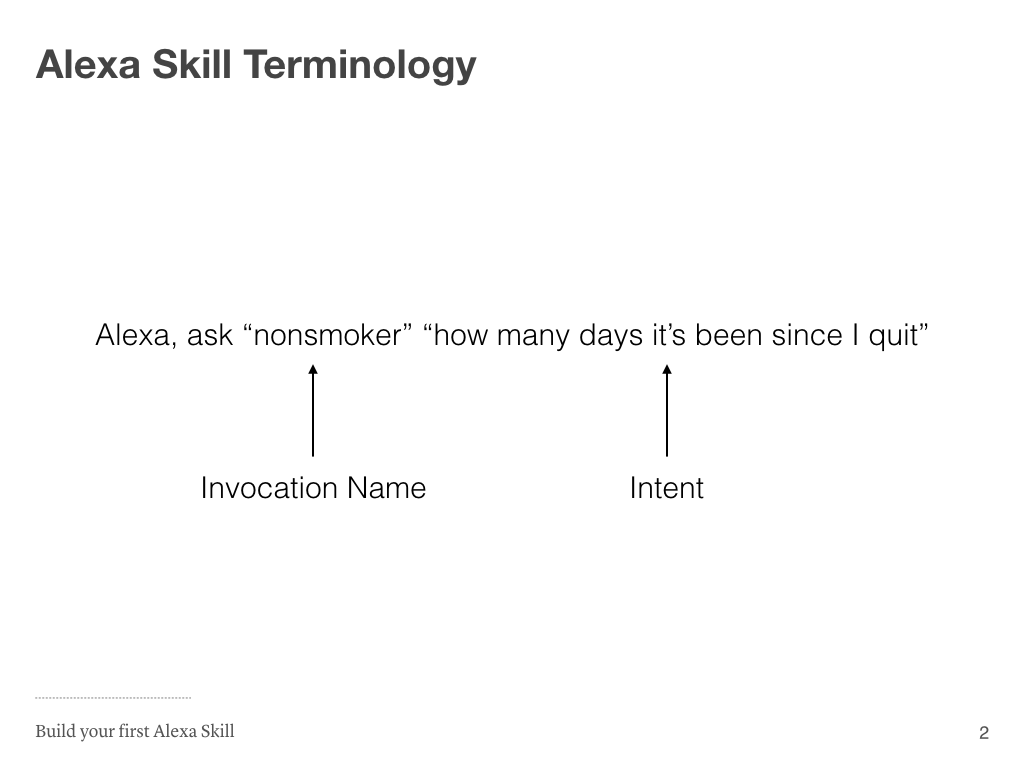
Each Alexa skill is comprised of an “Invocation Name” which you can think of as your app name, a set of “Intents” and the phrases that map to each intent, and the software that can detect the intent and return an appropriate result.
The skill we’re going to build is going to be an adaptation of the classic “Hello, World!” program.
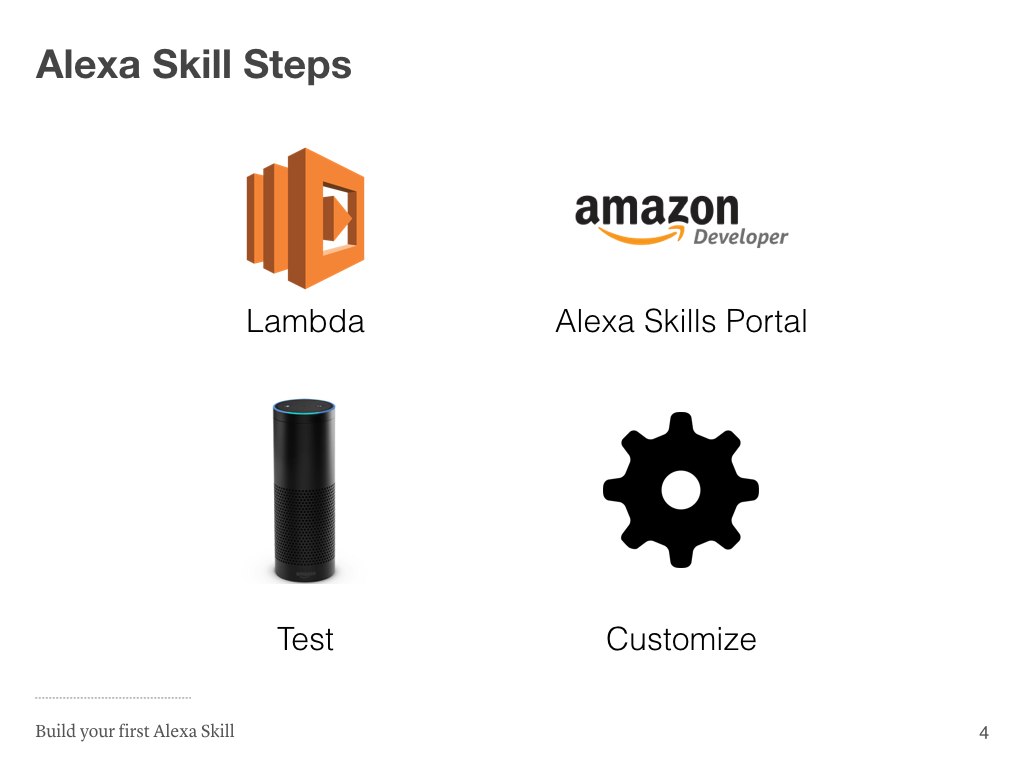
Building your first skill will comprise of four steps. First we’re going to copy the “Hello, World!” code into Amazon Lambda, which will be responsible for running the code. Next we’re going to set up our skill in the Amazon Alexa Skills Developer Portal, and link our lambda account to that skill. Then we’re going to test using the Amazon service simulator and on an Alexa-enabled device. Lastly, we’ll walk through the steps of customizing your skill to your needs.
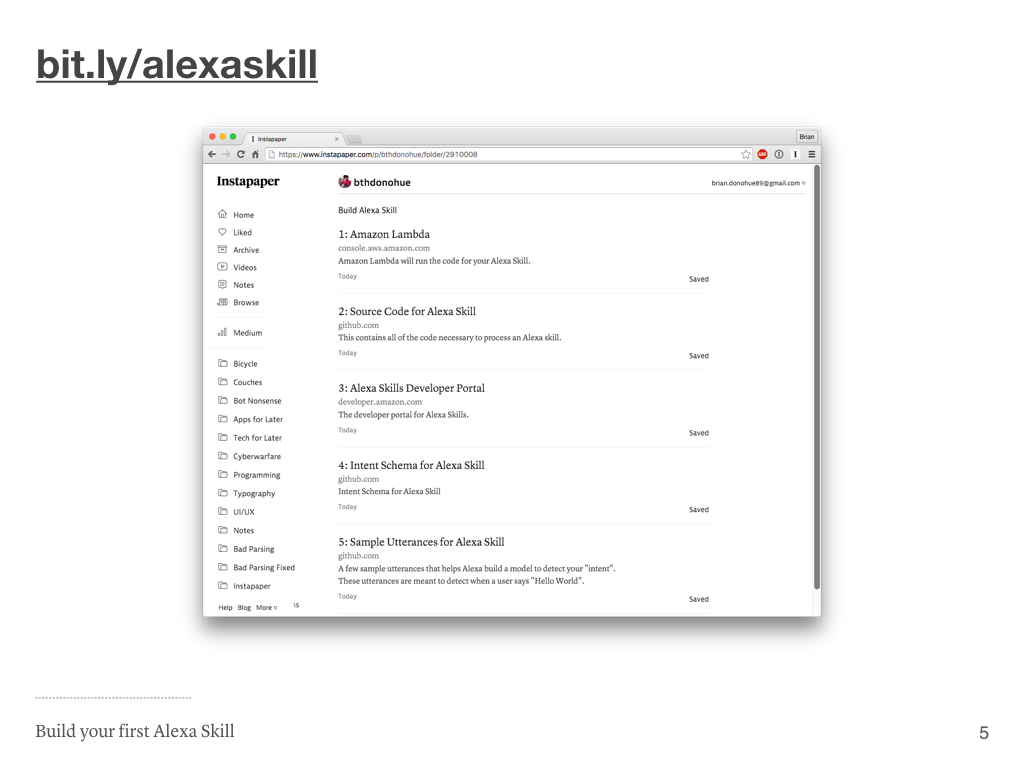
I put together a list of resources at [https://bit.ly/alexaskill](https://bit.ly/alexaskill), which is a public Instapaper folder I set up to make sharing the list of links easy. The slides will refer to each of these links. I’d recommend having this open in a tab so you can refer back to the links easily.
## Step 1
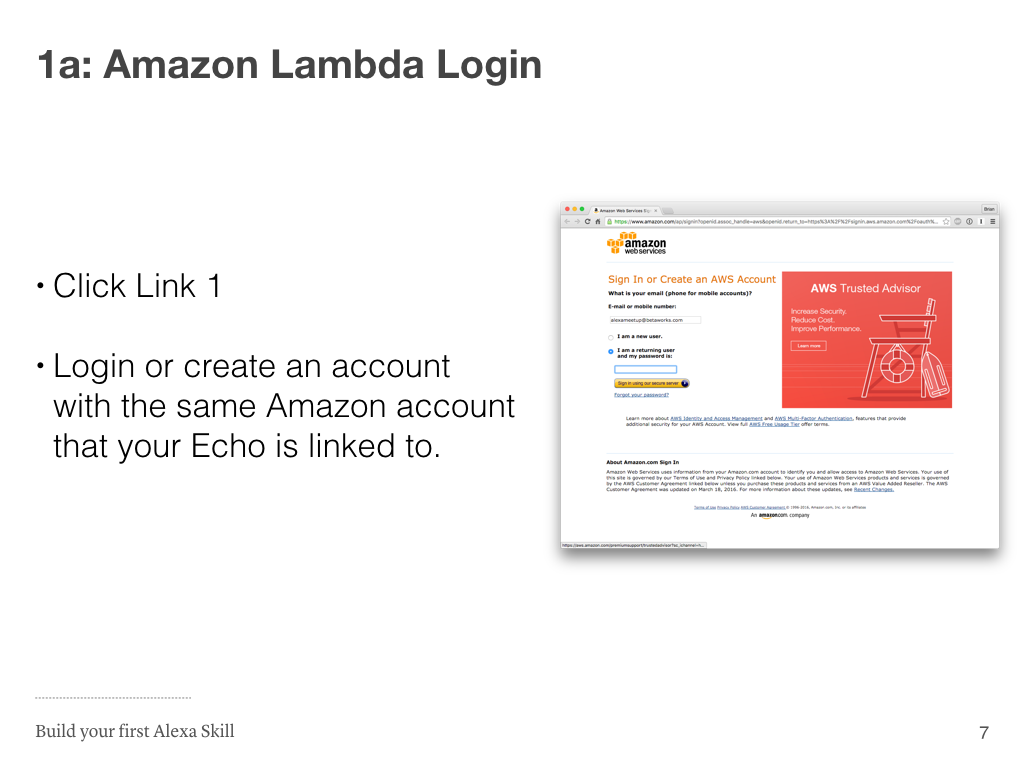
* Open the [AWS Lambda console](https://console.aws.amazon.com/lambda/home?region=us-east-1#/create?step=2)
* Login or create an account with the same Amazon account that your Alexa device is linked to.
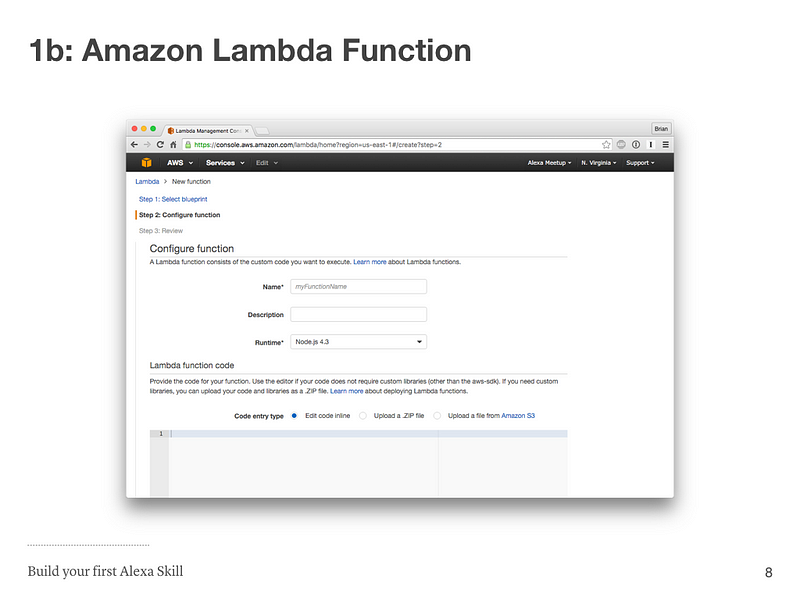
Enter the name of your Lambda function. It’s not very important what the name is but it needs to be unique, you can just use “HelloWorld”. In the top right it should say “N. Virginia”. If that’s not the case please select “US-East (N. Virginia)” from the dropdown.

Copy the [Hello World application source code](https://github.com/Donohue/alexa/blob/master/src/index.js)
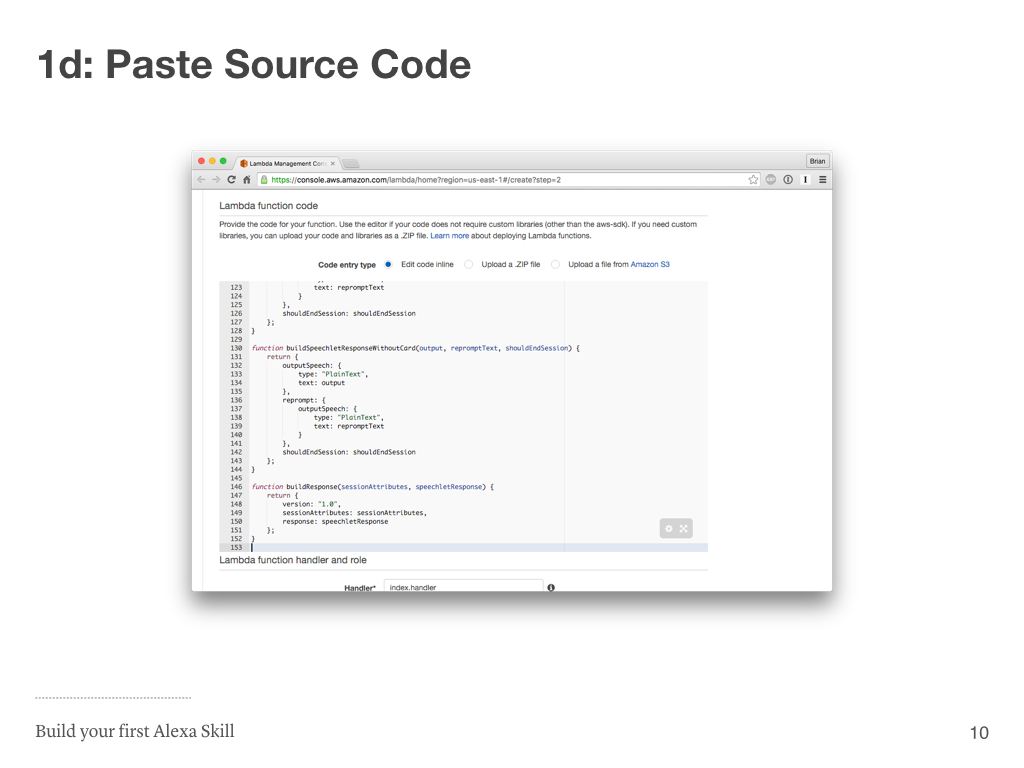
Back in Lambda, you’re going to scroll down a bit and paste the code you copied from GitHub into the large text box under “Lambda function code”.
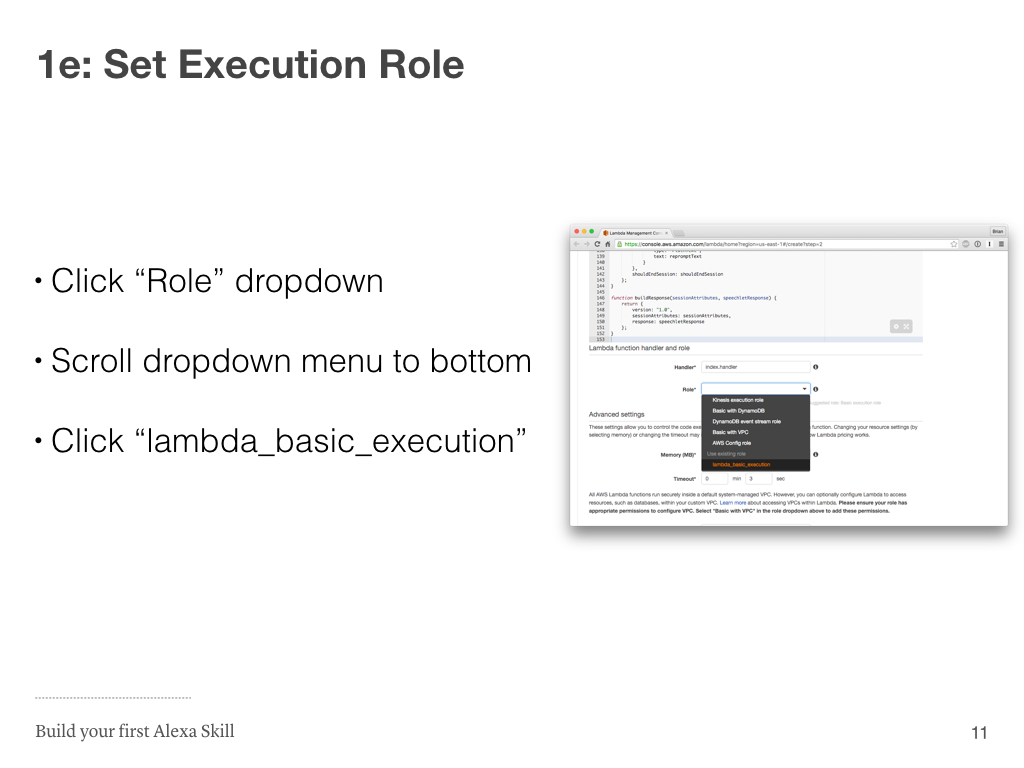
Scroll down a bit further to the “Lambda function handler and role” section. You’re going to want to set the role to “lambda\_basic\_execution”. It’s important to note that if this is your first time using Lambda, you’ll have to create the “lambda\_basic\_execution” role. You can do that by selecting the first option “* Basic Execution” and clicking the blue button on the next page. After you take that step, you should be able to select “lambda\_basic\_execution”.
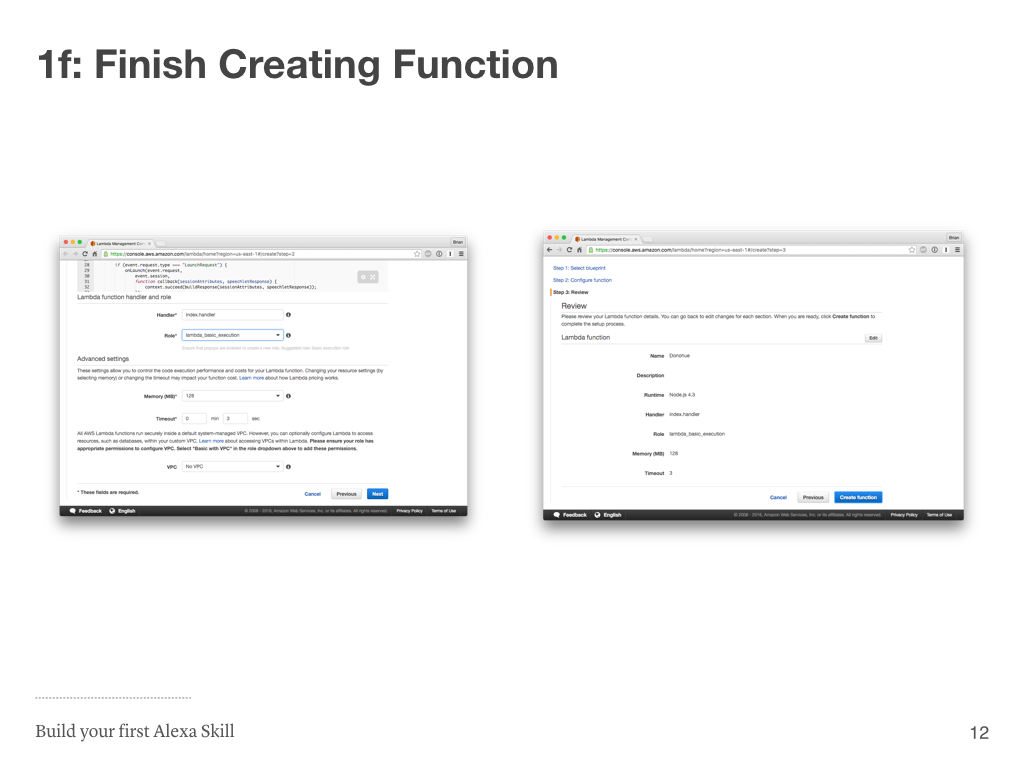
Once you’ve created the function, click on the “Event Sources” tab, then click the blue “Add event source” link, then select “Alexa Skills Kit” from the modal dropdown.
Please note if you’ve never signed up for the [Amazon Developer Portal](https://developer.amazon.com/edw/home.html#/skills/list), you’ll have to do that first before the “Alexa Skills Kit” will appear from the Event Sources dropdown. Please also make sure you use the same Amazon account as the one you’re using for AWS and your Echo.
## Step 1 Done

Keep the Amazon Lambda tab open though, we’ll need to come back to it!
## Step 2
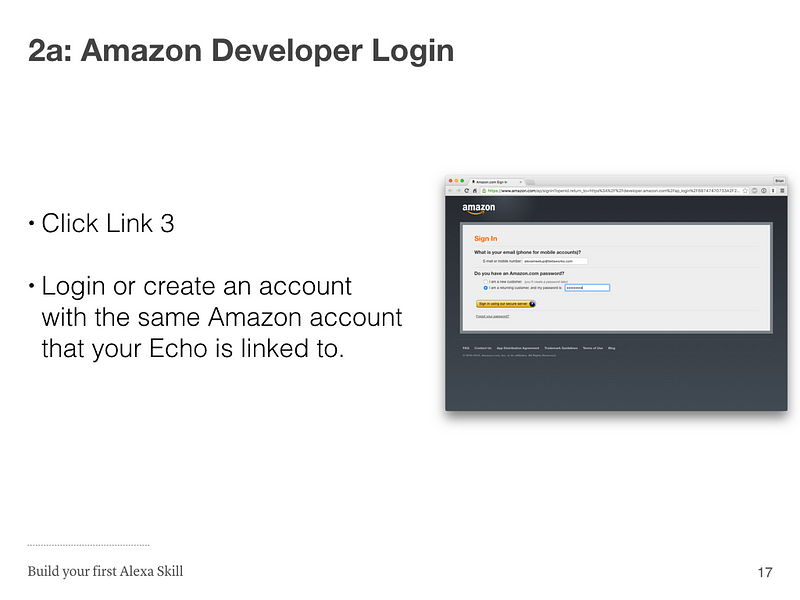
Open the [Amazon Developer Skills portal](https://developer.amazon.com/edw/home.html#/skills/list) and login with the same Amazon account that your Alexa device is linked with.

Click the yellow “Get Started >” button under “Alexa Skills Kit”, then the yellow “Add a New Skill” button on the next page.
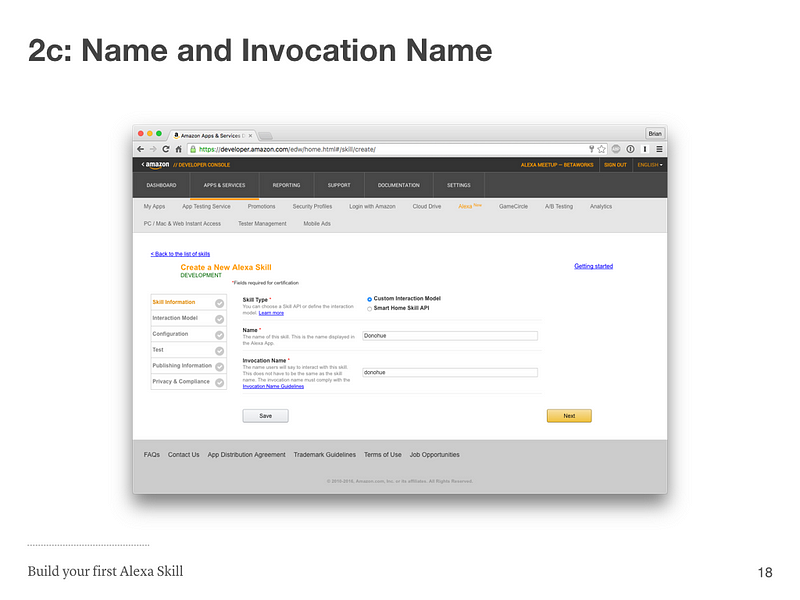
The name of your Amazon Alexa skill must be unique for your account, and the invocation name is what you’ll use to activate the skill. “Alexa, tell <invocation name> to say Hello, World”. You can use “Hello World” if you’re lacking in creativity. Click the yellow “Next” button when you’re ready!
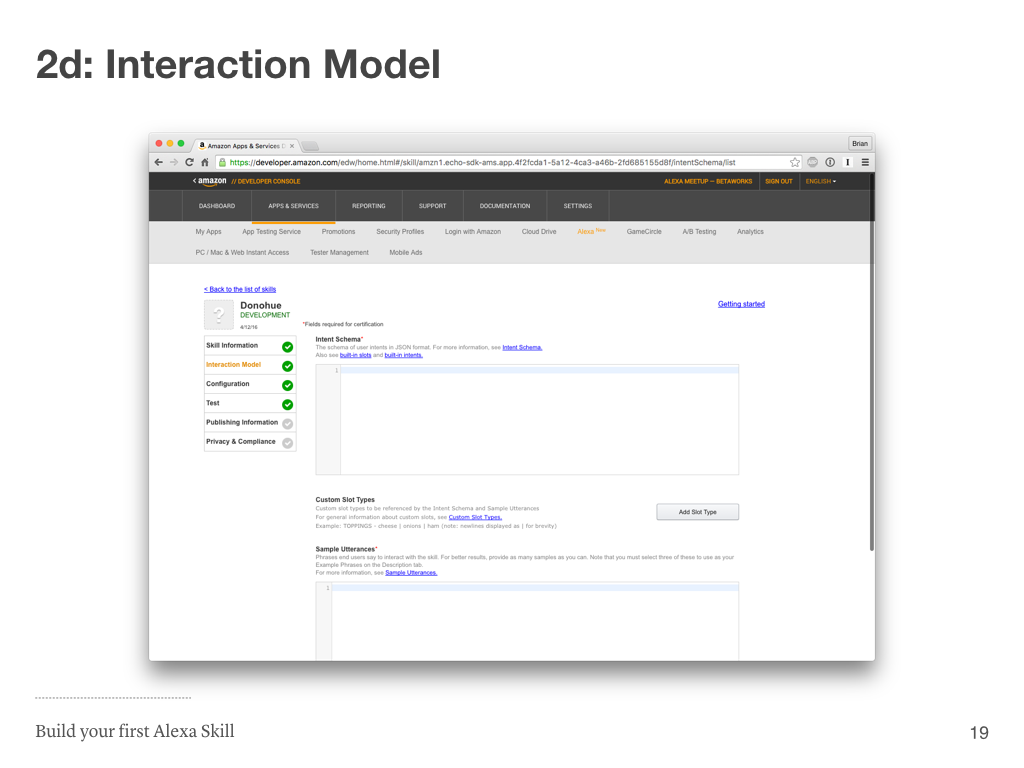
Here is where we’re going to tell the skill which intents we support, and what type of words will trigger each intent. Get ready for some copy and pasting.
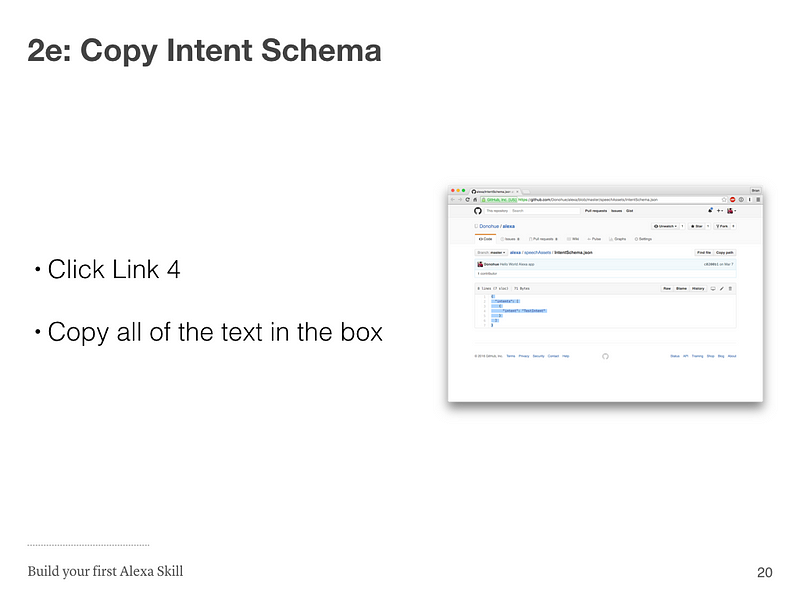
Open the [Hello World intent schema](https://github.com/Donohue/alexa/blob/master/speechAssets/IntentSchema.json) and copy all of the text in the box.
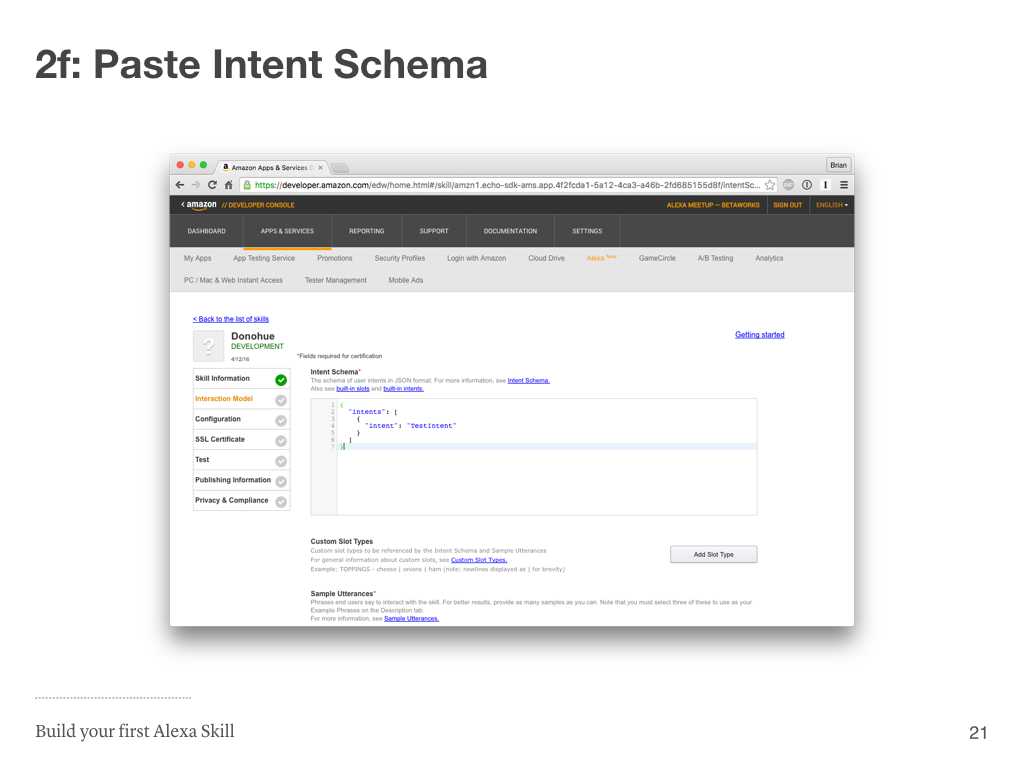
Back in the Amazon Skills portal, paste the intent schema you copied into the Intent Schema field.
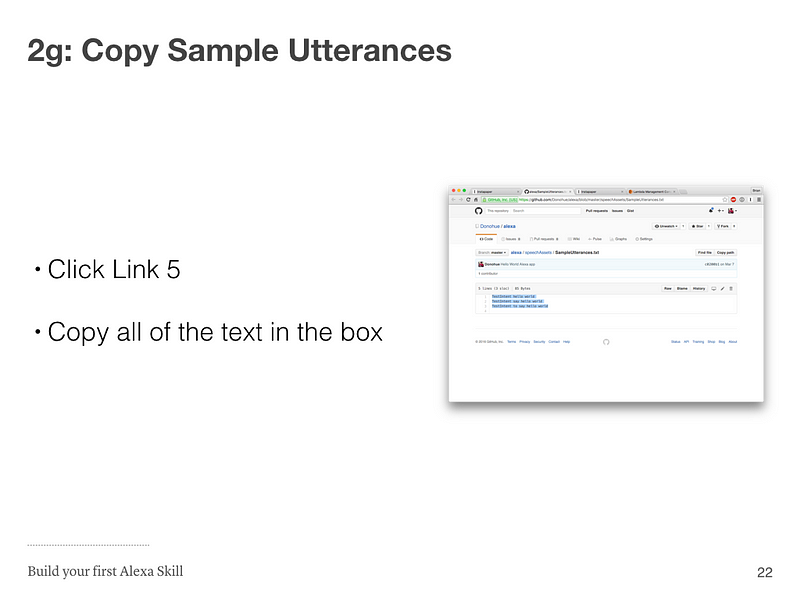
Open the [Hello World sample utterances](https://github.com/Donohue/alexa/blob/master/speechAssets/SampleUtterances.txt) and copy all of the text in the box.
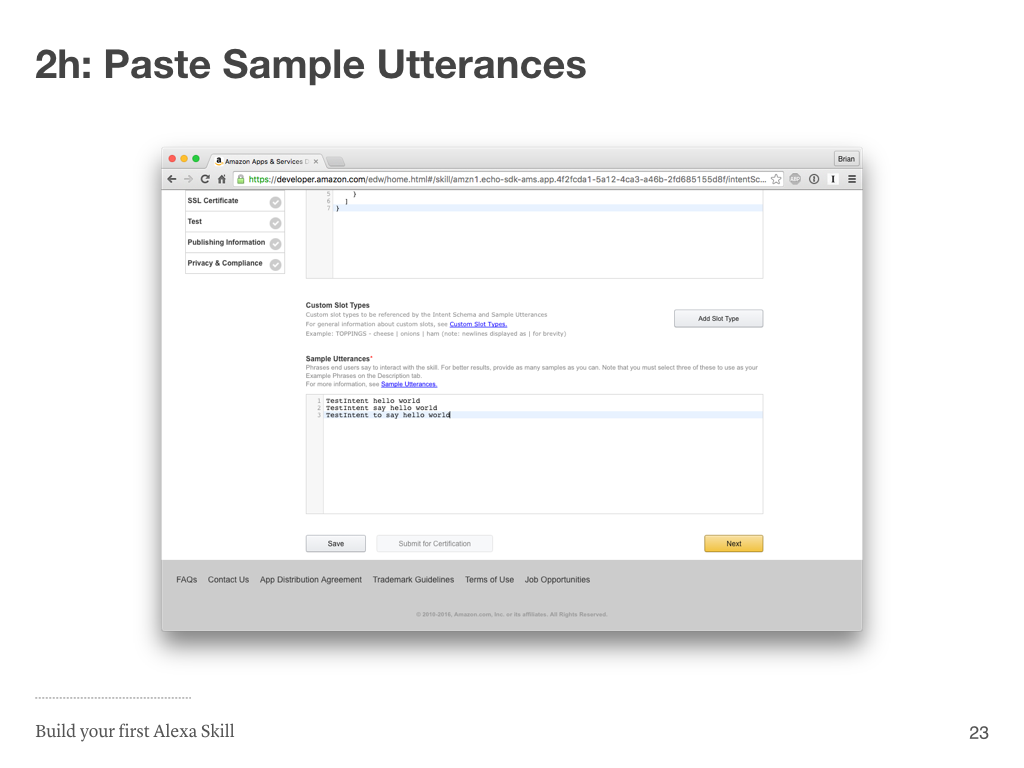
Back in the Amazon Skills portal, paste the sample utterances you copied into the Sample Utterances field. Click the yellow “Next” button after you’ve pasted the Sample Utterances.
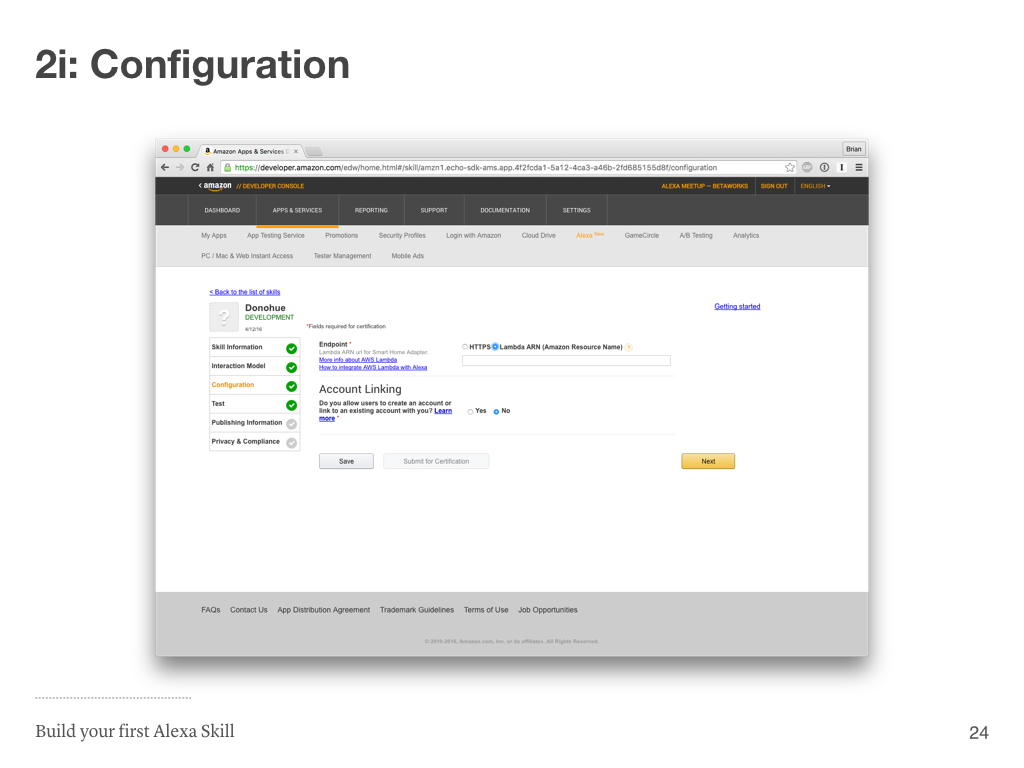
Change the radio button from “HTTPS” to “Lambda ARN” and select the “No” radio button under Account Linking. Now we’ll have to go and grab the Lambda Amazon Resource Name (ARN) from our Lambda tab. You still have that open, right?
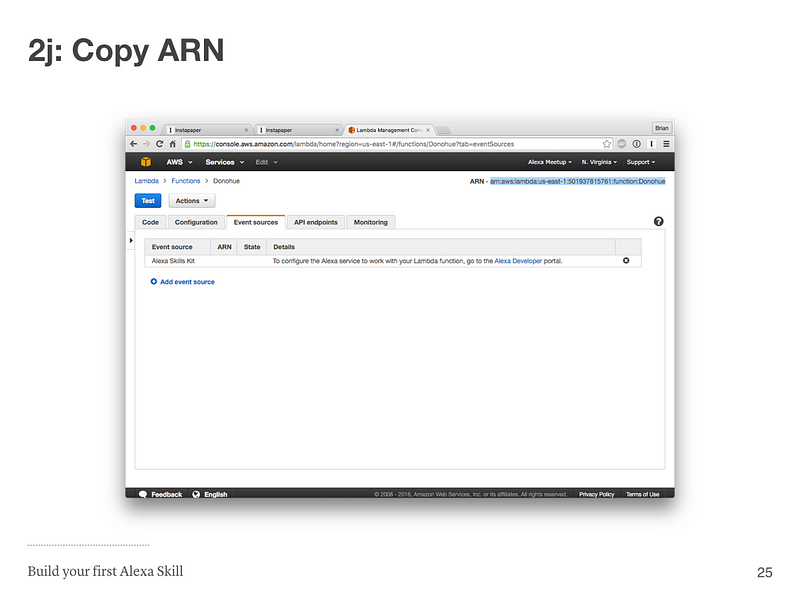
The ARN is on the top right of the Lambda function page. I have it selected in the image above. You’ll want to copy the selection as I have it above.
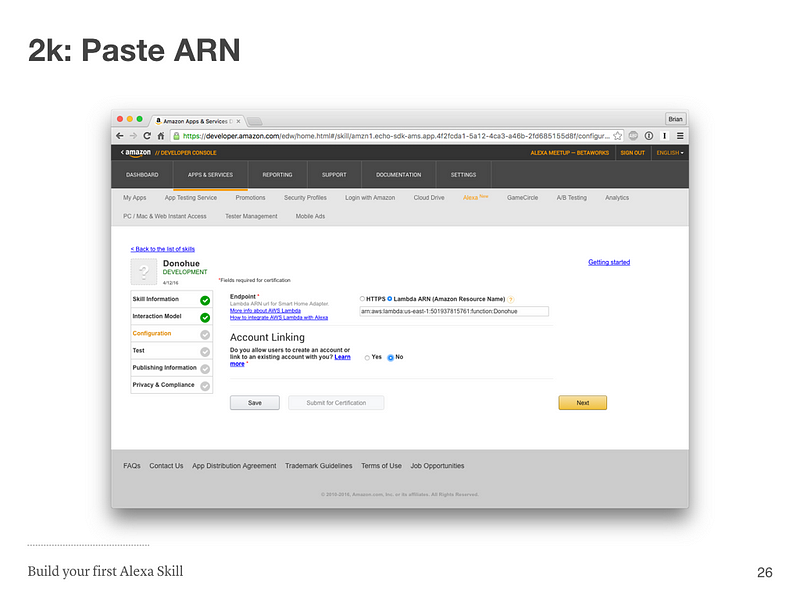
Paste the ARN into the text field, and press “Next”.
## Step 2 Done

## Step 3
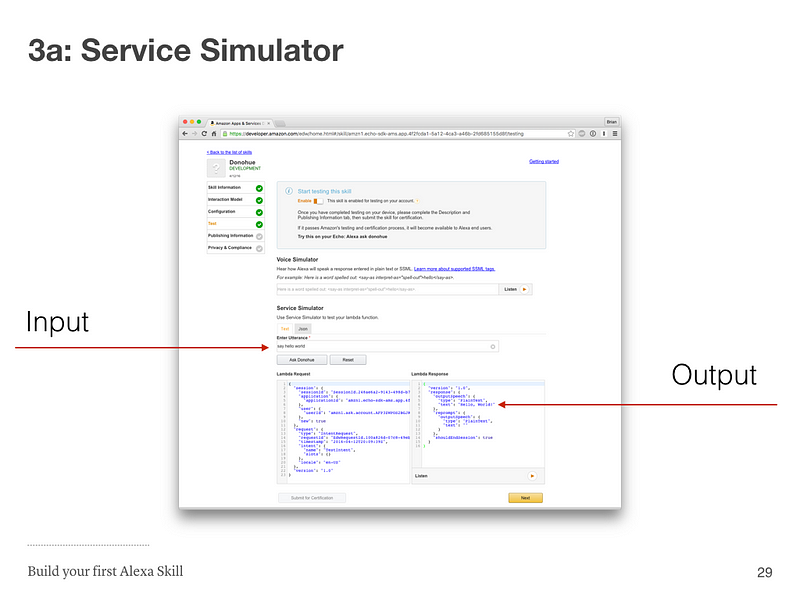
After you click “Next” on the “Configuration” tab, you should be on the “Test” tab. Under the “Service Simulator” portion you’ll be able to enter a sample utterance to trigger your skill. For the “Hello, World” example you should type “say hello world”, and on the right you should see the output from the Lambda function you created: “Hello, World!”
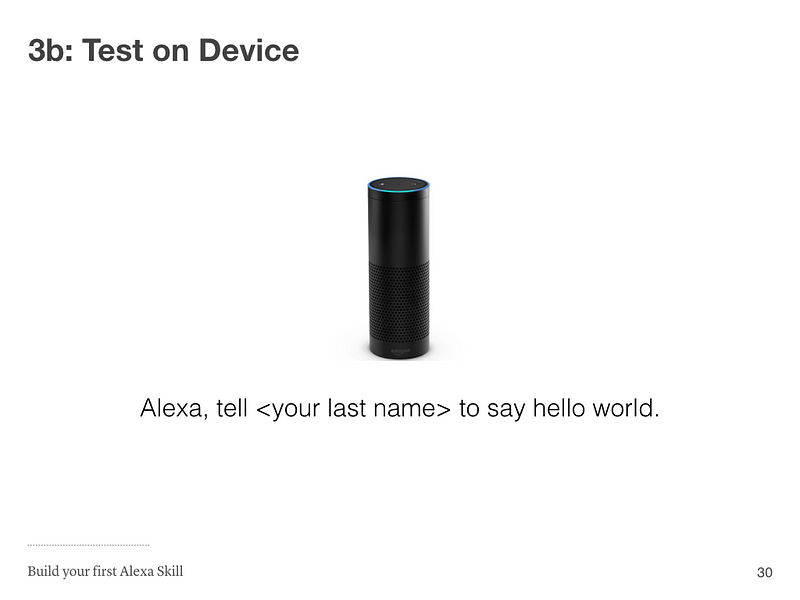
If you got the correct output using the Service Simulator, try it on the Amazon Echo. We were using “last name” as the invocation name in this presentation, but you should use the invocation name you set in step 2c.
> Alexa, tell Hello World to say Hello World
## Step 3 Done

Congrats, you just created your first Alexa skill! 👏👏
## Step 4: Customize
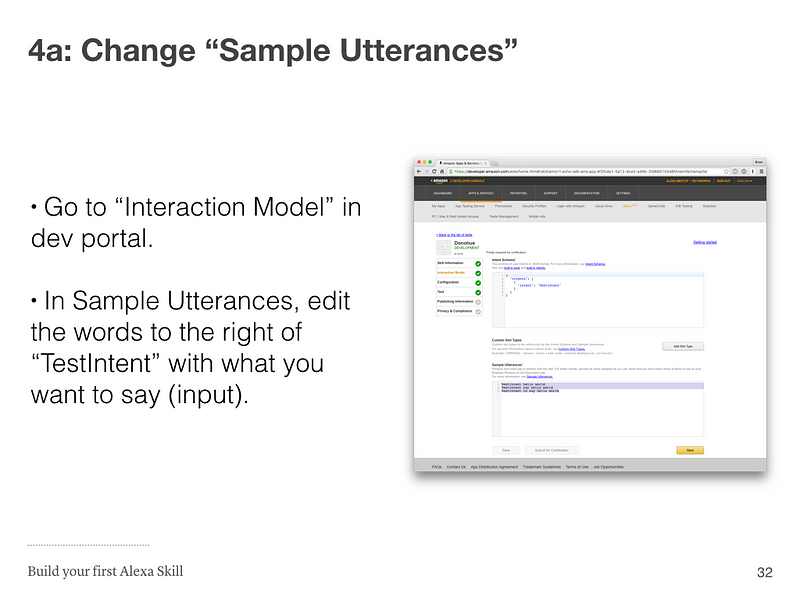
Go back to “Interaction Model” tab in the Alexa Skill Developer portal, and edit the words on the right of “TestIntent” with the words you would like to say to Alexa. An example might be “who is the coolest person on earth”, and you’d say “Alexa, ask <invocation name> who is the coolest person on earth?” Next we’ll customize the output.
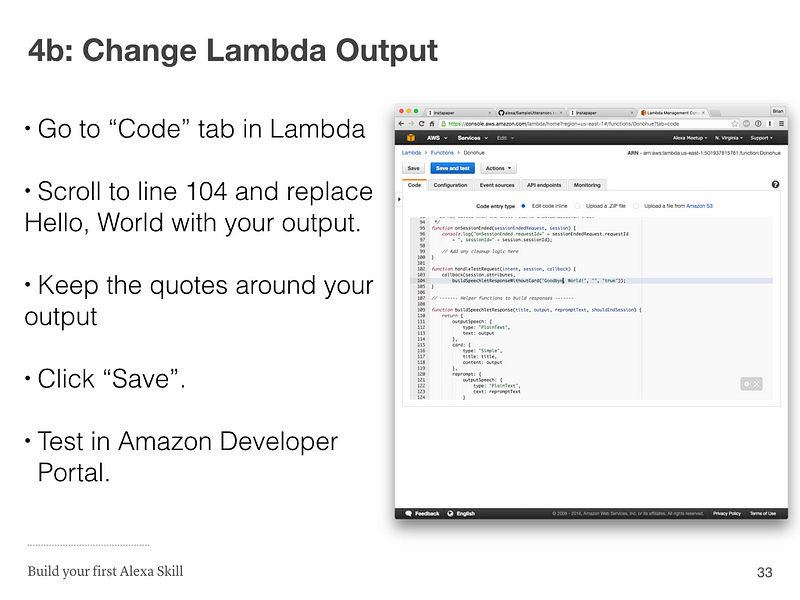
* Go to the "Code" tab in Lambda.
* Scroll to line 104 and replace Hello, World with your output.
* Keep the quotes around your output.
* Click "Save".
* Test in Amazon Developer Portal.
## Step 4 Done

================================================
FILE: speechAssets/IntentSchema.json
================================================
{
"intents": [
{
"intent": "TestIntent"
},
{
"intent":"AMAZON.PauseIntent"
},
{
"intent":"AMAZON.ResumeIntent"
}
]
}
================================================
FILE: speechAssets/SampleUtterances.txt
================================================
TestIntent hello world
TestIntent say hello world
TestIntent to say hello world
================================================
FILE: src/index.js
================================================
/**
Copyright 2016 Brian Donohue.
*/
'use strict';
// Route the incoming request based on type (LaunchRequest, IntentRequest,
// etc.) The JSON body of the request is provided in the event parameter.
exports.handler = function (event, context) {
try {
console.log("event.session.application.applicationId=" + event.session.application.applicationId);
/**
* Uncomment this if statement and populate with your skill's application ID to
* prevent someone else from configuring a skill that sends requests to this function.
*/
// if (event.session.application.applicationId !== "amzn1.echo-sdk-ams.app.05aecccb3-1461-48fb-a008-822ddrt6b516") {
// context.fail("Invalid Application ID");
// }
if (event.session.new) {
onSessionStarted({requestId: event.request.requestId}, event.session);
}
if (event.request.type === "LaunchRequest") {
onLaunch(event.request,
event.session,
function callback(sessionAttributes, speechletResponse) {
context.succeed(buildResponse(sessionAttributes, speechletResponse));
});
} else if (event.request.type === "IntentRequest") {
onIntent(event.request,
event.session,
function callback(sessionAttributes, speechletResponse) {
context.succeed(buildResponse(sessionAttributes, speechletResponse));
});
} else if (event.request.type === "SessionEndedRequest") {
onSessionEnded(event.request, event.session);
context.succeed();
}
} catch (e) {
context.fail("Exception: " + e);
}
};
/**
* Called when the session starts.
*/
function onSessionStarted(sessionStartedRequest, session) {
console.log("onSessionStarted requestId=" + sessionStartedRequest.requestId
+ ", sessionId=" + session.sessionId);
// add any session init logic here
}
/**
* Called when the user invokes the skill without specifying what they want.
*/
function onLaunch(launchRequest, session, callback) {
console.log("onLaunch requestId=" + launchRequest.requestId
+ ", sessionId=" + session.sessionId);
var cardTitle = "Hello, World!"
var speechOutput = "You can tell Hello, World! to say Hello, World!"
callback(session.attributes,
buildSpeechletResponse(cardTitle, speechOutput, "", true));
}
/**
* Called when the user specifies an intent for this skill.
*/
function onIntent(intentRequest, session, callback) {
console.log("onIntent requestId=" + intentRequest.requestId
+ ", sessionId=" + session.sessionId);
var intent = intentRequest.intent,
intentName = intentRequest.intent.name;
// dispatch custom intents to handlers here
if (intentName == 'TestIntent') {
handleTestRequest(intent, session, callback);
}
else {
throw "Invalid intent";
}
}
/**
* Called when the user ends the session.
* Is not called when the skill returns shouldEndSession=true.
*/
function onSessionEnded(sessionEndedRequest, session) {
console.log("onSessionEnded requestId=" + sessionEndedRequest.requestId
+ ", sessionId=" + session.sessionId);
// Add any cleanup logic here
}
function handleTestRequest(intent, session, callback) {
callback(session.attributes,
buildSpeechletResponseWithoutCard("Hello, World!", "", "true"));
}
// ------- Helper functions to build responses -------
function buildSpeechletResponse(title, output, repromptText, shouldEndSession) {
return {
outputSpeech: {
type: "PlainText",
text: output
},
card: {
type: "Simple",
title: title,
content: output
},
reprompt: {
outputSpeech: {
type: "PlainText",
text: repromptText
}
},
shouldEndSession: shouldEndSession
};
}
function buildSpeechletResponseWithoutCard(output, repromptText, shouldEndSession) {
return {
outputSpeech: {
type: "PlainText",
text: output
},
reprompt: {
outputSpeech: {
type: "PlainText",
text: repromptText
}
},
shouldEndSession: shouldEndSession
};
}
function buildResponse(sessionAttributes, speechletResponse) {
return {
version: "1.0",
sessionAttributes: sessionAttributes,
response: speechletResponse
};
}
gitextract_5t_1flm1/
├── .gitignore
├── README.md
├── speechAssets/
│ ├── IntentSchema.json
│ └── SampleUtterances.txt
└── src/
└── index.js
SYMBOL INDEX (8 symbols across 1 files)

FILE: src/index.js
  function onSessionStarted (line 52) | function onSessionStarted(sessionStartedRequest, session) {
  function onLaunch (line 62) | function onLaunch(launchRequest, session, callback) {
  function onIntent (line 75) | function onIntent(intentRequest, session, callback) {
  function onSessionEnded (line 95) | function onSessionEnded(sessionEndedRequest, session) {
  function handleTestRequest (line 102) | function handleTestRequest(intent, session, callback) {
  function buildSpeechletResponse (line 109) | function buildSpeechletResponse(title, output, repromptText, shouldEndSe...
  function buildSpeechletResponseWithoutCard (line 130) | function buildSpeechletResponseWithoutCard(output, repromptText, shouldE...
  function buildResponse (line 146) | function buildResponse(sessionAttributes, speechletResponse) {
Condensed preview — 5 files, each showing path, character count, and a content snippet. Download the .json file or copy for the full structured content (15K chars).
[
{
"path": ".gitignore",
"chars": 6,
"preview": "*.swp\n"
},
{
"path": "README.md",
"chars": 9287,
"preview": "# Build your First Alexa Skill\n\n. The extraction includes 5 files (13.8 KB), approximately 3.9k tokens, and a symbol index with 8 extracted functions, classes, methods, constants, and types. Use this with OpenClaw, Claude, ChatGPT, Cursor, Windsurf, or any other AI tool that accepts text input. You can copy the full output to your clipboard or download it as a .txt file.
Extracted by GitExtract — free GitHub repo to text converter for AI. Built by Nikandr Surkov.