Repository: TTyb/Baiduindex
Branch: master
Commit: 056f2e330bf1
Files: 6
Total size: 19.2 KB
Directory structure:
gitextract_uvpj2ktq/
├── README.md
├── baidu/
│ ├── account.txt
│ ├── index.txt
│ └── viewbox.md
├── py/
│ └── Baiduindex.py
└── update_log.md
================================================
FILE CONTENTS
================================================
================================================
FILE: README.md
================================================
## 百度指数抓取,再用图像识别得到指数
## 前言:
土福曾说,百度指数很难抓,在淘宝上面是20块1个关键字:
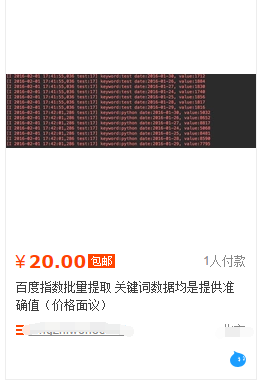
哥那么叼的人怎么会被他吓到,于是乎花了零零碎碎加起来大约2天半搞定,在此鄙视一下土福
### 安装的库很多:
>谷歌图像识别tesseract-ocr
>pip3 install pillow
>pip3 install pyocr
>selenium2.45
>Chrome47.0.2526.106 m or Firebox32.0.1
>chromedriver.exe
### 图像识别验证码请参考我的博客:
[python图像识别--验证码](http://www.cnblogs.com/TTyb/p/5996847.html)
### selenium用法请参考我的博客:
[python之selenium](http://www.cnblogs.com/TTyb/p/5842015.html)
### 进入百度指数需要登陆,登陆的账号密码写在文本account里面:

### 万能登陆代码如下:
```
# 打开浏览器
def openbrowser():
global browser
# https://passport.baidu.com/v2/?login
url = "https://passport.baidu.com/v2/?login&tpl=mn&u=http%3A%2F%2Fwww.baidu.com%2F"
# 打开谷歌浏览器
# Firefox()
# Chrome()
browser = webdriver.Chrome()
# 输入网址
browser.get(url)
# 打开浏览器时间
# print("等待10秒打开浏览器...")
# time.sleep(10)
# 找到id="TANGRAM__PSP_3__userName"的对话框
# 清空输入框
browser.find_element_by_id("TANGRAM__PSP_3__userName").clear()
browser.find_element_by_id("TANGRAM__PSP_3__password").clear()
# 输入账号密码
# 输入账号密码
account = []
try:
fileaccount = open("../baidu/account.txt")
accounts = fileaccount.readlines()
for acc in accounts:
account.append(acc.strip())
fileaccount.close()
except Exception as err:
print(err)
input("请正确在account.txt里面写入账号密码")
exit()
browser.find_element_by_id("TANGRAM__PSP_3__userName").send_keys(account[0])
browser.find_element_by_id("TANGRAM__PSP_3__password").send_keys(account[1])
# 点击登陆登陆
# id="TANGRAM__PSP_3__submit"
browser.find_element_by_id("TANGRAM__PSP_3__submit").click()
# 等待登陆10秒
# print('等待登陆10秒...')
# time.sleep(10)
print("等待网址加载完毕...")
select = input("请观察浏览器网站是否已经登陆(y/n):")
while 1:
if select == "y" or select == "Y":
print("登陆成功!")
print("准备打开新的窗口...")
# time.sleep(1)
# browser.quit()
break
elif select == "n" or select == "N":
selectno = input("账号密码错误请按0,验证码出现请按1...")
# 账号密码错误则重新输入
if selectno == "0":
# 找到id="TANGRAM__PSP_3__userName"的对话框
# 清空输入框
browser.find_element_by_id("TANGRAM__PSP_3__userName").clear()
browser.find_element_by_id("TANGRAM__PSP_3__password").clear()
# 输入账号密码
account = []
try:
fileaccount = open("../baidu/account.txt")
accounts = fileaccount.readlines()
for acc in accounts:
account.append(acc.strip())
fileaccount.close()
except Exception as err:
print(err)
input("请正确在account.txt里面写入账号密码")
exit()
browser.find_element_by_id("TANGRAM__PSP_3__userName").send_keys(account[0])
browser.find_element_by_id("TANGRAM__PSP_3__password").send_keys(account[1])
# 点击登陆sign in
# id="TANGRAM__PSP_3__submit"
browser.find_element_by_id("TANGRAM__PSP_3__submit").click()
elif selectno == "1":
# 验证码的id为id="ap_captcha_guess"的对话框
input("请在浏览器中输入验证码并登陆...")
select = input("请观察浏览器网站是否已经登陆(y/n):")
else:
print("请输入“y”或者“n”!")
select = input("请观察浏览器网站是否已经登陆(y/n):")
```
### 登陆的页面:

### 登陆过后需要打开新的窗口,也就是打开百度指数,并且切换窗口,在selenium用:
```
# 新开一个窗口,通过执行js来新开一个窗口
js = 'window.open("http://index.baidu.com");'
browser.execute_script(js)
# 新窗口句柄切换,进入百度指数
# 获得当前打开所有窗口的句柄handles
# handles为一个数组
handles = browser.window_handles
# print(handles)
# 切换到当前最新打开的窗口
browser.switch_to_window(handles[-1])
```
### 清空输入框,构造点击天数:
```
# 清空输入框
browser.find_element_by_id("schword").clear()
# 写入需要搜索的百度指数
browser.find_element_by_id("schword").send_keys(keyword)
# 点击搜索
#
browser.find_element_by_id("searchWords").click()
time.sleep(2)
# 最大化窗口
browser.maximize_window()
# 构造天数
sel = int(input("查询7天请按0,30天请按1,90天请按2,半年请按3:"))
day = 0
if sel == 0:
day = 7
elif sel == 1:
day = 30
elif sel == 2:
day = 90
elif sel == 3:
day = 180
sel = '//a[@rel="' + str(day) + '"]'
browser.find_element_by_xpath(sel).click()
# 太快了
time.sleep(2)
```
### 天数也就是这里:

### 找到图形框:
```
xoyelement = browser.find_elements_by_css_selector("#trend rect")[2]
```
### 图形框就是:

### 根据坐标点的不同构造偏移量:
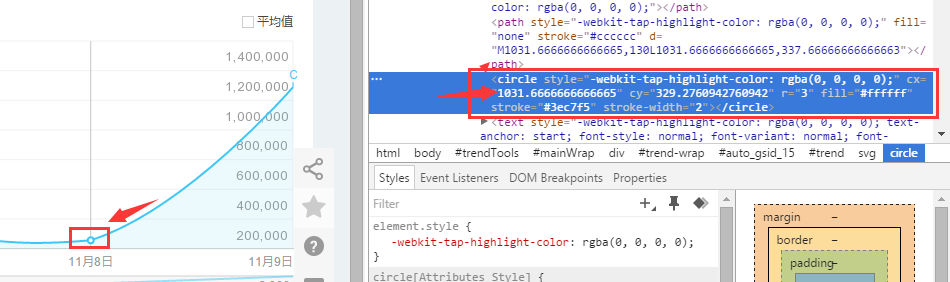
### 选取7天的坐标来观察:
>第一个点的横坐标为1031.66666
>第二个点的横坐标为1234

所以7天两个坐标之间的差为:202.33,其他的天数类似
### 用selenium库来模拟鼠标滑动悬浮:
```
from selenium.webdriver.common.action_chains import ActionChains
ActionChains(browser).move_to_element_with_offset(xoyelement,x_0,y_0).perform()
```
### 但是这样子确定的点指出是在这个位置:
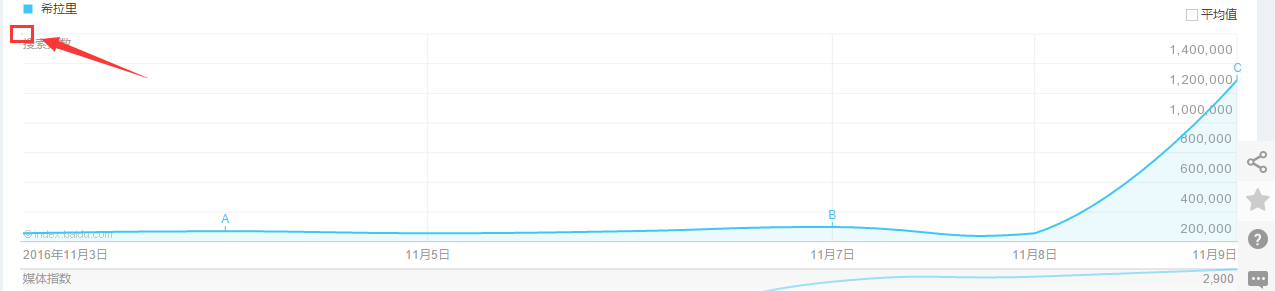
也就是矩形的左上角,这里是不会加载js显示弹出框的,所以要给横坐标+1:
```
x_0 = 1
y_0 = 0
```
### 写个按照天数的循环,让横坐标累加:
```
# 按照选择的天数循环
for i in range(day):
# 构造规则
if day == 7:
x_0 = x_0 + 202.33
elif day == 30:
x_0 = x_0 + 41.68
elif day == 90:
x_0 = x_0 + 13.64
elif day == 180:
x_0 = x_0 + 6.78
```
### 鼠标横移时会弹出框,在网址里面找到这个框:

### selenium自动识别之...:
```
#
imgelement = browser.find_element_by_xpath('//div[@id="viewbox"]')
```
### 并且确定这个框的大小位置:
```
# 找到图片坐标
locations = imgelement.location
print(locations)
# 找到图片大小
sizes = imgelement.size
print(sizes)
# 构造指数的位置
rangle = (int(locations['x']), int(locations['y']), int(locations['x'] + sizes['width']),
int(locations['y'] + sizes['height']))
```
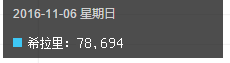
截取的图形为:
### 下面的思路就是:
>1. 将整个屏幕截图下来
>2. 打开截图用上面得到的这个坐标rangle进行裁剪
### 但是最后裁剪出来的是上面的那个黑框,我想要的效果是:
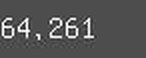
### 本次更新加入了对于关键词长度的判断,能够自动识别关键词长度而进行截取:
```
add_length = (len(keyword) - 2) * sizes['width'] / 15
```
### 找到位置:
```
# 跨浏览器兼容
scroll = browser.execute_script("return window.scrollY;")
top = locations['y'] - scroll
# 构造指数的位置
rangle = (
int(locations['x'] + sizes['width'] / 4 + add_length), int(top + sizes['height'] / 2),
int(locations['x'] + sizes['width'] * 2 / 3), int(top + sizes['height']))
```
### 后面的完整代码是:
```
#
imgelement = browser.find_element_by_xpath('//div[@id="viewbox"]')
# 找到图片坐标
locations = imgelement.location
print(locations)
# 找到图片大小
sizes = imgelement.size
print(sizes)
# 构造指数的位置
rangle = (int(locations['x'] + sizes['width']/3), int(locations['y'] + sizes['height']/2), int(locations['x'] + sizes['width']*2/3),
int(locations['y'] + sizes['height']))
# 截取当前浏览器
path = "../baidu/" + str(num)
browser.save_screenshot(str(path) + ".png")
# 打开截图切割
img = Image.open(str(path) + ".png")
jpg = img.crop(rangle)
jpg.save(str(path) + ".jpg")
```
### 但是后面发现裁剪的图片太小,识别精度太低,所以需要对图片进行扩大:
```
# 将图片放大一倍
# 原图大小73.29
jpgzoom = Image.open(str(path) + ".jpg")
(x, y) = jpgzoom.size
x_s = 146
y_s = 58
out = jpgzoom.resize((x_s, y_s), Image.ANTIALIAS)
out.save(path + 'zoom.jpg', 'png', quality=95)
```
原图大小请 **右键->属性->详细信息** 查看,我的是长73像素,宽29像素
### 最后就是图像识别
```
# 图像识别
index = []
image = Image.open(str(path) + "zoom.jpg")
code = pytesseract.image_to_string(image)
if code:
index.append(code)
```
### 最后效果图:
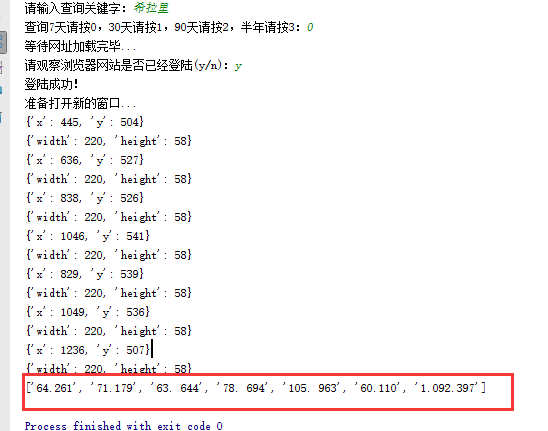

## 详细解说请观看我的博客:
[TTyb](http://www.cnblogs.com/TTyb)
# 更新日志:
> 2017-10-23修复截图位置不对的bug,优化关键词自动识别长度的漏洞
================================================
FILE: baidu/account.txt
================================================
你的账号
你的密码
================================================
FILE: baidu/index.txt
================================================
64.261
71.179
63. 644
78. 694
105. 963
60.110
1.092.397
================================================
FILE: baidu/viewbox.md
================================================
================================================
FILE: py/Baiduindex.py
================================================
# !/usr/bin/python3.4
# -*- coding: utf-8 -*-
# 百度指数的抓取
# 截图教程:http://www.myexception.cn/web/2040513.html
#
# 登陆百度地址:https://passport.baidu.com/v2/?login&tpl=mn&u=http%3A%2F%2Fwww.baidu.com%2F
# 百度指数地址:http://index.baidu.com
import time
from selenium import webdriver
from selenium.webdriver.common.action_chains import ActionChains
from PIL import Image
import pytesseract
# 打开浏览器
def openbrowser():
global browser
# https://passport.baidu.com/v2/?login
url = "https://passport.baidu.com/v2/?login&tpl=mn&u=http%3A%2F%2Fwww.baidu.com%2F"
# 打开谷歌浏览器
# Firefox()
# Chrome()
browser = webdriver.Chrome()
# 输入网址
browser.get(url)
# 打开浏览器时间
# print("等待10秒打开浏览器...")
# time.sleep(10)
# 找到id="TANGRAM__PSP_3__userName"的对话框
# 清空输入框
browser.find_element_by_id("TANGRAM__PSP_3__userName").clear()
browser.find_element_by_id("TANGRAM__PSP_3__password").clear()
# 输入账号密码
# 输入账号密码
account = []
try:
fileaccount = open("../baidu/account.txt", encoding='UTF-8')
accounts = fileaccount.readlines()
for acc in accounts:
account.append(acc.strip())
fileaccount.close()
except Exception as err:
print(err)
input("请正确在account.txt里面写入账号密码")
exit()
browser.find_element_by_id("TANGRAM__PSP_3__userName").send_keys(account[0])
browser.find_element_by_id("TANGRAM__PSP_3__password").send_keys(account[1])
# 点击登陆登陆
# id="TANGRAM__PSP_3__submit"
browser.find_element_by_id("TANGRAM__PSP_3__submit").click()
# 等待登陆10秒
# print('等待登陆10秒...')
# time.sleep(10)
print("等待网址加载完毕...")
select = input("请观察浏览器网站是否已经登陆(y/n):")
while 1:
if select == "y" or select == "Y":
print("登陆成功!")
print("准备打开新的窗口...")
# time.sleep(1)
# browser.quit()
break
elif select == "n" or select == "N":
selectno = input("账号密码错误请按0,验证码出现请按1...")
# 账号密码错误则重新输入
if selectno == "0":
# 找到id="TANGRAM__PSP_3__userName"的对话框
# 清空输入框
browser.find_element_by_id("TANGRAM__PSP_3__userName").clear()
browser.find_element_by_id("TANGRAM__PSP_3__password").clear()
# 输入账号密码
account = []
try:
fileaccount = open("../baidu/account.txt", encoding='UTF-8')
accounts = fileaccount.readlines()
for acc in accounts:
account.append(acc.strip())
fileaccount.close()
except Exception as err:
print(err)
input("请正确在account.txt里面写入账号密码")
exit()
browser.find_element_by_id("TANGRAM__PSP_3__userName").send_keys(account[0])
browser.find_element_by_id("TANGRAM__PSP_3__password").send_keys(account[1])
# 点击登陆sign in
# id="TANGRAM__PSP_3__submit"
browser.find_element_by_id("TANGRAM__PSP_3__submit").click()
elif selectno == "1":
# 验证码的id为id="ap_captcha_guess"的对话框
input("请在浏览器中输入验证码并登陆...")
select = input("请观察浏览器网站是否已经登陆(y/n):")
else:
print("请输入“y”或者“n”!")
select = input("请观察浏览器网站是否已经登陆(y/n):")
def getindex(keyword, day):
openbrowser()
time.sleep(2)
# 这里开始进入百度指数
# 要不这里就不要关闭了,新打开一个窗口
# http://blog.csdn.net/DongGeGe214/article/details/52169761
# 新开一个窗口,通过执行js来新开一个窗口
js = 'window.open("http://index.baidu.com");'
browser.execute_script(js)
# 新窗口句柄切换,进入百度指数
# 获得当前打开所有窗口的句柄handles
# handles为一个数组
handles = browser.window_handles
# print(handles)
# 切换到当前最新打开的窗口
browser.switch_to_window(handles[-1])
# 在新窗口里面输入网址百度指数
# 清空输入框
time.sleep(5)
browser.find_element_by_id("schword").clear()
# 写入需要搜索的百度指数
browser.find_element_by_id("schword").send_keys(keyword)
# 点击搜索
#
browser.find_element_by_id("searchWords").click()
time.sleep(5)
# 最大化窗口
browser.maximize_window()
time.sleep(2)
# 构造天数
sel = '//a[@rel="' + str(day) + '"]'
browser.find_element_by_xpath(sel).click()
# 太快了
time.sleep(2)
# 滑动思路:http://blog.sina.com.cn/s/blog_620987bf0102v2r8.html
# 滑动思路:http://blog.csdn.net/zhouxuan623/article/details/39338511
# 向上移动鼠标80个像素,水平方向不同
# ActionChains(browser).move_by_offset(0,-80).perform()
#