Repository: Zeyi-Lin/HivisionIDPhotos
Branch: master
Commit: f604bb19287e
Files: 67
Total size: 342.3 KB
Directory structure:
gitextract_73u6gdnp/
├── .devcontainer/
│ ├── devcontainer.json
│ └── start.sh
├── .github/
│ └── workflows/
│ └── build-image.yml
├── .gitignore
├── Dockerfile
├── LICENSE
├── README.md
├── README_EN.md
├── README_JP.md
├── README_KO.md
├── app.py
├── app.spec
├── demo/
│ ├── assets/
│ │ ├── color_list_CN.csv
│ │ ├── color_list_EN.csv
│ │ ├── size_list_CN.csv
│ │ ├── size_list_EN.csv
│ │ └── title.md
│ ├── config.py
│ ├── locales.py
│ ├── processor.py
│ ├── ui.py
│ └── utils.py
├── deploy_api.py
├── docker-compose.yml
├── docs/
│ ├── api_CN.md
│ ├── api_EN.md
│ ├── face++_CN.md
│ └── face++_EN.md
├── hivision/
│ ├── __init__.py
│ ├── creator/
│ │ ├── __init__.py
│ │ ├── choose_handler.py
│ │ ├── context.py
│ │ ├── face_detector.py
│ │ ├── human_matting.py
│ │ ├── layout_calculator.py
│ │ ├── move_image.py
│ │ ├── photo_adjuster.py
│ │ ├── retinaface/
│ │ │ ├── __init__.py
│ │ │ ├── box_utils.py
│ │ │ ├── inference.py
│ │ │ ├── prior_box.py
│ │ │ └── weights/
│ │ │ └── .gitkeep
│ │ ├── rotation_adjust.py
│ │ ├── tensor2numpy.py
│ │ ├── utils.py
│ │ └── weights/
│ │ └── .gitkeep
│ ├── error.py
│ ├── plugin/
│ │ ├── beauty/
│ │ │ ├── __init__.py
│ │ │ ├── base_adjust.py
│ │ │ ├── beauty_tools.py
│ │ │ ├── grind_skin.py
│ │ │ ├── handler.py
│ │ │ ├── thin_face.py
│ │ │ └── whitening.py
│ │ ├── font/
│ │ │ └── .gitkeep
│ │ ├── template/
│ │ │ ├── assets/
│ │ │ │ └── template_config.json
│ │ │ └── template_calculator.py
│ │ └── watermark.py
│ └── utils.py
├── inference.py
├── requirements-app.txt
├── requirements-dev.txt
├── requirements.txt
├── scripts/
│ ├── build_pypi.py
│ └── download_model.py
└── test/
├── create_id_photo.py
└── temp/
└── .gitkeep
================================================
FILE CONTENTS
================================================
================================================
FILE: .devcontainer/devcontainer.json
================================================
// For format details, see https://aka.ms/devcontainer.json. For config options, see the
// README at: https://github.com/devcontainers/templates/tree/main/src/universal
{
"name": "Default Linux Universal",
// Or use a Dockerfile or Docker Compose file. More info: https://containers.dev/guide/dockerfile
"image": "mcr.microsoft.com/devcontainers/universal:2-linux",
// Features to add to the dev container. More info: https://containers.dev/features.
// "features": {},
// Use 'forwardPorts' to make a list of ports inside the container available locally.
// "forwardPorts": [],
// Use 'postCreateCommand' to run commands after the container is created.
"onCreateCommand": "sh .devcontainer/start.sh",
// Configure tool-specific properties.
"customizations": {
"vscode": {
"extensions": [
"ms-python.python",
"eamodio.gitlens",
"mhutchie.git-graph"
]
}
}
// Uncomment to connect as root instead. More info: https://aka.ms/dev-containers-non-root.
// "remoteUser": "root"
}
================================================
FILE: .devcontainer/start.sh
================================================
sudo apt-get update && sudo apt-get install ffmpeg libsm6 libxext6 -y
conda create -n HivisionIDPhotos python=3.10 -y
conda init
echo 'conda activate HivisionIDPhotos' >> ~/.bashrc
ENV_PATH="/opt/conda/envs/HivisionIDPhotos/bin"
$ENV_PATH/pip install -r requirements.txt -r requirements-app.txt -r requirements-dev.txt
$ENV_PATH/python scripts/download_model.py --models all
================================================
FILE: .github/workflows/build-image.yml
================================================
name: build image and push
on:
push:
tags:
- '*'
jobs:
docker:
runs-on: ubuntu-latest
environment: release
steps:
- name: Checkout
uses: actions/checkout@v4
- name: Set up Python
uses: actions/setup-python@v4
with:
python-version: '3.10'
- name: Install dependencies
run: pip install requests tqdm
- name: Download models
run: python scripts/download_model.py --models all
- name: Set up QEMU
uses: docker/setup-qemu-action@v3
- name: Set up Docker Buildx
uses: docker/setup-buildx-action@v3
- name: Login to Docker Hub
uses: docker/login-action@v3
with:
username: ${{ vars.DOCKERHUB_USERNAME }}
password: ${{ secrets.DOCKERHUB_TOKEN }}
- name: Build and push
uses: docker/build-push-action@v6
with:
context: .
platforms: linux/amd64,linux/arm64
push: true
tags: |
${{ vars.IMAGE_NAME }}:latest
${{ vars.IMAGE_NAME }}:${{ github.ref_name }}
================================================
FILE: .gitignore
================================================
*.pyc
**/__pycache__/
.idea
.vscode/*
.history
.DS_Store
.env
demo/kb_output/*.jpg
demo/kb_output/*.png
scripts/sync_swanhub.py
scripts/sync_huggingface.py
scripts/sync_modelscope.py
scripts/sync_all.py
**/flagged/
# build outputs
dist
build
# checkpoint
*.pth
*.pt
*.onnx
*.mnn
test/temp/*
!test/temp/.gitkeep
.python-version
# Ignore .png and .jpg files in the root directory
/*.png
/*.jpg
================================================
FILE: Dockerfile
================================================
FROM python:3.10-slim
# Install system dependencies
RUN apt-get update && apt-get install -y --no-install-recommends \
ffmpeg \
libgl1-mesa-glx \
libglib2.0-0 \
&& rm -rf /var/lib/apt/lists/*
WORKDIR /app
COPY requirements.txt requirements-app.txt ./
RUN pip install --no-cache-dir -r requirements.txt -r requirements-app.txt
COPY . .
EXPOSE 7860
EXPOSE 8080
CMD ["python3", "-u", "app.py", "--host", "0.0.0.0", "--port", "7860"]
================================================
FILE: LICENSE
================================================
Apache License
Version 2.0, January 2004
http://www.apache.org/licenses/
TERMS AND CONDITIONS FOR USE, REPRODUCTION, AND DISTRIBUTION
1. Definitions.
"License" shall mean the terms and conditions for use, reproduction,
and distribution as defined by Sections 1 through 9 of this document.
"Licensor" shall mean the copyright owner or entity authorized by
the copyright owner that is granting the License.
"Legal Entity" shall mean the union of the acting entity and all
other entities that control, are controlled by, or are under common
control with that entity. For the purposes of this definition,
"control" means (i) the power, direct or indirect, to cause the
direction or management of such entity, whether by contract or
otherwise, or (ii) ownership of fifty percent (50%) or more of the
outstanding shares, or (iii) beneficial ownership of such entity.
"You" (or "Your") shall mean an individual or Legal Entity
exercising permissions granted by this License.
"Source" form shall mean the preferred form for making modifications,
including but not limited to software source code, documentation
source, and configuration files.
"Object" form shall mean any form resulting from mechanical
transformation or translation of a Source form, including but
not limited to compiled object code, generated documentation,
and conversions to other media types.
"Work" shall mean the work of authorship, whether in Source or
Object form, made available under the License, as indicated by a
copyright notice that is included in or attached to the work
(an example is provided in the Appendix below).
"Derivative Works" shall mean any work, whether in Source or Object
form, that is based on (or derived from) the Work and for which the
editorial revisions, annotations, elaborations, or other modifications
represent, as a whole, an original work of authorship. For the purposes
of this License, Derivative Works shall not include works that remain
separable from, or merely link (or bind by name) to the interfaces of,
the Work and Derivative Works thereof.
"Contribution" shall mean any work of authorship, including
the original version of the Work and any modifications or additions
to that Work or Derivative Works thereof, that is intentionally
submitted to Licensor for inclusion in the Work by the copyright owner
or by an individual or Legal Entity authorized to submit on behalf of
the copyright owner. For the purposes of this definition, "submitted"
means any form of electronic, verbal, or written communication sent
to the Licensor or its representatives, including but not limited to
communication on electronic mailing lists, source code control systems,
and issue tracking systems that are managed by, or on behalf of, the
Licensor for the purpose of discussing and improving the Work, but
excluding communication that is conspicuously marked or otherwise
designated in writing by the copyright owner as "Not a Contribution."
"Contributor" shall mean Licensor and any individual or Legal Entity
on behalf of whom a Contribution has been received by Licensor and
subsequently incorporated within the Work.
2. Grant of Copyright License. Subject to the terms and conditions of
this License, each Contributor hereby grants to You a perpetual,
worldwide, non-exclusive, no-charge, royalty-free, irrevocable
copyright license to reproduce, prepare Derivative Works of,
publicly display, publicly perform, sublicense, and distribute the
Work and such Derivative Works in Source or Object form.
3. Grant of Patent License. Subject to the terms and conditions of
this License, each Contributor hereby grants to You a perpetual,
worldwide, non-exclusive, no-charge, royalty-free, irrevocable
(except as stated in this section) patent license to make, have made,
use, offer to sell, sell, import, and otherwise transfer the Work,
where such license applies only to those patent claims licensable
by such Contributor that are necessarily infringed by their
Contribution(s) alone or by combination of their Contribution(s)
with the Work to which such Contribution(s) was submitted. If You
institute patent litigation against any entity (including a
cross-claim or counterclaim in a lawsuit) alleging that the Work
or a Contribution incorporated within the Work constitutes direct
or contributory patent infringement, then any patent licenses
granted to You under this License for that Work shall terminate
as of the date such litigation is filed.
4. Redistribution. You may reproduce and distribute copies of the
Work or Derivative Works thereof in any medium, with or without
modifications, and in Source or Object form, provided that You
meet the following conditions:
(a) You must give any other recipients of the Work or
Derivative Works a copy of this License; and
(b) You must cause any modified files to carry prominent notices
stating that You changed the files; and
(c) You must retain, in the Source form of any Derivative Works
that You distribute, all copyright, patent, trademark, and
attribution notices from the Source form of the Work,
excluding those notices that do not pertain to any part of
the Derivative Works; and
(d) If the Work includes a "NOTICE" text file as part of its
distribution, then any Derivative Works that You distribute must
include a readable copy of the attribution notices contained
within such NOTICE file, excluding those notices that do not
pertain to any part of the Derivative Works, in at least one
of the following places: within a NOTICE text file distributed
as part of the Derivative Works; within the Source form or
documentation, if provided along with the Derivative Works; or,
within a display generated by the Derivative Works, if and
wherever such third-party notices normally appear. The contents
of the NOTICE file are for informational purposes only and
do not modify the License. You may add Your own attribution
notices within Derivative Works that You distribute, alongside
or as an addendum to the NOTICE text from the Work, provided
that such additional attribution notices cannot be construed
as modifying the License.
You may add Your own copyright statement to Your modifications and
may provide additional or different license terms and conditions
for use, reproduction, or distribution of Your modifications, or
for any such Derivative Works as a whole, provided Your use,
reproduction, and distribution of the Work otherwise complies with
the conditions stated in this License.
5. Submission of Contributions. Unless You explicitly state otherwise,
any Contribution intentionally submitted for inclusion in the Work
by You to the Licensor shall be under the terms and conditions of
this License, without any additional terms or conditions.
Notwithstanding the above, nothing herein shall supersede or modify
the terms of any separate license agreement you may have executed
with Licensor regarding such Contributions.
6. Trademarks. This License does not grant permission to use the trade
names, trademarks, service marks, or product names of the Licensor,
except as required for reasonable and customary use in describing the
origin of the Work and reproducing the content of the NOTICE file.
7. Disclaimer of Warranty. Unless required by applicable law or
agreed to in writing, Licensor provides the Work (and each
Contributor provides its Contributions) on an "AS IS" BASIS,
WITHOUT WARRANTIES OR CONDITIONS OF ANY KIND, either express or
implied, including, without limitation, any warranties or conditions
of TITLE, NON-INFRINGEMENT, MERCHANTABILITY, or FITNESS FOR A
PARTICULAR PURPOSE. You are solely responsible for determining the
appropriateness of using or redistributing the Work and assume any
risks associated with Your exercise of permissions under this License.
8. Limitation of Liability. In no event and under no legal theory,
whether in tort (including negligence), contract, or otherwise,
unless required by applicable law (such as deliberate and grossly
negligent acts) or agreed to in writing, shall any Contributor be
liable to You for damages, including any direct, indirect, special,
incidental, or consequential damages of any character arising as a
result of this License or out of the use or inability to use the
Work (including but not limited to damages for loss of goodwill,
work stoppage, computer failure or malfunction, or any and all
other commercial damages or losses), even if such Contributor
has been advised of the possibility of such damages.
9. Accepting Warranty or Additional Liability. While redistributing
the Work or Derivative Works thereof, You may choose to offer,
and charge a fee for, acceptance of support, warranty, indemnity,
or other liability obligations and/or rights consistent with this
License. However, in accepting such obligations, You may act only
on Your own behalf and on Your sole responsibility, not on behalf
of any other Contributor, and only if You agree to indemnify,
defend, and hold each Contributor harmless for any liability
incurred by, or claims asserted against, such Contributor by reason
of your accepting any such warranty or additional liability.
END OF TERMS AND CONDITIONS
APPENDIX: How to apply the Apache License to your work.
To apply the Apache License to your work, attach the following
boilerplate notice, with the fields enclosed by brackets "[]"
replaced with your own identifying information. (Don't include
the brackets!) The text should be enclosed in the appropriate
comment syntax for the file format. We also recommend that a
file or class name and description of purpose be included on the
same "printed page" as the copyright notice for easier
identification within third-party archives.
Copyright [yyyy] [name of copyright owner]
Licensed under the Apache License, Version 2.0 (the "License");
you may not use this file except in compliance with the License.
You may obtain a copy of the License at
http://www.apache.org/licenses/LICENSE-2.0
Unless required by applicable law or agreed to in writing, software
distributed under the License is distributed on an "AS IS" BASIS,
WITHOUT WARRANTIES OR CONDITIONS OF ANY KIND, either express or implied.
See the License for the specific language governing permissions and
limitations under the License.
================================================
FILE: README.md
================================================

HivisionIDPhoto
[English](README_EN.md) / 中文 / [日本語](README_JP.md) / [한국어](README_KO.md)
[![][release-shield]][release-link]
[![][dockerhub-shield]][dockerhub-link]
[![][github-stars-shield]][github-stars-link]
[![][github-issues-shield]][github-issues-link]
[![][github-contributors-shield]][github-contributors-link]
[![][github-forks-shield]][github-forks-link]
[![][license-shield]][license-link]
[![][wechat-shield]][wechat-link]
[![][spaces-shield]][spaces-link]
[![][swanhub-demo-shield]][swanhub-demo-link]
[![][modelscope-shield]][modelscope-link]
[![][modelers-shield]][modelers-link]
[![][compshare-shield]][compshare-link]
[![][atomgit-shield]][atomgit-link]
[![][trendshift-shield]][trendshift-link]
[![][hellogithub-shield]][hellogithub-link]

> **相关项目**:
>
> - [SwanLab](https://github.com/SwanHubX/SwanLab):一个开源、现代化设计的深度学习训练跟踪与可视化工具,同时支持云端/离线使用,国内好用的Wandb平替;适配30+主流框架(PyTorch、HuggingFace Transformers、LLaMA Factory、Lightning等),欢迎使用!
# 目录
- [最近更新](#-最近更新)
- [项目简介](#-项目简介)
- [社区](#-社区)
- [准备工作](#-准备工作)
- [Demo启动](#-运行-gradio-demo)
- [Python推理](#-python-推理)
- [API服务部署](#️-部署-api-服务)
- [Docker部署](#-docker-部署)
- [联系我们](#-联系我们)
- [FAQ](#faq)
- [感谢支持](#-感谢支持)
- [License](#-lincese)
- [引用](#-引用)
# 🤩 最近更新
- 在线体验: [](https://huggingface.co/spaces/TheEeeeLin/HivisionIDPhotos)、[![][modelscope-shield]][modelscope-link]、[![][modelers-shield]][modelers-link]、[![][compshare-shield]][compshare-link]
- 2024.11.20: Gradio Demo增加**打印排版**选项卡,支持六寸、五寸、A4、3R、4R五种排版尺寸
- 2024.11.16: API接口增加美颜参数
- 2024.09.25: 增加**五寸相纸**和**JPEG下载**选项|默认照片下载支持300DPI
- 2024.09.24: API接口增加base64图像传入选项 | Gradio Demo增加**排版照裁剪线**功能
- 2024.09.22: Gradio Demo增加**野兽模式**,可设置内存加载策略 | API接口增加**dpi、face_alignment**参数
- 2024.09.18: Gradio Demo增加**分享模版照**功能、增加**美式证件照**背景选项
- 2024.09.17: Gradio Demo增加**自定义底色-HEX输入**功能 | **(社区贡献)C++版本** - [HivisionIDPhotos-cpp](https://github.com/zjkhahah/HivisionIDPhotos-cpp) 贡献 by [zjkhahah](https://github.com/zjkhahah)
- 2024.09.16: Gradio Demo增加**人脸旋转对齐**功能,自定义尺寸输入支持**毫米**单位
# 项目简介
> 🚀 谢谢你对我们的工作感兴趣。您可能还想查看我们在图像领域的其他成果,欢迎来信:zeyi.lin@swanhub.co.
HivisionIDPhoto 旨在开发一种实用、系统性的证件照智能制作算法。
它利用一套完善的AI模型工作流程,实现对多种用户拍照场景的识别、抠图与证件照生成。
**HivisionIDPhoto 可以做到:**
1. 轻量级抠图(纯离线,仅需 **CPU** 即可快速推理)
2. 根据不同尺寸规格生成不同的标准证件照、六寸排版照
3. 支持 纯离线 或 端云 推理
4. 美颜
5. 智能换正装(waiting)

---
如果 HivisionIDPhoto 对你有帮助,请 star 这个 repo 或推荐给你的朋友,解决证件照应急制作问题!
# 🏠 社区
我们分享了一些由社区构建的HivisionIDPhotos的有趣应用和扩展:
| [HivisionIDPhotos-ComfyUI][community-hivision-comfyui] | [HivisionIDPhotos-wechat-weapp][community-hivision-wechat] |
| :----------------------------------------------------------------------------------------------------------------------------------------------: | :------------------------------------------------------------------------------------------------------------------------------: |
|  |
|  |
|ComfyUI证件照处理工作流 | 证件照微信小程序(JAVA后端+原生前端) |
| [HivisionIDPhotos-Uniapp][community-hivision-uniapp] | [HivisionIDPhotos-web](https://github.com/jkm199/HivisionIDPhotos-web)|
| :------------------------------------------------------------------------------------------------------------------------------: | :------------------------------------------------------------------------------------------------------------------------------: |
|
|
|ComfyUI证件照处理工作流 | 证件照微信小程序(JAVA后端+原生前端) |
| [HivisionIDPhotos-Uniapp][community-hivision-uniapp] | [HivisionIDPhotos-web](https://github.com/jkm199/HivisionIDPhotos-web)|
| :------------------------------------------------------------------------------------------------------------------------------: | :------------------------------------------------------------------------------------------------------------------------------: |
|  |
|  |
| 证件照微信小程序(uniapp)| 证件照应用网页版 |
- [HivisionIDPhotos-cpp](https://github.com/zjkhahah/HivisionIDPhotos-cpp): HivisionIDphotos C++版本,由 [zjkhahah](https://github.com/zjkhahah) 构建
- [ai-idphoto](https://github.com/wmlcjj/ai-idphoto): [HivisionIDPhotos-wechat-weapp](https://github.com/no1xuan/HivisionIDPhotos-wechat-weapp) 的uniapp多端兼容版,由 [wmlcjj](https://github.com/wmlcjj) 贡献
- [HivisionIDPhotos-uniapp-WeChat-gpto1](https://github.com/jkm199/HivisionIDPhotos-uniapp-WeChat-gpto1/): 由gpt-o1辅助完成开发的证件照微信小程序,由 [jkm199](https://github.com/jkm199) 贡献
- [HivisionIDPhotos-windows-GUI](https://github.com/zhaoyun0071/HivisionIDPhotos-windows-GUI):Windows客户端应用,由 [zhaoyun0071](https://github.com/zhaoyun0071) 构建
- [HivisionIDPhotos-NAS](https://github.com/ONG-Leo/HivisionIDPhotos-NAS): 群晖NAS部署中文教程,由 [ONG-Leo](https://github.com/ONG-Leo) 贡献
|
| 证件照微信小程序(uniapp)| 证件照应用网页版 |
- [HivisionIDPhotos-cpp](https://github.com/zjkhahah/HivisionIDPhotos-cpp): HivisionIDphotos C++版本,由 [zjkhahah](https://github.com/zjkhahah) 构建
- [ai-idphoto](https://github.com/wmlcjj/ai-idphoto): [HivisionIDPhotos-wechat-weapp](https://github.com/no1xuan/HivisionIDPhotos-wechat-weapp) 的uniapp多端兼容版,由 [wmlcjj](https://github.com/wmlcjj) 贡献
- [HivisionIDPhotos-uniapp-WeChat-gpto1](https://github.com/jkm199/HivisionIDPhotos-uniapp-WeChat-gpto1/): 由gpt-o1辅助完成开发的证件照微信小程序,由 [jkm199](https://github.com/jkm199) 贡献
- [HivisionIDPhotos-windows-GUI](https://github.com/zhaoyun0071/HivisionIDPhotos-windows-GUI):Windows客户端应用,由 [zhaoyun0071](https://github.com/zhaoyun0071) 构建
- [HivisionIDPhotos-NAS](https://github.com/ONG-Leo/HivisionIDPhotos-NAS): 群晖NAS部署中文教程,由 [ONG-Leo](https://github.com/ONG-Leo) 贡献
# 🔧 准备工作
环境安装与依赖:
- Python >= 3.7(项目主要测试在 python 3.10)
- OS: Linux, Windows, MacOS
## 1. 克隆项目
```bash
git clone https://github.com/Zeyi-Lin/HivisionIDPhotos.git
cd HivisionIDPhotos
```
## 2. 安装依赖环境
> 建议 conda 创建一个 python3.10 虚拟环境后,执行以下命令
```bash
pip install -r requirements.txt
pip install -r requirements-app.txt
```
## 3. 下载人像抠图模型权重文件
**方式一:脚本下载**
```bash
python scripts/download_model.py --models all
# 如需指定下载某个模型
# python scripts/download_model.py --models modnet_photographic_portrait_matting
```
**方式二:直接下载**
模型均存到项目的`hivision/creator/weights`目录下:
| 人像抠图模型 | 介绍 | 下载 |
| -- | -- | -- |
| MODNet | [MODNet](https://github.com/ZHKKKe/MODNet)官方权重 | [下载](https://github.com/Zeyi-Lin/HivisionIDPhotos/releases/download/pretrained-model/modnet_photographic_portrait_matting.onnx)(24.7MB)|
| hivision_modnet | 对纯色换底适配性更好的抠图模型 | [下载](https://github.com/Zeyi-Lin/HivisionIDPhotos/releases/download/pretrained-model/hivision_modnet.onnx)(24.7MB) |
| rmbg-1.4 | [BRIA AI](https://huggingface.co/briaai/RMBG-1.4) 开源的抠图模型 | [下载](https://huggingface.co/briaai/RMBG-1.4/resolve/main/onnx/model.onnx?download=true)(176.2MB)后重命名为`rmbg-1.4.onnx` |
| birefnet-v1-lite | [ZhengPeng7](https://github.com/ZhengPeng7/BiRefNet) 开源的抠图模型,拥有最好的分割精度 | [下载](https://github.com/ZhengPeng7/BiRefNet/releases/download/v1/BiRefNet-general-bb_swin_v1_tiny-epoch_232.onnx)(224MB)后重命名为`birefnet-v1-lite.onnx` |
> 如果下载网速不顺利:前往[SwanHub](https://swanhub.co/ZeYiLin/HivisionIDPhotos_models/tree/main)下载。
## 4. 人脸检测模型配置(可选)
| 拓展人脸检测模型 | 介绍 | 使用文档 |
| -- | -- | -- |
| MTCNN | **离线**人脸检测模型,高性能CPU推理(毫秒级),为默认模型,检测精度较低 | Clone此项目后直接使用 |
| RetinaFace | **离线**人脸检测模型,CPU推理速度中等(秒级),精度较高| [下载](https://github.com/Zeyi-Lin/HivisionIDPhotos/releases/download/pretrained-model/retinaface-resnet50.onnx)后放到`hivision/creator/retinaface/weights`目录下 |
| Face++ | 旷视推出的在线人脸检测API,检测精度较高,[官方文档](https://console.faceplusplus.com.cn/documents/4888373) | [使用文档](docs/face++_CN.md)|
## 5. 性能参考
> 测试环境为Mac M1 Max 64GB,非GPU加速,测试图片分辨率为 512x715(1) 与 764×1146(2)。
| 模型组合 | 内存占用 | 推理时长(1) | 推理时长(2) |
| -- | -- | -- | -- |
| MODNet + mtcnn | 410MB | 0.207s | 0.246s |
| MODNet + retinaface | 405MB | 0.571s | 0.971s |
| birefnet-v1-lite + retinaface | 6.20GB | 7.063s | 7.128s |
## 6. GPU推理加速(可选)
在当前版本,可被英伟达GPU加速的模型为`birefnet-v1-lite`,并请确保你有16GB左右的显存。
如需使用英伟达GPU加速推理,在确保你已经安装[CUDA](https://developer.nvidia.com/cuda-downloads)与[cuDNN](https://developer.nvidia.com/cudnn)后,根据[onnxruntime-gpu文档](https://onnxruntime.ai/docs/execution-providers/CUDA-ExecutionProvider.html#cuda-12x)找到对应的`onnxruntime-gpu`版本安装,以及根据[pytorch官网](https://pytorch.org/get-started/locally/)找到对应的`torch`版本安装。
```bash
# 假如你的电脑安装的是CUDA 12.x, cuDNN 8
# 安装torch是可选的,如果你始终配置不好cuDNN,那么试试安装torch
pip install onnxruntime-gpu==1.18.0
pip install torch --index-url https://download.pytorch.org/whl/cu121
```
完成安装后,调用`birefnet-v1-lite`模型即可利用GPU加速推理。
> TIPS: CUDA 支持向下兼容。比如你的 CUDA 版本为 12.6,`torch` 官方目前支持的最高版本为 12.4(<12.6),`torch`仍可以正常使用CUDA。
# ⚡️ 运行 Gradio Demo
```bash
python app.py
```
运行程序将生成一个本地 Web 页面,在页面中可完成证件照的操作与交互。

# 🚀 Python 推理
核心参数:
- `-i`: 输入图像路径
- `-o`: 保存图像路径
- `-t`: 推理类型,有idphoto、human_matting、add_background、generate_layout_photos可选
- `--matting_model`: 人像抠图模型权重选择
- `--face_detect_model`: 人脸检测模型选择
更多参数可通过`python inference.py --help`查看
## 1. 证件照制作
输入 1 张照片,获得 1 张标准证件照和 1 张高清证件照的 4 通道透明 png
```python
python inference.py -i demo/images/test0.jpg -o ./idphoto.png --height 413 --width 295
```
## 2. 人像抠图
输入 1 张照片,获得 1张 4 通道透明 png
```python
python inference.py -t human_matting -i demo/images/test0.jpg -o ./idphoto_matting.png --matting_model hivision_modnet
```
## 3. 透明图增加底色
输入 1 张 4 通道透明 png,获得 1 张增加了底色的 3通道图像
```python
python inference.py -t add_background -i ./idphoto.png -o ./idphoto_ab.jpg -c 4f83ce -k 30 -r 1
```
## 4. 得到六寸排版照
输入 1 张 3 通道照片,获得 1 张六寸排版照
```python
python inference.py -t generate_layout_photos -i ./idphoto_ab.jpg -o ./idphoto_layout.jpg --height 413 --width 295 -k 200
```
## 5. 证件照裁剪
输入 1 张 4 通道照片(抠图好的图像),获得 1 张标准证件照和 1 张高清证件照的 4 通道透明 png
```python
python inference.py -t idphoto_crop -i ./idphoto_matting.png -o ./idphoto_crop.png --height 413 --width 295
```
# ⚡️ 部署 API 服务
## 启动后端
```
python deploy_api.py
```
## 请求 API 服务
详细请求方式请参考 [API 文档](docs/api_CN.md),包含以下请求示例:
- [cURL](docs/api_CN.md#curl-请求示例)
- [Python](docs/api_CN.md#python-请求示例)
# 🐳 Docker 部署
## 1. 拉取或构建镜像
> 以下方式三选一
**方式一:拉取最新镜像:**
```bash
docker pull linzeyi/hivision_idphotos
```
**方式二:Dockrfile 直接构建镜像:**
在确保将至少一个[抠图模型权重文件](#3-下载权重文件)放到`hivision/creator/weights`下后,在项目根目录执行:
```bash
docker build -t linzeyi/hivision_idphotos .
```
**方式三:Docker compose 构建:**
在确保将至少一个[抠图模型权重文件](#3-下载权重文件)放到`hivision/creator/weights`下后,在项目根目录下执行:
```bash
docker compose build
```
## 2. 运行服务
**启动 Gradio Demo 服务**
运行下面的命令,在你的本地访问 [http://127.0.0.1:7860](http://127.0.0.1:7860/) 即可使用。
```bash
docker run -d -p 7860:7860 linzeyi/hivision_idphotos
```
**启动 API 后端服务**
```bash
docker run -d -p 8080:8080 linzeyi/hivision_idphotos python3 deploy_api.py
```
**两个服务同时启动**
```bash
docker compose up -d
```
## 环境变量
本项目提供了一些额外的配置项,使用环境变量进行设置:
| 环境变量 | 类型 | 描述 | 示例 |
|--|--|--|--|
| FACE_PLUS_API_KEY | 可选 | 这是你在 Face++ 控制台申请的 API 密钥 | `7-fZStDJ····` |
| FACE_PLUS_API_SECRET | 可选 | Face++ API密钥对应的Secret | `VTee824E····` |
| RUN_MODE | 可选 | 运行模式,可选值为`beast`(野兽模式)。野兽模式下人脸检测和抠图模型将不释放内存,从而获得更快的二次推理速度。建议内存16GB以上尝试。 | `beast` |
| DEFAULT_LANG | 可选 | Gradio Demo启动时的默认语言| `en` |
docker使用环境变量示例:
```bash
docker run -d -p 7860:7860 \
-e FACE_PLUS_API_KEY=7-fZStDJ···· \
-e FACE_PLUS_API_SECRET=VTee824E···· \
-e RUN_MODE=beast \
-e DEFAULT_LANG=en \
linzeyi/hivision_idphotos
```
# FAQ
## 1. 如何修改预设尺寸和颜色?
- 尺寸:修改[size_list_CN.csv](demo/assets/size_list_CN.csv)后再次运行 `app.py` 即可,其中第一列为尺寸名,第二列为高度,第三列为宽度。
- 颜色:修改[color_list_CN.csv](demo/assets/color_list_CN.csv)后再次运行 `app.py` 即可,其中第一列为颜色名,第二列为Hex值。
## 2. 如何修改水印字体?
1. 将字体文件放到`hivision/plugin/font`文件夹下
2. 修改`hivision/plugin/watermark.py`的`font_file`参数值为字体文件名
## 3. 如何添加社交媒体模板照?
1. 将模板图片放到`hivision/plugin/template/assets`文件夹下。模板图片是一个4通道的透明png。
2. 在`hivision/plugin/template/assets/template_config.json`文件中添加最新的模板信息,其中`width`为模板图宽度(px),`height`为模板图高度(px),`anchor_points`为模板中透明区域的四个角的坐标(px);`rotation`为透明区域相对于垂直方向的旋转角度,>0为逆时针,<0为顺时针。
3. 在`demo/processor.py`的`_generate_image_template`函数中的`TEMPLATE_NAME_LIST`变量添加最新的模板名
 ## 4. 如何修改Gradio Demo的顶部导航栏?
- 修改`demo/assets/title.md`
## 5. 如何添加/修改「打印排版」中的尺寸?
- 修改`demo/locales.py`中的`print_switch`字典,添加/修改新的尺寸名称和尺寸参数,然后重新运行`python app.py`
## 4. 如何修改Gradio Demo的顶部导航栏?
- 修改`demo/assets/title.md`
## 5. 如何添加/修改「打印排版」中的尺寸?
- 修改`demo/locales.py`中的`print_switch`字典,添加/修改新的尺寸名称和尺寸参数,然后重新运行`python app.py`
# 📧 联系我们
如果您有任何问题,请发邮件至 zeyi.lin@swanhub.co
# 🙏 感谢支持
[](https://github.com/Zeyi-Lin/HivisionIDPhotos/stargazers)
[](https://github.com/Zeyi-Lin/HivisionIDPhotos/network/members)
[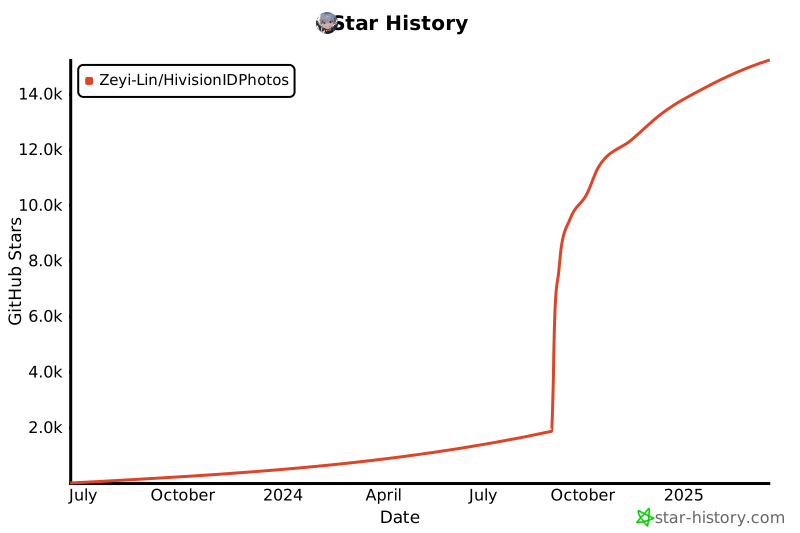](https://star-history.com/#Zeyi-Lin/HivisionIDPhotos&Date)
贡献者们:
 [Zeyi-Lin](https://github.com/Zeyi-Lin)、[SAKURA-CAT](https://github.com/SAKURA-CAT)、[Feudalman](https://github.com/Feudalman)、[swpfY](https://github.com/swpfY)、[Kaikaikaifang](https://github.com/Kaikaikaifang)、[ShaohonChen](https://github.com/ShaohonChen)、[KashiwaByte](https://github.com/KashiwaByte)
# 📜 Lincese
This repository is licensed under the [Apache-2.0 License](LICENSE).
# 📚 引用
如果您在研究或项目中使用了HivisionIDPhotos,请考虑引用我们的工作。您可以使用以下BibTeX条目:
```bibtex
@misc{hivisionidphotos,
title={{HivisionIDPhotos: A Lightweight and Efficient AI ID Photos Tool}},
author={Zeyi Lin and SwanLab Team},
year={2024},
publisher={GitHub},
url = {\url{https://github.com/Zeyi-Lin/HivisionIDPhotos}},
}
```
[github-stars-shield]: https://img.shields.io/github/stars/zeyi-lin/hivisionidphotos?color=ffcb47&labelColor=black&style=flat-square
[github-stars-link]: https://github.com/zeyi-lin/hivisionidphotos/stargazers
[swanhub-demo-shield]: https://swanhub.co/git/repo/SwanHub%2FAuto-README/file/preview?ref=main&path=swanhub.svg
[swanhub-demo-link]: https://swanhub.co/ZeYiLin/HivisionIDPhotos/demo
[spaces-shield]: https://img.shields.io/badge/🤗-Open%20in%20Spaces-blue
[spaces-link]: https://huggingface.co/spaces/TheEeeeLin/HivisionIDPhotos
[wechat-shield]: https://img.shields.io/badge/WeChat-微信-4cb55e
[wechat-link]: https://docs.qq.com/doc/DUkpBdk90eWZFS2JW
[release-shield]: https://img.shields.io/github/v/release/zeyi-lin/hivisionidphotos?color=369eff&labelColor=black&logo=github&style=flat-square
[release-link]: https://github.com/zeyi-lin/hivisionidphotos/releases
[license-shield]: https://img.shields.io/badge/license-apache%202.0-white?labelColor=black&style=flat-square
[license-link]: https://github.com/Zeyi-Lin/HivisionIDPhotos/blob/master/LICENSE
[github-issues-shield]: https://img.shields.io/github/issues/zeyi-lin/hivisionidphotos?color=ff80eb&labelColor=black&style=flat-square
[github-issues-link]: https://github.com/zeyi-lin/hivisionidphotos/issues
[dockerhub-shield]: https://img.shields.io/docker/v/linzeyi/hivision_idphotos?color=369eff&label=docker&labelColor=black&logoColor=white&style=flat-square
[dockerhub-link]: https://hub.docker.com/r/linzeyi/hivision_idphotos/tags
[trendshift-shield]: https://trendshift.io/api/badge/repositories/11622
[trendshift-link]: https://trendshift.io/repositories/11622
[hellogithub-shield]: https://abroad.hellogithub.com/v1/widgets/recommend.svg?rid=8ea1457289fb4062ba661e5299e733d6&claim_uid=Oh5UaGjfrblg0yZ
[hellogithub-link]: https://hellogithub.com/repository/8ea1457289fb4062ba661e5299e733d6
[github-contributors-shield]: https://img.shields.io/github/contributors/zeyi-lin/hivisionidphotos?color=c4f042&labelColor=black&style=flat-square
[github-contributors-link]: https://github.com/zeyi-lin/hivisionidphotos/graphs/contributors
[github-forks-shield]: https://img.shields.io/github/forks/zeyi-lin/hivisionidphotos?color=8ae8ff&labelColor=black&style=flat-square
[github-forks-link]: https://github.com/zeyi-lin/hivisionidphotos/network/members
[modelscope-shield]: https://img.shields.io/badge/Demo_on_ModelScope-purple?logo=data:image/svg+xml;base64,PHN2ZyB3aWR0aD0iMjIzIiBoZWlnaHQ9IjIwMCIgeG1sbnM9Imh0dHA6Ly93d3cudzMub3JnLzIwMDAvc3ZnIj4KCiA8Zz4KICA8dGl0bGU+TGF5ZXIgMTwvdGl0bGU+CiAgPHBhdGggaWQ9InN2Z18xNCIgZmlsbD0iIzYyNGFmZiIgZD0ibTAsODkuODRsMjUuNjUsMGwwLDI1LjY0OTk5bC0yNS42NSwwbDAsLTI1LjY0OTk5eiIvPgogIDxwYXRoIGlkPSJzdmdfMTUiIGZpbGw9IiM2MjRhZmYiIGQ9Im05OS4xNCwxMTUuNDlsMjUuNjUsMGwwLDI1LjY1bC0yNS42NSwwbDAsLTI1LjY1eiIvPgogIDxwYXRoIGlkPSJzdmdfMTYiIGZpbGw9IiM2MjRhZmYiIGQ9Im0xNzYuMDksMTQxLjE0bC0yNS42NDk5OSwwbDAsMjIuMTlsNDcuODQsMGwwLC00Ny44NGwtMjIuMTksMGwwLDI1LjY1eiIvPgogIDxwYXRoIGlkPSJzdmdfMTciIGZpbGw9IiMzNmNmZDEiIGQ9Im0xMjQuNzksODkuODRsMjUuNjUsMGwwLDI1LjY0OTk5bC0yNS42NSwwbDAsLTI1LjY0OTk5eiIvPgogIDxwYXRoIGlkPSJzdmdfMTgiIGZpbGw9IiMzNmNmZDEiIGQ9Im0wLDY0LjE5bDI1LjY1LDBsMCwyNS42NWwtMjUuNjUsMGwwLC0yNS42NXoiLz4KICA8cGF0aCBpZD0ic3ZnXzE5IiBmaWxsPSIjNjI0YWZmIiBkPSJtMTk4LjI4LDg5Ljg0bDI1LjY0OTk5LDBsMCwyNS42NDk5OWwtMjUuNjQ5OTksMGwwLC0yNS42NDk5OXoiLz4KICA8cGF0aCBpZD0ic3ZnXzIwIiBmaWxsPSIjMzZjZmQxIiBkPSJtMTk4LjI4LDY0LjE5bDI1LjY0OTk5LDBsMCwyNS42NWwtMjUuNjQ5OTksMGwwLC0yNS42NXoiLz4KICA8cGF0aCBpZD0ic3ZnXzIxIiBmaWxsPSIjNjI0YWZmIiBkPSJtMTUwLjQ0LDQybDAsMjIuMTlsMjUuNjQ5OTksMGwwLDI1LjY1bDIyLjE5LDBsMCwtNDcuODRsLTQ3Ljg0LDB6Ii8+CiAgPHBhdGggaWQ9InN2Z18yMiIgZmlsbD0iIzM2Y2ZkMSIgZD0ibTczLjQ5LDg5Ljg0bDI1LjY1LDBsMCwyNS42NDk5OWwtMjUuNjUsMGwwLC0yNS42NDk5OXoiLz4KICA8cGF0aCBpZD0ic3ZnXzIzIiBmaWxsPSIjNjI0YWZmIiBkPSJtNDcuODQsNjQuMTlsMjUuNjUsMGwwLC0yMi4xOWwtNDcuODQsMGwwLDQ3Ljg0bDIyLjE5LDBsMCwtMjUuNjV6Ii8+CiAgPHBhdGggaWQ9InN2Z18yNCIgZmlsbD0iIzYyNGFmZiIgZD0ibTQ3Ljg0LDExNS40OWwtMjIuMTksMGwwLDQ3Ljg0bDQ3Ljg0LDBsMCwtMjIuMTlsLTI1LjY1LDBsMCwtMjUuNjV6Ii8+CiA8L2c+Cjwvc3ZnPg==&labelColor=white
[modelscope-link]: https://modelscope.cn/studios/SwanLab/HivisionIDPhotos
[modelers-shield]: https://img.shields.io/badge/Demo_on_Modelers-c42a2a?logo=data:image/svg+xml;base64,PHN2ZyB4bWxucz0iaHR0cDovL3d3dy53My5vcmcvMjAwMC9zdmciIHdpZHRoPSIxMjQiIGhlaWdodD0iNjQiIHZpZXdCb3g9IjAgMCAxMjQgNjQiIGZpbGw9Im5vbmUiPgo8cGF0aCBkPSJNNDIuNzc4MyAwSDI2LjU5NzdWMTUuNzc4N0g0Mi43NzgzVjBaIiBmaWxsPSIjREUwNDI5Ii8+CjxwYXRoIGQ9Ik0xNi41MDg4IDQuMTc5MkgwLjMyODEyNVYxOS45NTc5SDE2LjUwODhWNC4xNzkyWiIgZmlsbD0iIzI0NDk5QyIvPgo8cGF0aCBkPSJNMTIzLjk1MiA0LjE3OTJIMTA3Ljc3MVYxOS45NTc5SDEyMy45NTJWNC4xNzkyWiIgZmlsbD0iIzI0NDk5QyIvPgo8cGF0aCBkPSJNMTYuNTA4OCA0NS40NjE5SDAuMzI4MTI1VjYxLjI0MDZIMTYuNTA4OFY0NS40NjE5WiIgZmlsbD0iIzI0NDk5QyIvPgo8cGF0aCBkPSJNMTIzLjk1MiA0NS40NjE5SDEwNy43NzFWNjEuMjQwNkgxMjMuOTUyVjQ1LjQ2MTlaIiBmaWxsPSIjMjQ0OTlDIi8+CjxwYXRoIGQ9Ik0zMi43MDggMTUuNzc4OEgxNi41MjczVjMxLjU1NzVIMzIuNzA4VjE1Ljc3ODhaIiBmaWxsPSIjREUwNDI5Ii8+CjxwYXRoIGQ9Ik01Mi44NDg2IDE1Ljc3ODhIMzYuNjY4VjMxLjU1NzVINTIuODQ4NlYxNS43Nzg4WiIgZmlsbD0iI0RFMDQyOSIvPgo8cGF0aCBkPSJNOTcuNzIzNyAwSDgxLjU0M1YxNS43Nzg3SDk3LjcyMzdWMFoiIGZpbGw9IiNERTA0MjkiLz4KPHBhdGggZD0iTTg3LjY1MzQgMTUuNzc4OEg3MS40NzI3VjMxLjU1NzVIODcuNjUzNFYxNS43Nzg4WiIgZmlsbD0iI0RFMDQyOSIvPgo8cGF0aCBkPSJNMTA3Ljc5NCAxNS43Nzg4SDkxLjYxMzNWMzEuNTU3NUgxMDcuNzk0VjE1Ljc3ODhaIiBmaWxsPSIjREUwNDI5Ii8+CjxwYXRoIGQ9Ik0yNC42NzQ4IDMxLjU1NzZIOC40OTQxNFY0Ny4zMzYzSDI0LjY3NDhWMzEuNTU3NloiIGZpbGw9IiNERTA0MjkiLz4KPHBhdGggZD0iTTYwLjg3OTkgMzEuNTU3Nkg0NC42OTkyVjQ3LjMzNjNINjAuODc5OVYzMS41NTc2WiIgZmlsbD0iI0RFMDQyOSIvPgo8cGF0aCBkPSJNNzkuNjIwMSAzMS41NTc2SDYzLjQzOTVWNDcuMzM2M0g3OS42MjAxVjMxLjU1NzZaIiBmaWxsPSIjREUwNDI5Ii8+CjxwYXRoIGQ9Ik0xMTUuODI1IDMxLjU1NzZIOTkuNjQ0NVY0Ny4zMzYzSDExNS44MjVWMzEuNTU3NloiIGZpbGw9IiNERTA0MjkiLz4KPHBhdGggZD0iTTcwLjI1NDkgNDcuMzM1OUg1NC4wNzQyVjYzLjExNDdINzAuMjU0OVY0Ny4zMzU5WiIgZmlsbD0iI0RFMDQyOSIvPgo8L3N2Zz4=&labelColor=white
[modelers-link]: https://modelers.cn/spaces/SwanLab/HivisionIDPhotos
[compshare-shield]: https://www-s.ucloud.cn/2025/02/dbef8b07ea3d316006d9c22765c3cd53_1740104342584.svg
[compshare-link]: https://www.compshare.cn/images-detail?ImageID=compshareImage-17jacgm4ju16&ytag=HG_GPU_HivisionIDPhotos
[atomgit-shield]: https://atomgit.com/ZeYiLin/HivisionIDPhotos/star/badge.svg
[atomgit-link]: https://atomgit.com/ZeYiLin/HivisionIDPhotos
[community-hivision-comfyui]: https://github.com/AIFSH/HivisionIDPhotos-ComfyUI
[community-hivision-wechat]: https://github.com/no1xuan/HivisionIDPhotos-wechat-weapp
[community-hivision-uniapp]: https://github.com/soulerror/HivisionIDPhotos-Uniapp
[community-hivision-cpp]: https://github.com/zjkhahah/HivisionIDPhotos-cpp
[community-hivision-windows-gui]: https://github.com/zhaoyun0071/HivisionIDPhotos-windows-GUI
[community-hivision-nas]: https://github.com/ONG-Leo/HivisionIDPhotos-NAS
================================================
FILE: README_EN.md
================================================
HivisionIDPhoto
English / [中文](README.md) / [日本語](README_JP.md) / [한국어](README_KO.md)
[![][release-shield]][release-link]
[![][dockerhub-shield]][dockerhub-link]
[![][github-stars-shield]][github-stars-link]
[![][github-issues-shield]][github-issues-link]
[![][github-contributors-shield]][github-contributors-link]
[![][github-forks-shield]][github-forks-link]
[![][license-shield]][license-link]
[![][wechat-shield]][wechat-link]
[![][spaces-shield]][spaces-link]
[![][swanhub-demo-shield]][swanhub-demo-link]
[![][modelscope-shield]][modelscope-link]
[![][modelers-shield]][modelers-link]
[![][compshare-shield]][compshare-link]
[![][trendshift-shield]][trendshift-link]
[![][hellogithub-shield]][hellogithub-link]
> **Related Projects**:
>
> - [SwanLab](https://github.com/SwanHubX/SwanLab): Used throughout the training of the portrait matting model for analysis and monitoring, as well as collaboration with lab colleagues, significantly improving training efficiency.
# Table of Contents
- [Recent Updates](#-recent-updates)
- [Project Overview](#-project-overview)
- [Community](#-community)
- [Preparation](#-preparation)
- [Demo Startup](#-run-gradio-demo)
- [Python Inference](#-python-inference)
- [API Service Deployment](#️-deploy-api-service)
- [Docker Deployment](#-docker-deployment)
- [Contact Us](#-contact-us)
- [Q&A](#qa)
- [Contributors](#contributors)
- [Thanks for support](#thanks-for-support)
- [License](#lincese)
# 🤩 Recent Updates
- Online Experience: [](https://swanhub.co/ZeYiLin/HivisionIDPhotos/demo)、[](https://huggingface.co/spaces/TheEeeeLin/HivisionIDPhotos)、[![][modelscope-shield]][modelscope-link]、[![][compshare-shield]][compshare-link]
- 2024.11.20: Gradio Demo adds **Print Layout** option, supports six-inch, five-inch, A4, 3R, and 4R layout sizes
- 2024.11.16: API interface adds beauty effect parameter
- 2024.09.24: API interface adds base64 image input option | Gradio Demo adds **Layout Photo Cropping Lines** feature
- 2024.09.22: Gradio Demo adds **Beast Mode** and **DPI** parameter
- 2024.09.18: Gradio Demo adds **Share Template Photos** feature and **American Style** background option
- 2024.09.17: Gradio Demo adds **Custom Background Color-HEX Input** feature | **(Community Contribution) C++ Version** - [HivisionIDPhotos-cpp](https://github.com/zjkhahah/HivisionIDPhotos-cpp) contributed by [zjkhahah](https://github.com/zjkhahah)
- 2024.09.16: Gradio Demo adds **Face Rotation Alignment** feature, custom size input supports **millimeters**
- 2024.09.14: Gradio Demo adds **Custom DPI** feature, adds Japanese and Korean support, adds **Adjust Brightness, Contrast, Sharpness** feature
# Project Overview
> 🚀 Thank you for your interest in our work. You may also want to check out our other achievements in the field of image processing, feel free to reach out: zeyi.lin@swanhub.co.
HivisionIDPhoto aims to develop a practical and systematic intelligent algorithm for producing ID photos.
It utilizes a comprehensive AI model workflow to recognize various user photo-taking scenarios, perform matting, and generate ID photos.
**HivisionIDPhoto can achieve:**
1. Lightweight matting (purely offline, fast inference with **CPU** only)
2. Generate standard ID photos and six-inch layout photos based on different size specifications
3. Support pure offline or edge-cloud inference
4. Beauty effects (waiting)
5. Intelligent formal wear change (waiting)
---
If HivisionIDPhoto helps you, please star this repo or recommend it to your friends to solve the urgent ID photo production problem!
# 🏠 Community
We have shared some interesting applications and extensions of HivisionIDPhotos built by the community:
- [HivisionIDPhotos-ComfyUI](https://github.com/AIFSH/HivisionIDPhotos-ComfyUI): ComfyUI ID photo processing workflow built by [AIFSH](https://github.com/AIFSH/HivisionIDPhotos-ComfyUI)
[](https://github.com/AIFSH/HivisionIDPhotos-ComfyUI)
- [HivisionIDPhotos-wechat-weapp](https://github.com/no1xuan/HivisionIDPhotos-wechat-weapp): WeChat ID photo mini program, powered by the HivisionIDphotos algorithm, contributed by [no1xuan](https://github.com/no1xuan)
[](https://github.com/no1xuan/HivisionIDPhotos-wechat-weapp)
- [HivisionIDPhotos-Uniapp](https://github.com/soulerror/HivisionIDPhotos-Uniapp): Front-end of WeChat ID photo mini program based on uniapp, powered by the HivisionIDphotos algorithm, contributed by [soulerror](https://github.com/soulerror)
[](https://github.com/soulerror/HivisionIDPhotos-Uniapp)
- [HivisionIDPhotos-cpp](https://github.com/zjkhahah/HivisionIDPhotos-cpp): C++ version of HivisionIDphotos, built by [zjkhahah](https://github.com/zjkhahah)
- [HivisionIDPhotos-windows-GUI](https://github.com/zhaoyun0071/HivisionIDPhotos-windows-GUI): Windows client application built by [zhaoyun0071](https://github.com/zhaoyun0071)
- [HivisionIDPhotos-NAS](https://github.com/ONG-Leo/HivisionIDPhotos-NAS): Chinese tutorial for Synology NAS deployment, contributed by [ONG-Leo](https://github.com/ONG-Leo)
# 🔧 Preparation
Environment installation and dependencies:
- Python >= 3.7 (project primarily tested on Python 3.10)
- OS: Linux, Windows, MacOS
## 1. Clone the Project
```bash
git clone https://github.com/Zeyi-Lin/HivisionIDPhotos.git
cd HivisionIDPhotos
```
## 2. Install Dependency Environment
> It is recommended to create a python3.10 virtual environment using conda, then execute the following commands
```bash
pip install -r requirements.txt
pip install -r requirements-app.txt
```
## 3. Download Weight Files
**Method 1: Script Download**
```bash
python scripts/download_model.py --models all
```
**Method 2: Direct Download**
Store in the project's `hivision/creator/weights` directory:
- `modnet_photographic_portrait_matting.onnx` (24.7MB): Official weights of [MODNet](https://github.com/ZHKKKe/MODNet), [download](https://github.com/Zeyi-Lin/HivisionIDPhotos/releases/download/pretrained-model/modnet_photographic_portrait_matting.onnx)
- `hivision_modnet.onnx` (24.7MB): Matting model with better adaptability for pure color background replacement, [download](https://github.com/Zeyi-Lin/HivisionIDPhotos/releases/download/pretrained-model/hivision_modnet.onnx)
- `rmbg-1.4.onnx` (176.2MB): Open-source matting model from [BRIA AI](https://huggingface.co/briaai/RMBG-1.4), [download](https://huggingface.co/briaai/RMBG-1.4/resolve/main/onnx/model.onnx?download=true) and rename to `rmbg-1.4.onnx`
- `birefnet-v1-lite.onnx`(224MB): Open-source matting model from [ZhengPeng7](https://github.com/ZhengPeng7/BiRefNet), [download](https://github.com/ZhengPeng7/BiRefNet/releases/download/v1/BiRefNet-general-bb_swin_v1_tiny-epoch_232.onnx) and rename to `birefnet-v1-lite.onnx`
## 4. Face Detection Model Configuration (Optional)
| Extended Face Detection Model | Description | Documentation |
| -- | -- | -- |
| MTCNN | **Offline** face detection model, high-performance CPU inference, default model, lower detection accuracy | Use it directly after cloning this project |
| RetinaFace | **Offline** face detection model, moderate CPU inference speed (in seconds), and high accuracy | [Download](https://github.com/Zeyi-Lin/HivisionIDPhotos/releases/download/pretrained-model/retinaface-resnet50.onnx) and place it in the `hivision/creator/retinaface/weights` directory |
| Face++ | Online face detection API launched by Megvii, higher detection accuracy, [official documentation](https://console.faceplusplus.com.cn/documents/4888373) | [Usage Documentation](docs/face++_EN.md)|
## 5. Performance Reference
> Test environment: Mac M1 Max 64GB, non-GPU acceleration, test image resolution: 512x715(1) and 764×1146(2).
| Model Combination | Memory Occupation | Inference Time (1) | Inference Time (2) |
| -- | -- | -- | -- |
| MODNet + mtcnn | 410MB | 0.207s | 0.246s |
| MODNet + retinaface | 405MB | 0.571s | 0.971s |
| birefnet-v1-lite + retinaface | 6.20GB | 7.063s | 7.128s |
## 6. GPU Inference Acceleration (Optional)
In the current version, the model that can be accelerated by NVIDIA GPUs is `birefnet-v1-lite`, and please ensure you have around 16GB of VRAM.
If you want to use NVIDIA GPU acceleration for inference, after ensuring you have installed CUDA and cuDNN, find the corresponding `onnxruntime-gpu` version to install according to the [onnxruntime-gpu documentation](https://onnxruntime.ai/docs/execution-providers/CUDA-ExecutionProvider.html#cuda-12x), and find the corresponding `pytorch` version to install according to the [pytorch official website](https://pytorch.org/get-started/locally/).
```bash
# If your computer is installed with CUDA 12.x and cuDNN 8
# Installing torch is optional. If you can't configure cuDNN, try installing torch
pip install onnxruntime-gpu==1.18.0
pip install torch --index-url https://download.pytorch.org/whl/cu121
```
After completing the installation, call the `birefnet-v1-lite` model to utilize GPU acceleration for inference.
> TIP: CUDA installations are backward compatible. For example, if your CUDA version is 12.6 but the highest version currently matched by torch is 12.4, it's still possible to install version 12.4 on your computer.
# 🚀 Run Gradio Demo
```bash
python app.py
```
Running the program will generate a local web page where you can perform operations and interact with ID photos.
# 🚀 Python Inference
Core parameters:
- `-i`: Input image path
- `-o`: Output image path
- `-t`: Inference type, options are idphoto, human_matting, add_background, generate_layout_photos
- `--matting_model`: Portrait matting model weight selection
- `--face_detect_model`: Face detection model selection
More parameters can be viewed by running `python inference.py --help`
## 1. ID Photo Creation
Input 1 photo to obtain 1 standard ID photo and 1 high-definition ID photo in 4-channel transparent PNG.
```python
python inference.py -i demo/images/test0.jpg -o ./idphoto.png --height 413 --width 295
```
## 2. Portrait Matting
Input 1 photo to obtain 1 4-channel transparent PNG.
```python
python inference.py -t human_matting -i demo/images/test0.jpg -o ./idphoto_matting.png --matting_model hivision_modnet
```
## 3. Add Background Color to Transparent Image
Input 1 4-channel transparent PNG to obtain 1 3-channel image with added background color.
```python
python inference.py -t add_background -i ./idphoto.png -o ./idphoto_ab.jpg -c 4f83ce -k 30 -r 1
```
## 4. Generate Six-Inch Layout Photo
Input 1 3-channel photo to obtain 1 six-inch layout photo.
```python
python inference.py -t generate_layout_photos -i ./idphoto_ab.jpg -o ./idphoto_layout.jpg --height 413 --width 295 -k 200
```
## 5. ID Photo Cropping
Input 1 4-channel photo (the image after matting) to obtain 1 standard ID photo and 1 high-definition ID photo in 4-channel transparent PNG.
```python
python inference.py -t idphoto_crop -i ./idphoto_matting.png -o ./idphoto_crop.png --height 413 --width 295
```
# ⚡️ Deploy API Service
## Start Backend
```
python deploy_api.py
```
## Request API Service
For detailed request methods, please refer to the [API Documentation](docs/api_EN.md), which includes the following request examples:
- [cURL](docs/api_EN.md#curl-request-examples)
- [Python](docs/api_EN.md#python-request-example)
# 🐳 Docker Deployment
## 1. Pull or Build Image
> Choose one of the following methods
**Method 1: Pull the latest image:**
```bash
docker pull linzeyi/hivision_idphotos
```
**Method 2: Directly build the image from Dockerfile:**
After ensuring that at least one [matting model weight file](#3-download-weight-files) is placed in the `hivision/creator/weights` directory, execute the following in the project root directory:
```bash
docker build -t linzeyi/hivision_idphotos .
```
**Method 3: Build using Docker Compose:**
After ensuring that at least one [matting model weight file](#3-download-weight-files) is placed in the `hivision/creator/weights` directory, execute the following in the project root directory:
```bash
docker compose build
```
## 2. Run Services
**Start Gradio Demo Service**
Run the following command, and you can access it locally at [http://127.0.0.1:7860](http://127.0.0.1:7860/).
```bash
docker run -d -p 7860:7860 linzeyi/hivision_idphotos
```
**Start API Backend Service**
```bash
docker run -d -p 8080:8080 linzeyi/hivision_idphotos python3 deploy_api.py
```
**Start Both Services Simultaneously**
```bash
docker compose up -d
```
## Environment Variables
This project provides some additional configuration options, which can be set using environment variables:
| Environment Variable | Type | Description | Example |
|--|--|--|--|
| FACE_PLUS_API_KEY | Optional | This is your API key obtained from the Face++ console | `7-fZStDJ····` |
| FACE_PLUS_API_SECRET | Optional | Secret corresponding to the Face++ API key | `VTee824E····` |
| RUN_MODE | Optional | Running mode, with the option of `beast` (beast mode). In beast mode, the face detection and matting models will not release memory, achieving faster secondary inference speeds. It is recommended to try to have at least 16GB of memory. | `beast` |
Example of using environment variables in Docker:
```bash
docker run -d -p 7860:7860 \
-e FACE_PLUS_API_KEY=7-fZStDJ···· \
-e FACE_PLUS_API_SECRET=VTee824E···· \
-e RUN_MODE=beast \
linzeyi/hivision_idphotos
```
# 📖 Cite Projects
1. MTCNN:
```bibtex
@software{ipazc_mtcnn_2021,
author = {ipazc},
title = {{MTCNN}},
url = {https://github.com/ipazc/mtcnn},
year = {2021},
publisher = {GitHub}
}
```
2. ModNet:
```bibtex
@software{zhkkke_modnet_2021,
author = {ZHKKKe},
title = {{ModNet}},
url = {https://github.com/ZHKKKe/MODNet},
year = {2021},
publisher = {GitHub}
}
```
# Q&A
## 1. How to modify preset sizes and colors?
- Size: After modifying [size_list_EN.csv](demo/assets/size_list_EN.csv), run `app.py` again. The first column is the size name, the second column is the height, and the third column is the width.
- Color: After modifying [color_list_EN.csv](demo/assets/color_list_EN.csv), run `app.py` again. The first column is the color name, and the second column is the Hex value.
## 2. How to Change the Watermark Font?
1. Place the font file in the `hivision/plugin/font` folder.
2. Change the `font_file` parameter value in `hivision/plugin/watermark.py` to the name of the font file.
## 3. How to Add Social Media Template Photos?
1. Place the template image in the `hivision/plugin/template/assets` folder. The template image should be a 4-channel transparent PNG.
2. Add the latest template information to the `hivision/plugin/template/assets/template_config.json` file. Here, `width` is the template image width (px), `height` is the template image height (px), `anchor_points` are the coordinates (px) of the four corners of the transparent area in the template; `rotation` is the rotation angle of the transparent area relative to the vertical direction, where >0 is counterclockwise and <0 is clockwise.
3. Add the name of the latest template to the `TEMPLATE_NAME_LIST` variable in the `_generate_image_template` function of `demo/processor.py`.
## 4. How to Modify the Top Navigation Bar of the Gradio Demo?
- Modify the `demo/assets/title.md` file.
# 📧 Contact Us
If you have any questions, please email zeyi.lin@swanhub.co
# Contributors
[Zeyi-Lin](https://github.com/Zeyi-Lin)、[SAKURA-CAT](https://github.com/SAKURA-CAT)、[Feudalman](https://github.com/Feudalman)、[swpfY](https://github.com/swpfY)、[Kaikaikaifang](https://github.com/Kaikaikaifang)、[ShaohonChen](https://github.com/ShaohonChen)、[KashiwaByte](https://github.com/KashiwaByte)
# Thanks for support
[](https://github.com/Zeyi-Lin/HivisionIDPhotos/stargazers)
[](https://github.com/Zeyi-Lin/HivisionIDPhotos/network/members)
[](https://star-history.com/#Zeyi-Lin/HivisionIDPhotos&Date)
# Lincese
This repository is licensed under the [Apache-2.0 License](LICENSE).
[github-stars-shield]: https://img.shields.io/github/stars/zeyi-lin/hivisionidphotos?color=ffcb47&labelColor=black&style=flat-square
[github-stars-link]: https://github.com/zeyi-lin/hivisionidphotos/stargazers
[swanhub-demo-shield]: https://swanhub.co/git/repo/SwanHub%2FAuto-README/file/preview?ref=main&path=swanhub.svg
[swanhub-demo-link]: https://swanhub.co/ZeYiLin/HivisionIDPhotos/demo
[spaces-shield]: https://img.shields.io/badge/🤗-Open%20in%20Spaces-blue
[spaces-link]: https://huggingface.co/spaces/TheEeeeLin/HivisionIDPhotos
[wechat-shield]: https://img.shields.io/badge/WeChat-微信-4cb55e
[wechat-link]: https://docs.qq.com/doc/DUkpBdk90eWZFS2JW
[release-shield]: https://img.shields.io/github/v/release/zeyi-lin/hivisionidphotos?color=369eff&labelColor=black&logo=github&style=flat-square
[release-link]: https://github.com/zeyi-lin/hivisionidphotos/releases
[license-shield]: https://img.shields.io/badge/license-apache%202.0-white?labelColor=black&style=flat-square
[license-link]: https://github.com/Zeyi-Lin/HivisionIDPhotos/blob/master/LICENSE
[github-issues-shield]: https://img.shields.io/github/issues/zeyi-lin/hivisionidphotos?color=ff80eb&labelColor=black&style=flat-square
[github-issues-link]: https://github.com/zeyi-lin/hivisionidphotos/issues
[dockerhub-shield]: https://img.shields.io/docker/v/linzeyi/hivision_idphotos?color=369eff&label=docker&labelColor=black&logoColor=white&style=flat-square
[dockerhub-link]: https://hub.docker.com/r/linzeyi/hivision_idphotos/tags
[trendshift-shield]: https://trendshift.io/api/badge/repositories/11622
[trendshift-link]: https://trendshift.io/repositories/11622
[hellogithub-shield]: https://abroad.hellogithub.com/v1/widgets/recommend.svg?rid=8ea1457289fb4062ba661e5299e733d6&claim_uid=Oh5UaGjfrblg0yZ
[hellogithub-link]: https://hellogithub.com/repository/8ea1457289fb4062ba661e5299e733d6
[github-contributors-shield]: https://img.shields.io/github/contributors/zeyi-lin/hivisionidphotos?color=c4f042&labelColor=black&style=flat-square
[github-contributors-link]: https://github.com/zeyi-lin/hivisionidphotos/graphs/contributors
[github-forks-shield]: https://img.shields.io/github/forks/zeyi-lin/hivisionidphotos?color=8ae8ff&labelColor=black&style=flat-square
[github-forks-link]: https://github.com/zeyi-lin/hivisionidphotos/network/members
[modelscope-shield]: https://img.shields.io/badge/Demo_on_ModelScope-purple?logo=data:image/svg+xml;base64,PHN2ZyB3aWR0aD0iMjIzIiBoZWlnaHQ9IjIwMCIgeG1sbnM9Imh0dHA6Ly93d3cudzMub3JnLzIwMDAvc3ZnIj4KCiA8Zz4KICA8dGl0bGU+TGF5ZXIgMTwvdGl0bGU+CiAgPHBhdGggaWQ9InN2Z18xNCIgZmlsbD0iIzYyNGFmZiIgZD0ibTAsODkuODRsMjUuNjUsMGwwLDI1LjY0OTk5bC0yNS42NSwwbDAsLTI1LjY0OTk5eiIvPgogIDxwYXRoIGlkPSJzdmdfMTUiIGZpbGw9IiM2MjRhZmYiIGQ9Im05OS4xNCwxMTUuNDlsMjUuNjUsMGwwLDI1LjY1bC0yNS42NSwwbDAsLTI1LjY1eiIvPgogIDxwYXRoIGlkPSJzdmdfMTYiIGZpbGw9IiM2MjRhZmYiIGQ9Im0xNzYuMDksMTQxLjE0bC0yNS42NDk5OSwwbDAsMjIuMTlsNDcuODQsMGwwLC00Ny44NGwtMjIuMTksMGwwLDI1LjY1eiIvPgogIDxwYXRoIGlkPSJzdmdfMTciIGZpbGw9IiMzNmNmZDEiIGQ9Im0xMjQuNzksODkuODRsMjUuNjUsMGwwLDI1LjY0OTk5bC0yNS42NSwwbDAsLTI1LjY0OTk5eiIvPgogIDxwYXRoIGlkPSJzdmdfMTgiIGZpbGw9IiMzNmNmZDEiIGQ9Im0wLDY0LjE5bDI1LjY1LDBsMCwyNS42NWwtMjUuNjUsMGwwLC0yNS42NXoiLz4KICA8cGF0aCBpZD0ic3ZnXzE5IiBmaWxsPSIjNjI0YWZmIiBkPSJtMTk4LjI4LDg5Ljg0bDI1LjY0OTk5LDBsMCwyNS42NDk5OWwtMjUuNjQ5OTksMGwwLC0yNS42NDk5OXoiLz4KICA8cGF0aCBpZD0ic3ZnXzIwIiBmaWxsPSIjMzZjZmQxIiBkPSJtMTk4LjI4LDY0LjE5bDI1LjY0OTk5LDBsMCwyNS42NWwtMjUuNjQ5OTksMGwwLC0yNS42NXoiLz4KICA8cGF0aCBpZD0ic3ZnXzIxIiBmaWxsPSIjNjI0YWZmIiBkPSJtMTUwLjQ0LDQybDAsMjIuMTlsMjUuNjQ5OTksMGwwLDI1LjY1bDIyLjE5LDBsMCwtNDcuODRsLTQ3Ljg0LDB6Ii8+CiAgPHBhdGggaWQ9InN2Z18yMiIgZmlsbD0iIzM2Y2ZkMSIgZD0ibTczLjQ5LDg5Ljg0bDI1LjY1LDBsMCwyNS42NDk5OWwtMjUuNjUsMGwwLC0yNS42NDk5OXoiLz4KICA8cGF0aCBpZD0ic3ZnXzIzIiBmaWxsPSIjNjI0YWZmIiBkPSJtNDcuODQsNjQuMTlsMjUuNjUsMGwwLC0yMi4xOWwtNDcuODQsMGwwLDQ3Ljg0bDIyLjE5LDBsMCwtMjUuNjV6Ii8+CiAgPHBhdGggaWQ9InN2Z18yNCIgZmlsbD0iIzYyNGFmZiIgZD0ibTQ3Ljg0LDExNS40OWwtMjIuMTksMGwwLDQ3Ljg0bDQ3Ljg0LDBsMCwtMjIuMTlsLTI1LjY1LDBsMCwtMjUuNjV6Ii8+CiA8L2c+Cjwvc3ZnPg==&labelColor=white
[modelscope-link]: https://modelscope.cn/studios/SwanLab/HivisionIDPhotos
[modelers-shield]: https://img.shields.io/badge/Demo_on_Modelers-c42a2a?logo=data:image/svg+xml;base64,PHN2ZyB4bWxucz0iaHR0cDovL3d3dy53My5vcmcvMjAwMC9zdmciIHdpZHRoPSIxMjQiIGhlaWdodD0iNjQiIHZpZXdCb3g9IjAgMCAxMjQgNjQiIGZpbGw9Im5vbmUiPgo8cGF0aCBkPSJNNDIuNzc4MyAwSDI2LjU5NzdWMTUuNzc4N0g0Mi43NzgzVjBaIiBmaWxsPSIjREUwNDI5Ii8+CjxwYXRoIGQ9Ik0xNi41MDg4IDQuMTc5MkgwLjMyODEyNVYxOS45NTc5SDE2LjUwODhWNC4xNzkyWiIgZmlsbD0iIzI0NDk5QyIvPgo8cGF0aCBkPSJNMTIzLjk1MiA0LjE3OTJIMTA3Ljc3MVYxOS45NTc5SDEyMy45NTJWNC4xNzkyWiIgZmlsbD0iIzI0NDk5QyIvPgo8cGF0aCBkPSJNMTYuNTA4OCA0NS40NjE5SDAuMzI4MTI1VjYxLjI0MDZIMTYuNTA4OFY0NS40NjE5WiIgZmlsbD0iIzI0NDk5QyIvPgo8cGF0aCBkPSJNMTIzLjk1MiA0NS40NjE5SDEwNy43NzFWNjEuMjQwNkgxMjMuOTUyVjQ1LjQ2MTlaIiBmaWxsPSIjMjQ0OTlDIi8+CjxwYXRoIGQ9Ik0zMi43MDggMTUuNzc4OEgxNi41MjczVjMxLjU1NzVIMzIuNzA4VjE1Ljc3ODhaIiBmaWxsPSIjREUwNDI5Ii8+CjxwYXRoIGQ9Ik01Mi44NDg2IDE1Ljc3ODhIMzYuNjY4VjMxLjU1NzVINTIuODQ4NlYxNS43Nzg4WiIgZmlsbD0iI0RFMDQyOSIvPgo8cGF0aCBkPSJNOTcuNzIzNyAwSDgxLjU0M1YxNS43Nzg3SDk3LjcyMzdWMFoiIGZpbGw9IiNERTA0MjkiLz4KPHBhdGggZD0iTTg3LjY1MzQgMTUuNzc4OEg3MS40NzI3VjMxLjU1NzVIODcuNjUzNFYxNS43Nzg4WiIgZmlsbD0iI0RFMDQyOSIvPgo8cGF0aCBkPSJNMTA3Ljc5NCAxNS43Nzg4SDkxLjYxMzNWMzEuNTU3NUgxMDcuNzk0VjE1Ljc3ODhaIiBmaWxsPSIjREUwNDI5Ii8+CjxwYXRoIGQ9Ik0yNC42NzQ4IDMxLjU1NzZIOC40OTQxNFY0Ny4zMzYzSDI0LjY3NDhWMzEuNTU3NloiIGZpbGw9IiNERTA0MjkiLz4KPHBhdGggZD0iTTYwLjg3OTkgMzEuNTU3Nkg0NC42OTkyVjQ3LjMzNjNINjAuODc5OVYzMS41NTc2WiIgZmlsbD0iI0RFMDQyOSIvPgo8cGF0aCBkPSJNNzkuNjIwMSAzMS41NTc2SDYzLjQzOTVWNDcuMzM2M0g3OS42MjAxVjMxLjU1NzZaIiBmaWxsPSIjREUwNDI5Ii8+CjxwYXRoIGQ9Ik0xMTUuODI1IDMxLjU1NzZIOTkuNjQ0NVY0Ny4zMzYzSDExNS44MjVWMzEuNTU3NloiIGZpbGw9IiNERTA0MjkiLz4KPHBhdGggZD0iTTcwLjI1NDkgNDcuMzM1OUg1NC4wNzQyVjYzLjExNDdINzAuMjU0OVY0Ny4zMzU5WiIgZmlsbD0iI0RFMDQyOSIvPgo8L3N2Zz4=&labelColor=white
[modelers-link]: https://modelers.cn/spaces/SwanLab/HivisionIDPhotos
[compshare-shield]: https://www-s.ucloud.cn/2025/02/dbef8b07ea3d316006d9c22765c3cd53_1740104342584.svg
[compshare-link]: https://www.compshare.cn/images-detail?ImageID=compshareImage-17jacgm4ju16&ytag=HG_GPU_HivisionIDPhotos
================================================
FILE: README_JP.md
================================================
HivisionIDPhoto
[English](README_EN.md) / [中文](README.md) / 日本語 / [한국어](README_KO.md)
[![][release-shield]][release-link]
[![][dockerhub-shield]][dockerhub-link]
[![][github-stars-shield]][github-stars-link]
[![][github-issues-shield]][github-issues-link]
[![][github-contributors-shield]][github-contributors-link]
[![][github-forks-shield]][github-forks-link]
[![][license-shield]][license-link]
[![][wechat-shield]][wechat-link]
[![][spaces-shield]][spaces-link]
[![][swanhub-demo-shield]][swanhub-demo-link]
[![][modelscope-shield]][modelscope-link]
[![][modelers-shield]][modelers-link]
[![][compshare-shield]][compshare-link]
[![][trendshift-shield]][trendshift-link]
[![][hellogithub-shield]][hellogithub-link]
> **関連プロジェクト**:
>
> - [SwanLab](https://github.com/SwanHubX/SwanLab):人物切り抜きモデルの訓練を通じて、分析と監視、ラボの仲間との協力と交流を行い、訓練効率を大幅に向上させました。
# 目次
- [最近の更新](#-最近の更新)
- [プロジェクト概要](#-プロジェクト概要)
- [コミュニティ](#-コミュニティ)
- [準備作業](#-準備作業)
- [デモの起動](#-デモの起動)
- [Python推論](#-python推論)
- [APIサービスのデプロイ](#️-APIサービスのデプロイ)
- [Dockerデプロイ](#-dockerデプロイ)
- [お問い合わせ](#-お問い合わせ)
- [貢献者](#貢献者)
# 🤩 最近の更新
- オンライン体験: [](https://swanhub.co/ZeYiLin/HivisionIDPhotos/demo)、[](https://huggingface.co/spaces/TheEeeeLin/HivisionIDPhotos)、[![][modelscope-shield]][modelscope-link]、[![][compshare-shield]][compshare-link]
- 2024.11.20: Gradioデモに**印刷レイアウト**オプションを追加、六つ切り、五つ切り、A4、3R、4Rレイアウトサイズをサポート
- 2024.11.16: APIインターフェースに美顔効果パラメータを追加
- 2024.09.24: APIインターフェースにbase64画像入力オプションを追加 | Gradioデモに**レイアウト写真トリミングライン**機能を追加
- 2024.09.22: Gradioデモに**ビーストモード**と**DPI**パラメータを追加
- 2024.09.18: Gradioデモに**テンプレート写真の共有**機能を追加、**米国式**背景オプションを追加
- 2024.09.17: Gradioデモに**カスタム底色-HEX入力**機能を追加 | **(コミュニティ貢献)C++バージョン** - [HivisionIDPhotos-cpp](https://github.com/zjkhahah/HivisionIDPhotos-cpp) 貢献 by [zjkhahah](https://github.com/zjkhahah)
- 2024.09.16: Gradioデモに**顔回転対応**機能を追加、カスタムサイズ入力に**ミリメートル**をサポート
# プロジェクト概要
> 🚀 私たちの仕事に興味を持っていただきありがとうございます。画像分野における他の成果もぜひご覧ください。お問い合わせは、zeyi.lin@swanhub.co まで。
HivisionIDPhotoは、実用的で体系的な証明写真のスマート制作アルゴリズムを開発することを目的としています。
さまざまなユーザー撮影シーンの認識、切り抜きおよび証明写真の生成を実現するために、一連の洗練されたAIモデル作業フローを利用しています。
**HivisionIDPhotoは以下のことができます:**
1. 軽量切り抜き(完全オフラインで、**CPU**のみで迅速に推論可能)
2. 異なるサイズ仕様に基づいて異なる標準証明写真、六寸レイアウト写真を生成
3. 完全オフラインまたはエッジクラウド推論をサポート
4. 美顔(待機中)
5. スマートな正装変更(待機中)
---
HivisionIDPhotoがあなたに役立つ場合は、このリポジトリをスターしたり、友人に推薦したりして、証明写真の緊急制作の問題を解決してください!
# 🏠 コミュニティ
私たちは、コミュニティによって構築されたHivisionIDPhotosの興味深いアプリケーションや拡張機能をいくつか共有しています:
- [HivisionIDPhotos-ComfyUI](https://github.com/AIFSH/HivisionIDPhotos-ComfyUI):ComfyUI証明写真処理ワークフロー、[AIFSH](https://github.com/AIFSH/HivisionIDPhotos-ComfyUI)によって構築
[](https://github.com/AIFSH/HivisionIDPhotos-ComfyUI)
- [HivisionIDPhotos-wechat-weapp](https://github.com/no1xuan/HivisionIDPhotos-wechat-weapp):WeChat証明写真ミニプログラム、HivisionIDphotosアルゴリズムに基づく、[no1xuan](https://github.com/no1xuan)による貢献
[](https://github.com/no1xuan/HivisionIDPhotos-wechat-weapp)
- [HivisionIDPhotos-Uniapp](https://github.com/soulerror/HivisionIDPhotos-Uniapp):基本のuniapp証明写真ミニプログラムの前部、HivisionIDphotosアルゴリズムに基づく、[soulerror](https://github.com/soulerror)による貢献
[](https://github.com/soulerror/HivisionIDPhotos-Uniapp)
- [HivisionIDPhotos-cpp](https://github.com/zjkhahah/HivisionIDPhotos-cpp):HivisionIDphotos C++バージョン、[zjkhahah](https://github.com/zjkhahah)によって構築
- [HivisionIDPhotos-windows-GUI](https://github.com/zhaoyun0071/HivisionIDPhotos-windows-GUI):Windowsクライアントアプリケーション、[zhaoyun0071](https://github.com/zhaoyun0071)によって構築
- [HivisionIDPhotos-NAS](https://github.com/ONG-Leo/HivisionIDPhotos-NAS):Synology NAS導入の中国語チュートリアル、[ONG-Leo](https://github.com/ONG-Leo)による貢献
# 🔧 準備作業
環境のインストールと依存関係:
- Python >= 3.7(プロジェクトは主にpython 3.10でテストされています)
- OS: Linux, Windows, MacOS
## 1. プロジェクトをクローンする
```bash
git clone https://github.com/Zeyi-Lin/HivisionIDPhotos.git
cd HivisionIDPhotos
```
## 2. 依存環境をインストールする
> condaでpython3.10の仮想環境を作成することをお勧めします。その後、以下のコマンドを実行してください。
```bash
pip install -r requirements.txt
pip install -r requirements-app.txt
```
## 3. 重みファイルをダウンロードする
**方法一:スクリプトでダウンロード**
```bash
python scripts/download_model.py --models all
```
**方法二:直接ダウンロード**
プロジェクトの`hivision/creator/weights`ディレクトリに保存します:
- `modnet_photographic_portrait_matting.onnx` (24.7MB): [MODNet](https://github.com/ZHKKKe/MODNet)公式の重み、[ダウンロード](https://github.com/Zeyi-Lin/HivisionIDPhotos/releases/download/pretrained-model/modnet_photographic_portrait_matting.onnx)
- `hivision_modnet.onnx` (24.7MB): 単色背景に対して適応性の高い切り抜きモデル、[ダウンロード](https://github.com/Zeyi-Lin/HivisionIDPhotos/releases/download/pretrained-model/hivision_modnet.onnx)
- `rmbg-1.4.onnx` (176.2MB): [BRIA AI](https://huggingface.co/briaai/RMBG-1.4)のオープンソース切り抜きモデル、[ダウンロード](https://huggingface.co/briaai/RMBG-1.4/resolve/main/onnx/model.onnx?download=true)後に`rmbg-1.4.onnx`にリネーム
- `birefnet-v1-lite.onnx`(224MB): [ZhengPeng7](https://github.com/ZhengPeng7/BiRefNet)のオープンソース切り抜きモデル、[ダウンロード](https://github.com/ZhengPeng7/BiRefNet/releases/download/v1/BiRefNet-general-bb_swin_v1_tiny-epoch_232.onnx)後に`birefnet-v1-lite.onnx`にリネーム
## 4. 顔検出モデルの設定(オプション)
| 拡張顔検出モデル | 説明 | 使用文書 |
| -- | -- | -- |
| MTCNN | **オフライン**顔検出モデル、高性能CPU推論、デフォルトモデル、検出精度は低い | このプロジェクトをクローン後、直接使用 |
| Face++ | Megviiが提供するオンライン顔検出API、高精度の検出、[公式文書](https://console.faceplusplus.com.cn/documents/4888373) | [使用文書](docs/face++_EN.md)|
## 5. パフォーマンスリファレンス
> テスト環境はMac M1 Max 64GB、非GPU加速、テスト画像の解像度は512x715(1)と764×1146(2)。
| モデルの組み合わせ | メモリ使用量 | 推論時間(1) | 推論時間(2) |
| -- | -- | -- | -- |
| MODNet + mtcnn | 410MB | 0.207秒 | 0.246秒 |
| MODNet + retinaface | 405MB | 0.571秒 | 0.971秒 |
| birefnet-v1-lite + retinaface | 6.20GB | 7.063秒 | 7.128秒 |
## 6. GPU推論の加速(オプション)
現在のバージョンでは、NVIDIA GPUで加速可能なモデルは`birefnet-v1-lite`です。約16GBのVRAMが必要であることにご注意ください。
NVIDIA GPUを使用して推論を加速したい場合は、CUDAとcuDNNがインストールされていることを確認した上で、[onnxruntime-gpuのドキュメント](https://onnxruntime.ai/docs/execution-providers/CUDA-ExecutionProvider.html#cuda-12x)に従って適切な`onnxruntime-gpu`バージョンをインストールし、[PyTorchの公式サイト](https://pytorch.org/get-started/locally/)から適切な`pytorch`バージョンをインストールしてください。
```bash
# もしコンピュータにCUDA 12.xとcuDNN 8がインストールされている場合
# torchのインストールは任意です。cuDNNが設定できない場合は、torchを試してみてください
pip install onnxruntime-gpu==1.18.0
pip install torch --index-url https://download.pytorch.org/whl/cu121
```
インストールが完了したら、`birefnet-v1-lite`モデルを呼び出してGPU加速推論を利用します。
> TIPS: CUDAのインストールは下位互換性があります。たとえば、CUDAのバージョンが12.6で、torchが現在対応している最高バージョンが12.4である場合、コンピュータに12.4のバージョンをインストールすることも可能です。
# 🚀 デモの起動
```bash
python app.py
```
プログラムを実行すると、ローカルWebページが生成され、ページ内で証明写真の操作と対話が可能になります。
# 🚀 Python推論
核心パラメータ:
- `-i`: 入力画像のパス
- `-o`: 保存画像のパス
- `-t`: 推論タイプ、idphoto、human_matting、add_background、generate_layout_photosから選択可能
- `--matting_model`: 人物切り抜きモデルの重み選択
- `--face_detect_model`: 顔検出モデルの選択
詳細なパラメータは`python inference.py --help`で確認できます。
## 1. 証明写真の作成
1枚の写真を入力し、1枚の標準証明写真と1枚の高解像度証明写真の4チャンネル透明PNGを取得します。
```python
python inference.py -i demo/images/test0.jpg -o ./idphoto.png --height 413 --width 295
```
## 2. 人物切り抜き
1枚の写真を入力し、1枚の4チャンネル透明PNGを取得します。
```python
python inference.py -t human_matting -i demo/images/test0.jpg -o ./idphoto_matting.png --matting_model hivision_modnet
```
## 3. 透明画像に背景色を追加
1枚の4チャンネル透明PNGを入力し、背景色を追加した3チャンネル画像を取得します。
```python
python inference.py -t add_background -i ./idphoto.png -o ./idphoto_ab.jpg -c 4f83ce -k 30 -r 1
```
## 4. 六寸レイアウト写真の取得
1枚の3チャンネル写真を入力し、1枚の六寸レイアウト写真を取得します。
```python
python inference.py -t generate_layout_photos -i ./idphoto_ab.jpg -o ./idphoto_layout.jpg --height 413 --width 295 -k 200
```
## 5. 証明写真のトリミング
1枚の4チャンネル写真(切り抜き済みの画像)を入力し、1枚の標準証明写真と1枚の高解像度証明写真の4チャンネル透明PNGを取得します。
```python
python inference.py -t idphoto_crop -i ./idphoto_matting.png -o ./idphoto_crop.png --height 413 --width 295
```
# ⚡️ APIサービスのデプロイ
## バックエンドを起動
```
python deploy_api.py
```
## APIサービスにリクエスト
詳細なリクエスト方法は[APIドキュメント](docs/api_EN.md)を参照してください。以下のリクエスト例が含まれます:
- [cURL](docs/api_EN.md#curl-request-examples)
- [Python](docs/api_EN.md#python-request-example)
# 🐳 Dockerデプロイ
## 1. イメージをプルまたはビルドする
> 以下の方法から3つを選択してください。
**方法一:最新のイメージをプル:**
```bash
docker pull linzeyi/hivision_idphotos
```
**方法二:Dockerfileから直接イメージをビルド:**
`hivision/creator/weights` ディレクトリに少なくとも1つの[マスキングモデルの重みファイル](#3-重みファイルのダウンロード)があることを確認してから、プロジェクトのルートディレクトリで以下を実行してください:
```bash
docker build -t linzeyi/hivision_idphotos .
```
**方法三:Docker composeでビルド:**
`hivision/creator/weights` ディレクトリに少なくとも1つの[マスキングモデルの重みファイル](#3-重みファイルのダウンロード)があることを確認してから、プロジェクトのルートディレクトリで以下を実行してください:
```bash
docker compose build
```
## 2. サービスを実行
**Gradioデモサービスを起動**
次のコマンドを実行し、ローカルで [http://127.0.0.1:7860](http://127.0.0.1:7860/) にアクセスすると使用可能です。
```bash
docker run -d -p 7860:7860 linzeyi/hivision_idphotos
```
**APIバックエンドサービスを起動**
```bash
docker run -d -p 8080:8080 linzeyi/hivision_idphotos python3 deploy_api.py
```
**2つのサービスを同時に起動**
```bash
docker compose up -d
```
## 環境変数
本プロジェクトは、いくつかの追加設定項目を提供し、環境変数を使用して設定します:
| 環境変数 | タイプ | 説明 | 例 |
|--|--|--|--|
| FACE_PLUS_API_KEY | オプション | これはFace++コンソールで申請したAPIキーです。 | `7-fZStDJ····` |
| FACE_PLUS_API_SECRET | オプション | Face++ APIキーに対応するSecret | `VTee824E····` |
dockerでの環境変数使用例:
```bash
docker run -d -p 7860:7860 \
-e FACE_PLUS_API_KEY=7-fZStDJ···· \
-e FACE_PLUS_API_SECRET=VTee824E···· \
linzeyi/hivision_idphotos
```
# 📖 プロジェクトの引用
1. MTCNN:
```bibtex
@software{ipazc_mtcnn_2021,
author = {ipazc},
title = {{MTCNN}},
url = {https://github.com/ipazc/mtcnn},
year = {2021},
publisher = {GitHub}
}
```
2. ModNet:
```bibtex
@software{zhkkke_modnet_2021,
author = {ZHKKKe},
title = {{ModNet}},
url = {https://github.com/ZHKKKe/MODNet},
year = {2021},
publisher = {GitHub}
}
```
# よくある質問 (FAQ)
## 1. 基本的なサイズと色をどのように変更しますか?
- サイズ: [size_list_EN.csv](demo/assets/size_list_EN.csv) ファイルを修正した後、`app.py`を再実行すれば大丈夫です。最初の列はサイズ名、二番目の列は高さ、三番目の列は幅です。
- 色: [color_list_EN.csv](demo/assets/color_list_EN.csv) ファイルを修正した後、`app.py`を再実行すれば大丈夫です。最初の列は色名、二番目の列はHex値です。
## 2. ウォーターマークのフォントをどのように変更しますか?
1. フォントファイルを`hivision/plugin/font`フォルダーに置きます。
2. `hivision/plugin/watermark.py`ファイル内の`font_file`パラメータの値をフォントファイル名に変更します。
## 3. ソーシャルメディアのテンプレート画像をどのように追加しますか?
1. テンプレート画像を`hivision/plugin/template/assets`フォルダーに置きます。テンプレート画像は4チャンネルの透明PNGです。
2. `hivision/plugin/template/assets/template_config.json`ファイルに最新のテンプレート情報を追加します。ここで`width`はテンプレート画像の幅(px)、`height`はテンプレート画像の高さ(px)、`anchor_points`はテンプレートの透明領域の4つの隅の座標(px)です。`rotation`は透明領域の垂直方向に対する回転角度で、>0は反時計回り、<0は時計回りです。
3. `demo/processor.py`の`_generate_image_template`関数内の`TEMPLATE_NAME_LIST`変数に最新のテンプレート名を追加します。
## 4. Gradio Demoの上部ナビゲーションバーをどのように変更しますか?
- `demo/assets/title.md`ファイルを修正します。
# 📧 お問い合わせ
ご不明な点がございましたら、zeyi.lin@swanhub.coまでメールをお送りください。
# 貢献者
[Zeyi-Lin](https://github.com/Zeyi-Lin)、[SAKURA-CAT](https://github.com/SAKURA-CAT)、[Feudalman](https://github.com/Feudalman)、[swpfY](https://github.com/swpfY)、[Kaikaikaifang](https://github.com/Kaikaikaifang)、[ShaohonChen](https://github.com/ShaohonChen)、[KashiwaByte](https://github.com/KashiwaByte)
# Thanks for support
[](https://github.com/Zeyi-Lin/HivisionIDPhotos/stargazers)
[](https://github.com/Zeyi-Lin/HivisionIDPhotos/network/members)
[](https://star-history.com/#Zeyi-Lin/HivisionIDPhotos&Date)
# Lincese
This repository is licensed under the [Apache-2.0 License](LICENSE).
[github-stars-shield]: https://img.shields.io/github/stars/zeyi-lin/hivisionidphotos?color=ffcb47&labelColor=black&style=flat-square
[github-stars-link]: https://github.com/zeyi-lin/hivisionidphotos/stargazers
[swanhub-demo-shield]: https://swanhub.co/git/repo/SwanHub%2FAuto-README/file/preview?ref=main&path=swanhub.svg
[swanhub-demo-link]: https://swanhub.co/ZeYiLin/HivisionIDPhotos/demo
[spaces-shield]: https://img.shields.io/badge/🤗-Open%20in%20Spaces-blue
[spaces-link]: https://huggingface.co/spaces/TheEeeeLin/HivisionIDPhotos
[wechat-shield]: https://img.shields.io/badge/WeChat-微信-4cb55e
[wechat-link]: https://docs.qq.com/doc/DUkpBdk90eWZFS2JW
[release-shield]: https://img.shields.io/github/v/release/zeyi-lin/hivisionidphotos?color=369eff&labelColor=black&logo=github&style=flat-square
[release-link]: https://github.com/zeyi-lin/hivisionidphotos/releases
[license-shield]: https://img.shields.io/badge/license-apache%202.0-white?labelColor=black&style=flat-square
[license-link]: https://github.com/Zeyi-Lin/HivisionIDPhotos/blob/master/LICENSE
[github-issues-shield]: https://img.shields.io/github/issues/zeyi-lin/hivisionidphotos?color=ff80eb&labelColor=black&style=flat-square
[github-issues-link]: https://github.com/zeyi-lin/hivisionidphotos/issues
[dockerhub-shield]: https://img.shields.io/docker/v/linzeyi/hivision_idphotos?color=369eff&label=docker&labelColor=black&logoColor=white&style=flat-square
[dockerhub-link]: https://hub.docker.com/r/linzeyi/hivision_idphotos/tags
[trendshift-shield]: https://trendshift.io/api/badge/repositories/11622
[trendshift-link]: https://trendshift.io/repositories/11622
[hellogithub-shield]: https://abroad.hellogithub.com/v1/widgets/recommend.svg?rid=8ea1457289fb4062ba661e5299e733d6&claim_uid=Oh5UaGjfrblg0yZ
[hellogithub-link]: https://hellogithub.com/repository/8ea1457289fb4062ba661e5299e733d6
[github-contributors-shield]: https://img.shields.io/github/contributors/zeyi-lin/hivisionidphotos?color=c4f042&labelColor=black&style=flat-square
[github-contributors-link]: https://github.com/zeyi-lin/hivisionidphotos/graphs/contributors
[github-forks-shield]: https://img.shields.io/github/forks/zeyi-lin/hivisionidphotos?color=8ae8ff&labelColor=black&style=flat-square
[github-forks-link]: https://github.com/zeyi-lin/hivisionidphotos/network/members
[modelscope-shield]: https://img.shields.io/badge/Demo_on_ModelScope-purple?logo=data:image/svg+xml;base64,PHN2ZyB3aWR0aD0iMjIzIiBoZWlnaHQ9IjIwMCIgeG1sbnM9Imh0dHA6Ly93d3cudzMub3JnLzIwMDAvc3ZnIj4KCiA8Zz4KICA8dGl0bGU+TGF5ZXIgMTwvdGl0bGU+CiAgPHBhdGggaWQ9InN2Z18xNCIgZmlsbD0iIzYyNGFmZiIgZD0ibTAsODkuODRsMjUuNjUsMGwwLDI1LjY0OTk5bC0yNS42NSwwbDAsLTI1LjY0OTk5eiIvPgogIDxwYXRoIGlkPSJzdmdfMTUiIGZpbGw9IiM2MjRhZmYiIGQ9Im05OS4xNCwxMTUuNDlsMjUuNjUsMGwwLDI1LjY1bC0yNS42NSwwbDAsLTI1LjY1eiIvPgogIDxwYXRoIGlkPSJzdmdfMTYiIGZpbGw9IiM2MjRhZmYiIGQ9Im0xNzYuMDksMTQxLjE0bC0yNS42NDk5OSwwbDAsMjIuMTlsNDcuODQsMGwwLC00Ny44NGwtMjIuMTksMGwwLDI1LjY1eiIvPgogIDxwYXRoIGlkPSJzdmdfMTciIGZpbGw9IiMzNmNmZDEiIGQ9Im0xMjQuNzksODkuODRsMjUuNjUsMGwwLDI1LjY0OTk5bC0yNS42NSwwbDAsLTI1LjY0OTk5eiIvPgogIDxwYXRoIGlkPSJzdmdfMTgiIGZpbGw9IiMzNmNmZDEiIGQ9Im0wLDY0LjE5bDI1LjY1LDBsMCwyNS42NWwtMjUuNjUsMGwwLC0yNS42NXoiLz4KICA8cGF0aCBpZD0ic3ZnXzE5IiBmaWxsPSIjNjI0YWZmIiBkPSJtMTk4LjI4LDg5Ljg0bDI1LjY0OTk5LDBsMCwyNS42NDk5OWwtMjUuNjQ5OTksMGwwLC0yNS42NDk5OXoiLz4KICA8cGF0aCBpZD0ic3ZnXzIwIiBmaWxsPSIjMzZjZmQxIiBkPSJtMTk4LjI4LDY0LjE5bDI1LjY0OTk5LDBsMCwyNS42NWwtMjUuNjQ5OTksMGwwLC0yNS42NXoiLz4KICA8cGF0aCBpZD0ic3ZnXzIxIiBmaWxsPSIjNjI0YWZmIiBkPSJtMTUwLjQ0LDQybDAsMjIuMTlsMjUuNjQ5OTksMGwwLDI1LjY1bDIyLjE5LDBsMCwtNDcuODRsLTQ3Ljg0LDB6Ii8+CiAgPHBhdGggaWQ9InN2Z18yMiIgZmlsbD0iIzM2Y2ZkMSIgZD0ibTczLjQ5LDg5Ljg0bDI1LjY1LDBsMCwyNS42NDk5OWwtMjUuNjUsMGwwLC0yNS42NDk5OXoiLz4KICA8cGF0aCBpZD0ic3ZnXzIzIiBmaWxsPSIjNjI0YWZmIiBkPSJtNDcuODQsNjQuMTlsMjUuNjUsMGwwLC0yMi4xOWwtNDcuODQsMGwwLDQ3Ljg0bDIyLjE5LDBsMCwtMjUuNjV6Ii8+CiAgPHBhdGggaWQ9InN2Z18yNCIgZmlsbD0iIzYyNGFmZiIgZD0ibTQ3Ljg0LDExNS40OWwtMjIuMTksMGwwLDQ3Ljg0bDQ3Ljg0LDBsMCwtMjIuMTlsLTI1LjY1LDBsMCwtMjUuNjV6Ii8+CiA8L2c+Cjwvc3ZnPg==&labelColor=white
[modelscope-link]: https://modelscope.cn/studios/SwanLab/HivisionIDPhotos
[modelers-shield]: https://img.shields.io/badge/Demo_on_Modelers-c42a2a?logo=data:image/svg+xml;base64,PHN2ZyB4bWxucz0iaHR0cDovL3d3dy53My5vcmcvMjAwMC9zdmciIHdpZHRoPSIxMjQiIGhlaWdodD0iNjQiIHZpZXdCb3g9IjAgMCAxMjQgNjQiIGZpbGw9Im5vbmUiPgo8cGF0aCBkPSJNNDIuNzc4MyAwSDI2LjU5NzdWMTUuNzc4N0g0Mi43NzgzVjBaIiBmaWxsPSIjREUwNDI5Ii8+CjxwYXRoIGQ9Ik0xNi41MDg4IDQuMTc5MkgwLjMyODEyNVYxOS45NTc5SDE2LjUwODhWNC4xNzkyWiIgZmlsbD0iIzI0NDk5QyIvPgo8cGF0aCBkPSJNMTIzLjk1MiA0LjE3OTJIMTA3Ljc3MVYxOS45NTc5SDEyMy45NTJWNC4xNzkyWiIgZmlsbD0iIzI0NDk5QyIvPgo8cGF0aCBkPSJNMTYuNTA4OCA0NS40NjE5SDAuMzI4MTI1VjYxLjI0MDZIMTYuNTA4OFY0NS40NjE5WiIgZmlsbD0iIzI0NDk5QyIvPgo8cGF0aCBkPSJNMTIzLjk1MiA0NS40NjE5SDEwNy43NzFWNjEuMjQwNkgxMjMuOTUyVjQ1LjQ2MTlaIiBmaWxsPSIjMjQ0OTlDIi8+CjxwYXRoIGQ9Ik0zMi43MDggMTUuNzc4OEgxNi41MjczVjMxLjU1NzVIMzIuNzA4VjE1Ljc3ODhaIiBmaWxsPSIjREUwNDI5Ii8+CjxwYXRoIGQ9Ik01Mi44NDg2IDE1Ljc3ODhIMzYuNjY4VjMxLjU1NzVINTIuODQ4NlYxNS43Nzg4WiIgZmlsbD0iI0RFMDQyOSIvPgo8cGF0aCBkPSJNOTcuNzIzNyAwSDgxLjU0M1YxNS43Nzg3SDk3LjcyMzdWMFoiIGZpbGw9IiNERTA0MjkiLz4KPHBhdGggZD0iTTg3LjY1MzQgMTUuNzc4OEg3MS40NzI3VjMxLjU1NzVIODcuNjUzNFYxNS43Nzg4WiIgZmlsbD0iI0RFMDQyOSIvPgo8cGF0aCBkPSJNMTA3Ljc5NCAxNS43Nzg4SDkxLjYxMzNWMzEuNTU3NUgxMDcuNzk0VjE1Ljc3ODhaIiBmaWxsPSIjREUwNDI5Ii8+CjxwYXRoIGQ9Ik0yNC42NzQ4IDMxLjU1NzZIOC40OTQxNFY0Ny4zMzYzSDI0LjY3NDhWMzEuNTU3NloiIGZpbGw9IiNERTA0MjkiLz4KPHBhdGggZD0iTTYwLjg3OTkgMzEuNTU3Nkg0NC42OTkyVjQ3LjMzNjNINjAuODc5OVYzMS41NTc2WiIgZmlsbD0iI0RFMDQyOSIvPgo8cGF0aCBkPSJNNzkuNjIwMSAzMS41NTc2SDYzLjQzOTVWNDcuMzM2M0g3OS42MjAxVjMxLjU1NzZaIiBmaWxsPSIjREUwNDI5Ii8+CjxwYXRoIGQ9Ik0xMTUuODI1IDMxLjU1NzZIOTkuNjQ0NVY0Ny4zMzYzSDExNS44MjVWMzEuNTU3NloiIGZpbGw9IiNERTA0MjkiLz4KPHBhdGggZD0iTTcwLjI1NDkgNDcuMzM1OUg1NC4wNzQyVjYzLjExNDdINzAuMjU0OVY0Ny4zMzU5WiIgZmlsbD0iI0RFMDQyOSIvPgo8L3N2Zz4=&labelColor=white
[modelers-link]: https://modelers.cn/spaces/SwanLab/HivisionIDPhotos
[compshare-shield]: https://www-s.ucloud.cn/2025/02/dbef8b07ea3d316006d9c22765c3cd53_1740104342584.svg
[compshare-link]: https://www.compshare.cn/images-detail?ImageID=compshareImage-17jacgm4ju16&ytag=HG_GPU_HivisionIDPhotos
================================================
FILE: README_KO.md
================================================
HivisionIDPhoto
[English](README_EN.md) / [中文](README.md) / [日本語](README_JP.md) / 한국어
[![][release-shield]][release-link]
[![][dockerhub-shield]][dockerhub-link]
[![][github-stars-shield]][github-stars-link]
[![][github-issues-shield]][github-issues-link]
[![][github-contributors-shield]][github-contributors-link]
[![][github-forks-shield]][github-forks-link]
[![][license-shield]][license-link]
[![][wechat-shield]][wechat-link]
[![][spaces-shield]][spaces-link]
[![][swanhub-demo-shield]][swanhub-demo-link]
[![][modelscope-shield]][modelscope-link]
[![][modelers-shield]][modelers-link]
[![][compshare-shield]][compshare-link]
[![][trendshift-shield]][trendshift-link]
[![][hellogithub-shield]][hellogithub-link]
> **관련 프로젝트**:
>
> - [SwanLab](https://github.com/SwanHubX/SwanLab):인물 컷아웃 모델의 훈련을 통해, 분석과 감시, 연구실 동료들과의 협력 및 교류를 진행하여 훈련 효율성을 크게 향상시켰습니다.
# 목차
- [최근 업데이트](#-최근-업데이트)
- [프로젝트 개요](#-프로젝트-개요)
- [커뮤니티](#-커뮤니티)
- [준비 작업](#-준비-작업)
- [데모 실행](#-데모-실행)
- [Python 추론](#-python-추론)
- [API 서비스 배포](#️-API-서비스-배포)
- [Docker 배포](#-docker-배포)
- [문의하기](#-문의하기)
- [기여자](#기여자)
# 🤩 최근 업데이트
- 온라인 체험: [](https://swanhub.co/ZeYiLin/HivisionIDPhotos/demo)、[](https://huggingface.co/spaces/TheEeeeLin/HivisionIDPhotos)、[![][modelscope-shield]][modelscope-link]、[![][compshare-shield]][compshare-link]
- 2024.11.20: Gradio 데모에 **인쇄 레이아웃** 옵션 추가, 6인치, 5인치, A4, 3R, 4R 레이아웃 크기 지원
- 2024.11.16: API 인터페이스에 뷰티 효과 매개변수 추가
- 2024.09.24: API 인터페이스에 base64 이미지 입력 옵션 추가 | Gradio 데모에 **레이아웃 사진 자르기 선** 기능 추가
- 2024.09.22: Gradio Demo에 **버스트 모드** 및 **DPI** 매개변수 추가
- 2024.09.18: Gradio Demo에 **템플릿 사진 공유** 기능 추가, **미국식** 배경 옵션 추가
- 2024.09.17: Gradio Demo에 **커스텀 배경색-HEX 입력** 기능 추가 | **(커뮤니티 기여) C++ 버전** - [HivisionIDPhotos-cpp](https://github.com/zjkhahah/HivisionIDPhotos-cpp) 기여 by [zjkhahah](https://github.com/zjkhahah)
- 2024.09.16: Gradio Demo에 **얼굴 회전 정렬** 기능 추가, 커스텀 사이즈 입력에 **밀리미터** 단위 추가
# 프로젝트 개요
> 🚀 우리의 작업에 관심을 가져 주셔서 감사합니다. 이미지 분야의 다른 성과도 꼭 확인해 주시기 바랍니다. 문의는 zeyi.lin@swanhub.co로 해주세요.
HivisionIDPhoto는 실용적이고 체계적인 증명사진의 스마트 제작 알고리즘을 개발하는 것을 목표로 합니다.
다양한 사용자 촬영 장면의 인식, 컷아웃 및 증명사진 생성을 실현하기 위해 일련의 세련된 AI 모델 작업 흐름을 활용하고 있습니다.
**HivisionIDPhoto는 다음과 같은 기능을 제공합니다:**
1. 경량 컷아웃 (완전 오프라인에서, **CPU**만으로 신속한 추론 가능)
2. 다양한 사이즈 사양에 따라 다양한 표준 증명사진, 육寸 레이아웃 사진 생성
3. 완전 오프라인 또는 엣지 클라우드 추론 지원
4. 미용 (대기 중)
5. 스마트한 정장 변경 (대기 중)
---
HivisionIDPhoto가 여러분에게 도움이 된다면, 이 리포지토리를 스타하거나 친구에게 추천하여 증명사진의 긴급 제작 문제를 해결해 주세요!
# 🏠 커뮤니티
우리는 커뮤니티에 의해 구축된 HivisionIDPhotos의 흥미로운 애플리케이션 및 확장 기능을 몇 가지 공유합니다:
- [HivisionIDPhotos-ComfyUI](https://github.com/AIFSH/HivisionIDPhotos-ComfyUI): ComfyUI 증명사진 처리 워크플로우, [AIFSH](https://github.com/AIFSH/HivisionIDPhotos-ComfyUI)가 구축
[](https://github.com/AIFSH/HivisionIDPhotos-ComfyUI)
- [HivisionIDPhotos-wechat-weapp](https://github.com/no1xuan/HivisionIDPhotos-wechat-weapp): WeChat 증명사진 미니 프로그램, HivisionIDphotos 알고리즘 기반, [no1xuan](https://github.com/no1xuan)이 기여
[](https://github.com/no1xuan/HivisionIDPhotos-wechat-weapp)
- [HivisionIDPhotos-Uniapp](https://github.com/soulerror/HivisionIDPhotos-Uniapp): 기본 uniapp 증명사진 미니 프로그램 전면, HivisionIDphotos 알고리즘 기반, [soulerror](https://github.com/soulerror)이 기여
[](https://github.com/soulerror/HivisionIDPhotos-Uniapp)
- [HivisionIDPhotos-cpp](https://github.com/zjkhahah/HivisionIDPhotos-cpp): HivisionIDphotos C++ 버전, [zjkhahah](https://github.com/zjkhahah)이 구축
- [HivisionIDPhotos-windows-GUI](https://github.com/zhaoyun0071/HivisionIDPhotos-windows-GUI): Windows 클라이언트 애플리케이션, [zhaoyun0071](https://github.com/zhaoyun0071)이 구축
- [HivisionIDPhotos-NAS](https://github.com/ONG-Leo/HivisionIDPhotos-NAS): Synology NAS 배포 중국어 튜토리얼, [ONG-Leo](https://github.com/ONG-Leo)가 기여
# 🔧 준비 작업
환경 설치 및 의존성:
- Python >= 3.7 (프로젝트는 주로 python 3.10으로 테스트되었습니다)
- OS: Linux, Windows, MacOS
## 1. 프로젝트 클론하기
```bash
git clone https://github.com/Zeyi-Lin/HivisionIDPhotos.git
cd HivisionIDPhotos
```
## 2. 의존 환경 설치하기
> conda로 python3.10 가상 환경을 만드는 것을 권장합니다. 그 후, 아래의 명령어를 실행해 주세요.
```bash
pip install -r requirements.txt
pip install -r requirements-app.txt
```
## 3. 가중치 파일 다운로드하기
**방법 1: 스크립트를 통해 다운로드**
```bash
python scripts/download_model.py --models all
```
**방법 2: 직접 다운로드**
프로젝트의 `hivision/creator/weights` 디렉토리에 저장합니다:
- `modnet_photographic_portrait_matting.onnx` (24.7MB): [MODNet](https://github.com/ZHKKKe/MODNet) 공식 가중치, [다운로드](https://github.com/Zeyi-Lin/HivisionIDPhotos/releases/download/pretrained-model/modnet_photographic_portrait_matting.onnx)
- `hivision_modnet.onnx` (24.7MB): 단색 배경에 적응성이 높은 컷아웃 모델, [다운로드](https://github.com/Zeyi-Lin/HivisionIDPhotos/releases/download/pretrained-model/hivision_modnet.onnx)
- `rmbg-1.4.onnx` (176.2MB): [BRIA AI](https://huggingface.co/briaai/RMBG-1.4)의 오픈 소스 컷아웃 모델, [다운로드](https://huggingface.co/briaai/RMBG-1.4/resolve/main/onnx/model.onnx?download=true) 후에 `rmbg-1.4.onnx`로 이름 변경
- `birefnet-v1-lite.onnx`(224MB): [ZhengPeng7](https://github.com/ZhengPeng7/BiRefNet)의 오픈 소스 컷아웃 모델, [다운로드](https://github.com/ZhengPeng7/BiRefNet/releases/download/v1/BiRefNet-general-bb_swin_v1_tiny-epoch_232.onnx) 후에 `birefnet-v1-lite.onnx`로 이름 변경
## 4. 얼굴 검출 모델 설정하기 (선택 사항)
| 확장 얼굴 검출 모델 | 설명 | 사용 문서 |
| -- | -- | -- |
| MTCNN | **오프라인** 얼굴 검출 모델, 고성능 CPU 추론, 기본 모델, 검출 정확도가 낮음 | 이 프로젝트를 클론한 후 직접 사용 |
| Face++ | Megvii에서 제공하는 온라인 얼굴 검출 API, 고정밀 검출, [공식 문서](https://console.faceplusplus.com.cn/documents/4888373) | [사용 문서](docs/face++_EN.md)|
## 5. 성능 참조
> 테스트 환경은 Mac M1 Max 64GB, 비GPU 가속, 테스트 이미지 해상도는 512x715(1) 및 764×1146(2)입니다.
| 모델 조합 | 메모리 사용량 | 추론 시간(1) | 추론 시간(2) |
| -- | -- | -- | -- |
| MODNet + mtcnn | 410MB | 0.207초 | 0.246초 |
| MODNet + retinaface | 405MB | 0.571초 | 0.971초 |
| birefnet-v1-lite + retinaface | 6.20GB | 7.063초 | 7.128초 |
## 6. GPU 추론 가속 (선택 사항)
현재 버전에서 NVIDIA GPU로 가속화할 수 있는 모델은 `birefnet-v1-lite`입니다. 약 16GB의 VRAM이 필요합니다.
NVIDIA GPU를 사용하여 추론을 가속화하려면, CUDA와 cuDNN이 설치되어 있는지 확인한 후, [onnxruntime-gpu 문서](https://onnxruntime.ai/docs/execution-providers/CUDA-ExecutionProvider.html#cuda-12x)에서 해당하는 `onnxruntime-gpu` 버전을 찾아 설치하고, [PyTorch 공식 웹사이트](https://pytorch.org/get-started/locally/)에서 해당하는 `pytorch` 버전을 찾아 설치하세요.
```bash
# 컴퓨터에 CUDA 12.x와 cuDNN 8이 설치되어 있는 경우
# 설치 중 torch를 설치하는 것은 선택 사항입니다. cuDNN을 설정할 수 없는 경우 torch를 설치해 보세요.
pip install onnxruntime-gpu==1.18.0
pip install torch --index-url https://download.pytorch.org/whl/cu121
```
설치 완료 후, `birefnet-v1-lite` 모델을 호출하면 GPU에 의한 추론 가속이 이용됩니다.
> TIPS: CUDA 설치는 하위 호환성이 있습니다. 예를 들어, CUDA 버전이 12.6이고, torch가 현재 지원하는 최대 버전이 12.4인 경우, 컴퓨터에 12.4 버전을 설치할 수 있습니다.
# 🚀 데모 실행
```bash
python app.py
```
프로그램을 실행하면 로컬 웹 페이지가 생성되어 페이지 내에서 증명사진의 조작 및 상호작용이 가능합니다.
# 🚀 Python 추론
핵심 매개변수:
- `-i`: 입력 이미지 경로
- `-o`: 저장 이미지 경로
- `-t`: 추론 유형, idphoto, human_matting, add_background, generate_layout_photos 중 선택
- `--matting_model`: 인물 마스크 모델 가중치 선택
- `--face_detect_model`: 얼굴 감지 모델 선택
더 많은 매개변수는 `python inference.py --help`를 통해 확인할 수 있습니다.
## 1. 증명사진 제작
1장의 사진을 입력하여 1장의 표준 증명사진과 1장의 고화질 증명사진의 4채널 투명 PNG를 얻습니다.
```python
python inference.py -i demo/images/test0.jpg -o ./idphoto.png --height 413 --width 295
```
## 2. 인물 마스크
1장의 사진을 입력하여 1장의 4채널 투명 PNG를 얻습니다.
```python
python inference.py -t human_matting -i demo/images/test0.jpg -o ./idphoto_matting.png --matting_model hivision_modnet
```
## 3. 투명 이미지에 배경색 추가
1장의 4채널 투명 PNG를 입력하여 1장의 배경색이 추가된 3채널 이미지를 얻습니다.
```python
python inference.py -t add_background -i ./idphoto.png -o ./idphoto_ab.jpg -c 4f83ce -k 30 -r 1
```
## 4. 6인치 배치 사진 생성
1장의 3채널 사진을 입력하여 1장의 6인치 배치 사진을 얻습니다.
```python
python inference.py -t generate_layout_photos -i ./idphoto_ab.jpg -o ./idphoto_layout.jpg --height 413 --width 295 -k 200
```
## 5. 증명사진 자르기
1장의 4채널 사진(마스크 처리된 이미지)을 입력하여 1장의 표준 증명사진과 1장의 고화질 증명사진의 4채널 투명 PNG를 얻습니다.
```python
python inference.py -t idphoto_crop -i ./idphoto_matting.png -o ./idphoto_crop.png --height 413 --width 295
```
# ⚡️ API 서비스 배포
## 백엔드 시작
```
python deploy_api.py
```
## API 서비스에 요청
자세한 요청 방법은 [API 문서](docs/api_EN.md)를 참조해 주세요. 아래의 요청 예시가 포함됩니다:
- [cURL](docs/api_EN.md#curl-request-examples)
- [Python](docs/api_EN.md#python-request-example)
- [Java](docs/api_EN.md#java-request-example)
- [Javascript](docs/api_EN.md#javascript-request-examples)
# 🐳 Docker 배포
## 1. 이미지 풀 또는 빌드하기
> 아래의 방법 중 3가지를 선택해 주세요.
**방법 1: 최신 이미지 풀하기:**
```bash
docker pull linzeyi/hivision_idphotos
```
**방법 2: Dockerfile에서 직접 이미지 빌드하기:**
`hivision/creator/weights` 디렉토리에 최소한 하나의 [마스킹 모델 가중치 파일](#3-가중치-파일-다운로드)이 있는지 확인한 후, 프로젝트 루트 디렉토리에서 다음을 실행하세요:
```bash
docker build -t linzeyi/hivision_idphotos .
```
**방법 3: Docker compose로 빌드하기:**
`hivision/creator/weights` 디렉토리에 최소한 하나의 [마스킹 모델 가중치 파일](#3-가중치-파일-다운로드)이 있는지 확인한 후, 프로젝트 루트 디렉토리에서 다음을 실행하세요:
```bash
docker compose build
```
## 2. 서비스 실행
**Gradio 데모 서비스를 시작합니다**
다음 명령어를 실행하여 로컬에서 [http://127.0.0.1:7860](http://127.0.0.1:7860/)에 접근하면 사용 가능합니다.
```bash
docker run -d -p 7860:7860 linzeyi/hivision_idphotos
```
**API 백엔드 서비스를 시작합니다**
```bash
docker run -d -p 8080:8080 linzeyi/hivision_idphotos python3 deploy_api.py
```
**두 개의 서비스를 동시에 시작합니다**
```bash
docker compose up -d
```
## 환경 변수
본 프로젝트는 몇 가지 추가 설정 항목을 제공하며, 환경 변수를 사용하여 설정합니다:
| 환경 변수 | 유형 | 설명 | 예 |
|--|--|--|--|
| FACE_PLUS_API_KEY | 선택 사항 | 이는 Face++ 콘솔에서 신청한 API 키입니다. | `7-fZStDJ····` |
| FACE_PLUS_API_SECRET | 선택 사항 | Face++ API 키에 대응하는 Secret | `VTee824E····` |
docker에서 환경 변수 사용 예:
```bash
docker run -d -p 7860:7860 \
-e FACE_PLUS_API_KEY=7-fZStDJ···· \
-e FACE_PLUS_API_SECRET=VTee824E···· \
linzeyi/hivision_idphotos
```
# 📖 프로젝트 인용
1. MTCNN:
```bibtex
@software{ipazc_mtcnn_2021,
author = {ipazc},
title = {{MTCNN}},
url = {https://github.com/ipazc/mtcnn},
year = {2021},
publisher = {GitHub}
}
```
2. ModNet:
```bibtex
@software{zhkkke_modnet_2021,
author = {ZHKKKe},
title = {{ModNet}},
url = {https://github.com/ZHKKKe/MODNet},
year = {2021},
publisher = {GitHub}
}
```
# 자주 묻는 질문 (FAQ)
## 1. 기본 크기와 색상을 어떻게 수정하나요?
- 크기: [size_list_EN.csv](demo/assets/size_list_EN.csv) 파일을 수정한 후 `app.py`를 다시 실행하면 됩니다. 첫 번째 열은 크기 이름, 두 번째 열은 높이, 세 번째 열은 너비입니다.
- 색상: [color_list_EN.csv](demo/assets/color_list_EN.csv) 파일을 수정한 후 `app.py`를 다시 실행하면 됩니다. 첫 번째 열은 색상 이름, 두 번째 열은 Hex 값입니다.
## 2. 워터마크 글꼴을 어떻게 수정하나요?
1. 글꼴 파일을 `hivision/plugin/font` 폴더에 넣습니다.
2. `hivision/plugin/watermark.py` 파일에서 `font_file` 매개변수 값을 글꼴 파일 이름으로 수정합니다.
## 3. 소셜 미디어 템플릿 사진을 어떻게 추가하나요?
1. 템플릿 이미지를 `hivision/plugin/template/assets` 폴더에 넣습니다. 템플릿 이미지는 4채널 투명 PNG입니다.
2. `hivision/plugin/template/assets/template_config.json` 파일에 최신 템플릿 정보를 추가합니다. 여기서 `width`는 템플릿 이미지의 너비(px), `height`는 템플릿 이미지의 높이(px), `anchor_points`는 템플릿의 투명 영역 네 모서리의 좌표(px)입니다. `rotation`은 투명 영역의 수직 방향에 대한 회전 각도로, >0은 반시계 방향, <0은 시계 방향입니다.
3. `demo/processor.py`의 `_generate_image_template` 함수 내의 `TEMPLATE_NAME_LIST` 변수에 최신 템플릿 이름을 추가합니다.
## 4. Gradio Demo의 상단 내비게이션 바를 어떻게 수정하나요?
- `demo/assets/title.md` 파일을 수정합니다.
# 📧 문의하기
궁금한 점이 있으시면 zeyi.lin@swanhub.co로 이메일을 보내 주세요.
# 기여자
[Zeyi-Lin](https://github.com/Zeyi-Lin)、[SAKURA-CAT](https://github.com/SAKURA-CAT)、[Feudalman](https://github.com/Feudalman)、[swpfY](https://github.com/swpfY)、[Kaikaikaifang](https://github.com/Kaikaikaifang)、[ShaohonChen](https://github.com/ShaohonChen)、[KashiwaByte](https://github.com/KashiwaByte)
# Thanks for support
[](https://github.com/Zeyi-Lin/HivisionIDPhotos/stargazers)
[](https://github.com/Zeyi-Lin/HivisionIDPhotos/network/members)
[](https://star-history.com/#Zeyi-Lin/HivisionIDPhotos&Date)
# Lincese
This repository is licensed under the [Apache-2.0 License](LICENSE).
[github-stars-shield]: https://img.shields.io/github/stars/zeyi-lin/hivisionidphotos?color=ffcb47&labelColor=black&style=flat-square
[github-stars-link]: https://github.com/zeyi-lin/hivisionidphotos/stargazers
[swanhub-demo-shield]: https://swanhub.co/git/repo/SwanHub%2FAuto-README/file/preview?ref=main&path=swanhub.svg
[swanhub-demo-link]: https://swanhub.co/ZeYiLin/HivisionIDPhotos/demo
[spaces-shield]: https://img.shields.io/badge/🤗-Open%20in%20Spaces-blue
[spaces-link]: https://huggingface.co/spaces/TheEeeeLin/HivisionIDPhotos
[wechat-shield]: https://img.shields.io/badge/WeChat-微信-4cb55e
[wechat-link]: https://docs.qq.com/doc/DUkpBdk90eWZFS2JW
[release-shield]: https://img.shields.io/github/v/release/zeyi-lin/hivisionidphotos?color=369eff&labelColor=black&logo=github&style=flat-square
[release-link]: https://github.com/zeyi-lin/hivisionidphotos/releases
[license-shield]: https://img.shields.io/badge/license-apache%202.0-white?labelColor=black&style=flat-square
[license-link]: https://github.com/Zeyi-Lin/HivisionIDPhotos/blob/master/LICENSE
[github-issues-shield]: https://img.shields.io/github/issues/zeyi-lin/hivisionidphotos?color=ff80eb&labelColor=black&style=flat-square
[github-issues-link]: https://github.com/zeyi-lin/hivisionidphotos/issues
[dockerhub-shield]: https://img.shields.io/docker/v/linzeyi/hivision_idphotos?color=369eff&label=docker&labelColor=black&logoColor=white&style=flat-square
[dockerhub-link]: https://hub.docker.com/r/linzeyi/hivision_idphotos/tags
[trendshift-shield]: https://trendshift.io/api/badge/repositories/11622
[trendshift-link]: https://trendshift.io/repositories/11622
[hellogithub-shield]: https://abroad.hellogithub.com/v1/widgets/recommend.svg?rid=8ea1457289fb4062ba661e5299e733d6&claim_uid=Oh5UaGjfrblg0yZ
[hellogithub-link]: https://hellogithub.com/repository/8ea1457289fb4062ba661e5299e733d6
[github-contributors-shield]: https://img.shields.io/github/contributors/zeyi-lin/hivisionidphotos?color=c4f042&labelColor=black&style=flat-square
[github-contributors-link]: https://github.com/zeyi-lin/hivisionidphotos/graphs/contributors
[github-forks-shield]: https://img.shields.io/github/forks/zeyi-lin/hivisionidphotos?color=8ae8ff&labelColor=black&style=flat-square
[github-forks-link]: https://github.com/zeyi-lin/hivisionidphotos/network/members
[modelscope-shield]: https://img.shields.io/badge/Demo_on_ModelScope-purple?logo=data:image/svg+xml;base64,PHN2ZyB3aWR0aD0iMjIzIiBoZWlnaHQ9IjIwMCIgeG1sbnM9Imh0dHA6Ly93d3cudzMub3JnLzIwMDAvc3ZnIj4KCiA8Zz4KICA8dGl0bGU+TGF5ZXIgMTwvdGl0bGU+CiAgPHBhdGggaWQ9InN2Z18xNCIgZmlsbD0iIzYyNGFmZiIgZD0ibTAsODkuODRsMjUuNjUsMGwwLDI1LjY0OTk5bC0yNS42NSwwbDAsLTI1LjY0OTk5eiIvPgogIDxwYXRoIGlkPSJzdmdfMTUiIGZpbGw9IiM2MjRhZmYiIGQ9Im05OS4xNCwxMTUuNDlsMjUuNjUsMGwwLDI1LjY1bC0yNS42NSwwbDAsLTI1LjY1eiIvPgogIDxwYXRoIGlkPSJzdmdfMTYiIGZpbGw9IiM2MjRhZmYiIGQ9Im0xNzYuMDksMTQxLjE0bC0yNS42NDk5OSwwbDAsMjIuMTlsNDcuODQsMGwwLC00Ny44NGwtMjIuMTksMGwwLDI1LjY1eiIvPgogIDxwYXRoIGlkPSJzdmdfMTciIGZpbGw9IiMzNmNmZDEiIGQ9Im0xMjQuNzksODkuODRsMjUuNjUsMGwwLDI1LjY0OTk5bC0yNS42NSwwbDAsLTI1LjY0OTk5eiIvPgogIDxwYXRoIGlkPSJzdmdfMTgiIGZpbGw9IiMzNmNmZDEiIGQ9Im0wLDY0LjE5bDI1LjY1LDBsMCwyNS42NWwtMjUuNjUsMGwwLC0yNS42NXoiLz4KICA8cGF0aCBpZD0ic3ZnXzE5IiBmaWxsPSIjNjI0YWZmIiBkPSJtMTk4LjI4LDg5Ljg0bDI1LjY0OTk5LDBsMCwyNS42NDk5OWwtMjUuNjQ5OTksMGwwLC0yNS42NDk5OXoiLz4KICA8cGF0aCBpZD0ic3ZnXzIwIiBmaWxsPSIjMzZjZmQxIiBkPSJtMTk4LjI4LDY0LjE5bDI1LjY0OTk5LDBsMCwyNS42NWwtMjUuNjQ5OTksMGwwLC0yNS42NXoiLz4KICA8cGF0aCBpZD0ic3ZnXzIxIiBmaWxsPSIjNjI0YWZmIiBkPSJtMTUwLjQ0LDQybDAsMjIuMTlsMjUuNjQ5OTksMGwwLDI1LjY1bDIyLjE5LDBsMCwtNDcuODRsLTQ3Ljg0LDB6Ii8+CiAgPHBhdGggaWQ9InN2Z18yMiIgZmlsbD0iIzM2Y2ZkMSIgZD0ibTczLjQ5LDg5Ljg0bDI1LjY1LDBsMCwyNS42NDk5OWwtMjUuNjUsMGwwLC0yNS42NDk5OXoiLz4KICA8cGF0aCBpZD0ic3ZnXzIzIiBmaWxsPSIjNjI0YWZmIiBkPSJtNDcuODQsNjQuMTlsMjUuNjUsMGwwLC0yMi4xOWwtNDcuODQsMGwwLDQ3Ljg0bDIyLjE5LDBsMCwtMjUuNjV6Ii8+CiAgPHBhdGggaWQ9InN2Z18yNCIgZmlsbD0iIzYyNGFmZiIgZD0ibTQ3Ljg0LDExNS40OWwtMjIuMTksMGwwLDQ3Ljg0bDQ3Ljg0LDBsMCwtMjIuMTlsLTI1LjY1LDBsMCwtMjUuNjV6Ii8+CiA8L2c+Cjwvc3ZnPg==&labelColor=white
[modelscope-link]: https://modelscope.cn/studios/SwanLab/HivisionIDPhotos
[modelers-shield]: https://img.shields.io/badge/Demo_on_Modelers-c42a2a?logo=data:image/svg+xml;base64,PHN2ZyB4bWxucz0iaHR0cDovL3d3dy53My5vcmcvMjAwMC9zdmciIHdpZHRoPSIxMjQiIGhlaWdodD0iNjQiIHZpZXdCb3g9IjAgMCAxMjQgNjQiIGZpbGw9Im5vbmUiPgo8cGF0aCBkPSJNNDIuNzc4MyAwSDI2LjU5NzdWMTUuNzc4N0g0Mi43NzgzVjBaIiBmaWxsPSIjREUwNDI5Ii8+CjxwYXRoIGQ9Ik0xNi41MDg4IDQuMTc5MkgwLjMyODEyNVYxOS45NTc5SDE2LjUwODhWNC4xNzkyWiIgZmlsbD0iIzI0NDk5QyIvPgo8cGF0aCBkPSJNMTIzLjk1MiA0LjE3OTJIMTA3Ljc3MVYxOS45NTc5SDEyMy45NTJWNC4xNzkyWiIgZmlsbD0iIzI0NDk5QyIvPgo8cGF0aCBkPSJNMTYuNTA4OCA0NS40NjE5SDAuMzI4MTI1VjYxLjI0MDZIMTYuNTA4OFY0NS40NjE5WiIgZmlsbD0iIzI0NDk5QyIvPgo8cGF0aCBkPSJNMTIzLjk1MiA0NS40NjE5SDEwNy43NzFWNjEuMjQwNkgxMjMuOTUyVjQ1LjQ2MTlaIiBmaWxsPSIjMjQ0OTlDIi8+CjxwYXRoIGQ9Ik0zMi43MDggMTUuNzc4OEgxNi41MjczVjMxLjU1NzVIMzIuNzA4VjE1Ljc3ODhaIiBmaWxsPSIjREUwNDI5Ii8+CjxwYXRoIGQ9Ik01Mi44NDg2IDE1Ljc3ODhIMzYuNjY4VjMxLjU1NzVINTIuODQ4NlYxNS43Nzg4WiIgZmlsbD0iI0RFMDQyOSIvPgo8cGF0aCBkPSJNOTcuNzIzNyAwSDgxLjU0M1YxNS43Nzg3SDk3LjcyMzdWMFoiIGZpbGw9IiNERTA0MjkiLz4KPHBhdGggZD0iTTg3LjY1MzQgMTUuNzc4OEg3MS40NzI3VjMxLjU1NzVIODcuNjUzNFYxNS43Nzg4WiIgZmlsbD0iI0RFMDQyOSIvPgo8cGF0aCBkPSJNMTA3Ljc5NCAxNS43Nzg4SDkxLjYxMzNWMzEuNTU3NUgxMDcuNzk0VjE1Ljc3ODhaIiBmaWxsPSIjREUwNDI5Ii8+CjxwYXRoIGQ9Ik0yNC42NzQ4IDMxLjU1NzZIOC40OTQxNFY0Ny4zMzYzSDI0LjY3NDhWMzEuNTU3NloiIGZpbGw9IiNERTA0MjkiLz4KPHBhdGggZD0iTTYwLjg3OTkgMzEuNTU3Nkg0NC42OTkyVjQ3LjMzNjNINjAuODc5OVYzMS41NTc2WiIgZmlsbD0iI0RFMDQyOSIvPgo8cGF0aCBkPSJNNzkuNjIwMSAzMS41NTc2SDYzLjQzOTVWNDcuMzM2M0g3OS42MjAxVjMxLjU1NzZaIiBmaWxsPSIjREUwNDI5Ii8+CjxwYXRoIGQ9Ik0xMTUuODI1IDMxLjU1NzZIOTkuNjQ0NVY0Ny4zMzYzSDExNS44MjVWMzEuNTU3NloiIGZpbGw9IiNERTA0MjkiLz4KPHBhdGggZD0iTTcwLjI1NDkgNDcuMzM1OUg1NC4wNzQyVjYzLjExNDdINzAuMjU0OVY0Ny4zMzU5WiIgZmlsbD0iI0RFMDQyOSIvPgo8L3N2Zz4=&labelColor=white
[modelers-link]: https://modelers.cn/spaces/SwanLab/HivisionIDPhotos
[compshare-shield]: https://www-s.ucloud.cn/2025/02/dbef8b07ea3d316006d9c22765c3cd53_1740104342584.svg
[compshare-link]: https://www.compshare.cn/images-detail?ImageID=compshareImage-17jacgm4ju16&ytag=HG_GPU_HivisionIDPhotos
================================================
FILE: app.py
================================================
import argparse
import os
from demo.processor import IDPhotoProcessor
from demo.ui import create_ui
from hivision.creator.choose_handler import HUMAN_MATTING_MODELS
root_dir = os.path.dirname(os.path.abspath(__file__))
# 获取存在的人像分割模型列表
# 通过检查 hivision/creator/weights 目录下的 .onnx 和 .mnn 文件
# 只保留文件名(不包括扩展名)
HUMAN_MATTING_MODELS_EXIST = [
os.path.splitext(file)[0]
for file in os.listdir(os.path.join(root_dir, "hivision/creator/weights"))
if file.endswith(".onnx") or file.endswith(".mnn")
]
# 在HUMAN_MATTING_MODELS中的模型才会被加载到Gradio中显示
HUMAN_MATTING_MODELS_CHOICE = [
model for model in HUMAN_MATTING_MODELS if model in HUMAN_MATTING_MODELS_EXIST
]
if len(HUMAN_MATTING_MODELS_CHOICE) == 0:
raise ValueError(
"未找到任何存在的人像分割模型,请检查 hivision/creator/weights 目录下的文件"
+ "\n"
+ "No existing portrait segmentation model was found, please check the files in the hivision/creator/weights directory."
)
FACE_DETECT_MODELS = ["face++ (联网Online API)", "mtcnn"]
FACE_DETECT_MODELS_EXPAND = (
["retinaface-resnet50"]
if os.path.exists(
os.path.join(
root_dir, "hivision/creator/retinaface/weights/retinaface-resnet50.onnx"
)
)
else []
)
FACE_DETECT_MODELS_CHOICE = FACE_DETECT_MODELS + FACE_DETECT_MODELS_EXPAND
LANGUAGE = ["zh", "en", "ko", "ja"]
if __name__ == "__main__":
argparser = argparse.ArgumentParser()
argparser.add_argument(
"--port", type=int, default=7860, help="The port number of the server"
)
argparser.add_argument(
"--host", type=str, default="127.0.0.1", help="The host of the server"
)
argparser.add_argument(
"--root_path",
type=str,
default=None,
help="The root path of the server, default is None (='/'), e.g. '/myapp'",
)
args = argparser.parse_args()
processor = IDPhotoProcessor()
demo = create_ui(
processor,
root_dir,
HUMAN_MATTING_MODELS_CHOICE,
FACE_DETECT_MODELS_CHOICE,
LANGUAGE,
)
# 如果RUN_MODE是Beast,打印已开启野兽模式
if os.getenv("RUN_MODE") == "beast":
print("[Beast mode activated.] 已开启野兽模式。")
demo.launch(
server_name=args.host,
server_port=args.port,
favicon_path=os.path.join(root_dir, "assets/hivision_logo.png"),
root_path=args.root_path,
show_api=False,
)
================================================
FILE: app.spec
================================================
# -*- mode: python ; coding: utf-8 -*-
from PyInstaller.utils.hooks import collect_data_files
datas = [('hivisionai', 'hivisionai'), ('hivision_modnet.onnx', '.'), ('size_list_CN.csv', '.')]
datas += collect_data_files('gradio_client')
datas += collect_data_files('gradio')
a = Analysis(
['app/web.py'],
pathex=[],
binaries=[],
datas=datas,
hiddenimports=[],
hookspath=[],
hooksconfig={},
runtime_hooks=[],
excludes=[],
noarchive=False,
optimize=0,
)
pyz = PYZ(a.pure)
exe = EXE(
pyz,
a.scripts,
a.binaries,
a.datas,
[],
name='HivisionIDPhotos',
debug=False,
bootloader_ignore_signals=False,
strip=False,
upx=True,
upx_exclude=[],
runtime_tmpdir=None,
console=True,
disable_windowed_traceback=False,
argv_emulation=False,
target_arch=None,
codesign_identity=None,
entitlements_file=None,
icon=['assets\hivisionai.ico'],
)
================================================
FILE: demo/assets/color_list_CN.csv
================================================
Name,Hex
蓝色,628bce
白色,ffffff
红色,d74532
黑色,000000
深蓝色,4b6190
浅灰色,f2f0f0
================================================
FILE: demo/assets/color_list_EN.csv
================================================
Name,Hex
Blue,628bce
White,ffffff
Red,d74532
Black,000000
Dark Blue,4b6190
Light Gray,f2f0f0
================================================
FILE: demo/assets/size_list_CN.csv
================================================
Name,Height,Width
一寸,413,295
二寸,626,413
小一寸,378,260
小二寸,531,413
大一寸,567,390
大二寸,626,413
五寸,1499,1050
教师资格证,413,295
国家公务员考试,413,295
初级会计考试,413,295
英语四六级考试,192,144
计算机等级考试,567,390
研究生考试,709,531
社保卡,441,358
电子驾驶证,378,260
美国签证,600,600
日本签证,413,295
韩国签证,531,413
================================================
FILE: demo/assets/size_list_EN.csv
================================================
Name,Height,Width
One inch,413,295
Two inches,626,413
Small one inch,378,260
Small two inches,531,413
Large one inch,567,390
Large two inches,626,413
Five inches,1499,1050
Teacher qualification certificate,413,295
National civil service exa,413,295
Primary accounting exam,413,295
English CET-4 and CET-6 exams,192,144
Computer level exam,567,390
Graduate entrance exam,709,531
Social security card,441,358
Electronic driver's license,378,260
American visa,600,600
Japanese visa,413,295
Korean visa,531,413
================================================
FILE: demo/assets/title.md
================================================
 HivisionIDPhotos v1.3.1
================================================
FILE: demo/config.py
================================================
import os
from demo.utils import csv_to_size_list, csv_to_color_list
def load_configuration(root_dir):
size_list_dict_CN = csv_to_size_list(
os.path.join(root_dir, "assets/size_list_CN.csv")
)
size_list_dict_EN = csv_to_size_list(
os.path.join(root_dir, "assets/size_list_EN.csv")
)
color_list_dict_CN = csv_to_color_list(
os.path.join(root_dir, "assets/color_list_CN.csv")
)
color_list_dict_EN = csv_to_color_list(
os.path.join(root_dir, "assets/color_list_EN.csv")
)
return size_list_dict_CN, size_list_dict_EN, color_list_dict_CN, color_list_dict_EN
================================================
FILE: demo/locales.py
================================================
# Copyright 2024 the LlamaFactory team.
#
# Licensed under the Apache License, Version 2.0 (the "License");
# you may not use this file except in compliance with the License.
# You may obtain a copy of the License at
#
# http://www.apache.org/licenses/LICENSE-2.0
#
# Unless required by applicable law or agreed to in writing, software
# distributed under the License is distributed on an "AS IS" BASIS,
# WITHOUT WARRANTIES OR CONDITIONS OF ANY KIND, either express or implied.
# See the License for the specific language governing permissions and
# limitations under the License.
from demo.utils import csv_to_size_list
from demo.config import load_configuration
import os
base_dir = os.path.dirname(os.path.abspath(__file__))
size_list_dict_CN = csv_to_size_list(os.path.join(base_dir, "assets/size_list_CN.csv"))
size_list_dict_EN = csv_to_size_list(os.path.join(base_dir, "assets/size_list_EN.csv"))
(
size_list_config_CN,
size_list_config_EN,
color_list_dict_CN,
color_list_dict_EN,
) = load_configuration(base_dir)
LOCALES = {
"face_model": {
"en": {
"label": "Face detection model",
},
"zh": {
"label": "人脸检测模型",
},
"ja": {
"label": "顔検出モデル",
},
"ko": {
"label": "얼굴 감지 모델",
},
},
"matting_model": {
"en": {
"label": "Matting model",
},
"zh": {
"label": "抠图模型",
},
"ja": {
"label": "マッティングモデル",
},
"ko": {
"label": "매팅 모델",
},
},
"key_param": {
"en": {
"label": "Key Parameters",
},
"zh": {
"label": "核心参数",
},
"ja": {
"label": "主要パラメータ",
},
"ko": {
"label": "주요 매개변수",
},
},
"advance_param": {
"en": {
"label": "Advance Parameters",
},
"zh": {
"label": "高级参数",
},
"ja": {
"label": "詳細パラメータ",
},
"ko": {
"label": "고급 매개변수",
},
},
"size_mode": {
"en": {
"label": "ID photo size options",
"choices": [
"Size List",
"Only Change BG",
"Custom(px)",
"Custom(mm)",
],
"custom_size_eror": "The width should not be greater than the length; the length and width should not be less than 100, and no more than 1800.",
},
"zh": {
"label": "证件照尺寸选项",
"choices": ["尺寸列表", "只换底", "自定义(px)", "自定义(mm)"],
"custom_size_eror": "宽度不应大于长度;长度和宽度不应小于100,不大于1800。",
},
"ja": {
"label": "証明写真サイズオプション",
"choices": [
"サイズリスト",
"背景のみ変更",
"カスタムサイズ(px)",
"カスタムサイズ(mm)",
],
"custom_size_eror": "幅は長さより大きくしないでください。長さと幅は100以上1800以下にしてください。",
},
"ko": {
"label": "증명사진 크기 옵션",
"choices": [
"크기 목록",
"배경만 변경",
"사용자 지정(px)",
"사용자 지정(mm)",
],
"custom_size_eror": "너비는 길이보다 크지 않아야 합니다; 길이와 너비는 100 이상 1800 이하여야 합니다.",
},
},
"custom_size_px": {
"en": {
"height": "Height(px)",
"width": "Width(px)",
},
"zh": {
"height": "高度(px)",
"width": "宽度(px)",
},
"ja": {
"height": "高さ(px)",
"width": "幅(px)",
},
"ko": {
"height": "높이(px)",
"width": "너비(px)",
},
},
"custom_size_mm": {
"en": {
"height": "Height(mm)",
"width": "Width(mm)",
},
"zh": {
"height": "高度(mm)",
"width": "宽度(mm)",
},
"ja": {
"height": "高さ(mm)",
"width": "幅(mm)",
},
"ko": {
"height": "높이(mm)",
"width": "너비(mm)",
},
},
"size_list": {
"en": {
"label": "Size list",
"choices": list(size_list_dict_EN.keys()),
"develop": size_list_config_EN,
},
"zh": {
"label": "预设尺寸",
"choices": list(size_list_dict_CN.keys()),
"develop": size_list_config_CN,
},
"ja": {
"label": "サイズリスト",
"choices": list(size_list_dict_EN.keys()),
"develop": size_list_config_EN,
},
"ko": {
"label": "크기 목록",
"choices": list(size_list_dict_EN.keys()),
"develop": size_list_config_EN,
},
},
"bg_color": {
"en": {
"label": "Background color",
"choices": list(color_list_dict_EN.keys()) + ["American Style"] + ["Custom(RGB)", "Custom(HEX)"],
"develop": color_list_dict_EN,
},
"zh": {
"label": "背景颜色",
"choices": list(color_list_dict_CN.keys()) + ["美式证件照"] + ["自定义(RGB)", "自定义(HEX)"],
"develop": color_list_dict_CN,
},
"ja": {
"label": "背景色",
"choices": list(color_list_dict_EN.keys()) + ["American Style"] + ["カスタム(RGB)", "カスタム(HEX)"],
"develop": color_list_dict_EN,
},
"ko": {
"label": "배경색",
"choices": list(color_list_dict_EN.keys()) + ["American Style"] + ["사용자 지정(RGB)", "사용자 지정(HEX)"],
"develop": color_list_dict_EN,
},
},
"button": {
"en": {
"label": "Start",
},
"zh": {
"label": "开始制作",
},
"ja": {
"label": "開始",
},
"ko": {
"label": "시작",
},
},
"head_measure_ratio": {
"en": {
"label": "Head ratio",
},
"zh": {
"label": "面部比例",
},
"ja": {
"label": "頭部比率",
},
"ko": {
"label": "머리 비율",
},
},
"top_distance": {
"en": {
"label": "Top distance",
},
"zh": {
"label": "头距顶距离",
},
"ja": {
"label": "上部からの距離",
},
"ko": {
"label": "상단 거리",
},
},
"image_kb": {
"en": {
"label": "Set KB size",
"choices": ["Not Set", "Custom"],
},
"zh": {
"label": "设置 KB 大小",
"choices": ["不设置", "自定义"],
},
"ja": {
"label": "KBサイズを設定",
"choices": ["設定なし", "カスタム"],
},
"ko": {
"label": "KB 크기 설정",
"choices": ["설정 안 함", "사용자 지정"],
},
},
"image_kb_size": {
"en": {
"label": "KB size",
},
"zh": {
"label": "KB 大小",
},
"ja": {
"label": "KBサイズ",
},
"ko": {
"label": "KB 크기",
},
},
"image_dpi": {
"en": {
"label": "Set DPI",
"choices": ["Not Set", "Custom"],
},
"zh": {
"label": "设置 DPI 大小",
"choices": ["不设置", "自定义"],
},
"ja": {
"label": "DPIを設定",
"choices": ["設定なし", "カスタム"],
},
"ko": {
"label": "DPI 설정",
"choices": ["설정 안 함", "사용자 지정"],
},
},
"image_dpi_size": {
"en": {
"label": "DPI size",
},
"zh": {
"label": "DPI 大小",
},
"ja": {
"label": "DPIサイズ",
},
"ko": {
"label": "DPI 크기",
},
},
"render_mode": {
"en": {
"label": "Render mode",
"choices": [
"Solid Color",
"Up-Down Gradient (White)",
"Center Gradient (White)",
],
},
"zh": {
"label": "渲染方式",
"choices": ["纯色", "上下渐变(白色)", "中心渐变(白色)"],
},
"ja": {
"label": "レンダリングモード",
"choices": [
"単色",
"上下グラデーション(白)",
"中心グラデーション(白)",
],
},
"ko": {
"label": "렌더링 모드",
"choices": [
"단색",
"위-아래 그라데이션 (흰색)",
"중앙 그라데이션 (흰색)",
],
},
},
# Tab3 - 水印工作台
"watermark_tab": {
"en": {
"label": "Watermark",
},
"zh": {
"label": "水印",
},
"ja": {
"label": "ウォーターマーク",
},
"ko": {
"label": "워터마크",
},
},
"watermark_text": {
"en": {
"label": "Text",
"value": "Hello",
"placeholder": "up to 20 characters",
},
"zh": {
"label": "水印文字",
"value": "Hello",
"placeholder": "最多20个字符",
},
"ja": {
"label": "テキスト",
"value": "Hello",
"placeholder": "最大20文字",
},
"ko": {
"label": "텍스트",
"value": "Hello",
"placeholder": "최대 20자",
},
},
"watermark_color": {
"en": {
"label": "Color",
},
"zh": {
"label": "水印颜色",
},
"ja": {
"label": "色",
},
"ko": {
"label": "색상",
},
},
"watermark_size": {
"en": {
"label": "Size",
},
"zh": {
"label": "文字大小",
},
"ja": {
"label": "サイズ",
},
"ko": {
"label": "크기",
},
},
"watermark_opacity": {
"en": {
"label": "Opacity",
},
"zh": {
"label": "水印透明度",
},
"ja": {
"label": "不透明度",
},
"ko": {
"label": "불투명도",
},
},
"watermark_angle": {
"en": {
"label": "Angle",
},
"zh": {
"label": "水印角度",
},
"ja": {
"label": "角度",
},
"ko": {
"label": "각도",
},
},
"watermark_space": {
"en": {
"label": "Space",
},
"zh": {
"label": "水印间距",
},
"ja": {
"label": "間隔",
},
"ko": {
"label": "간격",
},
},
"watermark_switch": {
"en": {
"label": "Watermark",
"value": "Not Add",
"choices": ["Not Add", "Add"],
},
"zh": {
"label": "水印",
"value": "不添加",
"choices": ["不添加", "添加"],
},
"ja": {
"label": "ウォーターマーク",
"value": "追加しない",
"choices": ["追加しない", "追加"],
},
"ko": {
"label": "워터마크",
"value": "추가하지 않음",
"choices": ["추가하지 않음", "추가"],
},
},
# 输出结果
"notification": {
"en": {
"label": "notification",
"face_error": "The number of faces is not equal to 1, please upload an image with a single face. If the actual number of faces is 1, it may be an issue with the accuracy of the detection model. Please switch to a different face detection model on the left or raise a Github Issue to notify the author.",
},
"zh": {
"label": "通知",
"face_error": "人脸数不等于1,请上传单人照片。如果实际人脸数为1,可能是检测模型的准确度问题,请切换左侧不同的人脸检测模型或提出Github Issue通知作者。",
},
"ja": {
"label": "通知",
"face_error": "顔の数が1ではありません。1つの顔を含む画像をアップロードしてください。実際の顔の数が1の場合、検出モデルの精度の問題かもしれません。左側で別の顔検出モデルに切り替えるか、Githubの問題を作成して作者に通知してください。",
},
"ko": {
"label": "알림",
"face_error": "얼굴 수가 1이 아닙니다. 단일 얼굴이 있는 이미지를 업로드해 주세요. 실제 얼굴 수가 1인 경우 감지 모델의 정확도 문제일 수 있습니다. 왼쪽에서 다른 얼굴 감지 모델로 전환하거나 Github Issue를 제기하여 작성자에게 알려주세요.",
},
},
"standard_photo": {
"en": {
"label": "Standard photo",
},
"zh": {
"label": "标准照",
},
"ja": {
"label": "標準写真",
},
"ko": {
"label": "표준 사진",
},
},
"hd_photo": {
"en": {
"label": "HD photo",
},
"zh": {
"label": "高清照",
},
"ja": {
"label": "HD写真",
},
"ko": {
"label": "HD 사진",
},
},
"standard_photo_png": {
"en": {
"label": "Matting Standard photo",
},
"zh": {
"label": "透明标准照",
},
"ja": {
"label": "マッティング標準写真",
},
"ko": {
"label": "매팅 표준 사진",
},
},
"hd_photo_png": {
"en": {
"label": "Matting HD photo",
},
"zh": {
"label": "透明高清照",
},
"ja": {
"label": "マッティングHD写真",
},
"ko": {
"label": "매팅 HD 사진",
},
},
"layout_photo": {
"en": {
"label": "Layout photo",
},
"zh": {
"label": "排版照",
},
"ja": {
"label": "レイアウト写真",
},
"ko": {
"label": "레이아웃 사진",
},
},
"download": {
"en": {
"label": "Download the photo after adjusting the DPI or KB size",
},
"zh": {
"label": "下载调整 DPI 或 KB 大小后的照片",
},
"ja": {
"label": "DPIまたはKBサイズ調整後の写真をダウンロード",
},
"ko": {
"label": "DPI 또는 KB 크기 조정 후 사진 다운로드",
},
},
"matting_image": {
"en": {
"label": "Matting image",
},
"zh": {
"label": "抠图图像",
},
"ja": {
"label": "マット画像",
},
"ko": {
"label": "매팅 이미지",
},
},
"beauty_tab": {
"en": {
"label": "Beauty",
},
"zh": {
"label": "美颜",
},
"ja": {
"label": "美顔",
},
"ko": {
"label": "뷰티",
},
},
"whitening_strength": {
"en": {
"label": "whitening strength",
},
"zh": {
"label": "美白强度",
},
"ja": {
"label": "美白強度",
},
"ko": {
"label": "미백 강도",
},
},
"brightness_strength": {
"en": {
"label": "brightness strength",
},
"zh": {
"label": "亮度强度",
},
"ja": {
"label": "明るさの強さ",
},
"ko": {
"label": "밝기 강도",
},
},
"contrast_strength": {
"en": {
"label": "contrast strength",
},
"zh": {
"label": "对比度强度",
},
"ja": {
"label": "コントラスト強度",
},
"ko": {
"label": "대비 강도",
},
},
"sharpen_strength": {
"en": {
"label": "sharpen strength",
},
"zh": {
"label": "锐化强度",
},
"ja": {
"label": "シャープ化強度",
},
"ko": {
"label": "샤ープ 강도",
},
},
"saturation_strength": {
"en": {
"label": "saturation strength",
},
"zh": {
"label": "饱和度强度",
},
"ja": {
"label": "飽和度強度",
},
"ko": {
"label": "포화도 강도",
},
},
"plugin": {
"en": {
"label": "🤖Plugin",
"choices": ["Face Alignment", "Horizontal Flip", "Layout Photo Crop Line", "JPEG Format", "Five Inch Paper"],
"value": ["Layout Photo Crop Line"]
},
"zh": {
"label": "🤖插件",
"choices": ["人脸旋转对齐", "水平翻转", "排版照裁剪线", "JPEG格式"],
"value": ["排版照裁剪线"]
},
"ja": {
"label": "🤖プラグイン",
"choices": ["顔の整列", "水平反転", "レイアウト写真の切り取り線", "JPEGフォーマット"],
"value": ["レイアウト写真の切り取り線"]
},
"ko": {
"label": "🤖플러그인",
"choices": ["얼굴 정렬", "수평 반전", "레이아웃 사진 자르기 선", "JPEG 포맷", "오렌지 사진"],
"value": ["레이아웃 사진 자르기 선"]
},
},
"template_photo": {
"en": {
"label": "Social Media Template Photo",
},
"zh": {
"label": "社交媒体模版照",
},
"ja": {
"label": "SNS テンプレート写真",
},
"ko": {
"label": "SNS 템플릿 사진",
},
},
"print_tab": {
"en": {
"label": "Print Layout",
},
"zh": {
"label": "打印排版",
},
"ja": {
"label": "印刷レイアウト",
},
"ko": {
"label": "인쇄 레이아웃",
},
},
"print_switch": {
"shape": [[1205, 1795], [1051, 1500], [2479, 3508], [1051, 1500], [1205, 1795]],
"en": {
"label": "Paper size",
"choices": ["6 inch", "5 inch", "A4", "3R", "4R"],
},
"zh": {
"label": "相纸选择",
"choices": ["六寸", "五寸", "A4", "3R", "4R"],
},
"ja": {
"label": "用紙サイズ",
"choices": ["6インチ", "5インチ", "A4", "3R", "4R"],
},
"ko": {
"label": "용지 사이즈",
"choices": ["6인치", "5인치", "A4", "3R", "4R"],
},
},
}
================================================
FILE: demo/processor.py
================================================
import numpy as np
from hivision import IDCreator
from hivision.error import FaceError, APIError
from hivision.utils import (
add_background,
add_background_with_image,
resize_image_to_kb,
add_watermark,
save_image_dpi_to_bytes,
)
from hivision.creator.layout_calculator import (
generate_layout_array,
generate_layout_image,
)
from hivision.creator.choose_handler import choose_handler
from hivision.plugin.template.template_calculator import generte_template_photo
from demo.utils import range_check
import gradio as gr
import os
import cv2
import time
from demo.locales import LOCALES
base_path = os.path.dirname(os.path.abspath(__file__))
class IDPhotoProcessor:
def process(
self,
input_image,
mode_option,
size_list_option,
color_option,
render_option,
image_kb_options,
custom_color_R,
custom_color_G,
custom_color_B,
custom_color_hex_value,
custom_size_height,
custom_size_width,
custom_size_height_mm,
custom_size_width_mm,
custom_image_kb,
language,
matting_model_option,
watermark_option,
watermark_text,
watermark_text_color,
watermark_text_size,
watermark_text_opacity,
watermark_text_angle,
watermark_text_space,
face_detect_option,
head_measure_ratio=0.2,
top_distance_max=0.12,
whitening_strength=0,
image_dpi_option=False,
custom_image_dpi=None,
brightness_strength=0,
contrast_strength=0,
sharpen_strength=0,
saturation_strength=0,
plugin_option=[],
print_switch=None,
):
# 初始化参数
top_distance_min = top_distance_max - 0.02
# 得到render_option在LOCALES["render_mode"][language]["choices"]中的索引
render_option_index = LOCALES["render_mode"][language]["choices"].index(
render_option
)
# 读取插件选项
# 人脸对齐选项
if LOCALES["plugin"][language]["choices"][0] in plugin_option:
face_alignment_option = True
else:
face_alignment_option = False
# 水平翻转选项
if LOCALES["plugin"][language]["choices"][1] in plugin_option:
horizontal_flip_option = True
else:
horizontal_flip_option = False
# 排版裁剪线选项
if LOCALES["plugin"][language]["choices"][2] in plugin_option:
layout_photo_crop_line_option = True
else:
layout_photo_crop_line_option = False
# JPEG格式选项
if LOCALES["plugin"][language]["choices"][3] in plugin_option:
jpeg_format_option = True
else:
jpeg_format_option = False
idphoto_json = self._initialize_idphoto_json(
mode_option, color_option, render_option_index, image_kb_options, layout_photo_crop_line_option, jpeg_format_option, print_switch
)
# 处理尺寸模式
size_result = self._process_size_mode(
idphoto_json,
language,
size_list_option,
custom_size_height,
custom_size_width,
custom_size_height_mm,
custom_size_width_mm,
)
if isinstance(size_result, list):
return size_result # 返回错误信息
# 处理颜色模式
self._process_color_mode(
idphoto_json,
language,
color_option,
custom_color_R,
custom_color_G,
custom_color_B,
custom_color_hex_value,
)
# 如果设置了自定义KB大小
if (
idphoto_json["image_kb_mode"]
== LOCALES["image_kb"][language]["choices"][-1]
):
idphoto_json["custom_image_kb"] = custom_image_kb
# 如果设置了自定义DPI大小
if image_dpi_option == LOCALES["image_dpi"][language]["choices"][-1]:
idphoto_json["custom_image_dpi"] = custom_image_dpi
# 创建IDCreator实例并设置处理器
creator = IDCreator()
choose_handler(creator, matting_model_option, face_detect_option)
# 生成证件照
try:
result = self._generate_id_photo(
creator,
input_image,
idphoto_json,
language,
head_measure_ratio,
top_distance_max,
top_distance_min,
whitening_strength,
brightness_strength,
contrast_strength,
sharpen_strength,
saturation_strength,
face_alignment_option,
horizontal_flip_option,
)
except (FaceError, APIError):
return self._handle_photo_generation_error(language)
# 后处理生成的照片
return self._process_generated_photo(
result,
idphoto_json,
language,
watermark_option,
watermark_text,
watermark_text_size,
watermark_text_opacity,
watermark_text_angle,
watermark_text_space,
watermark_text_color,
)
# 初始化idphoto_json字典
def _initialize_idphoto_json(
self,
mode_option,
color_option,
render_option,
image_kb_options,
layout_photo_crop_line_option,
jpeg_format_option,
print_switch,
):
"""初始化idphoto_json字典"""
return {
"size_mode": mode_option,
"color_mode": color_option,
"render_mode": render_option,
"image_kb_mode": image_kb_options,
"custom_image_kb": None,
"custom_image_dpi": None,
"layout_photo_crop_line_option": layout_photo_crop_line_option,
"jpeg_format_option": jpeg_format_option,
"print_switch": print_switch,
}
# 处理尺寸模式
def _process_size_mode(
self,
idphoto_json,
language,
size_list_option,
custom_size_height,
custom_size_width,
custom_size_height_mm,
custom_size_width_mm,
):
"""处理尺寸模式"""
# 如果选择了尺寸列表
if idphoto_json["size_mode"] == LOCALES["size_mode"][language]["choices"][0]:
idphoto_json["size"] = LOCALES["size_list"][language]["develop"][
size_list_option
]
# 如果选择了自定义尺寸(px或mm)
elif (
idphoto_json["size_mode"] == LOCALES["size_mode"][language]["choices"][2]
or idphoto_json["size_mode"] == LOCALES["size_mode"][language]["choices"][3]
):
# 如果选择了自定义尺寸(px)
if (
idphoto_json["size_mode"]
== LOCALES["size_mode"][language]["choices"][2]
):
id_height, id_width = int(custom_size_height), int(custom_size_width)
# 如果选择了自定义尺寸(mm)
else:
# 将mm转换为px
id_height = int(custom_size_height_mm / 25.4 * 300)
id_width = int(custom_size_width_mm / 25.4 * 300)
# 检查尺寸像素是否在100到1800之间
if (
id_height < id_width
or min(id_height, id_width) < 100
or max(id_height, id_width) > 1800
):
return self._create_error_response(language)
idphoto_json["size"] = (id_height, id_width)
# 如果选择了只换底
else:
idphoto_json["size"] = (None, None)
# 处理颜色模式
def _process_color_mode(
self,
idphoto_json,
language,
color_option,
custom_color_R,
custom_color_G,
custom_color_B,
custom_color_hex_value,
):
"""处理颜色模式"""
# 如果选择了自定义颜色BGR
if idphoto_json["color_mode"] == LOCALES["bg_color"][language]["choices"][-2]:
idphoto_json["color_bgr"] = tuple(
map(range_check, [custom_color_R, custom_color_G, custom_color_B])
)
# 如果选择了自定义颜色HEX
elif idphoto_json["color_mode"] == LOCALES["bg_color"][language]["choices"][-1]:
hex_color = custom_color_hex_value
# 将十六进制颜色转换为RGB颜色,如果长度为6,则直接转换,如果长度为7,则去掉#号再转换
if len(hex_color) == 6:
idphoto_json["color_bgr"] = tuple(
int(hex_color[i : i + 2], 16) for i in (0, 2, 4)
)
elif len(hex_color) == 7:
hex_color = hex_color[1:]
idphoto_json["color_bgr"] = tuple(
int(hex_color[i : i + 2], 16) for i in (0, 2, 4)
)
else:
raise ValueError(
"Invalid hex color. You can only use 6 or 7 characters. For example: #FFFFFF or FFFFFF"
)
# 如果选择了美式证件照
elif idphoto_json["color_mode"] == LOCALES["bg_color"][language]["choices"][-3]:
idphoto_json["color_bgr"] = (255, 255, 255)
else:
hex_color = LOCALES["bg_color"][language]["develop"][color_option]
idphoto_json["color_bgr"] = tuple(
int(hex_color[i : i + 2], 16) for i in (0, 2, 4)
)
# 生成证件照
def _generate_id_photo(
self,
creator: IDCreator,
input_image,
idphoto_json,
language,
head_measure_ratio,
top_distance_max,
top_distance_min,
whitening_strength,
brightness_strength,
contrast_strength,
sharpen_strength,
saturation_strength,
face_alignment_option,
horizontal_flip_option,
):
"""生成证件照"""
change_bg_only = (
idphoto_json["size_mode"] in LOCALES["size_mode"][language]["choices"][1]
)
return creator(
input_image,
change_bg_only=change_bg_only,
size=idphoto_json["size"],
head_measure_ratio=head_measure_ratio,
head_top_range=(top_distance_max, top_distance_min),
whitening_strength=whitening_strength,
brightness_strength=brightness_strength,
contrast_strength=contrast_strength,
sharpen_strength=sharpen_strength,
saturation_strength=saturation_strength,
face_alignment=face_alignment_option,
horizontal_flip=horizontal_flip_option,
)
# 处理照片生成错误
def _handle_photo_generation_error(self, language):
"""处理照片生成错误"""
return [gr.update(value=None) for _ in range(4)] + [
gr.update(visible=False),
gr.update(value=None),
gr.update(value=None),
gr.update(
value=LOCALES["notification"][language]["face_error"], visible=True
),
]
# 处理生成的照片
def _process_generated_photo(
self,
result,
idphoto_json,
language,
watermark_option,
watermark_text,
watermark_text_size,
watermark_text_opacity,
watermark_text_angle,
watermark_text_space,
watermark_text_color,
):
"""处理生成的照片"""
result_image_standard, result_image_hd, _, _, _, _ = result
result_image_standard_png = np.uint8(result_image_standard)
result_image_hd_png = np.uint8(result_image_hd)
# 渲染背景
result_image_standard, result_image_hd = self._render_background(
result_image_standard, result_image_hd, idphoto_json, language
)
# 添加水印
if watermark_option == LOCALES["watermark_switch"][language]["choices"][1]:
result_image_standard, result_image_hd = self._add_watermark(
result_image_standard,
result_image_hd,
watermark_text,
watermark_text_size,
watermark_text_opacity,
watermark_text_angle,
watermark_text_space,
watermark_text_color,
)
# 生成排版照片
result_image_layout, result_image_layout_visible = self._generate_image_layout(
idphoto_json,
result_image_standard,
language,
)
# 生成模板照片
result_image_template, result_image_template_visible = self._generate_image_template(
idphoto_json,
result_image_hd,
language,
)
# 调整图片大小
output_image_path_dict = self._save_image(
result_image_standard,
result_image_hd,
result_image_layout,
idphoto_json,
format="jpeg" if idphoto_json["jpeg_format_option"] else "png",
)
# 返回
if result_image_layout is not None:
result_image_layout = output_image_path_dict["layout"]["path"]
return self._create_response(
output_image_path_dict["standard"]["path"],
output_image_path_dict["hd"]["path"],
result_image_standard_png,
result_image_hd_png,
gr.update(value=result_image_layout, visible=result_image_layout_visible),
gr.update(value=result_image_template, visible=result_image_template_visible),
gr.update(visible = result_image_template_visible),
)
# 渲染背景
def _render_background(self, result_image_standard, result_image_hd, idphoto_json, language):
"""渲染背景"""
render_modes = {0: "pure_color", 1: "updown_gradient", 2: "center_gradient"}
render_mode = render_modes[idphoto_json["render_mode"]]
if idphoto_json["color_mode"] != LOCALES["bg_color"][language]["choices"][-3]:
result_image_standard = np.uint8(
add_background(
result_image_standard, bgr=idphoto_json["color_bgr"], mode=render_mode
)
)
result_image_hd = np.uint8(
add_background(
result_image_hd, bgr=idphoto_json["color_bgr"], mode=render_mode
)
)
# 如果选择了美式证件照
else:
result_image_standard = np.uint8(
add_background_with_image(
result_image_standard,
background_image=cv2.imread(os.path.join(base_path, "assets", "american-style.png"))
)
)
result_image_hd = np.uint8(
add_background_with_image(
result_image_hd,
background_image=cv2.imread(os.path.join(base_path, "assets", "american-style.png"))
)
)
return result_image_standard, result_image_hd
# 生成排版照片
def _generate_image_layout(
self,
idphoto_json,
result_image_standard,
language,
):
"""生成排版照片"""
# 如果选择了只换底,则不生成排版照片
if idphoto_json["size_mode"] in LOCALES["size_mode"][language]["choices"][1]:
return None, False
# 预设排版照尺寸字典
PRESET_LAYOUT_SIZE = {
choice: shape
for choice, shape in zip(
LOCALES["print_switch"][language]["choices"],
LOCALES["print_switch"]["shape"]
)
}
choose_layout_size = PRESET_LAYOUT_SIZE[idphoto_json["print_switch"]]
typography_arr, typography_rotate = generate_layout_array(
input_height=idphoto_json["size"][0],
input_width=idphoto_json["size"][1],
LAYOUT_HEIGHT= choose_layout_size[0],
LAYOUT_WIDTH= choose_layout_size[1],
)
result_image_layout = generate_layout_image(
result_image_standard,
typography_arr,
typography_rotate,
height=idphoto_json["size"][0],
width=idphoto_json["size"][1],
crop_line=idphoto_json["layout_photo_crop_line_option"],
LAYOUT_HEIGHT=choose_layout_size[0],
LAYOUT_WIDTH=choose_layout_size[1],
)
return result_image_layout, True
# 生成模板照片
def _generate_image_template(
self,
idphoto_json,
result_image_hd,
language,
):
# 如果选择了只换底,则不生成模板照片
if idphoto_json["size_mode"] in LOCALES["size_mode"][language]["choices"][1]:
return None, False
TEMPLATE_NAME_LIST = ["template_1", "template_2"]
"""生成模板照片"""
result_image_template_list = []
for template_name in TEMPLATE_NAME_LIST:
result_image_template = generte_template_photo(
template_name=template_name,
input_image=result_image_hd,
)
result_image_template_list.append(result_image_template)
return result_image_template_list, True
# 添加水印
def _add_watermark(
self,
result_image_standard,
result_image_hd,
watermark_text,
watermark_text_size,
watermark_text_opacity,
watermark_text_angle,
watermark_text_space,
watermark_text_color,
):
"""添加水印"""
watermark_params = {
"text": watermark_text,
"size": watermark_text_size,
"opacity": watermark_text_opacity,
"angle": watermark_text_angle,
"space": watermark_text_space,
"color": watermark_text_color,
}
result_image_standard = add_watermark(
image=result_image_standard, **watermark_params
)
result_image_hd = add_watermark(image=result_image_hd, **watermark_params)
return result_image_standard, result_image_hd
def _save_image(
self,
result_image_standard,
result_image_hd,
result_image_layout,
idphoto_json,
format="png",
):
# 设置输出路径(临时目录)
import tempfile
base_path = tempfile.mkdtemp()
timestamp = int(time.time())
output_paths = {
"standard": {
"path": f"{base_path}/{timestamp}_standard",
"processed": False,
},
"hd": {"path": f"{base_path}/{timestamp}_hd", "processed": False},
"layout": {"path": f"{base_path}/{timestamp}_layout", "processed": False},
}
# 获取自定义的KB和DPI值
custom_kb = idphoto_json.get("custom_image_kb")
custom_dpi = idphoto_json.get("custom_image_dpi", 300)
# 处理同时有自定义KB和DPI的情况
if custom_kb and custom_dpi:
# 为所有输出路径添加DPI信息
for key in output_paths:
output_paths[key]["path"] += f"_{custom_dpi}dpi.{format}"
# 为标准图像添加KB信息
output_paths["standard"]["path"] = output_paths["standard"]["path"].replace(
f".{format}", f"_{custom_kb}kb.{format}"
)
# 调整标准图像大小并保存
resize_image_to_kb(
result_image_standard,
output_paths["standard"]["path"],
custom_kb,
dpi=custom_dpi,
)
# 保存高清图像和排版图像
save_image_dpi_to_bytes(
result_image_hd, output_paths["hd"]["path"], dpi=custom_dpi
)
if result_image_layout is not None:
save_image_dpi_to_bytes(
result_image_layout, output_paths["layout"]["path"], dpi=custom_dpi
)
return output_paths
# 只有自定义DPI的情况
elif custom_dpi:
for key in output_paths:
# 保存所有图像,使用自定义DPI
# 如果只换底,则不保存排版图像
if key == "layout" and result_image_layout is None:
continue
output_paths[key]["path"] += f"_{custom_dpi}dpi.{format}"
save_image_dpi_to_bytes(
locals()[f"result_image_{key}"],
output_paths[key]["path"],
dpi=custom_dpi,
)
return output_paths
# 只有自定义KB的情况
elif custom_kb:
output_paths["standard"]["path"] += f"_{custom_kb}kb.{format}"
output_paths["hd"]["path"] += f".{format}"
for key in output_paths:
if key == "layout" and result_image_layout is None:
continue
output_paths[key]["path"] += f".{format}"
# 只调整标准图像大小
resize_image_to_kb(
result_image_standard,
output_paths["standard"]["path"],
custom_kb,
dpi=300,
)
# 保存高清图像和排版图像
save_image_dpi_to_bytes(
result_image_hd, output_paths["hd"]["path"], dpi=300
)
if result_image_layout is not None:
save_image_dpi_to_bytes(
result_image_layout, output_paths["layout"]["path"], dpi=300
)
return output_paths
# 没有自定义设置
else:
output_paths["standard"]["path"] += f".{format}"
output_paths["hd"]["path"] += f".{format}"
output_paths["layout"]["path"] += f".{format}"
# 保存所有图像
save_image_dpi_to_bytes(
result_image_standard, output_paths["standard"]["path"], dpi=300
)
save_image_dpi_to_bytes(
result_image_hd, output_paths["hd"]["path"], dpi=300
)
if result_image_layout is not None:
save_image_dpi_to_bytes(
result_image_layout, output_paths["layout"]["path"], dpi=300
)
return output_paths
def _create_response(
self,
result_image_standard,
result_image_hd,
result_image_standard_png,
result_image_hd_png,
result_layout_image_gr,
result_image_template_gr,
result_image_template_accordion_gr,
):
"""创建响应"""
response = [
result_image_standard,
result_image_hd,
result_image_standard_png,
result_image_hd_png,
result_layout_image_gr,
result_image_template_gr,
result_image_template_accordion_gr,
gr.update(visible=False),
]
return response
def _create_error_response(self, language):
"""创建错误响应"""
return [gr.update(value=None) for _ in range(4)] + [
None,
gr.update(
value=LOCALES["size_mode"][language]["custom_size_eror"], visible=True
),
None,
]
================================================
FILE: demo/ui.py
================================================
import gradio as gr
import os
import pathlib
from demo.locales import LOCALES
from demo.processor import IDPhotoProcessor
"""
只裁切模式:
1. 如果重新上传了照片,然后点击按钮,第一次会调用不裁切的模式,第二次会调用裁切的模式
"""
def load_description(fp):
"""
加载title.md文件作为Demo的顶部栏
"""
with open(fp, "r", encoding="utf-8") as f:
content = f.read()
return content
def create_ui(
processor: IDPhotoProcessor,
root_dir: str,
human_matting_models: list,
face_detect_models: list,
language: list,
):
# 加载环境变量DEFAULT_LANG, 如果有且在language中,则将DEFAULT_LANG设置为环境变量
if "DEFAULT_LANG" in os.environ and os.environ["DEFAULT_LANG"] in language:
DEFAULT_LANG = os.environ["DEFAULT_LANG"]
else:
DEFAULT_LANG = language[0]
DEFAULT_HUMAN_MATTING_MODEL = "modnet_photographic_portrait_matting"
DEFAULT_FACE_DETECT_MODEL = "retinaface-resnet50"
if DEFAULT_HUMAN_MATTING_MODEL in human_matting_models:
human_matting_models.remove(DEFAULT_HUMAN_MATTING_MODEL)
human_matting_models.insert(0, DEFAULT_HUMAN_MATTING_MODEL)
if DEFAULT_FACE_DETECT_MODEL not in face_detect_models:
DEFAULT_FACE_DETECT_MODEL = "mtcnn"
demo = gr.Blocks(title="HivisionIDPhotos")
with demo:
gr.HTML(load_description(os.path.join(root_dir, "demo/assets/title.md")))
with gr.Row():
# ------------------------ 左半边 UI ------------------------
with gr.Column():
img_input = gr.Image(height=400)
with gr.Row():
# 语言选择器
language_options = gr.Dropdown(
choices=language,
label="Language",
value=DEFAULT_LANG,
)
face_detect_model_options = gr.Dropdown(
choices=face_detect_models,
label=LOCALES["face_model"][DEFAULT_LANG]["label"],
value=DEFAULT_FACE_DETECT_MODEL,
)
matting_model_options = gr.Dropdown(
choices=human_matting_models,
label=LOCALES["matting_model"][DEFAULT_LANG]["label"],
value=human_matting_models[0],
)
# TAB1 - 关键参数 ------------------------------------------------
with gr.Tab(
LOCALES["key_param"][DEFAULT_LANG]["label"]
) as key_parameter_tab:
# 尺寸模式
with gr.Row():
mode_options = gr.Radio(
choices=LOCALES["size_mode"][DEFAULT_LANG]["choices"],
label=LOCALES["size_mode"][DEFAULT_LANG]["label"],
value=LOCALES["size_mode"][DEFAULT_LANG]["choices"][0],
min_width=520,
)
# 尺寸列表
with gr.Row(visible=True) as size_list_row:
size_list_options = gr.Dropdown(
choices=LOCALES["size_list"][DEFAULT_LANG]["choices"],
label=LOCALES["size_list"][DEFAULT_LANG]["label"],
value=LOCALES["size_list"][DEFAULT_LANG]["choices"][0],
elem_id="size_list",
)
# 自定义尺寸px
with gr.Row(visible=False) as custom_size_px:
custom_size_height_px = gr.Number(
value=413,
label=LOCALES["custom_size_px"][DEFAULT_LANG]["height"],
interactive=True,
)
custom_size_width_px = gr.Number(
value=295,
label=LOCALES["custom_size_px"][DEFAULT_LANG]["width"],
interactive=True,
)
# 自定义尺寸mm
with gr.Row(visible=False) as custom_size_mm:
custom_size_height_mm = gr.Number(
value=35,
label=LOCALES["custom_size_mm"][DEFAULT_LANG]["height"],
interactive=True,
)
custom_size_width_mm = gr.Number(
value=25,
label=LOCALES["custom_size_mm"][DEFAULT_LANG]["width"],
interactive=True,
)
# 背景颜色
color_options = gr.Radio(
choices=LOCALES["bg_color"][DEFAULT_LANG]["choices"],
label=LOCALES["bg_color"][DEFAULT_LANG]["label"],
value=LOCALES["bg_color"][DEFAULT_LANG]["choices"][0],
)
# 自定义颜色RGB
with gr.Row(visible=False) as custom_color_rgb:
custom_color_R = gr.Number(value=0, label="R", minimum=0, maximum=255, interactive=True)
custom_color_G = gr.Number(value=0, label="G", minimum=0, maximum=255, interactive=True)
custom_color_B = gr.Number(value=0, label="B", minimum=0, maximum=255, interactive=True)
# 自定义颜色HEX
with gr.Row(visible=False) as custom_color_hex:
custom_color_hex_value = gr.Text(value="000000", label="Hex", interactive=True)
# 渲染模式
render_options = gr.Radio(
choices=LOCALES["render_mode"][DEFAULT_LANG]["choices"],
label=LOCALES["render_mode"][DEFAULT_LANG]["label"],
value=LOCALES["render_mode"][DEFAULT_LANG]["choices"][0],
)
with gr.Row():
# 插件模式
plugin_options = gr.CheckboxGroup(
label=LOCALES["plugin"][DEFAULT_LANG]["label"],
choices=LOCALES["plugin"][DEFAULT_LANG]["choices"],
interactive=True,
value=LOCALES["plugin"][DEFAULT_LANG]["value"]
)
# TAB2 - 高级参数 ------------------------------------------------
with gr.Tab(
LOCALES["advance_param"][DEFAULT_LANG]["label"]
) as advance_parameter_tab:
head_measure_ratio_option = gr.Slider(
minimum=0.1,
maximum=0.5,
value=0.2,
step=0.01,
label=LOCALES["head_measure_ratio"][DEFAULT_LANG]["label"],
interactive=True,
)
top_distance_option = gr.Slider(
minimum=0.02,
maximum=0.5,
value=0.12,
step=0.01,
label=LOCALES["top_distance"][DEFAULT_LANG]["label"],
interactive=True,
)
image_kb_options = gr.Radio(
choices=LOCALES["image_kb"][DEFAULT_LANG]["choices"],
label=LOCALES["image_kb"][DEFAULT_LANG]["label"],
value=LOCALES["image_kb"][DEFAULT_LANG]["choices"][0],
)
custom_image_kb_size = gr.Slider(
minimum=10,
maximum=1000,
value=50,
label=LOCALES["image_kb_size"][DEFAULT_LANG]["label"],
interactive=True,
visible=False,
)
image_dpi_options = gr.Radio(
choices=LOCALES["image_dpi"][DEFAULT_LANG]["choices"],
label=LOCALES["image_dpi"][DEFAULT_LANG]["label"],
value=LOCALES["image_dpi"][DEFAULT_LANG]["choices"][0],
)
custom_image_dpi_size = gr.Slider(
minimum=72,
maximum=600,
value=300,
label=LOCALES["image_dpi_size"][DEFAULT_LANG]["label"],
interactive=True,
visible=False,
)
# TAB3 - 美颜 ------------------------------------------------
with gr.Tab(
LOCALES["beauty_tab"][DEFAULT_LANG]["label"]
) as beauty_parameter_tab:
# 美白组件
whitening_option = gr.Slider(
label=LOCALES["whitening_strength"][DEFAULT_LANG]["label"],
minimum=0,
maximum=15,
value=2,
step=1,
interactive=True,
)
with gr.Row():
# 亮度组件
brightness_option = gr.Slider(
label=LOCALES["brightness_strength"][DEFAULT_LANG]["label"],
minimum=-5,
maximum=25,
value=0,
step=1,
interactive=True,
)
# 对比度组件
contrast_option = gr.Slider(
label=LOCALES["contrast_strength"][DEFAULT_LANG]["label"],
minimum=-10,
maximum=50,
value=0,
step=1,
interactive=True,
)
# 饱和度组件
saturation_option = gr.Slider(
label=LOCALES["saturation_strength"][DEFAULT_LANG]["label"],
minimum=-10,
maximum=50,
value=0,
step=1,
interactive=True,
)
# 锐化组件
sharpen_option = gr.Slider(
label=LOCALES["sharpen_strength"][DEFAULT_LANG]["label"],
minimum=0,
maximum=5,
value=0,
step=1,
interactive=True,
)
# TAB4 - 水印 ------------------------------------------------
with gr.Tab(
LOCALES["watermark_tab"][DEFAULT_LANG]["label"]
) as watermark_parameter_tab:
watermark_options = gr.Radio(
choices=LOCALES["watermark_switch"][DEFAULT_LANG]["choices"],
label=LOCALES["watermark_switch"][DEFAULT_LANG]["label"],
value=LOCALES["watermark_switch"][DEFAULT_LANG]["choices"][0],
)
with gr.Row():
watermark_text_options = gr.Text(
max_length=20,
label=LOCALES["watermark_text"][DEFAULT_LANG]["label"],
value=LOCALES["watermark_text"][DEFAULT_LANG]["value"],
placeholder=LOCALES["watermark_text"][DEFAULT_LANG][
"placeholder"
],
interactive=False,
)
watermark_text_color = gr.ColorPicker(
label=LOCALES["watermark_color"][DEFAULT_LANG]["label"],
interactive=False,
value="#FFFFFF",
)
watermark_text_size = gr.Slider(
minimum=10,
maximum=100,
value=20,
label=LOCALES["watermark_size"][DEFAULT_LANG]["label"],
interactive=False,
step=1,
)
watermark_text_opacity = gr.Slider(
minimum=0,
maximum=1,
value=0.15,
label=LOCALES["watermark_opacity"][DEFAULT_LANG]["label"],
interactive=False,
step=0.01,
)
watermark_text_angle = gr.Slider(
minimum=0,
maximum=360,
value=30,
label=LOCALES["watermark_angle"][DEFAULT_LANG]["label"],
interactive=False,
step=1,
)
watermark_text_space = gr.Slider(
minimum=10,
maximum=200,
value=25,
label=LOCALES["watermark_space"][DEFAULT_LANG]["label"],
interactive=False,
step=1,
)
def update_watermark_text_visibility(choice, language):
return [
gr.update(
interactive=(
choice
== LOCALES["watermark_switch"][language]["choices"][
1
]
)
)
] * 6
watermark_options.change(
fn=update_watermark_text_visibility,
inputs=[watermark_options, language_options],
outputs=[
watermark_text_options,
watermark_text_color,
watermark_text_size,
watermark_text_opacity,
watermark_text_angle,
watermark_text_space,
],
)
# TAB5 - 打印 ------------------------------------------------
with gr.Tab(
LOCALES["print_tab"][DEFAULT_LANG]["label"]
) as print_parameter_tab:
print_options = gr.Radio(
choices=LOCALES["print_switch"][DEFAULT_LANG]["choices"],
label=LOCALES["print_switch"][DEFAULT_LANG]["label"],
value=LOCALES["print_switch"][DEFAULT_LANG]["choices"][0],
interactive=True,
)
img_but = gr.Button(
LOCALES["button"][DEFAULT_LANG]["label"],
elem_id="btn",
variant="primary"
)
example_images = gr.Examples(
inputs=[img_input],
examples=[
[path.as_posix()]
for path in sorted(
pathlib.Path(os.path.join(root_dir, "demo/images")).rglob(
"*.jpg"
)
)
],
)
# ---------------- 右半边 UI ----------------
with gr.Column():
notification = gr.Text(
label=LOCALES["notification"][DEFAULT_LANG]["label"], visible=False
)
with gr.Row():
# 标准照
img_output_standard = gr.Image(
label=LOCALES["standard_photo"][DEFAULT_LANG]["label"],
height=350,
format="png",
)
# 高清照
img_output_standard_hd = gr.Image(
label=LOCALES["hd_photo"][DEFAULT_LANG]["label"],
height=350,
format="png",
)
# 排版照
img_output_layout = gr.Image(
label=LOCALES["layout_photo"][DEFAULT_LANG]["label"],
height=350,
format="png",
)
# 模版照片
with gr.Accordion(
LOCALES["template_photo"][DEFAULT_LANG]["label"], open=False
) as template_image_accordion:
img_output_template = gr.Gallery(
label=LOCALES["template_photo"][DEFAULT_LANG]["label"],
height=350,
format="png",
)
# 抠图图像
with gr.Accordion(
LOCALES["matting_image"][DEFAULT_LANG]["label"], open=False
) as matting_image_accordion:
with gr.Row():
img_output_standard_png = gr.Image(
label=LOCALES["standard_photo_png"][DEFAULT_LANG]["label"],
height=350,
format="png",
elem_id="standard_photo_png",
)
img_output_standard_hd_png = gr.Image(
label=LOCALES["hd_photo_png"][DEFAULT_LANG]["label"],
height=350,
format="png",
elem_id="hd_photo_png",
)
# ---------------- 多语言切换函数 ----------------
def change_language(language):
return {
face_detect_model_options: gr.update(
label=LOCALES["face_model"][language]["label"]
),
matting_model_options: gr.update(
label=LOCALES["matting_model"][language]["label"]
),
size_list_options: gr.update(
label=LOCALES["size_list"][language]["label"],
choices=LOCALES["size_list"][language]["choices"],
value=LOCALES["size_list"][language]["choices"][0],
),
mode_options: gr.update(
label=LOCALES["size_mode"][language]["label"],
choices=LOCALES["size_mode"][language]["choices"],
value=LOCALES["size_mode"][language]["choices"][0],
),
color_options: gr.update(
label=LOCALES["bg_color"][language]["label"],
choices=LOCALES["bg_color"][language]["choices"],
value=LOCALES["bg_color"][language]["choices"][0],
),
img_but: gr.update(value=LOCALES["button"][language]["label"]),
render_options: gr.update(
label=LOCALES["render_mode"][language]["label"],
choices=LOCALES["render_mode"][language]["choices"],
value=LOCALES["render_mode"][language]["choices"][0],
),
image_kb_options: gr.update(
label=LOCALES["image_kb_size"][language]["label"],
choices=LOCALES["image_kb"][language]["choices"],
value=LOCALES["image_kb"][language]["choices"][0],
),
custom_image_kb_size: gr.update(
label=LOCALES["image_kb"][language]["label"]
),
notification: gr.update(
label=LOCALES["notification"][language]["label"]
),
img_output_standard: gr.update(
label=LOCALES["standard_photo"][language]["label"]
),
img_output_standard_hd: gr.update(
label=LOCALES["hd_photo"][language]["label"]
),
img_output_standard_png: gr.update(
label=LOCALES["standard_photo_png"][language]["label"]
),
img_output_standard_hd_png: gr.update(
label=LOCALES["hd_photo_png"][language]["label"]
),
img_output_layout: gr.update(
label=LOCALES["layout_photo"][language]["label"]
),
head_measure_ratio_option: gr.update(
label=LOCALES["head_measure_ratio"][language]["label"]
),
top_distance_option: gr.update(
label=LOCALES["top_distance"][language]["label"]
),
key_parameter_tab: gr.update(
label=LOCALES["key_param"][language]["label"]
),
advance_parameter_tab: gr.update(
label=LOCALES["advance_param"][language]["label"]
),
watermark_parameter_tab: gr.update(
label=LOCALES["watermark_tab"][language]["label"]
),
watermark_text_options: gr.update(
label=LOCALES["watermark_text"][language]["label"],
placeholder=LOCALES["watermark_text"][language]["placeholder"],
),
watermark_text_color: gr.update(
label=LOCALES["watermark_color"][language]["label"]
),
watermark_text_size: gr.update(
label=LOCALES["watermark_size"][language]["label"]
),
watermark_text_opacity: gr.update(
label=LOCALES["watermark_opacity"][language]["label"]
),
watermark_text_angle: gr.update(
label=LOCALES["watermark_angle"][language]["label"]
),
watermark_text_space: gr.update(
label=LOCALES["watermark_space"][language]["label"]
),
watermark_options: gr.update(
label=LOCALES["watermark_switch"][language]["label"],
choices=LOCALES["watermark_switch"][language]["choices"],
value=LOCALES["watermark_switch"][language]["choices"][0],
),
matting_image_accordion: gr.update(
label=LOCALES["matting_image"][language]["label"]
),
beauty_parameter_tab: gr.update(
label=LOCALES["beauty_tab"][language]["label"]
),
whitening_option: gr.update(
label=LOCALES["whitening_strength"][language]["label"]
),
image_dpi_options: gr.update(
label=LOCALES["image_dpi"][language]["label"],
choices=LOCALES["image_dpi"][language]["choices"],
value=LOCALES["image_dpi"][language]["choices"][0],
),
custom_image_dpi_size: gr.update(
label=LOCALES["image_dpi"][language]["label"]
),
brightness_option: gr.update(
label=LOCALES["brightness_strength"][language]["label"]
),
contrast_option: gr.update(
label=LOCALES["contrast_strength"][language]["label"]
),
sharpen_option: gr.update(
label=LOCALES["sharpen_strength"][language]["label"]
),
saturation_option: gr.update(
label=LOCALES["saturation_strength"][language]["label"]
),
custom_size_width_px: gr.update(
label=LOCALES["custom_size_px"][language]["width"]
),
custom_size_height_px: gr.update(
label=LOCALES["custom_size_px"][language]["height"]
),
custom_size_width_mm: gr.update(
label=LOCALES["custom_size_mm"][language]["width"]
),
custom_size_height_mm: gr.update(
label=LOCALES["custom_size_mm"][language]["height"]
),
img_output_template: gr.update(
label=LOCALES["template_photo"][language]["label"]
),
template_image_accordion: gr.update(
label=LOCALES["template_photo"][language]["label"]
),
plugin_options: gr.update(
label=LOCALES["plugin"][language]["label"],
choices=LOCALES["plugin"][language]["choices"],
value=LOCALES["plugin"][language]["choices"][0],
),
print_parameter_tab: gr.update(
label=LOCALES["print_tab"][language]["label"]
),
print_options: gr.update(
label=LOCALES["print_switch"][language]["label"],
choices=LOCALES["print_switch"][language]["choices"],
value=LOCALES["print_switch"][language]["choices"][0],
),
}
def change_visibility(option, lang, locales_key, custom_component):
return {
custom_component: gr.update(
visible=option == LOCALES[locales_key][lang]["choices"][-1]
)
}
def change_color(colors, lang):
return {
custom_color_rgb: gr.update(visible = colors == LOCALES["bg_color"][lang]["choices"][-2]),
custom_color_hex: gr.update(visible = colors == LOCALES["bg_color"][lang]["choices"][-1]),
}
def change_size_mode(size_option_item, lang):
choices = LOCALES["size_mode"][lang]["choices"]
# 如果选择自定义尺寸mm
if size_option_item == choices[3]:
return {
custom_size_px: gr.update(visible=False),
custom_size_mm: gr.update(visible=True),
size_list_row: gr.update(visible=False),
plugin_options: gr.update(interactive=True),
}
# 如果选择自定义尺寸px
elif size_option_item == choices[2]:
return {
custom_size_px: gr.update(visible=True),
custom_size_mm: gr.update(visible=False),
size_list_row: gr.update(visible=False),
plugin_options: gr.update(interactive=True),
}
# 如果选择只换底,则隐藏所有尺寸组件
elif size_option_item == choices[1]:
return {
custom_size_px: gr.update(visible=False),
custom_size_mm: gr.update(visible=False),
size_list_row: gr.update(visible=False),
plugin_options: gr.update(interactive=False),
}
# 如果选择预设尺寸,则隐藏自定义尺寸组件
else:
return {
custom_size_px: gr.update(visible=False),
custom_size_mm: gr.update(visible=False),
size_list_row: gr.update(visible=True),
plugin_options: gr.update(interactive=True),
}
def change_image_kb(image_kb_option, lang):
return change_visibility(
image_kb_option, lang, "image_kb", custom_image_kb_size
)
def change_image_dpi(image_dpi_option, lang):
return change_visibility(
image_dpi_option, lang, "image_dpi", custom_image_dpi_size
)
# ---------------- 绑定事件 ----------------
# 语言切换
language_options.input(
change_language,
inputs=[language_options],
outputs=[
size_list_options,
mode_options,
color_options,
img_but,
render_options,
image_kb_options,
matting_model_options,
face_detect_model_options,
custom_image_kb_size,
notification,
img_output_standard,
img_output_standard_hd,
img_output_standard_png,
img_output_standard_hd_png,
img_output_layout,
head_measure_ratio_option,
top_distance_option,
key_parameter_tab,
advance_parameter_tab,
watermark_parameter_tab,
watermark_text_options,
watermark_text_color,
watermark_text_size,
watermark_text_opacity,
watermark_text_angle,
watermark_text_space,
watermark_options,
matting_image_accordion,
beauty_parameter_tab,
whitening_option,
image_dpi_options,
custom_image_dpi_size,
brightness_option,
contrast_option,
sharpen_option,
saturation_option,
plugin_options,
custom_size_width_px,
custom_size_height_px,
custom_size_width_mm,
custom_size_height_mm,
img_output_template,
template_image_accordion,
print_parameter_tab,
print_options,
],
)
# ---------------- 设置隐藏/显示交互效果 ----------------
# 尺寸模式
mode_options.input(
change_size_mode,
inputs=[mode_options, language_options],
outputs=[
custom_size_px,
custom_size_mm,
size_list_row,
plugin_options,
],
)
# 颜色
color_options.input(
change_color,
inputs=[color_options, language_options],
outputs=[custom_color_rgb, custom_color_hex],
)
# 图片kb
image_kb_options.input(
change_image_kb,
inputs=[image_kb_options, language_options],
outputs=[custom_image_kb_size],
)
# 图片dpi
image_dpi_options.input(
change_image_dpi,
inputs=[image_dpi_options, language_options],
outputs=[custom_image_dpi_size],
)
img_but.click(
processor.process,
inputs=[
img_input,
mode_options,
size_list_options,
color_options,
render_options,
image_kb_options,
custom_color_R,
custom_color_G,
custom_color_B,
custom_color_hex_value,
custom_size_height_px,
custom_size_width_px,
custom_size_height_mm,
custom_size_width_mm,
custom_image_kb_size,
language_options,
matting_model_options,
watermark_options,
watermark_text_options,
watermark_text_color,
watermark_text_size,
watermark_text_opacity,
watermark_text_angle,
watermark_text_space,
face_detect_model_options,
head_measure_ratio_option,
top_distance_option,
whitening_option,
image_dpi_options,
custom_image_dpi_size,
brightness_option,
contrast_option,
sharpen_option,
saturation_option,
plugin_options,
print_options,
],
outputs=[
img_output_standard,
img_output_standard_hd,
img_output_standard_png,
img_output_standard_hd_png,
img_output_layout,
img_output_template,
template_image_accordion,
notification,
],
)
return demo
================================================
FILE: demo/utils.py
================================================
import csv
def csv_to_size_list(csv_file: str) -> dict:
# 初始化一个空字典
size_list_dict = {}
# 打开 CSV 文件并读取数据
with open(csv_file, mode="r", encoding="utf-8") as file:
reader = csv.reader(file)
# 跳过表头
next(reader)
# 读取数据并填充字典
for row in reader:
size_name, h, w = row
size_name_add_size = "{}\t\t({}, {})".format(size_name, h, w)
size_list_dict[size_name_add_size] = (int(h), int(w))
return size_list_dict
def csv_to_color_list(csv_file: str) -> dict:
# 初始化一个空字典
color_list_dict = {}
# 打开 CSV 文件并读取数据
with open(csv_file, mode="r", encoding="utf-8") as file:
reader = csv.reader(file)
# 跳过表头
next(reader)
# 读取数据并填充字典
for row in reader:
color_name, hex_code = row
color_list_dict[color_name] = hex_code
return color_list_dict
def range_check(value, min_value=0, max_value=255):
value = int(value)
return max(min_value, min(value, max_value))
================================================
FILE: deploy_api.py
================================================
from fastapi import FastAPI, UploadFile, Form, File
from hivision import IDCreator
from hivision.error import FaceError
from hivision.creator.layout_calculator import (
generate_layout_array,
generate_layout_image,
)
from hivision.creator.choose_handler import choose_handler
from hivision.utils import (
add_background,
resize_image_to_kb,
bytes_2_base64,
base64_2_numpy,
hex_to_rgb,
add_watermark,
save_image_dpi_to_bytes,
)
import numpy as np
import cv2
from starlette.middleware.cors import CORSMiddleware
from starlette.formparsers import MultiPartParser
# 设置Starlette表单字段大小限制
MultiPartParser.max_part_size = 10 * 1024 * 1024 # 10MB
# 设置Starlette文件上传大小限制
MultiPartParser.max_file_size = 20 * 1024 * 1024 # 20MB
app = FastAPI()
creator = IDCreator()
# 添加 CORS 中间件 解决跨域问题
app.add_middleware(
CORSMiddleware,
allow_origins=["*"], # 允许的请求来源
allow_credentials=True, # 允许携带 Cookie
allow_methods=[
"*"
], # 允许的请求方法,例如:GET, POST 等,也可以指定 ["GET", "POST"]
allow_headers=["*"], # 允许的请求头,也可以指定具体的头部
)
# 证件照智能制作接口
@app.post("/idphoto")
async def idphoto_inference(
input_image: UploadFile = File(None),
input_image_base64: str = Form(None),
height: int = Form(413),
width: int = Form(295),
human_matting_model: str = Form("modnet_photographic_portrait_matting"),
face_detect_model: str = Form("mtcnn"),
hd: bool = Form(True),
dpi: int = Form(300),
face_align: bool = Form(False),
whitening_strength: int = Form(0),
head_measure_ratio: float = Form(0.2),
head_height_ratio: float = Form(0.45),
top_distance_max: float = Form(0.12),
top_distance_min: float = Form(0.10),
brightness_strength: float = Form(0),
contrast_strength: float = Form(0),
sharpen_strength: float = Form(0),
saturation_strength: float = Form(0),
):
# 如果传入了base64,则直接使用base64解码
if input_image_base64:
img = base64_2_numpy(input_image_base64)
# 否则使用上传的图片
else:
image_bytes = await input_image.read()
nparr = np.frombuffer(image_bytes, np.uint8)
img = cv2.imdecode(nparr, cv2.IMREAD_COLOR)
# 将BGR转换为RGB
img = cv2.cvtColor(img, cv2.COLOR_BGR2RGB)
# ------------------- 选择抠图与人脸检测模型 -------------------
choose_handler(creator, human_matting_model, face_detect_model)
# 将字符串转为元组
size = (int(height), int(width))
try:
result = creator(
img,
size=size,
head_measure_ratio=head_measure_ratio,
head_height_ratio=head_height_ratio,
head_top_range=(top_distance_max, top_distance_min),
face_alignment=face_align,
whitening_strength=whitening_strength,
brightness_strength=brightness_strength,
contrast_strength=contrast_strength,
sharpen_strength=sharpen_strength,
saturation_strength=saturation_strength,
)
except FaceError:
result_message = {"status": False}
# 如果检测到人脸数量等于1, 则返回标准证和高清照结果(png 4通道图像)
else:
result_image_standard_bytes = save_image_dpi_to_bytes(result.standard, None, dpi)
result_message = {
"status": True,
"image_base64_standard": bytes_2_base64(result_image_standard_bytes),
}
# 如果hd为True, 则增加高清照结果(png 4通道图像)
if hd:
result_image_hd_bytes = save_image_dpi_to_bytes(result.hd, None, dpi)
result_message["image_base64_hd"] = bytes_2_base64(result_image_hd_bytes)
return result_message
# 人像抠图接口
@app.post("/human_matting")
async def human_matting_inference(
input_image: UploadFile = File(None),
input_image_base64: str = Form(None),
human_matting_model: str = Form("hivision_modnet"),
dpi: int = Form(300),
):
if input_image_base64:
img = base64_2_numpy(input_image_base64)
else:
image_bytes = await input_image.read()
nparr = np.frombuffer(image_bytes, np.uint8)
img = cv2.imdecode(nparr, cv2.IMREAD_COLOR)
# ------------------- 选择抠图与人脸检测模型 -------------------
choose_handler(creator, human_matting_model, None)
try:
result = creator(
img,
change_bg_only=True,
)
except FaceError:
result_message = {"status": False}
else:
result_image_standard_bytes = save_image_dpi_to_bytes(cv2.cvtColor(result.standard, cv2.COLOR_RGBA2BGRA), None, dpi)
result_message = {
"status": True,
"image_base64": bytes_2_base64(result_image_standard_bytes),
}
return result_message
# 透明图像添加纯色背景接口
@app.post("/add_background")
async def photo_add_background(
input_image: UploadFile = File(None),
input_image_base64: str = Form(None),
color: str = Form("000000"),
kb: int = Form(None),
dpi: int = Form(300),
render: int = Form(0),
):
render_choice = ["pure_color", "updown_gradient", "center_gradient"]
if input_image_base64:
img = base64_2_numpy(input_image_base64)
else:
image_bytes = await input_image.read()
nparr = np.frombuffer(image_bytes, np.uint8)
img = cv2.imdecode(nparr, cv2.IMREAD_UNCHANGED)
color = hex_to_rgb(color)
color = (color[2], color[1], color[0])
result_image = add_background(
img,
bgr=color,
mode=render_choice[render],
).astype(np.uint8)
result_image = cv2.cvtColor(result_image, cv2.COLOR_RGB2BGR)
if kb:
result_image_bytes = resize_image_to_kb(result_image, None, int(kb), dpi=dpi)
else:
result_image_bytes = save_image_dpi_to_bytes(result_image, None, dpi=dpi)
result_messgae = {
"status": True,
"image_base64": bytes_2_base64(result_image_bytes),
}
return result_messgae
# 六寸排版照生成接口
@app.post("/generate_layout_photos")
async def generate_layout_photos(
input_image: UploadFile = File(None),
input_image_base64: str = Form(None),
height: int = Form(413),
width: int = Form(295),
kb: int = Form(None),
dpi: int = Form(300),
):
# try:
if input_image_base64:
img = base64_2_numpy(input_image_base64)
else:
image_bytes = await input_image.read()
nparr = np.frombuffer(image_bytes, np.uint8)
img = cv2.imdecode(nparr, cv2.IMREAD_COLOR)
size = (int(height), int(width))
typography_arr, typography_rotate = generate_layout_array(
input_height=size[0], input_width=size[1]
)
result_layout_image = generate_layout_image(
img, typography_arr, typography_rotate, height=size[0], width=size[1]
).astype(np.uint8)
result_layout_image = cv2.cvtColor(result_layout_image, cv2.COLOR_RGB2BGR)
if kb:
result_layout_image_bytes = resize_image_to_kb(
result_layout_image, None, int(kb), dpi=dpi
)
else:
result_layout_image_bytes = save_image_dpi_to_bytes(result_layout_image, None, dpi=dpi)
result_layout_image_base64 = bytes_2_base64(result_layout_image_bytes)
result_messgae = {
"status": True,
"image_base64": result_layout_image_base64,
}
return result_messgae
# 透明图像添加水印接口
@app.post("/watermark")
async def watermark(
input_image: UploadFile = File(None),
input_image_base64: str = Form(None),
text: str = Form("Hello"),
size: int = 20,
opacity: float = 0.5,
angle: int = 30,
color: str = "#000000",
space: int = 25,
kb: int = Form(None),
dpi: int = Form(300),
):
if input_image_base64:
img = base64_2_numpy(input_image_base64)
else:
image_bytes = await input_image.read()
nparr = np.frombuffer(image_bytes, np.uint8)
img = cv2.imdecode(nparr, cv2.IMREAD_COLOR)
try:
result_image = add_watermark(img, text, size, opacity, angle, color, space)
result_image = cv2.cvtColor(result_image, cv2.COLOR_RGB2BGR)
if kb:
result_image_bytes = resize_image_to_kb(result_image, None, int(kb), dpi=dpi)
else:
result_image_bytes = save_image_dpi_to_bytes(result_image, None, dpi=dpi)
result_image_base64 = bytes_2_base64(result_image_bytes)
result_messgae = {
"status": True,
"image_base64": result_image_base64,
}
except Exception as e:
result_messgae = {
"status": False,
"error": str(e),
}
return result_messgae
# 设置照片KB值接口(RGB图)
@app.post("/set_kb")
async def set_kb(
input_image: UploadFile = File(None),
input_image_base64: str = Form(None),
dpi: int = Form(300),
kb: int = Form(50),
):
if input_image_base64:
img = base64_2_numpy(input_image_base64)
else:
image_bytes = await input_image.read()
nparr = np.frombuffer(image_bytes, np.uint8)
img = cv2.imdecode(nparr, cv2.IMREAD_COLOR)
try:
result_image = cv2.cvtColor(img, cv2.COLOR_RGB2BGR)
result_image_bytes = resize_image_to_kb(result_image, None, int(kb), dpi=dpi)
result_image_base64 = bytes_2_base64(result_image_bytes)
result_messgae = {
"status": True,
"image_base64": result_image_base64,
}
except Exception as e:
result_messgae = {
"status": False,
"error": e,
}
return result_messgae
# 证件照智能裁剪接口
@app.post("/idphoto_crop")
async def idphoto_crop_inference(
input_image: UploadFile = File(None),
input_image_base64: str = Form(None),
height: int = Form(413),
width: int = Form(295),
face_detect_model: str = Form("mtcnn"),
hd: bool = Form(True),
dpi: int = Form(300),
head_measure_ratio: float = Form(0.2),
head_height_ratio: float = Form(0.45),
top_distance_max: float = Form(0.12),
top_distance_min: float = Form(0.10),
):
if input_image_base64:
img = base64_2_numpy(input_image_base64)
else:
image_bytes = await input_image.read()
nparr = np.frombuffer(image_bytes, np.uint8)
img = cv2.imdecode(nparr, cv2.IMREAD_UNCHANGED) # 读取图像(4通道)
# ------------------- 选择抠图与人脸检测模型 -------------------
choose_handler(creator, face_detect_option=face_detect_model)
# 将字符串转为元组
size = (int(height), int(width))
try:
result = creator(
img,
size=size,
head_measure_ratio=head_measure_ratio,
head_height_ratio=head_height_ratio,
head_top_range=(top_distance_max, top_distance_min),
crop_only=True,
)
except FaceError:
result_message = {"status": False}
# 如果检测到人脸数量等于1, 则返回标准证和高清照结果(png 4通道图像)
else:
result_image_standard_bytes = save_image_dpi_to_bytes(cv2.cvtColor(result.standard, cv2.COLOR_RGBA2BGRA), None, dpi)
result_message = {
"status": True,
"image_base64_standard": bytes_2_base64(result_image_standard_bytes),
}
# 如果hd为True, 则增加高清照结果(png 4通道图像)
if hd:
result_image_hd_bytes = save_image_dpi_to_bytes(cv2.cvtColor(result.hd, cv2.COLOR_RGBA2BGRA), None, dpi)
result_message["image_base64_hd"] = bytes_2_base64(result_image_hd_bytes)
return result_message
if __name__ == "__main__":
import uvicorn
# 在8080端口运行推理服务
uvicorn.run(app, host="0.0.0.0", port=8080)
================================================
FILE: docker-compose.yml
================================================
version: '3.8'
services:
hivision_idphotos:
build:
context: .
dockerfile: Dockerfile
image: linzeyi/hivision_idphotos
command: python3 -u app.py --host 0.0.0.0 --port 7860
ports:
- '7860:7860'
hivision_idphotos_api:
build:
context: .
dockerfile: Dockerfile
image: linzeyi/hivision_idphotos
command: python3 deploy_api.py
ports:
- '8080:8080'
================================================
FILE: docs/api_CN.md
================================================
# API Docs
[English](api_EN.md) / 中文
## 目录
- [开始之前:开启后端服务](#开始之前开启后端服务)
- [接口功能说明](#接口功能说明)
- [1.生成证件照(底透明)](#1生成证件照底透明)
- [2.添加背景色](#2添加背景色)
- [3.生成六寸排版照](#3生成六寸排版照)
- [4.人像抠图](#4人像抠图)
- [5.图像加水印](#5图像加水印)
- [6.设置图像KB大小](#6设置图像KB大小)
- [7.证件照裁切](#7证件照裁切)
- [cURL 请求示例](#curl-请求示例)
- [Python 请求示例](#python-请求示例)
## 开始之前:开启后端服务
在请求 API 之前,请先运行后端服务
```bash
python deploy_api.py
```
## 接口功能说明
### 1.生成证件照(底透明)
接口名:`idphoto`
`生成证件照`接口的逻辑是发送一张 RGB 图像,输出一张标准证件照和一张高清证件照:
- **高清证件照**:根据`size`的宽高比例制作的证件照,文件名为`output_image_dir`增加`_hd`后缀
- **标准证件照**:尺寸等于`size`,由高清证件照缩放而来,文件名为`output_image_dir`
需要注意的是,生成的两张照片都是透明的(RGBA 四通道图像),要生成完整的证件照,还需要下面的`添加背景色`接口。
> 问:为什么这么设计?
> 答:因为在实际产品中,经常用户会频繁切换底色预览效果,直接给透明底图像,由前端 js 代码合成颜色是更好体验的做法。
**请求参数:**
| 参数名 | 类型 | 必填 | 说明 |
| :--- | :--- | :--- | :--- |
| input_image | file | 和`input_image_base64`二选一 | 传入的图像文件,图像文件为需为RGB三通道图像。 |
| input_image_base64 | str | 和`input_image`二选一 | 传入的图像文件的base64编码,图像文件为需为RGB三通道图像。 |
| height | int | 否 | 标准证件照高度,默认为`413` |
| width | int | 否 | 标准证件照宽度,默认为`295` |
| human_matting_model | str | 否 | 人像分割模型,默认为`modnet_photographic_portrait_matting`。可选值为`modnet_photographic_portrait_matting`、`hivision_modnet`、`rmbg-1.4`、`birefnet-v1-lite` |
| face_detect_model | str | 否 | 人脸检测模型,默认为`mtcnn`。可选值为`mtcnn`、`face_plusplus`、`retinaface-resnet50` |
| hd | bool | 否 | 是否生成高清证件照,默认为`true` |
| dpi | int | 否 | 图像分辨率,默认为`300` |
| face_alignment | bool | 否 | 是否进行人脸对齐,默认为`true` |
| head_measure_ratio | float | 否 | 面部面积与照片面积的比例,默认为`0.2` |
| head_height_ratio | float | 否 | 面部中心与照片顶部的高度比例,默认为`0.45` |
| top_distance_max | float | 否 | 头部与照片顶部距离的比例最大值,默认为`0.12` |
| top_distance_min | float | 否 | 头部与照片顶部距离的比例最小值,默认为`0.1` |
| brightness_strength | float | 否 | 亮度调整强度,默认为`0` |
| contrast_strength | float | 否 | 对比度调整强度,默认为`0` |
| sharpen_strength | float | 否 | 锐化调整强度,默认为`0` |
| saturation_strength | float | 否 | 饱和度调整强度,默认为`0` |
**返回参数:**
| 参数名 | 类型 | 说明 |
| :--- | :--- | :--- |
| status | int | 状态码,`true`表示成功 |
| image_base64_standard | str | 标准证件照的base64编码 |
| image_base64_hd | str | 高清证件照的base64编码。如`hd`参数为`false`,则不返回该参数 |
### 2.添加背景色
接口名:`add_background`
`添加背景色`接口的逻辑是接收一张 RGBA 图像(透明图),根据`color`添加背景色,合成一张 JPG 图像。
**请求参数:**
| 参数名 | 类型 | 必填 | 说明 |
| :--- | :--- | :--- | :--- |
| input_image | file | 和`input_image_base64`二选一 | 传入的图像文件,图像文件为需为RGBA四通道图像。 |
| input_image_base64 | str | 和`input_image`二选一 | 传入的图像文件的base64编码,图像文件为需为RGBA四通道图像。 |
| color | str | 否 | 背景色HEX值,默认为`000000` |
| kb | int | 否 | 输出照片的 KB 值,默认为`None`,即不对图像进行KB调整。|
| render | int | 否 | 渲染模式,默认为`0`。可选值为`0`、`1`、`2`,分别对应`纯色`、`上下渐变`、`中心渐变`。 |
| dpi | int | 否 | 图像分辨率,默认为`300` |
**返回参数:**
| 参数名 | 类型 | 说明 |
| :--- | :--- | :--- |
| status | int | 状态码,`true`表示成功 |
| image_base64 | str | 添加背景色之后的图像的base64编码 |
### 3.生成六寸排版照
接口名:`generate_layout_photos`
`生成六寸排版照`接口的逻辑是接收一张 RGB 图像(一般为添加背景色之后的证件照),根据`size`进行照片排布,然后生成一张六寸排版照。
**请求参数:**
| 参数名 | 类型 | 必填 | 说明 |
| :--- | :--- | :--- | :--- |
| input_image | file | 和`input_image_base64`二选一 | 传入的图像文件,图像文件为需为RGB三通道图像。 |
| input_image_base64 | str | 和`input_image`二选一 | 传入的图像文件的base64编码,图像文件为需为RGB三通道图像。 |
| height | int | 否 | 输入图像的高度,默认为`413` |
| width | int | 否 | 输入图像的宽度,默认为`295` |
| kb | int | 否 | 输出照片的 KB 值,默认为`None`,即不对图像进行KB调整。|
| dpi | int | 否 | 图像分辨率,默认为`300` |
**返回参数:**
| 参数名 | 类型 | 说明 |
| :--- | :--- | :--- |
| status | int | 状态码,`true`表示成功 |
| image_base64 | str | 六寸排版照的base64编码 |
### 4.人像抠图
接口名:`human_matting`
`人像抠图`接口的逻辑是接收一张 RGB 图像,输出一张标准抠图人像照和高清抠图人像照(无任何背景填充)。
**请求参数:**
| 参数名 | 类型 | 必填 | 说明 |
| :--- | :--- | :--- | :--- |
| input_image | file | 是 | 传入的图像文件,图像文件为需为RGB三通道图像。 |
| human_matting_model | str | 否 | 人像分割模型,默认为`modnet_photographic_portrait_matting`。可选值为`modnet_photographic_portrait_matting`、`hivision_modnet`、`rmbg-1.4`、`birefnet-v1-lite` |
| dpi | int | 否 | 图像分辨率,默认为`300` |
**返回参数:**
| 参数名 | 类型 | 说明 |
| :--- | :--- | :--- |
| status | int | 状态码,`true`表示成功 |
| image_base64 | str | 抠图人像照的base64编码 |
### 5.图像加水印
接口名:`watermark`
`图像加水印`接口的功能是接收一个水印文本,然后在原图上添加指定的水印。用户可以指定水印的位置、透明度和大小等属性,以便将水印无缝地融合到原图中。
**请求参数:**
| 参数名 | 类型 | 必填 | 说明 |
| :--- | :--- | :--- | :--- |
| input_image | file | 和`input_image_base64`二选一 | 传入的图像文件,图像文件为需为RGB三通道图像。 |
| input_image_base64 | str | 和`input_image`二选一 | 传入的图像文件的base64编码,图像文件为需为RGB三通道图像。 |
| text | str | 否 | 水印文本,默认为`Hello` |
| size | int | 否 | 水印字体大小,默认为`20` |
| opacity | float | 否 | 水印透明度,默认为`0.5` |
| angle | int | 否 | 水印旋转角度,默认为`30` |
| color | str | 否 | 水印颜色,默认为`#000000` |
| space | int | 否 | 水印间距,默认为`25` |
| dpi | int | 否 | 图像分辨率,默认为`300` |
**返回参数:**
| 参数名 | 类型 | 说明 |
| :--- | :--- | :--- |
| status | int | 状态码,`true`表示成功 |
| image_base64 | str | 添加水印之后的图像的base64编码 |
### 6.设置图像KB大小
接口名:`set_kb`
`设置图像KB大小`接口的功能是接收一张图像和目标文件大小(以KB为单位),如果设置的KB值小于原文件,则调整压缩率;如果设置的KB值大于源文件,则通过给文件头添加信息的方式调大KB值,目标是让图像的最终大小与设置的KB值一致。
**请求参数:**
| 参数名 | 类型 | 必填 | 说明 |
| :--- | :--- | :--- | :--- |
| input_image | file | 和`input_image_base64`二选一 | 传入的图像文件,图像文件为需为RGB三通道图像。 |
| input_image_base64 | str | 和`input_image`二选一 | 传入的图像文件的base64编码,图像文件为需为RGB三通道图像。 |
| kb | int | 否 | 输出照片的 KB 值,默认为`None`,即不对图像进行KB调整。|
| dpi | int | 否 | 图像分辨率,默认为`300` |
**返回参数:**
| 参数名 | 类型 | 说明 |
| :--- | :--- | :--- |
| status | int | 状态码,`true`表示成功 |
| image_base64 | str | 设置KB大小之后的图像的base64编码 |
### 7.证件照裁切
接口名:`idphoto_crop`
`证件照裁切`接口的功能是接收一张 RBGA 图像(透明图),输出一张标准证件照和一张高清证件照。
**请求参数:**
| 参数名 | 类型 | 必填 | 说明 |
| :--- | :--- | :--- | :--- |
| input_image | file | 和`input_image_base64`二选一 | 传入的图像文件,图像文件为需为RGBA四通道图像。 |
| input_image_base64 | str | 和`input_image`二选一 | 传入的图像文件的base64编码,图像文件为需为RGBA四通道图像。 |
| height | int | 否 | 标准证件照高度,默认为`413` |
| width | int | 否 | 标准证件照宽度,默认为`295` |
| face_detect_model | str | 否 | 人脸检测模型,默认为`mtcnn`。可选值为`mtcnn`、`face_plusplus`、`retinaface-resnet50` |
| hd | bool | 否 | 是否生成高清证件照,默认为`true` |
| dpi | int | 否 | 图像分辨率,默认为`300` |
| head_measure_ratio | float | 否 | 面部面积与照片面积的比例,默认为`0.2` |
| head_height_ratio | float | 否 | 面部中心与照片顶部的高度比例,默认为`0.45` |
| top_distance_max | float | 否 | 头部与照片顶部距离的比例最大值,默认为`0.12` |
| top_distance_min | float | 否 | 头部与照片顶部距离的比例最小值,默认为`0.1` |
**返回参数:**
| 参数名 | 类型 | 说明 |
| :--- | :--- | :--- |
| status | int | 状态码,`true`表示成功 |
| image_base64 | str | 证件照裁切之后的图像的base64编码 |
| image_base64_hd | str | 高清证件照裁切之后的图像的base64编码,如`hd`参数为`false`,则不返回该参数 |
## cURL 请求示例
cURL 是一个命令行工具,用于使用各种网络协议传输数据。以下是使用 cURL 调用这些 API 的示例。
### 1. 生成证件照(底透明)
```bash
curl -X POST "http://127.0.0.1:8080/idphoto" \
-F "input_image=@demo/images/test0.jpg" \
-F "height=413" \
-F "width=295" \
-F "human_matting_model=modnet_photographic_portrait_matting" \
-F "face_detect_model=mtcnn" \
-F "hd=true" \
-F "dpi=300" \
-F "face_alignment=true" \
-F 'head_height_ratio=0.45' \
-F 'head_measure_ratio=0.2' \
-F 'top_distance_min=0.1' \
-F 'top_distance_max=0.12' \
-F 'sharpen_strength=0' \
-F 'saturation_strength=0' \
-F 'brightness_strength=10' \
-F 'contrast_strength=0'
```
### 2. 添加背景色
```bash
curl -X POST "http://127.0.0.1:8080/add_background" \
-F "input_image=@test.png" \
-F "color=638cce" \
-F "kb=200" \
-F "render=0" \
-F "dpi=300"
```
### 3. 生成六寸排版照
```bash
curl -X POST "http://127.0.0.1:8080/generate_layout_photos" \
-F "input_image=@test.jpg" \
-F "height=413" \
-F "width=295" \
-F "kb=200" \
-F "dpi=300"
```
### 4. 人像抠图
```bash
curl -X POST "http://127.0.0.1:8080/human_matting" \
-F "input_image=@demo/images/test0.jpg" \
-F "human_matting_model=modnet_photographic_portrait_matting" \
-F "dpi=300"
```
### 5. 图片加水印
```bash
curl -X 'POST' \
'http://127.0.0.1:8080/watermark?size=20&opacity=0.5&angle=30&color=%23000000&space=25' \
-H 'accept: application/json' \
-H 'Content-Type: multipart/form-data' \
-F 'input_image=@demo/images/test0.jpg;type=image/jpeg' \
-F 'text=Hello' \
-F 'dpi=300'
```
### 6. 设置图像KB大小
```bash
curl -X 'POST' \
'http://127.0.0.1:8080/set_kb' \
-H 'accept: application/json' \
-H 'Content-Type: multipart/form-data' \
-F 'input_image=@demo/images/test0.jpg;type=image/jpeg' \
-F 'kb=50' \
-F 'dpi=300'
```
### 7. 证件照裁切
```bash
curl -X 'POST' 'http://127.0.0.1:8080/idphoto_crop' \
-H 'accept: application/json' \
-H 'Content-Type: multipart/form-data' \
-F 'input_image=@idphoto_matting.png;type=image/png' \
-F 'height=413' \
-F 'width=295' \
-F 'face_detect_model=mtcnn' \
-F 'hd=true' \
-F 'dpi=300' \
-F 'head_height_ratio=0.45' \
-F 'head_measure_ratio=0.2' \
-F 'top_distance_min=0.1' \
-F 'top_distance_max=0.12'
```
## Python 请求示例
#### 1.生成证件照(底透明)
```python
import requests
url = "http://127.0.0.1:8080/idphoto"
input_image_path = "demo/images/test0.jpg"
files = {"input_image": open(input_image_path, "rb")}
data = {
"height": 413,
"width": 295,
"human_matting_model": "modnet_photographic_portrait_matting",
"face_detect_model": "mtcnn",
"hd": True,
"dpi": 300,
"face_alignment": True,
"head_measure_ratio": 0.2,
"head_height_ratio": 0.45,
"top_distance_max": 0.12,
"top_distance_min": 0.1,
"brightness_strength": 0,
"contrast_strength": 0,
"sharpen_strength": 0,
"saturation_strength": 0,
}
response = requests.post(url, params=params, files=files, data=data).json()
# response为一个json格式字典,包含status、image_base64_standard和image_base64_hd三项
print(response)
```
#### 2.添加背景色
```python
import requests
url = "http://127.0.0.1:8080/add_background"
input_image_path = "test.png"
files = {"input_image": open(input_image_path, "rb")}
data = {
"color": '638cce',
"kb": None,
"render": 0,
"dpi": 300,
}
response = requests.post(url, files=files, data=data).json()
# response为一个json格式字典,包含status和image_base64
print(response)
```
#### 3.生成六寸排版照
```python
import requests
url = "http://127.0.0.1:8080/generate_layout_photos"
input_image_path = "test.jpg"
files = {"input_image": open(input_image_path, "rb")}
data = {
"height": 413,
"width": 295,
"kb": 200,
"dpi": 300,
}
response = requests.post(url, files=files, data=data).json()
# response为一个json格式字典,包含status和image_base64
print(response)
```
#### 4.人像抠图
```python
import requests
url = "http://127.0.0.1:8080/human_matting"
input_image_path = "test.jpg"
files = {"input_image": open(input_image_path, "rb")}
data = {
"human_matting_model": "modnet_photographic_portrait_matting",
"dpi": 300,
}
response = requests.post(url, files=files, data=data).json()
# response为一个json格式字典,包含status和image_base64
print(response)
```
#### 5.图片加水印
```python
import requests
# 设置请求的 URL 和参数
url = "http://127.0.0.1:8080/watermark"
params = {
"size": 20,
"opacity": 0.5,
"angle": 30,
"color": "#000000",
"space": 25,
}
# 设置文件和其他表单数据
input_image_path = "demo/images/test0.jpg"
files = {"input_image": open(input_image_path, "rb")}
data = {"text": "Hello", "dpi": 300}
# 发送 POST 请求
response = requests.post(url, params=params, files=files, data=data)
# 检查响应
if response.ok:
# 输出响应内容
print(response.json())
else:
# 输出错误信息
print(f"Request failed with status code {response.status_code}: {response.text}")
```
### 6. 设置图像KB大小
```python
import requests
# 设置请求的 URL
url = "http://127.0.0.1:8080/set_kb"
# 设置文件和其他表单数据
input_image_path = "demo/images/test0.jpg"
files = {"input_image": open(input_image_path, "rb")}
data = {"kb": 50, "dpi": 300}
# 发送 POST 请求
response = requests.post(url, files=files, data=data)
# 检查响应
if response.ok:
# 输出响应内容
print(response.json())
else:
# 输出错误信息
print(f"Request failed with status code {response.status_code}: {response.text}")
```
### 7. 证件照裁切
```python
import requests
# 设置请求的 URL
url = "http://127.0.0.1:8080/idphoto_crop"
# 设置文件和其他表单数据
input_image_path = "idphoto_matting.png"
files = {"input_image": ("idphoto_matting.png", open(input_image_path, "rb"), "image/png")}
data = {
"height": 413,
"width": 295,
"face_detect_model": "mtcnn",
"hd": "true",
"dpi": 300,
"head_measure_ratio": 0.2,
"head_height_ratio": 0.45,
"top_distance_max": 0.12,
"top_distance_min": 0.1,
}
# 发送 POST 请求
response = requests.post(url, files=files, data=data)
# 检查响应
if response.ok:
# 输出响应内容
print(response.json())
else:
# 输出错误信息
print(f"Request failed with status code {response.status_code}: {response.text}")
```
================================================
FILE: docs/api_EN.md
================================================
# API Docs
English / [中文](api_CN.md)
## Table of Contents
- [Before You Start: Start the Backend Service](#before-you-start-start-the-backend-service)
- [API Functionality Description](#api-functionality-description)
- [1. Generate ID Photo (Transparent Background)](#1-generate-id-photo-transparent-background)
- [2. Add Background Color](#2-add-background-color)
- [3. Generate Six-Inch Layout Photo](#3-generate-six-inch-layout-photo)
- [4. Human Matting](#4-human-matting)
- [5. Add Watermark to Image](#5-add-watermark-to-image)
- [6. Set Image KB Size](#6-set-image-kb-size)
- [7. ID Photo Cropping](#7-id-photo-cropping)
- [cURL Request Examples](#curl-request-examples)
- [Python Request Examples](#python-request-examples)
## Before You Start: Start the Backend Service
Before making API requests, please run the backend service.
```bash
python deploy_api.py
```
## API Functionality Description
### 1. Generate ID Photo (Transparent Background)
API Name: `idphoto`
The logic of the `Generate ID Photo` API is to send an RGB image and output a standard ID photo and a high-definition ID photo:
- **High-definition ID Photo**: An ID photo created based on the aspect ratio of `size`, with the filename having `_hd` appended to `output_image_dir`.
- **Standard ID Photo**: The size equals `size`, scaled from the high-definition ID photo, with the filename as `output_image_dir`.
It is important to note that both generated photos are transparent (RGBA four-channel images). To create a complete ID photo, you will also need to use the `Add Background Color` API below.
> Q: Why is it designed this way?
> A: Because in actual products, users frequently switch background color preview effects, providing a transparent background image for the front-end JS code to composite colors is a better experience.
**Request Parameters:**
| Parameter Name | Type | Required | Description |
| :--- | :--- | :--- | :--- |
| input_image | file | Choose one of `input_image` or `input_image_base64` | The input image file, which needs to be an RGB three-channel image. |
| input_image_base64 | str | Choose one of `input_image` or `input_image_base64` | The base64 encoding of the input image file, which needs to be an RGB three-channel image. |
| height | int | No | The height of the standard ID photo, with a default value of `413`. |
| width | int | No | The width of the standard ID photo, with a default value of `295`. |
| human_matting_model | str | No | The human segmentation model, with a default value of `modnet_photographic_portrait_matting`. Available values are `modnet_photographic_portrait_matting`, `hivision_modnet`, `rmbg-1.4`, and `birefnet-v1-lite`. |
| face_detect_model | str | No | The face detection model, with a default value of `mtcnn`. Available values are `mtcnn`, `face_plusplus`, and `retinaface-resnet50`. |
| hd | bool | No | Whether to generate a high-definition ID photo, with a default value of `true`. |
| dpi | int | No | The image resolution, with a default value of `300`. |
| face_alignment | bool | No | Whether to perform face alignment, with a default value of `true`. |
| head_measure_ratio | float | No | The ratio of the face area to the photo area, with a default value of `0.2`. |
| head_height_ratio | float | No | The ratio of the face center to the top of the photo, with a default value of `0.45`. |
| top_distance_max | float | No | The maximum ratio of the head to the top of the photo, with a default value of `0.12`. |
| top_distance_min | float | No | The minimum ratio of the head to the top of the photo, with a default value of `0.1`. |
| brightness_strength | float | No | Brightness adjustment strength, default is `0` |
| contrast_strength | float | No | Contrast adjustment strength, default is `0` |
| sharpen_strength | float | No | Sharpening adjustment strength, default is `0` |
| saturation_strength | float | No | Saturation adjustment strength, default is `0` |
**Return Parameters:**
| Parameter Name | Type | Description |
| :--- | :--- | :--- |
| status | str | The status of the request, with a default value of `success`. |
| image_base64_standard | str | The base64 encoding of the standard ID photo. |
| image_base64_hd | str | The base64 encoding of the high-definition ID photo. |
### 2. Add Background Color
API Name: `add_background`
The logic of the `Add Background Color` API is to receive an RGBA image (transparent image) and add a background color based on `color`, composing a JPG image.
**Request Parameters:**
| Parameter Name | Type | Required | Description |
| :--- | :--- | :--- | :--- |
| input_image | file | Choose one of `input_image` or `input_image_base64` | The input image file, which needs to be an RGB three-channel image. |
| input_image_base64 | str | Choose one of `input_image` or `input_image_base64` | The base64 encoding of the input image file, which needs to be an RGB three-channel image. |
| color | str | Yes | The background color in hexadecimal format, e.g., `#000000` for black. |
| kb | int | No | The target file size in KB. If the specified KB value is less than the original file, it adjusts the compression rate. If the specified KB value is greater than the source file, it increases the KB value by adding information to the file header, aiming for the final size of the image to match the specified KB value. |
| render | int | No | The rendering mode, with a default value of `0`. Available values are `0`, `1`, and `2`. |
| dpi | int | No | The image resolution, with a default value of `300`. |
**Return Parameters:**
| Parameter Name | Type | Description |
| :--- | :--- | :--- |
| status | str | The status of the request, with a default value of `success`. |
| image_base64 | str | The base64 encoding of the image with the background color added. |
### 3. Generate Six-Inch Layout Photo
API Name: `generate_layout_photos`
The logic of the `Generate Six-Inch Layout Photo` API is to receive an RGB image (usually the ID photo after adding background color), arrange the photos based on `size`, and then generate a six-inch layout photo.
**Request Parameters:**
| Parameter Name | Type | Required | Description |
| :--- | :--- | :--- | :--- |
| input_image | file | Choose one of `input_image` or `input_image_base64` | The input image file, which needs to be an RGB three-channel image. |
| input_image_base64 | str | Choose one of `input_image` or `input_image_base64` | The base64 encoding of the input image file, which needs to be an RGB three-channel image. |
| height | int | No | The height of the standard ID photo, with a default value of `413`. |
| width | int | No | The width of the standard ID photo, with a default value of `295`. |
| kb | int | No | The target file size in KB. If the specified KB value is less than the original file, it adjusts the compression rate. If the specified KB value is greater than the source file, it increases the KB value by adding information to the file header, aiming for the final size of the image to match the specified KB value. |
| dpi | int | No | The image resolution, with a default value of `300`. |
**Return Parameters:**
| Parameter Name | Type | Description |
| :--- | :--- | :--- |
| status | str | The status of the request, with a default value of `success`. |
| image_base64 | str | The base64 encoding of the six-inch layout photo. |
### 4. Human Matting
API Name: `human_matting`
The logic of the `Human Matting` API is to receive an RGB image and output a standard matting portrait and a high-definition matting portrait (without any background filling).
**Request Parameters:**
| Parameter Name | Type | Required | Description |
| :--- | :--- | :--- | :--- |
| input_image | file | Choose one of `input_image` or `input_image_base64` | The input image file, which needs to be an RGB three-channel image. |
| input_image_base64 | str | Choose one of `input_image` or `input_image_base64` | The base64 encoding of the input image file, which needs to be an RGB three-channel image. |
| human_matting_model | str | No | The human segmentation model, with a default value of `modnet_photographic_portrait_matting`. Available values are `modnet_photographic_portrait_matting`, `hivision_modnet`, `rmbg-1.4`, and `birefnet-v1-lite`. |
| dpi | int | No | The image resolution, with a default value of `300`. |
**Return Parameters:**
| Parameter Name | Type | Description |
| :--- | :--- | :--- |
| status | str | The status of the request, with a default value of `success`. |
| image_base64 | str | The base64 encoding of the human matting portrait. |
### 5. Add Watermark to Image
API Name: `watermark`
The functionality of the `Add Watermark to Image` API is to receive a watermark text and add the specified watermark to the original image. Users can specify attributes such as the watermark's position, opacity, and size to seamlessly blend the watermark into the original image.
**Request Parameters:**
| Parameter Name | Type | Required | Description |
| :--- | :--- | :--- | :--- |
| input_image | file | Choose one of `input_image` or `input_image_base64` | The input image file, which needs to be an RGB three-channel image. |
| input_image_base64 | str | Choose one of `input_image` or `input_image_base64` | The base64 encoding of the input image file, which needs to be an RGB three-channel image. |
| text | str | Yes | The watermark text to be added. |
| size | int | No | The size of the watermark text, with a default value of `20`. |
| opacity | float | No | The opacity of the watermark text, with a default value of `0.5`. |
| angle | int | No | The angle of the watermark text, with a default value of `30`. |
| color | str | No | The color of the watermark text, with a default value of `#000000`. |
| space | int | No | The space between the watermark text and the image, with a default value of `25`. |
| dpi | int | No | The image resolution, with a default value of `300`. |
**Return Parameters:**
| Parameter Name | Type | Description |
| :--- | :--- | :--- |
| status | str | The status of the request, with a default value of `success`. |
### 6. Set Image KB Size
API Name: `set_kb`
The functionality of the `Set Image KB Size` API is to receive an image and a target file size (in KB). If the specified KB value is less than the original file, it adjusts the compression rate. If the specified KB value is greater than the source file, it increases the KB value by adding information to the file header, aiming for the final size of the image to match the specified KB value.
**Request Parameters:**
| Parameter Name | Type | Required | Description |
| :--- | :--- | :--- | :--- |
| input_image | file | Choose one of `input_image` or `input_image_base64` | The input image file, which needs to be an RGB three-channel image. |
| input_image_base64 | str | Choose one of `input_image` or `input_image_base64` | The base64 encoding of the input image file, which needs to be an RGB three-channel image. |
| kb | int | Yes | The target file size in KB. |
| dpi | int | No | The image resolution, with a default value of `300`. |
**Return Parameters:**
| Parameter Name | Type | Description |
| :--- | :--- | :--- |
| status | str | The status of the request, with a default value of `success`. |
| image_base64 | str | The base64 encoding of the image with the specified KB size. |
### 7. ID Photo Cropping
API Name: `idphoto_crop`
The functionality of the `ID Photo Cropping` API is to receive an RGBA image (transparent image) and output a standard ID photo and a high-definition ID photo.
**Request Parameters:**
| Parameter Name | Type | Required | Description |
| :--- | :--- | :--- | :--- |
| input_image | file | Choose one of `input_image` or `input_image_base64` | The input image file, which needs to be an RGB three-channel image. |
| input_image_base64 | str | Choose one of `input_image` or `input_image_base64` | The base64 encoding of the input image file, which needs to be an RGB three-channel image. |
| height | int | Yes | The height of the standard ID photo. |
| width | int | Yes | The width of the standard ID photo. |
| face_detect_model | str | No | The face detection model, with a default value of `mtcnn`. Available values are `mtcnn`, `face_plusplus`, and `retinaface-resnet50`. |
| hd | bool | No | Whether to generate a high-definition ID photo, with a default value of `true`. |
| dpi | int | No | The image resolution, with a default value of `300`. |
| head_measure_ratio | float | No | The ratio of the face area to the photo area, with a default value of `0.2`. |
| head_height_ratio | float | No | The ratio of the face center to the top of the photo, with a default value of `0.45`. |
| top_distance_max | float | No | The maximum ratio of the head to the top of the photo, with a default value of `0.12`. |
| top_distance_min | float | No | The minimum ratio of the head to the top of the photo, with a default value of `0.1`. |
**Return Parameters:**
| Parameter Name | Type | Description |
| :--- | :--- | :--- |
| status | str | The status of the request, with a default value of `success`. |
| image_base64 | str | The base64 encoding of the ID photo. |
## cURL Request Examples
cURL is a command-line tool for transferring data using various network protocols. Here are examples of using cURL to call these APIs.
### 1. Generate ID Photo (Transparent Background)
```bash
curl -X POST "http://127.0.0.1:8080/idphoto" \
-F "input_image=@demo/images/test0.jpg" \
-F "height=413" \
-F "width=295" \
-F "human_matting_model=modnet_photographic_portrait_matting" \
-F "face_detect_model=mtcnn" \
-F "hd=true" \
-F "dpi=300" \
-F "face_alignment=true"
```
### 2. Add Background Color
```bash
curl -X POST "http://127.0.0.1:8080/add_background" \
-F "input_image=@test.png" \
-F "color=638cce" \
-F "kb=200" \
-F "render=0" \
-F "dpi=300"
```
### 3. Generate Six-Inch Layout Photo
```bash
curl -X POST "http://127.0.0.1:8080/generate_layout_photos" \
-F "input_image=@test.jpg" \
-F "height=413" \
-F "width=295" \
-F "kb=200" \
-F "dpi=300"
```
### 4. Human Matting
```bash
curl -X POST "http://127.0.0.1:8080/human_matting" \
-F "input_image=@demo/images/test0.jpg" \
-F "human_matting_model=modnet_photographic_portrait_matting" \
-F "dpi=300"
```
### 5. Add Watermark to Image
```bash
curl -X 'POST' \
'http://127.0.0.1:8080/watermark?size=20&opacity=0.5&angle=30&color=%23000000&space=25' \
-H 'accept: application/json' \
-H 'Content-Type: multipart/form-data' \
-F 'input_image=@demo/images/test0.jpg;type=image/jpeg' \
-F 'text=Hello' \
-F 'dpi=300'
```
### 6. Set Image KB Size
```bash
curl -X 'POST' \
'http://127.0.0.1:8080/set_kb' \
-H 'accept: application/json' \
-H 'Content-Type: multipart/form-data' \
-F 'input_image=@demo/images/test0.jpg;type=image/jpeg' \
-F 'kb=50' \
-F 'dpi=300'
```
### 7. ID Photo Cropping
```bash
curl -X 'POST' \
'http://127.0.0.1:8080/idphoto_crop?head_measure_ratio=0.2&head_height_ratio=0.45&top_distance_max=0.12&top_distance_min=0.1' \
-H 'accept: application/json' \
-H 'Content-Type: multipart/form-data' \
-F 'input_image=@idphoto_matting.png;type=image/png' \
-F 'height=413' \
-F 'width=295' \
-F 'face_detect_model=mtcnn' \
-F 'hd=true' \
-F 'dpi=300'
```
## Python Request Examples
#### 1. Generate ID Photo (Transparent Background)
```python
import requests
url = "http://127.0.0.1:8080/idphoto"
input_image_path = "demo/images/test0.jpg"
# Set request parameters
files = {"input_image": open(input_image_path, "rb")}
data = {
"height": 413,
"width": 295,
"human_matting_model": "modnet_photographic_portrait_matting",
"face_detect_model": "mtcnn",
"hd": True,
"dpi": 300,
"face_alignment": True,
"head_measure_ratio": 0.2,
"head_height_ratio": 0.45,
"top_distance_max": 0.12,
"top_distance_min": 0.1,
"brightness_strength": 0,
"contrast_strength": 0,
"sharpen_strength": 0,
"saturation_strength": 0,
}
response = requests.post(url, files=files, data=data).json()
# response is a JSON formatted dictionary containing status, image_base64_standard, and image_base64_hd
print(response)
```
#### 2. Add Background Color
```python
import requests
url = "http://127.0.0.1:8080/add_background"
input_image_path = "test.png"
files = {"input_image": open(input_image_path, "rb")}
data = {
"color": '638cce',
"kb": None,
"render": 0,
"dpi": 300,
}
response = requests.post(url, files=files, data=data).json()
# response is a JSON formatted dictionary containing status and image_base64
print(response)
```
#### 3. Generate Six-Inch Layout Photo
```python
import requests
url = "http://127.0.0.1:8080/generate_layout_photos"
input_image_path = "test.jpg"
files = {"input_image": open(input_image_path, "rb")}
data = {
"height": 413,
"width": 295,
"kb": 200,
"dpi": 300,
}
response = requests.post(url, files=files, data=data).json()
# response is a JSON formatted dictionary containing status and image_base64
print(response)
```
#### 4. Human Matting
```python
import requests
url = "http://127.0.0.1:8080/human_matting"
input_image_path = "test.jpg"
files = {"input_image": open(input_image_path, "rb")}
data = {
"human_matting_model": "modnet_photographic_portrait_matting",
"dpi": 300,
}
response = requests.post(url, files=files, data=data).json()
# response is a JSON formatted dictionary containing status and image_base64
print(response)
```
#### 5. Add Watermark to Image
```python
import requests
# Set the request URL and parameters
url = "http://127.0.0.1:8080/watermark"
params = {
"size": 20,
"opacity": 0.5,
"angle": 30,
"color": "#000000",
"space": 25,
}
# Set file and other form data
input_image_path = "demo/images/test0.jpg"
files = {"input_image": open(input_image_path, "rb")}
data = {"text": "Hello", "dpi": 300}
# Send POST request
response = requests.post(url, params=params, files=files, data=data)
# Check response
if response.ok:
# Output response content
print(response.json())
else:
# Output error message
print(f"Request failed with status code {response.status_code}: {response.text}")
```
### 6. Set Image KB Size
```python
import requests
# Set the request URL
url = "http://127.0.0.1:8080/set_kb"
# Set file and other form data
input_image_path = "demo/images/test0.jpg"
files = {"input_image": open(input_image_path, "rb")}
data = {"kb": 50, "dpi": 300}
# Send POST request
response = requests.post(url, files=files, data=data)
# Check response
if response.ok:
# Output response content
print(response.json())
else:
# Output error message
print(f"Request failed with status code {response.status_code}: {response.text}")
```
### 7. ID Photo Cropping
```python
import requests
# Set the request URL
url = "http://127.0.0.1:8080/idphoto_crop"
# Set file and other form data
input_image_path = "idphoto_matting.png"
files = {"input_image": ("idphoto_matting.png", open(input_image_path, "rb"), "image/png")}
data = {
"height": 413,
"width": 295,
"face_detect_model": "mtcnn",
"hd": "true",
"dpi": 300,
"head_measure_ratio": 0.2,
"head_height_ratio": 0.45,
"top_distance_max": 0.12,
"top_distance_min": 0.1,
}
# Send POST request
response = requests.post(url, files=files, data=data)
# Check response
if response.ok:
# Output response content
print(response.json())
else:
# Output error message
print(f"Request failed with status code {response.status_code}: {response.text}")
```
================================================
FILE: docs/face++_CN.md
================================================
# Face++ 人脸检测配置文档
[Face++官方文档](https://console.faceplusplus.com.cn/documents/4888373)
## 1. 注册Face++账号
要使用 Face++ 的人脸检测 API,您首先需要在 Face++ 的官方网站上注册一个账号。注册后,您将能够访问 API 控制台和相关服务。
### 步骤:
1. 访问 [Face++ 官网](https://www.faceplusplus.com.cn/)。
2. 点击“注册”按钮,填写相关信息以创建您的账号。
## 2. 获取API KEY和API SECRET
注册并登录后,您需要获取用于身份验证的 API Key 和 API Secret。这些信息是调用 API 时必需的。
### 步骤:
1. 登录到您的 Face++ 账号。
2. 进入 控制台 -> 应用管理 -> API Key。
3. 在控制台中,您将看到您的 API Key 和 API Secret。
## 3. 设置环境变量
为了在代码中安全地使用 API Key 和 API Secret,建议将它们设置为环境变量。这样可以避免在代码中硬编码敏感信息。
### 在不同操作系统中设置环境变量的步骤:
- **Windows**:
1. 打开命令提示符。
2. 输入以下命令并按回车:
```cmd
set FACE_PLUS_API_KEY="您的API_KEY"
set FACE_PLUS_API_SECRET="您的API_SECRET"
```
- **Linux / macOS**:
1. 打开终端。
2. 输入以下命令并按回车:
```bash
export FACE_PLUS_API_KEY="你的API_KEY"
export FACE_PLUS_API_SECRET="你的API_SECRET"
```
> **注意**: 您可能需要在启动应用程序之前运行上述命令,或者将这些命令添加到您的 shell 配置文件(例如 `.bashrc` 或 `.bash_profile`)中,以便每次启动终端时自动加载。
## 4. 启动Gradio服务
运行gradio服务,在「人脸检测模型」中选择「face++」即可。
```bash
python app.py
```

## 错误码的解释
https://console.faceplusplus.com.cn/documents/4888373
================================================
FILE: docs/face++_EN.md
================================================
Here's the translated document in English:
# Face++ Face Detection Configuration Document
[Face++ Official Documentation](https://console.faceplusplus.com.cn/documents/4888373)
## 1. Register a Face++ Account
To use the Face++ Face Detection API, you first need to register an account on the Face++ official website. After registration, you will be able to access the API console and related services.
### Steps:
1. Visit the [Face++ Official Website](https://www.faceplusplus.com.cn/).
2. Click the "Register" button and fill in the relevant information to create your account.
## 2. Obtain API KEY and API SECRET
After registering and logging in, you need to obtain the API Key and API Secret for authentication. This information is necessary for calling the API.
### Steps:
1. Log in to your Face++ account.
2. Go to Console -> Application Management -> API Key.
3. In the console, you will see your API Key and API Secret.
## 3. Set Environment Variables
To securely use the API Key and API Secret in your code, it is recommended to set them as environment variables. This avoids hardcoding sensitive information in your code.
### Steps to Set Environment Variables on Different Operating Systems:
- **Windows**:
1. Open the Command Prompt.
2. Enter the following commands and press Enter:
```cmd
set FACE_PLUS_API_KEY="Your_API_KEY"
set FACE_PLUS_API_SECRET="Your_API_SECRET"
```
- **Linux / macOS**:
1. Open the terminal.
2. Enter the following commands and press Enter:
```bash
export FACE_PLUS_API_KEY="Your_API_KEY"
export FACE_PLUS_API_SECRET="Your_API_SECRET"
```
> **Note**: You may need to run the above commands before starting your application, or add these commands to your shell configuration file (e.g., `.bashrc` or `.bash_profile`) so that they are automatically loaded each time you start the terminal.
## 4. Start Gradio Service
Run the Gradio service, and select "face++" in the "Face Detection Model".
```bash
python app.py
```

## Explanation of error codes
https://console.faceplusplus.com.cn/documents/4888373
================================================
FILE: hivision/__init__.py
================================================
from .creator import IDCreator, Params as IDParams, Result as IDResult
__all__ = ["IDCreator", "IDParams", "IDResult", "utils", "error"]
================================================
FILE: hivision/creator/__init__.py
================================================
#!/usr/bin/env python
# -*- coding: utf-8 -*-
r"""
@DATE: 2024/9/5 16:45
@File: __init__.py
@IDE: pycharm
@Description:
创建证件照
"""
import numpy as np
from typing import Tuple
import hivision.creator.utils as U
from .context import Context, ContextHandler, Params, Result
from .human_matting import extract_human
from .face_detector import detect_face_mtcnn
from hivision.plugin.beauty.handler import beauty_face
from .photo_adjuster import adjust_photo
import cv2
import time
class IDCreator:
"""
证件照创建类,包含完整的证件照流程
"""
def __init__(self):
# 回调时机
self.before_all: ContextHandler = None
"""
在所有处理之前,此时图像已经被 resize 到最大边长为 2000
"""
self.after_matting: ContextHandler = None
"""
在抠图之后,ctx.matting_image 被赋值
"""
self.after_detect: ContextHandler = None
"""
在人脸检测之后,ctx.face 被赋值,如果为仅换底,则不会执行此回调
"""
self.after_all: ContextHandler = None
"""
在所有处理之后,此时 ctx.result 被赋值
"""
# 处理者
self.matting_handler: ContextHandler = extract_human
self.detection_handler: ContextHandler = detect_face_mtcnn
self.beauty_handler: ContextHandler = beauty_face
# 上下文
self.ctx = None
def __call__(
self,
image: np.ndarray,
size: Tuple[int, int] = (413, 295),
change_bg_only: bool = False,
crop_only: bool = False,
head_measure_ratio: float = 0.2,
head_height_ratio: float = 0.45,
head_top_range: float = (0.12, 0.1),
face: Tuple[int, int, int, int] = None,
whitening_strength: int = 0,
brightness_strength: int = 0,
contrast_strength: int = 0,
sharpen_strength: int = 0,
saturation_strength: int = 0,
face_alignment: bool = False,
horizontal_flip: bool = False,
) -> Result:
"""
证件照处理函数
:param image: 输入图像
:param change_bg_only: 是否只需要抠图
:param crop_only: 是否只需要裁剪
:param size: 输出的图像大小(h,w)
:param head_measure_ratio: 人脸面积与全图面积的期望比值
:param head_height_ratio: 人脸中心处在全图高度的比例期望值
:param head_top_range: 头距离顶部的比例(max,min)
:param face: 人脸坐标
:param whitening_strength: 美白强度
:param brightness_strength: 亮度强度
:param contrast_strength: 对比度强度
:param sharpen_strength: 锐化强度
:param face_alignment: 是否需要人脸矫正
:param horizontal_flip: 是否需要水平翻转
:return: 返回处理后的证件照和一系列参数
"""
# 0.初始化上下文
params = Params(
size=size,
change_bg_only=change_bg_only,
head_measure_ratio=head_measure_ratio,
head_height_ratio=head_height_ratio,
head_top_range=head_top_range,
crop_only=crop_only,
face=face,
whitening_strength=whitening_strength,
brightness_strength=brightness_strength,
contrast_strength=contrast_strength,
sharpen_strength=sharpen_strength,
saturation_strength=saturation_strength,
face_alignment=face_alignment,
horizontal_flip=horizontal_flip,
)
# 总的开始时间
total_start_time = time.time()
self.ctx = Context(params)
ctx = self.ctx
ctx.processing_image = image
ctx.processing_image = U.resize_image_esp(
ctx.processing_image, 2000
) # 将输入图片 resize 到最大边长为 2000
ctx.origin_image = ctx.processing_image.copy()
self.before_all and self.before_all(ctx)
# 1. ------------------人像抠图------------------
# 如果仅裁剪,则不进行抠图
if not ctx.params.crop_only:
# 调用抠图工作流
print("[1] Start Human Matting...")
start_matting_time = time.time()
self.matting_handler(ctx)
end_matting_time = time.time()
print(f"[1] Human Matting Time: {end_matting_time - start_matting_time:.3f}s")
self.after_matting and self.after_matting(ctx)
# 如果进行抠图
else:
ctx.matting_image = ctx.processing_image
# 2. ------------------美颜------------------
print("[2] Start Beauty...")
start_beauty_time = time.time()
self.beauty_handler(ctx)
end_beauty_time = time.time()
print(f"[2] Beauty Time: {end_beauty_time - start_beauty_time:.3f}s")
# 如果仅换底,则直接返回抠图结果
if ctx.params.change_bg_only:
ctx.result = Result(
standard=ctx.matting_image,
hd=ctx.matting_image,
matting=ctx.matting_image,
clothing_params=None,
typography_params=None,
face=None,
)
self.after_all and self.after_all(ctx)
return ctx.result
# 3. ------------------人脸检测------------------
print("[3] Start Face Detection...")
start_detection_time = time.time()
self.detection_handler(ctx)
end_detection_time = time.time()
print(f"[3] Face Detection Time: {end_detection_time - start_detection_time:.3f}s")
self.after_detect and self.after_detect(ctx)
# 3.1 ------------------人脸对齐------------------
if ctx.params.face_alignment and abs(ctx.face["roll_angle"]) > 2:
print("[3.1] Start Face Alignment...")
start_alignment_time = time.time()
from hivision.creator.rotation_adjust import rotate_bound_4channels
# 根据角度旋转原图和抠图
b, g, r, a = cv2.split(ctx.matting_image)
ctx.origin_image, ctx.matting_image, _, _, _, _ = rotate_bound_4channels(
cv2.merge((b, g, r)),
a,
-1 * ctx.face["roll_angle"],
)
# 旋转后再执行一遍人脸检测
self.detection_handler(ctx)
self.after_detect and self.after_detect(ctx)
end_alignment_time = time.time()
print(f"[3.1] Face Alignment Time: {end_alignment_time - start_alignment_time:.3f}s")
# 4. ------------------图像调整------------------
print("[4] Start Image Post-Adjustment...")
start_adjust_time = time.time()
result_image_hd, result_image_standard, clothing_params, typography_params = (
adjust_photo(ctx)
)
end_adjust_time = time.time()
print(f"[4] Image Post-Adjustment Time: {end_adjust_time - start_adjust_time:.3f}s")
# 5. ------------------返回结果------------------
ctx.result = Result(
standard=result_image_standard,
hd=result_image_hd,
matting=ctx.matting_image,
clothing_params=clothing_params,
typography_params=typography_params,
face=ctx.face,
)
self.after_all and self.after_all(ctx)
# 总的结束时间
total_end_time = time.time()
print(f"[Total] Total Time: {total_end_time - total_start_time:.3f}s")
return ctx.result
================================================
FILE: hivision/creator/choose_handler.py
================================================
from hivision.creator.human_matting import *
from hivision.creator.face_detector import *
HUMAN_MATTING_MODELS = [
"modnet_photographic_portrait_matting",
"birefnet-v1-lite",
"hivision_modnet",
"rmbg-1.4",
]
FACE_DETECT_MODELS = ["face++ (联网Online API)", "mtcnn", "retinaface-resnet50"]
def choose_handler(creator, matting_model_option=None, face_detect_option=None):
if matting_model_option == "modnet_photographic_portrait_matting":
creator.matting_handler = extract_human_modnet_photographic_portrait_matting
elif matting_model_option == "mnn_hivision_modnet":
creator.matting_handler = extract_human_mnn_modnet
elif matting_model_option == "rmbg-1.4":
creator.matting_handler = extract_human_rmbg
elif matting_model_option == "birefnet-v1-lite":
creator.matting_handler = extract_human_birefnet_lite
else:
creator.matting_handler = extract_human
if (
face_detect_option == "face_plusplus"
or face_detect_option == "face++ (联网Online API)"
):
creator.detection_handler = detect_face_face_plusplus
elif face_detect_option == "retinaface-resnet50":
creator.detection_handler = detect_face_retinaface
else:
creator.detection_handler = detect_face_mtcnn
================================================
FILE: hivision/creator/context.py
================================================
#!/usr/bin/env python
# -*- coding: utf-8 -*-
r"""
@DATE: 2024/9/5 19:20
@File: context.py
@IDE: pycharm
@Description:
证件照创建上下文类,用于同步信息
"""
from typing import Optional, Callable, Tuple
import numpy as np
class Params:
def __init__(
self,
size: Tuple[int, int] = (413, 295),
change_bg_only: bool = False,
crop_only: bool = False,
head_measure_ratio: float = 0.2,
head_height_ratio: float = 0.45,
head_top_range: float = (0.12, 0.1),
face: Tuple[int, int, int, int] = None,
whitening_strength: int = 0,
brightness_strength: int = 0,
contrast_strength: int = 0,
sharpen_strength: int = 0,
saturation_strength: int = 0,
face_alignment: bool = False,
horizontal_flip: bool = False,
):
self.__size = size
self.__change_bg_only = change_bg_only
self.__crop_only = crop_only
self.__head_measure_ratio = head_measure_ratio
self.__head_height_ratio = head_height_ratio
self.__head_top_range = head_top_range
self.__face = face
self.__whitening_strength = whitening_strength
self.__brightness_strength = brightness_strength
self.__contrast_strength = contrast_strength
self.__sharpen_strength = sharpen_strength
self.__saturation_strength = saturation_strength
self.__face_alignment = face_alignment
self.__horizontal_flip = horizontal_flip
@property
def size(self):
return self.__size
@property
def change_bg_only(self):
return self.__change_bg_only
@property
def head_measure_ratio(self):
return self.__head_measure_ratio
@property
def head_height_ratio(self):
return self.__head_height_ratio
@property
def head_top_range(self):
return self.__head_top_range
@property
def crop_only(self):
return self.__crop_only
@property
def face(self):
return self.__face
@property
def whitening_strength(self):
return self.__whitening_strength
@property
def brightness_strength(self):
return self.__brightness_strength
@property
def contrast_strength(self):
return self.__contrast_strength
@property
def sharpen_strength(self):
return self.__sharpen_strength
@property
def saturation_strength(self):
return self.__saturation_strength
@property
def face_alignment(self):
return self.__face_alignment
@property
def horizontal_flip(self):
return self.__horizontal_flip
class Result:
def __init__(
self,
standard: np.ndarray,
hd: np.ndarray,
matting: np.ndarray,
clothing_params: Optional[dict],
typography_params: Optional[dict],
face: Optional[Tuple[int, int, int, int, float]],
):
self.standard = standard
self.hd = hd
self.matting = matting
self.clothing_params = clothing_params
"""
服装参数,仅换底时为 None
"""
self.typography_params = typography_params
"""
排版参数,仅换底时为 None
"""
self.face = face
def __iter__(self):
return iter(
[
self.standard,
self.hd,
self.matting,
self.clothing_params,
self.typography_params,
self.face,
]
)
class Context:
def __init__(self, params: Params):
self.params: Params = params
"""
证件照处理参数
"""
self.origin_image: Optional[np.ndarray] = None
"""
输入的原始图像,处理时会进行resize,长宽不一定等于输入图像
"""
self.processing_image: Optional[np.ndarray] = None
"""
当前正在处理的图像
"""
self.matting_image: Optional[np.ndarray] = None
"""
人像抠图结果
"""
self.face: dict = dict(rectangle=None, roll_angle=None)
"""
人脸检测结果,大于一个人脸时已在上层抛出异常
rectangle: 人脸矩形框,包含 x1, y1, width, height 的坐标, x1, y1 为左上角坐标, width, height 为矩形框的宽度和高度
roll_angle: 人脸偏转角度,以眼睛为标准,计算的人脸偏转角度,用于人脸矫正
"""
self.result: Optional[Result] = None
"""
证件照处理结果
"""
self.align_info: Optional[dict] = None
"""
人脸矫正信息,仅当 align_face 为 True 时存在
"""
ContextHandler = Optional[Callable[[Context], None]]
================================================
FILE: hivision/creator/face_detector.py
================================================
#!/usr/bin/env python
# -*- coding: utf-8 -*-
r"""
@DATE: 2024/9/5 19:32
@File: face_detector.py
@IDE: pycharm
@Description:
人脸检测器
"""
try:
from mtcnnruntime import MTCNN
except ImportError:
raise ImportError(
"Please install mtcnn-runtime by running `pip install mtcnn-runtime`"
)
from .context import Context
from hivision.error import FaceError, APIError
from hivision.utils import resize_image_to_kb_base64
from hivision.creator.retinaface import retinaface_detect_faces
import requests
import cv2
import os
import numpy as np
mtcnn = None
base_dir = os.path.dirname(os.path.abspath(__file__))
RETINAFCE_SESS = None
def detect_face_mtcnn(ctx: Context, scale: int = 2):
"""
基于MTCNN模型的人脸检测处理器,只进行人脸数量的检测
:param ctx: 上下文,此时已获取到原始图和抠图结果,但是我们只需要原始图
:param scale: 最大边长缩放比例,原图:缩放图 = 1:scale
:raise FaceError: 人脸检测错误,多个人脸或者没有人脸
"""
global mtcnn
if mtcnn is None:
mtcnn = MTCNN()
image = cv2.resize(
ctx.origin_image,
(ctx.origin_image.shape[1] // scale, ctx.origin_image.shape[0] // scale),
interpolation=cv2.INTER_AREA,
)
# landmarks 是 5 个关键点,分别是左眼、右眼、鼻子、左嘴角、右嘴角,
faces, landmarks = mtcnn.detect(image, thresholds=[0.8, 0.8, 0.8])
# print(len(faces))
if len(faces) != 1:
# 保险措施,如果检测到多个人脸或者没有人脸,用原图再检测一次
faces, landmarks = mtcnn.detect(ctx.origin_image)
else:
# 如果只有一个人脸,将人脸坐标放大
for item, param in enumerate(faces[0]):
faces[0][item] = param * 2
if len(faces) != 1:
raise FaceError("Expected 1 face, but got {}".format(len(faces)), len(faces))
# 计算人脸坐标
left = faces[0][0]
top = faces[0][1]
width = faces[0][2] - left + 1
height = faces[0][3] - top + 1
ctx.face["rectangle"] = (left, top, width, height)
# 根据landmarks计算人脸偏转角度,以眼睛为标准,计算的人脸偏转角度,用于人脸矫正
# 示例landmarks [106.37181 150.77415 127.21012 108.369156 144.61522 105.24723 107.45625 133.62355 151.24269 153.34407 ]
landmarks = landmarks[0]
left_eye = np.array([landmarks[0], landmarks[5]])
right_eye = np.array([landmarks[1], landmarks[6]])
dy = right_eye[1] - left_eye[1]
dx = right_eye[0] - left_eye[0]
roll_angle = np.degrees(np.arctan2(dy, dx))
ctx.face["roll_angle"] = roll_angle
def detect_face_face_plusplus(ctx: Context):
"""
基于Face++ API接口的人脸检测处理器,只进行人脸数量的检测
:param ctx: 上下文,此时已获取到原始图和抠图结果,但是我们只需要原始图
:param scale: 最大边长缩放比例,原图:缩放图 = 1:scale
:raise FaceError: 人脸检测错误,多个人脸或者没有人脸
"""
url = "https://api-cn.faceplusplus.com/facepp/v3/detect"
api_key = os.getenv("FACE_PLUS_API_KEY")
api_secret = os.getenv("FACE_PLUS_API_SECRET")
print("调用了face++")
image = ctx.origin_image
# 将图片转为 base64, 且不大于2MB(Face++ API接口限制)
image_base64 = resize_image_to_kb_base64(image, 2000, mode="max")
files = {
"api_key": (None, api_key),
"api_secret": (None, api_secret),
"image_base64": (None, image_base64),
"return_landmark": (None, "1"),
"return_attributes": (None, "headpose"),
}
# 发送 POST 请求
response = requests.post(url, files=files)
# 获取响应状态码
status_code = response.status_code
response_json = response.json()
if status_code == 200:
face_num = response_json["face_num"]
if face_num == 1:
face_rectangle = response_json["faces"][0]["face_rectangle"]
# 获取人脸关键点
# landmarks = response_json["faces"][0]["landmark"]
# print("face++ landmarks", landmarks)
# headpose 是一个字典,包含俯仰角(pitch)、偏航角(yaw)和滚转角(roll)
# headpose示例 {'pitch_angle': 6.997899, 'roll_angle': 1.8011835, 'yaw_angle': 5.043002}
headpose = response_json["faces"][0]["attributes"]["headpose"]
# 以眼睛为标准,计算的人脸偏转角度,用于人脸矫正
roll_angle = headpose["roll_angle"] / 2
ctx.face["rectangle"] = (
face_rectangle["left"],
face_rectangle["top"],
face_rectangle["width"],
face_rectangle["height"],
)
ctx.face["roll_angle"] = roll_angle
else:
raise FaceError(
"Expected 1 face, but got {}".format(face_num), len(face_num)
)
elif status_code == 401:
raise APIError(
f"Face++ Status code {status_code} Authentication error: API key and secret do not match.",
status_code,
)
elif status_code == 403:
reason = response_json.get("error_message", "Unknown authorization error.")
raise APIError(
f"Authorization error: {reason}",
status_code,
)
elif status_code == 400:
error_message = response_json.get("error_message", "Bad request.")
raise APIError(
f"Bad request error: {error_message}",
status_code,
)
elif status_code == 413:
raise APIError(
f"Face++ Status code {status_code} Request entity too large: The image exceeds the 2MB limit.",
status_code,
)
def detect_face_retinaface(ctx: Context):
"""
基于RetinaFace模型的人脸检测处理器,只进行人脸数量的检测
:param ctx: 上下文,此时已获取到原始图和抠图结果,但是我们只需要原始图
:raise FaceError: 人脸检测错误,多个人脸或者没有人脸
"""
from time import time
global RETINAFCE_SESS
if RETINAFCE_SESS is None:
# 计算用时
tic = time()
faces_dets, sess = retinaface_detect_faces(
ctx.origin_image,
os.path.join(base_dir, "retinaface/weights/retinaface-resnet50.onnx"),
sess=None,
)
RETINAFCE_SESS = sess
else:
tic = time()
faces_dets, _ = retinaface_detect_faces(
ctx.origin_image,
os.path.join(base_dir, "retinaface/weights/retinaface-resnet50.onnx"),
sess=RETINAFCE_SESS,
)
faces_num = len(faces_dets)
faces_landmarks = []
for face_det in faces_dets:
faces_landmarks.append(face_det[5:])
if faces_num != 1:
raise FaceError("Expected 1 face, but got {}".format(faces_num), faces_num)
face_det = faces_dets[0]
ctx.face["rectangle"] = (
face_det[0],
face_det[1],
face_det[2] - face_det[0] + 1,
face_det[3] - face_det[1] + 1,
)
# 计算roll_angle
face_landmarks = faces_landmarks[0]
# print("face_landmarks", face_landmarks)
left_eye = np.array([face_landmarks[0], face_landmarks[1]])
right_eye = np.array([face_landmarks[2], face_landmarks[3]])
dy = right_eye[1] - left_eye[1]
dx = right_eye[0] - left_eye[0]
roll_angle = np.degrees(np.arctan2(dy, dx))
ctx.face["roll_angle"] = roll_angle
# 如果RUN_MODE不是野兽模式,则释放模型
if os.getenv("RUN_MODE") == "beast":
RETINAFCE_SESS = None
================================================
FILE: hivision/creator/human_matting.py
================================================
#!/usr/bin/env python
# -*- coding: utf-8 -*-
r"""
@DATE: 2024/9/5 21:21
@File: human_matting.py
@IDE: pycharm
@Description:
人像抠图
"""
import numpy as np
from PIL import Image
import onnxruntime
from .tensor2numpy import NNormalize, NTo_Tensor, NUnsqueeze
from .context import Context
import cv2
import os
from time import time
WEIGHTS = {
"hivision_modnet": os.path.join(
os.path.dirname(__file__), "weights", "hivision_modnet.onnx"
),
"modnet_photographic_portrait_matting": os.path.join(
os.path.dirname(__file__),
"weights",
"modnet_photographic_portrait_matting.onnx",
),
"mnn_hivision_modnet": os.path.join(
os.path.dirname(__file__),
"weights",
"mnn_hivision_modnet.mnn",
),
"rmbg-1.4": os.path.join(os.path.dirname(__file__), "weights", "rmbg-1.4.onnx"),
"birefnet-v1-lite": os.path.join(
os.path.dirname(__file__), "weights", "birefnet-v1-lite.onnx"
),
}
ONNX_DEVICE = onnxruntime.get_device()
ONNX_PROVIDER = (
"CUDAExecutionProvider" if ONNX_DEVICE == "GPU" else "CPUExecutionProvider"
)
HIVISION_MODNET_SESS = None
MODNET_PHOTOGRAPHIC_PORTRAIT_MATTING_SESS = None
RMBG_SESS = None
BIREFNET_V1_LITE_SESS = None
def load_onnx_model(checkpoint_path, set_cpu=False):
providers = (
["CUDAExecutionProvider", "CPUExecutionProvider"]
if ONNX_PROVIDER == "CUDAExecutionProvider"
else ["CPUExecutionProvider"]
)
if set_cpu:
sess = onnxruntime.InferenceSession(
checkpoint_path, providers=["CPUExecutionProvider"]
)
else:
try:
sess = onnxruntime.InferenceSession(checkpoint_path, providers=providers)
except Exception as e:
if ONNX_DEVICE == "CUDAExecutionProvider":
print(f"Failed to load model with CUDAExecutionProvider: {e}")
print("Falling back to CPUExecutionProvider")
# 尝试使用CPU加载模型
sess = onnxruntime.InferenceSession(
checkpoint_path, providers=["CPUExecutionProvider"]
)
else:
raise e # 如果是CPU执行失败,重新抛出异常
return sess
def extract_human(ctx: Context):
"""
人像抠图
:param ctx: 上下文
"""
# 抠图
matting_image = get_modnet_matting(ctx.processing_image, WEIGHTS["hivision_modnet"])
# 修复抠图
ctx.processing_image = hollow_out_fix(matting_image)
ctx.matting_image = ctx.processing_image.copy()
def extract_human_modnet_photographic_portrait_matting(ctx: Context):
"""
人像抠图
:param ctx: 上下文
"""
# 抠图
matting_image = get_modnet_matting_photographic_portrait_matting(
ctx.processing_image, WEIGHTS["modnet_photographic_portrait_matting"]
)
# 修复抠图
ctx.processing_image = matting_image
ctx.matting_image = ctx.processing_image.copy()
def extract_human_mnn_modnet(ctx: Context):
matting_image = get_mnn_modnet_matting(
ctx.processing_image, WEIGHTS["mnn_hivision_modnet"]
)
ctx.processing_image = hollow_out_fix(matting_image)
ctx.matting_image = ctx.processing_image.copy()
def extract_human_rmbg(ctx: Context):
matting_image = get_rmbg_matting(ctx.processing_image, WEIGHTS["rmbg-1.4"])
ctx.processing_image = matting_image
ctx.matting_image = ctx.processing_image.copy()
# def extract_human_birefnet_portrait(ctx: Context):
# matting_image = get_birefnet_portrait_matting(
# ctx.processing_image, WEIGHTS["birefnet-portrait"]
# )
# ctx.processing_image = matting_image
# ctx.matting_image = ctx.processing_image.copy()
def extract_human_birefnet_lite(ctx: Context):
matting_image = get_birefnet_portrait_matting(
ctx.processing_image, WEIGHTS["birefnet-v1-lite"]
)
ctx.processing_image = matting_image
ctx.matting_image = ctx.processing_image.copy()
def hollow_out_fix(src: np.ndarray) -> np.ndarray:
"""
修补抠图区域,作为抠图模型精度不够的补充
:param src:
:return:
"""
b, g, r, a = cv2.split(src)
src_bgr = cv2.merge((b, g, r))
# -----------padding---------- #
add_area = np.zeros((10, a.shape[1]), np.uint8)
a = np.vstack((add_area, a, add_area))
add_area = np.zeros((a.shape[0], 10), np.uint8)
a = np.hstack((add_area, a, add_area))
# -------------end------------ #
_, a_threshold = cv2.threshold(a, 127, 255, 0)
a_erode = cv2.erode(
a_threshold,
kernel=cv2.getStructuringElement(cv2.MORPH_RECT, (5, 5)),
iterations=3,
)
contours, hierarchy = cv2.findContours(
a_erode, cv2.RETR_EXTERNAL, cv2.CHAIN_APPROX_NONE
)
contours = [x for x in contours]
# contours = np.squeeze(contours)
contours.sort(key=lambda c: cv2.contourArea(c), reverse=True)
a_contour = cv2.drawContours(np.zeros(a.shape, np.uint8), contours[0], -1, 255, 2)
# a_base = a_contour[1:-1, 1:-1]
h, w = a.shape[:2]
mask = np.zeros(
[h + 2, w + 2], np.uint8
) # mask 必须行和列都加 2,且必须为 uint8 单通道阵列
cv2.floodFill(a_contour, mask=mask, seedPoint=(0, 0), newVal=255)
a = cv2.add(a, 255 - a_contour)
return cv2.merge((src_bgr, a[10:-10, 10:-10]))
def image2bgr(input_image):
if len(input_image.shape) == 2:
input_image = input_image[:, :, None]
if input_image.shape[2] == 1:
result_image = np.repeat(input_image, 3, axis=2)
elif input_image.shape[2] == 4:
result_image = input_image[:, :, 0:3]
else:
result_image = input_image
return result_image
def read_modnet_image(input_image, ref_size=512):
im = Image.fromarray(np.uint8(input_image))
width, length = im.size[0], im.size[1]
im = np.asarray(im)
im = image2bgr(im)
im = cv2.resize(im, (ref_size, ref_size), interpolation=cv2.INTER_AREA)
im = NNormalize(im, mean=np.array([0.5, 0.5, 0.5]), std=np.array([0.5, 0.5, 0.5]))
im = NUnsqueeze(NTo_Tensor(im))
return im, width, length
def get_modnet_matting(input_image, checkpoint_path, ref_size=512):
global HIVISION_MODNET_SESS
if not os.path.exists(checkpoint_path):
print(f"Checkpoint file not found: {checkpoint_path}")
return None
# 如果RUN_MODE不是野兽模式,则不加载模型
if HIVISION_MODNET_SESS is None:
HIVISION_MODNET_SESS = load_onnx_model(checkpoint_path, set_cpu=True)
input_name = HIVISION_MODNET_SESS.get_inputs()[0].name
output_name = HIVISION_MODNET_SESS.get_outputs()[0].name
im, width, length = read_modnet_image(input_image=input_image, ref_size=ref_size)
matte = HIVISION_MODNET_SESS.run([output_name], {input_name: im})
matte = (matte[0] * 255).astype("uint8")
matte = np.squeeze(matte)
mask = cv2.resize(matte, (width, length), interpolation=cv2.INTER_AREA)
b, g, r = cv2.split(np.uint8(input_image))
output_image = cv2.merge((b, g, r, mask))
# 如果RUN_MODE不是野兽模式,则释放模型
if os.getenv("RUN_MODE") != "beast":
HIVISION_MODNET_SESS = None
return output_image
def get_modnet_matting_photographic_portrait_matting(
input_image, checkpoint_path, ref_size=512
):
global MODNET_PHOTOGRAPHIC_PORTRAIT_MATTING_SESS
if not os.path.exists(checkpoint_path):
print(f"Checkpoint file not found: {checkpoint_path}")
return None
# 如果RUN_MODE不是野兽模式,则不加载模型
if MODNET_PHOTOGRAPHIC_PORTRAIT_MATTING_SESS is None:
MODNET_PHOTOGRAPHIC_PORTRAIT_MATTING_SESS = load_onnx_model(
checkpoint_path, set_cpu=True
)
input_name = MODNET_PHOTOGRAPHIC_PORTRAIT_MATTING_SESS.get_inputs()[0].name
output_name = MODNET_PHOTOGRAPHIC_PORTRAIT_MATTING_SESS.get_outputs()[0].name
im, width, length = read_modnet_image(input_image=input_image, ref_size=ref_size)
matte = MODNET_PHOTOGRAPHIC_PORTRAIT_MATTING_SESS.run(
[output_name], {input_name: im}
)
matte = (matte[0] * 255).astype("uint8")
matte = np.squeeze(matte)
mask = cv2.resize(matte, (width, length), interpolation=cv2.INTER_AREA)
b, g, r = cv2.split(np.uint8(input_image))
output_image = cv2.merge((b, g, r, mask))
# 如果RUN_MODE不是野兽模式,则释放模型
if os.getenv("RUN_MODE") != "beast":
MODNET_PHOTOGRAPHIC_PORTRAIT_MATTING_SESS = None
return output_image
def get_rmbg_matting(input_image: np.ndarray, checkpoint_path, ref_size=1024):
global RMBG_SESS
if not os.path.exists(checkpoint_path):
print(f"Checkpoint file not found: {checkpoint_path}")
return None
def resize_rmbg_image(image):
image = image.convert("RGB")
model_input_size = (ref_size, ref_size)
image = image.resize(model_input_size, Image.BILINEAR)
return image
if RMBG_SESS is None:
RMBG_SESS = load_onnx_model(checkpoint_path, set_cpu=True)
orig_image = Image.fromarray(input_image)
image = resize_rmbg_image(orig_image)
im_np = np.array(image).astype(np.float32)
im_np = im_np.transpose(2, 0, 1) # Change to CxHxW format
im_np = np.expand_dims(im_np, axis=0) # Add batch dimension
im_np = im_np / 255.0 # Normalize to [0, 1]
im_np = (im_np - 0.5) / 0.5 # Normalize to [-1, 1]
# Inference
result = RMBG_SESS.run(None, {RMBG_SESS.get_inputs()[0].name: im_np})[0]
# Post process
result = np.squeeze(result)
ma = np.max(result)
mi = np.min(result)
result = (result - mi) / (ma - mi) # Normalize to [0, 1]
# Convert to PIL image
im_array = (result * 255).astype(np.uint8)
pil_im = Image.fromarray(
im_array, mode="L"
) # Ensure mask is single channel (L mode)
# Resize the mask to match the original image size
pil_im = pil_im.resize(orig_image.size, Image.BILINEAR)
# Paste the mask on the original image
new_im = Image.new("RGBA", orig_image.size, (0, 0, 0, 0))
new_im.paste(orig_image, mask=pil_im)
# 如果RUN_MODE不是野兽模式,则释放模型
if os.getenv("RUN_MODE") != "beast":
RMBG_SESS = None
return np.array(new_im)
def get_mnn_modnet_matting(input_image, checkpoint_path, ref_size=512):
if not os.path.exists(checkpoint_path):
print(f"Checkpoint file not found: {checkpoint_path}")
return None
try:
import MNN.expr as expr
import MNN.nn as nn
except ImportError as e:
raise ImportError(
"The MNN module is not installed or there was an import error. Please ensure that the MNN library is installed by using the command 'pip install mnn'."
) from e
config = {}
config["precision"] = "low" # 当硬件支持(armv8.2)时使用fp16推理
config["backend"] = 0 # CPU
config["numThread"] = 4 # 线程数
im, width, length = read_modnet_image(input_image, ref_size=512)
rt = nn.create_runtime_manager((config,))
net = nn.load_module_from_file(
checkpoint_path, ["input1"], ["output1"], runtime_manager=rt
)
input_var = expr.convert(im, expr.NCHW)
output_var = net.forward(input_var)
matte = expr.convert(output_var, expr.NCHW)
matte = matte.read() # var转换为np
matte = (matte * 255).astype("uint8")
matte = np.squeeze(matte)
mask = cv2.resize(matte, (width, length), interpolation=cv2.INTER_AREA)
b, g, r = cv2.split(np.uint8(input_image))
output_image = cv2.merge((b, g, r, mask))
return output_image
def get_birefnet_portrait_matting(input_image, checkpoint_path, ref_size=512):
global BIREFNET_V1_LITE_SESS
if not os.path.exists(checkpoint_path):
print(f"Checkpoint file not found: {checkpoint_path}")
return None
def transform_image(image):
image = image.resize((1024, 1024)) # Resize to 1024x1024
image = (
np.array(image, dtype=np.float32) / 255.0
) # Convert to numpy array and normalize to [0, 1]
image = (image - [0.485, 0.456, 0.406]) / [0.229, 0.224, 0.225] # Normalize
image = np.transpose(image, (2, 0, 1)) # Change from (H, W, C) to (C, H, W)
image = np.expand_dims(image, axis=0) # Add batch dimension
return image.astype(np.float32) # Ensure the output is float32
orig_image = Image.fromarray(input_image)
input_images = transform_image(
orig_image
) # This will already have the correct shape
# 记录加载onnx模型的开始时间
load_start_time = time()
# 如果RUN_MODE不是野兽模式,则不加载模型
if BIREFNET_V1_LITE_SESS is None:
# print("首次加载birefnet-v1-lite模型...")
if ONNX_DEVICE == "GPU":
print("onnxruntime-gpu已安装,尝试使用CUDA加载模型")
try:
import torch
except ImportError:
print(
"torch未安装,尝试直接使用onnxruntime-gpu加载模型,这需要配置好CUDA和cuDNN"
)
BIREFNET_V1_LITE_SESS = load_onnx_model(checkpoint_path)
else:
BIREFNET_V1_LITE_SESS = load_onnx_model(checkpoint_path, set_cpu=True)
# 记录加载onnx模型的结束时间
load_end_time = time()
# 打印加载onnx模型所花的时间
print(f"Loading ONNX model took {load_end_time - load_start_time:.4f} seconds")
input_name = BIREFNET_V1_LITE_SESS.get_inputs()[0].name
print(onnxruntime.get_device(), BIREFNET_V1_LITE_SESS.get_providers())
time_st = time()
pred_onnx = BIREFNET_V1_LITE_SESS.run(None, {input_name: input_images})[
-1
] # Use float32 input
pred_onnx = np.squeeze(pred_onnx) # Use numpy to squeeze
result = 1 / (1 + np.exp(-pred_onnx)) # Sigmoid function using numpy
print(f"Inference time: {time() - time_st:.4f} seconds")
# Convert to PIL image
im_array = (result * 255).astype(np.uint8)
pil_im = Image.fromarray(
im_array, mode="L"
) # Ensure mask is single channel (L mode)
# Resize the mask to match the original image size
pil_im = pil_im.resize(orig_image.size, Image.BILINEAR)
# Paste the mask on the original image
new_im = Image.new("RGBA", orig_image.size, (0, 0, 0, 0))
new_im.paste(orig_image, mask=pil_im)
# 如果RUN_MODE不是野兽模式,则释放模型
if os.getenv("RUN_MODE") != "beast":
BIREFNET_V1_LITE_SESS = None
return np.array(new_im)
================================================
FILE: hivision/creator/layout_calculator.py
================================================
#!/usr/bin/env python
# -*- coding: utf-8 -*-
r"""
@DATE: 2024/9/5 21:35
@File: layout_calculator.py
@IDE: pycharm
@Description:
布局计算器
"""
import cv2.detail
import numpy as np
def judge_layout(
input_width,
input_height,
PHOTO_INTERVAL_W,
PHOTO_INTERVAL_H,
LIMIT_BLOCK_W,
LIMIT_BLOCK_H,
):
centerBlockHeight_1, centerBlockWidth_1 = (
input_height,
input_width,
) # 由证件照们组成的一个中心区块(1 代表不转置排列)
centerBlockHeight_2, centerBlockWidth_2 = (
input_width,
input_height,
) # 由证件照们组成的一个中心区块(2 代表转置排列)
# 1.不转置排列的情况下:
layout_col_no_transpose = 0 # 行
layout_row_no_transpose = 0 # 列
for i in range(1, 4):
centerBlockHeight_temp = input_height * i + PHOTO_INTERVAL_H * (i - 1)
if centerBlockHeight_temp < LIMIT_BLOCK_H:
centerBlockHeight_1 = centerBlockHeight_temp
layout_row_no_transpose = i
else:
break
for j in range(1, 9):
centerBlockWidth_temp = input_width * j + PHOTO_INTERVAL_W * (j - 1)
if centerBlockWidth_temp < LIMIT_BLOCK_W:
centerBlockWidth_1 = centerBlockWidth_temp
layout_col_no_transpose = j
else:
break
layout_number_no_transpose = layout_row_no_transpose * layout_col_no_transpose
# 2.转置排列的情况下:
layout_col_transpose = 0 # 行
layout_row_transpose = 0 # 列
for i in range(1, 4):
centerBlockHeight_temp = input_width * i + PHOTO_INTERVAL_H * (i - 1)
if centerBlockHeight_temp < LIMIT_BLOCK_H:
centerBlockHeight_2 = centerBlockHeight_temp
layout_row_transpose = i
else:
break
for j in range(1, 9):
centerBlockWidth_temp = input_height * j + PHOTO_INTERVAL_W * (j - 1)
if centerBlockWidth_temp < LIMIT_BLOCK_W:
centerBlockWidth_2 = centerBlockWidth_temp
layout_col_transpose = j
else:
break
layout_number_transpose = layout_row_transpose * layout_col_transpose
if layout_number_transpose > layout_number_no_transpose:
layout_mode = (layout_col_transpose, layout_row_transpose, 2)
return layout_mode, centerBlockWidth_2, centerBlockHeight_2
else:
layout_mode = (layout_col_no_transpose, layout_row_no_transpose, 1)
return layout_mode, centerBlockWidth_1, centerBlockHeight_1
def generate_layout_array(input_height, input_width, LAYOUT_WIDTH=1795, LAYOUT_HEIGHT=1205):
# 1.基础参数表
PHOTO_INTERVAL_H = 30 # 证件照与证件照之间的垂直距离
PHOTO_INTERVAL_W = 30 # 证件照与证件照之间的水平距离
SIDES_INTERVAL_H = 50 # 证件照与画布边缘的垂直距离
SIDES_INTERVAL_W = 70 # 证件照与画布边缘的水平距离
LIMIT_BLOCK_W = LAYOUT_WIDTH - 2 * SIDES_INTERVAL_W
LIMIT_BLOCK_H = LAYOUT_HEIGHT - 2 * SIDES_INTERVAL_H
# 2.创建一个 1180x1746 的空白画布
white_background = np.zeros([LAYOUT_HEIGHT, LAYOUT_WIDTH, 3], np.uint8)
white_background.fill(255)
# 3.计算照片的 layout(列、行、横竖朝向),证件照组成的中心区块的分辨率
layout_mode, centerBlockWidth, centerBlockHeight = judge_layout(
input_width,
input_height,
PHOTO_INTERVAL_W,
PHOTO_INTERVAL_H,
LIMIT_BLOCK_W,
LIMIT_BLOCK_H,
)
# 4.开始排列组合
x11 = (LAYOUT_WIDTH - centerBlockWidth) // 2
y11 = (LAYOUT_HEIGHT - centerBlockHeight) // 2
typography_arr = []
typography_rotate = False
if layout_mode[2] == 2:
input_height, input_width = input_width, input_height
typography_rotate = True
for j in range(layout_mode[1]):
for i in range(layout_mode[0]):
xi = x11 + i * input_width + i * PHOTO_INTERVAL_W
yi = y11 + j * input_height + j * PHOTO_INTERVAL_H
typography_arr.append([xi, yi])
return typography_arr, typography_rotate
def generate_layout_image(
input_image, typography_arr, typography_rotate, width=295, height=413,
crop_line:bool=False,
LAYOUT_WIDTH=1795,
LAYOUT_HEIGHT=1205,
):
# 创建一个白色背景的空白画布
white_background = np.zeros([LAYOUT_HEIGHT, LAYOUT_WIDTH, 3], np.uint8)
white_background.fill(255)
# 如果输入图像的高度不等于指定高度,则调整图像大小
if input_image.shape[0] != height:
input_image = cv2.resize(input_image, (width, height))
# 如果需要旋转排版,则对图像进行转置和垂直镜像
if typography_rotate:
input_image = cv2.transpose(input_image)
input_image = cv2.flip(input_image, 0) # 0 表示垂直镜像
# 交换高度和宽度
height, width = width, height
# 将图像按照排版数组中的位置放置到白色背景上
for arr in typography_arr:
locate_x, locate_y = arr[0], arr[1]
white_background[locate_y : locate_y + height, locate_x : locate_x + width] = (
input_image
)
if crop_line:
# 添加裁剪线
line_color = (200, 200, 200) # 浅灰色
line_thickness = 1
# 初始化裁剪线位置列表
vertical_lines = []
horizontal_lines = []
# 根据排版数组添加裁剪线
for arr in typography_arr:
x, y = arr[0], arr[1]
if x not in vertical_lines:
vertical_lines.append(x)
if x + width not in vertical_lines:
vertical_lines.append(x + width)
if y not in horizontal_lines:
horizontal_lines.append(y)
if y + height not in horizontal_lines:
horizontal_lines.append(y + height)
# 绘制垂直裁剪线
for x in vertical_lines:
cv2.line(white_background, (x, 0), (x, LAYOUT_HEIGHT), line_color, line_thickness)
# 绘制水平裁剪线
for y in horizontal_lines:
cv2.line(white_background, (0, y), (LAYOUT_WIDTH, y), line_color, line_thickness)
# 返回排版后的图像
return white_background
================================================
FILE: hivision/creator/move_image.py
================================================
"""
有一些 png 图像下部也会有一些透明的区域,使得图像无法对其底部边框
本程序实现移动图像,使其下部与 png 图像实际大小相对齐
"""
import os
import cv2
import numpy as np
from hivisionai.hycv.utils import get_box_pro
path_pre = os.path.join(os.getcwd(), 'pre')
path_final = os.path.join(os.getcwd(), 'final')
def merge(boxes):
"""
生成的边框可能不止只有一个,需要将边框合并
"""
x, y, h, w = boxes[0]
# x 和 y 应该是整个 boxes 里面最小的值
if len(boxes) > 1:
for tmp in boxes:
x_tmp, y_tmp, h_tmp, w_tmp = tmp
if x > x_tmp:
x_max = x_tmp + w_tmp if x_tmp + w_tmp > x + w else x + w
x = x_tmp
w = x_max - x
if y > y_tmp:
y_max = y_tmp + h_tmp if y_tmp + h_tmp > y + h else y + h
y = y_tmp
h = y_max - y
return tuple((x, y, h, w))
def get_box(png_img):
"""
获取矩形边框最终返回一个元组 (x,y,h,w),分别对应矩形左上角的坐标和矩形的高和宽
"""
r, g, b , a = cv2.split(png_img)
gray_img = a
th, binary = cv2.threshold(gray_img, 127 , 255, cv2.THRESH_BINARY) # 二值化
# cv2.imshow("name", binary)
# cv2.waitKey(0)
contours, hierarchy = cv2.findContours(binary, cv2.RETR_EXTERNAL, cv2.CHAIN_APPROX_SIMPLE) # 得到轮廓列表 contours
bounding_boxes = merge([cv2.boundingRect(cnt) for cnt in contours]) # 轮廓合并
# print(bounding_boxes)
return bounding_boxes
def get_box_2(png_img):
"""
不用 opencv 内置算法生成矩形了,改用自己的算法(for 循环)
"""
_, _, _, a = cv2.split(png_img)
_, a = cv2.threshold(a, 127, 255, cv2.THRESH_BINARY)
# 将 r,g,b 通道丢弃,只留下透明度通道
# cv2.imshow("name", a)
# cv2.waitKey(0)
# 在透明度矩阵中,0 代表完全透明
height,width=a.shape # 高和宽
f=0
tmp1 = 0
"""
获取上下
"""
for tmp1 in range(0,height):
tmp_a_high= a[tmp1:tmp1+1,:][0]
for tmp2 in range(width):
# a = tmp_a_low[tmp2]
if tmp_a_high[tmp2]!=0:
f=1
if f == 1:
break
delta_y_high = tmp1 + 1
f = 0
for tmp1 in range(height,-1, -1):
tmp_a_low= a[tmp1-1:tmp1+1,:][0]
for tmp2 in range(width):
# a = tmp_a_low[tmp2]
if tmp_a_low[tmp2]!=0:
f=1
if f == 1:
break
delta_y_bottom = height - tmp1 + 3
"""
获取左右
"""
f = 0
for tmp1 in range(width):
tmp_a_left = a[:, tmp1:tmp1+1]
for tmp2 in range(height):
if tmp_a_left[tmp2] != 0:
f = 1
if f==1:
break
delta_x_left = tmp1 + 1
f = 0
for tmp1 in range(width, -1, -1):
tmp_a_left = a[:, tmp1-1:tmp1]
for tmp2 in range(height):
if tmp_a_left[tmp2] != 0:
f = 1
if f==1:
break
delta_x_right = width - tmp1 + 1
return delta_y_high, delta_y_bottom, delta_x_left, delta_x_right
def move(input_image):
"""
裁剪主函数,输入一张 png 图像,该图像周围是透明的
"""
png_img = input_image # 获取图像
height, width, channels = png_img.shape # 高 y、宽 x
y_low,y_high, _, _ = get_box_pro(png_img, model=2) # for 循环
base = np.zeros((y_high, width, channels),dtype=np.uint8) # for 循环
png_img = png_img[0:height - y_high, :, :] # for 循环
png_img = np.concatenate((base, png_img), axis=0)
return png_img, y_high
def main():
if not os.path.exists(path_pre):
os.makedirs(path_pre)
if not os.path.exists(path_final):
os.makedirs(path_final)
for name in os.listdir(path_pre):
pass
# move(name)
if __name__ == "__main__":
main()
================================================
FILE: hivision/creator/photo_adjuster.py
================================================
#!/usr/bin/env python
# -*- coding: utf-8 -*-
r"""
@DATE: 2024/9/5 20:02
@File: photo_adjuster.py
@IDE: pycharm
@Description:
证件照调整
"""
from .context import Context
from .layout_calculator import generate_layout_array
import hivision.creator.utils as U
import numpy as np
import math
import cv2
def adjust_photo(ctx: Context):
# Step1. 准备人脸参数
face_rect = ctx.face["rectangle"]
standard_size = ctx.params.size
params = ctx.params
x, y = face_rect[0], face_rect[1]
w, h = face_rect[2], face_rect[3]
height, width = ctx.matting_image.shape[:2]
width_height_ratio = standard_size[0] / standard_size[1]
# Step2. 计算高级参数
face_center = (x + w / 2, y + h / 2) # 面部中心坐标
face_measure = w * h # 面部面积
crop_measure = (
face_measure / params.head_measure_ratio
) # 裁剪框面积:为面部面积的 5 倍
resize_ratio = crop_measure / (standard_size[0] * standard_size[1]) # 裁剪框缩放率
resize_ratio_single = math.sqrt(
resize_ratio
) # 长和宽的缩放率(resize_ratio 的开方)
crop_size = (
int(standard_size[0] * resize_ratio_single),
int(standard_size[1] * resize_ratio_single),
) # 裁剪框大小
# 裁剪框的定位信息
x1 = int(face_center[0] - crop_size[1] / 2)
y1 = int(face_center[1] - crop_size[0] * params.head_height_ratio)
y2 = y1 + crop_size[0]
x2 = x1 + crop_size[1]
# Step3, 裁剪框的调整
cut_image = IDphotos_cut(x1, y1, x2, y2, ctx.matting_image)
cut_image = cv2.resize(cut_image, (crop_size[1], crop_size[0]))
y_top, y_bottom, x_left, x_right = U.get_box(
cut_image.astype(np.uint8), model=2, correction_factor=0
) # 得到 cut_image 中人像的上下左右距离信息
# Step5. 判定 cut_image 中的人像是否处于合理的位置,若不合理,则处理数据以便之后调整位置
# 检测人像与裁剪框左边或右边是否存在空隙
if x_left > 0 or x_right > 0:
status_left_right = 1
cut_value_top = int(
((x_left + x_right) * width_height_ratio) / 2
) # 减去左右,为了保持比例,上下也要相应减少 cut_value_top
else:
status_left_right = 0
cut_value_top = 0
"""
检测人头顶与照片的顶部是否在合适的距离内:
- status==0: 距离合适,无需移动
- status=1: 距离过大,人像应向上移动
- status=2: 距离过小,人像应向下移动
"""
status_top, move_value = U.detect_distance(
y_top - cut_value_top,
crop_size[0],
max=params.head_top_range[0],
min=params.head_top_range[1],
)
# Step6. 对照片的第二轮裁剪
if status_left_right == 0 and status_top == 0:
result_image = cut_image
else:
result_image = IDphotos_cut(
x1 + x_left,
y1 + cut_value_top + status_top * move_value,
x2 - x_right,
y2 - cut_value_top + status_top * move_value,
ctx.matting_image,
)
# 换装参数准备
relative_x = x - (x1 + x_left)
relative_y = y - (y1 + cut_value_top + status_top * move_value)
# Step7. 当照片底部存在空隙时,下拉至底部
result_image, y_high = move(result_image.astype(np.uint8))
relative_y = relative_y + y_high # 更新换装参数
# Step7.1 水平翻转
if params.horizontal_flip:
result_image = cv2.flip(result_image, 1)
# Step8. 标准照与高清照转换
result_image_standard = standard_photo_resize(result_image, standard_size)
result_image_hd, resize_ratio_max = resize_image_by_min(
result_image, esp=max(600, standard_size[1])
)
# Step9. 参数准备 - 为换装服务
clothing_params = {
"relative_x": relative_x * resize_ratio_max,
"relative_y": relative_y * resize_ratio_max,
"w": w * resize_ratio_max,
"h": h * resize_ratio_max,
}
# Step7. 排版照参数获取
typography_arr, typography_rotate = generate_layout_array(
input_height=standard_size[0], input_width=standard_size[1]
)
return (
result_image_hd,
result_image_standard,
clothing_params,
{
"arr": typography_arr,
"rotate": typography_rotate,
},
)
def IDphotos_cut(x1, y1, x2, y2, img):
"""
在图片上进行滑动裁剪,输入输出为
输入:一张图片 img,和裁剪框信息 (x1,x2,y1,y2)
输出:裁剪好的图片,然后裁剪框超出了图像范围,那么将用 0 矩阵补位
------------------------------------
x:裁剪框左上的横坐标
y:裁剪框左上的纵坐标
x2:裁剪框右下的横坐标
y2:裁剪框右下的纵坐标
crop_size:裁剪框大小
img:裁剪图像(numpy.array)
output_path:裁剪图片的输出路径
------------------------------------
"""
crop_size = (y2 - y1, x2 - x1)
"""
------------------------------------
temp_x_1:裁剪框左边超出图像部分
temp_y_1:裁剪框上边超出图像部分
temp_x_2:裁剪框右边超出图像部分
temp_y_2:裁剪框下边超出图像部分
------------------------------------
"""
temp_x_1 = 0
temp_y_1 = 0
temp_x_2 = 0
temp_y_2 = 0
if y1 < 0:
temp_y_1 = abs(y1)
y1 = 0
if y2 > img.shape[0]:
temp_y_2 = y2
y2 = img.shape[0]
temp_y_2 = temp_y_2 - y2
if x1 < 0:
temp_x_1 = abs(x1)
x1 = 0
if x2 > img.shape[1]:
temp_x_2 = x2
x2 = img.shape[1]
temp_x_2 = temp_x_2 - x2
# 生成一张全透明背景
background_bgr = np.full((crop_size[0], crop_size[1]), 255, dtype=np.uint8)
background_a = np.full((crop_size[0], crop_size[1]), 0, dtype=np.uint8)
background = cv2.merge(
(background_bgr, background_bgr, background_bgr, background_a)
)
background[
temp_y_1 : crop_size[0] - temp_y_2, temp_x_1 : crop_size[1] - temp_x_2
] = img[y1:y2, x1:x2]
return background
def move(input_image):
"""
裁剪主函数,输入一张 png 图像,该图像周围是透明的
"""
png_img = input_image # 获取图像
height, width, channels = png_img.shape # 高 y、宽 x
y_low, y_high, _, _ = U.get_box(png_img, model=2) # for 循环
base = np.zeros((y_high, width, channels), dtype=np.uint8) # for 循环
png_img = png_img[0 : height - y_high, :, :] # for 循环
png_img = np.concatenate((base, png_img), axis=0)
return png_img, y_high
def standard_photo_resize(input_image: np.array, size):
"""
input_image: 输入图像,即高清照
size: 标准照的尺寸
"""
resize_ratio = input_image.shape[0] / size[0]
resize_item = int(round(input_image.shape[0] / size[0]))
if resize_ratio >= 2:
for i in range(resize_item - 1):
if i == 0:
result_image = cv2.resize(
input_image,
(size[1] * (resize_item - i - 1), size[0] * (resize_item - i - 1)),
interpolation=cv2.INTER_AREA,
)
else:
result_image = cv2.resize(
result_image,
(size[1] * (resize_item - i - 1), size[0] * (resize_item - i - 1)),
interpolation=cv2.INTER_AREA,
)
else:
result_image = cv2.resize(
input_image, (size[1], size[0]), interpolation=cv2.INTER_AREA
)
return result_image
def resize_image_by_min(input_image, esp=600):
"""
将图像缩放为最短边至少为 esp 的图像。
:param input_image: 输入图像(OpenCV 矩阵)
:param esp: 缩放后的最短边长
:return: 缩放后的图像,缩放倍率
"""
height, width = input_image.shape[0], input_image.shape[1]
min_border = min(height, width)
if min_border < esp:
if height >= width:
new_width = esp
new_height = height * esp // width
else:
new_height = esp
new_width = width * esp // height
return (
cv2.resize(
input_image, (new_width, new_height), interpolation=cv2.INTER_AREA
),
new_height / height,
)
else:
return input_image, 1
================================================
FILE: hivision/creator/retinaface/__init__.py
================================================
from .inference import retinaface_detect_faces
================================================
FILE: hivision/creator/retinaface/box_utils.py
================================================
import numpy as np
def decode(loc, priors, variances):
"""Decode locations from predictions using priors to undo
the encoding we did for offset regression at train time.
Args:
loc (tensor): location predictions for loc layers,
Shape: [num_priors,4]
priors (tensor): Prior boxes in center-offset form.
Shape: [num_priors,4].
variances: (list[float]) Variances of priorboxes
Return:
decoded bounding box predictions
"""
boxes = None
boxes = np.concatenate(
(
priors[:, :2] + loc[:, :2] * variances[0] * priors[:, 2:],
priors[:, 2:] * np.exp(loc[:, 2:] * variances[1]),
),
axis=1,
)
boxes[:, :2] -= boxes[:, 2:] / 2
boxes[:, 2:] += boxes[:, :2]
return boxes
def decode_landm(pre, priors, variances):
"""Decode landm from predictions using priors to undo
the encoding we did for offset regression at train time.
Args:
pre (tensor): landm predictions for loc layers,
Shape: [num_priors,10]
priors (tensor): Prior boxes in center-offset form.
Shape: [num_priors,4].
variances: (list[float]) Variances of priorboxes
Return:
decoded landm predictions
"""
landms = None
landms = np.concatenate(
(
priors[:, :2] + pre[:, :2] * variances[0] * priors[:, 2:],
priors[:, :2] + pre[:, 2:4] * variances[0] * priors[:, 2:],
priors[:, :2] + pre[:, 4:6] * variances[0] * priors[:, 2:],
priors[:, :2] + pre[:, 6:8] * variances[0] * priors[:, 2:],
priors[:, :2] + pre[:, 8:10] * variances[0] * priors[:, 2:],
),
axis=1,
)
return landms
================================================
FILE: hivision/creator/retinaface/inference.py
================================================
import numpy as np
import cv2
import onnxruntime
from hivision.creator.retinaface.box_utils import decode, decode_landm
from hivision.creator.retinaface.prior_box import PriorBox
def py_cpu_nms(dets, thresh):
"""Pure Python NMS baseline."""
x1 = dets[:, 0]
y1 = dets[:, 1]
x2 = dets[:, 2]
y2 = dets[:, 3]
scores = dets[:, 4]
areas = (x2 - x1 + 1) * (y2 - y1 + 1)
order = scores.argsort()[::-1]
keep = []
while order.size > 0:
i = order[0]
keep.append(i)
xx1 = np.maximum(x1[i], x1[order[1:]])
yy1 = np.maximum(y1[i], y1[order[1:]])
xx2 = np.minimum(x2[i], x2[order[1:]])
yy2 = np.minimum(y2[i], y2[order[1:]])
w = np.maximum(0.0, xx2 - xx1 + 1)
h = np.maximum(0.0, yy2 - yy1 + 1)
inter = w * h
ovr = inter / (areas[i] + areas[order[1:]] - inter)
inds = np.where(ovr <= thresh)[0]
order = order[inds + 1]
return keep
# 替换掉 argparse 的部分,直接使用普通变量
network = "resnet50"
use_cpu = False
confidence_threshold = 0.8
top_k = 5000
nms_threshold = 0.2
keep_top_k = 750
save_image = True
vis_thres = 0.6
ONNX_DEVICE = (
"CUDAExecutionProvider"
if onnxruntime.get_device() == "GPU"
else "CPUExecutionProvider"
)
def load_onnx_model(checkpoint_path, set_cpu=False):
providers = (
["CUDAExecutionProvider", "CPUExecutionProvider"]
if ONNX_DEVICE == "CUDAExecutionProvider"
else ["CPUExecutionProvider"]
)
if set_cpu:
sess = onnxruntime.InferenceSession(
checkpoint_path, providers=["CPUExecutionProvider"]
)
else:
try:
sess = onnxruntime.InferenceSession(checkpoint_path, providers=providers)
except Exception as e:
if ONNX_DEVICE == "CUDAExecutionProvider":
print(f"Failed to load model with CUDAExecutionProvider: {e}")
print("Falling back to CPUExecutionProvider")
# 尝试使用CPU加载模型
sess = onnxruntime.InferenceSession(
checkpoint_path, providers=["CPUExecutionProvider"]
)
else:
raise e # 如果是CPU执行失败,重新抛出异常
return sess
def retinaface_detect_faces(image, model_path: str, sess=None):
cfg = {
"name": "Resnet50",
"min_sizes": [[16, 32], [64, 128], [256, 512]],
"steps": [8, 16, 32],
"variance": [0.1, 0.2],
"clip": False,
"loc_weight": 2.0,
"gpu_train": True,
"batch_size": 24,
"ngpu": 4,
"epoch": 100,
"decay1": 70,
"decay2": 90,
"image_size": 840,
"pretrain": True,
"return_layers": {"layer2": 1, "layer3": 2, "layer4": 3},
"in_channel": 256,
"out_channel": 256,
}
# Load ONNX model
if sess is None:
retinaface = load_onnx_model(model_path, set_cpu=False)
else:
retinaface = sess
resize = 1
# Read and preprocess the image
img_rgb = cv2.cvtColor(image, cv2.COLOR_BGR2RGB)
img = np.float32(img_rgb)
im_height, im_width, _ = img.shape
scale = np.array([img.shape[1], img.shape[0], img.shape[1], img.shape[0]])
img -= (104, 117, 123)
img = img.transpose(2, 0, 1)
img = np.expand_dims(img, axis=0)
# Run the model
inputs = {"input": img}
loc, conf, landms = retinaface.run(None, inputs)
priorbox = PriorBox(cfg, image_size=(im_height, im_width))
priors = priorbox.forward()
prior_data = priors
boxes = decode(np.squeeze(loc, axis=0), prior_data, cfg["variance"])
boxes = boxes * scale / resize
scores = np.squeeze(conf, axis=0)[:, 1]
landms = decode_landm(np.squeeze(landms.data, axis=0), prior_data, cfg["variance"])
scale1 = np.array(
[
img.shape[3],
img.shape[2],
img.shape[3],
img.shape[2],
img.shape[3],
img.shape[2],
img.shape[3],
img.shape[2],
img.shape[3],
img.shape[2],
]
)
landms = landms * scale1 / resize
# ignore low scores
inds = np.where(scores > confidence_threshold)[0]
boxes = boxes[inds]
landms = landms[inds]
scores = scores[inds]
# keep top-K before NMS
order = scores.argsort()[::-1][:top_k]
boxes = boxes[order]
landms = landms[order]
scores = scores[order]
# do NMS
dets = np.hstack((boxes, scores[:, np.newaxis])).astype(np.float32, copy=False)
keep = py_cpu_nms(dets, nms_threshold)
dets = dets[keep, :]
landms = landms[keep]
# keep top-K faster NMS
dets = dets[:keep_top_k, :]
landms = landms[:keep_top_k, :]
dets = np.concatenate((dets, landms), axis=1)
return dets, retinaface
if __name__ == "__main__":
import gradio as gr
# Create Gradio interface
iface = gr.Interface(
fn=retinaface_detect_faces,
inputs=[
gr.Image(
type="numpy", label="上传图片", height=400
), # Set the height to 400
gr.Textbox(value="./FaceDetector.onnx", label="ONNX模型路径"),
],
outputs=gr.Number(label="检测到的人脸数量"),
title="人脸检测",
description="上传图片并提供ONNX模型路径以检测人脸数量。",
)
# Launch the Gradio app
iface.launch()
================================================
FILE: hivision/creator/retinaface/prior_box.py
================================================
from itertools import product as product
import numpy as np
from math import ceil
class PriorBox(object):
def __init__(self, cfg, image_size=None):
super(PriorBox, self).__init__()
self.min_sizes = cfg["min_sizes"]
self.steps = cfg["steps"]
self.clip = cfg["clip"]
self.image_size = image_size
self.feature_maps = [
[ceil(self.image_size[0] / step), ceil(self.image_size[1] / step)]
for step in self.steps
]
self.name = "s"
def forward(self):
anchors = []
for k, f in enumerate(self.feature_maps):
min_sizes = self.min_sizes[k]
for i, j in product(range(f[0]), range(f[1])):
for min_size in min_sizes:
s_kx = min_size / self.image_size[1]
s_ky = min_size / self.image_size[0]
dense_cx = [
x * self.steps[k] / self.image_size[1] for x in [j + 0.5]
]
dense_cy = [
y * self.steps[k] / self.image_size[0] for y in [i + 0.5]
]
for cy, cx in product(dense_cy, dense_cx):
anchors += [cx, cy, s_kx, s_ky]
output = np.array(anchors).reshape(-1, 4)
if self.clip:
output = np.clip(output, 0, 1)
return output
================================================
FILE: hivision/creator/retinaface/weights/.gitkeep
================================================
================================================
FILE: hivision/creator/rotation_adjust.py
================================================
"""
人脸旋转矫正模块
本模块提供了用于旋转图像的函数,主要用于人脸旋转矫正。
包含了处理3通道和4通道图像的旋转函数。
"""
import cv2
import numpy as np
def rotate_bound(image: np.ndarray, angle: float, center=None):
"""
旋转图像而不损失信息的函数
Args:
image (np.ndarray): 输入图像,3通道numpy数组
angle (float): 旋转角度(度)
center (tuple, optional): 旋转中心坐标,默认为图像中心
Returns:
tuple: 包含以下元素的元组:
- rotated (np.ndarray): 旋转后的图像
- cos (float): 旋转角度的余弦值
- sin (float): 旋转角度的正弦值
- dW (int): 宽度变化量
- dH (int): 高度变化量
"""
(h, w) = image.shape[:2]
if center is None:
(cX, cY) = (w / 2, h / 2)
else:
(cX, cY) = center
M = cv2.getRotationMatrix2D((cX, cY), -angle, 1.0)
cos = np.abs(M[0, 0])
sin = np.abs(M[0, 1])
nW = int((h * sin) + (w * cos))
nH = int((h * cos) + (w * sin))
M[0, 2] += (nW / 2) - cX
M[1, 2] += (nH / 2) - cY
rotated = cv2.warpAffine(image, M, (nW, nH))
# 计算偏移量
dW = nW - w
dH = nH - h
return rotated, cos, sin, dW, dH
def rotate_bound_4channels(image: np.ndarray, a: np.ndarray, angle: float, center=None):
"""
旋转4通道图像的函数
这是rotate_bound函数的4通道版本,可以同时处理RGB图像和其对应的alpha通道。
Args:
image (np.ndarray): 输入的3通道RGB图像
a (np.ndarray): 输入图像的alpha通道
angle (float): 旋转角度(度)
center (tuple, optional): 旋转中心坐标,默认为图像中心
Returns:
tuple: 包含以下元素的元组:
- input_image (np.ndarray): 旋转后的3通道RGB图像
- result_image (np.ndarray): 旋转后的4通道RGBA图像
- cos (float): 旋转角度的余弦值
- sin (float): 旋转角度的正弦值
- dW (int): 宽度变化量
- dH (int): 高度变化量
"""
input_image, cos, sin, dW, dH = rotate_bound(image, angle, center)
new_a, _, _, _, _ = rotate_bound(a, angle, center) # 对alpha通道进行旋转
b, g, r = cv2.split(input_image)
result_image = cv2.merge((b, g, r, new_a)) # 合并旋转后的RGB通道和alpha通道
return input_image, result_image, cos, sin, dW, dH
================================================
FILE: hivision/creator/tensor2numpy.py
================================================
"""
作者:林泽毅
建这个开源库的起源呢,是因为在做 onnx 推理的时候,需要将原来的 tensor 转换成 numpy.array
问题是 Tensor 和 Numpy 的矩阵排布逻辑不同
包括 Tensor 推理经常会进行 Transform,比如 ToTensor,Normalize 等
就想做一些等价转换的函数。
"""
import numpy as np
def NTo_Tensor(array):
"""
:param array: opencv/PIL读取的numpy矩阵
:return:返回一个形如 Tensor 的 numpy 矩阵
Example:
Inputs:array.shape = (512,512,3)
Outputs:output.shape = (3,512,512)
"""
output = array.transpose((2, 0, 1))
return output
def NNormalize(array, mean=np.array([0.5, 0.5, 0.5]), std=np.array([0.5, 0.5, 0.5]), dtype=np.float32):
"""
:param array: opencv/PIL读取的numpy矩阵
mean: 归一化均值,np.array 格式
std: 归一化标准差,np.array 格式
dtype:输出的 numpy 数据格式,一般 onnx 需要 float32
:return:numpy 矩阵
Example:
Inputs:array 为 opencv/PIL 读取的一张图片
mean=np.array([0.5,0.5,0.5])
std=np.array([0.5,0.5,0.5])
dtype=np.float32
Outputs:output 为归一化后的 numpy 矩阵
"""
im = array / 255.0
im = np.divide(np.subtract(im, mean), std)
output = np.asarray(im, dtype=dtype)
return output
def NUnsqueeze(array, axis=0):
"""
:param array: opencv/PIL读取的numpy矩阵
axis:要增加的维度
:return:numpy 矩阵
Example:
Inputs:array 为 opencv/PIL 读取的一张图片,array.shape 为 [512,512,3]
axis=0
Outputs:output 为 array 在第 0 维增加一个维度,shape 转为 [1,512,512,3]
"""
if axis == 0:
output = array[None, :, :, :]
elif axis == 1:
output = array[:, None, :, :]
elif axis == 2:
output = array[:, :, None, :]
else:
output = array[:, :, :, None]
return output
================================================
FILE: hivision/creator/utils.py
================================================
#!/usr/bin/env python
# -*- coding: utf-8 -*-
r"""
@DATE: 2024/9/5 19:25
@File: utils.py
@IDE: pycharm
@Description:
通用图像处理工具
"""
import cv2
import numpy as np
def resize_image_esp(input_image, esp=2000):
"""
输入:
input_path:numpy 图片
esp:限制的最大边长
"""
# resize 函数=>可以让原图压缩到最大边为 esp 的尺寸 (不改变比例)
width = input_image.shape[0]
length = input_image.shape[1]
max_num = max(width, length)
if max_num > esp:
print("Image resizing...")
if width == max_num:
length = int((esp / width) * length)
width = esp
else:
width = int((esp / length) * width)
length = esp
print(length, width)
im_resize = cv2.resize(
input_image, (length, width), interpolation=cv2.INTER_AREA
)
return im_resize
else:
return input_image
def get_box(
image: np.ndarray,
model: int = 1,
correction_factor=None,
thresh: int = 127,
):
"""
本函数能够实现输入一张四通道图像,返回图像中最大连续非透明面积的区域的矩形坐标
本函数将采用 opencv 内置函数来解析整个图像的 mask,并提供一些参数,用于读取图像的位置信息
Args:
image: 四通道矩阵图像
model: 返回值模式
correction_factor: 提供一些边缘扩张接口,输入格式为 list 或者 int:[up, down, left, right]。
举个例子,假设我们希望剪切出的矩形框左边能够偏左 1 个像素,则输入 [0, 0, 1, 0];
如果希望右边偏右 1 个像素,则输入 [0, 0, 0, 1]
如果输入为 int,则默认只会对左右两边做拓展,比如输入 2,则和 [0, 0, 2, 2] 是等效的
thresh: 二值化阈值,为了保持一些羽化效果,thresh 必须要小
Returns:
model 为 1 时,将会返回切割出的矩形框的四个坐标点信息
model 为 2 时,将会返回矩形框四边相距于原图四边的距离
"""
# ------------ 数据格式规范部分 -------------- #
# 输入必须为四通道
if correction_factor is None:
correction_factor = [0, 0, 0, 0]
if not isinstance(image, np.ndarray) or len(cv2.split(image)) != 4:
raise TypeError("输入的图像必须为四通道 np.ndarray 类型矩阵!")
# correction_factor 规范化
if isinstance(correction_factor, int):
correction_factor = [0, 0, correction_factor, correction_factor]
elif not isinstance(correction_factor, list):
raise TypeError("correction_factor 必须为 int 或者 list 类型!")
# ------------ 数据格式规范完毕 -------------- #
# 分离 mask
_, _, _, mask = cv2.split(image)
# mask 二值化处理
_, mask = cv2.threshold(mask, thresh=thresh, maxval=255, type=0)
contours, hierarchy = cv2.findContours(mask, cv2.RETR_TREE, cv2.CHAIN_APPROX_SIMPLE)
temp = np.ones(image.shape, np.uint8) * 255
cv2.drawContours(temp, contours, -1, (0, 0, 255), -1)
contours_area = []
for cnt in contours:
contours_area.append(cv2.contourArea(cnt))
idx = contours_area.index(max(contours_area))
x, y, w, h = cv2.boundingRect(contours[idx]) # 框出图像
# ------------ 开始输出数据 -------------- #
height, width, _ = image.shape
y_up = y - correction_factor[0] if y - correction_factor[0] >= 0 else 0
y_down = (
y + h + correction_factor[1]
if y + h + correction_factor[1] < height
else height - 1
)
x_left = x - correction_factor[2] if x - correction_factor[2] >= 0 else 0
x_right = (
x + w + correction_factor[3]
if x + w + correction_factor[3] < width
else width - 1
)
if model == 1:
# model=1,将会返回切割出的矩形框的四个坐标点信息
return [y_up, y_down, x_left, x_right]
elif model == 2:
# model=2, 将会返回矩形框四边相距于原图四边的距离
return [y_up, height - y_down, x_left, width - x_right]
else:
raise EOFError("请选择正确的模式!")
def detect_distance(value, crop_height, max=0.06, min=0.04):
"""
检测人头顶与照片顶部的距离是否在适当范围内。
输入:与顶部的差值
输出:(status, move_value)
status=0 不动
status=1 人脸应向上移动(裁剪框向下移动)
status-2 人脸应向下移动(裁剪框向上移动)
---------------------------------------
value:头顶与照片顶部的距离
crop_height: 裁剪框的高度
max: 距离的最大值
min: 距离的最小值
---------------------------------------
"""
value = value / crop_height # 头顶往上的像素占图像的比例
if min <= value <= max:
return 0, 0
elif value > max:
# 头顶往上的像素比例高于 max
move_value = value - max
move_value = int(move_value * crop_height)
# print("上移{}".format(move_value))
return 1, move_value
else:
# 头顶往上的像素比例低于 min
move_value = min - value
move_value = int(move_value * crop_height)
# print("下移{}".format(move_value))
return -1, move_value
def cutting_rect_pan(
x1, y1, x2, y2, width, height, L1, L2, L3, clockwise, standard_size
):
"""
本函数的功能是对旋转矫正结果图的裁剪框进行修正 ———— 解决"旋转三角形"现象。
Args:
- x1: int, 裁剪框左上角的横坐标
- y1: int, 裁剪框左上角的纵坐标
- x2: int, 裁剪框右下角的横坐标
- y2: int, 裁剪框右下角的纵坐标
- width: int, 待裁剪图的宽度
- height:int, 待裁剪图的高度
- L1: CLassObject, 根据旋转点连线所构造函数
- L2: CLassObject, 根据旋转点连线所构造函数
- L3: ClassObject, 一个特殊裁切点的坐标
- clockwise: int, 旋转时针状态
- standard_size: tuple, 标准照的尺寸
Returns:
- x1: int, 新的裁剪框左上角的横坐标
- y1: int, 新的裁剪框左上角的纵坐标
- x2: int, 新的裁剪框右下角的横坐标
- y2: int, 新的裁剪框右下角的纵坐标
- x_bias: int, 裁剪框横坐标方向上的计算偏置量
- y_bias: int, 裁剪框纵坐标方向上的计算偏置量
"""
# 用于计算的裁剪框坐标x1_cal,x2_cal,y1_cal,y2_cal(如果裁剪框超出了图像范围,则缩小直至在范围内)
x1_std = x1 if x1 > 0 else 0
x2_std = x2 if x2 < width else width
# y1_std = y1 if y1 > 0 else 0
y2_std = y2 if y2 < height else height
# 初始化x和y的计算偏置项x_bias和y_bias
x_bias = 0
y_bias = 0
# 如果顺时针偏转
if clockwise == 1:
if y2 > L1.forward_x(x1_std):
y_bias = int(-(y2_std - L1.forward_x(x1_std)))
if y2 > L2.forward_x(x2_std):
x_bias = int(-(x2_std - L2.forward_y(y2_std)))
x2 = x2_std + x_bias
if x1 < L3.x:
x1 = L3.x
# 如果逆时针偏转
else:
if y2 > L1.forward_x(x1_std):
x_bias = int(L1.forward_y(y2_std) - x1_std)
if y2 > L2.forward_x(x2_std):
y_bias = int(-(y2_std - L2.forward_x(x2_std)))
x1 = x1_std + x_bias
if x2 > L3.x:
x2 = L3.x
# 计算裁剪框的y的变化
y2 = int(y2_std + y_bias)
new_cut_width = x2 - x1
new_cut_height = int(new_cut_width / standard_size[1] * standard_size[0])
y1 = y2 - new_cut_height
return x1, y1, x2, y2, x_bias, y_bias
================================================
FILE: hivision/creator/weights/.gitkeep
================================================
================================================
FILE: hivision/error.py
================================================
#!/usr/bin/env python
# -*- coding: utf-8 -*-
r"""
@DATE: 2024/9/5 18:32
@File: error.py
@IDE: pycharm
@Description:
错误处理
"""
class FaceError(Exception):
def __init__(self, err, face_num):
"""
证件照人脸错误,此时人脸检测失败,可能是没有检测到人脸或者检测到多个人脸
Args:
err: 错误描述
face_num: 告诉此时识别到的人像个数
"""
super().__init__(err)
self.face_num = face_num
class APIError(Exception):
def __init__(self, err, status_code):
"""
API错误
Args:
err: 错误描述
status_code: 告诉此时的错误状态码
"""
super().__init__(err)
self.status_code = status_code
================================================
FILE: hivision/plugin/beauty/__init__.py
================================================
from .beauty_tools import BeautyTools
================================================
FILE: hivision/plugin/beauty/base_adjust.py
================================================
"""
亮度、对比度、锐化、饱和度调整模块
"""
import cv2
import numpy as np
def adjust_brightness_contrast_sharpen_saturation(
image,
brightness_factor=0,
contrast_factor=0,
sharpen_strength=0,
saturation_factor=0,
):
"""
调整图像的亮度、对比度、锐度和饱和度。
参数:
image (numpy.ndarray): 输入的图像数组。
brightness_factor (float): 亮度调整因子。大于0增加亮度,小于0降低亮度。
contrast_factor (float): 对比度调整因子。大于0增加对比度,小于0降低对比度。
sharpen_strength (float): 锐化强度。
saturation_factor (float): 饱和度调整因子。大于0增加饱和度,小于0降低饱和度。
返回:
numpy.ndarray: 调整后的图像。
"""
if (
brightness_factor == 0
and contrast_factor == 0
and sharpen_strength == 0
and saturation_factor == 0
):
return image.copy()
adjusted_image = image.copy()
# 调整饱和度
if saturation_factor != 0:
adjusted_image = adjust_saturation(adjusted_image, saturation_factor)
# 调整亮度和对比度
alpha = 1.0 + (contrast_factor / 100.0)
beta = brightness_factor
adjusted_image = cv2.convertScaleAbs(adjusted_image, alpha=alpha, beta=beta)
# 增强锐化
adjusted_image = sharpen_image(adjusted_image, sharpen_strength)
return adjusted_image
def adjust_saturation(image, saturation_factor):
"""
调整图像的饱和度。
参数:
image (numpy.ndarray): 输入的图像数组。
saturation_factor (float): 饱和度调整因子。大于0增加饱和度,小于0降低饱和度。
返回:
numpy.ndarray: 调整后的图像。
"""
hsv = cv2.cvtColor(image, cv2.COLOR_BGR2HSV)
h, s, v = cv2.split(hsv)
s = s.astype(np.float32)
s = s + s * (saturation_factor / 100.0)
s = np.clip(s, 0, 255).astype(np.uint8)
hsv = cv2.merge([h, s, v])
return cv2.cvtColor(hsv, cv2.COLOR_HSV2BGR)
def sharpen_image(image, strength=0):
"""
对图像进行锐化处理。
参数:
image (numpy.ndarray): 输入的图像数组。
strength (float): 锐化强度,范围建议为0-5。0表示不进行锐化。
返回:
numpy.ndarray: 锐化后的图像。
"""
print(f"Sharpen strength: {strength}")
if strength == 0:
return image.copy()
strength = strength * 20
kernel_strength = 1 + (strength / 500)
kernel = (
np.array([[-0.5, -0.5, -0.5], [-0.5, 5, -0.5], [-0.5, -0.5, -0.5]])
* kernel_strength
)
sharpened = cv2.filter2D(image, -1, kernel)
sharpened = np.clip(sharpened, 0, 255).astype(np.uint8)
alpha = strength / 200
blended = cv2.addWeighted(image, 1 - alpha, sharpened, alpha, 0)
return blended
# Gradio接口
def base_adjustment(image, brightness, contrast, sharpen, saturation):
adjusted = adjust_brightness_contrast_sharpen_saturation(
image, brightness, contrast, sharpen, saturation
)
return adjusted
if __name__ == "__main__":
import gradio as gr
iface = gr.Interface(
fn=base_adjustment,
inputs=[
gr.Image(label="Input Image", height=400),
gr.Slider(
minimum=-20,
maximum=20,
value=0,
step=1,
label="Brightness",
),
gr.Slider(
minimum=-100,
maximum=100,
value=0,
step=1,
label="Contrast",
),
gr.Slider(
minimum=0,
maximum=5,
value=0,
step=1,
label="Sharpen",
),
gr.Slider(
minimum=-100,
maximum=100,
value=0,
step=1,
label="Saturation",
),
],
outputs=gr.Image(label="Adjusted Image"),
title="Image Adjustment",
description="Adjust the brightness, contrast, sharpness, and saturation of an image using sliders.",
)
iface.launch()
================================================
FILE: hivision/plugin/beauty/beauty_tools.py
================================================
"""
@author: cuny
@file: MakeBeautiful.py
@time: 2022/7/7 20:23
@description:
美颜工具集合文件,作为暴露在外的插件接口
"""
from .grind_skin import grindSkin
from .whitening import MakeWhiter
from .thin_face import thinFace
import numpy as np
def BeautyTools(
input_image: np.ndarray,
landmark,
thinStrength: int,
thinPlace: int,
grindStrength: int,
whiterStrength: int,
) -> np.ndarray:
"""
美颜工具的接口函数,用于实现美颜效果
Args:
input_image: 输入的图像
landmark: 瘦脸需要的人脸关键点信息,为fd68返回的第二个参数
thinStrength: 瘦脸强度,为0-10(如果更高其实也没什么问题),当强度为0或者更低时,则不瘦脸
thinPlace: 选择瘦脸区域,为0-2之间的值,越大瘦脸的点越靠下
grindStrength: 磨皮强度,为0-10(如果更高其实也没什么问题),当强度为0或者更低时,则不磨皮
whiterStrength: 美白强度,为0-10(如果更高其实也没什么问题),当强度为0或者更低时,则不美白
Returns:
output_image 输出图像
"""
try:
_, _, _ = input_image.shape
except ValueError:
raise TypeError("输入图像必须为3通道或者4通道!")
# 三通道或者四通道图像
# 首先进行瘦脸
input_image = thinFace(
input_image, landmark, place=thinPlace, strength=thinStrength
)
# 其次进行磨皮
input_image = grindSkin(src=input_image, strength=grindStrength)
# 最后进行美白
makeWhiter = MakeWhiter()
input_image = makeWhiter.run(input_image, strength=whiterStrength)
return input_image
================================================
FILE: hivision/plugin/beauty/grind_skin.py
================================================
# Required Libraries
import cv2
import numpy as np
import gradio as gr
def annotate_image(image, grind_degree, detail_degree, strength):
"""Annotates the image with parameters in the lower-left corner."""
font = cv2.FONT_HERSHEY_SIMPLEX
font_scale = 0.5
color = (0, 0, 255)
thickness = 1
line_type = cv2.LINE_AA
# Text positions
y_offset = 20
x_offset = 10
y_base = image.shape[0] - 10
# Define each line of the annotation
lines = [
f"Grind Degree: {grind_degree}",
f"Detail Degree: {detail_degree}",
f"Strength: {strength}",
]
# Draw the text lines on the image
for i, line in enumerate(lines):
y_position = y_base - (i * y_offset)
cv2.putText(
image,
line,
(x_offset, y_position),
font,
font_scale,
color,
thickness,
line_type,
)
return image
def grindSkin(src, grindDegree: int = 3, detailDegree: int = 1, strength: int = 9):
"""
Dest =(Src * (100 - Opacity) + (Src + 2 * GaussBlur(EPFFilter(Src) - Src)) * Opacity) / 100
人像磨皮方案
Args:
src: 原图
grindDegree: 磨皮程度调节参数
detailDegree: 细节程度调节参数
strength: 融合程度,作为磨皮强度(0 - 10)
Returns:
磨皮后的图像
"""
if strength <= 0:
return src
dst = src.copy()
opacity = min(10.0, strength) / 10.0
dx = grindDegree * 5
fc = grindDegree * 12.5
temp1 = cv2.bilateralFilter(src[:, :, :3], dx, fc, fc)
temp2 = cv2.subtract(temp1, src[:, :, :3])
temp3 = cv2.GaussianBlur(temp2, (2 * detailDegree - 1, 2 * detailDegree - 1), 0)
temp4 = cv2.add(cv2.add(temp3, temp3), src[:, :, :3])
dst[:, :, :3] = cv2.addWeighted(temp4, opacity, src[:, :, :3], 1 - opacity, 0.0)
return dst
def process_image(input_img, grind_degree, detail_degree, strength):
# Reading the image using OpenCV
img = cv2.cvtColor(input_img, cv2.COLOR_RGB2BGR)
# Processing the image
output_img = grindSkin(img, grind_degree, detail_degree, strength)
# Annotating the processed image with parameters
output_img_annotated = annotate_image(
output_img.copy(), grind_degree, detail_degree, strength
)
# Horizontal stacking of input and processed images
combined_img = cv2.hconcat([img, output_img_annotated])
# Convert the combined image back to RGB for display
combined_img_rgb = cv2.cvtColor(combined_img, cv2.COLOR_BGR2RGB)
return combined_img_rgb
with gr.Blocks(title="Skin Grinding") as iface:
gr.Markdown("## Skin Grinding Application")
with gr.Row():
image_input = gr.Image(type="numpy", label="Input Image")
image_output = gr.Image(label="Output Image")
grind_degree_slider = gr.Slider(
minimum=1, maximum=10, value=3, step=1, label="Grind Degree"
)
detail_degree_slider = gr.Slider(
minimum=1, maximum=10, value=1, step=1, label="Detail Degree"
)
strength_slider = gr.Slider(
minimum=0, maximum=10, value=9, step=1, label="Strength"
)
gr.Button("Process Image").click(
fn=process_image,
inputs=[
image_input,
grind_degree_slider,
detail_degree_slider,
strength_slider,
],
outputs=image_output,
)
if __name__ == "__main__":
iface.launch()
================================================
FILE: hivision/plugin/beauty/handler.py
================================================
import cv2
from hivision.creator.context import Context
from hivision.plugin.beauty.whitening import make_whitening
from hivision.plugin.beauty.base_adjust import (
adjust_brightness_contrast_sharpen_saturation,
)
def beauty_face(ctx: Context):
"""
对人脸进行美颜处理
1. 美白
2. 亮度
:param ctx: Context对象,包含处理参数和图像
"""
middle_image = ctx.origin_image.copy()
processed = False
# 如果美白强度大于0,进行美白处理
if ctx.params.whitening_strength > 0:
middle_image = make_whitening(middle_image, ctx.params.whitening_strength)
processed = True
# 如果亮度、对比度、锐化强度不为0,进行亮度、对比度、锐化处理
if (
ctx.params.brightness_strength != 0
or ctx.params.contrast_strength != 0
or ctx.params.sharpen_strength != 0
or ctx.params.saturation_strength != 0
):
middle_image = adjust_brightness_contrast_sharpen_saturation(
middle_image,
ctx.params.brightness_strength,
ctx.params.contrast_strength,
ctx.params.sharpen_strength,
ctx.params.saturation_strength,
)
processed = True
# 如果进行了美颜处理,更新matting_image
if processed:
# 分离中间图像的BGR通道
b, g, r = cv2.split(middle_image)
# 从原始matting_image中获取alpha通道
_, _, _, alpha = cv2.split(ctx.matting_image)
# 合并处理后的BGR通道和原始alpha通道
ctx.matting_image = cv2.merge((b, g, r, alpha))
================================================
FILE: hivision/plugin/beauty/thin_face.py
================================================
"""
@author: cuny
@file: ThinFace.py
@time: 2022/7/2 15:50
@description:
瘦脸算法,用到了图像局部平移法
先使用人脸关键点检测,然后再使用图像局部平移法
需要注意的是,这部分不会包含dlib人脸关键点检测,因为考虑到模型载入的问题
"""
import cv2
import math
import numpy as np
class TranslationWarp(object):
"""
本类包含瘦脸算法,由于瘦脸算法包含了很多个版本,所以以类的方式呈现
前两个算法没什么好讲的,网上资料很多
第三个采用numpy内部的自定义函数处理,在处理速度上有一些提升
最后采用cv2.map算法,处理速度大幅度提升
"""
# 瘦脸
@staticmethod
def localTranslationWarp(srcImg, startX, startY, endX, endY, radius):
# 双线性插值法
def BilinearInsert(src, ux, uy):
w, h, c = src.shape
if c == 3:
x1 = int(ux)
x2 = x1 + 1
y1 = int(uy)
y2 = y1 + 1
part1 = (
src[y1, x1].astype(np.float64) * (float(x2) - ux) * (float(y2) - uy)
)
part2 = (
src[y1, x2].astype(np.float64) * (ux - float(x1)) * (float(y2) - uy)
)
part3 = (
src[y2, x1].astype(np.float64) * (float(x2) - ux) * (uy - float(y1))
)
part4 = (
src[y2, x2].astype(np.float64) * (ux - float(x1)) * (uy - float(y1))
)
insertValue = part1 + part2 + part3 + part4
return insertValue.astype(np.int8)
ddradius = float(radius * radius) # 圆的半径
copyImg = srcImg.copy() # copy后的图像矩阵
# 计算公式中的|m-c|^2
ddmc = (endX - startX) * (endX - startX) + (endY - startY) * (endY - startY)
H, W, C = srcImg.shape # 获取图像的形状
for i in range(W):
for j in range(H):
# # 计算该点是否在形变圆的范围之内
# # 优化,第一步,直接判断是会在(startX,startY)的矩阵框中
if math.fabs(i - startX) > radius and math.fabs(j - startY) > radius:
continue
distance = (i - startX) * (i - startX) + (j - startY) * (j - startY)
if distance < ddradius:
# 计算出(i,j)坐标的原坐标
# 计算公式中右边平方号里的部分
ratio = (ddradius - distance) / (ddradius - distance + ddmc)
ratio = ratio * ratio
# 映射原位置
UX = i - ratio * (endX - startX)
UY = j - ratio * (endY - startY)
# 根据双线性插值法得到UX,UY的值
# start_ = time.time()
value = BilinearInsert(srcImg, UX, UY)
# print(f"双线性插值耗时;{time.time() - start_}")
# 改变当前 i ,j的值
copyImg[j, i] = value
return copyImg
# 瘦脸pro1, 限制了for循环的遍历次数
@staticmethod
def localTranslationWarpLimitFor(
srcImg, startP: np.matrix, endP: np.matrix, radius: float
):
startX, startY = startP[0, 0], startP[0, 1]
endX, endY = endP[0, 0], endP[0, 1]
# 双线性插值法
def BilinearInsert(src, ux, uy):
w, h, c = src.shape
if c == 3:
x1 = int(ux)
x2 = x1 + 1
y1 = int(uy)
y2 = y1 + 1
part1 = (
src[y1, x1].astype(np.float64) * (float(x2) - ux) * (float(y2) - uy)
)
part2 = (
src[y1, x2].astype(np.float64) * (ux - float(x1)) * (float(y2) - uy)
)
part3 = (
src[y2, x1].astype(np.float64) * (float(x2) - ux) * (uy - float(y1))
)
part4 = (
src[y2, x2].astype(np.float64) * (ux - float(x1)) * (uy - float(y1))
)
insertValue = part1 + part2 + part3 + part4
return insertValue.astype(np.int8)
ddradius = float(radius * radius) # 圆的半径
copyImg = srcImg.copy() # copy后的图像矩阵
# 计算公式中的|m-c|^2
ddmc = (endX - startX) ** 2 + (endY - startY) ** 2
# 计算正方形的左上角起始点
startTX, startTY = (
startX - math.floor(radius + 1),
startY - math.floor((radius + 1)),
)
# 计算正方形的右下角的结束点
endTX, endTY = (
startX + math.floor(radius + 1),
startY + math.floor((radius + 1)),
)
# 剪切srcImg
srcImg = srcImg[startTY : endTY + 1, startTX : endTX + 1, :]
# db.cv_show(srcImg)
# 裁剪后的图像相当于在x,y都减少了startX - math.floor(radius + 1)
# 原本的endX, endY在切后的坐标点
endX, endY = (
endX - startX + math.floor(radius + 1),
endY - startY + math.floor(radius + 1),
)
# 原本的startX, startY剪切后的坐标点
startX, startY = (math.floor(radius + 1), math.floor(radius + 1))
H, W, C = srcImg.shape # 获取图像的形状
for i in range(W):
for j in range(H):
# 计算该点是否在形变圆的范围之内
# 优化,第一步,直接判断是会在(startX,startY)的矩阵框中
# if math.fabs(i - startX) > radius and math.fabs(j - startY) > radius:
# continue
distance = (i - startX) * (i - startX) + (j - startY) * (j - startY)
if distance < ddradius:
# 计算出(i,j)坐标的原坐标
# 计算公式中右边平方号里的部分
ratio = (ddradius - distance) / (ddradius - distance + ddmc)
ratio = ratio * ratio
# 映射原位置
UX = i - ratio * (endX - startX)
UY = j - ratio * (endY - startY)
# 根据双线性插值法得到UX,UY的值
# start_ = time.time()
value = BilinearInsert(srcImg, UX, UY)
# print(f"双线性插值耗时;{time.time() - start_}")
# 改变当前 i ,j的值
copyImg[j + startTY, i + startTX] = value
return copyImg
# # 瘦脸pro2,采用了numpy自定义函数做处理
# def localTranslationWarpNumpy(self, srcImg, startP: np.matrix, endP: np.matrix, radius: float):
# startX , startY = startP[0, 0], startP[0, 1]
# endX, endY = endP[0, 0], endP[0, 1]
# ddradius = float(radius * radius) # 圆的半径
# copyImg = srcImg.copy() # copy后的图像矩阵
# # 计算公式中的|m-c|^2
# ddmc = (endX - startX)**2 + (endY - startY)**2
# # 计算正方形的左上角起始点
# startTX, startTY = (startX - math.floor(radius + 1), startY - math.floor((radius + 1)))
# # 计算正方形的右下角的结束点
# endTX, endTY = (startX + math.floor(radius + 1), startY + math.floor((radius + 1)))
# # 剪切srcImg
# self.thinImage = srcImg[startTY : endTY + 1, startTX : endTX + 1, :]
# # s = self.thinImage
# # db.cv_show(srcImg)
# # 裁剪后的图像相当于在x,y都减少了startX - math.floor(radius + 1)
# # 原本的endX, endY在切后的坐标点
# endX, endY = (endX - startX + math.floor(radius + 1), endY - startY + math.floor(radius + 1))
# # 原本的startX, startY剪切后的坐标点
# startX ,startY = (math.floor(radius + 1), math.floor(radius + 1))
# H, W, C = self.thinImage.shape # 获取图像的形状
# index_m = np.arange(H * W).reshape((H, W))
# triangle_ufunc = np.frompyfunc(self.process, 9, 3)
# # start_ = time.time()
# finalImgB, finalImgG, finalImgR = triangle_ufunc(index_m, self, W, ddradius, ddmc, startX, startY, endX, endY)
# finaleImg = np.dstack((finalImgB, finalImgG, finalImgR)).astype(np.uint8)
# finaleImg = np.fliplr(np.rot90(finaleImg, -1))
# copyImg[startTY: endTY + 1, startTX: endTX + 1, :] = finaleImg
# # print(f"图像处理耗时;{time.time() - start_}")
# # db.cv_show(copyImg)
# return copyImg
# 瘦脸pro3,采用opencv内置函数
@staticmethod
def localTranslationWarpFastWithStrength(
srcImg, startP: np.matrix, endP: np.matrix, radius, strength: float = 100.0
):
"""
采用opencv内置函数
Args:
srcImg: 源图像
startP: 起点位置
endP: 终点位置
radius: 处理半径
strength: 瘦脸强度,一般取100以上
Returns:
"""
startX, startY = startP[0, 0], startP[0, 1]
endX, endY = endP[0, 0], endP[0, 1]
ddradius = float(radius * radius)
# copyImg = np.zeros(srcImg.shape, np.uint8)
# copyImg = srcImg.copy()
maskImg = np.zeros(srcImg.shape[:2], np.uint8)
cv2.circle(maskImg, (startX, startY), math.ceil(radius), (255, 255, 255), -1)
K0 = 100 / strength
# 计算公式中的|m-c|^2
ddmc_x = (endX - startX) * (endX - startX)
ddmc_y = (endY - startY) * (endY - startY)
H, W, C = srcImg.shape
mapX = np.vstack([np.arange(W).astype(np.float32).reshape(1, -1)] * H)
mapY = np.hstack([np.arange(H).astype(np.float32).reshape(-1, 1)] * W)
distance_x = (mapX - startX) * (mapX - startX)
distance_y = (mapY - startY) * (mapY - startY)
distance = distance_x + distance_y
K1 = np.sqrt(distance)
ratio_x = (ddradius - distance_x) / (ddradius - distance_x + K0 * ddmc_x)
ratio_y = (ddradius - distance_y) / (ddradius - distance_y + K0 * ddmc_y)
ratio_x = ratio_x * ratio_x
ratio_y = ratio_y * ratio_y
UX = mapX - ratio_x * (endX - startX) * (1 - K1 / radius)
UY = mapY - ratio_y * (endY - startY) * (1 - K1 / radius)
np.copyto(UX, mapX, where=maskImg == 0)
np.copyto(UY, mapY, where=maskImg == 0)
UX = UX.astype(np.float32)
UY = UY.astype(np.float32)
copyImg = cv2.remap(srcImg, UX, UY, interpolation=cv2.INTER_LINEAR)
return copyImg
def thinFace(src, landmark, place: int = 0, strength=30.0):
"""
瘦脸程序接口,输入人脸关键点信息和强度,即可实现瘦脸
注意处理四通道图像
Args:
src: 原图
landmark: 关键点信息
place: 选择瘦脸区域,为0-4之间的值
strength: 瘦脸强度,输入值在0-10之间,如果小于或者等于0,则不瘦脸
Returns:
瘦脸后的图像
"""
strength = min(100.0, strength * 10.0)
if strength <= 0.0:
return src
# 也可以设置瘦脸区域
place = max(0, min(4, int(place)))
left_landmark = landmark[4 + place]
left_landmark_down = landmark[6 + place]
right_landmark = landmark[13 + place]
right_landmark_down = landmark[15 + place]
endPt = landmark[58]
# 计算第4个点到第6个点的距离作为瘦脸距离
r_left = math.sqrt(
(left_landmark[0, 0] - left_landmark_down[0, 0]) ** 2
+ (left_landmark[0, 1] - left_landmark_down[0, 1]) ** 2
)
# 计算第14个点到第16个点的距离作为瘦脸距离
r_right = math.sqrt(
(right_landmark[0, 0] - right_landmark_down[0, 0]) ** 2
+ (right_landmark[0, 1] - right_landmark_down[0, 1]) ** 2
)
# 瘦左边脸
thin_image = TranslationWarp.localTranslationWarpFastWithStrength(
src, left_landmark[0], endPt[0], r_left, strength
)
# 瘦右边脸
thin_image = TranslationWarp.localTranslationWarpFastWithStrength(
thin_image, right_landmark[0], endPt[0], r_right, strength
)
return thin_image
# if __name__ == "__main__":
# import os
# from hycv.FaceDetection68.faceDetection68 import FaceDetection68
# local_file = os.path.dirname(__file__)
# PREDICTOR_PATH = f"{local_file}/weights/shape_predictor_68_face_landmarks.dat" # 关键点检测模型路径
# fd68 = FaceDetection68(model_path=PREDICTOR_PATH)
# input_image = cv2.imread("test_image/4.jpg", -1)
# _, landmark_, _ = fd68.facePoints(input_image)
# output_image = thinFace(input_image, landmark_, strength=30.2)
# cv2.imwrite("thinFaceCompare.png", np.hstack((input_image, output_image)))
================================================
FILE: hivision/plugin/beauty/whitening.py
================================================
import cv2
import numpy as np
import os
import gradio as gr
class LutWhite:
CUBE64_ROWS = 8
CUBE64_SIZE = 64
CUBE256_SIZE = 256
CUBE_SCALE = CUBE256_SIZE // CUBE64_SIZE
def __init__(self, lut_image):
self.lut = self._create_lut(lut_image)
def _create_lut(self, lut_image):
reshape_lut = np.zeros(
(self.CUBE256_SIZE, self.CUBE256_SIZE, self.CUBE256_SIZE, 3), dtype=np.uint8
)
for i in range(self.CUBE64_SIZE):
tmp = i // self.CUBE64_ROWS
cx = (i % self.CUBE64_ROWS) * self.CUBE64_SIZE
cy = tmp * self.CUBE64_SIZE
cube64 = lut_image[cy : cy + self.CUBE64_SIZE, cx : cx + self.CUBE64_SIZE]
if cube64.size == 0:
continue
cube256 = cv2.resize(cube64, (self.CUBE256_SIZE, self.CUBE256_SIZE))
reshape_lut[i * self.CUBE_SCALE : (i + 1) * self.CUBE_SCALE] = cube256
return reshape_lut
def apply(self, src):
b, g, r = src[:, :, 0], src[:, :, 1], src[:, :, 2]
return self.lut[b, g, r]
class MakeWhiter:
def __init__(self, lut_image):
self.lut_white = LutWhite(lut_image)
def run(self, src: np.ndarray, strength: int) -> np.ndarray:
strength = np.clip(strength / 10.0, 0, 1)
if strength <= 0:
return src
img = self.lut_white.apply(src[:, :, :3])
return cv2.addWeighted(src[:, :, :3], 1 - strength, img, strength, 0)
base_dir = os.path.dirname(os.path.abspath(__file__))
default_lut = cv2.imread(os.path.join(base_dir, "lut/lut_origin.png"))
make_whiter = MakeWhiter(default_lut)
def make_whitening(image, strength):
image = cv2.cvtColor(np.array(image), cv2.COLOR_RGB2BGR)
iteration = strength // 10
bias = strength % 10
for i in range(iteration):
image = make_whiter.run(image, 10)
image = make_whiter.run(image, bias)
return cv2.cvtColor(image, cv2.COLOR_BGR2RGB)
def make_whitening_png(image, strength):
image = cv2.cvtColor(np.array(image), cv2.COLOR_RGBA2BGRA)
b, g, r, a = cv2.split(image)
bgr_image = cv2.merge((b, g, r))
b_w, g_w, r_w = cv2.split(make_whiter.run(bgr_image, strength))
output_image = cv2.merge((b_w, g_w, r_w, a))
return cv2.cvtColor(output_image, cv2.COLOR_RGBA2BGRA)
# 启动Gradio应用
if __name__ == "__main__":
demo = gr.Interface(
fn=make_whitening,
inputs=[
gr.Image(type="pil", image_mode="RGBA", label="Input Image"),
gr.Slider(0, 30, step=1, label="Whitening Strength"),
],
outputs=gr.Image(type="pil"),
title="Image Whitening Demo",
description="Upload an image and adjust the whitening strength to see the effect.",
)
demo.launch()
================================================
FILE: hivision/plugin/font/.gitkeep
================================================
================================================
FILE: hivision/plugin/template/assets/template_config.json
================================================
{
"template_1": {
"width": 1080,
"height": 1400,
"anchor_points": {
"left_top": [358, 153],
"right_top": [1017, 353],
"left_bottom": [56, 1134],
"right_bottom": [747, 1332],
"rotation": -16.42
}
},
"template_2": {
"width": 1080,
"height": 1440,
"anchor_points": {
"left_top": [199, 199],
"right_top": [921, 216],
"left_bottom": [163, 1129],
"right_bottom": [876, 1153],
"rotation": -2.2
}
}
}
================================================
FILE: hivision/plugin/template/template_calculator.py
================================================
import cv2
import numpy as np
import json
from hivision.creator.rotation_adjust import rotate_bound
import os
base_path = os.path.dirname(os.path.abspath(__file__))
template_config_path = os.path.join(base_path, 'assets', 'template_config.json')
def generte_template_photo(template_name: str, input_image: np.ndarray) -> np.ndarray:
"""
生成模板照片
:param template_name: 模板名称
:param input_image: 输入图像
:return: 模板照片
"""
# 读取模板配置json
with open(template_config_path, 'r') as f:
template_config_dict = json.load(f)
# 获取对应该模板的配置
template_config = template_config_dict[template_name]
template_width = template_config['width']
template_height = template_config['height']
anchor_points = template_config['anchor_points']
rotation = anchor_points['rotation']
left_top = anchor_points['left_top']
right_top = anchor_points['right_top']
left_bottom = anchor_points['left_bottom']
right_bottom = anchor_points['right_bottom']
if rotation < 0:
height = right_bottom[1] - left_top[1]
width = right_top[0] - left_bottom[0]
else:
height = left_top[1] - right_bottom[1]
width = left_bottom[0] - right_top[0]
# 读取模板图像
template_image_path = os.path.join(base_path, 'assets', f'{template_name}.png')
template_image = cv2.imread(template_image_path, cv2.IMREAD_UNCHANGED)
# 无损旋转
rotated_image = rotate_bound(input_image, -1 * rotation)[0]
rotated_image_height, rotated_image_width, _ = rotated_image.shape
# 计算缩放比例
scale_x = width / rotated_image_width
scale_y = height / rotated_image_height
scale = max(scale_x, scale_y)
resized_image = cv2.resize(rotated_image, None, fx=scale, fy=scale)
resized_height, resized_width, _ = resized_image.shape
# 创建一个与template_image大小相同的背景,使用白色填充
result = np.full((template_height, template_width, 3), 255, dtype=np.uint8)
# 计算粘贴位置
paste_x = left_bottom[0]
paste_y = left_top[1]
# 确保不会超出边界
paste_height = min(resized_height, template_height - paste_y)
paste_width = min(resized_width, template_width - paste_x)
# 将旋转后的图像粘贴到结果图像上
result[paste_y:paste_y+paste_height, paste_x:paste_x+paste_width] = resized_image[:paste_height, :paste_width]
template_image = cv2.cvtColor(template_image, cv2.COLOR_BGRA2RGBA)
# 将template_image叠加到结果图像上
if template_image.shape[2] == 4: # 确保template_image有alpha通道
alpha = template_image[:, :, 3] / 255.0
for c in range(0, 3):
result[:, :, c] = result[:, :, c] * (1 - alpha) + template_image[:, :, c] * alpha
return result
================================================
FILE: hivision/plugin/watermark.py
================================================
"""
Reference: https://gist.github.com/Deali-Axy/e22ea79bfbe785f9017b2e3cd7fdb3eb
"""
import enum
import os
import math
import textwrap
from PIL import Image, ImageFont, ImageDraw, ImageEnhance, ImageChops
import os
base_path = os.path.abspath(os.path.dirname(__file__))
class WatermarkerStyles(enum.Enum):
"""水印样式"""
STRIPED = 1 # 斜向重复
CENTRAL = 2 # 居中
class Watermarker(object):
"""图片水印工具"""
def __init__(
self,
input_image: Image.Image,
text: str,
style: WatermarkerStyles,
angle=30,
color="#8B8B1B",
font_file="青鸟华光简琥珀.ttf",
opacity=0.15,
size=50,
space=75,
chars_per_line=8,
font_height_crop=1.2,
):
"""_summary_
Parameters
----------
input_image : Image.Image
PIL图片对象
text : str
水印文字
style : WatermarkerStyles
水印样式
angle : int, optional
水印角度, by default 30
color : str, optional
水印颜色, by default "#8B8B1B"
font_file : str, optional
字体文件, by default "青鸟华光简琥珀.ttf"
font_height_crop : float, optional
字体高度裁剪比例, by default 1.2
opacity : float, optional
水印透明度, by default 0.15
size : int, optional
字体大小, by default 50
space : int, optional
水印间距, by default 75
chars_per_line : int, optional
每行字符数, by default 8
"""
self.input_image = input_image
self.text = text
self.style = style
self.angle = angle
self.color = color
self.font_file = os.path.join(base_path, "font", font_file)
self.font_height_crop = font_height_crop
self.opacity = opacity
self.size = size
self.space = space
self.chars_per_line = chars_per_line
self._result_image = None
@staticmethod
def set_image_opacity(image: Image, opacity: float):
alpha = image.split()[3]
alpha = ImageEnhance.Brightness(alpha).enhance(opacity)
image.putalpha(alpha)
return image
@staticmethod
def crop_image_edge(image: Image):
bg = Image.new(mode="RGBA", size=image.size)
diff = ImageChops.difference(image, bg)
bbox = diff.getbbox()
if bbox:
return image.crop(bbox)
return image
def _add_mark_striped(self):
origin_image = self.input_image.convert("RGBA")
width = len(self.text) * self.size
height = round(self.size * self.font_height_crop)
watermark_image = Image.new(mode="RGBA", size=(width, height))
draw_table = ImageDraw.Draw(watermark_image)
draw_table.text(
(0, 0),
self.text,
fill=self.color,
font=ImageFont.truetype(self.font_file, size=self.size),
)
watermark_image = Watermarker.crop_image_edge(watermark_image)
Watermarker.set_image_opacity(watermark_image, self.opacity)
c = int(math.sqrt(origin_image.size[0] ** 2 + origin_image.size[1] ** 2))
watermark_mask = Image.new(mode="RGBA", size=(c, c))
y, idx = 0, 0
while y < c:
x = -int((watermark_image.size[0] + self.space) * 0.5 * idx)
idx = (idx + 1) % 2
while x < c:
watermark_mask.paste(watermark_image, (x, y))
x += watermark_image.size[0] + self.space
y += watermark_image.size[1] + self.space
watermark_mask = watermark_mask.rotate(self.angle)
origin_image.paste(
watermark_mask,
(int((origin_image.size[0] - c) / 2), int((origin_image.size[1] - c) / 2)),
mask=watermark_mask.split()[3],
)
return origin_image
def _add_mark_central(self):
origin_image = self.input_image.convert("RGBA")
text_lines = textwrap.wrap(self.text, width=self.chars_per_line)
text = "\n".join(text_lines)
width = len(text) * self.size
height = round(self.size * self.font_height_crop * len(text_lines))
watermark_image = Image.new(mode="RGBA", size=(width, height))
draw_table = ImageDraw.Draw(watermark_image)
draw_table.text(
(0, 0),
text,
fill=self.color,
font=ImageFont.truetype(self.font_file, size=self.size),
)
watermark_image = Watermarker.crop_image_edge(watermark_image)
Watermarker.set_image_opacity(watermark_image, self.opacity)
c = int(math.sqrt(origin_image.size[0] ** 2 + origin_image.size[1] ** 2))
watermark_mask = Image.new(mode="RGBA", size=(c, c))
watermark_mask.paste(
watermark_image,
(
int((watermark_mask.width - watermark_image.width) / 2),
int((watermark_mask.height - watermark_image.height) / 2),
),
)
watermark_mask = watermark_mask.rotate(self.angle)
origin_image.paste(
watermark_mask,
(
int((origin_image.width - watermark_mask.width) / 2),
int((origin_image.height - watermark_mask.height) / 2),
),
mask=watermark_mask.split()[3],
)
return origin_image
@property
def image(self):
if not self._result_image:
if self.style == WatermarkerStyles.STRIPED:
self._result_image = self._add_mark_striped()
elif self.style == WatermarkerStyles.CENTRAL:
self._result_image = self._add_mark_central()
return self._result_image
def save(self, file_path: str, image_format: str = "png"):
with open(file_path, "wb") as f:
self.image.save(f, image_format)
# Gradio 接口
def watermark_image(
image,
text,
style,
angle,
color,
opacity,
size,
space,
):
# 创建 Watermarker 实例
watermarker = Watermarker(
input_image=image,
text=text,
style=(
WatermarkerStyles.STRIPED
if style == "STRIPED"
else WatermarkerStyles.CENTRAL
),
angle=angle,
color=color,
opacity=opacity,
size=size,
space=space,
)
# 返回带水印的图片
return watermarker.image
if __name__ == "__main__":
import gradio as gr
iface = gr.Interface(
fn=watermark_image,
inputs=[
gr.Image(type="pil", label="上传图片", height=400),
gr.Textbox(label="水印文字"),
gr.Radio(choices=["STRIPED", "CENTRAL"], label="水印样式"),
gr.Slider(minimum=0, maximum=360, value=30, label="水印角度"),
gr.ColorPicker(label="水印颜色"),
gr.Slider(minimum=0, maximum=1, value=0.15, label="水印透明度"),
gr.Slider(minimum=10, maximum=100, value=50, label="字体大小"),
gr.Slider(minimum=10, maximum=200, value=75, label="水印间距"),
],
outputs=gr.Image(type="pil", label="带水印的图片", height=400),
title="图片水印工具",
description="上传一张图片,添加水印并下载。",
)
iface.launch()
================================================
FILE: hivision/utils.py
================================================
#!/usr/bin/env python
# -*- coding: utf-8 -*-
from PIL import Image
import io
import numpy as np
import cv2
import base64
from hivision.plugin.watermark import Watermarker, WatermarkerStyles
def save_image_dpi_to_bytes(image: np.ndarray, output_image_path: str = None, dpi: int = 300):
"""
设置图像的DPI(每英寸点数)并返回字节流
:param image: numpy.ndarray, 输入的图像数组
:param output_image_path: Path to save the resized image. 保存调整大小后的图像的路径。
:param dpi: int, 要设置的DPI值,默认为300
"""
image = Image.fromarray(image)
# 创建一个字节流对象
byte_stream = io.BytesIO()
# 将图像保存到字节流
image.save(byte_stream, format="PNG", dpi=(dpi, dpi))
# 获取字节流的内容
image_bytes = byte_stream.getvalue()
# Save the image to the output path
if output_image_path:
with open(output_image_path, "wb") as f:
f.write(image_bytes)
return image_bytes
def resize_image_to_kb(input_image: np.ndarray, output_image_path: str = None, target_size_kb: int = 100, dpi: int = 300):
"""
Resize an image to a target size in KB.
将图像调整大小至目标文件大小(KB)。
:param input_image_path: Path to the input image. 输入图像的路径。
:param output_image_path: Path to save the resized image. 保存调整大小后的图像的路径。
:param target_size_kb: Target size in KB. 目标文件大小(KB)。
Example:
resize_image_to_kb('input_image.jpg', 'output_image.jpg', 50)
"""
if isinstance(input_image, np.ndarray):
img = Image.fromarray(input_image)
elif isinstance(input_image, Image.Image):
img = input_image
else:
raise ValueError("input_image must be a NumPy array or PIL Image.")
# Convert image to RGB mode if it's not
if img.mode != "RGB":
img = img.convert("RGB")
# Initial quality value
quality = 95
while True:
# Create a BytesIO object to hold the image data in memory
img_byte_arr = io.BytesIO()
# Save the image to the BytesIO object with the current quality
img.save(img_byte_arr, format="JPEG", quality=quality, dpi=(dpi, dpi))
# Get the size of the image in KB
img_size_kb = len(img_byte_arr.getvalue()) / 1024
# Check if the image size is within the target size
if img_size_kb <= target_size_kb or quality == 1:
# If the image is smaller than the target size, add padding
if img_size_kb < target_size_kb:
padding_size = int(
(target_size_kb * 1024) - len(img_byte_arr.getvalue())
)
padding = b"\x00" * padding_size
img_byte_arr.write(padding)
# Save the image to the output path
if output_image_path:
with open(output_image_path, "wb") as f:
f.write(img_byte_arr.getvalue())
return img_byte_arr.getvalue()
# Reduce the quality if the image is still too large
quality -= 5
# Ensure quality does not go below 1
if quality < 1:
quality = 1
def resize_image_to_kb_base64(input_image, target_size_kb, mode="exact"):
"""
Resize an image to a target size in KB and return it as a base64 encoded string.
将图像调整大小至目标文件大小(KB)并返回base64编码的字符串。
:param input_image: Input image as a NumPy array or PIL Image. 输入图像,可以是NumPy数组或PIL图像。
:param target_size_kb: Target size in KB. 目标文件大小(KB)。
:param mode: Mode of resizing ('exact', 'max', 'min'). 模式:'exact'(精确大小)、'max'(不大于)、'min'(不小于)。
:return: Base64 encoded string of the resized image. 调整大小后的图像的base64编码字符串。
"""
if isinstance(input_image, np.ndarray):
img = Image.fromarray(input_image)
elif isinstance(input_image, Image.Image):
img = input_image
else:
raise ValueError("input_image must be a NumPy array or PIL Image.")
# Convert image to RGB mode if it's not
if img.mode != "RGB":
img = img.convert("RGB")
# Initial quality value
quality = 95
while True:
# Create a BytesIO object to hold the image data in memory
img_byte_arr = io.BytesIO()
# Save the image to the BytesIO object with the current quality
img.save(img_byte_arr, format="JPEG", quality=quality)
# Get the size of the image in KB
img_size_kb = len(img_byte_arr.getvalue()) / 1024
# Check based on the mode
if mode == "exact":
# If the image size is equal to the target size, we can return it
if img_size_kb == target_size_kb:
break
# If the image is smaller than the target size, add padding
elif img_size_kb < target_size_kb:
padding_size = int(
(target_size_kb * 1024) - len(img_byte_arr.getvalue())
)
padding = b"\x00" * padding_size
img_byte_arr.write(padding)
break
elif mode == "max":
# If the image size is within the target size, we can return it
if img_size_kb <= target_size_kb or quality == 1:
break
elif mode == "min":
# If the image size is greater than or equal to the target size, we can return it
if img_size_kb >= target_size_kb:
break
# Reduce the quality if the image is still too large
quality -= 5
# Ensure quality does not go below 1
if quality < 1:
quality = 1
# Encode the image data to base64
img_base64 = base64.b64encode(img_byte_arr.getvalue()).decode("utf-8")
return "data:image/png;base64," + img_base64
def numpy_2_base64(img: np.ndarray) -> str:
_, buffer = cv2.imencode(".png", img)
base64_image = base64.b64encode(buffer).decode("utf-8")
return "data:image/png;base64," + base64_image
def base64_2_numpy(base64_image: str) -> np.ndarray:
# Remove the data URL prefix if present
if base64_image.startswith('data:image'):
base64_image = base64_image.split(',')[1]
# Decode base64 string to bytes
img_bytes = base64.b64decode(base64_image)
# Convert bytes to numpy array
img_array = np.frombuffer(img_bytes, dtype=np.uint8)
# Decode the image array
img = cv2.imdecode(img_array, cv2.IMREAD_UNCHANGED)
return img
# 字节流转base64
def bytes_2_base64(img_byte_arr: bytes) -> str:
base64_image = base64.b64encode(img_byte_arr).decode("utf-8")
return "data:image/png;base64," + base64_image
def save_numpy_image(numpy_img, file_path):
# 检查数组的形状
if numpy_img.shape[2] == 4:
# 将 BGR 转换为 RGB,并保留透明通道
rgb_img = np.concatenate(
(np.flip(numpy_img[:, :, :3], axis=-1), numpy_img[:, :, 3:]), axis=-1
).astype(np.uint8)
img = Image.fromarray(rgb_img, mode="RGBA")
else:
# 将 BGR 转换为 RGB
rgb_img = np.flip(numpy_img, axis=-1).astype(np.uint8)
img = Image.fromarray(rgb_img, mode="RGB")
img.save(file_path)
def numpy_to_bytes(numpy_img):
img = Image.fromarray(numpy_img)
img_byte_arr = io.BytesIO()
img.save(img_byte_arr, format="PNG")
img_byte_arr.seek(0)
return img_byte_arr
def hex_to_rgb(value):
value = value.lstrip("#")
length = len(value)
return tuple(
int(value[i : i + length // 3], 16) for i in range(0, length, length // 3)
)
def generate_gradient(start_color, width, height, mode="updown"):
# 定义背景颜色
end_color = (255, 255, 255) # 白色
# 创建一个空白图像
r_out = np.zeros((height, width), dtype=int)
g_out = np.zeros((height, width), dtype=int)
b_out = np.zeros((height, width), dtype=int)
if mode == "updown":
# 生成上下渐变色
for y in range(height):
r = int(
(y / height) * end_color[0] + ((height - y) / height) * start_color[0]
)
g = int(
(y / height) * end_color[1] + ((height - y) / height) * start_color[1]
)
b = int(
(y / height) * end_color[2] + ((height - y) / height) * start_color[2]
)
r_out[y, :] = r
g_out[y, :] = g
b_out[y, :] = b
else:
# 生成中心渐变色
img = np.zeros((height, width, 3))
# 定义椭圆中心和半径
center = (width // 2, height // 2)
end_axies = max(height, width)
# 定义渐变色
end_color = (255, 255, 255)
# 绘制椭圆
for y in range(end_axies):
axes = (end_axies - y, end_axies - y)
r = int(
(y / end_axies) * end_color[0]
+ ((end_axies - y) / end_axies) * start_color[0]
)
g = int(
(y / end_axies) * end_color[1]
+ ((end_axies - y) / end_axies) * start_color[1]
)
b = int(
(y / end_axies) * end_color[2]
+ ((end_axies - y) / end_axies) * start_color[2]
)
cv2.ellipse(img, center, axes, 0, 0, 360, (b, g, r), -1)
b_out, g_out, r_out = cv2.split(np.uint64(img))
return r_out, g_out, b_out
def add_background(input_image, bgr=(0, 0, 0), mode="pure_color"):
"""
本函数的功能为为透明图像加上背景。
:param input_image: numpy.array(4 channels), 透明图像
:param bgr: tuple, 合成纯色底时的 BGR 值
:param new_background: numpy.array(3 channels),合成自定义图像底时的背景图
:return: output: 合成好的输出图像
"""
height, width = input_image.shape[0], input_image.shape[1]
try:
b, g, r, a = cv2.split(input_image)
except ValueError:
raise ValueError(
"The input image must have 4 channels. 输入图像必须有4个通道,即透明图像。"
)
a_cal = a / 255
if mode == "pure_color":
# 纯色填充
b2 = np.full([height, width], bgr[0], dtype=int)
g2 = np.full([height, width], bgr[1], dtype=int)
r2 = np.full([height, width], bgr[2], dtype=int)
elif mode == "updown_gradient":
b2, g2, r2 = generate_gradient(bgr, width, height, mode="updown")
else:
b2, g2, r2 = generate_gradient(bgr, width, height, mode="center")
output = cv2.merge(
((b - b2) * a_cal + b2, (g - g2) * a_cal + g2, (r - r2) * a_cal + r2)
)
return output
def add_background_with_image(input_image: np.ndarray, background_image: np.ndarray) -> np.ndarray:
"""
本函数的功能为为透明图像加上背景。
:param input_image: numpy.array(4 channels), 透明图像
:param background_image: numpy.array(3 channels), 背景图像
:return: output: 合成好的输出图像
"""
height, width = input_image.shape[:2]
try:
b, g, r, a = cv2.split(input_image)
except ValueError:
raise ValueError(
"The input image must have 4 channels. 输入图像必须有4个通道,即透明图像。"
)
# 确保背景图像与输入图像大小一致
background_image = cv2.resize(background_image, (width, height), cv2.INTER_AREA)
background_image = cv2.cvtColor(background_image, cv2.COLOR_BGR2RGB)
b2, g2, r2 = cv2.split(background_image)
a_cal = a / 255.0
# 修正混合公式
output = cv2.merge(
(b * a_cal + b2 * (1 - a_cal),
g * a_cal + g2 * (1 - a_cal),
r * a_cal + r2 * (1 - a_cal))
)
return output.astype(np.uint8)
def add_watermark(
image, text, size=50, opacity=0.5, angle=45, color="#8B8B1B", space=75
):
image = Image.fromarray(image)
watermarker = Watermarker(
input_image=image,
text=text,
style=WatermarkerStyles.STRIPED,
angle=angle,
color=color,
opacity=opacity,
size=size,
space=space,
)
return np.array(watermarker.image.convert("RGB"))
================================================
FILE: inference.py
================================================
import os
import cv2
import argparse
import numpy as np
from hivision.error import FaceError
from hivision.utils import hex_to_rgb, resize_image_to_kb, add_background, save_image_dpi_to_bytes
from hivision import IDCreator
from hivision.creator.layout_calculator import (
generate_layout_array,
generate_layout_image,
)
from hivision.creator.choose_handler import choose_handler
from hivision.utils import hex_to_rgb, resize_image_to_kb
INFERENCE_TYPE = [
"idphoto",
"human_matting",
"add_background",
"generate_layout_photos",
"idphoto_crop",
]
MATTING_MODEL = [
"hivision_modnet",
"modnet_photographic_portrait_matting",
"mnn_hivision_modnet",
"rmbg-1.4",
"birefnet-v1-lite",
]
FACE_DETECT_MODEL = [
"mtcnn",
"face_plusplus",
"retinaface-resnet50",
]
RENDER = [0, 1, 2]
parser = argparse.ArgumentParser(description="HivisionIDPhotos 证件照制作推理程序。")
parser.add_argument(
"-t",
"--type",
help="请求 API 的种类",
choices=INFERENCE_TYPE,
default="idphoto",
)
parser.add_argument("-i", "--input_image_dir", help="输入图像路径", required=True)
parser.add_argument("-o", "--output_image_dir", help="保存图像路径", required=True)
parser.add_argument("--height", help="证件照尺寸-高", default=413)
parser.add_argument("--width", help="证件照尺寸-宽", default=295)
parser.add_argument("-c", "--color", help="证件照背景色", default="638cce")
parser.add_argument("--hd", type=bool, help="是否输出高清照", default=True)
parser.add_argument(
"-k", "--kb", help="输出照片的 KB 值,仅对换底和制作排版照生效", default=None
)
parser.add_argument(
"-r",
"--render",
type=int,
help="底色合成的模式,有 0:纯色、1:上下渐变、2:中心渐变 可选",
choices=RENDER,
default=0,
)
parser.add_argument(
"--dpi",
type=int,
help="输出照片的 DPI 值",
default=300,
)
parser.add_argument(
"--face_align",
type=bool,
help="是否进行人脸旋转矫正",
default=False,
)
parser.add_argument(
"--matting_model",
help="抠图模型权重",
default="modnet_photographic_portrait_matting",
choices=MATTING_MODEL,
)
parser.add_argument(
"--face_detect_model",
help="人脸检测模型",
default="mtcnn",
choices=FACE_DETECT_MODEL,
)
args = parser.parse_args()
# ------------------- 选择抠图与人脸检测模型 -------------------
creator = IDCreator()
choose_handler(creator, args.matting_model, args.face_detect_model)
root_dir = os.path.dirname(os.path.abspath(__file__))
input_image = cv2.imread(args.input_image_dir, cv2.IMREAD_UNCHANGED)
# 如果模式是生成证件照
if args.type == "idphoto":
# 将字符串转为元组
size = (int(args.height), int(args.width))
try:
result = creator(input_image, size=size, face_alignment=args.face_align)
except FaceError:
print("人脸数量不等于 1,请上传单张人脸的图像。")
else:
# 保存标准照
save_image_dpi_to_bytes(cv2.cvtColor(result.standard, cv2.COLOR_RGBA2BGRA), args.output_image_dir, dpi=args.dpi)
# 保存高清照
file_name, file_extension = os.path.splitext(args.output_image_dir)
new_file_name = file_name + "_hd" + file_extension
save_image_dpi_to_bytes(cv2.cvtColor(result.hd, cv2.COLOR_RGBA2BGRA), new_file_name, dpi=args.dpi)
# 如果模式是人像抠图
elif args.type == "human_matting":
result = creator(input_image, change_bg_only=True)
cv2.imwrite(args.output_image_dir, result.hd)
# 如果模式是添加背景
elif args.type == "add_background":
render_choice = ["pure_color", "updown_gradient", "center_gradient"]
# 将字符串转为元组
color = hex_to_rgb(args.color)
# 将元祖的 0 和 2 号数字交换
color = (color[2], color[1], color[0])
result_image = add_background(
input_image, bgr=color, mode=render_choice[args.render]
)
result_image = result_image.astype(np.uint8)
result_image = cv2.cvtColor(result_image, cv2.COLOR_RGBA2BGRA)
if args.kb:
resize_image_to_kb(result_image, args.output_image_dir, int(args.kb), dpi=args.dpi)
else:
save_image_dpi_to_bytes(cv2.cvtColor(result_image, cv2.COLOR_RGBA2BGRA), args.output_image_dir, dpi=args.dpi)
# 如果模式是生成排版照
elif args.type == "generate_layout_photos":
size = (int(args.height), int(args.width))
typography_arr, typography_rotate = generate_layout_array(
input_height=size[0], input_width=size[1]
)
result_layout_image = generate_layout_image(
input_image,
typography_arr,
typography_rotate,
height=size[0],
width=size[1],
)
if args.kb:
result_layout_image = cv2.cvtColor(result_layout_image, cv2.COLOR_RGB2BGR)
result_layout_image = resize_image_to_kb(
result_layout_image, args.output_image_dir, int(args.kb), dpi=args.dpi
)
else:
save_image_dpi_to_bytes(cv2.cvtColor(result_layout_image, cv2.COLOR_RGBA2BGRA), args.output_image_dir, dpi=args.dpi)
# 如果模式是证件照裁切
elif args.type == "idphoto_crop":
# 将字符串转为元组
size = (int(args.height), int(args.width))
try:
result = creator(input_image, size=size, crop_only=True)
except FaceError:
print("人脸数量不等于 1,请上传单张人脸的图像。")
else:
# 保存标准照
save_image_dpi_to_bytes(cv2.cvtColor(result.standard, cv2.COLOR_RGBA2BGRA), args.output_image_dir, dpi=args.dpi)
# 保存高清照
file_name, file_extension = os.path.splitext(args.output_image_dir)
new_file_name = file_name + "_hd" + file_extension
save_image_dpi_to_bytes(cv2.cvtColor(result.hd, cv2.COLOR_RGBA2BGRA), new_file_name, dpi=args.dpi)
================================================
FILE: requirements-app.txt
================================================
gradio>=4.43.0
fastapi
================================================
FILE: requirements-dev.txt
================================================
black
================================================
FILE: requirements.txt
================================================
opencv-python>=4.8.1.78
onnxruntime>=1.15.0
numpy<=1.26.4
requests
mtcnn-runtime
tqdm
starlette
================================================
FILE: scripts/build_pypi.py
================================================
#!/usr/bin/env python
# -*- coding: utf-8 -*-
r"""
@DATE: 2024/9/5 16:56
@File: build_pypi.py
@IDE: pycharm
@Description:
构建pypi包
"""
================================================
FILE: scripts/download_model.py
================================================
import os
import requests
import argparse
from tqdm import tqdm # 导入 tqdm 库
# 获取当前脚本所在目录的上一级目录
base_path = os.path.dirname(os.path.dirname(os.path.abspath(__file__)))
def download_file(url, save_path):
try:
print(f"Begin downloading: {url}")
response = requests.get(url, stream=True)
response.raise_for_status() # 检查请求是否成功
# 获取文件总大小
total_size = int(response.headers.get("content-length", 0))
# 使用 tqdm 显示进度条
with open(save_path, "wb") as file, tqdm(
total=total_size,
unit="B",
unit_scale=True,
unit_divisor=1024,
desc=os.path.basename(save_path),
) as bar:
for chunk in response.iter_content(chunk_size=8192):
file.write(chunk)
bar.update(len(chunk)) # 更新进度条
print(f"Download completed. Save to: {save_path}")
except requests.exceptions.RequestException as e:
print(f"Download failed: {e}")
def download_models(model_urls):
# 下载每个模型
for model_name, model_info in model_urls.items():
# 指定下载保存的目录
save_dir = model_info["location"]
# 创建目录(如果不存在的话)
os.makedirs(os.path.join(base_path, save_dir), exist_ok=True)
url = model_info["url"]
file_format = model_info["format"]
# 特殊处理 rmbg-1.4 模型的文件名
file_name = f"{model_name}.{file_format}"
save_path = os.path.join(base_path, save_dir, file_name)
# 检查文件是否已经存在
if os.path.exists(save_path):
print(f"File already exists, skipping download: {save_path}")
continue
# 下载文件
download_file(url, save_path)
def main(models_to_download):
# 模型权重的下载链接
model_urls = {
"hivision_modnet": {
"url": "https://github.com/Zeyi-Lin/HivisionIDPhotos/releases/download/pretrained-model/hivision_modnet.onnx",
"format": "onnx",
"location": "hivision/creator/weights",
},
"modnet_photographic_portrait_matting": {
"url": "https://github.com/Zeyi-Lin/HivisionIDPhotos/releases/download/pretrained-model/modnet_photographic_portrait_matting.onnx",
"format": "onnx",
"location": "hivision/creator/weights",
},
# "mnn_hivision_modnet": {
# "url": "https://github.com/Zeyi-Lin/HivisionIDPhotos/releases/download/pretrained-model/mnn_hivision_modnet.mnn",
# "format": "mnn",
# },
"rmbg-1.4": {
"url": "https://huggingface.co/briaai/RMBG-1.4/resolve/main/onnx/model.onnx?download=true",
"format": "onnx",
"location": "hivision/creator/weights",
},
"birefnet-v1-lite": {
"url": "https://github.com/ZhengPeng7/BiRefNet/releases/download/v1/BiRefNet-general-bb_swin_v1_tiny-epoch_232.onnx",
"format": "onnx",
"location": "hivision/creator/weights",
},
"retinaface-resnet50": {
"url": "https://github.com/Zeyi-Lin/HivisionIDPhotos/releases/download/pretrained-model/retinaface-resnet50.onnx",
"format": "onnx",
"location": "hivision/creator/retinaface/weights",
},
}
# 如果选择下载所有模型
if "all" in models_to_download:
selected_urls = model_urls
else:
selected_urls = {model: model_urls[model] for model in models_to_download}
if not selected_urls:
print("No valid models selected for download.")
return
download_models(selected_urls)
if __name__ == "__main__":
MODEL_CHOICES = [
"hivision_modnet",
"modnet_photographic_portrait_matting",
# "mnn_hivision_modnet",
"rmbg-1.4",
"birefnet-lite",
"all",
]
parser = argparse.ArgumentParser(description="Download matting models.")
parser.add_argument(
"--models",
nargs="+",
required=True,
choices=MODEL_CHOICES,
help='Specify which models to download (options: hivision_modnet, modnet_photographic_portrait_matting, mnn_hivision_modnet, rmbg-1.4, all). Only "all" will download all models.',
)
args = parser.parse_args()
models_to_download = args.models if args.models else ["all"]
main(models_to_download)
================================================
FILE: test/create_id_photo.py
================================================
#!/usr/bin/env python
# -*- coding: utf-8 -*-
r"""
@DATE: 2024/9/5 21:39
@File: create_id_photo.py
@IDE: pycharm
@Description:
用于测试创建证件照
"""
from hivision.creator import IDCreator
import cv2
import os
now_dir = os.path.dirname(__file__)
image_path = os.path.join(os.path.dirname(now_dir), "app", "images", "test.jpg")
output_dir = os.path.join(now_dir, "temp")
image = cv2.imread(image_path)
creator = IDCreator()
result = creator(image)
cv2.imwrite(os.path.join(output_dir, "result.png"), result.standard)
cv2.imwrite(os.path.join(output_dir, "result_hd.png"), result.hd)
================================================
FILE: test/temp/.gitkeep
================================================
存放一些测试临时文件 


