| Windows | MacOS | Linux | |

Setup.exe |

Intel |
Apple Silicon |

AppImage |


 .APK
For more information: [chatboxai.app](https://chatboxai.app/)
---
.APK
For more information: [chatboxai.app](https://chatboxai.app/)
---
 ### [Warp, built for coding with multiple AI agents.](https://go.warp.dev/chatbox)
[Available for MacOS, Linux, & Windows](https://go.warp.dev/chatbox)
### [Warp, built for coding with multiple AI agents.](https://go.warp.dev/chatbox)
[Available for MacOS, Linux, & Windows](https://go.warp.dev/chatbox)
 Chatbox
(Community Edition)
Chatbox
(Community Edition)
Your Ultimate AI Copilot on the Desktop.
Chatbox is a desktop client for ChatGPT, Claude and other LLMs, available on Windows, Mac, Linux





 ## Features
- **Local Data Storage**
:floppy_disk: Your data remains on your device, ensuring it never gets lost and maintains your privacy.
- **No-Deployment Installation Packages**
:package: Get started quickly with downloadable installation packages. No complex setup necessary!
- **Support for Multiple LLM Providers**
:gear: Seamlessly integrate with a variety of cutting-edge language models:
- OpenAI (ChatGPT)
- Azure OpenAI
- Claude
- Google Gemini Pro
- Ollama (enable access to local models like llama2, Mistral, Mixtral, codellama, vicuna, yi, and solar)
- ChatGLM-6B
- **Image Generation with Dall-E-3**
:art: Create the images of your imagination with Dall-E-3.
- **Enhanced Prompting**
:speech_balloon: Advanced prompting features to refine and focus your queries for better responses.
- **Keyboard Shortcuts**
:keyboard: Stay productive with shortcuts that speed up your workflow.
- **Markdown, Latex & Code Highlighting**
:scroll: Generate messages with the full power of Markdown and Latex formatting, coupled with syntax highlighting for various programming languages, enhancing readability and presentation.
- **Prompt Library & Message Quoting**
:books: Save and organize prompts for reuse, and quote messages for context in discussions.
- **Streaming Reply**
:arrow_forward: Provide rapid responses to your interactions with immediate, progressive replies.
- **Ergonomic UI & Dark Theme**
:new_moon: A user-friendly interface with a night mode option for reduced eye strain during extended use.
- **Team Collaboration**
:busts_in_silhouette: Collaborate with ease and share OpenAI API resources among your team. [Learn More](./team-sharing/README.md)
- **Cross-Platform Availability**
:computer: Chatbox is ready for Windows, Mac, Linux users.
- **Access Anywhere with the Web Version**
:globe_with_meridians: Use the web application on any device with a browser, anywhere.
- **iOS & Android**
:phone: Use the mobile applications that will bring this power to your fingertips on the go.
- **Multilingual Support**
:earth_americas: Catering to a global audience by offering support in multiple languages:
- English
- 简体中文 (Simplified Chinese)
- 繁體中文 (Traditional Chinese)
- 日本語 (Japanese)
- 한국어 (Korean)
- Français (French)
- Deutsch (German)
- Русский (Russian)
- Español (Spanish)
- **And More...**
:sparkles: Constantly enhancing the experience with new features!
## FAQ
- [Frequently Asked Questions](./doc/FAQ.md)
## Why I made Chatbox?
I developed Chatbox initially because I was debugging some prompts and found myself in need of a simple and easy-to-use prompt and API debugging tool. I thought there might be more people who needed such a tool, so I open-sourced it.
At first, I didn't know that it would be so popular. I listened to the feedback from the open-source community and continued to develop and improve it. Now, it has become a very useful AI desktop application. There are many users who love Chatbox, and they not only use it for developing and debugging prompts, but also for daily chatting, and even to do some more interesting things like using well-designed prompts to make AI play various professional roles to assist them in everyday work...
## How to Contribute
Any form of contribution is welcome, including but not limited to:
- Submitting issues
- Submitting pull requests
- Submitting feature requests
- Submitting bug reports
- Submitting documentation revisions
- Submitting translations
- Submitting any other forms of contribution
## Prerequisites
- Node.js (v20.x – v22.x)
- npm (required – pnpm is not supported)
## Build Instructions
1. Clone the repository from Github
```bash
git clone https://github.com/chatboxai/chatbox.git
```
2. Install the required dependencies
```bash
npm install
```
3. Start the application (in development mode)
```bash
npm run dev
```
4. Build the application, package the installer for current platform
```bash
npm run package
```
5. Build the application, package the installer for all platforms
```bash
npm run package:all
```
## Star History
[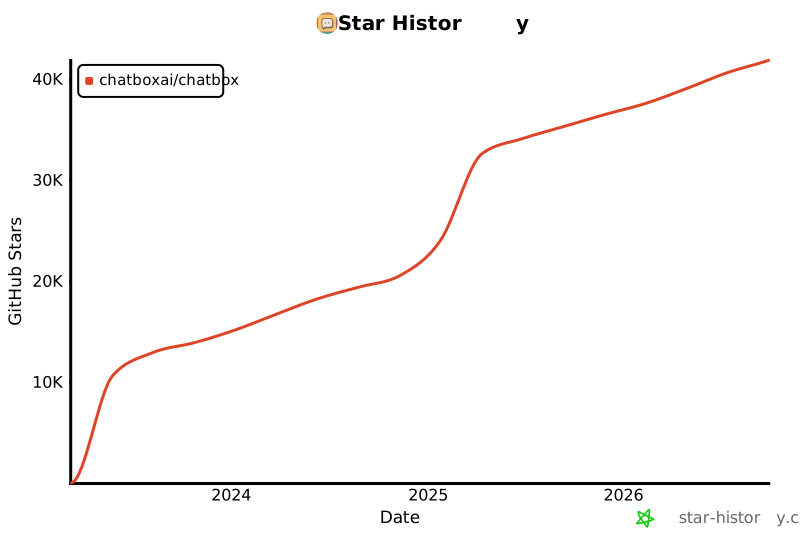](https://star-history.com/#chatboxai/chatbox&Date)
## Contact
[Twitter](https://x.com/ChatboxAI_HQ) | [Email](mailto:hi@chatboxai.com)
## License
[LICENSE](./LICENSE)
================================================
FILE: assets/assets.d.ts
================================================
type Styles = Record
## Features
- **Local Data Storage**
:floppy_disk: Your data remains on your device, ensuring it never gets lost and maintains your privacy.
- **No-Deployment Installation Packages**
:package: Get started quickly with downloadable installation packages. No complex setup necessary!
- **Support for Multiple LLM Providers**
:gear: Seamlessly integrate with a variety of cutting-edge language models:
- OpenAI (ChatGPT)
- Azure OpenAI
- Claude
- Google Gemini Pro
- Ollama (enable access to local models like llama2, Mistral, Mixtral, codellama, vicuna, yi, and solar)
- ChatGLM-6B
- **Image Generation with Dall-E-3**
:art: Create the images of your imagination with Dall-E-3.
- **Enhanced Prompting**
:speech_balloon: Advanced prompting features to refine and focus your queries for better responses.
- **Keyboard Shortcuts**
:keyboard: Stay productive with shortcuts that speed up your workflow.
- **Markdown, Latex & Code Highlighting**
:scroll: Generate messages with the full power of Markdown and Latex formatting, coupled with syntax highlighting for various programming languages, enhancing readability and presentation.
- **Prompt Library & Message Quoting**
:books: Save and organize prompts for reuse, and quote messages for context in discussions.
- **Streaming Reply**
:arrow_forward: Provide rapid responses to your interactions with immediate, progressive replies.
- **Ergonomic UI & Dark Theme**
:new_moon: A user-friendly interface with a night mode option for reduced eye strain during extended use.
- **Team Collaboration**
:busts_in_silhouette: Collaborate with ease and share OpenAI API resources among your team. [Learn More](./team-sharing/README.md)
- **Cross-Platform Availability**
:computer: Chatbox is ready for Windows, Mac, Linux users.
- **Access Anywhere with the Web Version**
:globe_with_meridians: Use the web application on any device with a browser, anywhere.
- **iOS & Android**
:phone: Use the mobile applications that will bring this power to your fingertips on the go.
- **Multilingual Support**
:earth_americas: Catering to a global audience by offering support in multiple languages:
- English
- 简体中文 (Simplified Chinese)
- 繁體中文 (Traditional Chinese)
- 日本語 (Japanese)
- 한국어 (Korean)
- Français (French)
- Deutsch (German)
- Русский (Russian)
- Español (Spanish)
- **And More...**
:sparkles: Constantly enhancing the experience with new features!
## FAQ
- [Frequently Asked Questions](./doc/FAQ.md)
## Why I made Chatbox?
I developed Chatbox initially because I was debugging some prompts and found myself in need of a simple and easy-to-use prompt and API debugging tool. I thought there might be more people who needed such a tool, so I open-sourced it.
At first, I didn't know that it would be so popular. I listened to the feedback from the open-source community and continued to develop and improve it. Now, it has become a very useful AI desktop application. There are many users who love Chatbox, and they not only use it for developing and debugging prompts, but also for daily chatting, and even to do some more interesting things like using well-designed prompts to make AI play various professional roles to assist them in everyday work...
## How to Contribute
Any form of contribution is welcome, including but not limited to:
- Submitting issues
- Submitting pull requests
- Submitting feature requests
- Submitting bug reports
- Submitting documentation revisions
- Submitting translations
- Submitting any other forms of contribution
## Prerequisites
- Node.js (v20.x – v22.x)
- npm (required – pnpm is not supported)
## Build Instructions
1. Clone the repository from Github
```bash
git clone https://github.com/chatboxai/chatbox.git
```
2. Install the required dependencies
```bash
npm install
```
3. Start the application (in development mode)
```bash
npm run dev
```
4. Build the application, package the installer for current platform
```bash
npm run package
```
5. Build the application, package the installer for all platforms
```bash
npm run package:all
```
## Star History
[](https://star-history.com/#chatboxai/chatbox&Date)
## Contact
[Twitter](https://x.com/ChatboxAI_HQ) | [Email](mailto:hi@chatboxai.com)
## License
[LICENSE](./LICENSE)
================================================
FILE: assets/assets.d.ts
================================================
type Styles = RecordEnglish | 中文
这里列举了一些最常见的问题和解决方案。如果你依然没有找到答案,也可以提交一个 [Issue](https://github.com/Bin-Huang/chatbox/issues/new/choose)。 ### 1001 #### 消息发送失败,提示 `Failed to fetch`? 这是因为 Chatbox 无法连接到你设置的 AI 模型服务器,请检查你当前的网络环境,确保可以正常连接到 AI 模型服务器。 对于 OpenAI API 的用户,如果你选择了 OpenAI API 作为 AI 模型提供方(即设置页的 AI Provider 中选择了 `OpenAI API`),那么一般是 Chatbox 无法访问设置的 `API HOST`。在默认设置下,Chatbox 会使用 `https://api.openai.com` 作为 API HOST,请确保你的当前网络可以访问这个服务。注意,在某些国家和地区是无法直接访问的。 ### 1002 #### 以前用的好好的,突然报错 `{"error":{"message":"You exceeded your current quota, please check your plan and billing details.`? 如果你以前使用一切正常,某天之后突然无法使用过,并且每次发送消息都报错: ``` {"error":{"message":"You exceeded your current quota, please check your plan and billing details.","type":"insufficient_quota","param":null,"code":null}} ``` 请注意,这个问题和 Chatbox 没有任何关系。这个情况中往往是因为你正在使用自己的 OpenAI API 账户,而你账户中的免费额度已经全部用完或过期了(一般都是因为过期导致的)。你需要自行登录 OpenAI 账户的控制台,绑定一张海外信用卡才能继续使用。OpenAI API 账户对信用卡有很多要求,如果你的信用卡不符合要求,那么你需要自行解决(非常折腾)。 **更推荐使用 `Chatbox AI`:** 如果你不想折腾这些问题,也可以使用 Chatbox 内置的 `Chatbox AI` 服务。这个服务可以让你无需折腾、什么都不用管、轻松使用 AI 能力。前往配置页,将 AI Provider 设置为 `Chatbox AI`,你将看到相应的设置。 ### 1003 #### 无法使用 GPT-4? 如果你选择 GPT-4,然后发送消息时得到类似的报错: ``` {"error":{"message":"The model: gpt-4-32k does not exist","type":"invalid_request_error","param":null,"code":"model_not_found"}} ``` 这个情况往往是因为你正在使用自己的 OpenAI 账户,你在模型中选择了 GPT-4,但 OpenAI API 账户不支持 GPT-4。截止到 2023 年 07 月 04 日,所有 OpenAI API 账户都需要向 OpenAI 填写申请后才能使用 GPT-4 模型。这里是申请链接: https://openai.com/waitlist/gpt-4-api 。请注意,即使你是 ChatGPT Plus 用户,你也需要申请后才能使用 GPT-4 的 API 模型。 ================================================ FILE: doc/FAQ.md ================================================ # Frequently Asked QuestionsEnglish | 中文
If you still haven't found the answer you're looking for, feel free to submit an [Issue](https://github.com/Bin-Huang/chatbox/issues/new/choose) as well. ### 1001 #### Message sending failed, showing `Failed to fetch`? This issue occurs when Chatbox cannot connect to the AI model server you've set up. Please check your current network environment and make sure it can connect properly to the AI model server. For OpenAI API users, if you've chosen OpenAI API as the AI model provider (meaning you've selected `OpenAI API` in the AI Provider settings), it's typically because Chatbox cannot access the `API HOST` you've set. By default, Chatbox uses `https://api.openai.com` as the API HOST. Please make sure your current network can access this service. ### 1002 #### Everything was working fine before, but now I keep getting an error: `{"error":{"message":"You exceeded your current quota, please check your plan and billing details`? If everything was working fine before and now you're unable to use the service, with each message sending attempt resulting in the following error: ``` {"error":{"message":"You exceeded your current quota, please check your plan and billing details.","type":"insufficient_quota","param":null,"code":null}} ``` Please note that this issue is not related to Chatbox. In this situation, it's likely that you're using your own OpenAI API account and your free quota has either been used up or expired (usually due to expiration). You need to log in to your OpenAI account's dashboard and link a credit card to continue using the service. The OpenAI API account has many requirements for credit cards. If your card doesn't meet these requirements, you'll need to resolve this issue yourself (it can be quite frustrating). **Consider using `Chatbox AI`:** If you don't want to deal with these issues, you can also use Chatbox's built-in `Chatbox AI` service. This service allows you to enjoy AI capabilities without any hassle. Go to the settings page and set the AI Provider to `Chatbox AI`, and you'll see the corresponding options. ### 1003 #### Unable to use GPT-4? If you select GPT-4 and receive a similar error message when sending messages: ``` {"error":{"message":"The model: gpt-4-32k does not exist","type":"invalid_request_error","param":null,"code":"model_not_found"}} ``` This issue often occurs when you're using your own OpenAI account and have selected the GPT-4 model, but your OpenAI API account does not support GPT-4. As of July 4, 2023, all OpenAI API accounts require a request to be submitted to OpenAI before the GPT-4 model can be used. Here's the application link: https://openai.com/waitlist/gpt-4-api. Please note that even if you're a ChatGPT Plus user, you still need to apply for access to use the GPT-4 API model. ================================================ FILE: doc/README-CN.md ================================================ 这里是 Chatbox 社区版的代码仓库,以 GPLv3 许可证开源。 [Chatbox 再次开源!](https://github.com/chatboxai/chatbox/issues/2266) 我们定期从专业版仓库同步代码到这个仓库,反之亦然。 ### 下载电脑端| Windows | MacOS | Linux | |

Setup.exe |

Intel |
Apple Silicon |

AppImage |


 .APK
更多信息请访问: [chatboxai.app](https://chatboxai.app/)
---
.APK
更多信息请访问: [chatboxai.app](https://chatboxai.app/)
---
 Chatbox
(Community Edition)
Chatbox
(Community Edition)
Chatbox 是一个 AI 模型桌面客户端,支持 ChatGPT、Claude、Google Gemini、Ollama 等主流模型,适用于 Windows、Mac、Linux、Web、Android 和 iOS 全平台


 ## 特性
- **本地数据存储**
:floppy_disk: 您的数据保留在您的设备上,确保数据永不丢失并保护您的隐私。
- **无需部署、直接安装的安装包**
:package: 通过可下载的安装包快速开始使用。无需复杂设置!
- **支持多个 LLM 提供商**
:gear: 无缝集成多种 AI 模型:
- OpenAI (ChatGPT)
- Azure OpenAI
- Claude
- Google Gemini Pro
- Ollama (启用对本地模型的访问,如 llama2、Mistral、Mixtral、codellama、vicuna、yi 和 solar)
- ChatGLM-6B
- **使用 Dall-E-3 生成图像**
:art: 使用 Dall-E-3 创建您想象中的图像。
- **增强提示**
:speech_balloon: 高级提示功能,精炼并聚焦您的查询以获得更好的响应。
- **键盘快捷键**
:keyboard: 使用加速您工作流程的快捷键保持高效。
- **Markdown、Latex 和代码高亮**
:scroll: 使用 Markdown 和 Latex 的全部功能生成消息,并结合各种编程语言的语法高亮,提高可读性和呈现效果。
- **提示库和消息引用**
:books: 保存和组织提示以供重复使用,并引用消息以在讨论中提供上下文。
- **流式回复**
:arrow_forward: 通过即时、渐进式回复快速响应您的互动。
- **人体工程学 UI 和深色主题**
:new_moon: 用户友好的界面,带有夜间模式选项,减少长时间使用时的眼睛疲劳。
- **团队协作**
:busts_in_silhouette: 轻松协作并在团队中共享 OpenAI API 资源。[了解更多](../team-sharing/README.md)
- **跨平台可用性**
:computer: 聊天盒已为 Windows、Mac、Linux 用户准备就绪。
- **通过 Web 版本随处访问**
:globe_with_meridians: 在任何设备上使用带有浏览器的 Web 应用程序,随时随地。
- **iOS 和 Android**
:phone: 使用移动应用程序,随时随地在您的指尖上带来这种能力。
- **多语言支持**
:earth_americas: 通过提供多种语言的支持,迎合全球受众:
- English
- 简体中文 (Simplified Chinese)
- 繁體中文 (Traditional Chinese)
- 日本語 (Japanese)
- 한국어 (Korean)
- Français (French)
- Deutsch (German)
- Русский (Russian)
- **更多...**
:sparkles: 不断增强体验,加入新功能!
## 常见问题解答
- [常见问题](./FAQ-CN.md)
## 如何贡献
欢迎任何形式的贡献,包括但不限于:
- 提交问题
- 提交拉取请求
- 提交功能请求
- 提交错误报告
- 提交文档修订
- 提交翻译
- 提交任何其他形式的贡献
## 构建指南
1. 从 Github 克隆仓库
```bash
git clone https://github.com/chatboxai/chatbox.git
```
2. 安装所需的依赖
```bash
npm install
```
3. 启动应用程序(开发模式)
```bash
npm run dev
```
4. 构建应用程序,为当前平台打包安装程序
```bash
npm run package
```
5. 构建应用程序,为所有平台打包安装程序
```bash
npm run package:all
```
## Star History
[](https://star-history.com/#chatboxai/chatbox&Date)
## 联系方式
[Twitter](https://x.com/ChatboxAI_HQ) | [电子邮件](mailto:hi@chatboxai.com)
================================================
FILE: docs/adding-new-provider.md
================================================
# Adding a New Provider (Registry Architecture)
This guide documents how to add a new AI provider to Chatbox using the **registry-based architecture**.
## Overview
The provider system uses a centralized registry. Adding a new provider requires:
1. **One definition file** - Registers the provider with `defineProvider()`
2. **One model class file** - Implements the AI SDK interface
3. **One enum entry** - Adds the provider ID to `ModelProviderEnum`
4. **One import** - Side-effect import in `providers/index.ts`
That's it. No more scattered switch statements or setting-util files.
## Step-by-Step Guide
### Step 1: Add Provider to Enum
**File:** `src/shared/types.ts`
Add your provider to `ModelProviderEnum`:
```typescript
export enum ModelProviderEnum {
// ... existing providers
YourProvider = 'your-provider',
}
```
### Step 2: Create the Model Class
**File:** `src/shared/providers/definitions/models/your-provider.ts`
For **OpenAI-compatible APIs**, extend `OpenAICompatible`:
```typescript
import type { ModelDependencies } from '@shared/types/adapters'
import type { ProviderModelInfo } from '@shared/types'
import { OpenAICompatible } from '@shared/models/openai-compatible'
export interface YourProviderConfig {
apiKey: string
model: ProviderModelInfo
temperature: number
topP: number
maxOutputTokens: number | undefined
stream: boolean | undefined
}
export default class YourProvider extends OpenAICompatible {
public name = 'YourProvider'
constructor(options: YourProviderConfig, dependencies: ModelDependencies) {
super(
{
apiKey: options.apiKey,
apiHost: 'https://api.yourprovider.com/v1', // Your API base URL
model: options.model,
temperature: options.temperature,
topP: options.topP,
maxOutputTokens: options.maxOutputTokens,
stream: options.stream,
},
dependencies
)
}
}
```
For **custom APIs** (non-OpenAI compatible), extend `AbstractAISDKModel` and implement:
- `streamText()` - Streaming chat completion
- `callChatCompletion()` - Non-streaming chat completion
- Optionally: `isSupportToolUse()`, `isSupportVision()`, `isSupportReasoning()`
See `definitions/models/claude.ts` or `definitions/models/gemini.ts` for examples.
### Step 3: Create the Provider Definition
**File:** `src/shared/providers/definitions/your-provider.ts`
```typescript
import { ModelProviderEnum, ModelProviderType } from '../../types'
import { defineProvider } from '../registry'
import YourProvider from './models/your-provider'
export const yourProviderProvider = defineProvider({
// Required: Unique ID from ModelProviderEnum
id: ModelProviderEnum.YourProvider,
// Required: Display name shown in UI
name: 'Your Provider',
// Required: API type (affects model class behavior)
type: ModelProviderType.OpenAI, // OpenAI | Claude | Gemini
// Optional: Description for UI
description: 'Your provider description',
// Optional: Related URLs for settings page
urls: {
website: 'https://yourprovider.com',
apiKey: 'https://yourprovider.com/api-keys',
docs: 'https://yourprovider.com/docs',
},
// Required: Default configuration
defaultSettings: {
apiHost: 'https://api.yourprovider.com',
models: [
{
modelId: 'your-model-v1',
contextWindow: 128_000,
maxOutput: 4_096,
capabilities: ['vision', 'tool_use'], // Optional: vision, tool_use, reasoning
},
{
modelId: 'your-model-v2',
contextWindow: 200_000,
maxOutput: 8_192,
},
],
},
// Required: Factory function to create model instances
createModel: (config) => {
return new YourProvider(
{
apiKey: config.providerSetting.apiKey || '',
model: config.model,
temperature: config.settings.temperature,
topP: config.settings.topP,
maxOutputTokens: config.settings.maxTokens,
stream: config.settings.stream,
},
config.dependencies
)
},
// Optional: Custom display name for message headers
getDisplayName: (modelId, providerSettings) => {
const nickname = providerSettings?.models?.find((m) => m.modelId === modelId)?.nickname
return `Your Provider (${nickname || modelId})`
},
})
```
### Step 4: Register the Provider
**File:** `src/shared/providers/index.ts`
Add a side-effect import at the top of the file:
```typescript
import './definitions/your-provider'
```
This import triggers `defineProvider()` which registers the provider in the registry.
### Step 5: Add Provider Icon (Optional but Recommended)
**File:** `src/renderer/components/icons/ProviderIcon.tsx`
Add an SVG icon case:
```typescript
case ModelProviderEnum.YourProvider:
return (
)
```
## ProviderDefinition Field Reference
| Field | Type | Required | Description |
|-------|------|----------|-------------|
| `id` | `string` | Yes | Unique identifier from `ModelProviderEnum` |
| `name` | `string` | Yes | Display name in UI |
| `type` | `ModelProviderType` | Yes | API type: `OpenAI`, `Claude`, or `Gemini` |
| `description` | `string` | No | Provider description for UI |
| `urls` | `object` | No | Related URLs (website, apiKey, docs, models) |
| `defaultSettings` | `ProviderSettings` | No | Default apiHost and models list |
| `createModel` | `function` | Yes | Factory function that creates model instances |
| `getDisplayName` | `function` | No | Custom display name for message headers |
### CreateModelConfig (passed to createModel)
| Field | Type | Description |
|-------|------|-------------|
| `settings` | `SessionSettings` | Session-level settings (temperature, topP, etc.) |
| `globalSettings` | `Settings` | Global application settings |
| `config` | `Config` | App configuration (uuid, etc.) |
| `dependencies` | `ModelDependencies` | Platform dependencies (fetch, etc.) |
| `providerSetting` | `ProviderSettings` | Provider-specific settings (apiKey, apiHost, models) |
| `formattedApiHost` | `string` | Pre-formatted API host URL |
| `model` | `ProviderModelInfo` | Selected model configuration |
### Model Capabilities
In `defaultSettings.models[].capabilities`, you can specify:
| Capability | Description |
|------------|-------------|
| `vision` | Model supports image inputs |
| `tool_use` | Model supports function/tool calling |
| `reasoning` | Model is a reasoning/thinking model (o1, o3, etc.) |
## Complete Example: Groq Provider
**File:** `src/shared/providers/definitions/groq.ts`
```typescript
import { ModelProviderEnum, ModelProviderType } from '../../types'
import { defineProvider } from '../registry'
import Groq from './models/groq'
export const groqProvider = defineProvider({
id: ModelProviderEnum.Groq,
name: 'Groq',
type: ModelProviderType.OpenAI,
urls: {
website: 'https://groq.com/',
},
defaultSettings: {
apiHost: 'https://api.groq.com/openai',
models: [
{
modelId: 'llama-3.3-70b-versatile',
contextWindow: 131_072,
maxOutput: 32_768,
capabilities: ['tool_use'],
},
],
},
createModel: (config) => {
return new Groq(
{
apiKey: config.providerSetting.apiKey || '',
model: config.model,
temperature: config.settings.temperature,
topP: config.settings.topP,
maxOutputTokens: config.settings.maxTokens,
stream: config.settings.stream,
},
config.dependencies
)
},
getDisplayName: (modelId, providerSettings) => {
return `Groq API (${providerSettings?.models?.find((m) => m.modelId === modelId)?.nickname || modelId})`
},
})
```
## Testing Your Implementation
1. **TypeScript check:**
```bash
npm run check
```
2. **Lint check:**
```bash
npm run lint
```
3. **Run development mode:**
```bash
npm run dev
```
4. **Verify in the app:**
- Provider appears in Settings > Provider
- API key can be configured
- Models are listed in model selector
- Chat functionality works
## Migration Notes
The registry-based architecture replaces the previous scattered approach:
| Old Location | New Location |
|--------------|--------------|
| `src/shared/models/your-provider.ts` | `src/shared/providers/definitions/models/your-provider.ts` |
| `src/shared/models/index.ts` switch case | `defineProvider()` in definition file |
| `src/shared/defaults.ts` SystemProviders entry | `defaultSettings` in definition file |
| `src/renderer/packages/model-setting-utils/*-setting-util.ts` | `getDisplayName` in definition file |
All provider information is now consolidated in a single `defineProvider()` call.
================================================
FILE: docs/adding-provider.md
================================================
# Adding a New Provider to Chatbox
This guide documents all the steps and files that need to be modified when adding a new AI provider to the Chatbox application.
## Overview
Adding a new provider involves modifying approximately 7-8 files across the codebase. The implementation follows a consistent pattern, making it straightforward to add support for new AI models.
## Step-by-Step Implementation
### 1. Add Provider to Enum
**File:** `/src/shared/types.ts`
Add your provider to the `ModelProviderEnum`:
```typescript
export enum ModelProviderEnum {
// ... existing providers
YourProvider = 'your-provider',
}
```
### 2. Create Provider Implementation
**File:** `/src/shared/models/your-provider.ts`
Create a new file implementing your provider's API. Most providers can extend the base OpenAI-compatible class:
```typescript
import { OpenAICompatible } from './openai-compatible'
export class YourProvider extends OpenAICompatible {
name = 'YourProvider'
constructor(apiKey: string, apiHost: string) {
super(apiKey, apiHost)
}
}
```
For providers with custom APIs, extend `AbstractAISdk` directly and implement required methods.
### 3. Register Provider in Factory
**File:** `/src/shared/models/index.ts`
Add three entries:
1. Import your provider:
```typescript
import { YourProvider } from './your-provider'
```
2. Add case in `getModel()` function:
```typescript
case ModelProviderEnum.YourProvider:
return new YourProvider(apiKey, apiHost)
```
3. Add to `aiProviderNameHash`:
```typescript
export const aiProviderNameHash = {
// ... existing entries
[ModelProviderEnum.YourProvider]: 'Your Provider Name',
}
```
4. (Optional) Add to `AIModelProviderMenuOptionList` if it should appear in selection menus:
```typescript
export const AIModelProviderMenuOptionList = [
// ... existing entries
{ value: ModelProviderEnum.YourProvider, label: 'Your Provider' },
]
```
### 4. Configure Default Settings
**File:** `/src/shared/defaults.ts`
Add your provider configuration to the `SystemProviders` array:
```typescript
{
id: ModelProviderEnum.YourProvider,
name: 'Your Provider',
type: ModelProviderType.OpenAI, // OpenAI | Gemini | Claude
defaultSettings: {
apiHost: 'https://api.yourprovider.com',
models: [
{
modelId: 'model-1',
capabilities: ['vision', 'tool_use'], // optional
contextWindow: 128_000, // optional
},
],
},
}
```
**Note:** See existing providers in `defaults.ts` for more examples.
### 5. Create Settings Utility
**File:** `/src/renderer/packages/model-setting-utils/your-provider-setting-util.ts`
Create a settings utility class:
```typescript
import { BaseModelSettingUtil } from './base-model-setting-util'
import { ModelProviderEnum } from '@/shared/types'
export class YourProviderSettingUtil extends BaseModelSettingUtil {
provider = ModelProviderEnum.YourProvider
// Add any provider-specific validation or configuration methods
}
```
### 6. Register Settings Utility
**File:** `/src/renderer/packages/model-setting-utils/index.ts`
Add your utility to the `getModelSettingUtil()` function:
```typescript
import { YourProviderSettingUtil } from './your-provider-setting-util'
export function getModelSettingUtil(provider: ModelProviderEnum): BaseModelSettingUtil {
const hash = {
// ... existing entries
[ModelProviderEnum.YourProvider]: new YourProviderSettingUtil(),
}
return hash[provider] || new BaseModelSettingUtil()
}
```
### 7. Add Provider Icons
**SVG Icon - File:** `/src/renderer/components/icons/ProviderIcon.tsx`
Add an SVG icon component in the switch statement:
```typescript
case ModelProviderEnum.YourProvider:
return (
)
```
**PNG Icon - File:** `/src/renderer/static/icons/providers/your-provider.png`
Add a 36x36 PNG icon for the provider list display.
## Optional Steps
### Translations
If your provider requires custom UI text, add translations to the appropriate locale files in `/src/renderer/i18n/locales/`.
### Testing
Create test files for your provider implementation:
- `/src/shared/models/your-provider.test.ts`
- `/src/renderer/packages/model-setting-utils/your-provider-setting-util.test.ts`
### Custom Settings UI
If your provider needs custom settings beyond API key and host, you may need to create a custom component in `/src/renderer/routes/settings/provider/`. However, most providers work with the default settings page.
## Example: Recent VolcEngine Implementation
The VolcEngine provider was recently added following this pattern:
1. Added enum value in `types.ts`
2. Created `/src/shared/models/volcengine.ts` extending OpenAICompatible
3. Added entries in `/src/shared/models/index.ts`
4. Added configuration in `defaults.ts` with chat models
5. Created settings utility
6. Registered utility in index
## Testing Your Implementation
After implementing:
1. Run `npm run lint:fix` to ensure code style consistency
2. Run `npm run check` for TypeScript validation
3. Test the provider in development mode: `npm run dev`
4. Verify:
- Provider appears in settings
- API key/host can be configured
- Models are selectable
- Chat functionality works
## Common Patterns
- Most providers extend `OpenAICompatible` if they follow OpenAI's API format
- Use `supportContinuous: true` for streaming support
- Set `functionCall: true` on models that support function calling
- The `apiHost` in defaults should not include `/v1` suffix (added automatically)
================================================
FILE: docs/dependency-reorg.md
================================================
# Dependency split for Electron Vite
依据 electron-vite 的建议,本次调整将所有仅用于 renderer(前端打包)的依赖移动到 `devDependencies`,仅保留主进程(`src/main`)和 preload(`src/preload`)在运行时需要的依赖在 `dependencies` 中。
## Runtime dependencies(保留在 `dependencies`)
- @libsql/client
- @mastra/libsql
- @mastra/rag
- @modelcontextprotocol/sdk
- @mozilla/readability
- @sentry/node
- ai
- auto-launch
- chardet
- cohere-ai
- electron
- electron-debug
- electron-devtools-installer
- electron-log
- electron-store
- electron-updater
- epub
- fs-extra
- iconv-lite
- linkedom
- lodash
- ofetch
- officeparser
- sanitize-filename
- uuid
## 主要变动
- 新增 `@libsql/client` 到 `dependencies`(主进程知识库类型定义及运行时需求)。
- 将 `electron`、`electron-debug`、`electron-devtools-installer` 从 `devDependencies` 挪到 `dependencies`(主进程运行时直接使用)。
- 其余原本在 `dependencies` 中、仅被 renderer 使用的依赖全部移动到 `devDependencies`,以符合 electron-vite 关于依赖归类的最佳实践。
## 后续操作
- 运行 `npm install` 以更新本地安装目录和锁文件。
- 如需验证,可执行 `npm run build`/`npm start` 确认依赖拆分未影响构建与运行。
================================================
FILE: docs/new-session-mechanism.md
================================================
# 首页新会话机制文档
## 概述
Chatbox 的首页(`/`路由)是用户创建新对话的入口。本文档详细说明了新会话的创建机制,特别是临时状态的管理和转移过程。
## 核心概念
### 1. 临时会话 ID:"new"
在用户真正发送第一条消息之前,首页使用一个特殊的会话 ID `"new"` 来标识这是一个尚未创建的临时会话。
```typescript
const [session, setSession] = useState
## 特性
- **本地数据存储**
:floppy_disk: 您的数据保留在您的设备上,确保数据永不丢失并保护您的隐私。
- **无需部署、直接安装的安装包**
:package: 通过可下载的安装包快速开始使用。无需复杂设置!
- **支持多个 LLM 提供商**
:gear: 无缝集成多种 AI 模型:
- OpenAI (ChatGPT)
- Azure OpenAI
- Claude
- Google Gemini Pro
- Ollama (启用对本地模型的访问,如 llama2、Mistral、Mixtral、codellama、vicuna、yi 和 solar)
- ChatGLM-6B
- **使用 Dall-E-3 生成图像**
:art: 使用 Dall-E-3 创建您想象中的图像。
- **增强提示**
:speech_balloon: 高级提示功能,精炼并聚焦您的查询以获得更好的响应。
- **键盘快捷键**
:keyboard: 使用加速您工作流程的快捷键保持高效。
- **Markdown、Latex 和代码高亮**
:scroll: 使用 Markdown 和 Latex 的全部功能生成消息,并结合各种编程语言的语法高亮,提高可读性和呈现效果。
- **提示库和消息引用**
:books: 保存和组织提示以供重复使用,并引用消息以在讨论中提供上下文。
- **流式回复**
:arrow_forward: 通过即时、渐进式回复快速响应您的互动。
- **人体工程学 UI 和深色主题**
:new_moon: 用户友好的界面,带有夜间模式选项,减少长时间使用时的眼睛疲劳。
- **团队协作**
:busts_in_silhouette: 轻松协作并在团队中共享 OpenAI API 资源。[了解更多](../team-sharing/README.md)
- **跨平台可用性**
:computer: 聊天盒已为 Windows、Mac、Linux 用户准备就绪。
- **通过 Web 版本随处访问**
:globe_with_meridians: 在任何设备上使用带有浏览器的 Web 应用程序,随时随地。
- **iOS 和 Android**
:phone: 使用移动应用程序,随时随地在您的指尖上带来这种能力。
- **多语言支持**
:earth_americas: 通过提供多种语言的支持,迎合全球受众:
- English
- 简体中文 (Simplified Chinese)
- 繁體中文 (Traditional Chinese)
- 日本語 (Japanese)
- 한국어 (Korean)
- Français (French)
- Deutsch (German)
- Русский (Russian)
- **更多...**
:sparkles: 不断增强体验,加入新功能!
## 常见问题解答
- [常见问题](./FAQ-CN.md)
## 如何贡献
欢迎任何形式的贡献,包括但不限于:
- 提交问题
- 提交拉取请求
- 提交功能请求
- 提交错误报告
- 提交文档修订
- 提交翻译
- 提交任何其他形式的贡献
## 构建指南
1. 从 Github 克隆仓库
```bash
git clone https://github.com/chatboxai/chatbox.git
```
2. 安装所需的依赖
```bash
npm install
```
3. 启动应用程序(开发模式)
```bash
npm run dev
```
4. 构建应用程序,为当前平台打包安装程序
```bash
npm run package
```
5. 构建应用程序,为所有平台打包安装程序
```bash
npm run package:all
```
## Star History
[](https://star-history.com/#chatboxai/chatbox&Date)
## 联系方式
[Twitter](https://x.com/ChatboxAI_HQ) | [电子邮件](mailto:hi@chatboxai.com)
================================================
FILE: docs/adding-new-provider.md
================================================
# Adding a New Provider (Registry Architecture)
This guide documents how to add a new AI provider to Chatbox using the **registry-based architecture**.
## Overview
The provider system uses a centralized registry. Adding a new provider requires:
1. **One definition file** - Registers the provider with `defineProvider()`
2. **One model class file** - Implements the AI SDK interface
3. **One enum entry** - Adds the provider ID to `ModelProviderEnum`
4. **One import** - Side-effect import in `providers/index.ts`
That's it. No more scattered switch statements or setting-util files.
## Step-by-Step Guide
### Step 1: Add Provider to Enum
**File:** `src/shared/types.ts`
Add your provider to `ModelProviderEnum`:
```typescript
export enum ModelProviderEnum {
// ... existing providers
YourProvider = 'your-provider',
}
```
### Step 2: Create the Model Class
**File:** `src/shared/providers/definitions/models/your-provider.ts`
For **OpenAI-compatible APIs**, extend `OpenAICompatible`:
```typescript
import type { ModelDependencies } from '@shared/types/adapters'
import type { ProviderModelInfo } from '@shared/types'
import { OpenAICompatible } from '@shared/models/openai-compatible'
export interface YourProviderConfig {
apiKey: string
model: ProviderModelInfo
temperature: number
topP: number
maxOutputTokens: number | undefined
stream: boolean | undefined
}
export default class YourProvider extends OpenAICompatible {
public name = 'YourProvider'
constructor(options: YourProviderConfig, dependencies: ModelDependencies) {
super(
{
apiKey: options.apiKey,
apiHost: 'https://api.yourprovider.com/v1', // Your API base URL
model: options.model,
temperature: options.temperature,
topP: options.topP,
maxOutputTokens: options.maxOutputTokens,
stream: options.stream,
},
dependencies
)
}
}
```
For **custom APIs** (non-OpenAI compatible), extend `AbstractAISDKModel` and implement:
- `streamText()` - Streaming chat completion
- `callChatCompletion()` - Non-streaming chat completion
- Optionally: `isSupportToolUse()`, `isSupportVision()`, `isSupportReasoning()`
See `definitions/models/claude.ts` or `definitions/models/gemini.ts` for examples.
### Step 3: Create the Provider Definition
**File:** `src/shared/providers/definitions/your-provider.ts`
```typescript
import { ModelProviderEnum, ModelProviderType } from '../../types'
import { defineProvider } from '../registry'
import YourProvider from './models/your-provider'
export const yourProviderProvider = defineProvider({
// Required: Unique ID from ModelProviderEnum
id: ModelProviderEnum.YourProvider,
// Required: Display name shown in UI
name: 'Your Provider',
// Required: API type (affects model class behavior)
type: ModelProviderType.OpenAI, // OpenAI | Claude | Gemini
// Optional: Description for UI
description: 'Your provider description',
// Optional: Related URLs for settings page
urls: {
website: 'https://yourprovider.com',
apiKey: 'https://yourprovider.com/api-keys',
docs: 'https://yourprovider.com/docs',
},
// Required: Default configuration
defaultSettings: {
apiHost: 'https://api.yourprovider.com',
models: [
{
modelId: 'your-model-v1',
contextWindow: 128_000,
maxOutput: 4_096,
capabilities: ['vision', 'tool_use'], // Optional: vision, tool_use, reasoning
},
{
modelId: 'your-model-v2',
contextWindow: 200_000,
maxOutput: 8_192,
},
],
},
// Required: Factory function to create model instances
createModel: (config) => {
return new YourProvider(
{
apiKey: config.providerSetting.apiKey || '',
model: config.model,
temperature: config.settings.temperature,
topP: config.settings.topP,
maxOutputTokens: config.settings.maxTokens,
stream: config.settings.stream,
},
config.dependencies
)
},
// Optional: Custom display name for message headers
getDisplayName: (modelId, providerSettings) => {
const nickname = providerSettings?.models?.find((m) => m.modelId === modelId)?.nickname
return `Your Provider (${nickname || modelId})`
},
})
```
### Step 4: Register the Provider
**File:** `src/shared/providers/index.ts`
Add a side-effect import at the top of the file:
```typescript
import './definitions/your-provider'
```
This import triggers `defineProvider()` which registers the provider in the registry.
### Step 5: Add Provider Icon (Optional but Recommended)
**File:** `src/renderer/components/icons/ProviderIcon.tsx`
Add an SVG icon case:
```typescript
case ModelProviderEnum.YourProvider:
return (
)
```
## ProviderDefinition Field Reference
| Field | Type | Required | Description |
|-------|------|----------|-------------|
| `id` | `string` | Yes | Unique identifier from `ModelProviderEnum` |
| `name` | `string` | Yes | Display name in UI |
| `type` | `ModelProviderType` | Yes | API type: `OpenAI`, `Claude`, or `Gemini` |
| `description` | `string` | No | Provider description for UI |
| `urls` | `object` | No | Related URLs (website, apiKey, docs, models) |
| `defaultSettings` | `ProviderSettings` | No | Default apiHost and models list |
| `createModel` | `function` | Yes | Factory function that creates model instances |
| `getDisplayName` | `function` | No | Custom display name for message headers |
### CreateModelConfig (passed to createModel)
| Field | Type | Description |
|-------|------|-------------|
| `settings` | `SessionSettings` | Session-level settings (temperature, topP, etc.) |
| `globalSettings` | `Settings` | Global application settings |
| `config` | `Config` | App configuration (uuid, etc.) |
| `dependencies` | `ModelDependencies` | Platform dependencies (fetch, etc.) |
| `providerSetting` | `ProviderSettings` | Provider-specific settings (apiKey, apiHost, models) |
| `formattedApiHost` | `string` | Pre-formatted API host URL |
| `model` | `ProviderModelInfo` | Selected model configuration |
### Model Capabilities
In `defaultSettings.models[].capabilities`, you can specify:
| Capability | Description |
|------------|-------------|
| `vision` | Model supports image inputs |
| `tool_use` | Model supports function/tool calling |
| `reasoning` | Model is a reasoning/thinking model (o1, o3, etc.) |
## Complete Example: Groq Provider
**File:** `src/shared/providers/definitions/groq.ts`
```typescript
import { ModelProviderEnum, ModelProviderType } from '../../types'
import { defineProvider } from '../registry'
import Groq from './models/groq'
export const groqProvider = defineProvider({
id: ModelProviderEnum.Groq,
name: 'Groq',
type: ModelProviderType.OpenAI,
urls: {
website: 'https://groq.com/',
},
defaultSettings: {
apiHost: 'https://api.groq.com/openai',
models: [
{
modelId: 'llama-3.3-70b-versatile',
contextWindow: 131_072,
maxOutput: 32_768,
capabilities: ['tool_use'],
},
],
},
createModel: (config) => {
return new Groq(
{
apiKey: config.providerSetting.apiKey || '',
model: config.model,
temperature: config.settings.temperature,
topP: config.settings.topP,
maxOutputTokens: config.settings.maxTokens,
stream: config.settings.stream,
},
config.dependencies
)
},
getDisplayName: (modelId, providerSettings) => {
return `Groq API (${providerSettings?.models?.find((m) => m.modelId === modelId)?.nickname || modelId})`
},
})
```
## Testing Your Implementation
1. **TypeScript check:**
```bash
npm run check
```
2. **Lint check:**
```bash
npm run lint
```
3. **Run development mode:**
```bash
npm run dev
```
4. **Verify in the app:**
- Provider appears in Settings > Provider
- API key can be configured
- Models are listed in model selector
- Chat functionality works
## Migration Notes
The registry-based architecture replaces the previous scattered approach:
| Old Location | New Location |
|--------------|--------------|
| `src/shared/models/your-provider.ts` | `src/shared/providers/definitions/models/your-provider.ts` |
| `src/shared/models/index.ts` switch case | `defineProvider()` in definition file |
| `src/shared/defaults.ts` SystemProviders entry | `defaultSettings` in definition file |
| `src/renderer/packages/model-setting-utils/*-setting-util.ts` | `getDisplayName` in definition file |
All provider information is now consolidated in a single `defineProvider()` call.
================================================
FILE: docs/adding-provider.md
================================================
# Adding a New Provider to Chatbox
This guide documents all the steps and files that need to be modified when adding a new AI provider to the Chatbox application.
## Overview
Adding a new provider involves modifying approximately 7-8 files across the codebase. The implementation follows a consistent pattern, making it straightforward to add support for new AI models.
## Step-by-Step Implementation
### 1. Add Provider to Enum
**File:** `/src/shared/types.ts`
Add your provider to the `ModelProviderEnum`:
```typescript
export enum ModelProviderEnum {
// ... existing providers
YourProvider = 'your-provider',
}
```
### 2. Create Provider Implementation
**File:** `/src/shared/models/your-provider.ts`
Create a new file implementing your provider's API. Most providers can extend the base OpenAI-compatible class:
```typescript
import { OpenAICompatible } from './openai-compatible'
export class YourProvider extends OpenAICompatible {
name = 'YourProvider'
constructor(apiKey: string, apiHost: string) {
super(apiKey, apiHost)
}
}
```
For providers with custom APIs, extend `AbstractAISdk` directly and implement required methods.
### 3. Register Provider in Factory
**File:** `/src/shared/models/index.ts`
Add three entries:
1. Import your provider:
```typescript
import { YourProvider } from './your-provider'
```
2. Add case in `getModel()` function:
```typescript
case ModelProviderEnum.YourProvider:
return new YourProvider(apiKey, apiHost)
```
3. Add to `aiProviderNameHash`:
```typescript
export const aiProviderNameHash = {
// ... existing entries
[ModelProviderEnum.YourProvider]: 'Your Provider Name',
}
```
4. (Optional) Add to `AIModelProviderMenuOptionList` if it should appear in selection menus:
```typescript
export const AIModelProviderMenuOptionList = [
// ... existing entries
{ value: ModelProviderEnum.YourProvider, label: 'Your Provider' },
]
```
### 4. Configure Default Settings
**File:** `/src/shared/defaults.ts`
Add your provider configuration to the `SystemProviders` array:
```typescript
{
id: ModelProviderEnum.YourProvider,
name: 'Your Provider',
type: ModelProviderType.OpenAI, // OpenAI | Gemini | Claude
defaultSettings: {
apiHost: 'https://api.yourprovider.com',
models: [
{
modelId: 'model-1',
capabilities: ['vision', 'tool_use'], // optional
contextWindow: 128_000, // optional
},
],
},
}
```
**Note:** See existing providers in `defaults.ts` for more examples.
### 5. Create Settings Utility
**File:** `/src/renderer/packages/model-setting-utils/your-provider-setting-util.ts`
Create a settings utility class:
```typescript
import { BaseModelSettingUtil } from './base-model-setting-util'
import { ModelProviderEnum } from '@/shared/types'
export class YourProviderSettingUtil extends BaseModelSettingUtil {
provider = ModelProviderEnum.YourProvider
// Add any provider-specific validation or configuration methods
}
```
### 6. Register Settings Utility
**File:** `/src/renderer/packages/model-setting-utils/index.ts`
Add your utility to the `getModelSettingUtil()` function:
```typescript
import { YourProviderSettingUtil } from './your-provider-setting-util'
export function getModelSettingUtil(provider: ModelProviderEnum): BaseModelSettingUtil {
const hash = {
// ... existing entries
[ModelProviderEnum.YourProvider]: new YourProviderSettingUtil(),
}
return hash[provider] || new BaseModelSettingUtil()
}
```
### 7. Add Provider Icons
**SVG Icon - File:** `/src/renderer/components/icons/ProviderIcon.tsx`
Add an SVG icon component in the switch statement:
```typescript
case ModelProviderEnum.YourProvider:
return (
)
```
**PNG Icon - File:** `/src/renderer/static/icons/providers/your-provider.png`
Add a 36x36 PNG icon for the provider list display.
## Optional Steps
### Translations
If your provider requires custom UI text, add translations to the appropriate locale files in `/src/renderer/i18n/locales/`.
### Testing
Create test files for your provider implementation:
- `/src/shared/models/your-provider.test.ts`
- `/src/renderer/packages/model-setting-utils/your-provider-setting-util.test.ts`
### Custom Settings UI
If your provider needs custom settings beyond API key and host, you may need to create a custom component in `/src/renderer/routes/settings/provider/`. However, most providers work with the default settings page.
## Example: Recent VolcEngine Implementation
The VolcEngine provider was recently added following this pattern:
1. Added enum value in `types.ts`
2. Created `/src/shared/models/volcengine.ts` extending OpenAICompatible
3. Added entries in `/src/shared/models/index.ts`
4. Added configuration in `defaults.ts` with chat models
5. Created settings utility
6. Registered utility in index
## Testing Your Implementation
After implementing:
1. Run `npm run lint:fix` to ensure code style consistency
2. Run `npm run check` for TypeScript validation
3. Test the provider in development mode: `npm run dev`
4. Verify:
- Provider appears in settings
- API key/host can be configured
- Models are selectable
- Chat functionality works
## Common Patterns
- Most providers extend `OpenAICompatible` if they follow OpenAI's API format
- Use `supportContinuous: true` for streaming support
- Set `functionCall: true` on models that support function calling
- The `apiHost` in defaults should not include `/v1` suffix (added automatically)
================================================
FILE: docs/dependency-reorg.md
================================================
# Dependency split for Electron Vite
依据 electron-vite 的建议,本次调整将所有仅用于 renderer(前端打包)的依赖移动到 `devDependencies`,仅保留主进程(`src/main`)和 preload(`src/preload`)在运行时需要的依赖在 `dependencies` 中。
## Runtime dependencies(保留在 `dependencies`)
- @libsql/client
- @mastra/libsql
- @mastra/rag
- @modelcontextprotocol/sdk
- @mozilla/readability
- @sentry/node
- ai
- auto-launch
- chardet
- cohere-ai
- electron
- electron-debug
- electron-devtools-installer
- electron-log
- electron-store
- electron-updater
- epub
- fs-extra
- iconv-lite
- linkedom
- lodash
- ofetch
- officeparser
- sanitize-filename
- uuid
## 主要变动
- 新增 `@libsql/client` 到 `dependencies`(主进程知识库类型定义及运行时需求)。
- 将 `electron`、`electron-debug`、`electron-devtools-installer` 从 `devDependencies` 挪到 `dependencies`(主进程运行时直接使用)。
- 其余原本在 `dependencies` 中、仅被 renderer 使用的依赖全部移动到 `devDependencies`,以符合 electron-vite 关于依赖归类的最佳实践。
## 后续操作
- 运行 `npm install` 以更新本地安装目录和锁文件。
- 如需验证,可执行 `npm run build`/`npm start` 确认依赖拆分未影响构建与运行。
================================================
FILE: docs/new-session-mechanism.md
================================================
# 首页新会话机制文档
## 概述
Chatbox 的首页(`/`路由)是用户创建新对话的入口。本文档详细说明了新会话的创建机制,特别是临时状态的管理和转移过程。
## 核心概念
### 1. 临时会话 ID:"new"
在用户真正发送第一条消息之前,首页使用一个特殊的会话 ID `"new"` 来标识这是一个尚未创建的临时会话。
```typescript
const [session, setSession] = useStateConfigs 保持 File | **→ IndexedDB** | Desktop 分离存储
Mobile 统一到 IndexedDB | | **v1.17.0** | **12-13** | Sessions 保持 IndexedDB
Configs 保持 File | **→ SQLite** | Desktop 无变化
Mobile 性能优化 | **关键历史事实**: - Desktop 的 `configVersion`/`settings`/`configs` **从未** 存储在 IndexedDB 中 - Desktop 从 v1.16.1 开始只将 **sessions** 移到 IndexedDB - v1.16.1 → v1.17.0,Desktop 存储策略 **完全未变** - Mobile 的完整演进:localStorage → SQLite (v1.9.11) → IndexedDB (v1.16.1) → SQLite (v1.17.0) ## 迁移机制 ### 核心逻辑 ```typescript // 1. 找到最新的旧存储 const [oldConfigVersion, oldStorage] = await findNewestStorage(getOldVersionStorages()) // 2. 判断是否需要迁移数据 if ( (oldConfigVersion > configVersion || platform.type === 'desktop') && oldStorage && oldStorage.getStorageType() !== storage.getStorageType() // 存储类型不同 ) { await doMigrateStorage(oldStorage) // 迁移数据 } // 3. 增量升级数据格式 for (; configVersion < CurrentVersion; configVersion++) { await migrateFunctions[configVersion]?.(dataStore) await setConfigVersion(configVersion + 1) } ``` ### 迁移策略差异 | 平台 | 策略 | 说明 | |------|------|------| | **Mobile** | 复制所有 key | 所有数据在同一存储 | | **Desktop** | 只复制会话数据 | Settings/Configs 保留在文件中 | ## 关键设计决策 ### 1. 同类型存储共享数据源 **原则**: 旧存储和当前存储类型相同时,无需迁移数据。 **示例**: Mobile v1.9.11 (SQLite v7) → v1.17.0 (SQLite v13) - 都用 SQLite,数据已经在那里 - 只需升级数据格式,无需复制数据 ### 2. 多个旧存储选最新 **原则**: 存在多个旧存储时,选择 configVersion 最大的。 **示例**: localStorage v5 + IndexedDB v12 → 选择 IndexedDB v12 - 避免迁移过时数据 - 确保用户获得最新状态 ### 3. 桌面端混合存储 **原则**: 配置文件便于备份,会话数据用 IndexedDB。 **历史演进**: - v1.9.x: 所有数据在 config.json 文件中 - v1.16.1: 会话数据移到 IndexedDB,配置保持在文件中 - v1.17.0: 与 v1.16.1 完全相同(无变化) **关键事实**: - `configVersion`/`settings`/`configs` 从未在 IndexedDB 中存储过 - 只有会话数据(`chat-sessions-list`、`session:*`)在 IndexedDB **特殊处理**: - 迁移时只复制会话数据到 IndexedDB - Settings/Configs 保留在文件存储 ### 4. 增量数据格式升级 **原则**: 数据格式升级按版本逐步执行。 **优势**: - 从任意版本升级都能正确迁移 - 中断后可继续 - 便于维护 ## 测试要点 ### 覆盖场景 1. ✅ 首次运行(无旧数据) 2. ✅ 版本已是最新(跳过迁移) 3. ✅ 同类型存储(数据已可访问) 4. ✅ 跨存储迁移(File → IndexedDB, localStorage → SQLite) 5. ✅ 多个旧存储共存(选择最新版本) 6. ✅ 历史版本直接升级(跳过中间版本) ### 关键洞察 **1. 同类型存储共享数据源** ```typescript // 测试 mock 体现 if (type === 'MOBILE_SQLITE') { sqliteData = { ...data } // 共享同一数据容器 } ``` **2. 最新版本优先** ```typescript // localStorage v5 + IndexedDB v12 → 选择 v12 ``` **3. 桌面端部分迁移** ```typescript // 只迁移 sessions,不迁移 settings/configs ``` **4. 使用真实 Platform 实例** ```typescript beforeAll(async () => { const { default: DesktopPlatformClass } = await import('@/platform/desktop_platform') desktopPlatform = new DesktopPlatformClass(window.electronAPI) }) ``` ## 常见问题 **Q: 为什么回退到 SQLite?** A: IndexedDB 在某些 WebView 环境存在数据被清理问题,SQLite 更稳定。 **Q: 迁移失败会怎样?** A: 捕获异常并记录,应用仍可运行(初始化默认数据)。 **Q: 如何添加新版本?** A: 增加 `CurrentVersion`,在 `migrateFunctions` 添加迁移函数,更新文档。 ## 参考 - [Migration 源码](../src/renderer/stores/migration.ts) - [Migration 测试](../src/renderer/stores/migration.test.ts) - [测试文档](./testing.md) --- **最后更新**: 2025-10-25 | **当前版本**: v1.17.0 (Config Version 13) ================================================ FILE: docs/testing.md ================================================ # Testing Strategy and Implementation ## Current Testing Infrastructure ### Test Framework - **Vitest** - Modern, ESM-first test runner with excellent TypeScript support - **@ai-sdk/provider-utils/test** - Mock server utilities for AI provider testing - **Testing Library** - Component testing utilities ### Test Configuration ```typescript // vitest.config.ts export default defineConfig({ test: { globals: true, environment: 'node', env: { NODE_ENV: 'test', }, include: ['src/**/*.{test,spec}.{ts,tsx}'], exclude: ['node_modules', 'dist', 'release', '.erb'], } }) ``` ### Test Commands - `npm run test` - Run all tests once - `npm run test:watch` - Run tests in watch mode - `npm run test:ui` - Launch Vitest UI for interactive testing - `npm run test:coverage` - Run tests with coverage report ## Existing Test Coverage ### ✅ Completed Tests 1. **AI Provider Adapters** (`src/shared/models/`) - OpenAI streaming and tool calls - Error handling (rate limits, network errors) - Message format conversion - Stream parsing and response handling 2. **Utility Functions** (`src/shared/utils/`) - API URL normalization (`llm_utils.test.ts`) - Message sequencing and merging - ContentParts array handling 3. **Content Processing** (`src/renderer/`) - Base64 image parsing (`base64.test.ts`) - LaTeX rendering (`latex.test.ts`) - Provider configuration parsing (`provider-config.test.ts`) 4. **Message Handling** (`src/renderer/utils/`) - Message role sequencing - Empty message filtering - Multi-part content merging - Image content handling ## Testing Patterns and Best Practices ### Mock Server Pattern For AI provider testing, use `createTestServer` from `@ai-sdk/provider-utils/test`: ```typescript import { createTestServer } from '@ai-sdk/provider-utils/test' const server = createTestServer({ 'https://api.openai.com/v1/chat/completions': { headers: { 'Content-Type': 'text/event-stream' }, chunks: [ 'data: {"id":"1","object":"chat.completion.chunk","choices":[{"delta":{"content":"Hello"}}]}\n\n', 'data: [DONE]\n\n', ] } }) ``` ### Handling Dynamic Responses Use `callNumber` parameter for different responses per call: ```typescript const server = createTestServer({ 'https://api.openai.com/v1/chat/completions': ({ callNumber }) => ({ chunks: callNumber === 0 ? ['data: {"choices":[{"delta":{"tool_calls":[...]}}]}\n\n'] : ['data: {"choices":[{"delta":{"content":"Result"}}]}\n\n'] }) }) ``` ### Environment-Aware Code Suppress console output in tests: ```typescript if (process.env.NODE_ENV !== 'test') { console.error('Error message') } ``` ## Test Coverage Goals ### High Priority (Core Functionality) - [x] AI provider adapters - Basic streaming and error handling - [x] Message processing core logic - [ ] Data storage layer (BaseStorage) - [ ] Session management - [ ] Settings management ### Medium Priority (Features) - [x] Content rendering (LaTeX, Markdown basics) - [x] Provider configuration - [ ] File processing and uploads - [ ] Knowledge base integration - [ ] MCP server communication ### Low Priority (Extensions) - [ ] UI component testing - [ ] Electron main process testing - [ ] Platform-specific features - [ ] Performance benchmarks ## Implementation Guidelines ### 1. Test Structure - Place test files alongside source files with `.test.ts` extension - Use descriptive test names that explain the expected behavior - Group related tests using `describe` blocks ### 2. Mock Strategy - Use real fetch with mock servers for API testing - Avoid mocking internal modules unless necessary - Create reusable test fixtures for common data ### 3. Async Testing - Always await async operations - Use proper cleanup in afterEach hooks - Handle streaming responses correctly ### 4. Type Safety - Never use `any` type in tests - Ensure all mocks match actual type signatures - Use type assertions sparingly and correctly ## Migration from Jest The project has been successfully migrated from Jest to Vitest for better ESM support and modern tooling: 1. **Key Changes** - Replaced Jest configuration with Vitest config - Updated test scripts in package.json - Fixed import issues with `@ai-sdk/provider-utils/test` - Updated test expectations for new data structures 2. **Benefits** - Native ESM support - Faster test execution - Better TypeScript integration - Interactive UI for test debugging ## Next Steps 1. **Immediate Actions** - Add tests for data storage layer - Test session lifecycle management - Verify settings persistence 2. **Short-term Goals** - Achieve 70% code coverage for core modules - Add integration tests for critical user flows - Set up automated test runs in CI/CD 3. **Long-term Vision** - Comprehensive E2E testing with Playwright - Performance regression testing - Cross-platform compatibility testing ## Resources - [Vitest Documentation](https://vitest.dev/) - [AI SDK Testing Guide](https://sdk.vercel.ai/docs/testing) - [Testing Library](https://testing-library.com/) ================================================ FILE: docs/token-estimation.md ================================================ # Token Estimation System Token 预估系统用于异步计算聊天消息和附件的 token 数量,在不阻塞 UI 的情况下提供实时的 token 统计。 ## 架构概览 ```text ┌─────────────────────────────────────────────────────────────────────┐ │ React UI (InputBox, TokenCountMenu) │ │ └── useTokenEstimation hook │ │ ├── 返回: { totalTokens, isCalculating, breakdown } │ │ └── 订阅 computationQueue 状态变化 │ └─────────────────────────────────────────────────────────────────────┘ │ ▼ ┌─────────────────────────────────────────────────────────────────────┐ │ analyzer.ts │ │ ├── 检查消息的 tokenCountMap 缓存 │ │ ├── 已缓存 → 直接返回 token 数 │ │ └── 未缓存 → 生成 pendingTasks │ └─────────────────────────────────────────────────────────────────────┘ │ ▼ ┌─────────────────────────────────────────────────────────────────────┐ │ computation-queue.ts (Singleton) │ │ ├── 优先级队列 (priority: 0=当前输入, 10+=历史消息) │ │ ├── 任务去重 (by taskId) │ │ ├── 并发控制 (maxConcurrency=1) │ │ └── Session 级别取消 │ └─────────────────────────────────────────────────────────────────────┘ │ ▼ ┌─────────────────────────────────────────────────────────────────────┐ │ task-executor.ts │ │ ├── 读取消息/附件内容 │ │ ├── 调用 tokenizer 计算 token │ │ └── 将结果发送到 resultPersister │ └─────────────────────────────────────────────────────────────────────┘ │ ▼ ┌─────────────────────────────────────────────────────────────────────┐ │ result-persister.ts │ │ ├── 累积计算结果 │ │ ├── Throttle 机制 (1000ms) - 保证每秒至少 flush 一次 │ │ └── 调用 chatStore.updateMessages() 持久化 │ └─────────────────────────────────────────────────────────────────────┘ │ ▼ ┌─────────────────────────────────────────────────────────────────────┐ │ chatStore.ts │ │ ├── 更新 storage (IndexedDB) │ │ └── setQueryData() 更新 React Query 缓存 → UI 重新渲染 │ └─────────────────────────────────────────────────────────────────────┘ ``` ## 文件结构 ```text src/renderer/packages/token-estimation/ ├── index.ts # 公共 API 导出 ├── types.ts # 类型定义 (ComputationTask, TaskResult, etc.) ├── hooks/ │ └── useTokenEstimation.ts # React Hook - UI 入口 ├── analyzer.ts # 分析哪些消息需要计算 ├── computation-queue.ts # 任务队列管理 ├── task-executor.ts # 任务执行逻辑 ├── result-persister.ts # 结果持久化 (throttle) ├── tokenizer.ts # Token 计算逻辑 (tiktoken/deepseek) ├── cache-keys.ts # 缓存 key 生成工具 └── __tests__/ # 单元测试 ``` ## 核心组件 ### 1. useTokenEstimation Hook **位置**: `hooks/useTokenEstimation.ts` React 组件的入口点,负责: - 调用 `analyzeTokenRequirements()` 分析需要计算的任务 - 将任务入队到 `computationQueue` - 订阅队列状态变化,返回 `isCalculating` - 当 session 切换时取消旧 session 的任务 ```typescript const { totalTokens, // 总 token 数 contextTokens, // 上下文消息 token 数 currentInputTokens, // 当前输入 token 数 isCalculating, // 是否正在计算 pendingTasks, // 待处理任务数 breakdown, // 详细分解 } = useTokenEstimation({ sessionId, constructedMessage, // 当前输入(未发送) contextMessages, // 历史消息 model, modelSupportToolUseForFile, }) ``` ### 2. Analyzer **位置**: `analyzer.ts` 分析消息列表,确定哪些需要计算: - 检查每条消息的 `tokenCountMap` 缓存 - 已缓存 → 直接累加到结果 - 未缓存 → 生成 `ComputationTask` ### 3. Computation Queue **位置**: `computation-queue.ts` 优先级任务队列,特性: - **优先级调度**: 当前输入 (0) > 附件 (1) > 历史消息 (10+) - **去重**: 通过 taskId 防止重复计算 - **并发控制**: 最多 1 个任务同时执行 - **Session 取消**: 切换会话时取消旧会话的任务 ```typescript // 优先级常量 PRIORITY = { CURRENT_INPUT_TEXT: 0, // 最高优先级 CURRENT_INPUT_ATTACHMENT: 1, CONTEXT_TEXT: 10, // 历史消息基础优先级 CONTEXT_ATTACHMENT: 11, } ``` ### 4. Task Executor **位置**: `task-executor.ts` 执行具体的 token 计算: - 读取消息文本或附件内容 - 调用 tokenizer 计算 token 数 - 将结果发送到 `resultPersister` ### 5. Result Persister **位置**: `result-persister.ts` 批量持久化计算结果,使用 **throttle** 机制: ```typescript // Throttle 而非 Debounce // - Debounce: 每次调用重置计时器,可能导致长时间不 flush // - Throttle: 保证每 1000ms 至少 flush 一次 private throttleMs = 1000 private lastFlushTime = 0 private scheduleFlush(): void { const now = Date.now() const timeSinceLastFlush = now - this.lastFlushTime if (timeSinceLastFlush >= this.throttleMs) { // 距离上次 flush 已超过 1s,立即 flush this.doFlush() } else if (!this.flushTimer) { // 安排在剩余时间后 flush this.flushTimer = setTimeout(() => { this.doFlush() }, this.throttleMs - timeSinceLastFlush) } // 如果已有计时器,不做任何事(throttle 行为) } ``` **为什么用 Throttle?** - 计算 100 条消息时,任务会连续完成 - Debounce 会不断重置计时器,直到所有任务完成才 flush - Throttle 保证用户每秒都能看到中间进度 ### 6. Tokenizer **位置**: `tokenizer.ts` 实际的 token 计算逻辑,支持: - **Tiktoken**: OpenAI 模型 (cl100k_base, o200k_base) - **DeepSeek**: DeepSeek 模型专用 tokenizer ## 缓存机制 Token 计算结果缓存在消息对象的 `tokenCountMap` 字段: ```typescript interface Message { // ... tokenCountMap?: { tiktoken?: number // 文本 token (tiktoken) tiktoken_preview?: number // 预览模式 token deepseek?: number // 文本 token (deepseek) deepseek_preview?: number // 预览模式 token } tokenCalculatedAt?: { tiktoken?: number // 计算时间戳 // ... } } ``` 附件也有类似的缓存结构: ```typescript interface MessageFile { // ... tokenCountMap?: TokenCountMap tokenCalculatedAt?: Record