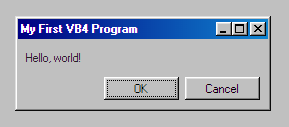
 98.css is a CSS file that takes semantic HTML and makes it look pretty. It does not ship with any JavaScript, so it is compatible with your frontend framework of choice.
Be sure to check out [XP.css](https://botoxparty.github.io/XP.css/) and [7.css](https://khang-nd.github.io/7.css/) as well.
### Installation / Usage
The easiest way to use 98.css is to import it from [unpkg](https://unpkg.com/).
```html
98.css is a CSS file that takes semantic HTML and makes it look pretty. It does not ship with any JavaScript, so it is compatible with your frontend framework of choice.
Be sure to check out [XP.css](https://botoxparty.github.io/XP.css/) and [7.css](https://khang-nd.github.io/7.css/) as well.
### Installation / Usage
The easiest way to use 98.css is to import it from [unpkg](https://unpkg.com/).
```html
98.css
A design system for building faithful recreations of old UIs.
Intro
98.css is a CSS library for building interfaces that look like Windows 98. See more on GitHub.
Hello, world!
This library relies on the usage of semantic HTML. To make a button, you'll need
to use a <button>. Input elements require labels. Icon buttons rely on
aria-label. This page will guide you through that process, but accessibility is a primary
goal of this project.
You can override many of the styles of your elements while maintaining the appearance provided by this library. Need more padding on your buttons? Go for it. Need to add some color to your input labels? Be our guest.
This library does not contain any JavaScript, it merely styles your HTML with some CSS. This means 98.css is compatible with your frontend framework of choice.
Here is an example of 98.css used with React, and an example with vanilla JavaScript. The fastest way to use 98.css is to import it from unpkg.
<link
  rel="stylesheet"
  href="https://unpkg.com/98.css"
>
You can install 98.css from the GitHub releases page, or from npm.
npm install 98.cssComponents
Button
A command button, also referred to as a push button, is a control that causes the application to perform some action when the user clicks it.
A standard button measures 75px wide and 23px tall, with a raised outer and inner border. They are given 12px of horizontal padding by default.
<%- example(` `)%>
You can add the class default to any button to apply additional styling,
useful when communicating to the user what default action would happen in the active window if
the Enter key was pressed on Windows 98.
When buttons are clicked, the raised borders become sunken. The following button is simulated to be in the pressed (active) state.
<% /* [[ ... ]] is used to render contents that will not appear in the "Show code" section */ %> <%- example(`Disabled buttons maintain the same raised border, but have a "washed out" appearance in their label.
<%- example(``) %>Button focus is communicated with a dotted border, set 4px within the contents of the button. The following example is simulated to be focused.
<%- example(`Checkbox
A check box represents an independent or non-exclusive choice.
Checkboxes are represented with a sunken panel, populated with a "check" icon when selected, next to a label indicating the choice.
Note: You must include a corresponding label after
your checkbox, using the <label> element with a for attribute
pointed at the id of your input. This ensures the checkbox is easy to use with
assistive technologies, on top of ensuring a good user experience for all (navigating with the tab key,
being able to click the entire label to select the box).
Checkboxes can be selected and disabled with the standard checked and disabled
attributes.
When grouping inputs, wrap each input in a container with the field-row class. This ensures
a consistent spacing between inputs.
OptionButton
An option button, also referred to as a radio button, represents a single choice within a limited set of mutually exclusive choices. That is, the user can choose only one set of options.
Option buttons can be used via the radio type on an input element.
Option buttons can be grouped by specifying a shared name attribute on each
input. Just as before: when grouping inputs, wrap each input in a container with the
field-row class to ensure a consistent spacing between inputs.
Option buttons can also be checked and disabled with their corresponding
HTML attributes.
GroupBox
A group box is a special control you can use to organize a set of controls. A group box is a rectangular frame with an optional label that surrounds a set of controls.
A group box can be used by wrapping your elements with the fieldset tag.
It contains a sunken outer border and a raised inner border, resembling an engraved box
around your controls.
You can provide your group with a label by placing a legend element
within the fieldset.
TextBox
A text box (also referred to as an edit control) is a rectangular control where the user enters or edits text. It can be defined to support a single line or multiple lines of text.
Text boxes can rendered by specifying a text type on an
input element. As with checkboxes and radio buttons, you
should provide a corresponding label with a properly set for
attribute, and wrap both in a container with the field-row class.
Additionally, you can make use of the field-row-stacked class
to position your label above the input instead of beside it.
To support multiple lines in the user's input, use the textarea
element instead.
Text boxes can also be disabled and have value with their corresponding HTML attributes.
<%- example(`Slider
A slider, sometimes called a trackbar control, consists of a bar that defines the extent or range of the adjustment and an indicator that shows the current value for the control...
Sliders can rendered by specifying a range type on an
input element.
You can make use of the has-box-indicator class replace the
default indicator with a box indicator, furthermore the slider can be wrapped
with a div using is-vertical to display the input vertically.
Note: To change the length of a vertical slider, the input width
and div height.
Dropdown
A drop-down list box allows the selection of only a single item from a list. In its closed state, the control displays the current value for the control. The user opens the list to change the value.
Dropdowns can be rendered by using the select and option
elements.
By default, the first option will be selected. You can change this by
giving one of your option elements the selected
attribute.
Window
The following components illustrate how to build complete windows using 98.css.
Title Bar
At the top edge of the window, inside its border, is the title bar (also reffered to as the caption or caption bar), which extends across the width of the window. The title bar identifies the contents of the window.
Include command buttons associated with the common commands of the primary window in the title bar. These buttons act as shortcuts to specific window commands.
You can build a complete title bar by making use of three classes,
title-bar, title-bar-text, and title-bar-controls.
We make use of aria-label to render the Close button, to let
assistive technologies know the intent of this button. You may also use
"Minimize", "Maximize", "Restore" and "Help" like so:
`) %>
Each aria-label also has a corresponding styling class to render the title bar buttons,
to let the aria-label text be in other languages without causing rendering, accessibility, or localization issues.
`) %>
Maximize buttons can be disabled, useful when making a window appear as if it cannot be maximized.
<%- example(` `) %>
You can make a title bar "inactive" by adding inactive class,
useful when making more than one window.
Window contents
Every window has a boundary that defines its shape.
To give our title bar a home, we make use of the window
class. This provides a raised outer and inner border, as well as some
padding. We can freely resize the window by specifying a width in the
container style.
To draw the contents of the window, we use the window-body
class under the title bar.
There's so much room for activities!
Status Bar
A status bar is a special area within a window, typically the bottom, that displays information about the current state of what is being viewed in the window or any other contextual information, such as keyboard state.
You can render a status bar with the status-bar class,
and status-bar-field for every child text element.
There are just so many possibilities:
- A Task Manager
- A Notepad
- Or even a File Explorer!
TreeView
A tree view control is a special list box control that displays a set of objects as an indented outline based on their logical hierarchical relationship.
To render a tree view, use an ul element with the
tree-view class. The children of this list (li
elements), can contain whatever you'd like.
- We can put
- ✨ Whatever ✨
- We want in here
To make this a tree, we can nest further ul elements
(no class needed on these). This will provide them with a nice dotted
border and indentation to illustrate the structure of the tree.
To create expandable sections, wrap child lists inside of
details elements.
- Table of Contents
- What is web development?
-
CSS
- Selectors
- Specificity
- Properties
-
JavaScript
- Avoid at all costs
-
Unless
- Avoid
-
At
- Avoid
- At
- All
- Cost
- All
- Cost
- HTML
- Special Thanks
Tabs
A tab control is analogous to a divider in a file cabinet or notebook. You can use this control to define multiple logical pages or sections of information within the same window.
To render a tab list, use a menu element with the
[role=tablist] attribute. The children of this menu (li
elements), should get a [role=tab] attribute.
Tabs should be managed by adding custom javascript code.
All you need is to add the [aria-selected=true] attribute to the active tab.
Hello, world!
the tab content
To create multirows tabs, add a multirows
class to the menu tag.
Hello, world!
the tab content
TableView
To render a table view, use a table element. Wrap it with a div element with sunken-panel class to provide proper border and overflow container.
With a bit of extra scripting you can make table view interactive. Give interactive class to
table element to show pointer cursor when hovering over body rows. Table rows can be given
highlighted class to appear selected.
| Name | Version | Company |
|---|---|---|
| MySQL ODBC 3.51 Driver | 3.51.11.00 | MySQL AB |
| SQL Server | 3.70.06.23 | Microsoft Corporation |
| SQL Server | 3.70.06.23 | Microsoft Corporation |
| SQL Server | 3.70.06.23 | Microsoft Corporation |
| SQL Server | 3.70.06.23 | Microsoft Corporation |
| SQL Server | 3.70.06.23 | Microsoft Corporation |
| SQL Server | 3.70.06.23 | Microsoft Corporation |
| SQL Server | 3.70.06.23 | Microsoft Corporation |
| SQL Server | 3.70.06.23 | Microsoft Corporation |
| SQL Server | 3.70.06.23 | Microsoft Corporation |
Progress Indicator
You can use a progress indicator, also known as a progress bar control, to show the percentage of completion of a lengthy operation.
There are two types of progress bars: solid and segmented. The solid version is the default. To declare a segmented bar, you should use the segmented class.
Field borders
Text boxes, check boxes, drop-down list boxes, spin boxes and list boxes use the field border style. You can also use the style for define the work area within a window. It uses the sunken outer and sunken inner basic border styles. For most controls, the interior of the field uses the button highlight color. For text fields, such as text boxes and combo boxes, the interior uses the button face color when the field is read-only or disabled.
Status fields use the status field border style. This style uses only the sunken outer basic border style. You use the status field style in status bars and other read-only fields where the content of the file can change dynamically.As mentioned in these guidelines, these styles are used in other contexts than just form elements and status fields such as to indicate work areas and dynamic content. For that reason, we provide three classes for these generic usages,
field-border,
field-border-disabled, and
status-field-border. These classes only define the border
and background color and minimal padding, so you will typically need to
at least provide some extra padding yourself.
<%- example(`
Issues, Contributing, etc.
98.css is MIT licensed.
Refer to the GitHub issues page to see bugs in my CSS or report new ones. I'd really like to see your pull requests (especially those new to open-source!) and will happily provide code review. 98.css is a fun, silly project and I'd like to make it a fun place to build your open-source muscle.
Thank you for checking my little project out, I hope it brought you some joy today. Consider starring/following along on GitHub and maybe subscribing to more fun things on my twitter. 👋
================================================ FILE: docs/vs.css ================================================ /* Visual Studio-like style based on original C# coloring by Jason Diamond