[
{
"path": ".github/workflows/lint-bash-blocks.yml",
"content": "name: Lint bash code blocks\n\non:\n pull_request:\n paths:\n - '**/*.md'\n\njobs:\n check-bash-blocks:\n runs-on: ubuntu-latest\n steps:\n - uses: actions/checkout@v4\n\n - name: Check for multi-line bash code blocks\n run: |\n fail=0\n while IFS= read -r file; do\n # Strip leading ./ so GitHub annotations link to the correct file\n clean=\"${file#./}\"\n awk -v file=\"$clean\" '\n /^```bash/ { in_block=1; lines=0; start=NR; next }\n /^```/ && in_block {\n if (lines > 1) {\n printf \"::error file=%s,line=%d::Bash code block has multiple commands. Each block must contain exactly one command.\\n\", file, start\n found=1\n }\n in_block=0; next\n }\n in_block && /^[^#]/ && !/^[[:space:]]*$/ { lines++ }\n END { if (found) exit 1 }\n ' \"$file\" || fail=1\n done < <(find . -name '*.md' -not -path './.git/*' -not -name 'CLAUDE.md')\n\n if [ \"$fail\" -eq 1 ]; then\n echo \"\"\n echo \"Error: Found bash code blocks with multiple commands.\"\n echo \"Each bash code block must contain exactly one command.\"\n exit 1\n fi\n\n echo \"All bash code blocks contain a single command.\"\n"
},
{
"path": ".github/workflows/trigger-docs-sync.yml",
"content": "name: Trigger docs sync\n\non:\n push:\n branches: [docs]\n paths:\n - 'acorn/**'\n - 'bedrock/**'\n - 'sage/**'\n - 'trellis/**'\n\njobs:\n trigger:\n runs-on: ubuntu-latest\n steps:\n - name: Trigger docs sync on roots.dev\n run: gh workflow run docs-sync.yml --repo roots/roots.dev\n env:\n GH_TOKEN: ${{ secrets.ROOTS_DEV_TOKEN }}\n"
},
{
"path": ".gitignore",
"content": ""
},
{
"path": "CLAUDE.md",
"content": "# Docs Conventions\n\n## Markdown bash code blocks\n\nEach bash code block must contain exactly one command. Never combine multiple commands in a single block. On the roots.io front-end, bash code blocks have a clipboard copy button that only supports single lines.\n\nGood:\n\n````markdown\n```bash\ncomposer require example/package\n```\n\n```bash\nwp plugin activate example\n```\n````\n\nBad:\n\n````markdown\n```bash\ncomposer require example/package\nwp plugin activate example\n```\n````\n"
},
{
"path": "README.md",
"content": "# Roots Documentation\n\nThis repository is synced with the Roots docs for our primary projects:\n\n- [Acorn Docs](https://roots.io/acorn/docs/)\n- [Bedrock Docs](https://roots.io/bedrock/docs/)\n- [Sage Docs](https://roots.io/sage/docs/)\n- [Trellis Docs](https://roots.io/trellis/docs/)\n\n## Contributing\n\nPlease use [Roots Discourse](https://discourse.roots.io/) to open a discussion about bigger changes before sending a pull request.\n\nIf you have an account on Roots Discourse, add your username in the authors list (in alphabetical order) at the top of any docs that you contribute to.\n"
},
{
"path": "acorn/available-packages.md",
"content": "---\ndate_modified: 2026-03-03 12:00\ndate_published: 2021-11-19 11:58\ndescription: Explore community-developed packages for Acorn and Sage. WooCommerce integration, additional Laravel features, and third-party extensions.\ntitle: Community Packages for Acorn\nauthors:\n - alwaysblank\n - ben\n - QWp6t\n---\n\n# Community Packages for Acorn\n\n| Package | Description |\n| ----------- | ----------- |\n| [`roots/acorn-ai`](https://github.com/roots/acorn-ai) | WordPress Abilities API integration and AI support for Acorn |\n| [`roots/acorn-fse-helper`](https://github.com/roots/acorn-fse-helper) | Bootstrap FSE support in Acorn-based WordPress themes |\n| [`roots/acorn-mail`](https://github.com/roots/acorn-mail) | A simple package handling WordPress SMTP using Acorn's mail configuration |\n| [`roots/acorn-post-types`](https://github.com/roots/acorn-post-types) | Simple post types and taxonomies using Extended CPTs |\n| [`roots/acorn-prettify`](https://github.com/roots/acorn-prettify) | A collection of modules to apply theme-agnostic front-end modifications to your Acorn-powered WordPress sites |\n| [`roots/acorn-user-roles`](https://github.com/roots/acorn-user-roles) | Simple user role management for Acorn |\n\n## Community packages\n\n| Package | Description |\n| ----------- | ----------- |\n| [`40q/40q-seo-assistant`](https://github.com/40Q/40q-seo-assistant) | Editor-side SEO metadata suggestions for WordPress powered by Acorn |\n| [`blavetstudio/sage-woocommerce-subscriptions`](https://github.com/blavetstudio/sage-woocommerce-subscriptions) | Add WooCommerce Subscriptions support to Sage 10 |\n| [`digitalnodecom/substrate`](https://github.com/digitalnodecom/substrate) | AI MCP for Development with Bedrock, Acorn, Sage |\n| [`generoi/sage-cachetags`](https://github.com/generoi/sage-cachetags) | A sage package for tracking what data rendered pages rely on using Cache Tags |\n| [`generoi/sage-woocommerce`](https://github.com/generoi/sage-woocommerce) | Add WooCommerce support to Sage 10 |\n| [`istogram/wp-api-content-migration`](https://github.com/istogram/wp-api-content-migration) | Migrate WordPress content using the WP REST API |\n| [`leocolomb/wp-acorn-cache`](https://github.com/LeoColomb/wp-acorn-cache) | A WordPress cache manager powered by Laravel through Acorn |\n| [`millipress/acorn-millicache`](https://github.com/MilliPress/Acorn-MilliCache) | MilliCache integration for Roots Acorn and Bedrock projects |\n| [`log1x/acf-composer`](https://github.com/log1x/acf-composer) | ACF Composer is the ultimate tool for creating fields, blocks, widgets, and option pages using ACF Builder alongside Sage 10 |\n| [`log1x/acorn-disable-media-pages`](https://github.com/log1x/acorn-disable-media-pages) | Disable media attachment pages on WordPress sites using Acorn |\n| [`log1x/pagi`](https://github.com/log1x/pagi) | A better WordPress pagination utilizing Laravel's Pagination |\n| [`log1x/poet`](https://github.com/log1x/poet) | Poet provides simple configuration-based post type, taxonomy, editor color palette, block category, block pattern and block registration/modification |\n| [`log1x/sage-directives`](https://github.com/log1x/sage-directives) | A variety of useful Blade directives for use with Sage 10 including directives for WordPress, ACF, and various miscellaneous helpers |\n| [`log1x/sage-html-forms`](https://github.com/log1x/sage-html-forms) | This is a simple package for the HTML Forms plugin that allows you to easily render forms using a corresponding Blade view (if one is present) with Sage 10 |\n| [`log1x/sage-svg`](https://github.com/log1x/sage-svg) | Sage SVG is a simple package for using inline SVGs in your Sage 10 projects |\n| [`pixelcollective/acorn-db`](https://github.com/pixelcollective/acorn-db) | Provides Sage 10 and other Acorn projects with an eloquent Model layer straight from the heart of the Laravel framework |\n| [`supermundano/sage-the-events-calendar`](https://github.com/supermundano/sage-the-events-calendar) | Add The Events Calendar support to Sage 10 |\n| [`tombroucke/sage-html-forms-export-submissions`](https://github.com/tombroucke/sage-html-forms-export-submissions) | Export HTML Forms submissions to Excel and CSV |\n"
},
{
"path": "acorn/compatibility.md",
"content": "---\ndate_modified: 2026-05-05 16:35\ndate_published: 2024-04-26 10:35\ndescription: Known compatibility issues between WordPress plugins and Acorn, including solutions and workarounds for common integration conflicts.\ntitle: WordPress Plugin Compatibility with Acorn\nauthors:\n - ben\n - dalepgrant\n - joshf\n---\n\n# WordPress Plugin Compatibility with Acorn\n\nAcorn is installed via Composer and includes many dependencies, that also include their own dependencies. WordPress plugin authors often include their own dependencies in a way that can conflict with Acorn. \n\nCompatibility issues that arise in Acorn with other WordPress plugins are most often related to a WordPress plugin that is including an older version of a dependency that exists in the Acorn dependency tree.\n\n**Plugin developers need to wrap their dependencies with their own namespace** in order to prevent conflicts with other plugins and with Acorn. The following tools can be used to handle this:\n\n* [PHP-Scoper](https://github.com/humbug/php-scoper)\n* [Imposter Plugin](https://github.com/TypistTech/imposter-plugin) \n* [Mozart](https://github.com/coenjacobs/mozart)\n\n**Acorn has no responsibility to fix compatibility issues that are the result of plugins that don't wrap their dependencies with their own namespace.**\n\n## Known issues with plugins\n\nComposer patches can sometimes be used to work around issues with plugins.\n\n* **Google for WooCommerce** includes older versions of `psr/log` and `monolog/monolog`. [Patch available](https://gist.github.com/retlehs/3dfd033e196c25e376acbeb89fa41dbd).\n* **Gravity Forms** merge tags JS causes an error on the admin notifications page. [@tombroucke provided a workaround in roots/acorn#198](https://github.com/roots/acorn/issues/198#issuecomment-1365942893).\n* **Gravity Forms: Entry Automation FTP Extension** includes `league/flysystem` v1.1.4 which is incompatible with Acorn.\n* **WooCommerce PayPal Payments** includes an older version of `psr/log`.\n* **WooCommerce UPS Shipping** includes an older version of `psr/log`. [Patch available](https://gist.github.com/retlehs/4e76aee9a30cc0d3228cf6146eec64e0).\n* **WooCommerce USPS Shipping** includes an older version of `psr/log`. [Patch available](https://gist.github.com/retlehs/4e76aee9a30cc0d3228cf6146eec64e0).\n\nFor more information on how to use Composer patches to resolve plugin conflicts, see [Patching WordPress Plugins with Composer](/bedrock/docs/patching-wordpress-plugins-with-composer/).\n\n"
},
{
"path": "acorn/controllers-middleware-kernel.md",
"content": "---\ndate_modified: 2026-03-22 12:00\ndate_published: 2025-10-01 00:00\ndescription: Build robust APIs and handle requests with Laravel controllers, middleware, and custom HTTP kernels in WordPress using Acorn. Clean separation of concerns with validation, authentication, and response formatting.\ntitle: Controllers, Middleware, and HTTP Kernel in WordPress\nauthors:\n - ben\n---\n\n# Controllers, Middleware, and HTTP Kernel in WordPress\n\nAcorn brings Laravel's controller and middleware system to WordPress, enabling you to build robust APIs, handle complex request logic, and implement clean separation of concerns. Controllers organize your route logic, while middleware provides a convenient mechanism for filtering HTTP requests.\n\nWe recommend referencing the [Laravel docs on Controllers](https://laravel.com/docs/13.x/controllers) and [Middleware](https://laravel.com/docs/13.x/middleware) for a complete understanding.\n\n## Creating controllers\n\n### Generate a controller\n\nTo create a new controller, use the `make:controller` Artisan command:\n\n#### Create a basic controller\n\n```bash\n$ wp acorn make:controller PostController\n```\n\n#### Create an API resource controller\n\n```bash\n$ wp acorn make:controller PostController --api\n```\n\n#### Create a controller with all CRUD methods\n\n```bash\n$ wp acorn make:controller PostController --resource\n```\n\nThis creates a new controller file in `app/Http/Controllers/`.\n\n### Basic controller example\n\n```php\nlatest('ID')\n ->take(10)\n ->get();\n\n return response()->json($posts);\n }\n\n public function show(int $id): JsonResponse\n {\n $post = Post::findOrFail($id);\n return response()->json($post);\n }\n\n public function store(Request $request): JsonResponse\n {\n $validated = $request->validate([\n 'title' => 'required|max:255',\n 'content' => 'required',\n 'status' => 'in:draft,publish'\n ]);\n\n $post = Post::create([\n 'post_title' => $validated['title'],\n 'post_content' => $validated['content'],\n 'post_status' => $validated['status'] ?? 'draft',\n 'post_type' => 'post',\n 'post_author' => get_current_user_id() ?: 1,\n ]);\n\n return response()->json($post, 201);\n }\n}\n```\n\n### Using controllers in routes\n\nDefine your routes in `routes/web.php`:\n\n```php\nvalidate([\n 'title' => 'required|max:255',\n 'content' => 'required',\n ]);\n\n $post_id = wp_insert_post([\n 'post_title' => $validated['title'],\n 'post_content' => $validated['content'],\n 'post_status' => 'publish',\n 'post_type' => 'post',\n ]);\n\n return response()->json(['id' => $post_id], 201);\n }\n}\n```\n\n## Creating middleware\n\n### Generate middleware\n\nTo create new middleware, use the `make:middleware` Artisan command:\n\n```bash\n$ wp acorn make:middleware AuthenticateAdmin\n```\n\nThis creates a new middleware file in `app/Http/Middleware/`.\n\n### Authentication middleware example\n\n```php\njson([\n 'message' => 'Authentication required'\n ], 401);\n }\n\n if (!current_user_can('manage_options')) {\n return response()->json([\n 'message' => 'Admin access required'\n ], 403);\n }\n\n return $next($request);\n }\n}\n```\n\n\n## Applying middleware\n\nApply middleware to routes:\n\n```php\nmiddleware(AuthenticateAdmin::class);\n```\n\n## Customizing the HTTP kernel\n\nFor most middleware needs, use the `withMiddleware()` method when [booting Acorn](/acorn/docs/installation/#advanced-booting). If you need more control, you can override the HTTP kernel entirely.\n\n### Creating a custom kernel\n\nCreate a custom kernel class that extends Acorn's HTTP kernel. When overriding properties like `$middleware`, make sure to include any defaults you still need — setting the property replaces the parent's values entirely:\n\n```php\nmiddleware[] = \\Illuminate\\Foundation\\Http\\Middleware\\TrimStrings::class;\n\n parent::__construct($app, $router);\n }\n}\n```\n\n### Registering the custom kernel\n\nOverride the kernel singleton by rebinding it before `boot()`. The kernel is resolved during boot, so the binding must be in place before that happens:\n\n```php\nuse Roots\\Acorn\\Application;\n\nadd_action('after_setup_theme', function () {\n $builder = Application::configure()\n ->withProviders()\n ->withRouting(\n web: base_path('routes/web.php'),\n wordpress: true,\n );\n\n app()->singleton(\n \\Illuminate\\Contracts\\Http\\Kernel::class,\n \\App\\Http\\Kernel::class\n );\n\n $builder->boot();\n}, 0);\n```"
},
{
"path": "acorn/creating-and-processing-laravel-queues.md",
"content": "---\ndate_modified: 2026-03-22 12:00\ndate_published: 2025-09-29 00:00\ndescription: Use Laravel's queue system in WordPress through Acorn. Process background jobs, handle async tasks, and schedule recurring operations efficiently.\ntitle: Creating and Processing Laravel Queues\nauthors:\n - ben\n---\n\n# Creating and Processing Laravel Queues\n\nAcorn brings Laravel's robust queue system to WordPress, enabling you to defer time-consuming tasks like image processing, email sending, or API calls to background jobs. This improves your application's response time and user experience by handling heavy operations asynchronously.\n\nWe recommend referencing the [Laravel docs on Queues](https://laravel.com/docs/13.x/queues) for a complete understanding of the queue system.\n\n## Setting up the queue system\n\nBefore you can start using queues, you need to create the necessary database tables to store jobs and track their status.\n\n### 1. Generate queue tables\n\nCreate the migration files for queue functionality:\n\n#### Generate the jobs table migration\n\n```bash\n$ wp acorn queue:table\n```\n\n#### Generate the job batches table (optional, for batch processing)\n\n```bash\n$ wp acorn queue:batches-table\n```\n\n### 2. Run migrations\n\nApply the migrations to create the required tables:\n\n```bash\n$ wp acorn migrate\n```\n\nThis will create:\n- A `jobs` table to store queued jobs\n- A `job_batches` table for batch job processing (if generated)\n- A `failed_jobs` table to track failed job attempts\n\n## Creating your first job\n\nTo create a new job class, use the `make:job` command:\n\n```bash\n$ wp acorn make:job ProcessImageOptimization\n```\n\nThis creates a new job file in `app/Jobs/` with the basic structure needed for a queue job.\n\n### Job file structure\n\nA typical job class contains several key components:\n\n```php\nattachmentId = $attachmentId;\n }\n\n /**\n * Execute the job\n */\n public function handle(): void\n {\n Log::info(\"Processing image optimization for attachment: {$this->attachmentId}\");\n\n $attachment = get_post($this->attachmentId);\n\n if (!$attachment || $attachment->post_type !== 'attachment') {\n Log::error(\"Invalid attachment ID: {$this->attachmentId}\");\n return;\n }\n\n $file_path = get_attached_file($this->attachmentId);\n\n // Your image optimization logic here\n // For example, using an image optimization library\n\n // Mark as processed using post meta\n update_post_meta($this->attachmentId, '_processed', true);\n update_post_meta($this->attachmentId, '_processed_at', current_time('timestamp'));\n\n Log::info(\"Successfully optimized image: {$this->attachmentId}\");\n }\n\n /**\n * Handle a job failure\n */\n public function failed(\\Throwable $exception): void\n {\n Log::error(\"Failed to optimize image {$this->attachmentId}: {$exception->getMessage()}\");\n\n // Notify administrators or take other actions\n }\n}\n```\n\n## Dispatching jobs\n\nOnce you've created a job, you can dispatch it from anywhere in your application:\n\n### Basic dispatching\n\n```php\nuse App\\Jobs\\ProcessImageOptimization;\n\n// Dispatch a job to the default queue\nProcessImageOptimization::dispatch($attachmentId);\n\n// Dispatch with a delay\nProcessImageOptimization::dispatch($attachmentId)\n ->delay(now()->addMinutes(5));\n\n// Dispatch to a specific queue\nProcessImageOptimization::dispatch($attachmentId)\n ->onQueue('images');\n```\n\n### WordPress hook integration\n\nIntegrate queue jobs with WordPress hooks for automatic processing:\n\n```php\n// In your theme's functions.php or a service provider\nadd_action('add_attachment', function ($attachmentId) {\n \\App\\Jobs\\ProcessImageOptimization::dispatch($attachmentId);\n});\n\n// Process form submissions asynchronously\nadd_action('gform_after_submission', function ($entry, $form) {\n \\App\\Jobs\\ProcessFormSubmission::dispatch($entry['id']);\n}, 10, 2);\n```\n\n## Processing queued jobs\n\nTo process jobs in the queue, you need to run a queue worker.\n\n### Running a queue worker\n\n#### Process jobs continuously\n\n```bash\n$ wp acorn queue:work\n```\n\n#### Process jobs from a specific queue\n\n```bash\n$ wp acorn queue:work --queue=high,default\n```\n\n#### Process a single job and exit\n\n```bash\n$ wp acorn queue:work --once\n```\n\n#### Process jobs for a specific duration\n\n```bash\n$ wp acorn queue:work --stop-when-empty\n```\n\n\n## Managing failed jobs\n\nWhen jobs fail after all retry attempts, they're moved to the `failed_jobs` table.\n\n### View failed jobs\n\n```bash\n$ wp acorn queue:failed\n```\n\n### Retry all failed jobs\n\n```bash\n$ wp acorn queue:retry all\n```\n\n### Retry specific job\n\n```bash\n$ wp acorn queue:retry 5\n```\n\n### Retry multiple jobs\n\n```bash\n$ wp acorn queue:retry 5 6 7\n```\n\n### Remove all failed jobs\n\n```bash\n$ wp acorn queue:flush\n```\n\n### Remove a specific failed job\n\n```bash\n$ wp acorn queue:forget 5\n```\n\n\n## Dispatching jobs\n\n```php\n// In a controller or WordPress hook\nuse App\\Jobs\\ProcessImageOptimization;\n\n// Dispatch immediately\nProcessImageOptimization::dispatch($attachmentId);\n\n// Dispatch with delay\nProcessImageOptimization::dispatch($attachmentId)->delay(now()->addMinutes(5));\n```\n"
},
{
"path": "acorn/creating-and-running-laravel-migrations.md",
"content": "---\ndate_modified: 2026-03-22 12:00\ndate_published: 2025-08-06 14:00\ndescription: Use Laravel's migration system in WordPress through Acorn. Create, modify, and manage custom database tables with Artisan migration commands.\ntitle: Creating and Running Laravel Migrations\nauthors:\n - ben\n---\n\n# Creating and Running Laravel Migrations\n\nAcorn brings Laravel's powerful migration system to WordPress, allowing you to version control your database schema and manage custom tables with ease. Each migration contains instructions for creating or modifying database tables.\n\nWe recommend referencing the [Laravel docs on Database Migrations](https://laravel.com/docs/13.x/migrations) for a complete understanding of the migration system.\n\n## Creating your first migration\n\nTo create a new migration, use the `make:migration` command:\n\n```bash\n$ wp acorn make:migration create_app_settings_table\n```\n\nThis will create a new migration file in `database/migrations/` with a timestamp prefix, like `2025_08_06_140000_create_app_settings_table.php`.\n\n### Migration file structure\n\nA typical migration contains two methods:\n- `up()` - Defines changes to apply\n- `down()` - Defines how to reverse those changes\n\nHere's an example migration for an app settings table:\n\n```php\nid();\n $table->string('key')->unique();\n $table->json('value')->nullable();\n $table->string('group')->default('general');\n $table->boolean('is_public')->default(false);\n $table->text('description')->nullable();\n $table->timestamps();\n \n $table->index('group');\n $table->index('is_public');\n });\n }\n\n /**\n * Reverse the migrations.\n */\n public function down(): void\n {\n Schema::dropIfExists('app_settings');\n }\n};\n```\n\n## Running migrations\n\nTo run all pending migrations:\n\n```bash\n$ wp acorn migrate\n```\n\nTo see the status of your migrations:\n\n```bash\n$ wp acorn migrate:status\n```\n\nTo rollback the last batch of migrations:\n\n```bash\n$ wp acorn migrate:rollback\n```\n\n## Adding columns to existing tables\n\nTo add columns to an existing table, create a new migration:\n\n```bash\n$ wp acorn make:migration add_encrypted_to_app_settings_table\n```\n\n```php\npublic function up(): void\n{\n Schema::table('app_settings', function (Blueprint $table) {\n $table->boolean('is_encrypted')->default(false)->after('is_public');\n });\n}\n\npublic function down(): void\n{\n Schema::table('app_settings', function (Blueprint $table) {\n $table->dropColumn('is_encrypted');\n });\n}\n```\n\n## Deployment\n\nYou should run migrations as part of your deployment process. Add this to your deployment script after `wp acorn optimize`:\n\n```bash\n$ wp acorn optimize\n```\n\n```bash\n$ wp acorn migrate --force\n```\n\nThe `--force` flag runs migrations without confirmation prompts in production environments.\n\n## Troubleshooting\n\nIf you get an error about the migrations table not existing, run:\n\n```bash\n$ wp acorn migrate:install\n```\n"
},
{
"path": "acorn/creating-wp-cli-commands-with-artisan-console.md",
"content": "---\ndate_modified: 2026-03-22 12:00\ndate_published: 2025-09-28 00:00\ndescription: Create custom WP-CLI commands using Laravel's Artisan Console system with Acorn. Extend WordPress CLI with powerful Laravel functionality.\ntitle: Creating WP-CLI Commands with Artisan Console\nauthors:\n - ben\n---\n\n# Creating WP-CLI Commands with Artisan Console\n\nAcorn brings Laravel's powerful Artisan Console system to WordPress, allowing you to create custom WP-CLI commands with the same elegance and functionality you'd expect from Laravel. This enables you to build sophisticated command-line tools that integrate seamlessly with both WordPress and Laravel features.\n\nWe recommend referencing the [Laravel docs on Artisan Console](https://laravel.com/docs/13.x/artisan) for a complete understanding of the console system.\n\n## Creating your first command\n\nTo create a new WP-CLI command, use the `make:command` Artisan command:\n\n```bash\n$ wp acorn make:command SeoAuditCommand\n```\n\nThis will create a new command file in `app/Console/Commands/` with the basic structure needed for a custom command.\n\n### Command file structure\n\nA typical Artisan command contains several key properties and methods:\n\n- `$signature` - Defines the command name, arguments, and options\n- `$description` - Provides a description for the command\n- `handle()` - Contains the command logic\n\nHere's a basic example for auditing SEO:\n\n```php\noption('post-type');\n $limit = (int) $this->option('limit');\n\n $this->components->info(\"Auditing {$postType} posts for SEO issues...\");\n\n $posts = get_posts([\n 'post_type' => $postType,\n 'post_status' => 'publish',\n 'numberposts' => $limit,\n ]);\n\n if (empty($posts)) {\n $this->components->warn('No posts found to audit.');\n return 0;\n }\n\n $issues = [];\n\n foreach ($posts as $post) {\n $postIssues = $this->auditPost($post);\n if (!empty($postIssues)) {\n $issues[$post->ID] = [\n 'title' => $post->post_title,\n 'issues' => $postIssues,\n ];\n }\n }\n\n if (empty($issues)) {\n $this->components->info('No SEO issues found! 🎉');\n return 0;\n }\n\n $this->displayIssues($issues);\n return 0;\n }\n\n protected function auditPost($post)\n {\n $issues = [];\n\n $seoTitle = get_post_meta($post->ID, '_genesis_title', true) ?: $post->post_title;\n if (strlen($seoTitle) < 30) {\n $issues[] = 'SEO title too short (< 30 chars)';\n }\n\n if (strlen($seoTitle) > 60) {\n $issues[] = 'SEO title too long (> 60 chars)';\n }\n\n $description = get_post_meta($post->ID, '_genesis_description', true);\n if (empty($description)) {\n $issues[] = 'Missing SEO meta description';\n } elseif (strlen($description) < 120) {\n $issues[] = 'Meta description too short (< 120 chars)';\n } elseif (strlen($description) > 160) {\n $issues[] = 'Meta description too long (> 160 chars)';\n }\n\n return $issues;\n }\n\n protected function displayIssues($issues)\n {\n $this->components->error('Found ' . count($issues) . ' posts with SEO issues:');\n $this->newLine();\n\n foreach ($issues as $postId => $data) {\n $this->components->twoColumnDetail(\n \"Post #{$postId}\",\n $data['title']\n );\n foreach ($data['issues'] as $issue) {\n $this->line(\" → {$issue}\");\n }\n $this->newLine();\n }\n }\n}\n```\n\n## Command signature syntax\n\n```php\n// Basic command\nprotected $signature = 'newsletter:send';\n\n// With arguments\nprotected $signature = 'user:create {name} {email}';\n\n// With options\nprotected $signature = 'seo:audit {--post-type=post}';\n```\n\n## Running your commands\n\nOnce created, your commands are automatically available through WP-CLI:\n\n#### Run your SEO audit command\n\n```bash\n$ wp acorn seo:audit\n```\n\n#### Run with options\n\n```bash\n$ wp acorn seo:audit --post-type=page --limit=50\n```\n\n#### Get help for a command\n\n```bash\n$ wp acorn help seo:audit\n```\n\n## Console output\n\n```php\npublic function handle()\n{\n $this->info('Success message');\n $this->error('Error message');\n\n // Ask for input\n $name = $this->components->ask('What is your name?');\n\n // Use WordPress functions\n $posts = get_posts(['numberposts' => 10]);\n\n return 0; // Success\n}\n```\n"
},
{
"path": "acorn/directory-structure.md",
"content": "---\ndate_modified: 2025-07-22 13:34\ndate_published: 2021-11-19 11:58\ndescription: Acorn works with zero configuration by default. Optionally publish config files to use Laravel's familiar directory structure in WordPress.\ntitle: Acorn Application Directory Structure\nauthors:\n - alwaysblank\n - ben\n - rafaucau\n - QWp6t\n---\n\n# Acorn Application Directory Structure\n\n## Zero-config setup\n\nOut of the box, Acorn will [use its own configs](https://github.com/roots/acorn/tree/main/config), and it will keep the application cache and logs in the standard WordPress cache directory:\n\n```plaintext\n[wp-content]/ # wp-content directory (\"app\" if you're using Bedrock)\n├── cache/\n│ └── /acorn/ # Private application storage (\"storage\" directory)\n│ ├── app/ # Files generated or used by the application\n│ ├── framework/ # Files generated or used by Acorn (never edit)\n│ └── logs/ # Application logs\n└── themes/\n └── [theme]/ # Theme directory (e.g., \"sage\")\n ├── app/ # Core application code\n ├── public/ # Built application assets (never edit)\n ├── resources/ # Uncompiled source assets and views\n │ └── views/ # Application views to be compiled by Blade\n └── vendor/ # Composer packages (never edit)\n```\n\n## Traditional setup\n\nAcorn also supports a more traditional Laravel-esque structure. We recommend this approach if you are adding Acorn/Laravel packages and want to have more control over your app.\n\n::: tip\nIf you've installed Acorn from your Bedrock project root, Acorn's `config/` directory will conflict with Bedrock's. We recommend using [Radicle](/radicle/) to avoid this.\n
\nThere are no conflicts with the `config/` directory if you've installed Acorn from your theme.\n:::\n\n```plaintext\nroot/ # Base directory for your Acorn application (e.g., \"sage\")\n├── app/ # Core application code\n├── config/ # Application configuration\n├── public/ # Built application assets (never edit)\n├── resources/ # Uncompiled source assets and views\n│ └── views/ # Application views to be compiled by Blade\n├── storage/ # Private application storage\n│ ├── app/ # Files generated or used by the application\n│ ├── framework/ # Files generated or used by Acorn (never edit)\n│ └── logs/ # Application logs\n└── vendor/ # Composer packages (never edit)\n```\n\nYou can manually create a `config/` directory, or you can automatically set up the traditional structure with WP-CLI (see below).\n\nIf you have a `config/` directory, you can drop your desired config files in there. any that are missing (such as `app.php`) will just be pulled from [Acorn's config directory](https://github.com/roots/acorn/tree/main/config).\n\n\n### WP-CLI commands for setting up the traditional structure\n\nYou can automatically set up the traditional structure via WP-CLI:\n\n```shell\n$ wp acorn acorn:init storage && wp acorn vendor:publish --tag=acorn\n```\n\nAlternatively, you can choose to only copy the config files.\n\n```shell\n$ wp acorn vendor:publish --tag=acorn\n```\n\n## Advanced directory modifications\n\nYou can modify the path for any Acorn directory by defining the following constants:\n\n- `ACORN_BASEPATH`\n- `ACORN_APP_PATH`\n- `ACORN_CONFIG_PATH`\n- `ACORN_STORAGE_PATH`\n- `ACORN_RESOURCES_PATH`\n- `ACORN_PUBLIC_PATH`\n"
},
{
"path": "acorn/eloquent-models.md",
"content": "---\ndate_modified: 2026-03-22 12:00\ndate_published: 2025-10-01 00:00\ndescription: Use Laravel's Eloquent ORM in WordPress with Acorn. Create models for WordPress posts, users, and custom tables with relationships, scopes, and clean query syntax.\ntitle: Using Eloquent Models in WordPress\nauthors:\n - ben\n---\n\n# Using Eloquent Models in WordPress\n\nAcorn brings Laravel's powerful Eloquent ORM to WordPress, allowing you to interact with WordPress data using clean, expressive syntax. Create models for posts, users, custom tables, and more with relationships, scopes, and all the Eloquent features you love.\n\nWe recommend referencing the [Laravel docs on Eloquent](https://laravel.com/docs/13.x/eloquent) for a complete understanding of the ORM.\n\n## Creating your first model\n\nSince Acorn doesn't include the `make:model` command, you'll need to create model files manually. Create a new PHP file in the `app/Models/` directory with the following structure.\n\n## WordPress post model\n\nHere's an example of an Eloquent model for WordPress posts:\n\n```php\nbelongsTo(User::class, 'post_author');\n }\n\n public function meta()\n {\n return $this->hasMany(PostMeta::class, 'post_id');\n }\n\n public function scopePublished($query)\n {\n return $query->where('post_status', 'publish');\n }\n\n public function scopeOfType($query, $type)\n {\n return $query->where('post_type', $type);\n }\n}\n```\n\n### Key considerations for WordPress models\n\nWhen creating models for WordPress tables, keep these points in mind:\n\n- **Table names**: WordPress tables don't follow Laravel naming conventions, so explicitly set the `$table` property\n- **Primary keys**: WordPress uses `ID` (uppercase) instead of `id`, so set `$primaryKey = 'ID'`\n- **Timestamps**: WordPress handles timestamps differently, so set `$timestamps = false` and handle dates manually\n- **Table prefixes**: WordPress table prefixes are handled automatically by WordPress's database configuration\n\n## WordPress user model\n\n```php\nhasMany(Post::class, 'post_author');\n }\n\n public function meta()\n {\n return $this->hasMany(UserMeta::class, 'user_id');\n }\n}\n```\n\n## Post meta model\n\n```php\nbelongsTo(Post::class, 'post_id');\n }\n}\n```\n\n## Using models in your application\n\n### Basic queries\n\n```php\n// Get all published posts\n$posts = Post::published()->get();\n\n// Get posts of a specific type\n$pages = Post::ofType('page')->published()->get();\n\n// Get a post with its author\n$post = Post::with('author')->find(123);\n\n// Create a new post\n$post = Post::create([\n 'post_title' => 'Hello World',\n 'post_content' => 'This is my first post using Eloquent!',\n 'post_status' => 'publish',\n 'post_type' => 'post',\n 'post_author' => get_current_user_id(),\n]);\n```\n\n### Working with relationships\n\n```php\n// Get a post's author\n$post = Post::find(123);\n$author = $post->author;\n\n// Get an author's posts\n$user = User::find(1);\n$posts = $user->posts()->published()->get();\n\n// Get post meta\n$post = Post::with('meta')->find(123);\nforeach ($post->meta as $meta) {\n echo $meta->meta_key . ': ' . $meta->meta_value;\n}\n```\n\n## Custom tables\n\nYou can also create models for custom database tables:\n\n```php\n\nBoot Acorn in your own theme or plugin\n\nAdd the following in your theme's `functions.php` file, or in your main plugin file:\n\n```php\n 'https://roots.io/acorn/docs/installation/',\n 'link_text' => __('Acorn Docs: Installation', 'domain'),\n ]\n );\n}\n\nadd_action('after_setup_theme', function () {\n Application::configure()\n ->withProviders([\n App\\Providers\\ThemeServiceProvider::class,\n ])\n ->boot();\n}, 0);\n```\n\n\n\n### Advanced booting\n\nAcorn provides several additional configuration methods that can be chained before booting. Here's a comprehensive example with explanations:\n\n```php\nadd_action('after_setup_theme', function () {\n Application::configure()\n ->withProviders([\n // Register your service providers\n App\\Providers\\ThemeServiceProvider::class,\n ])\n ->withMiddleware(function (Middleware $middleware) {\n // Configure HTTP middleware for WordPress requests\n $middleware->wordpress([\n Illuminate\\Cookie\\Middleware\\EncryptCookies::class,\n Illuminate\\Cookie\\Middleware\\AddQueuedCookiesToResponse::class,\n Illuminate\\Session\\Middleware\\StartSession::class,\n Illuminate\\View\\Middleware\\ShareErrorsFromSession::class,\n Illuminate\\Foundation\\Http\\Middleware\\ValidateCsrfToken::class,\n Illuminate\\Routing\\Middleware\\SubstituteBindings::class,\n ]);\n\n // You can also configure middleware for web and API routes\n // $middleware->web([...]);\n // $middleware->api([...]);\n })\n ->withExceptions(function (Exceptions $exceptions) {\n // Configure exception handling\n // $exceptions->reportable(function (\\Throwable $e) {\n // Log::error($e->getMessage());\n // });\n })\n ->withRouting(\n // Configure routing with named parameters\n web: base_path('routes/web.php'), // Laravel-style web routes\n api: base_path('routes/api.php'), // API routes\n wordpress: true, // Enable WordPress request handling\n )\n ->boot();\n}, 0);\n```\n\n## Add the autoload dump script\n\nAcorn has a function that should be added to the `scripts` section of your `composer.json` file for the `post-autoload-dump` event. To automatically configure this script, run the following command:\n\n```shell\n$ wp acorn acorn:install\n```\n\nSelect **Yes** when prompted to install the Acorn autoload dump script.\n\n::: warning\n`wp acorn` commands won't work if your theme/plugin that boots Acorn hasn't been activated and will result in the following message:\n\n**Error: 'acorn' is not a registered wp command.**\n:::\n\n\nManually adding Acorn's post autoload dump function
\n\nOpen `composer.json` and add Acorn's `postAutoloadDump` function to Composer's `post-autoload-dump` event in the `scripts`:\n\n```json\n\"scripts\": {\n //...\n \"post-autoload-dump\": [\n \"Roots\\\\Acorn\\\\ComposerScripts::postAutoloadDump\"\n ]\n}\n```\n\n \n\n## Server requirements\n\nAcorn's server requirements are minimal, and mostly come from WordPress and [Laravel 13's requirements](https://laravel.com/docs/13.x/deployment#server-requirements).\n\n- PHP >=8.3 with extensions: Ctype, cURL, DOM, Fileinfo, Filter, Hash, Mbstring, OpenSSL, PCRE, PDO, Session, Tokenizer, XML\n- WordPress >= 5.4\n- [WP-CLI](https://wordpress.org/cli/)\n"
},
{
"path": "acorn/laravel-cache-alternative-to-wordpress-transients.md",
"content": "---\ndate_modified: 2026-03-22 12:00\ndate_published: 2023-01-30 17:32\ndescription: Use Laravel's caching system instead of WordPress Transients. Acorn supports multiple cache drivers including Redis, Memcached, and files.\ntitle: Laravel Cache as an Alternative to WordPress Transients\nauthors:\n - ben\n---\n\n# Laravel Cache as an Alternative to WordPress Transients\n\nAcorn provides [Laravel integration with WordPress](/acorn/), which means that certain Laravel components are able to be used within your WordPress site.\n\nCompared to WordPress transients API, [Laravel Cache](https://laravel.com/docs/13.x/cache) provides a more standardized and developer-friendly approach to caching data. It also has a wider range of cache storage options, compared to the WordPress Transients API, which only supports storing data in the WordPress database.\n\n::: tip\nReview the [Laravel Cache docs](https://laravel.com/docs/13.x/cache) to get a more detailed understanding about how it works, along with the various ways that the cache can be configured\n:::\n\n## Storing data in the cache\n\n```php\nuse Illuminate\\Support\\Facades\\Cache;\n\nCache::put('key', 'value', $minutes);\n```\n\n## Retrieving data from the cache\n\n```php\nuse Illuminate\\Support\\Facades\\Cache;\n\n$value = Cache::get('key');\n```\n\n## Removing items from the cache\n\n```php\nuse Illuminate\\Support\\Facades\\Cache;\n\nCache::forget('key');\n```\n\nYou can also use Acorn's WP-CLI integration to interact with the cache:\n\n```shell\n$ wp acorn cache:clear\n```\n"
},
{
"path": "acorn/laravel-redis-configuration.md",
"content": "---\ndate_modified: 2026-03-22 12:00\ndate_published: 2025-10-27 10:00\ntitle: Laravel Redis Configuration for Acorn\ndescription: Configure Redis with Laravel and Acorn in WordPress. Enable high-performance caching using PhpRedis or Predis with your WordPress sites.\nauthors:\n - ben\n - Log1x\n---\n\n# Laravel Redis Configuration for Acorn\n\nAcorn provides [Laravel integration with WordPress](/acorn/), which means that Laravel's Redis setup can be configured to work on your WordPress sites.\n\nWe recommend referencing the [Laravel docs on Redis](https://laravel.com/docs/13.x/redis) for a complete understanding of the integration.\n\n## Requirements\n\nThe [PhpRedis PECL extension](https://github.com/phpredis/phpredis), or the [`predis/predis`](https://github.com/predis/predis) package are required in order to use Redis.\n\n## Configuration\n\nAdd the Laravel Redis package as a dependency:\n\n```shell\n$ composer require illuminate/redis\n```\n\nUpdate `config/app.php` to add the Redis Service Provider:\n\n```diff\n Roots\\Acorn\\Providers\\AcornServiceProvider::class,\n Roots\\Acorn\\Providers\\RouteServiceProvider::class,\n Roots\\Acorn\\View\\ViewServiceProvider::class,\n+ Illuminate\\Redis\\RedisServiceProvider::class,\n```\n\nUpdate `config/app.php` to add the Redis facade:\n\n```diff\n'aliases' => Facade::defaultAliases()->merge([\n // 'ExampleClass' => App\\Example\\ExampleClass::class,\n+ 'Redis' => Illuminate\\Support\\Facades\\Redis::class\n])->toArray(),\n```\n"
},
{
"path": "acorn/logging.md",
"content": "---\ndate_modified: 2026-03-22 12:00\ndate_published: 2021-10-21 13:21\ndescription: Acorn provides Laravel's logging services for WordPress. Configure multiple channels and send logs to files, syslog, Slack, and custom handlers.\ntitle: Laravel Logging in WordPress\nauthors:\n - ben\n---\n\n# Laravel Logging in WordPress\n\n::: tip\nWe recommend referencing the [Laravel docs on Logging](https://laravel.com/docs/13.x/logging)\n:::\n\nThe location of your application logs depends on your [directory structure](/acorn/docs/directory-structure/).\n\nFor zero-config setups, logs live at `[wp-content]/cache/acorn/logs/`.\n\nFor traditional setups, logs live at `storage/logs/`.\n\n## Basic PHP logging example\n\n```php\nuse Illuminate\\Support\\Facades\\Log;\n\nLog::debug('👋 Howdy');\n```\n\n## Basic Blade logging example\n\n```blade\n{{ logger('👋 Howdy') }}\n```\n"
},
{
"path": "acorn/package-development.md",
"content": "---\ndate_modified: 2026-03-22 12:00\ndate_published: 2021-10-21 13:21\ntitle: Developing Packages for Acorn\ndescription: Use the Acorn Example Package as a template for creating custom packages and reusable functionality for WordPress with Laravel architecture.\nauthors:\n - ben\n - Log1x\n---\n\n# Developing Packages for Acorn\n\nWe have an [Acorn Example Package](https://github.com/roots/acorn-example-package) repo that can be used as a template for creating your own Acorn packages. It's similar to some of the other Laravel package templates out there, but more specific to Acorn.\n\nCreating Acorn packages is useful for when you want to reuse specific functionality on your Acorn-powered WordPress sites, or open-sourcing functionality that's not tied directly to your site. You can think of Acorn packages similiar to WordPress plugins, or any other dependency.\n\nPackages are installed by Composer, just like Acorn is.\n\n::: tip\nWe recommend referencing the [Laravel docs on Packages](https://laravel.com/docs/13.x/packages)\n:::\n\n## Creating an Acorn package\n\nFrom the [roots/acorn-example-package](https://github.com/roots/acorn-example-package) repo, click the **Use this template** button to create a new repo with the template.\n\nAfter cloning your new repo, run the configure script to replace the placeholder names with your own:\n\n```shell\n$ php configure.php\n```\n\nThe script will prompt you for your vendor name, package name, namespace, and other details. You can also run it non-interactively:\n\n```shell\n$ php configure.php --no-interaction --author-name=\"Your Name\" --author-email=\"you@example.com\" --vendor-slug=\"your-vendor\" --vendor-namespace=\"YourVendor\" --package-slug=\"your-package\" --class-name=\"YourPackage\" --package-description=\"Your package description\"\n```\n\nTo preview changes without modifying any files, use `--dry-run`:\n\n```shell\n$ php configure.php --dry-run\n```\n\n## Developing an Acorn package\n\nOnce your package is created, clone your new git repo somewhere on your machine that's accessible from a WordPress site with Acorn installed. To work on a package locally, you can require it by defining a new local repository from the `composer.json` file used for your site/theme:\n\n```json\n \"repositories\": [\n {\n \"type\": \"path\",\n \"url\": \"./packages/vendor-name/example-package\"\n }\n ],\n```\n\nReplace `./packages/vendor-name/example-package` above with the path to your local package, along with the correct names.\n\nThen require the package in your project:\n\n```shell\n$ composer require vendor-name/example-package\n```\n\nThen run the Acorn WP-CLI command to discover your package: \n\n```shell\n$ wp acorn package:discover\n```\n\n```plaintext\n INFO Discovering packages.\n\n vendor-name/example-package ...... DONE\n roots/sage ....................... DONE\n```\n\n::: tip\nIf you haven't already, run `php configure.php` from the root of your package to replace the placeholder names\n:::\n"
},
{
"path": "acorn/rendering-blade-views.md",
"content": "---\ndate_modified: 2026-02-02 12:00\ndate_published: 2023-02-21 11:30\ndescription: Render Blade templates anywhere in WordPress using the `view()` helper function. Examples for Gutenberg blocks, ACF blocks, and email notifications.\ntitle: Rendering Blade Views in WordPress\nauthors:\n - ben\n - chuckienorton\n - rafaucau\n - strarsis\n - talss89\n---\n\n# Rendering Blade Views in WordPress\n\nYou can use the `view()` helper function from Acorn to render Blade templates anywhere in your WordPress site.\n\n## Rendering blocks with Blade templates\n\n### First-party blocks\n\nIn the following example we'll render a `vendor/example` block with `resources/views/blocks/example.blade.php`:\n\n```php\nregister_block_type('vendor/example', [\n 'render_callback' => function ($attributes, $content) {\n return view('blocks/example', compact('attributes', 'content'));\n },\n]);\n```\n\nIn the following example register an ACF block named `example` and render it with `resources/views/blocks/example.blade.php`:\n\n### ACF blocks with Blade templates\n\n```php\nacf_register_block_type([\n 'example',\n 'render_callback' => function ($block) {\n echo view('blocks/example', ['block' => $block]);\n },\n]);\n```\n\n### Existing blocks with Blade templates\n\nIn the following example we'll render the `core/buttons` block with `resources/views/blocks/button.blade.php`:\n\n```php\nadd_filter('register_block_type_args', function ($args, $name) {\n if ($name === 'core/buttons') {\n $args['render_callback'] = function ($attributes, $content) {\n return view('blocks/buttons', compact('attributes', 'content'));\n };\n }\n\n return $args;\n}, 10, 2);\n```\n\n### block.json `render` field with Blade templates\n\nIf you're registering blocks using `block.json` with a `render` field pointing to a Blade template (e.g. `\"render\": \"file:./render.blade.php\"`), you can automatically handle the rendering with a single filter:\n\n```php\nadd_filter('register_block_type_args', function (array $args, string $name): array {\n if (empty($args['render_callback']) || ! ($args['render_callback'] instanceof \\Closure)) {\n return $args;\n }\n\n $reflector = new \\ReflectionFunction($args['render_callback']);\n $renderCallbackVariables = $reflector->getStaticVariables();\n \n if (array_key_exists('template_path', $renderCallbackVariables) && str_ends_with($renderCallbackVariables['template_path'], '.blade.php')) {\n $args['render_callback'] = function ($attributes, $content, $block) use ($renderCallbackVariables) {\n return view()\n ->file($renderCallbackVariables['template_path'], compact('attributes', 'content', 'block'))\n ->render();\n };\n }\n\n return $args;\n}, 1, 2);\n```\n\n## Rendering emails with Blade templates\n\nThe following example uses the `resources/views/emails/welcome.blade.php` template file customizing the new WordPress user notification emails:\n\n```php\nadd_filter('wp_new_user_notification_email', function ($wp_new_user_notification_email, $user, $blogname) {\n $key = get_password_reset_key($user);\n $encoded_user_login = rawurlencode($user->user_login);\n $password_reset_link = network_site_url('wp-login.php?action=rp&key='.$key.'&login='.$encoded_user_login, 'login');\n\n $message = view('emails/welcome', compact('user', 'blogname', 'password_reset_link'))->render();\n $wp_new_user_notification_email['message'] = $message;\n $wp_new_user_notification_email['headers'] = ['Content-Type: text/html; charset=UTF-8'];\n\n return $wp_new_user_notification_email;\n}, 10, 3);\n```\n"
},
{
"path": "acorn/routing.md",
"content": "---\ndate_modified: 2025-03-07 09:00\ndate_published: 2024-06-03 15:00\ndescription: Add Laravel's routing system to WordPress with Acorn. Create custom routes with parameters, controllers, and middleware for advanced applications.\ntitle: Laravel Routing in WordPress\nauthors:\n - ben\n---\n\n# Laravel Routing in WordPress\n\n::: tip\nSee [Laravel's routing documentation](https://laravel.com/docs/10.x/routing) to better understand how routing works in Acorn\n:::\n\nAcorn allows you to use Laravel's routing functionality on your WordPress sites, and will automatically handle Laravel routes defined in the `routes/web.php` file if it exists.\n\nRoutes are an easier way to implement virtual pages in WordPress.\n\n## Basic routing example\n\n### Create the route file\n\nCreate `routes/web.php` with the following:\n\n```php\nname('welcome');\n```\n\n### Create the view file\n\nCreate `resources/views/welcome.blade.php` with the following:\n\n```blade\n@extends('layouts.app')\n\n@section('content')\n Welcome
\n@endsection\n```\n\n## Update Acorn's configuration\n\nFind where `Application::configure` is used in your setup. On a Sage theme, this would be `functions.php`.\n\nAdd `->withRouting(web: base_path('routes/web.php'))`:\n\n```diff\n Application::configure()\n ->withProviders([\n App\\Providers\\ThemeServiceProvider::class,\n ])\n+ ->withRouting(web: base_path('routes/web.php'))\n ->boot();\n```\n\nSee [Advanced booting](/acorn/docs/installation/#advanced-booting) for more examples.\n\n## Configuring SEO elements\n\nSince registered routes are dynamic, WordPress is not aware of how to handle some SEO elements and functionality:\n\n* Setting the canonical URL\n* Setting the ``\n* Adding SEO-related meta data\n* Adding pages to the sitemap\n\n[Laravel's `Route` facade allows you to access information about the route](https://laravel.com/docs/11.x/routing#accessing-the-current-route), which can be used with hooks to populate this data:\n\n```php\n/**\n * Set the page <title> for the welcome route\n */\nadd_filter('pre_get_document_title', function ($title) {\n $name = Route::currentRouteName();\n if ($name === 'welcome') {\n return 'Welcome Page';\n }\n\n return $name;\n});\n```\n\n## Advanced routing features\n\nFor more complex applications, you can use:\n\n- **[Controllers, Middleware, and HTTP Kernel](controllers-middleware-kernel.md)** - Organize route logic with controllers, filter requests with middleware, and customize the HTTP kernel\n- **[Eloquent Models](eloquent-models.md)** - Work with WordPress data using Laravel's ORM in your controllers\n\n### Using controllers\n\nInstead of defining route logic directly in your routes file, you can organize it into controller classes:\n\n```php\n<?php\n\nuse Illuminate\\Support\\Facades\\Route;\nuse App\\Http\\Controllers\\PostController;\n\nRoute::get('/api/posts', [PostController::class, 'index']);\nRoute::get('/api/posts/{id}', [PostController::class, 'show']);\n```\n\n### Applying middleware\n\nProtect routes with middleware for authentication, rate limiting, and more:\n\n```php\nRoute::middleware('auth')->group(function () {\n Route::post('/api/posts', [PostController::class, 'store']);\n Route::put('/api/posts/{id}', [PostController::class, 'update']);\n});\n```\n\n## Route caching\n\nIf you're using routes then you should enable [Laravel's route cache](https://laravel.com/docs/10.x/routing#route-caching) during your deployment process:\n\n```shell\n$ wp acorn route:cache\n```\n"
},
{
"path": "acorn/upgrading-acorn.md",
"content": "---\ndate_modified: 2026-03-22 12:00\ndate_published: 2023-01-13 13:12\ndescription: Learn how to upgrade Acorn to the latest version with guidance on breaking changes, dependency requirements, and configuration updates.\ntitle: Upgrading Acorn to the Latest Version\nauthors:\n - ben\n - chrillep\n - joshf\n---\n\n# Upgrading Acorn to the Latest Version\n\n## Upgrading to v6.x from v5.x\n\nAcorn v6 includes Laravel v13 components, whereas Acorn v5 includes Laravel v12 components.\n\n### Upgrading dependencies\n\nAcorn v6 requires PHP >= 8.3.\n\nUpdate the `roots/acorn` dependency in your `composer.json` file to `^6.0`:\n\n```shell\n$ composer require roots/acorn ^6.0 -W\n```\n\nThe `-W` flag is required to upgrade the included Laravel dependencies.\n\n::: warning\nIf any packages/dependencies have conflicts while updating, try removing and then re-requiring them after Acorn is bumped to 6.x.\n:::\n\n### Breaking changes\n\n#### Cache, session, and Redis prefix separators\n\nThe default prefix/cookie separators have changed from underscores to hyphens to match Laravel 13 defaults. This means:\n\n- **Cache prefix**: `laravel_cache_` → `laravel-cache-`\n- **Session cookie**: `laravel_session` → `laravel-session`\n- **Redis prefix**: `laravel_database_` → `laravel-database-`\n\nThis will **invalidate existing caches and log out all sessions** unless you have explicitly set these values via environment variables (`CACHE_PREFIX`, `SESSION_COOKIE`, `REDIS_PREFIX`).\n\nTo preserve existing behavior, add these to your `.env`:\n\n```plaintext\nCACHE_PREFIX=your_app_name_cache_\nSESSION_COOKIE=your_app_name_session\nREDIS_PREFIX=your_app_name_database_\n```\n\n#### Mail configuration\n\nThe SMTP `encryption` key has been replaced with `scheme`:\n\n```diff\n 'smtp' => [\n 'transport' => 'smtp',\n- 'encryption' => env('MAIL_ENCRYPTION', 'tls'),\n+ 'scheme' => env('MAIL_SCHEME'),\n ],\n```\n\nIf you are using the `MAIL_ENCRYPTION` environment variable, rename it to `MAIL_SCHEME`.\n\nIf you use [`roots/acorn-mail`](https://github.com/roots/acorn-mail), bump it to `^2.0` — earlier versions read the removed `encryption` key and will silently ignore `MAIL_SCHEME`:\n\n```shell\n$ composer require roots/acorn-mail ^2.0\n```\n\n#### Logging configuration\n\nThe stderr channel's `with` key has been renamed to `handler_with`:\n\n```diff\n 'stderr' => [\n 'driver' => 'monolog',\n 'handler' => StreamHandler::class,\n- 'with' => [\n+ 'handler_with' => [\n 'stream' => 'php://stderr',\n ],\n ],\n```\n\n### Config changes\n\nIf you have published Acorn's configs, you should review and update them based on the latest versions in the [Acorn repo](https://github.com/roots/acorn/tree/main/config). Notable changes include:\n\n- **cache.php**: New `serializable_classes` option\n- **session.php**: New `serialization` option\n- **database.php**: New Redis retry/backoff keys, SQLite `transaction_mode`, SSL CA guard updated for PHP 8.5\n- **mail.php**: New `resend` and `roundrobin` mailers, `retry_after` on failover, `markdown` section removed\n- **services.php**: Postmark and Resend env variable names updated\n- **All configs**: `(string)` casts added to `env()` calls per Laravel 13 conventions\n\n## Upgrading to v5.x from v4.x\n\nAcorn v5 includes Laravel v12 components, whereas Acorn v4 includes Laravel v10 components.\n\n### Upgrading dependencies\n\nAcorn v5 requires PHP >= 8.2.\n\nUpdate the `roots/acorn` dependency in your `composer.json` file to `^5.0`:\n\n```shell\n$ composer require roots/acorn ^5.0 -W\n```\n\nThe `-W` flag is required to upgrade the included Laravel dependencies.\n\n::: warning\nIf any packages/dependencies have conflicts while updating, try removing and then re-requiring them after Acorn is bumped to 5.x.\n:::\n\n### Breaking changes\n\nThe most significant change in v5 is how Acorn is booted. The `bootloader()` helper has been deprecated in favor of using `Application::configure()`. This change aligns Acorn with Laravel 11's new application configuration system, providing a more fluent and powerful way to configure your application.\n\nYou'll need to import the Application class at the top of your file:\n\n```php\nuse Roots\\Acorn\\Application;\n```\n\nThen update your bootstrapping code:\n\n```diff\n- add_action('after_setup_theme', fn () => \\Roots\\bootloader()->boot(), 0);\n+ add_action('after_setup_theme', function () {\n+ Application::configure()\n+ ->withProviders([\n+ App\\Providers\\ThemeServiceProvider::class,\n+ ])\n+ ->boot();\n+ }, 0);\n```\n\nIf you have previously registered service providers through either `composer.json` (`extra.acorn.providers`) or `config/app.php`, you'll need to migrate these to the new configuration method. All providers should now be registered using `withProviders()` when configuring the application. Remove any provider configurations from your composer.json and config files, and instead register them directly in your bootstrapping code:\n\n```php\nApplication::configure()\n ->withProviders([\n App\\Providers\\ThemeServiceProvider::class,\n App\\Providers\\ExampleServiceProvider::class,\n ])\n ->boot();\n```\n\n### Routing\n\nAcorn v5 introduces support for Laravel’s routing features within WordPress. If you previously used Livewire, you may encounter an error such as `Route [livewire.update] not defined`, or experience other routing-related issues.\n\nTo resolve this, and to enable routing, ensure your application is properly configured by adding the `withRouting` method:\n\n```diff\nApplication::configure()\n ->withProviders([\n App\\Providers\\ThemeServiceProvider::class,\n ])\n+ ->withRouting(wordpress: true)\n ->boot();\n```\n\n### Config changes\n\nIf you have published Acorn's configs, you should review and update them based on the latest versions in the [Acorn repo](https://github.com/roots/acorn/tree/main/config).\n\n## Upgrading to v4.x from v3.x\n\nAcorn v4 includes Laravel v10 components, whereas Acorn v3 includes Laravel v9 components.\n\n### Upgrading dependencies\n\nAcorn v4 requires PHP >= 8.1.\n\nUpdate the `roots/acorn` dependency in your `composer.json` file to `^4.0`:\n\n```shell\n$ composer require roots/acorn ^4.0 -W\n```\n\nThe `-W` flag is required to upgrade the included Laravel dependencies.\n\n::: warning\nIf any packages/dependencies have conflicts while updating, try removing and then re-requiring them after Acorn is bumped to 4.x.\n:::\n\n### Config changes\n\nIf you previously published Acorn's config(s), you will need to update them based on the configs in the [Acorn repo](https://github.com/roots/acorn/tree/main/config) ([history](https://github.com/roots/acorn/commits/main/config?since=2023-11-01&until=2024-01-31)). You mainly need the [new provider changes](https://github.com/roots/acorn/blob/v4.0.0/config/app.php#L160-L169) if you published `config/app.php`.\n\n```diff\n+ use Roots\\Acorn\\ServiceProvider;\n\n- 'timezone' => get_option('timezone_string', 'UTC'),\n+ 'timezone' => get_option('timezone_string') ?: 'UTC',\n\n- 'providers' => [\n+ 'providers' => ServiceProvider::defaultProviders()->merge([\n-\n- /*\n- * Framework Service Providers...\n- */\n- Illuminate\\Auth\\AuthServiceProvider::class,\n- Illuminate\\Broadcasting\\BroadcastServiceProvider::class,\n- Illuminate\\Bus\\BusServiceProvider::class,\n- // ...\n- Roots\\Acorn\\Providers\\AcornServiceProvider::class,\n- Roots\\Acorn\\Providers\\RouteServiceProvider::class,\n- Roots\\Acorn\\View\\ViewServiceProvider::class,\n\n\n /*\n * Package Service Providers...\n */\n\n /*\n * Application Service Providers...\n */\n // App\\Providers\\ThemeServiceProvider::class,\n\n- ],\n+ ])->toArray(),\n```\n\n### Breaking changes\n\nThe breaking changes this time are minimal and should not impact most users.\n\nService providers should now extend Illuminate:\n\n```diff\n- use Roots\\Acorn\\ServiceProvider;\n+ use Illuminate\\Support\\ServiceProvider;\n```\n\nView Composer `Arrayable` trait uses property [`Composer::$except`](https://github.com/roots/acorn/blob/70d179955cddc61f0c6101717af2fdf88cf38831/src/Roots/Acorn/View/Composer.php#L35-L54) instead of `Arrayable::$ignore`.\n\n```diff\n class Alert extends Composer\n {\n use Arrayable;\n\n- $ignore = ['token'];\n+ $except = ['token'];\n }\n```\n\nAsset Contract adds [`relativePath()` method](https://github.com/roots/acorn/blob/70d179955cddc61f0c6101717af2fdf88cf38831/src/Roots/Acorn/Assets/Contracts/Asset.php#L38). So if you're implementing this contract, you'll need to update it. (Most users will not be impacted by this.)\n\n```diff\n class MyAsset implements Asset\n {\n+ relativePath(string $base_path): string\n+ {\n+ // ...\n+ }\n }\n```\n\n## Upgrading to v3.x from v2.x\n\nAcorn v3 includes Laravel v9 components, whereas Acorn v2 includes Laravel v8 components.\n\n### Upgrading dependencies\n\nAcorn v3 requires PHP >= 8.0.2.\n\nUpdate the `roots/acorn` dependency in your `composer.json` file to `^3.0`:\n\n```shell\n$ composer require roots/acorn ^3.0 -W\n```\n\nThe `-W` flag is required to upgrade the included Laravel dependencies.\n\n### Theme/application\n\nAcorn v2 is typically booted in your WordPress theme's `functions.php` file. Look for the line that includes `\\Roots\\bootloader()`, and replace it with `\\Roots\\bootloader()->boot()`.\n\n```diff\n-\\Roots\\bootloader();\n+\\Roots\\bootloader()->boot();\n```\n\nWe highly recommend removing the exception from bootloader to prevent service providers from silently skipping on local dev, a change that was introduced in Acorn v3.1.0 ([PR #266](https://github.com/roots/acorn/pull/266)) and Sage v10.5.1 ([PR #3121](https://github.com/roots/sage/pull/3121/files)). Replace the original bootloader method:\n\n```php\ntry {\n \\Roots\\bootloader()->boot();\n} catch (Throwable $e) {\n wp_die('You need to install Acorn to use this theme.'),\n ...\n}\n```\n\nWith the new one:\n\n```php\nif (! function_exists('\\Roots\\bootloader')) {\n wp_die(\n __('You need to install Acorn to use this theme.', 'sage'),\n '',\n [\n 'link_url' => 'https://roots.io/acorn/docs/installation/',\n 'link_text' => __('Acorn Docs: Installation', 'sage'),\n ]\n );\n}\n\nadd_action('after_setup_theme', fn () => \\Roots\\bootloader()->boot(), 0);\n```\n\nYou can also remove the theme support added for Sage if you are working on a Sage-based WordPress theme:\n\n```diff\n-add_theme_support('sage');\n```\n\n#### Target class [sage.view] does not exist\n\nSome setups may require changes if you run into the following error:\n\n```plaintext\nTarget class [sage.view] does not exist\n```\n\nIn this case, edit the `ThemeServiceProvider` and make sure it extends `SageServiceProvider` and has `parent::` calls to `register()` and `boot()` if they are present:\n\n```diff\n# app/Providers/ThemeServiceProvider.php\n\nnamespace App\\Providers;\n\n-use Roots\\Acorn\\ServiceProvider;\n+use Roots\\Acorn\\Sage\\SageServiceProvider;\n\n-class ThemeServiceProvider extends ServiceProvider\n+class ThemeServiceProvider extends SageServiceProvider\n{\n /**\n * Register any application services.\n *\n * @return void\n */\n public function register()\n {\n- //\n+ parent::register();\n }\n\n /**\n * Bootstrap any application services.\n *\n * @return void\n */\n public function boot()\n {\n- //\n+ parent::boot();\n }\n}\n```\n\nAfter doing so, you may need to delete [Acorn's application cache directory](https://roots.io/acorn/docs/directory-structure/). By default, this is located in `[wp-content|app]/cache/acorn/`.\n\nReference the [Acorn v3 upgrade pull request on the Sage repo](https://github.com/roots/sage/pull/3097) to see a full diff.\n\n#### Target class [assets.manifest] does not exist\n\nSome setups may require changes if you run into the following error:\n\n```plaintext\nTarget class [assets.manifest] does not exist\n```\n\nThis error can be fixed by copying over the latest changes to the [`config/app.php` file](https://github.com/roots/acorn/blob/67cce76e6ca13e28acaced3333d77e2f779b07a3/config/app.php) from Acorn.\n"
},
{
"path": "acorn/using-livewire-with-wordpress.md",
"content": "---\ndate_modified: 2025-03-06 07:00\ndate_published: 2024-03-05 16:41\ndescription: Use Laravel Livewire with Acorn to create reactive, dynamic components in WordPress themes and plugins without complex JavaScript frameworks.\ntitle: Using Livewire with WordPress\nauthors:\n - ben\n - Log1x\n---\n\n# Using Livewire with WordPress\n\nWith the release of Acorn v4 came the final implementations needed for [Livewire](https://livewire.laravel.com/) support alongside your Acorn-powered WordPress themes and plugins.\n\nIn this guide, we will walk through installing Livewire and using a component in a [Sage 11](https://roots.io/sage/) theme.\n\n## Installing Livewire\n\nStart by installing Livewire alongside where you installed Acorn:\n\n```bash\n$ composer require livewire/livewire\n```\n\nOnce installed, Livewire requires you have an `APP_KEY` set in your environment. You can generate this using Acorn's CLI:\n\n```bash\n$ wp acorn key:generate\n```\n\n## Enqueueing Livewire\n\nAdding the Livewire styles and scripts can be done using the `@livewireStyles` and `@livewireScripts` directives.\n\nThis can be done by [manually inserting](https://livewire.laravel.com/docs/installation#manually-including-livewires-frontend-assets) them inside of `resources/views/layouts/app.blade.php`:\n\n```blade\n<head>\n ...\n @livewireStyles\n</head>\n<body>\n ...\n @livewireScripts\n</body>\n```\n\n## Update Acorn's configuration\n\nFind where `Application::configure` is used in your setup. On a Sage theme, this would be `functions.php`. On a Radicle setup, this would be in `mu-plugins/00-acorn-boot.php`.\n\nAdd `->withRouting(wordpress: true)`:\n\n```diff\n Application::configure()\n ->withProviders([\n App\\Providers\\ThemeServiceProvider::class,\n ])\n+ ->withRouting(wordpress: true)\n ->boot();\n```\n\nSee [Advanced booting](/acorn/docs/installation/#advanced-booting) for more examples.\n\n## Creating a Component\n\nFor this example, we will create a simple searchable **Post List** component. Start by generating the component using Acorn's CLI:\n\n```sh\n$ wp acorn make:livewire PostList\n```\n\nInside of `app/Livewire/PostList.php`, we can create a `$query` property to hold our search term and perform a simple `get_posts()` with the query if it is not empty:\n\n```php\n<?php\n\nnamespace App\\Livewire;\n\nuse Livewire\\Attributes\\Url;\nuse Livewire\\Component;\n\nclass PostList extends Component\n{\n /**\n * The search query.\n */\n #[Url]\n public string $query = '';\n\n /**\n * Render the component.\n *\n * @return \\Illuminate\\View\\View\n */\n public function render()\n {\n $posts = $this->query ? get_posts([\n 'post_type' => 'post',\n 'post_status' => 'publish',\n 's' => $this->query,\n ]) : [];\n\n $posts = collect($posts);\n\n return view('livewire.post-list', compact('posts'));\n }\n}\n```\n\nIn `resources/views/livewire/post-list.blade.php`, we can add some simple markup consisting of an `<input>` for the search `$query` and a loop of any found posts:\n\n```php\n<div>\n <input\n wire:model.live=\"query\"\n type=\"text\"\n placeholder=\"Search posts...\"\n >\n\n @if ($query)\n @if ($posts)\n <p>Found {{ $posts->count() }} result(s) for \"{{ $query }}\"</p>\n\n <ul>\n @foreach ($posts as $post)\n <li>\n <a href=\"{{ get_permalink($post->ID) }}\">\n {{ $post->post_title }}\n </a>\n </li>\n @endforeach\n </ul>\n @else\n <p>No results found for \"{{ $query }}\"</p>\n @endif\n @else\n <p>Start typing to search...</p>\n @endif\n</div>\n```\n\nOnce done, you can add the Livewire component into one of your existing Blade views/templates:\n\n```php\n<livewire:post-list />\n```\n\nTo learn more about Livewire, head over to the official [Livewire Documentation](https://livewire.laravel.com/docs/quickstart).\n"
},
{
"path": "acorn/wp-cli.md",
"content": "---\ndate_modified: 2026-03-10 12:00\ndate_published: 2021-11-19 11:58\ndescription: Acorn provides WP-CLI commands similar to Laravel's `artisan` for managing WordPress. Clear caches, compile views, and run administrative tasks.\ntitle: WP-CLI Commands for Acorn\nauthors:\n - alwaysblank\n - ben\n - QWp6t\n---\n\n# WP-CLI Commands for Acorn\n\nAcorn comes with WP-CLI commands similar to Laravel's `artisan` CLI.\n\n## Available commands\n\n| Command | Description |\n| --- | --- |\n| `wp acorn about` | Display basic information about your application |\n| `wp acorn clear-compiled` | Remove the compiled class file |\n| `wp acorn completion` | Dump the shell completion script |\n| `wp acorn db` | Start a new database CLI session |\n| `wp acorn env` | Display the current framework environment |\n| `wp acorn help` | Display help for a command |\n| `wp acorn list` | List commands |\n| `wp acorn migrate` | Run the database migrations |\n| `wp acorn optimize` | Cache framework bootstrap, configuration, and metadata to increase performance |\n| `wp acorn test` | Run the application tests |\n| `wp acorn acorn:init` | Initializes required paths in the base directory |\n| `wp acorn acorn:install` | Install Acorn into the application |\n| `wp acorn cache:clear` | Flush the application cache |\n| `wp acorn cache:forget` | Remove an item from the cache |\n| `wp acorn config:cache` | Create a cache file for faster configuration loading |\n| `wp acorn config:clear` | Remove the configuration cache file |\n| `wp acorn db:seed` | Seed the database with records |\n| `wp acorn db:table` | Display information about the given database table |\n| `wp acorn db:wipe` | Drop all tables, views, and types |\n| `wp acorn key:generate` | Set the application key |\n| `wp acorn make:command` | Create a new Artisan command |\n| `wp acorn make:component` | Create a new view component class |\n| `wp acorn make:composer` | Create a new view composer class |\n| `wp acorn make:controller` | Create a new controller class |\n| `wp acorn make:job` | Create a new job class |\n| `wp acorn make:middleware` | Create a new HTTP middleware class |\n| `wp acorn make:migration` | Create a new migration file |\n| `wp acorn make:model` | Create a new Eloquent model class |\n| `wp acorn make:provider` | Create a new service provider class |\n| `wp acorn make:queue-batches-table` | Create a migration for the batches database table |\n| `wp acorn make:queue-failed-table` | Create a migration for the failed queue jobs database table |\n| `wp acorn make:queue-table` | Create a migration for the queue jobs database table |\n| `wp acorn make:seeder` | Create a new seeder class |\n| `wp acorn migrate:fresh` | Drop all tables and re-run all migrations |\n| `wp acorn migrate:install` | Create the migration repository |\n| `wp acorn migrate:refresh` | Reset and re-run all migrations |\n| `wp acorn migrate:reset` | Rollback all database migrations |\n| `wp acorn migrate:rollback` | Rollback the last database migration |\n| `wp acorn migrate:status` | Show the status of each migration |\n| `wp acorn optimize:clear` | Remove the cached bootstrap files |\n| `wp acorn package:discover` | Rebuild the cached package manifest |\n| `wp acorn queue:clear` | Delete all of the jobs from the specified queue |\n| `wp acorn queue:failed` | List all of the failed queue jobs |\n| `wp acorn queue:flush` | Flush all of the failed queue jobs |\n| `wp acorn queue:forget` | Delete a failed queue job |\n| `wp acorn queue:listen` | Listen to a given queue |\n| `wp acorn queue:monitor` | Monitor the size of the specified queues |\n| `wp acorn queue:pause` | Pause job processing for a specific queue |\n| `wp acorn queue:prune-batches` | Prune stale entries from the batches database |\n| `wp acorn queue:prune-failed` | Prune stale entries from the failed jobs table |\n| `wp acorn queue:restart` | Restart queue worker daemons after their current job |\n| `wp acorn queue:resume` | Resume job processing for a paused queue |\n| `wp acorn queue:retry` | Retry a failed queue job |\n| `wp acorn queue:retry-batch` | Retry the failed jobs for a batch |\n| `wp acorn queue:work` | Start processing jobs on the queue as a daemon |\n| `wp acorn route:cache` | Create a route cache file for faster route registration |\n| `wp acorn route:clear` | Remove the route cache file |\n| `wp acorn route:list` | List all registered routes |\n| `wp acorn schedule:clear-cache` | Delete the cached mutex files created by scheduler |\n| `wp acorn schedule:interrupt` | Interrupt the current schedule run |\n| `wp acorn schedule:list` | List all scheduled tasks |\n| `wp acorn schedule:run` | Run the scheduled commands |\n| `wp acorn schedule:test` | Run a scheduled command |\n| `wp acorn schedule:work` | Start the schedule worker |\n| `wp acorn vendor:publish` | Publish any publishable assets from vendor packages |\n| `wp acorn view:cache` | Compile all of the application's Blade templates |\n| `wp acorn view:clear` | Clear all compiled view files |\n"
},
{
"path": "bedrock/auditing-wordpress-vulnerabilities-with-composer.md",
"content": "---\ndate_modified: 2026-05-03 12:00\ndate_published: 2026-05-03 12:00\ndescription: Audit WordPress plugins and themes for known vulnerabilities with Composer using WP Sec Adv, a security advisory repository sourced from Wordfence Intelligence.\ntitle: Auditing WordPress Vulnerabilities with Composer\nauthors:\n - ben\n---\n\n# Auditing WordPress Vulnerabilities with Composer\n\n`composer audit` reports known vulnerabilities for PHP packages on Packagist, but it has no awareness of WordPress plugin and theme advisories. [WP Sec Adv](https://github.com/typisttech/wpsecadv) closes that gap by exposing WordPress security data — sourced from the [Wordfence Intelligence](https://www.wordfence.com/help/wordfence-intelligence/v3-accessing-and-consuming-the-vulnerability-data-feed/) feed — as a Composer repository.\n\nOnce added, Composer treats WordPress advisories the same as any other:\n\n- `composer audit` reports known vulnerabilities in installed WordPress packages\n- `composer require` and `composer update` block installation of vulnerable packages\n- Advisories include CVEs, severity ratings, and links to vulnerability reports\n\nThe advisory data refreshes twice daily.\n\n## Adding the repository\n\nFrom your Bedrock project root:\n\n```shell\n$ composer repo --append add wpsecadv composer https://repo-wpsecadv.typist.tech\n```\n\nComposer will now check for WordPress vulnerabilities during `install`, `require`, `update`, and `audit`.\n\n## Package support\n\nWP Sec Adv matches advisories to Composer packages by slug, with built-in support for:\n\n- [WordPress plugin and theme packages](https://wp-packages.org/)\n- [WordPress core packages](https://wp-packages.org/wordpress-core)\n\nUnrecognized vendors still attempt to match against known plugin and theme slugs, so custom mirrors and private registries work too.\n\n## Ignoring advisories\n\nNot every advisory requires immediate action. Composer lets you acknowledge specific advisories with a documented reason:\n\n```json\n{\n \"config\": {\n \"audit\": {\n \"ignore\": {\n \"CVE-2026-3589\": {\n \"apply\": \"block\",\n \"reason\": \"Waiting for upstream fix in v1.2.3. Allow during updates but still report in audits\"\n }\n }\n }\n }\n}\n```\n\nEvery exception is tracked in `composer.json`, keeping your security posture intentional rather than reactive.\n\n## Auditing in CI\n\nPair WP Sec Adv with a CI step to audit your lockfile on every push. For GitHub Actions:\n\n```yaml\n- name: Audit\n run: composer audit --locked\n```\n\nThis gives you continuous vulnerability monitoring for both PHP and WordPress dependencies with no additional tooling.\n\n::: tip\nWP Sec Adv is maintained by [Tang Rufus](https://github.com/tangrufus). If it's useful to your projects, consider [sponsoring his work](https://github.com/sponsors/tangrufus).\n:::\n"
},
{
"path": "bedrock/bedrock-with-ddev.md",
"content": "---\ndate_modified: 2024-07-09 18:30\ndate_published: 2023-02-19 12:16\ndescription: Set up DDEV for Bedrock WordPress development using Docker. Configure docroot to `web/` directory and adjust DDEV services for Bedrock's structure.\ntitle: Bedrock Local Development with DDEV\nauthors:\n - ben\n---\n\n# Bedrock Local Development with DDEV\n\n[DDEV](https://ddev.readthedocs.io/en/stable/) is a local PHP development environment. In this guide you will learn how to setup a Bedrock-based WordPress site with DDEV.\n\n## Setting up a Bedrock site\n\n```shell\n$ ddev config --project-type=wordpress --docroot=web --create-docroot\n```\n\n```shell\n$ ddev composer create roots/bedrock\n```\n\n## Configure environment variables\n\nBedrock requires [environment variables to be configured](https://roots.io/bedrock/docs/installation/#getting-started) in order to get started.\n\nThe `.env` file must be configured with DDEV's database settings along with your home URL. Update the following values in your `.env` file:\n\n```dotenv\nDB_NAME='db'\nDB_USER='db'\nDB_PASSWORD='db'\nDB_HOST='db'\n\nWP_HOME=\"${DDEV_PRIMARY_URL}\"\nWP_SITEURL=\"${DDEV_PRIMARY_URL}/wp\"\n```\n\nAfter configuring the environment variables, run `ddev start`. Your site will be accessible at `https://ddevtest.ddev.site/`.\n"
},
{
"path": "bedrock/bedrock-with-devkinsta.md",
"content": "---\ndate_modified: 2023-02-19 12:16\ndate_published: 2023-02-19 12:16\ndescription: Set up DevKinsta for Bedrock WordPress development. Configure site settings and document root to work with Bedrock's unique `wp/` and `app/` directories.\ntitle: Bedrock Development with DevKinsta\nauthors:\n - ben\n---\n\n# Bedrock Development with DevKinsta\n\n[DevKinsta](https://kinsta.com/devkinsta/?kaid=OFDHAJIXUDIV) is a local WordPress development environment. In this guide you will learn how to setup a Bedrock-based WordPress site with DevKinsta.\n\n## Create a new site\n\n1. Create a new site from the DevKinsta interface using the **Custom site** option\n2. Select the **Empty site** option\n\nIn this guide, we'll use `example` as the site name.\n\n## Installing Bedrock from the terminal\n\nNavigate to the site path for your DevKinsta site:\n\n```shell\n$ cd ~/DevKinsta/public/example\n```\n\nOnce you are in the `example/` folder for your DevKinsta site, either install Bedrock with Composer or clone your existing git repository into this directory:\n\n```shell\n$ composer create-project roots/bedrock\n```\n\nYour folder structure should now look like this:\n\n```plaintext\n# @ ~/DevKinsta/\n.\n├── kinsta\n├── logs\n├── nginx_sites\n├── private\n├── public\n│ └── example\n│ ├── bedrock\n│ └── index.html\n├── ssl\n└── wp\n```\n\n## Configure environment variables\n\nBedrock requires [environment variables to be configured](https://roots.io/bedrock/docs/installation/#getting-started) in order to get started.\n\nThe `.env` file in the `app/bedrock/` directory must be configured with Local's database settings along with your home URL. Update the following values in your `.env` file:\n\n```dotenv\nDB_NAME='example'\nDB_USER='root'\nDB_PASSWORD='password'\nDB_HOST='devkinsta_db'\n\nWP_HOME='http://example.local'\n```\n\nMake sure to populate the `DB_PASSWORD` based on the provided password in the DevKinsta interface for your site.\n\n## Set the webroot in DevKinsta's site config\n\nDevKinsta's site config is located at `~/DevKinsta/nginx_sites/example.conf`. Open this file and modify the`root` path:\n\n```diff\n-root /www/kinsta/public/example;\n+root /www/kinsta/public/example/bedrock/web;\n```\n\nYou will need to restart your site after making these changes, and then your site will be accessible at `http://example.local`.\n"
},
{
"path": "bedrock/bedrock-with-lando.md",
"content": "---\ndate_modified: 2026-03-08 10:00\ndate_published: 2023-02-19 12:16\ndescription: Set up Lando for Bedrock WordPress development. Configure webroot to `web/` directory and adjust Lando settings for Bedrock's unique folder structure.\ntitle: Bedrock Local Development with Lando\nauthors:\n - ben\n - james0r\n---\n\n# Bedrock Local Development with Lando\n\n[Lando](https://lando.dev/) is a local development environment. In this guide you will learn how to setup a Bedrock-based WordPress site with Lando.\n\n## Configuring a Lando recipe for Bedrock\n\nAfter [installing Bedrock](/bedrock/docs/installation/), you can either use `lando init` to create the recipe, or you can just drop in the contents of the recipe file that you will find below within a file called `.lando.yml`.\n\nTo use the CLI, run `lando init --recipe wordpress` and answer the following prompts:\n\n* From where should we get your app's codebase? **current working directory**\n* Where is your webroot relative to the init destination? **web**\n* What do you want to call this app? **bedrock**\n\nOr, just drop in the following `.lando.yml` file in the root of your Bedrock directory:\n\n```yaml\n# .lando.yml\nname: bedrock\nrecipe: wordpress\nconfig:\n webroot: web\nservices:\n appserver:\n type: php:8.3 # Bedrock requires PHP >= 8.3\n```\n\n## Configure environment variables\n\nBedrock requires [environment variables to be configured](https://roots.io/bedrock/docs/installation/#getting-started) in order to get started.\n\nThe `.env` file must be configured with Lando's database settings along with your home URL. Update the following values in your `.env` file:\n\n```dotenv\nDB_NAME='wordpress'\nDB_USER='wordpress'\nDB_PASSWORD='wordpress'\nDB_HOST='database'\n\nWP_HOME='https://bedrock.lndo.site'\n```\n\n## Setup trusted certificates\n\nMake sure to follow the instructions in the Lando docs for [Trusting the CA](https://docs.lando.dev/config/security.html#trusting-the-ca) to avoid warnings on your browser when visiting your site.\n\n## Start your Lando site\n\nRun `lando start`, and then your site will be accessible from `https://bedrock.lndo.site/`.\n"
},
{
"path": "bedrock/bedrock-with-local.md",
"content": "---\ndate_modified: 2026-03-10 17:00\ndate_published: 2023-02-19 12:16\ndescription: Configure Local for Bedrock WordPress development. Adjust document root to `web/` directory and configure Local for Bedrock's structure.\ntitle: Using Bedrock with Local\nauthors:\n - ben\n - ethanclevenger91\n---\n\n# Using Bedrock with Local\n\n[Local](https://localwp.com/), previously known as Local by Flywheel, is one of the many local development tools available for WordPress developers. In this guide you will learn how to configure Local for a Bedrock-based WordPress site.\n\nBedrock sites are structured in a way that your [entire WordPress site is managed from a git repository](https://roots.io/bedrock/docs/folder-structure/). Local's workflow isn't friendly towards this approach, but it's still possible to configure Local to work with Bedrock sites.\n\n## Create a new site\n\nCreate a new site from the Local interface. In this guide, we'll use `bedrock` as the site name.\n\n## Installing Bedrock from the terminal\n\nFrom your new Local site, click **Open site shell**. When the terminal opens, you should be under `/Local Sites/bedrock/app/public`. \n\nFirst, remove the default WordPress installation that is in the public folder:\n\n```shell\nrm -rf *\nrm .htaccess\n```\n\nThis will remove all content of the public folder.\n\nNow install Bedrock with Composer into the public directory or clone your existing git repository into this directory:\n```shell\ncomposer create-project roots/bedrock .\n```\n\n## Configure environment variables\n\nBedrock requires environment variables to be configured in order to get started.\n\nFirst, copy the example environment file:\n\n```shell\ncp .env.example .env\n```\n\nThe `.env` file must be configured with Local's database settings along with your home URL. Update the following values in your `.env` file:\n\n```plaintext\nDB_NAME='local'\nDB_USER='root'\nDB_PASSWORD='root'\n\nWP_HOME='https://bedrock.local'\n```\n\nFor Local WP these are the default DB credentials. If you changed them manually, then you need to change them here accordingly. The `WP_HOME` should be the website URL we configured in Local - in our case here it's `bedrock.local`.\n\n## Set the webroot in Local's site config\n\nLocal's site config is located at `~/Local Sites/bedrock/conf/nginx/site.conf.hbs`. Open this file and append `/web` to the server root:\n\n```diff\nserver {\n listen {{port}};\n- root \"{{root}}\";\n+ root \"{{root}}/web\";\n```\n\nYou will need to restart your site after making these changes, and then your site will be accessible at `https://bedrock.local`.\n"
},
{
"path": "bedrock/bedrock-with-valet.md",
"content": "---\ndate_modified: 2023-03-08 8:55\ndate_published: 2023-02-19 12:16\ndescription: Set up Laravel Valet for Bedrock WordPress development on macOS. Configure Valet drivers and local domains for seamless development workflow.\ntitle: Using Bedrock with Laravel Valet\nauthors:\n - ben\n---\n\n# Using Bedrock with Laravel Valet\n\n[Laravel Valet](https://laravel.com/docs/10.x/valet) is a local development environment. In this guide you will learn how to setup a Bedrock-based WordPress site with Valet.\n\nValet supports Bedrock out of the box, along with traditional WordPress installations, Laravel apps, Drupal sites, and more. Since Valet is very lightweight, it is a great local development setup for folks that are working on several WordPress sites at any given time.\n\nSee the [Valet installation docs](https://laravel.com/docs/10.x/valet#installation) for information on how to install Valet. You will also want to install the Valet WP-CLI command:\n\n```shell\n$ wp package install aaemnnosttv/wp-cli-valet-command:@stable\n```\n\n## Setting up a Bedrock site\n\nTo create a new Bedrock site for Valet, navigate to Valet sites directory and use the `wp valet` command:\n\n```shell\n$ cd ~/Sites/valet\n```\n\n```shell\n$ wp valet new bedrock --project=bedrock\n```\n\nYou should now be able to access your new site at `https://bedrock.test`.\n\nIf you hit a 404, make sure that you have ran `valet park` from your Valet sites directory first.\n\n### Bedrock multisite\n\n#### Subdomain installs\n\n* `wp valet new bedrock-multisite --project=bedrock`\n* Add to `config/application.php` in Bedrock:\n\n```php\nConfig::define('WP_ALLOW_MULTISITE', true);\n```\n\n* Visit `https://bedrock-multisite.test/wp/wp-admin/network.php` to install the network and select subdomain install\n* Add to `.env`: `DOMAIN_CURRENT_SITE=bedrock-multisite.test`\n* Update `config/application.php` again with full multisite constants:\n\n```php\n/**\n * Multisite\n */\nConfig::define('WP_ALLOW_MULTISITE', true);\nConfig::define('MULTISITE', true);\nConfig::define('SUBDOMAIN_INSTALL', true);\nConfig::define('DOMAIN_CURRENT_SITE', env('DOMAIN_CURRENT_SITE'));\nConfig::define('PATH_CURRENT_SITE', env('PATH_CURRENT_SITE') ?: '/');\nConfig::define('SITE_ID_CURRENT_SITE', env('SITE_ID_CURRENT_SITE') ?: 1);\nConfig::define('BLOG_ID_CURRENT_SITE', env('BLOG_ID_CURRENT_SITE') ?: 1);\n```\n\n* Add the Bedrock multisite URL fixer plugin: `composer require roots/multisite-url-fixer`\n* Link any subdomains to current site with Valet:\n\n```shell\n$ valet link test.bedrock-multisite\n```\n\n```shell\n$ valet link site2.bedrock-multisite\n```\n\n#### Subfolder / subdirectory installs\n\n* Copy the [Bedrock multisite subdirectory driver](https://gist.github.com/QWp6t/1e055482d722e2b02dfff1bb21698194) into `~/.valet/Drivers/`\n* `wp valet new bedrock-multisite --project=bedrock`\n* Add to `config/application.php` in Bedrock:\n\n```php\nConfig::define('WP_ALLOW_MULTISITE', true);\n```\n\n* Visit `https://bedrock-multisite.test/wp/wp-admin/network.php` to install the network and select subfolder install\n* Add to `.env`: `DOMAIN_CURRENT_SITE=bedrock-multisite.test`\n* Update `config/application.php` again with full multisite constants:\n\n```php\n/**\n * Multisite\n */\nConfig::define('WP_ALLOW_MULTISITE', true);\nConfig::define('MULTISITE', true);\nConfig::define('SUBDOMAIN_INSTALL', false);\nConfig::define('DOMAIN_CURRENT_SITE', env('DOMAIN_CURRENT_SITE'));\nConfig::define('PATH_CURRENT_SITE', env('PATH_CURRENT_SITE') ?: '/');\nConfig::define('SITE_ID_CURRENT_SITE', env('SITE_ID_CURRENT_SITE') ?: 1);\nConfig::define('BLOG_ID_CURRENT_SITE', env('BLOG_ID_CURRENT_SITE') ?: 1);\n```\n\n* Add the Bedrock multisite URL fixer plugin: `composer require roots/multisite-url-fixer` (Optional)\n\n* * *\n\nThank you to [Evan Mattson](https://discourse.roots.io/u/aaemnnosttv) for contributing Bedrock's driver to Valet, and for creating the [Valet WP-CLI command](https://github.com/aaemnnosttv/wp-cli-valet-command).\n\nThank you to [Craig](https://discourse.roots.io/u/QWp6t) for the multisite subdirectory driver.\n"
},
{
"path": "bedrock/compatibility.md",
"content": "---\ndate_modified: 2023-01-27 13:17\ndate_published: 2020-02-20 09:25\ndescription: If plugins or themes work with regular WordPress but not Bedrock, it's usually due to hardcoded paths, not Bedrock itself. Solutions included.\ntitle: WordPress Plugin Compatibility with Bedrock\nauthors:\n - alwaysblank\n - ben\n - QWp6t\n---\n\n# WordPress Plugin Compatibility with Bedrock\n\nBedrock does certain things a bit differently than the default WordPress installation, but it does so by leveraging functionality that WordPress Core provides.\n\nIf a plugin or theme works with a vanilla WordPress install and not with Bedrock, the plugin or theme is likely at fault:\nIn most cases, it is hard-coding assumptions about directory structure or file location and ignoring the systems WordPress has in place to determine those things dynamically.\nThis type of issue will often arise not only on Bedrock, but also on sites that have [installed WordPress in its own directory](https://wordpress.org/support/article/giving-wordpress-its-own-directory/) or [moved the wp-content folder](https://developer.wordpress.org/apis/wp-config-php/#moving-wp-content-folder).\n\nCommon issues include:\n\n- Assuming the content directory is `wp-content`.\n- Assuming WordPress is not in a subdirectory.\n- [Trying to include wp-load.php](https://ottopress.com/2010/dont-include-wp-load-please/).\n\nIf you reach a WordPress error page on a non-development environment that says `\"Sorry, you are not allowed to access this page.\"`, then the plugin or theme could be conflicting with Bedrock's use of `DISALLOW_FILE_MODS`.\n\nIf you run into an issue with a specific theme or plugin, please contact their authors first and link them to this page.\n"
},
{
"path": "bedrock/composer.md",
"content": "---\ndate_modified: 2023-08-16 12:45\ndate_published: 2015-09-06 07:42\ndescription: Bedrock treats WordPress core, plugins, and themes as Composer dependencies. Use WP Packages to require plugins and automate updates efficiently.\ntitle: WordPress Dependencies with Composer\nauthors:\n - ben\n - Log1x\n - swalkinshaw\n - TangRufus\n - EHLOVader\n---\n\n# WordPress Dependencies with Composer\n\nBedrock uses [Composer](https://getcomposer.org/) to manage dependencies. Any 3rd party library is considered a dependency, including WordPress itself and any plugins.\n\n## Adding WordPress plugins with Composer\n\n[WP Packages](https://wp-packages.org/) is already registered in the `composer.json` file so any plugins from the [WordPress Plugin Directory](https://wordpress.org/plugins/) can easily be required.\n\nTo add a plugin, add it under the `require` directive or use `composer require <namespace>/<packagename>` from the command line. If the plugin is from WordPress.org, then the namespace is always `wp-plugin`:\n\n```shell\n$ composer require wp-plugin/akismet\n```\n\n`plugins` and `mu-plugins` are ignored in Git by default since Composer manages them. If you want to add something to those folders that *isn't* managed by Composer, you need to update `.gitignore` to allow them to be added to your repository:\n\n`!web/app/plugins/plugin-name`\n\n### Force a plugin to be a mu-plugin\n\nTo force a regular `wordpress-plugin` to be treated as a `wordpress-muplugin`, you can update the `installer-paths` config to tell Bedrock to install it in the `mu-plugins` directory.\n\nIn the following example, Akismet will be installed in the `mu-plugins` directory:\n\n```yaml\n...\n \"extra\": {\n \"installer-paths\": {\n \"web/app/mu-plugins/{$name}/\": [\"type:wordpress-muplugin\", \"wp-plugin/akismet\"],\n \"web/app/plugins/{$name}/\": [\"type:wordpress-plugin\"],\n \"web/app/themes/{$name}/\": [\"type:wordpress-theme\"]\n },\n \"wordpress-install-dir\": \"web/wp\"\n },\n...\n```\n\n#### Configuring multiple mu-plugins\n\nTo configure more than one regular plugin to be installed to `mu-plugins`, add additional strings to the same array value for the `web/app/mu-plugins/{$name}/` JSON key, for example:\n\n```yaml\n...\n \"web/app/mu-plugins/{$name}/\": [\n \"type:wordpress-muplugin\", \n \"wp-plugin/akismet\",\n \"wp-plugin/turn-comments-off\"\n ],\n...\n```\n\n## Updating WordPress and WordPress plugin versions with Composer\n\nUpdating your WordPress version, or the version of any plugin, is best achieved by re-requiring the dependencies to install the latest versions or specific versions:\n\n```shell\n$ composer require roots/wordpress -W\n```\n\n```shell\n$ composer require wp-plugin/akismet\n```\n\n```shell\n$ composer require roots/wordpress:6.8.3 -W\n```\n\n### Automating WordPress updates\n\nTools like [Dependabot](https://dependabot.com/) and [Renovate](https://www.mend.io/free-developer-tools/renovate/) can be used to automate updates of your Composer dependencies in Bedrock, including WordPress itself.\n\nThe Bedrock repo [uses Renovate to bump WordPress versions](https://github.com/roots/bedrock/blob/e14658bbae2c64df9605168a9c7932e5e10a9dd8/.github/renovate.json) when new versions become available.\n\n## Adding WordPress themes with Composer\n\nThemes can also be managed by Composer but should only be done so under two conditions:\n\n1. You're using a parent theme that won't be modified at all\n2. You want to separate out your main theme and use that as a standalone package\n\nUnder most circumstances, we recommend keeping your main theme as part of your repository.\n\nJust like plugins, WP Packages maintains a Composer mirror of the WP theme directory. To require a theme, just use the `wp-theme` namespace:\n\n```shell\n$ composer require wp-theme/twentytwentythree\n```\n\n## Recommended resources\n\n[WordPress with Composer resources](https://roots.io/composer-wordpress-resources/) for more extensive documentation and background information:\n\n- [📝 Composer in WordPress from Rarst](https://composer.rarst.net/)\n- [📝 `roots/wordpress` Composer Package](https://roots.io/announcing-the-roots-wordpress-composer-package/)\n- [📝 Using Composer with WordPress](https://roots.io/using-composer-with-wordpress/)\n- [📝 WordPress Plugins with Composer](https://roots.io/wordpress-plugins-with-composer/)\n- [🎥 Using Composer With WordPress screencast](https://www.youtube.com/watch?v=2cFRQA1_GY0) (2013)\n- [📝 Private or Commercial WordPress Plugins as Composer Dependencies](https://roots.io/bedrock/docs/private-or-commercial-wordpress-plugins-as-composer-dependencies/)\n"
},
{
"path": "bedrock/configuration.md",
"content": "---\ndate_modified: 2023-01-27 13:17\ndate_published: 2015-09-06 07:42\ndescription: Bedrock replaces `wp-config.php` with modern configuration files. Set global config in `application.php` and override per environment as needed.\ntitle: Configuring Bedrock for WordPress\nauthors:\n - ben\n - Log1x\n - mZoo\n - swalkinshaw\n---\n\n# Configuring Bedrock for WordPress\n\nThe file to modify for configuration options is `config/application.php`. This is the file that contains what `wp-config.php` usually would.\n\nThe root `web/wp-config.php` is required by WordPress and is only used to load the other main configs. Nothing else should be added to it.\n\nBedrock's base configuration options are production-standard safe settings and used in all environments except where specifically overridden. To override configuration settings based on environments:\n\n- Use an existing environment config in `config/environments` or create a new one. Bedrock will `require` any file in the `config/environments` directory with a filename matching the `WP_ENV` environment variable. This environment variable can be set in a few ways:\n - in the `.env` file as described in our [installation docs](installation.md)\n - via [Trellis config](/trellis/docs/wordpress-sites/) if you're using Trellis\n - or as a last resort, hardcoding it in `config/application.php`\n\n- Bedrock comes with `development.php` and `staging.php` configs included. If you create an additional environment, configure it with a matching PHP file in `config/environments`.\n\n- The [`development.php` file](https://github.com/roots/bedrock/blob/master/config/environments/development.php) sets `WP_DEBUG_DISPLAY` to `true`, so WordPress will display PHP errors in the browser when your `WP_ENV` is `development`.\n\nBedrock 1.9.0 (2018-09-17) introduced [`roots/wp-config`](https://github.com/roots/wp-config/blob/master/docs/why.md) ([discussion](https://github.com/roots/bedrock/pull/380)).\n\n`Config::define` is a static method that overrides the application options (WP) with environment specific options where they are defined, defaulting to the application options set in `config/application.php`.\n"
},
{
"path": "bedrock/converting-wordpress-sites-to-bedrock.md",
"content": "---\ndate_modified: 2025-10-24 12:00\ndate_published: 2025-10-24 12:00\ndescription: Convert traditional WordPress sites to Bedrock using Lithify. Automatically updates database references and file paths for Bedrock's directory structure.\ntitle: Converting WordPress Sites to Bedrock\nauthors:\n - ben\n - MWDelaney\n---\n\n# Converting WordPress Sites to Bedrock\n\n[Lithify](https://github.com/MWDelaney/lithify) is a WordPress plugin that adds a WP-CLI command to convert traditional WordPress sites into Bedrock-style installations. Created by [MWDelaney](https://github.com/MWDelaney), Lithify automates the database changes needed to make your existing WordPress site work with Bedrock's improved folder structure.\n\nConverting an existing WordPress site to Bedrock typically involves manual database updates and file path changes. Lithify handles this conversion process automatically, updating your database to work seamlessly with Bedrock's modern architecture.\n\n## Prerequisites\n\nBefore starting the conversion, you'll need:\n\n- A fresh Bedrock installation\n- A database backup of your existing WordPress site \n- Your existing site's plugins, themes, and uploads directories\n\n## Create a new Bedrock site\n\nCreate a new Bedrock installation:\n\n```bash\n$ composer create-project roots/bedrock example.com\n```\n\n```bash\n$ cd example.com\n```\n\n## Update WordPress version\n\nUpdate Bedrock's WordPress version to match your current installation. For example, if your site runs WordPress 6.8.2, update `composer.json`:\n\n```json\n\"roots/wordpress\": \"6.8.2\"\n```\n\n## Copy your content files\n\nCopy your WordPress `plugins`, `themes`, `mu-plugins`, and `uploads` directories into the Bedrock `web/app` directory.\n\n## Add Lithify as a dependency\n\nInstall Lithify using Composer:\n\n```bash\n$ composer require mwdelaney/lithify\n```\n\n## Import your database\n\nNavigate to your Bedrock directory and import your WordPress database:\n\n```bash\n$ wp db import example.sql\n```\n\n## Run the conversion\n\nActivate Lithify and run the conversion command:\n\n```bash\n$ wp plugin activate lithify\n```\n\n```bash\n$ wp lithify\n```\n\n### What Lithify does\n\nWhen you run `wp lithify`, the plugin:\n\n- Updates file path references from `wp-content` to `app`\n- Adjusts plugin and theme paths to match Bedrock's structure\n- Ensures upload paths work correctly with the new organization \n- Verifies that WordPress core references point to the correct locations\n\nThe conversion is non-destructive—your existing content and configuration remain intact while gaining all the benefits of Bedrock's modern development workflow.\n"
},
{
"path": "bedrock/deployment.md",
"content": "---\ndate_modified: 2023-01-27 13:17\ndate_published: 2015-10-15 16:17\ndescription: Bedrock deployments require running `composer install` to fetch dependencies. Learn deployment workflows for various hosting platforms and CI/CD tools.\ntitle: Deploying WordPress with Bedrock\nauthors:\n - alwaysblank\n - ben\n - knowler\n - Log1x\n - noplanman\n - swalkinshaw\n---\n\n# Deploying WordPress with Bedrock\n\nRunning `composer install` from the Bedrock folder must be part of your deployment process.\n\n## Supported deployment tools\n\nThese tools include supporting deploying Bedrock out of the box:\n\n- [Trellis](https://roots.io/trellis/) – Recommended if self-hosting WordPress or [hosting with Kinsta](https://kinsta.com/?kaid=OFDHAJIXUDIV).\n\nOther methods need to account for setting the `WP_ENV` [environment variable](environment-variables.md) to `production` when your site is in a production environment.\n\n::: warning Note\nBedrock's [Disallow Indexing mu-plugin](https://github.com/roots/bedrock-disallow-indexing) will prevent indexing of a site when `WP_ENV` is not set to `production`.\n:::\n"
},
{
"path": "bedrock/disable-plugins-based-on-environment.md",
"content": "---\ndate_modified: 2023-04-04 11:30\ndate_published: 2018-05-15 12:00\ndescription: Use Bedrock Plugin Disabler to prevent specific plugins from loading in certain environments. Disable debug tools in production or heavy plugins locally.\ntitle: Disable Plugins Based on Environment\nauthors:\n - ben\n - luke\n - owi\n---\n\n# Disable Plugins Based on Environment\n\nBedrock supports defining an environment with the `WP_ENV` environment variable. A typical setup for a project could contain several different environments:\n\n* `development` for local development\n* `staging` for a staging environment\n* `production` for the live/production environment\n\nIn some cases, you may want to enforce certain plugins to be deactivated on one or more of your environments.\n\nThe [Bedrock Plugin Disabler](https://github.com/lukasbesch/bedrock-plugin-disabler) mu-plugin package by [@luke](https://discourse.roots.io/u/luke) can be used to configure a list of disabled plugins in your Bedrock environment configs located in `config/environments/`.\n\nInstall the mu-plugin with Composer:\n\n```shell\n$ composer require lukasbesch/bedrock-plugin-disabler\n```\n\nThis package requires defining a `DISABLED_PLUGINS` constant with an array of plugin filenames to be disabled.\n\n## Disabling plugins on local development\n\nThe most common use-case is disabling caching plugins on local development. We'll cover disabling WP Rocket and WP Super Cache in the following example.\n\nOpen `config/environments/development.php` and add the `DISABLED_PLUGINS` constant:\n\n```php\nConfig::define('DISABLED_PLUGINS', [\n 'wp-rocket/wp-rocket.php',\n 'wp-super-cache/wp-cache.php',\n]);\n```\n"
},
{
"path": "bedrock/environment-variables.md",
"content": "---\ndate_modified: 2023-02-16 20:55\ndate_published: 2015-09-06 07:42\ndescription: Bedrock uses `.env` files for environment-specific settings like database credentials. Keep sensitive data out of Git with environment variables.\ntitle: WordPress Environment Variables in Bedrock\nauthors:\n - alwaysblank\n - ben\n - Log1x\n - swalkinshaw\n - tristanbes\n---\n\n# WordPress Environment Variables in Bedrock\n\nBedrock tries to separate config from code as much as possible and environment variables are used to achieve this. The benefit is there's a single place (`.env`) to keep settings like database or other 3rd party credentials that aren't committed to your repository.\n\n[PHP dotenv](https://github.com/vlucas/phpdotenv) is used to load the `.env` file. All variables are then available in your app by the built-in `getenv`, `$_SERVER`, or `$_ENV` methods.\n\nHowever, we use the [env](https://github.com/oscarotero/env) library and its `env` function which handles simple type coercion (such as converting the string `'True'` to the boolean `true`). We recommend you use `env` as well for reading environment variables.\n\nCurrently, the following env vars are required:\n- `WP_HOME`\n- `WP_SITEURL`\n\nThe following vars are required if `DATABASE_URL` is not set:\n- `DB_USER`\n- `DB_NAME`\n- `DB_PASSWORD`\n\n::: tip Note\nThere is also the `DATABASE_URL` which is optional.\n:::\n\n## WP_ENV\n\nAlthough it isn't required (if not defined elsewhere, Bedrock will default to `production`), `WP_ENV` is used by several pieces of the Roots stack, as well as software outside of it, to modify behavior based on environment. There are three values you can set for `WP_ENV` that Bedrock will understand:\n\n- `production`\n- `staging`\n- `development`\n\nMake sure that these are set correctly in your different environments.\n\n### WP_ENVIRONMENT_TYPE\n\nBedrock also infers [`WP_ENVIRONMENT_TYPE`](https://developer.wordpress.org/reference/functions/wp_get_environment_type/) based on `WP_ENV`. `WP_ENVIRONMENT_TYPE` was introduced in WordPress 5.5.0.\n"
},
{
"path": "bedrock/folder-structure.md",
"content": "---\ndate_modified: 2023-01-27 13:17\ndate_published: 2015-09-06 07:42\ndescription: Bedrock organizes WordPress differently. `wp-content` renamed to `app/`, WordPress core isolated in `wp/` directory for improved project structure.\ntitle: Bedrock WordPress Folder Structure\nauthors:\n - ben\n - Log1x\n - mZoo\n - swalkinshaw\n---\n\n# Bedrock WordPress Folder Structure\n\n```plaintext\n├── composer.json # → Manage versions of WordPress, plugins & dependencies\n├── config # → WordPress configuration files\n│ ├── application.php # → Primary WP config file (wp-config.php equivalent)\n│ └── environments # → Environment specific configs\n│ ├── development.php # → Development config\n│ └── staging.php # → Staging config\n├── vendor # → Composer packages (never edit)\n└── web # → Web root (document root on your webserver)\n ├── app # → wp-content equivalent\n │ ├── mu-plugins # → Must use plugins\n │ ├── plugins # → Plugins\n │ ├── themes # → Themes\n │ └── uploads # → Uploads\n ├── wp-config.php # → Required by WP (never edit)\n ├── index.php # → WordPress view bootstrapper\n └── wp # → WordPress core (never edit)\n```\n\nThe organization of Bedrock is similar to putting WordPress in its own subdirectory but with some improvements:\n\n- In order not to expose sensitive files in the web root, Bedrock moves what's required into a `web/` directory including the `wp/` source, and the `wp-content` source.\n- `wp-content` has been named `app` to better reflect its contents. It contains application code and not just \"static content\". It also matches up with other frameworks such as Symfony and Rails.\n- `wp-config.php` remains in the `web/` because it's required by WP, but it only acts as a loader. The actual configuration files have been moved to `config/` for better separation.\n- `vendor/` is where the Composer managed dependencies are installed to.\n- `wp/` is where WordPress core lives. It's also managed by Composer but can't be put under `vendor` due to WP limitations.\n"
},
{
"path": "bedrock/installation.md",
"content": "---\ndate_modified: 2026-03-08 16:09\ndate_published: 2015-10-15 12:29\ndescription: Install Bedrock with PHP 8.3+ and Composer. Configure environment variables in `.env` file and set document root to `web/` directory to access WordPress.\ntitle: Installing the Bedrock WordPress Boilerplate\nauthors:\n - ben\n - Log1x\n - swalkinshaw\n---\n\n# Installing the Bedrock WordPress Boilerplate\n\n## What is Bedrock?\n\nBedrock is a [WordPress boilerplate](https://roots.io/bedrock/).\n\n### Why use Bedrock?\n\n- Better folder structure\n- Dependency management with [Composer](https://getcomposer.org)\n- Easy WordPress configuration with environment specific files\n- Environment variables with [Dotenv](https://github.com/vlucas/phpdotenv)\n- Autoloader for mu-plugins (use regular plugins as mu-plugins)\n\n## Requirements\n\n- PHP >= 8.3\n- [Composer](https://getcomposer.org/doc/00-intro.md#installation-linux-unix-macos)\n\n## Installing Bedrock with Composer\n\nCreate a new Bedrock project:\n\n```shell\n$ composer create-project roots/bedrock\n```\n\n## Getting Started\n\n- Create a `.env` file with the following environment variables (see `.env.example` as an example):\n - Database variables\n - `DB_NAME` - Database name\n - `DB_USER` - Database user\n - `DB_PASSWORD` - Database password\n - `DB_HOST` - Database host\n - Optionally, you can define `DATABASE_URL` for using a DSN instead of using the variables above (e.g. `mysql://user:password@127.0.0.1:3306/db_name`)\n - `WP_ENV` - Set to environment (`development`, `staging`, `production`)\n - `WP_HOME` - Full URL to WordPress home (https://example.com)\n - `WP_SITEURL` - Full URL to WordPress including subdirectory (https://example.com/wp)\n - `AUTH_KEY`, `SECURE_AUTH_KEY`, `LOGGED_IN_KEY`, `NONCE_KEY`, `AUTH_SALT`, `SECURE_AUTH_SALT`, `LOGGED_IN_SALT`, `NONCE_SALT`\n - Generate with [wp-cli-dotenv-command](https://github.com/aaemnnosttv/wp-cli-dotenv-command)\n - Generate with [our WordPress salts generator](https://roots.io/salts.html)\n- Add theme(s) in `web/app/themes/` as you would for a normal WordPress site\n- Run the test suite with `composer test` (see [Testing Bedrock with Pest](/bedrock/docs/testing/))\n- Set the document root on your webserver to Bedrock's `web` folder: `/path/to/site/web/`\n- Access WordPress admin at `https://example.com/wp/wp-admin/`\n\n### Multisite\n\nBedrock is multisite network compatible, but needs the [roots/multisite-url-fixer](https://github.com/roots/multisite-url-fixer) mu-plugin on subdomain installs to make sure admin URLs function properly. This plugin is not _needed_ on subdirectory installs but will work well with them. From your Bedrock directory:\n\n```shell\n$ composer require roots/multisite-url-fixer\n```\n"
},
{
"path": "bedrock/local-development.md",
"content": "---\ndate_modified: 2026-03-08 16:07\ndate_published: 2018-12-28 13:54\ndescription: Bedrock supports various local development tools including Trellis, Laravel Valet, Local, DDEV, Lando, and DevKinsta for flexible WordPress development.\ntitle: Local WordPress Development with Bedrock\nauthors:\n - ben\n - Log1x\n - swalkinshaw\n---\n\n# Local WordPress Development with Bedrock\n\nBedrock can be used with most local development setups. [Trellis](https://roots.io/trellis/) is our WordPress LEMP stack that supports Bedrock out of the box. We also have guides for using Bedrock with some popular setups:\n\n- [Bedrock with DDEV](/bedrock/docs/bedrock-with-ddev/)\n- [Bedrock with DevKinsta](/bedrock/docs/bedrock-with-devkinsta/)\n- [Bedrock with Lando](/bedrock/docs/bedrock-with-lando/)\n- [Bedrock with Local](/bedrock/docs/bedrock-with-local/)\n- [Bedrock with Valet](/bedrock/docs/bedrock-with-valet/)\n\nFor test setup and commands, see [Testing Bedrock with Pest](/bedrock/docs/testing/).\n\nAdditionally, [WP-CLI's server command](https://developer.wordpress.org/cli/commands/server/) can be used with Bedrock (the `docroot` for the server is set in Bedrock's [`wp-cli.yml`](https://github.com/roots/bedrock/blob/master/wp-cli.yml))\n\nMAMP, XAMPP, and others setups work with Bedrock once the [virtual host is configured](configuration.md).\n"
},
{
"path": "bedrock/mu-plugin-autoloader.md",
"content": "---\ndate_modified: 2023-01-27 13:17\ndate_published: 2015-09-06 07:42\ndescription: Bedrock's autoloader lets you install regular plugins as must-use plugins via Composer, ensuring critical plugins always load without user control.\ntitle: WordPress Must-use Plugin Autoloader\nauthors:\n - ben\n - Log1x\n - swalkinshaw\n---\n\n# WordPress Must-use Plugin Autoloader\n\nBedrock includes an autoloader that enables standard plugins to be required just like must-use plugins.\n\nThe autoloaded plugins are included after all mu-plugins and standard plugins have been loaded. An asterisk (*) next to the name of the plugin designates the plugins that have been autoloaded. To remove this functionality, just delete `web/app/mu-plugins/bedrock-autoloader.php`.\n\nThis enables the use of mu-plugins through Composer if their package type is `wordpress-muplugin`. You can also override a plugin's type like the following example:\n\n```json\n\"installer-paths\": {\n \"web/app/mu-plugins/{$name}/\": [\"type:wordpress-muplugin\", \"roots/wp-stage-switcher\"],\n \"web/app/plugins/{$name}/\": [\"type:wordpress-plugin\"],\n \"web/app/themes/{$name}/\": [\"type:wordpress-theme\"]\n},\n```\n\n[wp-stage-switcher](https://github.com/roots/wp-stage-switcher) is a package with its type set to `wordpress-plugin`. Since it implements `composer/installers` we can override its type.\n"
},
{
"path": "bedrock/patching-wordpress-plugins-with-composer.md",
"content": "---\ndate_modified: 2025-10-13 12:00\ndate_published: 2025-10-13 12:00\ndescription: Use Composer patches to modify WordPress plugins without forking. Resolve dependency conflicts and apply fixes to third-party plugins in Bedrock projects.\ntitle: Patching WordPress Plugins with Composer\nauthors:\n - ben\n---\n\n# Patching WordPress Plugins with Composer\n\nWhen managing WordPress plugins through Composer in Bedrock, you may encounter situations where you need to modify third-party plugin code. Common scenarios include resolving dependency conflicts, fixing bugs before official updates are released, or adapting plugins for your specific environment.\n\nRather than forking plugins or manually editing vendor code, Composer patches provide a maintainable solution that persists across updates.\n\n## Installing the patches plugin\n\nAdd the [cweagans/composer-patches](https://github.com/cweagans/composer-patches) package to your project:\n\n```shell\n$ composer require cweagans/composer-patches\n```\n\nEnable the plugin in your `composer.json`:\n\n```json\n\"config\": {\n \"allow-plugins\": {\n \"cweagans/composer-patches\": true\n }\n}\n```\n\n## Creating a patch file\n\nPatches are standard unified diff files. You can create them using Git or the `diff` command.\n\n### Using Git to create a patch\n\nThe easiest method is to make changes to the plugin and generate a diff. First initialize a temporary Git repo for the plugin:\n\n```shell\n$ cd web/app/plugins/example-plugin\n```\n\n```shell\n$ git init\n```\n\n```shell\n$ git add . && git commit -m \"Base plugin\"\n```\n\nMake your changes to the plugin files, then generate the patch and clean up:\n\n```shell\n$ git diff > ../../../../patches/example-plugin-fix.patch\n```\n\n```shell\n$ rm -rf .git\n```\n\n### Example: resolving PSR library conflicts\n\nA common issue in WordPress is multiple plugins bundling the same PSR libraries with different versions, causing conflicts. Here's a real-world example of commenting out conflicting `psr/log` class registrations:\n\n```diff\ndiff --git a/vendor/composer/jetpack_autoload_classmap.php b/vendor/composer/jetpack_autoload_classmap.php\nindex 1855b18..d52edf3 100644\n--- a/vendor/composer/jetpack_autoload_classmap.php\n+++ b/vendor/composer/jetpack_autoload_classmap.php\n@@ -194,11 +194,11 @@ return array(\n \t\t'version' => '3.1.3',\n \t\t'path' => $vendorDir . '/automattic/jetpack-autoloader/src/class-plugins-handler.php'\n \t),\n-\t'Psr\\\\Log\\\\LoggerInterface' => array(\n-\t\t'version' => '1.1.4.0',\n-\t\t'path' => $vendorDir . '/psr/log/Psr/Log/LoggerInterface.php'\n-\t),\n+\t// 'Psr\\\\Log\\\\LoggerInterface' => array(\n+\t// \t'version' => '1.1.4.0',\n+\t// \t'path' => $vendorDir . '/psr/log/Psr/Log/LoggerInterface.php'\n+\t// ),\n```\n\nSave this patch file to a `patches/` directory in your project root.\n\n## Configuring patches in `composer.json`\n\nAdd your patches to the `extra.patches` section of `composer.json`:\n\n```json\n\"extra\": {\n \"patches\": {\n \"vendor/package-name\": [\n {\n \"description\": \"Brief description of patch\",\n \"url\": \"patches/example-plugin-fix.patch\"\n }\n ]\n }\n}\n```\n\n## Applying patches\n\nOnce configured, patches are automatically applied when you install or update dependencies:\n\n```shell\n$ composer install\n```\n\nYou'll see output confirming patches are being applied:\n\n```plaintext\n - Applying patches for vendor/package-name\n patches/example-plugin-fix.patch (Brief description of patch)\n```\n\n## When to use patches\n\nComposer patches are ideal for:\n\n* **Dependency conflicts** - Removing bundled libraries that conflict with your main dependencies\n* **Bug fixes** - Applying fixes before official plugin updates are available\n* **Environment adjustments** - Modifying plugins for specific hosting requirements\n* **Temporary workarounds** - Addressing issues while waiting for upstream fixes\n\n::: tip\nDocument your patches clearly. Include the reason for each patch in the description and maintain separate patch files for different issues to make future maintenance easier.\n:::\n\n## Maintaining patches across updates\n\nWhen updating plugins, patches are reapplied automatically. If a patch fails to apply (usually because the plugin code changed), Composer will show an error. You'll need to:\n\n1. Review the plugin changes\n2. Update or remove the patch as needed\n3. Test that your fix is still necessary\n"
},
{
"path": "bedrock/patching-wordpress-with-composer.md",
"content": "---\ndate_modified: 2026-03-10 12:00\ndate_published: 2026-03-10 12:00\ndescription: Apply patches to WordPress core in Bedrock using Composer. Fix bugs or apply upstream changes before official releases without modifying core files directly.\ntitle: Patching WordPress with Composer\nauthors:\n - ben\n---\n\n# Patching WordPress with Composer\n\nSometimes you need to patch WordPress core — to fix a bug before an official release, suppress noisy deprecation notices, or backport a change from an open pull request. Composer patches let you apply these changes in a maintainable way that persists across installs and deploys.\n\n## Installing the patches plugin\n\nAdd the [cweagans/composer-patches](https://github.com/cweagans/composer-patches) package to your project:\n\n```shell\n$ composer require cweagans/composer-patches\n```\n\nEnable the plugin in your `composer.json`:\n\n```json\n\"config\": {\n \"allow-plugins\": {\n \"cweagans/composer-patches\": true\n }\n}\n```\n\n## Which package to patch\n\nBedrock's `roots/wordpress` is a metapackage — it doesn't contain any files. The actual WordPress core files are in the `roots/wordpress-no-content` package, which is installed to your `wordpress-install-dir` (typically `web/wp`).\n\nPatches must target `roots/wordpress-no-content`, and patch file paths should be relative to the package root (e.g., `wp-includes/load.php`, not `web/wp/wp-includes/load.php`).\n\n## Creating a patch file\n\nCreate a `patches/` directory in your project root. Patches are standard unified diff files with paths relative to the WordPress root.\n\n### Example: suppressing deprecated notices\n\n```diff\n--- a/wp-includes/load.php\n+++ b/wp-includes/load.php\n@@ -607,7 +607,7 @@ function wp_debug_mode() {\n \t}\n\n \tif ( WP_DEBUG ) {\n-\t\terror_reporting( E_ALL );\n+\t\terror_reporting( E_ALL & ~E_DEPRECATED );\n\n \t\tif ( WP_DEBUG_DISPLAY ) {\n \t\t\tini_set( 'display_errors', 1 );\n```\n\nSave this as `patches/wordpress.patch`.\n\n## Configuring patches in `composer.json`\n\nAdd your patches to the `extra.patches` section of `composer.json`:\n\n```json\n\"extra\": {\n \"patches\": {\n \"roots/wordpress-no-content\": [\n {\n \"description\": \"Suppress E_DEPRECATED notices\",\n \"url\": \"patches/wordpress.patch\"\n }\n ]\n }\n}\n```\n\n## Applying patches\n\nPatches are automatically applied when you install or update dependencies:\n\n```shell\n$ composer install\n```\n\nYou'll see output confirming patches are being applied:\n\n```plaintext\n - Patching roots/wordpress-no-content\n - Applying patch patches/wordpress.patch (Suppress E_DEPRECATED notices)\n```\n\nTo force patches to reapply, reinstall the package:\n\n```shell\n$ composer reinstall roots/wordpress-no-content\n```\n\n## Maintaining patches across updates\n\nWhen WordPress is updated, patches are reapplied automatically. If a patch fails to apply (usually because the patched code changed in the new version), Composer will show an error. You'll need to:\n\n1. Review the WordPress changes\n2. Update or remove the patch as needed\n3. Test that your fix is still necessary — the issue may have been resolved upstream\n\n::: warning\nWordPress core patches are version-specific. After updating WordPress, always verify that your patches still apply cleanly and are still needed.\n:::\n"
},
{
"path": "bedrock/private-or-commercial-wordpress-plugins-as-composer-dependencies.md",
"content": "---\ndate_modified: 2023-01-27 13:17\ndate_published: 2018-08-02 14:04\ndescription: Add paid and private plugins to Bedrock through Composer using private Git repositories, custom Composer repos, or services like WP Packages.\ntitle: Private or Commercial WordPress Plugins as Composer Dependencies\nauthors:\n - MWDelaney\n - strarsis\n---\n\n# Private or Commercial WordPress Plugins as Composer Dependencies\n\nBedrock (and by extension Trellis) uses Composer to manage its dependencies, which includes WordPress themes and plugins. This is great for version control as many WordPress plugins are easily available via [WP Packages](https://wp-packages.org/), but what happens when you need to add a private, commercial, or paid plugin to your site? This guide will explain a simple way to add private plugins to your site via Composer.\n\nThere are many ways to add private or paid plugins to your Bedrock-based project. Popular methods include:\n\n* Private Git repositories\n* [SatisPress](https://github.com/cedaro/satispress)\n* [Private Packagist](https://packagist.com/)\n* [Toran Proxy](https://toranproxy.com/)\n\nFor the purposes of this document we will focus only on the first option: **private Git repositories**. We welcome contributed guides covering these methods or others.\n\n**Note:** We recommend hosting private and commercial plugins in private Git repositories. GitHub [offers private repositories](https://github.com/pricing) for free and BitBucket includes them in its [limited free plan](https://bitbucket.org/product/pricing). The following guide assumes you’re using a GitHub private repository.\n\n## Create a private GitHub repository for your plugin\n\n[Create the repository](https://docs.github.com/en/repositories/creating-and-managing-repositories/quickstart-for-repositories) as normal and clone the empty repository to your computer.\n\n```shell\n$ git clone git@github.com:YourGitHubUsername/example-plugin.git\n```\n\n## Create `composer.json`\n\nIn your empty repository, create a file named `composer.json` with the following content (edited to include your correct user, repository, and plugin information):\n\n```json\n{\n \"name\": \"YourGithubUsername/example-plugin\",\n \"description\": \"\",\n \"keywords\": [\"wordpress\", \"plugin\"],\n \"homepage\": \"https://github.com/YourGitHubUsername/example-plugin\",\n \"authors\": [\n {\n \"name\": \"Original Plugin Author's Name\",\n \"homepage\": \"https://originalpluginurl.com\"\n }\n ],\n \"type\": \"wordpress-plugin\",\n \"require\": {\n \"php\": \">=8.0\"\n }\n}\n```\n\n::: tip\nComposer can create a skeleton `composer.json` for you: Just run `composer init` in your empty directory.\n:::\n\n## Copy plugin files into your repository\n\nCopy all the plugin’s files into your new repository.\n\n## Commit your plugin to Git and push your changes to GitHub\n\nRun each of the following commands from your repository directory:\n\nAdd all of your plugin’s files to Git.\n\n```shell\n$ git add .\n``` \n\nCommit your changes\n\n::: tip\nInclude the plugin’s version number in your commit message so that you can easily reference it later!\n:::\n\n```shell\n$ git commit .\n```\n\n## Tag the release\n\nComposer will need a way to know the version of a plugin. Fortunately, it understands [git tags](https://getcomposer.org/doc/articles/versions.md#tags) and can interpret them correctly if they use [semantic versioning](https://semver.org/), so we’ll be using those.\n\nLet’s assume you’re pushing SearchWP version 2.9.14. That means we’ll be creating the 2.9.14 tag. Remember, tags are tied to commits, so be sure to commit all your changes _before_ creating the tag.\n\n```shell\n$ git tag 2.9.14\n```\n\nPush your changes, and your tags to GitHub:\n\n```shell\n$ git push --tags\n``` \n\n::: tip\nTags pushed to GitHub will automatically be turned into “Releases,” a feature of GitHub. You can also [create releases](https://docs.github.com/en/repositories/releasing-projects-on-github/managing-releases-in-a-repository) manually on the GitHub website.\n:::\n\n## Edit your Bedrock `composer.json` file, add your repository and plugin\n\nIn your Bedrock site’s `composer.json`\n\n* Add a new your GitHub repository to the `repositories` section referencing your GitHub repository:\n\n```json\n \"repositories\": [\n\n ...\n\n {\n \"type\": \"vcs\",\n \"url\": \"git@github.com:YourGitHubUsername/example-plugin.git\"\n }\n\n ...\n\n ],\n```\n\n* Add your plugin to the `require` section using the version number you named your `release` after:\n\n```json\n \"require\": {\n\n ...\n\n \"YourGitHubUsername/example-plugin\": \"2.9.14\",\n\n ...\n\n },\n```\n\n## Update your dependencies\n\nRun `composer update` in your Bedrock directory to get your new plugin.\n\n[**Join the discussion on Roots Discourse**](https://discourse.roots.io/t/private-or-commercial-wordpress-plugins-as-composer-dependencies/13247)\n"
},
{
"path": "bedrock/server-configuration.md",
"content": "---\ndate_modified: 2026-03-08 10:00\ndate_published: 2018-12-21 18:24\ndescription: Configure Nginx or Apache for Bedrock by setting document root to `web/` directory. Includes complete server configuration examples and rewrite rules.\ntitle: Server Configuration for Bedrock\nauthors:\n - ben\n - Lachlan_Arthur\n - Log1x\n - swalkinshaw\n---\n\n# Server Configuration for Bedrock\n\nBedrock can run on any webserver that supports Composer and PHP >= 8.3. The document root for your site must be pointed to Bedrock's `web` folder.\n\n## Nginx configuration for Bedrock\n\nIf you aren't using a Nginx-based setup that already supports Bedrock, such as Valet or [Trellis](https://roots.io/trellis/), you'll need to configure Nginx with the following rules:\n\n```nginx\nserver {\n listen 80;\n server_name example.com;\n\n root /srv/www/example.com/web;\n index index.php index.htm index.html;\n\n # Prevent PHP scripts from being executed inside the uploads folder.\n location ~* /app/uploads/.*.php$ {\n deny all;\n }\n\n location / {\n try_files $uri $uri/ /index.php?$args;\n }\n}\n```\n\n### Nginx multisite config\n\nMultisite installations on Nginx need additional rewrites depending on the type of multisite install.\n\n#### Subdomain multisite rewrites\n\n```nginx\nrewrite ^/(wp-.*.php)$ /wp/$1 last;\nrewrite ^/(wp-(content|admin|includes).*) /wp/$1 last;\n```\n\n#### Subfolder multisite rewrites\n\n```nginx\nif (!-e $request_filename) {\n rewrite /wp-admin$ $scheme://$host$uri/ permanent;\n rewrite ^(/[^/]+)?(/wp-.*) /wp$2 last;\n rewrite ^(/[^/]+)?(/.*.php) /wp$2 last;\n}\n```\n\n## Apache configuration for Bedrock\n\nMake sure the `DocumentRoot` is set to the `web` folder:\n\n```apache\n<VirtualHost *:80>\n DocumentRoot /var/www/html/bedrock/web\n\n DirectoryIndex index.php index.html index.htm\n\n <Directory /var/www/html/bedrock/web>\n Options -Indexes\n\n # .htaccess isn't required if you include this\n <IfModule mod_rewrite.c>\n RewriteEngine On\n RewriteBase /\n RewriteRule ^index.php$ - [L]\n RewriteCond %{REQUEST_FILENAME} !-f\n RewriteCond %{REQUEST_FILENAME} !-d\n RewriteRule . /index.php [L]\n </IfModule>\n </Directory>\n</VirtualHost>\n```\n\nYou can also add the suggested `.htaccess` file from WordPress at `web/.htaccess`:\n\n```apache\n# BEGIN WordPress\n<IfModule mod_rewrite.c>\nRewriteEngine On\nRewriteBase /\nRewriteRule ^index.php$ - [L]\nRewriteCond %{REQUEST_FILENAME} !-f\nRewriteCond %{REQUEST_FILENAME} !-d\nRewriteRule . /index.php [L]\n</IfModule>\n# END WordPress\n```\n\n## Managed WordPress hosts and Bedrock\n\nIf you're using a [supported WordPress host](deployment.md#supported-wordpress-hosts) such as Kinsta, then contact support and ask them to set your document root to the `web` folder.\n\nSometimes you can't change the document root on hosted web server. In this case, you can create an `.htaccess` file at the root of your project with the following content:\n\n```apache\nRewriteEngine on\n\nRewriteCond %{REQUEST_URI} !web/\nRewriteRule ^(.*)$ /web/$1 [L]\n```\n"
},
{
"path": "bedrock/testing.md",
"content": "---\ndate_modified: 2026-03-08 16:05\ndate_published: 2026-03-08 16:05\ndescription: Learn how to run tests in Bedrock using Pest (powered by PHPUnit), create feature tests, and run the suite locally and in CI.\ntitle: Testing Bedrock with Pest\nauthors:\n - ben\n---\n# Testing Bedrock with Pest\n\nBedrock includes a minimal testing setup based on [Pest](https://pestphp.com/) (powered by PHPUnit).\n\n## Running tests\n\nRun the test suite from your Bedrock root:\n\n```shell\n$ composer test\n```\n\n## Default test structure\n\nBedrock ships with these testing files:\n\n- `phpunit.xml.dist` - PHPUnit configuration used by Pest\n- `tests/Pest.php` - Pest bootstrap and shared test configuration\n- `tests/Feature/ExampleTest.php` - Example test\n\n## Writing tests\n\nAdd tests anywhere under `tests/`:\n\n```php\n<?php\n\ntest('home URL is configured', function () {\n expect(env('WP_HOME'))->not->toBeEmpty();\n});\n```\n\nThen run:\n\n```shell\n$ composer test\n```\n\n## Scope of the default setup\n\nThe default setup is intentionally minimal and framework-agnostic:\n\n- It gives you a ready-to-run PHP testing baseline\n- It does **not** include WordPress core integration test bootstrap or database test provisioning\n\nIf you need deeper WordPress integration testing, you can extend this baseline with your preferred tooling.\n"
},
{
"path": "bedrock/wp-cron.md",
"content": "---\ndate_modified: 2023-01-27 13:17\ndate_published: 2015-09-06 07:42\ndescription: Disable WordPress's unreliable internal cron with `DISABLE_WP_CRON` in Bedrock and set up proper system cron jobs for scheduled tasks.\ntitle: Managing WP Cron in Bedrock\nauthors:\n - ben\n - Log1x\n - swalkinshaw\n---\n\n# Managing WP Cron in Bedrock\n\nBedrock allows you to disable the internal WP Cron via the `DISABLE_WP_CRON` environment variable. If you enable this setting and disable WP Cron, you'll need to manually set a cron job like the following in your crontab file:\n\n```plaintext\n*/5 * * * * curl https://example.com/wp/wp-cron.php\n```\n"
},
{
"path": "netlify.toml",
"content": "[[redirects]]\n from = \"/\"\n to = \"https://roots.io/\"\n status = 301\n force = true\n\n[[redirects]]\n from = \"/docs/*\"\n to = \"/:splat\"\n status = 301\n force = true\n\n[[redirects]]\n from = \"/acorn/\"\n to = \"https://roots.io/acorn/docs/installation/\"\n status = 301\n force = true\n\n[[redirects]]\n from = \"/acorn/2.x/*\"\n to = \"https://roots.io/acorn/docs/:splat\"\n status = 301\n force = true\n\n[[redirects]]\n from = \"/bedrock/\"\n to = \"https://roots.io/bedrock/docs/installation/\"\n status = 301\n force = true\n\n[[redirects]]\n from = \"/bedrock/master/*\"\n to = \"https://roots.io/bedrock/docs/:splat\"\n status = 301\n force = true\n\n[[redirects]]\n from = \"/examples/*\"\n to = \"https://roots.io/\"\n status = 301\n force = true\n\n[[redirects]]\n from = \"/sage/\"\n to = \"https://roots.io/sage/docs/installation/\"\n status = 301\n force = true\n\n[[redirects]]\n from = \"/sage/10.x/*\"\n to = \"https://roots.io/sage/docs/:splat\"\n status = 301\n force = true\n\n\n[[redirects]]\n from = \"/trellis/\"\n to = \"https://roots.io/trellis/docs/installation/\"\n status = 301\n force = true\n\n[[redirects]]\n from = \"/trellis/master/*\"\n to = \"https://roots.io/trellis/docs/:splat\"\n status = 301\n force = true\n\n[[redirects]]\n from = \"/getting-started/\"\n to = \"https://roots.io/\"\n status = 301\n force = true\n\n[[redirects]]\n from = \"/getting-started/macos/\"\n to = \"https://roots.io/\"\n status = 301\n force = true\n\n[[redirects]]\n from = \"/getting-started/ubuntu-linux/\"\n to = \"https://roots.io/\"\n status = 301\n force = true\n\n[[redirects]]\n from = \"/getting-started/windows/\"\n to = \"https://roots.io/\"\n status = 301\n force = true\n\n[[redirects]]\n from = \"/sage/10.x/installing-packages/\"\n to = \"https://roots.io/acorn/docs/available-packages/\"\n status = 301\n force = true\n\n[[redirects]]\n from = \"/acorn/2.x/installing-packages/\"\n to = \"https://roots.io/acorn/docs/available-packages/\"\n status = 301\n force = true\n\n[[redirects]]\n from = \"/sage/10.x/available-packages/\"\n to = \"https://roots.io/acorn/docs/available-packages/\"\n status = 301\n force = true\n\n[[redirects]]\n from = \"/sage/10.x/package-development/\"\n to = \"https://roots.io/acorn/docs/package-development/\"\n status = 301\n force = true\n\n[[redirects]]\n from = \"/trellis/master/languages/\"\n to = \"https://roots.io/trellis/docs/guides/install-wordpress-language-files/\"\n status = 301\n force = true\n\n[[redirects]]\n from = \"/trellis/master/deploys/\"\n to = \"https://roots.io/trellis/docs/deployments/\"\n status = 301\n force = true\n"
},
{
"path": "sage/adding-linting.md",
"content": "---\ndate_modified: 2023-03-12 19:25\ndate_published: 2023-01-23 19:40\ndescription: Set up ESLint, Prettier, and Stylelint in Sage to enforce code quality standards, consistent formatting, and best practices for theme development.\ntitle: Adding ESLint, Prettier, and Stylelint\nauthors:\n - ben\n - chrillep\n---\n\n# Adding ESLint, Prettier, and Stylelint\n\n::: tip We recommend enabling linting\nSage 10 no longer includes linting styles or scripts out of the box. We highly recommend adding and configuring [ESLint](https://eslint.org/), [Prettier](https://prettier.io/), and [Stylelint](https://stylelint.io/) based on your needs.\n:::\n\nBud has several extensions that can be added to your theme dependencies to help with linting. To add ESLint, Prettier, and Stylelint to your theme, run:\n\n```\nyarn add @roots/bud-eslint -D\nyarn add @roots/bud-prettier -D \nyarn add @roots/bud-stylelint -D\nyarn add @roots/eslint-config -D\n```\n\nAdd `scripts` to `package.json` for better access to linting your scripts and styles:\n\n```json\n...\n\"scripts\": {\n \"lint\": \"yarn lint:js && yarn lint:css\",\n \"lint:js\": \"eslint resources/scripts\",\n \"lint:css\": \"stylelint \\\"resources/**/*.{css,scss,vue}\\\"\",\n \"test\": \"yarn lint\",\n}\n...\n```\n\nThen create new files for `.eslintrc.cjs`, `.prettierrc`, and `.stylelintrc`.\n\n`.eslintrc.cjs`:\n\n```javascript\nmodule.exports = {\n root: true,\n extends: ['@roots/eslint-config/sage'],\n};\n```\n\n`.prettierrc`:\n\n```json\n{\n \"bracketSpacing\": false,\n \"jsxBracketSameLine\": true,\n \"semi\": true,\n \"singleQuote\": true,\n \"tabWidth\": 2,\n \"trailingComma\": \"all\",\n \"useTabs\": false\n}\n```\n\n`.stylelintrc`:\n\n```json\n{\n \"extends\": [\n \"@roots/sage/stylelint-config\",\n \"@roots/bud-tailwindcss/stylelint-config\"\n ]\n}\n```\n"
},
{
"path": "sage/blade-templates.md",
"content": "---\ndate_modified: 2023-01-27 13:17\ndate_published: 2018-02-07 09:46\ndescription: Sage uses Laravel's Blade for powerful templating. Learn template inheritance with `@extends`, layouts with `@yield`, and passing data to WordPress views.\ntitle: Using Blade Templates in Sage\nauthors:\n - alwaysblank\n - ben\n - Log1x\n---\n\n# Using Blade Templates in Sage\n\nSage uses [Laravel's Blade](https://laravel.com/docs/10.x/blade) templating engine.\n\n::: tip\nThe Blade templating language is described in much more depth in the [Laravel docs](https://laravel.com/docs/10.x/blade), which we recommend you read for a full understanding of how it works. Nearly everything described there should work in Sage.\n:::\n\nThe following are some of the Blade features you're likely to find yourself using regularly.\n\n## Including\n\nOne of the primary features of Blade is the `@include` directive (which also has a few useful variants). `@include` allows you to use a Blade file in any other Blade file, and creates a new scope for each included file.\n\nVariables define in a given view will cascade down to views that it `@includes`, but you can also pass data directly to Blade templates by passing a keyed array as the second argument to the `@include()` directive.\nThe key names will become the variable names that their values are assigned to.\n\n```blade\n@include('partials.example-partial', ['variableName' => 'Variable Value']\n\n<!-- /resources/views/partials/example-partial.blade.php -->\n\n<h1>{{ $variableName }}</h1>\n<!-- <h1>Variable Value</h1> -->\n```\n\n## Layouts\n\nA layout is a special kind of template that can be extended. It's useful when you have a lot of HTML content surrounding something you want to be dynamic—for instance the header and footer of a site.\n\n```blade\n<!-- resources/views/layouts/app.blade.php -->\n<html>\n <body>\n <header>\n @section('header')\n @include('partials.nav.primary')\n @show\n </header>\n <main>\n @yield('content')\n </main>\n </body>\n</html>\n\n<!-- resources/views/page.blade.php -->\n@extends('layouts.app')\n@section('header')\n @parent\n @include('partials.nav.page')\n@endsection\n\n@section('content')\n <h1>{{ $title }}</h1>\n <div>{!! $content !!}}</div>\n@endsection\n```\n\nThe extending view (`page.blade.php` in this case) can then \"insert\" its content into these sections to be rendered.\n\n## Passing data to templates\n\nThe best way to handle passing data to templates is to use [Composers](composers.md), which allow you to separate data handling and manipulation from the view where that data is used.\nWith Composers, you can bind data to _any_ Blade template file.\n\nYou can also pass data directly to Blade templates when `@include`ing them by passing a keyed array as the second argument to the `@include()` directive.\nThe key names will become the variable names that their values are assigned to.\n\n```blade\n@include('partials.example-partial', ['variableName' => 'Variable Value'])\n\n<!-- /resources/views/partials/example-partial.blade.php -->\n\n<h1>{{ $variableName }}</h1>\n<!-- <h1>Variable Value</h1> -->\n```\n\n## WP-CLI utility\n\nIf you need to clear or compile Blade templates, you can do so with WP-CLI:\n\n### Compile all Blade templates\n\n```shell\n$ wp acorn view:cache\n```\n\n### Clear all Blade templates\n\n```shell\n$ wp acorn view:clear\n```\n\n## Additional resources\n\n* [Rendering Blade views for blocks, emails, and more](/acorn/docs/rendering-blade-views/)\n"
},
{
"path": "sage/bootstrap.md",
"content": "---\ndate_modified: 2025-02-27 14:30\ndate_published: 2022-02-24 10:25\ndescription: Add Bootstrap CSS framework to Sage themes. Install Bootstrap via npm and integrate Bootstrap styles, grid system, and components into WordPress theme development.\ntitle: How to Use Bootstrap with Sage\nauthors:\n - ben\n - code23_isaac\n - diomededavid\n - MWDelaney\n - kellymears\n - talss89\n - taylorgorman\n---\n\n# How to Use Bootstrap with Sage\n\n::: warning Setup Sass first\nSee [how to use Sass](./sass.md) before you follow this guide\n:::\n\n## Install Bootstrap\n\nAdd Bootstrap as a dependency:\n\n```shell\n$ npm install --save bootstrap @popperjs/core\n```\n\nAdd Bootstrap to `resources/css/app.scss`:\n\n```scss\n@import \"bootstrap/scss/bootstrap\";\n```\n\n::: tip Bootstrap's Vite docs\nSee [Bootstrap's Vite docs](https://getbootstrap.com/docs/5.2/getting-started/vite/) for more information.\n:::\n"
},
{
"path": "sage/compatibility.md",
"content": "---\ndate_modified: 2023-04-26 10:35\ndate_published: 2018-04-25 13:52\ndescription: Known compatibility issues between WordPress plugins and Sage starter theme, including solutions, workarounds, and alternative plugin recommendations.\ntitle: WordPress Plugin Compatibility with Sage\nauthors:\n - alwaysblank\n - ben\n - jure\n - Log1x\n---\n\n# WordPress Plugin Compatibility with Sage\n\nA list of currently known compatibility issues with any WordPress plugins and Sage. Also take a look at the [Acorn compatibility](/acorn/docs/compatibility/) docs.\n\n## Adding support for plugins\n\n### WooCommerce \n\nWooCommerce support for Sage can be added by using the [generoi/sage-woocommerce](https://github.com/generoi/sage-woocommerce) package.\n\n## Known issues with plugins\n\n- Disqus Comment System is [not compatible with Sage](https://github.com/roots/sage/issues/2035#issuecomment-369673419). There is a [Laravel-based solution](https://github.com/yajra/laravel-disqus) which may work (untested).\n"
},
{
"path": "sage/compiling-assets.md",
"content": "---\ndate_modified: 2026-03-22 11:00\ndate_published: 2015-09-01 18:19\ndescription: Sage uses Vite for fast asset compilation with HMR support. Includes custom plugin for hot module replacement in WordPress block editor during development.\ntitle: Compiling Assets in Sage with Vite\nauthors:\n - alwaysblank\n - ben\n - kero\n - Log1x\n - octoxan\n - toddsantoro\n---\n\n# Compiling Assets in Sage with Vite\n\n[Vite](https://vite.dev/) is front-end build tool used in Sage.\n\nSage also uses the Laravel Vite plugin, along with Laravel's Vite facade for referencing Vite assets in PHP and Blade template files. Because of this, [Laravel's Vite documentation](https://laravel.com/docs/13.x/vite) also applies to Sage.\n\n## Available build commands\n\n- `npm run build` — Build assets\n- `npm run dev` — Start dev server (requires updating `vite.config.js` with your local dev URL)\n\n## Theme assets\n\nWhat files are built and how is controlled from the `vite.config.js` file in the root of the theme.\n\nThe configuration will generate the following files:\n\n- `app.css` - The primary stylesheet for the theme.\n- `app.js` - The primary JavaScript file for the theme.\n- `editor.css` - Styles used by the editor when creating/editing posts.\n- `editor.js` - JavaScript for the block editor, i.e. block styles and variants.\n\nIt will also copy any files in the `images` or `fonts` directories under `/resources/` into the `public` directory with the other compiled files, but does not optimize or compress them. This is handled by the `assets` option on `laravel-vite-plugin` in `vite.config.js`.\n\n### Assets in Blade template files\n\nUse the [`Vite::asset` method](https://laravel.com/docs/13.x/vite#blade-processing-static-assets) to call assets from Blade template files:\n\n```blade\n<img src=\"{{ Vite::asset('resources/images/example.svg') }}\">\n```\n\n### Assets in CSS\n\nYou can reference images in CSS using the included Vite alias for images.\n\n```css\n.background {\n background-image: url(\"@images/example.svg\");\n}\n```\n\n### Assets in PHP\n\n#### Get the URL of the asset\n\n```php\nuse Illuminate\\Support\\Facades\\Vite;\n\n$asset = Vite::asset('resources/images/example.svg');\n```\n\n#### Get the contents of the asset\n\n```php\nuse Illuminate\\Support\\Facades\\Vite;\n\n$asset = Vite::content('resources/images/example.svg');\n```\n"
},
{
"path": "sage/components.md",
"content": "---\ndate_modified: 2023-01-27 13:17\ndate_published: 2021-10-21 13:21\ndescription: Components in Sage provide a structured approach for creating reusable view elements with scoped data, ideal for frequently reused theme components.\ntitle: Creating Blade Components in Sage\nauthors:\n - alwaysblank\n - bbuilds\n - ben\n - code23_isaac\n - Log1x\n---\n\n# Creating Blade Components in Sage\n\nFundamentally, Components don't do anything you couldn't also accomplish with [partials](blade-templates.md) and [Composers](composers.md), but they provide system of interaction and a mental model that can be more intuitive.\nLike Composers and Blade templates, Components are an extension of the Laravel feature, so the [Laravel documentation](https://laravel.com/docs/7.x/blade#components) applies.\n\nGenerally a Component consists of: \n\n1) A Blade template in `/resources/views/components/`.\n2) A Composer-like class in `/app/View/Components/`.\n\nThe easiest way to create a component is with WP-CLI:\n\n```shell\n$ wp acorn make:component ExampleComponent\n```\n\nSage also ships with some examples.\n\n::: tip\nYou can also create [inline](https://laravel.com/docs/7.x/blade#inline-component-views) and [anonymous](https://laravel.com/docs/7.x/blade#anonymous-components) components, which forgo the template or class respectively.\nThese would need to be created manually\n(the WP-CLI command only creates \"traditional\" components).\n:::\n\n## Usage\n\nA Component in action in a Blade template will look something like this:\n\n```blade\n<x-example-component title=\"Example Component\" :image-id=\"$image\"/>\n```\n\nThe template for that Component might look like this:\n\n```blade\n<div {{ $attributes }}>\n <h3>{!! $title !!}</h3>\n @if($imageElement)\n <figure>{!! $imageElement !!}</figure>\n @endif\n</div>\n```\n\nIn turn, the class might look like this:\n\n```php\nnamespace App\\View\\Components;\n\nuse Roots\\Acorn\\View\\Component;\n\nclass ExampleComponent extends Component\n{\n public $title;\n public $imageElement;\n\n protected $imageId;\n\n public function __construct($title, $imageId = null) {\n $this->title = $title;\n $this->imageId = $imageId;\n $this->imageElement = $this->getImage();\n }\n\n protected function getImage()\n {\n if (!is_numeric($this->imageId)) {\n return false;\n }\n \n return wp_get_attachment_image($this->imageId, 'medium_large');\n }\n}\n```\n\n## Argument and attribute names\n\nThe names of the arguments in the definition of your Component's `__construct()` method must match the names of the attributes you use to pass data to your Component tag.\n\n::: warning Note\nComponent constructor arguments should be specified using `camelCase`, while `kebab-case` should be used when referencing the argument names in your HTML attributes. [Laravel documentation](https://laravel.com/docs/10.x/blade#casing)\n:::\n\n\nIn the above example\n\n```blade\n<x-example-component title=\"A Component\"/>\n```\n\nwill work, but\n\n```blade\n<x-example-component theTitle=\"A Component\"/>\n```\nwill throw an error.\n\nThe attributes used to pass data to your Component tag can be in any order, so long as the names are correct:\n\n```blade\n<x-example-component title=\"The Title\" :image-id=\"$image\"/>\n<x-example-component :image-id=\"$image\" title=\"The Title\"/>\n```\n\nThese are equivalent.\n\n## Passing data\n\nBy default, anything passed to an attribute on a Component tag will be treated as a string.\nSo if you do this:\n\n```blade\n<x-example-component title=\"$variable\"/>\n```\n\nYour component will treat that as a string containing `$variable`, _not_ whatever the contents of `$variable` is.\n\nIf you need to pass non-string data, just prefix your attribute with a colon, and its value will be evaluated as PHP:\n\n```blade\n<x-example-component :title=\"$variable\"/>\n<x-example-component :title=\"get_my_title()\"/>\n<x-example-component :title=\"TITLE_CONSTANT\"/>\n```\n\n::: warning Note\nBecause your argument is now evaluated as PHP, you _don't_ want to pass a simple string, or PHP will try and evaluate it:\n\n```blade\n<x-example-component :title=\"Uh oh\"/>\n```\nThis will throw an error when it tries to evaluate `Uh oh` as PHP.\n:::\n\n## Data in views\n\nThe view for your Component\n(in the above example, `/resources/views/components/example-component.blade.php`)\ndoes _not_ receive the arguments you pass to the Component tag;\nThe data it has access to is limited to any `public` properties you've set on your class.\n\nSo remember to set those properties, or your view won't have the data you need!\n\n## Other attributes\n\nIn the Component tag, you use attributes to pass data to your component, but you can also add other, arbitrary attributes as well.\nThese attributes will be put in an \"attribute bag\" which you can then access in your Component view with the special `$attributes` variable.\nIf you echo the variable it will print out each attribute and its value, which is very useful for things like passing CSS selectors to your Components:\n\n```blade\n<x-example-component title=\"Styled Component\" \n class=\"bg-color-red text-color-white\"/>\n<!-- yields... -->\n<div class=\"bg-color-red text-color-white\">\n...\n```\n\nYou can do many other things with attributes that are described in the [Laravel documentation](https://laravel.com/docs/7.x/blade#managing-attributes).\n"
},
{
"path": "sage/composers.md",
"content": "---\ndate_modified: 2023-01-27 13:17\ndate_published: 2021-10-21 13:21\ndescription: Use composers to pass scoped data to any Blade view in Sage. Bind variables to templates, partials, and components for organized theme development.\ntitle: View Composers in Sage WordPress Theme\nauthors:\n - alwaysblank\n - ben\n - code23_isaac\n - Log1x\n---\n\n# View Composers in Sage WordPress Theme\n\nComposers, also sometimes called View Composers, are essentially identical to the [Laravel system of the same name](https://laravel.com/docs/7.x/views#view-composers).\nThey allow you to pass data to views (blade templates), scoping that data to that view (and any views it subsequently includes).\nIf you're familiar with [Sage 9's data filters](https://roots.io/sage/docs/blade-templates/#passing-data-to-templates), or the [Controller package](https://github.com/soberwp/controller) often used with Sage 9, then Composers are a similar concept, but much more powerful: \nInstead of only allowing data binding to top-level WordPress templates, Composers allow you target _any_ view.\n\n## Construction\n\n::: warning Note\nComposers are autoloaded, which means their naming needs to conform to the [PSR-4 standard](https://www.php-fig.org/psr/psr-4/).\n:::\n\nIf you're using WP-CLI, you can create composers from the command line:\n\n```shell\nwp acorn make:composer ExampleComposer\n```\n\nThis would create a Composer called `ExampleComposer` in `app/View/Composers/`.\n\nIf you're not using WP-CLI, the most basic Composer looks like this:\n\n```php\n// app/View/Composers/ExampleComposer.php\n\nnamespace App\\View\\Composers;\n\nuse Roots\\Acorn\\View\\Composer;\n\nclass ExampleComposer extends Composer\n{}\n```\n\nThis composer doesn't do anything yet, though, so let's give it some functionality.\n\n```php\nclass ExampleComposer extends Composer\n{\n /**\n * This tells the Composer that it should bind data to the 'example'\n * partial.\n */\n protected static $views = [\n 'partials.example',\n ];\n \n /**\n * This will make the variable `$roots` available in the 'example' partial\n * with the value described here.\n */\n public function with()\n {\n return [\n 'roots' => \"Tools for modern WordPress development\",\n ];\n }\n}\n```\n\nBecause that variable is scoped to `example.blade.php`, we'll also see the following behavior:\n\n```blade\n<!-- resources/views/content.blade.php -->\n{{ $roots }}\n<!-- Throws an error because the variable is not defined -->\n\n@include('partials.example')\n```\n\n```blade\n<!-- resources/views/partials/example.blade.php -->\n<h1>{{ $roots }}</h1>\n<!-- <h1>Tools for modern WordPress development</h1> -->\n\n@include('partials.example2')\n```\n\n```blade\n<!-- resources/views/partials/example2.blade.php -->\n<div>{{ $roots }}</div>\n<!-- <div>Tools for modern WordPress development</div> -->\n<!-- Variable is defined in this context because it inherits \n it from example.blade.php -->\n```\n\n## Data sources\n\nWe've seen how data can be bound to views, but we only returned a hard-coded string.\nUsually you'll want something more involved than that.\n\n### WordPress\n\nComposers are executed in a context where WordPress functions like `get_the_ID()` and `the_post()` will return expected values, so you can retrieve data from WordPress much like you normally would. \n\n### Inherited data\n\nInside of a Composer, you can easily access data that has been passed to or inherited by the view through the `data` property:\n\n```php\nclass Example2 extends Composer \n{\n ...\n public function with()\n {\n return [\n 'better_roots' => str_replace(\n 'modern', \n '*awesome*', \n $this->data->get('roots')\n ),\n ];\n }\n}\n```\n\n```blade\n<!-- resources/views/partials/example2.blade.php -->\n<div>{{ $better_roots }}</div>\n<!-- <div>Resources for *awesome* WordPress development</div> -->\n```\n\n### \"Automatic\" view selection\n\nYou can always define what view a Composer will be bound to using the `$views` property to list the name(s) of the views.\nHowever, if your Composer will target only a single view, you can save yourself a few lines of code.\nSage will attempt to match Composers to views based on some simple file path logic:\nIf your view and Composer share the same path segments and name, they'll be automatically bound together.\n\nFor example, if your view is a partial at `/resources/views/partials/page-header.blade.php`, a Composer at `/app/View/Composers/PageHeader.php` will be automatically bound to it.\nIn other words:\n- Match paths below `/resources/views` and `/app/View`.\n- Convert the `kebab-case` of view file names to the `PascalCase` of Composers.\n\n### `with()` vs `override()`\n\nYou've seen `with()` used above to pass data to views, but it has a more aggressive sibling calling `override()` which does the same thing--except that it will replace data inherited by, or passed to, the view while `with()` will not.\n\n```blade\n<!-- /resources/views/page.blade.php -->\n@include('partials.example', ['roots' => \"Resources for modern WordPress development\"])\n\n<!-- /resources/views/partials/example.blade.php -->\n<h1>{{ $roots }}</h1>\n<!-- <h1>Resources for modern WordPress development</h1> -->\n```\n\nUsing `with()`:\n```php\nclass Example extends Composer\n{\n public function with()\n {\n return [\n 'roots' => \"An amazing stack!\",\n ];\n }\n}\n```\n\n```blade\n<!-- /resources/views/partials/example.blade.php -->\n<h1>{{ $roots }}</h1>\n<!-- <h1>Resources for modern WordPress development</h1> -->\n<!-- The same output! -->\n```\n\nUsing `override()`:\n\n```php\n\nclass Example extends Composer\n{\n public function override()\n {\n return [\n 'roots' => \"An amazing stack!\",\n ];\n }\n}\n```\n\n```blade\n<!-- /resources/views/partials/example.blade.php -->\n<h1>{{ $roots }}</h1>\n<!-- <h1>An amazing stack!</h1> -->\n```\n"
},
{
"path": "sage/configuration.md",
"content": "---\ndate_modified: 2024-01-17 08:22\ndate_published: 2015-09-01 19:02\ndescription: Configure Sage theme features in `setup.php`. Register menus, define sidebars, enable theme support for WordPress features, and set configuration values.\ntitle: Configuring the Sage WordPress Theme\nauthors:\n - alwaysblank\n - ben\n - Log1x\n---\n\n# Configuring the Sage WordPress Theme\n\n## Introduction\n\nAll of the configuration for Sage lives inside of `app/setup.php`. Each option is documented allowing for you to easily familiarize yourself with the options configured out of the box.\n\n## Theme Configuration\n\nConfiguration specific to WordPress resides in the `app/setup.php` file. In this file, you will find the default enqueued stylesheets and scripts, the supported theme features added with `add_theme_support`, and the registration hooks for navigation menus and sidebars.\n\nBy default, Sage is configured to:\n\n- Enqueue `app.css` and `app.js` on the frontend.\n- Enqueue `editor.css` and `editor.js` in the Gutenberg editor.\n- Add theme support for common functionality.\n- Register a default navigation menu called `primary_navigation`.\n- Register a primary and footer Sidebar widget area.\n\n### `theme.json`\n\nSage ships with a starter `theme.json` that is generated from the build based on your Tailwind config. See the [Gutenberg docs](/sage/docs/gutenberg/) for further information.\n"
},
{
"path": "sage/deployment.md",
"content": "---\ndate_modified: 2025-10-30 11:30\ndate_published: 2015-09-01 19:29\ndescription: Deploy Sage themes by building assets for production, running `composer install` for dependencies, and ensuring PHP version consistency across environments.\ntitle: Deploying the Sage WordPress Theme\nauthors:\n - alwaysblank\n - ben\n - kero\n - Log1x\n - MWDelaney\n---\n\n# Deploying the Sage WordPress Theme\n\n::: warning PHP versions must match\nMake sure the PHP version of your development environment matches the PHP version of your production environment, or you may hit a fatal error due to your Composer dependencies requiring a different PHP version.\n:::\n\n## Deploying a Sage-based WordPress theme\n\n1. Build theme assets (`npm run build`)\n2. Install Composer dependencies (`composer install --no-dev --optimize-autoloader`)\n3. Upload all files and folders in your theme except the `node_modules` directory to your host\n\n## Optimization\n\nSimilar to deploying a Laravel app, Acorn supports an `optimize` command that will cache your configuration and views. This command should be run as part of your deployment process:\n\n```shell\n$ wp acorn optimize\n```\n\n## Server configuration\n\n::: tip Using Trellis or Radicle?\nIf you are using [Trellis](/trellis/) to provision your production environment, or you are using [Radicle](/radicle/), you can **skip** this section.\n:::\n\n### Securing Blade templates\n\nDue to the nature of WordPress, any file residing in the theme folder is publicly accessible. By default, webservers will return any requests made to a `*.blade.php` template as plain-text.\n\n**This can create an opening for potential security risks as well as unwanted snooping.**\n\nTo prevent this from happening, we will need to add configuration to the web server to deny access to the file extension.\n\n#### Nginx\n\nIf you are using Nginx, add the following to your site configuration before the final location directive:\n\n```nginx\nlocation ~* \\.(blade\\.php)$ {\n deny all;\n}\n```\n\n#### Apache\n\nIf you are using Apache, add the following to your virtual host configuration or the `.htaccess` file at the root of your web application:\n\n```apache\n<FilesMatch \".+\\.(blade\\.php)$\">\n # Apache 2.4\n <IfModule mod_authz_core.c>\n Require all denied\n </IfModule>\n\n # Apache 2.2\n <IfModule !mod_authz_core.c>\n Order deny,allow\n Deny from all\n </IfModule>\n</FilesMatch>\n```\n\n## Deploying Sage with Trellis\n\nIf you use [Trellis](https://roots.io/trellis/), you can build your assets locally (or on a CI server), then copy them to the remote server during deployment. \n[See the `build-before.yml` example hook](https://github.com/roots/trellis/blob/master/deploy-hooks/build-before.yml) in Trellis.\n\n## Deploying Sage on Kinsta\n\n[Kinsta supports Bedrock and Trellis](https://kinsta.com/blog/bedrock-trellis/?kaid=OFDHAJIXUDIV), so deploying Sage with Trellis on [Kinsta](https://kinsta.com/?kaid=OFDHAJIXUDIV) is possible by following a few extra steps.\n"
},
{
"path": "sage/fonts-setup.md",
"content": "---\ndate_modified: 2025-02-27 14:30\ndate_published: 2023-02-20 11:30\ndescription: Set up custom fonts in Sage using `theme.json`. Define font families that work in both theme frontend and WordPress block editor for consistent typography.\ntitle: Setting Up Custom Fonts in Sage\nauthors:\n - ben\n---\n\n# Setting Up Custom Fonts in Sage\n\nSage includes an empty `resources/fonts/` directory for you to use for any fonts you want to use in your theme.\n\n## Add your fonts\n\nThe first step to setting up a font in Sage is to add the `woff2` file to the `resources/fonts/` directory. Since [woff2 usage](https://caniuse.com/?search=woff2) is so high, you probably don't need to consider any other font file formats.\n\nFor this example, we're going to download [Public Sans from the google-webfonts-helper](https://gwfh.mranftl.com/fonts/public-sans?subsets=latin). The [google-webfonts-helper](https://gwfh.mranftl.com/) is a good resource for quickly grabbing font files and their CSS from Google Fonts.\n\n```plaintext\nresources\n├── css\n│ ├── app.css\n│ ├── fonts.css # Create this file\n│ └── editor.css\n├── fonts\n│ └── public-sans-v14-latin-regular.woff2\n├── images\n├── js\n└── views\n```\n\n## Add the CSS\n\nYou can place the CSS for your web fonts wherever you'd like. We recommend creating a `css/fonts.css` file and then importing it from `app.css` and `editor.css`:\n\n```css\n@import './fonts.css';\n```\n\nDefine your `@font-face` in `css/fonts.css`:\n\n```css\n@font-face {\n font-display: swap;\n font-family: 'Public Sans';\n font-style: normal;\n font-weight: 400;\n src: url('@fonts/public-sans-v18-latin-regular.woff2') format('woff2'),\n}\n```\n\n## Add the font to your Tailwind theme\n\nOpen `app.css` and add the new font family:\n\n```css\n\n@theme {\n --font-sans: \"Public Sans\", sans-serif;\n}\n```\n\nSee the [Tailwind CSS docs on customizing fonts](https://tailwindcss.com/docs/font-family#customizing-your-theme) for more information.\n"
},
{
"path": "sage/functionality.md",
"content": "---\ndate_modified: 2023-01-27 13:17\ndate_published: 2015-09-01 19:05\ndescription: The `app/` directory contains theme functionality. Sage is a starter theme, so modify files in `app/` to implement custom features for your WordPress site.\ntitle: Adding Theme Functionality in Sage\nauthors:\n - alwaysblank\n - ben\n - jure\n - Log1x\n---\n\n# Adding Theme Functionality in Sage\n\nThe `app/` directory contains all the theme functionality. Since Sage is a starter theme, it’s okay for you to modify files within `app/` to meet the needs of the site you’re building.\n\nMost of the PHP code in Sage is namespaced and autoloaded, so make sure to use namespaced functions and classes. If you aren't familiar with these methods, see our blog posts on:\n\n* [Namespacing and Autoloading](/namespacing-and-autoloading/)\n* [Upping PHP Requirements in Your WordPress Themes and Plugins](/upping-php-requirements-in-your-wordpress-themes-and-plugins/)\n\n## The `app/` directory\n\n- `app/setup.php` — Enqueue stylesheets and scripts, register support for theme features with `add_theme_support`, register navigation menus and sidebars. \n See [Theme Configuration and Setup](configuration.md).\n\n- `app/filters.php` — Add WordPress filters in this file. \n Filters included by default:\n - `excerpt_more` — add \"… Continued\" to excerpts.\n\n- `app/Providers` — The place for any [Service Providers](https://laravel.com/docs/10.x/providers) you care to define for your theme.\n Comes with `ThemeServiceProvider` that adds no functionality but provides a template for your own Service Providers.\n \n- `app/View` — The place for view-related code, i.e. Composers and Components.\n For more information, see the documentation on [Composers](composers.md) and [Components](components.md).\n"
},
{
"path": "sage/gutenberg.md",
"content": "---\ndate_modified: 2025-02-27 14:00\ndate_published: 2021-10-21 13:21\ndescription: Sage includes full WordPress block editor support with HMR for editor styles, ensuring consistent styling between editor and frontend with `theme.json` integration.\ntitle: Gutenberg Block Editor Support in Sage\nauthors:\n - alwaysblank\n - ben\n - joshf\n - Log1x\n - strarsis\n---\n\n# Gutenberg Block Editor Support in Sage\n\nSage includes two assets that are enqueued when working with the WordPress block editor, also known as Gutenberg:\n\n* `resources/js/editor.js`\n* `resources/css/editor.css`\n\nAny styles added to `editor.css` will only be applied to the block editor.\n\n::: warning All blocks must have version 3 support\nSage's `editor.css` expects the block editor to be iframed. If you have any blocks that don't support version 3, then the block editor won't be iframed.\n:::\n\n<small>([Reference](https://developer.wordpress.org/block-editor/reference-guides/block-api/block-api-versions/#version-3-wordpress-6-3))</small>\n\n## `theme.json` generator\n\nSage includes a `theme.json` file for configuring the WordPress editor. It's generated during [asset builds](compiling-assets.md) automatically and accounts for settings from your Tailwind setup.\n\n::: tip theme.json spec\nReference [the `theme.json` documentation](https://developer.wordpress.org/block-editor/how-to-guides/themes/global-settings-and-styles/) for the full specification.\n:::\n\nDue to Sage including a `theme.json` file, this means [trying to use `add_theme_support()` to configure the editor](https://developer.wordpress.org/block-editor/how-to-guides/themes/theme-support/) will not work.\n\nTailwind CSS colors, font families, and sizes are generated on the theme build for `theme.json`. See the [Sage docs on Tailwind CSS](/sage/docs/tailwind-css/) for more information. This can be disabled in `vite.config.js`.\n"
},
{
"path": "sage/installation.md",
"content": "---\ndate_modified: 2025-02-27 13:45\ndate_published: 2015-08-29 18:09\ndescription: Install Sage WordPress starter theme by running `composer create-project roots/sage`. Start modern WordPress theme development with Sage foundation.\ntitle: Installing Sage WordPress Starter Theme\nauthors:\n - alwaysblank\n - ben\n - Jacek\n - Lachlan_Arthur\n - Log1x\n - QWp6t\n - TangRufus\n---\n\n# Installing Sage WordPress Starter Theme\n\nInstall Sage using Composer from your WordPress themes directory:\n\n```shell\n$ composer create-project roots/sage your-theme-name\n```\n\nTo install the latest development version of Sage, add `dev-main` to the end of the command:\n\n```shell\n$ composer create-project roots/sage your-theme-name dev-main\n```\n\n## Build assets\n\n- Edit the `base` path in `vite.config.js`\n- Run `npm install` from the theme directory to install dependencies\n- Run `npm run build` to compile assets\n\nYou must build theme assets in order to access your site. Failing to build the assets will result in the error:\n\n```plaintext\nVite manifest not found at [/path/to/sage/public/build/manifest.json] cannot be found.\n```\n"
},
{
"path": "sage/localization.md",
"content": "---\ndate_modified: 2025-12-22 13:00\ndate_published: 2018-04-24 09:47\ndescription: Generate translation files for Sage themes with custom build scripts. Create and load language files for multilingual WordPress sites with proper loading.\ntitle: Localizing the Sage WordPress Theme\nauthors:\n - alwaysblank\n - ben\n - bonakor\n - jure\n - Log1x\n - strarsis\n---\n\n# Localizing the Sage WordPress Theme\n\n## Generating language files\n\nRun `yarn translate:pot` from your theme directory to generate the language files. Then open the generated `.pot` file with [Poedit](https://poedit.com/), select \"Create new translation\", save `.mo` & `.po` files in the `resources/lang` folder with the correct name syntax (eg. `fr_FR`, `en_US`).\n\nWhen adding/removing translations in templates, run `yarn translate:update`, then select \"Catalog > Update from a POT file\" in Poedit.\n\n## Loading language files\n\nAdd the following to `app/setup.php`:\n\n```php\nadd_action('after_setup_theme', function () {\n load_textdomain( 'sage', get_template_directory() . '/resources/lang/' . determine_locale() . '.mo' );\n});\n```\n\nMake sure language files exist in the `resources/lang` directory.\n\n## Polylang and Sage\n\n- Install [BenjaminMedia/wp-polylang-theme-strings](https://github.com/BenjaminMedia/wp-polylang-theme-strings)\n- Replace `__()` with `pll__()` in your templates\n\nNeed to also translate strings from the `app/` folder? See [`Sage_Polylang_Theme_Translation`](https://github.com/roots/sage/issues/1875#issuecomment-380076482).\n"
},
{
"path": "sage/sass.md",
"content": "---\ndate_modified: 2026-03-22 11:15\ndate_published: 2023-06-06 17:30\ndescription: Enable Sass in Sage by renaming `app.css` to `app.scss` for advanced CSS preprocessing with variables and mixins.\ntitle: Using Sass with Sage WordPress Theme\nauthors:\n - ben\n - carlosfaria\n - code23_isaac\n - diomededavid\n - MWDelaney\n - kellymears\n - talss89\n---\n\n# Using Sass with Sage WordPress Theme\n\nRemove Tailwind CSS dependencies: `npm uninstall -D @tailwindcss/vite tailwindcss`\n\nDelete the contents of `resources/css/app.css` and `resources/css/editor.css`.\n\nAdd the `sass` extension:\n\n```shell\n$ npm install -D sass\n```\n\nIn the `resources/css` directory, rename `app.css` to `app.scss` and rename `editor.css` to `editor.scss`.\n\n```plaintext\napp.css -> app.scss\neditor.css -> editor.scss\n```\n\nModify `vite.config.js` to remove the Tailwind plugin, reference the new file extensions, and disable the Tailwind CSS `theme.json` generation:\n\n```diff\n import { defineConfig } from 'vite'\n-import tailwindcss from '@tailwindcss/vite';\n import laravel from 'laravel-vite-plugin'\n import { wordpressPlugin, wordpressThemeJson } from '@roots/vite-plugin';\n\n export default defineConfig({\n base: '/app/themes/sage/public/build/',\n plugins: [\n- tailwindcss(),\n laravel({\n input: [\n- 'resources/css/app.css',\n+ 'resources/css/app.scss',\n 'resources/js/app.js',\n- 'resources/css/editor.css',\n+ 'resources/css/editor.scss',\n 'resources/js/editor.js',\n ],\n assets: ['resources/images/**', 'resources/fonts/**'],\n\n wordpressThemeJson({\n- disableTailwindColors: false,\n- disableTailwindFonts: false,\n- disableTailwindFontSizes: false,\n+ disableTailwindColors: true,\n+ disableTailwindFonts: true,\n+ disableTailwindFontSizes: true,\n }),\n ],\n```\n\nModify the `@vite()` directive in `resourves/views/layouts/app.blade.php` to use `app.scss` instead of `app.css`:\n\n```diff\n- @vite(['resources/css/app.css', 'resources/js/app.js'])\n+ @vite(['resources/css/app.scss', 'resources/js/app.js'])\n```\n\nModify the `block_editor_settings_all` filter in `app/setup.php` to use `editor.scss` instead of `editor.css`;\n\n```diff\nadd_filter('block_editor_settings_all', function ($settings) {\n- $style = Vite::asset('resources/css/editor.css');\n+ $style = Vite::asset('resources/css/editor.scss');\n\n $settings['styles'][] = [\n 'css' => \"@import url('{$style}')\",\n ];\n\n return $settings;\n});\n\n```\n"
},
{
"path": "sage/structure.md",
"content": "---\ndate_modified: 2025-02-27 13:50\ndate_published: 2021-10-21 13:21\ndescription: Sage's directory structure provides organized folders for scalable development. `resources/` for views, `app/` for functionality, `config/` for settings.\ntitle: Sage WordPress Theme Structure\nauthors:\n - alwaysblank\n - ben\n - jure\n - Log1x\n - MWDelaney\n---\n\n# Sage WordPress Theme Structure\n\n## Introduction\n\nThe default Sage structure is intended to provide a sane starting point for both small and large WordPress sites alike.\n\nWhere a file or class is located is ultimately decided by you. As long as Composer can autoload the class or you have modified the necessary paths in your [configuration](configuration.md), things should work as expected.\n\n```plaintext\nthemes/your-theme-name/ # → Root of your Sage based theme\n├── app/ # → Theme PHP\n│ ├── Providers/ # → Service providers\n│ ├── View/ # → View models\n│ ├── filters.php # → Theme filters\n│ └── setup.php # → Theme setup\n├── public/ # → Built theme assets (never edit)\n├── resources/ # → Theme assets and templates\n│ ├── css/ # → Theme stylesheets\n│ ├── fonts/ # → Theme fonts\n│ ├── images/ # → Theme images\n│ ├── js/ # → Theme JavaScript\n│ └── views/ # → Theme templates\n│ ├── components/ # → Component templates\n│ ├── forms/ # → Form templates\n│ ├── layouts/ # → Base templates\n│ └── partials/ # → Partial templates\n├── vendor/ # → Composer packages (never edit)\n├── composer.json # → Autoloading for `app/` files\n├── functions.php # → Theme bootloader\n├── index.php # → Theme template wrapper\n├── node_modules/ # → Node packages (never edit)\n├── package.json # → Node dependencies and scripts\n├── screenshot.png # → Theme screenshot for WP admin\n├── style.css # → Theme meta information\n└── vite.config.js # → Vite configuration\n```\n\n## The root directory\n\n### The `app/` directory\n\nThe majority of your theme functionality lives in the `app` directory. By default, this directory is namespaced under `App` and is automatically loaded by Composer using the [PSR-4 autoloading standard](https://www.php-fig.org/psr/psr-4/). See our blog post on [Namespacing and Autoloading](/namespacing-and-autoloading/) if you aren't familiar with these methods.\n\nThis directory is covered more in [Functionality](/sage/docs/functionality/).\n\n### The `public/` directory\n\nThe `public` directory contains the compiled assets for your theme. This directory will never be manually modified.\n\n### The `node_modules/` directory\n\nThe `node_modules` directory contains your [Node](https://nodejs.org/) dependencies used to build your assets during development or for production. This folder is automatically generated and should not be modified.\n\n::: danger Don’t upload node_modules\nUnder no circumstances should there ever be a need to upload this folder or any of its contents to a live production server. It is a security risk.\n:::\n\n### The `resources/` directory\n\nThe `resources` directory contains your Blade views as well as the un-compiled assets of your theme such as CSS, JavaScript, images, and fonts.\n\n### The `vendor/` directory\n\nThe `vendor` directory contains your [Composer](https://getcomposer.org/) dependencies and autoloader. This directory is automatically generated and should not be modified.\n"
},
{
"path": "sage/tailwind-css.md",
"content": "---\ndate_modified: 2025-02-27 14:00\ndate_published: 2023-03-13 11:00\ndescription: Sage generates `theme.json` from Tailwind configuration automatically, making Tailwind color palette, font families, and sizes available in WordPress block editor.\ntitle: Using Tailwind CSS with Sage Theme\nauthors:\n - ben\n - MWDelaney\n---\n\n# Using Tailwind CSS with Sage Theme\n\nSage includes support for Tailwind CSS out of the box, along with some helpful functionality for integrating your Tailwind config into the WordPress block editor.\n\n## Generating `theme.json` from your Tailwind setup\n\nSage includes a `theme.json` file for configuring the WordPress editor. It's generated during [asset builds](compiling-assets.md) automatically and accounts for settings from your `app.css` file.\n\nThis functionality is handled by the [`@roots/vite-plugin`](https://github.com/roots/vite-plugin) included in Sage.\n\nTo modify this behavior, open `vite.config.js` and edit the `wordpressThemeJson` plugin's configuration.\n\n### Default color palette\n\nRather than [manually defining the editor colors](https://developer.wordpress.org/themes/global-settings-and-styles/settings/color/) by adding them to `theme.json`, your Tailwind config will be used to generate colors for the WordPress editor.\n\nTailwind’s [default color palette](https://tailwindcss.com/docs/colors) is a good starting point for sites that don’t already have color/branding guidelines to follow.\n\n### Sizes and font families\n\nIn addition to including Tailwind’s color palette for the WordPress editor, Sage will also configure the editor with Tailwind’s font families and font sizes.\n"
},
{
"path": "sage/theme-templates.md",
"content": "---\ndate_modified: 2023-01-27 13:17\ndate_published: 2015-09-01 19:12\ndescription: Sage's `resources/views/` directory contains Blade templates following WordPress template hierarchy. Extend templates using standard WordPress conventions.\ntitle: WordPress Theme Templates in Sage\nauthors:\n - alwaysblank\n - ben\n - Log1x\n---\n\n# WordPress Theme Templates in Sage\n\nThe `resources/views/` directory contains files that you can further extend with the normal [WordPress Template Hierarchy](https://developer.wordpress.org/themes/classic-themes/basics/template-hierarchy/):\n\n- `404.blade.php` – Error 404 page\n- `index.blade.php` – Archive page (used by blog page, category archives, author archives and more)\n- `page.blade.php` – Single page\n- `search.blade.php` – Search results page\n- `single.blade.php` – Single post page\n- `template-custom.blade.php` – An example single page template\n\nAll templates are wrapped by a base file in the `layouts/` directory:\n\n- `app.blade.php` – The base template which wraps the base markup around all template files\n\n::: warning Note\nThe `app` layout contains all the content generated by Blade templates, but is itself wrapped by the `index.php` in the root of the theme.\n:::\n\nThese files include templates from the `resources/views/partials/` directory which is where you'll be making most of your customizations:\n\n- `comments.blade.php` – Markup for comments\n- `content-page.blade.php` – Markup included from `resources/views/page.blade.php`\n- `content-search.blade.php` – Markup included from `resources/views/search.blade.php`\n- `content-single.blade.php` – Markup included from `resources/views/single.blade.php`\n- `content.blade.php` – Markup included from `resources/views/index.blade.php`\n- `entry-meta.blade.php` – Post entry meta information included from `resources/views/content-single.blade.php`\n- `footer.blade.php` – Footer markup included from `resources/views/app.blade.php`\n- `header.blade.php` – Header markup included from `resources/views/app.blade.php`\n- `page-header.blade.php` – Page title markup included from most of the files in the `resources/views/` directory\n- `sidebar.blade.php` – Sidebar markup included from `resources/views/app.blade.php`\n\n## Extending templates\n\nThe normal [WordPress Template Hierarchy](https://developer.wordpress.org/themes/classic-themes/basics/template-hierarchy/) is still intact. Here’s some examples:\n\n- Copy `index.blade.php` to `author.blade.php` for customizing author archives\n- Copy `index.blade.php` to `home.blade.php` for customizing the Home page if you’re showing the latest posts (under Reading Settings) instead of a static front page\n- Copy `index.blade.php` to `archive-gallery.blade.php` for customizing the archive page for a custom post type registered as `gallery`\n- Copy `page.blade.php` to `front-page.blade.php` for customizing the static front page\n- Copy `page.blade.php` to `page-about.blade.php` for customizing a page called About\n"
},
{
"path": "sage/use-blade-icons.md",
"content": "---\ndate_modified: 2024-04-24 13:00\ndate_published: 2022-03-18 20:49\ndescription: Install and use blade-icons in Sage for SVG icon components in Blade templates. Simplifies icon management with clean component syntax.\ntitle: How to Use blade-icons with Sage\nauthors:\n - altan\n - ben\n---\n\n# How to Use blade-icons with Sage\n\nThe [blade-icons](https://github.com/driesvints/blade-icons) package allows you to easily use SVG's in your Blade views.\n\nBesides being able to use your own SVG's, you can also add one of the many third party icon sets, such as:\n\n* [Blade Bootstrap Icons](https://github.com/davidhsianturi/blade-bootstrap-icons)\n* [Blade Font Awesome](https://github.com/owenvoke/blade-fontawesome)\n* [Blade Heroicons](https://github.com/driesvints/blade-heroicons)\n* [Blade Simple Icons](https://github.com/ublabs/blade-simple-icons)\n\n[](https://blade-ui-kit.com/blade-icons)\n\n## Installation\n\nFrom the same directory where you've installed Acorn (typically your site root or your Sage theme folder), add `blade-icons` as a Composer dependency:\n\n```shell\n$ composer require blade-ui-kit/blade-icons\n```\n\nThen publish the configuration file:\n\n```shell\n$ wp acorn vendor:publish --tag=blade-icons\n```\n\n## Configuration\n\nFrom the published `config/blade-icons.php` file, we recommend setting the default set to point to your theme directory:\n\n```php\n<?php\n\nreturn [\n 'sets' => [\n 'default' => [\n 'path' => 'web/app/themes/sage/resources/images/icons', # Relative path to the new directory\n 'prefix' => 'icon',\n ],\n ],\n];\n```\n\n## Adding icons\n\nAdd a new directory inside `resources/images/` named `icons/` and place your SVG icons in this directory.\n\n## Using icons in Blade views\n\nFrom your Blade views you can now use the provided Blade component, or the `@svg` directive:\n\n```blade\n<x-icon-example-icon />\n\n@svg('example-icon')\n```\n\n## Adding icon sets\n\n`blade-icons` supports a **lot** of different icon sets through packages made through the community. The [Blade icons search](https://blade-ui-kit.com/blade-icons#search) allows you to quickly find a new icon to use in your project.\n\nTo add aditional icon sets, require them as Composer dependencies the same as you did for the `blade-icons` package. In this example, we'll add the `blade-heroicons` package:\n\n```shell\n$ composer require blade-ui-kit/blade-heroicons\n```\n\nNow Heroicons can be referenced in any of the supported methods from inside your Blade views:\n\n```blade\n<x-heroicon-s-menu />\n\n@svg('heroicon-s-menu')\n\n{{ svg('heroicon-s-menu) }}\n```\n\n## Caching icons in production\n\nIt's recommended to enable icon caching to optimize performance by running `wp acorn icons:cache` during deployment.\n\nIf you are using Trellis, modify the `deploy_build_after` hook within your `deploy-hooks/build-after.yml` file:\n\n```yml\n- name: Cache Blade UI Icons\n command: wp acorn icons:cache\n args:\n chdir: \"{{ deploy_helper.new_release_path }}\"\n```\n\n## Additional information\n\nThe [blade-icons README](https://github.com/driesvints/blade-icons) covers how to pass attributes, set default classes, and more.\n"
},
{
"path": "sage/woocommerce.md",
"content": "---\ndate_modified: 2025-06-26 11:00\ndate_published: 2025-06-26 11:00\ndescription: Set up WooCommerce in Sage themes for eCommerce functionality. Configure templates, declare theme support, and integrate WooCommerce styling with Sage.\ntitle: Setting Up WooCommerce with Sage Theme\nauthors:\n - aitor\n - csorrentino\n - ben\n - strarsis\n - YourRightWebsite\n---\n\n# Setting Up WooCommerce with Sage Theme\n\n[WooCommerce](https://woocommerce.com/) is compatible with Sage's Blade templates with the correct setup.\n\n## Add the sage-woocommerce package\n\nThe [`generoi/sage-woocommerce`](https://github.com/generoi/sage-woocommerce) package adds functionality to allow Blade templates to work on Acorn and Sage powered WordPress sites:\n\n```shell\n$ composer require generoi/sage-woocommerce\n```\n\n### Publish the templates to your theme\n\nAdd the required `single-product.blade.php` and `archive-product.blade.php` views to your theme:\n\n```shell\n$ wp acorn vendor:publish --tag=\"woocommerce-template-views\"\n```\n\nYou can now edit these templates from `resources/views/woocommerce/`.\n\n## Update WooCommerce default pages\n\nIn WooCommerce 9.x+, the default pages (Shop, Cart, Checkout) are created with block-based content by default. These do not use classic templates.\n\nRemove the default blocks from these pages and replace them with the relevant shortcodes:\n\n* `[woocommerce_cart]`\n* `[woocommerce_checkout]`\n\n## Disable \"Coming soon mode\"\n\nIn WooCommerce 9.x+, Coming soon mode is enabled by default for all stores from **Settings > Site visibility**.\n\nUntil it’s done, WooCommerce keeps the Shop page in a special unpublished state that behaves differently depending on whether you’re logged in or not:\n\n* Logged-in users see the correct template\n* Logged-out users are shown a block-based fallback, ignoring the theme's templates entirely\n"
},
{
"path": "trellis/ansible.md",
"content": "---\ndate_modified: 2023-01-27 13:17\ndate_published: 2022-02-28 22:16\ndescription: Understand how Trellis leverages Ansible for WordPress automation. Learn key concepts like playbooks, roles, tasks, and variables used for server management.\ntitle: How Trellis Uses Ansible for WordPress\nauthors:\n - swalkinshaw\n---\n\n# How Trellis Uses Ansible for WordPress\nSince Trellis is powered by Ansible, the best way to understand Trellis is to understand Ansible itself.\nEven knowing a few just key Ansible concepts will help you learn Trellis and how to\ncustomize it to fit your needs.\n\nAnsible's own [documentation](https://docs.ansible.com/projects/ansible/latest/user_guide/index.html) is very comprehensive and should be considered as an extension of Trellis' documentation.\n\nHowever, since Ansible itself is unopinionated, this will explore some key\nconcepts and how they apply to Trellis.\n\n## Playbooks\nAt the highest level, Trellis provides a few playbooks which execute _tasks_\norganized into _roles_.\n\nTrellis' playbooks are found in the root of Trellis itself:\n* [`dev.yml`](https://github.com/roots/trellis/blob/master/dev.yml) - provisions a development server. This playbook assumes that your local Trellis project files have been synced to a virtual machine and automatically installs WordPress.\n* [`server.yml`](https://github.com/roots/trellis/blob/master/dev.yml) -\nprovisions a remote (non-dev) server. This playbook assumes you will be\ndeploying sites separately and does not attempt to install WordPress.\n* [`deploy.yml`](https://github.com/roots/trellis/blob/master/deploy.yml) - deploys a single site to an environment\n* [`rollback.yml`](https://github.com/roots/trellis/blob/master/deploy.yml) - rolls back a previously deployed release\n* [`xdebug-tunnel.yml`](https://github.com/roots/trellis/blob/master/xdebug-tunnel.yml) - opens or closes the PHP Xdebug tunnel\n\n## Roles\nEach playbook listed above contains a list of roles to run. A role's main\npurpose is to group a collection of tasks to run within the `tasks` directory.\n\nAll of Trellis' roles are found under the top-level [`roles`](https://github.com/roots/trellis/tree/master/roles) directory. Additionally, there are some 3rd party community roles used from Ansible Galaxy which are specified in the [`galaxy.yml`](https://github.com/roots/trellis/blob/master/galaxy.yml) file.\n\nRoles in Trellis usually contain one of more of these subfolders:\n\n* `defaults` - variables defined with low precedence\n* `tasks` - tasks to be executed - the main functional part of roles\n* `templates` - templates in Jinja format which are used in tasks\n\n## Inventory\nIn Ansible,\n[inventory](https://docs.ansible.com/projects/ansible/latest/user_guide/intro_inventory.html#intro-inventory) is a list of defined hosts in your infrastructure.\n\nFor most Trellis projects, this list of hosts is usually one development\nvirtual machine, one staging server (optional), and one production server.\n\nIf you look at the default inventory files in [`hosts`](https://github.com/roots/trellis/tree/master/hosts) directory, you'll see three files named after the standard environments: `development`, `staging`, `production`.\n\nHere's what an inventory file in Trellis looks like:\n```ini\n[production]\nyour_server_hostname\n\n[web]\nyour_server_hostname\n```\n\nEach host is under two groups: the environment (`production` in this case) and `web`. These groups can be used\nfor any semantic grouping you want, but in Trellis you at least need those two\nbuilt-in ones.\n\n## Group variables\nThe \"group\" naming isn't the most clear, but as shown above, these refer to Ansible's concept of \"inventory groups\".\nAnd since Trellis' inventory hosts are named for environments, \"group vars\" are\nreally just _environment specific variables_. Though they can also be used for any\nsemantic grouping of inventory hosts for more advanced use cases.\n\nNote: the `all` group (in `group_vars/all`) is special and applies to all groups.\n\n## Variables\nAll variables in Ansible can be considered _global_. Even if a variable is\ndefined within a role (eg: `roles/nginx/defaults/main.yml`), it can be\nreferenced or re-defined in a `group_vars` file. Once a role is included in a\nplaybook, their variables (in `defaults` or `vars`) are available globally.\n\n### Example\nAs an example, let's say you wanted to change PHP's max execution time in development to be\nhigher than in production.\n\n[`php_max_execution_time`](https://github.com/roots/trellis/blob/40b949a910373398e3fda06105287e0edf24051a/roles/php/defaults/main.yml#L10) is found in [`roles/php/defaults/main.yml`](https://github.com/roots/trellis/blob/master/roles/php/defaults/main.yml).\n\nWe can apply two things we learned above:\n1. variables are global\n2. group vars can be used to define environment specific values\n\nTaking advantage of Ansible's [variable\nprecendence](https://docs.ansible.com/projects/ansible/latest/user_guide/playbooks_variables.html#understanding-variable-precedence), we'll just override the variable by re-defining it in `group_vars/development/php.yml`:\n\n```yaml\nphp_max_execution_time: 500\n```\n"
},
{
"path": "trellis/cli.md",
"content": "---\ndate_modified: 2024-09-11 10:00\ndate_published: 2023-04-05 07:42\ndescription: Use the Trellis CLI to manage WordPress projects via the `trellis` command. Simplifies provisioning servers, deploying sites, and common Trellis tasks.\ntitle: Trellis CLI Command-Line Interface\nauthors:\n - swalkinshaw\n---\n\n# Trellis CLI Command-Line Interface\n\ntrellis-cli is a command-line interface (CLI) to manage Trellis projects via the `trellis` command. The CLI provides a more consistent and integrated experience and includes:\n\n* Automatic Python Virtualenv integration for easier dependency management\n* Smart autocompletion (based on your defined environments and sites)\n* One-command cloud server creation (DigitalOcean, Hetzner Cloud)\n* Better Ansible Vault support for encrypting files\n* (New) Built-in virtual machine support for development environments\n\nand much more.\n\n## Installation\n\n### Quick Install (macOS, Linux via Homebrew)\n\n```shell\n$ brew install roots/tap/trellis-cli\n```\n\n### Script\n\nWe also offer a quick script version:\n\n```shell\n$ curl -sL https://roots.io/trellis/cli/get | bash\n```\n\n### Manual Install\n\ntrellis-cli provides binary releases for a variety of OSes. These binary versions can be manually downloaded and installed.\n\n1. Download the [latest release](https://github.com/roots/trellis-cli/releases/latest) or any [specific version](https://github.com/roots/trellis-cli/releases)\n2. Unpack it (eg: `tar -zxvf trellis_1.2.1_Linux_x86_64.tar.gz`)\n3. Find the `trellis` binary in the unpacked directory, and move it to its desired destination (eg: `mv trellis_1.2.0_Darwin_x86_64/trellis /usr/local/bin/trellis`)\n4. Make sure the above path is in your `$PATH`\n\n### Dev/unstable install (macOS, Linux via Homebrew)\n\n```shell\n$ brew uninstall roots/tap/trellis-cli\n```\n\n```shell\n$ brew install --HEAD roots/tap/trellis-cli-dev\n```\n\n```shell\n$ brew upgrade --fetch-HEAD roots/tap/trellis-cli-dev\n```\n\n## Usage\n\nRun `trellis` for the complete usage and help.\n\nFor subcommand documentation, run `trellis <command> -h`.\n\n### Commands\n\n| Command | Description |\n| --- | --- |\n| `alias` | Generate WP CLI aliases for remote environments |\n| `check` | Checks if the required and optional Trellis dependencies are installed |\n| `db` | Commands for database management |\n| `deploy` | Deploys a site to the specified environment |\n| `dotenv` | Template .env files to local system |\n| `server` | Commands for cloud server management (DigitalOcean, Hetzner Cloud) |\n| `exec` | Exec runs a command in the Trellis virtualenv |\n| `galaxy` | Commands for Ansible Galaxy |\n| `info` | Displays information about this Trellis project |\n| `init` | Initializes an existing Trellis project |\n| `key` | Commands for managing SSH keys |\n| `logs` | Tails the Nginx log files for an environment |\n| `new` | Creates a new Trellis project |\n| `open` | Opens user-defined URLs (and more) which can act as shortcuts/bookmarks specific to your Trellis projects |\n| `provision` | Provisions the specified environment |\n| `rollback` | Rollback the last deploy of the site on the specified environment |\n| `shell-init` | Prints a script which can be eval'd to set up Trellis' virtualenv integration in various shells |\n| `ssh` | Connects to host via SSH |\n| `valet` | Commands for Laravel Valet |\n| `vault` | Commands for Ansible Vault |\n| `vm` | Commands for managing development virtual machines |\n| `xdebug-tunnel` | Commands for managing Xdebug tunnels |\n\n## Configuration\nThere are four ways to set configuration settings for trellis-cli and they are\nloaded in this order of precedence:\n\n1. global config (`$HOME/.config/trellis/cli.yml`)\n2. project config (`trellis.cli.yml`)\n3. project config local override (`trellis.cli.local.yml`)\n4. env variables\n\nThe global CLI config (defaults to `$HOME/.config/trellis/cli.yml`)\nand will be loaded first (if it exists).\n\nNext, if a project is detected, the project CLI config will be loaded if it\nexists at `trellis.cli.yml` (within your `trellis` directory).\nA Git ignored local override config is also supported at `trellis.cli.local.yml`.\n\nFinally, env variables prefixed with `TRELLIS_` will be used as\noverrides if they match a supported configuration setting. The prefix will be\nstripped and the rest is lowercased to determine the setting key.\n\nNote: only string, numeric, and boolean values are supported when using environment\nvariables.\n\nCurrent supported settings:\n\n| Setting | Description | Type | Default |\n| --- | --- | -- | -- |\n| `allow_development_deploys` | Whether to allows deploy to the `development` env | boolean | false |\n| `ask_vault_pass` | Set Ansible to always ask for the vault pass | boolean | false |\n| `check_for_updates` | Whether to check for new versions of trellis-cli | boolean | true |\n| `database_app` | Database app to use in `db open` (Options: `tableplus`, `sequel-ace`)| string | none |\n| `load_plugins` | Load external CLI plugins | boolean | true |\n| `open` | List of name -> URL shortcuts | map[string]string | none |\n| `virtualenv_integration` | Enable automated virtualenv integration | boolean | true |\n| `server` | Options for cloud server management | Object | see below |\n| `vm` | Options for dev virtual machines | Object | see below |\n\n### `server`\n| Setting | Description | Type | Default |\n| --- | --- | -- | -- |\n| `provider` | Cloud provider (Options: `digitalocean`, `hetzner`)| string | `digitalocean` |\n\n### `vm`\n| Setting | Description | Type | Default |\n| --- | --- | -- | -- |\n| `manager` | VM manager (Options: `auto` (depends on OS), `lima`)| string | \"auto\" |\n| `ubuntu` | Ubuntu OS version (Options: `18.04`, `20.04`, `22.04`, `24.04`)| string | `24.04` |\n| `hosts_resolver` | VM hosts resolver (Options: `hosts_file`)| string | `hosts_file` |\n| `images` | Custom OS image | object | Set based on `ubuntu` version |\n\n#### `images`\n| Setting | Description | Type | Default |\n| --- | --- | -- | -- |\n| `location` | URL of Ubuntu image | string | none |\n| `arch` | Architecture of image (eg: `x86_64`, `aarch64`) | string | none |\n\nExample config:\n\n```yaml\nask_vault_pass: false\ncheck_for_updates: true\nload_plugins: true\nopen:\n site: \"https://mysite.com\"\n admin: \"https://mysite.com/wp/wp-admin\"\nserver:\n provider: digitalocean\nvirtualenv_integration: true\nvm:\n manager: auto\n ubuntu: 24.04\n```\n\nExample env var usage:\n```shell\n$ TRELLIS_ASK_VAULT_PASS=true trellis provision production\n```\n"
},
{
"path": "trellis/composer-authentication.md",
"content": "---\ndate_modified: 2026-03-11 12:00\ndate_published: 2021-09-06 16:48\ndescription: Set up Composer authentication in Trellis to access private packages, commercial plugins, and authenticated repositories during deployment.\ntitle: Composer Authentication\nauthors:\n - ben\n - swalkinshaw\n - TangRufus\n---\n\n# Composer Authentication\n\nMany paid WordPress plugins also offer Composer support. Typically, this is accomplished by adding the plugin repository to your composer.json file:\n\n```json\n\"repositories\": [\n {\n \"type\":\"composer\",\n \"url\":\"https://example.com\"\n }\n]\n```\n\nThe actual plugin download is usually protected behind an authentication layer. This allows the plugin developer to restrict access to the plugin via Composer. The authentication credentials are stored in an auth.json file.\n\nHowever, when using such plugins in a Trellis project, it is generally considered bad practice to implement this via [deploy hooks](https://discourse.roots.io/t/interactive-console-authentication-for-3rd-party-repository-on-deploy/8592/2) or adding the `auth.json` to your version control.\n\nTrellis supports authentication for multiple Composer repositories, via the Ansible [Vault](/trellis/docs/vault/#steps-to-enable-ansible-vault) functionality, on a per environment configuration.\n\n## Supported authentication types\n\n| Type | Description |\n| --- | --- |\n| `http-basic` | HTTP basic authentication (username/password) |\n| `bearer` | HTTP Bearer token authentication |\n| `github-oauth` | GitHub OAuth token |\n| `gitlab-oauth` | GitLab OAuth token |\n| `gitlab-token` | GitLab personal/deploy token |\n| `bitbucket-oauth` | Bitbucket OAuth consumer key/secret |\n| `custom-headers` | Custom HTTP header authentication |\n\n## HTTP Basic\n\nIf `type` is omitted, it defaults to `http-basic` for backward compatibility.\n\n```yaml\n# group_vars/<env>/vault.yml\n\nvault_wordpress_sites:\n example.com:\n composer_authentications:\n - { type: http-basic, hostname: example.com, username: my-username, password: my-password }\n```\n\nIf the private repository doesn't use a password (because the username contains an API key for example), you can omit `password`:\n\n```yaml\n# group_vars/<env>/vault.yml\n\nvault_wordpress_sites:\n example.com:\n composer_authentications:\n - { type: http-basic, hostname: example.com, username: apikey }\n```\n\n## Bearer\n\n```yaml\n# group_vars/<env>/vault.yml\n\nvault_wordpress_sites:\n example.com:\n composer_authentications:\n - { type: bearer, hostname: example.com, token: my-token }\n```\n\n## GitHub OAuth\n\n```yaml\n# group_vars/<env>/vault.yml\n\nvault_wordpress_sites:\n example.com:\n composer_authentications:\n - { type: github-oauth, hostname: github.com, token: my-github-token }\n```\n\n## GitLab OAuth\n\n```yaml\n# group_vars/<env>/vault.yml\n\nvault_wordpress_sites:\n example.com:\n composer_authentications:\n - { type: gitlab-oauth, hostname: gitlab.com, token: my-gitlab-oauth-token }\n```\n\n## GitLab Token\n\n```yaml\n# group_vars/<env>/vault.yml\n\nvault_wordpress_sites:\n example.com:\n composer_authentications:\n - { type: gitlab-token, hostname: gitlab.com, token: my-gitlab-token }\n```\n\n## Bitbucket OAuth\n\n```yaml\n# group_vars/<env>/vault.yml\n\nvault_wordpress_sites:\n example.com:\n composer_authentications:\n - { type: bitbucket-oauth, hostname: bitbucket.org, consumer_key: my-consumer-key, consumer_secret: my-consumer-secret }\n```\n\n## Custom Headers\n\nFor private repositories that use custom HTTP headers for authentication:\n\n```yaml\n# group_vars/<env>/vault.yml\n\nvault_wordpress_sites:\n example.com:\n composer_authentications:\n - { type: custom-headers, hostname: repo.example.org, headers: [\"API-TOKEN: my-api-token\"] }\n```\n\nMultiple headers can be specified:\n\n```yaml\n# group_vars/<env>/vault.yml\n\nvault_wordpress_sites:\n example.com:\n composer_authentications:\n - { type: custom-headers, hostname: repo.example.org, headers: [\"API-TOKEN: my-api-token\", \"X-CUSTOM-HEADER: value\"] }\n```\n\n## Multiple repositories\n\nMultiple private Composer repositories can be configured together:\n\n```yaml\n# group_vars/<env>/vault.yml\n\nvault_wordpress_sites:\n example.com:\n composer_authentications:\n - { type: http-basic, hostname: example.com, username: my-username, password: my-password }\n - { type: github-oauth, hostname: github.com, token: my-github-token }\n - { type: bearer, hostname: private-registry.com, token: my-token }\n```\n\n## Requirements\n\n- Passwords and tokens should not be stored as plain text, as described in the [Vault](/trellis/docs/vault/) documentation\n"
},
{
"path": "trellis/configuring-php.md",
"content": "---\ndate_modified: 2025-04-01 00:00\ndate_published: 2025-04-01 00:00\ndescription: Configure PHP settings in Trellis by overriding default values. Adjust memory limits, max execution time, upload sizes, and other PHP directives per site.\ntitle: Configuring PHP Settings in Trellis\nauthors:\n - dalepgrant\n---\n\n# Configuring PHP Settings in Trellis\nTrellis will setup PHP and extensions suitable for a WordPress environment out of the box, but you may want to customise for your own setups. For example, you may want to change the version of PHP or add an extension.\n\n::: tip Note\nIf you make a change to the PHP settings, you will need to [reprovision](https://roots.io/trellis/docs/local-development/#re-provisioning) your environments before seeing any changes. You can use `--tags=php` to only run the required role(s). Be sure to reprovision all the environments you need to.\n:::\n\n## Change the version of PHP\nIn [`group_vars/all/main.yml`](https://github.com/roots/trellis/blob/master/group_vars/all/main.yml), set the value of `php_version` to the version you're working with.\n\ne.g. to use PHP 8.1: `php_version: \"8.1\"`\n\nAs of [#1560](https://github.com/roots/trellis/pull/1560) Trellis supports 7.4 & 8.1 up to 8.4. Newer versions may work when released but may not have been tested by the community yet - you can help by testing yourself and reporting your progress on [Roots Discourse](https://discourse.roots.io/).\n\n## Changing the default extensions\nTrellis will look for a version-specific override file before falling back to the default PHP extensions. If you'd like to change the extensions installed on your environments, duplicate the [`roles/php/vars/version-specific-defaults.yml`](https://github.com/roots/trellis/blob/master/roles/php/vars/version-specific-defaults.yml) file and rename it to the version of PHP you are targetting.\n\n### Example\nTo target PHP 8.4, duplicate and rename so that your folder looks like this:\n\n```diff\n ├── ...other folders...\n └── roles/\n ├── ...other folders...\n └── php/\n ├── ...other folders...\n └── vars/\n+ ├── 8.4.yml\n └── version-specific-defaults.yml\n```\n\nIn your `8.4.yml` file you can then set the extensions you'd like to use. Include all extensions from the defaults file unless you have a good reason not to, remembering that [WP requires some extensions](https://make.wordpress.org/hosting/handbook/server-environment/#php-extensions) to work.\n\n```yaml\nphp_extensions_default:\n php8.4-bcmath: \"{{ apt_package_state }}\"\n php8.4-example: \"{{ apt_package_state }}\"\n # etc.\n```\n"
},
{
"path": "trellis/cron-jobs.md",
"content": "---\ndate_modified: 2026-03-10 12:00\ndate_published: 2026-03-10 12:00\ndescription: How Trellis manages WordPress cron jobs with system cron, including configuration options for single sites and Multisite, plus adding custom cron jobs via deploy hooks.\ntitle: Cron Jobs in Trellis\nauthors:\n - ben\n - chrillep\n---\n\n# Cron Jobs in Trellis\n\nTrellis sets `DISABLE_WP_CRON` to `true` by default and replaces WP-Cron with a system cron job. This is more reliable than WP-Cron, which depends on site traffic to trigger scheduled tasks.\n\n## How it works\n\nWhen you provision a server, Trellis automatically:\n\n1. Sets `DISABLE_WP_CRON` to `true` in your site's `.env` file\n2. Creates a system cron job that runs `wp cron event run --due-now` on a schedule\n\nThis means WordPress scheduled events (like publishing scheduled posts, checking for updates, and running plugin tasks) are handled by the server's cron daemon instead of relying on page visits.\n\n## Configuration\n\n### Cron interval\n\nThe default cron interval is every 15 minutes. You can customize it per-site with the `cron_interval` option in `wordpress_sites.yml`:\n\n```yaml\nwordpress_sites:\n example.com:\n cron_interval: '*/5'\n```\n\nThe value follows standard [cron schedule syntax](https://en.wikipedia.org/wiki/Cron#Overview) for the minute field.\n\n### Disabling system cron\n\nIf you want to use WP-Cron instead of the system cron, set `disable_wp_cron` to `false` in your site's `env` configuration:\n\n```yaml\nwordpress_sites:\n example.com:\n env:\n disable_wp_cron: false\n```\n\nThis will re-enable WP-Cron and remove the system cron job on the next provision.\n\n### Multisite\n\nFor Multisite installations, Trellis creates a separate cron job that iterates over all sites in the network. The default interval for Multisite is every 30 minutes, configurable with `cron_interval_multisite`:\n\n```yaml\nwordpress_sites:\n example.com:\n multisite:\n enabled: true\n cron_interval_multisite: '*/15'\n```\n\nYou can disable the Multisite cron job while keeping `disable_wp_cron` enabled by setting `multisite.cron` to `false`:\n\n```yaml\nwordpress_sites:\n example.com:\n multisite:\n enabled: true\n cron: false\n```\n\n## Adding custom cron jobs\n\nTrellis doesn't have a built-in configuration option for custom cron jobs, but you can add them using Ansible's [cron module](https://docs.ansible.com/ansible/latest/collections/ansible/builtin/cron_module.html) with [deploy hooks](/trellis/docs/deployments/#hooks).\n\n### During provisioning\n\nTo add a custom cron job during provisioning, create a task file and include it via a hook or custom role. For example, create `roles/custom-crons/tasks/main.yml`:\n\n```yaml\n- name: Schedule database backup\n cron:\n name: \"{{ item.key }} database backup\"\n minute: '0'\n hour: '3'\n user: \"{{ web_user }}\"\n job: \"cd {{ www_root }}/{{ item.key }}/current && wp db export /tmp/{{ item.key }}-backup.sql > /dev/null 2>&1\"\n cron_file: \"{{ item.key | replace('.', '_') }}-db-backup\"\n loop: \"{{ wordpress_sites | dict2items }}\"\n loop_control:\n label: \"{{ item.key }}\"\n```\n\n### During deploy\n\nIf you only use the deploy portion of Trellis (e.g., you don't have root access to run full provisioning), you can manage cron jobs through deploy hooks. This is useful for keeping cron job definitions in sync with your deployed code.\n\nCreate a task file at `deploy-hooks/cron-jobs.yml`:\n\n```yaml\n- name: Schedule custom task\n cron:\n name: \"{{ site }} custom task\"\n minute: '0'\n hour: '*/6'\n user: \"{{ web_user }}\"\n job: \"cd {{ deploy_helper.current_path }} && wp eval-file scripts/custom-task.php > /dev/null 2>&1\"\n```\n\n::: tip\nAlways set `user` explicitly. Without it, the cron job is added to the crontab of whichever user Ansible connects as (often the `deploy` user), which can cause WP-CLI permission issues. Use `{{ web_user }}` to match how Trellis manages its own WordPress cron jobs.\n:::\n\nThen add the hook to your configuration in `group_vars/all/deploy-hooks.yml` (or `group_vars/all/main.yml`):\n\n```yaml\ndeploy_finalize_after:\n - \"{{ playbook_dir }}/roles/deploy/hooks/finalize-after.yml\"\n - \"{{ playbook_dir }}/deploy-hooks/cron-jobs.yml\"\n```\n\n::: warning\nWhen overriding `deploy_finalize_after`, make sure to keep the default Trellis hook (`roles/deploy/hooks/finalize-after.yml`) as the first item in the list. Omitting it will skip the default tasks that refresh WordPress settings and reload php-fpm.\n:::\n\n### Cron module options\n\nThe Ansible `cron` module supports the following scheduling options:\n\n| Option | Description | Default |\n|-----------|--------------------------------------|---------|\n| `minute` | Minute (0-59, `*`, `*/N`) | `*` |\n| `hour` | Hour (0-23, `*`, `*/N`) | `*` |\n| `day` | Day of month (1-31, `*`, `*/N`) | `*` |\n| `month` | Month (1-12, `*`, `*/N`) | `*` |\n| `weekday` | Day of week (0-6, Sunday=0, `*`) | `*` |\n| `job` | The command to run | |\n| `name` | Description of the cron entry | |\n| `user` | The user the cron job runs as | |\n| `state` | `present` or `absent` | `present` |\n\n## Verifying cron jobs\n\nTrellis stores its provisioned cron jobs as files in `/etc/cron.d/`. To list them:\n\n```bash\nls /etc/cron.d/wordpress-*\n```\n\nTo view a specific cron file:\n\n```bash\ncat /etc/cron.d/wordpress-example_com\n```\n\nCron jobs added without `cron_file` (including deploy hook examples that use `user`) are stored in the specified user's crontab instead. To view those:\n\n```bash\nsudo crontab -u web -l\n```\n\n## Related documentation\n\n- [Managing WP-Cron in Bedrock](/bedrock/docs/wp-cron/)\n- [Deployments and deploy hooks](/trellis/docs/deployments/)\n"
},
{
"path": "trellis/database-access.md",
"content": "---\ndate_modified: 2023-06-06 15:00\ndate_published: 2016-11-27 11:34\ndescription: Access Trellis WordPress databases using GUI tools like Sequel Pro or TablePlus. Configure SSH tunnels for secure connections without phpMyAdmin.\ntitle: WordPress Database Access with Trellis\nauthors:\n - ben\n - huubl\n - Log1x\n - MWDelaney\n - mZoo\n - swalkinshaw\n - TangRufus\n---\n\n# WordPress Database Access with Trellis\n\nAccessing your databases with client software like [Sequel Pro](https://www.sequelpro.com/), [Sequel Ace](https://sequel-ace.com/) and [TablePlus](http://tableplus.com/) is straight forward with [`trellis-cli`](https://github.com/roots/trellis-cli). Run the following from any directory within your project:\n\n## Sequel Pro (or Sequel Ace):\n\n```shell\n$ trellis db open --app=sequel-pro production example.com\n```\n\n## TablePlus\n\n```shell\n$ trellis db open --app=tableplus production example.com\n```\n\n::: tip SSH Password?\nBecause Trellis provisions remote environments to use [SSH keys](/trellis/docs/ssh-keys/) rather than passwords, the password field or prompt is left blank.\n:::\n\n## Connection details\n\nTo access database passwords, run:\n\n```shell\n$ trellis vault view <environment> | grep \"db_password\"\n```\n\n### Remote servers\n\n* Connection type: SSH\n* MySQL host: `127.0.0.1`\n* Username: `example_com`\n* Password: `example_dbpassword`\n* SSH Host: `example.com`\n* SSH User: `web`\n"
},
{
"path": "trellis/debugging-php.md",
"content": "---\ndate_modified: 2023-01-27 13:17\ndate_published: 2016-11-07 16:30\ndescription: Debug WordPress PHP code with Trellis's built-in Xdebug support in development. Configure your IDE for step debugging, breakpoints, and inspection.\ntitle: Debugging PHP in Trellis with Xdebug\nauthors:\n - ben\n - Log1x\n - swalkinshaw\n---\n\n# Debugging PHP in Trellis with Xdebug\n\nThere are many ways to go about debugging a PHP application, and one of the most effective ways is using a debugger. One of the most powerful tools in the PHP community to go about doing this is [Xdebug](https://en.wikipedia.org/wiki/Xdebug).\n\n## What is Xdebug?\n\nXdebug enables you to do the following:\n\n- debug and profile PHP applications and scripts\n- interactively debug running code\n- measure the performance of your application\n- see the state of your application at a point in time\n\nXdebug gives you all sorts of visibility into the internals of your application, like what variable values are at a certain point in time, what functions are taking a long time to execute, as well as what the return values of functions are. It gives you the ability to step through the execution of your application function by function, or even line by line if you really want to.\n\n## Installation\n\nTrellis is configured with Xdebug and ready to rock out of the box in development. All you have to do is select a compatible debugger. Xdebug is designed to be used with a DBGP-compatible debugger in order to interface with Xdebug on your site. [PHPStorm](https://www.jetbrains.com/phpstorm/) comes with support for this out of the box and [Sublime Text](https://github.com/martomo/SublimeTextXdebug), [Visual Studio Code](https://github.com/felixfbecker/vscode-php-debug), and [Vim](https://github.com/vim-vdebug/vdebug) have plugins available.\n\n## Configuration\n\nThe variables used in the `roles/xdebug` role directly correlate to the configuration options used by Xdebug itself. For example, Xdebug has the option `xdebug.scream` to disable PHP error suppression using the `@` symbol before function calls. The corresponding Trellis variable would be `xdebug_scream`.\n\nYou can see all the available configuration options in `roles/xdebug/defaults/main.yml` and read about how they're used in Xdebug on their [documentation page](https://xdebug.org/docs/all_settings). Trellis ships with pretty sane defaults, but this gives you the option to override if necessary. To change those variables, it's recommended you set them in `group_vars/<environment>/php.yml`.\n\n## Using Xdebug in production\n\nWhile we default to installing Xdebug in development, installing it in any other environment is \"opt-in.\" **It is not recommended to use Xdebug in production**, but it _can_ be extremely useful in debugging production-like environments.\n\nFor example, if there's an issue you're encountering in Production, but cannot reproduce in Development, it's likely the problem lies with something specific to your VPS provider.\n\nDuplicating your production environment and sanitizing the data using something like [WP Hammer](https://github.com/10up/wp-hammer) will allow you to debug your production environmment without affecting it. This is where trellis-cli's `xdebug-tunnel` commands comes in.\n\n### `trellis xdebug-tunnel`: Xdebug + SSH tunnels\n\nXdebug gives a lot of visibility into your application that you do not want to give to anyone. Because of this, you want to restrict access to who is allowed to initiate a debugging session.\n\nThe way we go about doing that is by creating a remote SSH tunnel from the VPS to your local computer. `trellis xdebug-tunnel` makes it trivial to set up the connection by installing Xdebug if it is not already on the remote host as well as establishing the SSH tunnel between your server and your computer.\n\nBy default, Trellis configures Xdebug to look for a debugging session on the server's localhost port 9000:\n\n```yaml\n# roles/xdebug/defaults/main.yml\nxdebug_remote_host: localhost\nxdebug_remote_port: 9000\n```\n\nBecause your debugger is located on your computer and not the server, Xdebug would attempt to communicate with `localhost:9000` unsuccessfully and proceed with the request as normal. Using `trellis xdebug-tunnel open` creates a tunnel from the server's `localhost:9000` to your computer's `localhost:9000`, bridging the gap and allowing the two to communicate.\n\n### Establishing the tunnel\n\nFirst, let's look at the command we'll be using to create the tunnel:\n\n```shell\n$ trellis xdebug-tunnel <action> <host>\n```\n\nThe argument `action` can be `open` or `close` and `host` is the hostname, IP, or inventory alias in your `hosts/<environment>` file.\n\nProvided this hosts file:\n\n```plaintext\n# let's pretend hosts/staging\n\nsome_inventory_hostname ansible_ssh_host=12.34.56.78\n\n[staging]\nsome_inventory_hostname\n\n[web]\nsome_inventory_hostname\n```\n\nYou would execute:\n\n```shell\n$ trellis xdebug-tunnel open some_inventory_hostname\n```\n\nThis script runs the `xdebug-tunnel.yml` playbook with the necessary variables to install Xdebug on the environment as well as establish the tunnel.\n\nTo close the tunnel, as well as disable Xdebug, run:\n\n```shell\n$ trellis xdebug-tunnel close some_inventory_hostname\n```\n\nThis will remove the `/etc/php/8.0/fpm/conf.d/20-xdebug.ini` symlink, effectively disabling it for that environment while leaving xdebug installed. It also closes the SSH connection.\n\nIf you don't use inventory aliases in your host files, you can also use an ip address directly instead of the alias. For example, if your hosts file looks like this:\n\n```plaintext\n[staging]\n12.34.56.78\n\n[web]\n12.34.56.78\n```\n\nYou can do this:\n\n```shell\n$ trellis xdebug-tunnel open 12.34.56.78\n```\n\nYou must specify the `host` exactly the same when opening and closing the tunnel. It would cause an error to open the tunnel with a `host` of `some_inventory_hostname` then close with a host of `12.34.56.78`. This is because the tunnel socket is created using the host parameter you pass:\n\n```shell\n/tmp/trellis-xdebug-{{ provided host }}\n```\n"
},
{
"path": "trellis/deploy-to-digitalocean.md",
"content": "---\ndate_modified: 2026-04-03 10:00\ndate_published: 2019-01-07 10:05\ndescription: Deploy Trellis WordPress sites to DigitalOcean servers. Create servers, configure settings, and automate WordPress deployment to DigitalOcean.\ntitle: Deploying Trellis to DigitalOcean\nauthors:\n - ben\n---\n\n# Deploying Trellis to DigitalOcean\n\n[DigitalOcean](https://www.digitalocean.com/?refcode=09f11cfb5bac) is a cloud infrastructure provider that offers virtual servers (droplets) that can handle most normal WordPress sites when provisioned with Trellis.\n\nTo provision a server, Trellis requires a server running a bare/stock version of Ubuntu 24.04 LTS.\n\n::: tip\nℹ️ If you [signup for DigitalOcean](https://www.digitalocean.com/?refcode=09f11cfb5bac) through the Roots referral link you will receive a free $200 in credit for 2 months, and you help cover the costs of our hosting.\n::: \n\n## Creating a new server\n\nTrellis CLI comes with a `trellis server create` command to automatically create and provision a server for a specified environment:\n\n```shell\n$ trellis server create production\n```\n\n::: warning\nThis command requires a [DigitalOcean personal access token](https://cloud.digitalocean.com/account/api/tokens/new).\n:::\n\nIf the `DIGITALOCEAN_ACCESS_TOKEN` environment variable is not set, the command will prompt for one.\n\nDigitalOcean is the default provider. You can also set it explicitly with the `--provider` flag or in your `trellis.cli.yml`:\n\n```yaml\nserver:\n provider: digitalocean\n```\n\n### Quick start (region and size will be prompted)\n\n```shell\n$ trellis server create production\n```\n\n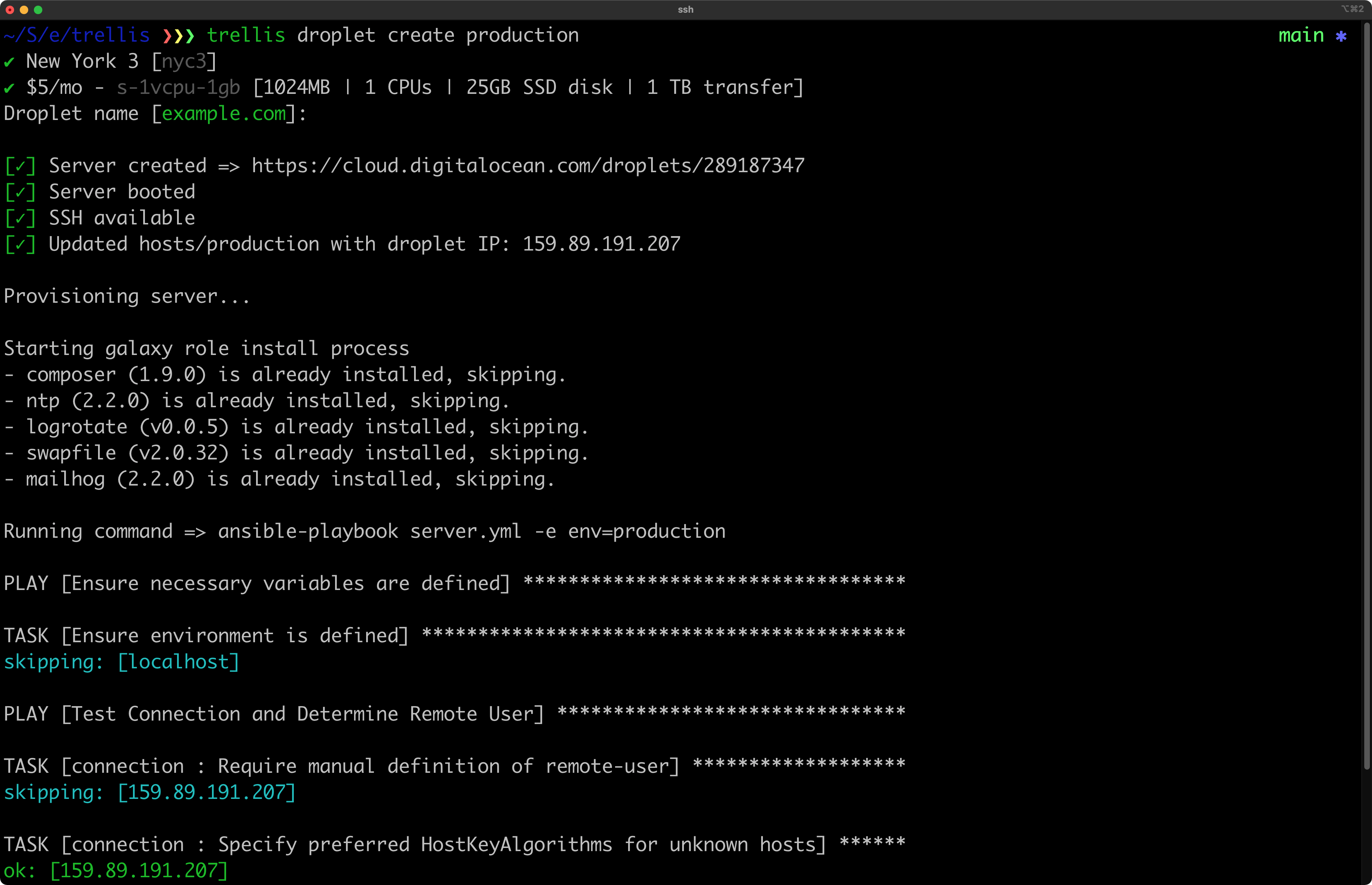\n\nThe remote server playbook will run and provision your server with PHP, Nginx, and everything else included in Trellis.\n\n### Additional options\n\nThe command help file can be accessed by passing the `--help` flag:\n\n```shell\n$ trellis server create --help\n```\n\n<details>\n<summary>trellis server create --help</summary>\n\n```plaintext\nUsage: trellis server create [options] ENVIRONMENT\n\nCreates a server on a cloud provider for the environment specified.\n\nOnly remote servers (for staging and production) are currently supported.\n\nThis command requires a DigitalOcean personal access token.\nLink: https://cloud.digitalocean.com/account/api/tokens/new\n\nIf the DIGITALOCEAN_ACCESS_TOKEN environment variable is not set, the command\nwill prompt for one.\n\nCreate a production server (region and size will be prompted):\n\n $ trellis server create production\n\nCreate a 1gb server in the nyc3 region:\n\n $ trellis server create --region=nyc3 --size=s-1vcpu-1gb production\n\nCreate a server but skip provisioning:\n\n $ trellis server create --skip-provision production\n\nArguments:\n ENVIRONMENT Name of environment (ie: production)\n\nOptions:\n --provider Cloud provider (digitalocean, hetzner)\n --region Region to create the server in\n --image (default: ubuntu-24-04-x64) Server image (ie: Linux distribution)\n --size Server size/type\n --skip-provision Skip provision after server is created\n --ssh-key Path to SSH public key to be added on the server\n -h, --help show this help\n```\n\n</details>\n\n## Changes made after running the command\n\nAfter creating a new server, your local project will have a modified hosts file for the environment that you provisioned:\n\n```diff\n[production]\n-your_server_hostname\n+159.89.191.207\n\n[web]\n-your_server_hostname\n+159.89.191.207\n```\n\n## Deploying\n\nOnce your server is provisioned you’ll want to perform the first deploy. If you try to visit your site before deploying you’ll see a server 500 error.\n\n```shell\n$ trellis deploy production\n```\n\nAfter the first deploy is done, you can now either install WordPress by visiting the site or even import an existing database.\n"
},
{
"path": "trellis/deploy-to-hetzner-cloud.md",
"content": "---\ndate_modified: 2026-04-03 10:00\ndate_published: 2026-04-03 10:00\ndescription: Deploy Trellis WordPress sites to Hetzner Cloud servers. Create servers, configure settings, and automate WordPress deployment to Hetzner Cloud.\ntitle: Deploying Trellis to Hetzner Cloud\nauthors:\n - ben\n---\n\n# Deploying Trellis to Hetzner Cloud\n\n[Hetzner Cloud](https://hetzner.cloud/?ref=V6DnI7GDHM4N) is a cloud infrastructure provider offering virtual servers with competitive pricing that can handle most normal WordPress sites when provisioned with Trellis.\n\n::: tip\nℹ️ Sign up for [Hetzner Cloud](https://hetzner.cloud/?ref=V6DnI7GDHM4N) through the Roots referral link to receive $20 in cloud credits.\n:::\n\n## Creating a new server\n\nTrellis CLI comes with a `trellis server create` command to automatically create and provision a server for a specified environment:\n\n```shell\n$ trellis server create --provider=hetzner production\n```\n\n::: warning\nThis command requires a [Hetzner API token](https://docs.hetzner.com/cloud/api/getting-started/generating-api-token/).\n:::\n\nIf the `HCLOUD_TOKEN` environment variable is not set, the command will prompt for one.\n\nTo avoid passing `--provider` every time, set Hetzner as your default provider in `trellis.cli.yml`:\n\n```yaml\nserver:\n provider: hetzner\n```\n\nThen you can simply run:\n\n```shell\n$ trellis server create production\n```\n\n### Quick start (region and size will be prompted)\n\n```shell\n$ trellis server create production\n```\n\nThe remote server playbook will run and provision your server with PHP, Nginx, and everything else included in Trellis.\n\n### Additional options\n\nThe command help file can be accessed by passing the `--help` flag:\n\n```shell\n$ trellis server create --help\n```\n\n## Changes made after running the command\n\nAfter creating a new server, your local project will have a modified hosts file for the environment that you provisioned:\n\n```diff\n[production]\n-your_server_hostname\n+49.13.25.100\n\n[web]\n-your_server_hostname\n+49.13.25.100\n```\n\n## Deploying\n\nOnce your server is provisioned you'll want to perform the first deploy. If you try to visit your site before deploying you'll see a server 500 error.\n\n```shell\n$ trellis deploy production\n```\n\nAfter the first deploy is done, you can now either install WordPress by visiting the site or even import an existing database.\n"
},
{
"path": "trellis/deploy-with-github-actions.md",
"content": "---\ndate_modified: 2025-11-16 11:00\ndate_published: 2023-04-05 11:00\ndescription: Deploy Trellis WordPress sites with GitHub Actions using `setup-trellis-cli`.\ntitle: Deploying Trellis with GitHub Actions\nauthors:\n - ben\n - swalkinshaw\n---\n\n# Deploying Trellis with GitHub Actions\n\nThe [`roots/setup-trellis-cli` GitHub Action](https://github.com/roots/setup-trellis-cli) can be used for setting up continuous deploys for Trellis based WordPress sites.\n\n::: warning\nThis guide requires that you already have a repo on GitHub with your WordPress site along with the `trellis` directory committed to it\n:::\n\n## Setup the GitHub action\n\n### Add the Ansible Vault password\n\nAdd a GitHub secret for `ANSIBLE_VAULT_PASSWORD` that contains the value of your `.vault_pass` file. Either manually add it at **Settings > Secrets and variables > Actions**, or use the GitHub CLI to automatically add it:\n\n```bash\n$ gh secret set ANSIBLE_VAULT_PASSWORD -b $(cat trellis/.vault_pass)\n```\n\n### Generate a SSH key\n\nThe GitHub Action runner needs to SSH into your remote Trellis server. The easiest way to get setup is by using Trellis CLI:\n\n```shell\n$ trellis key generate\n```\n\nAfter running this command you'll have:\n\n* A new file in `trellis/public_keys` — make sure to commit this addition\n* A deploy key added to your repo automatically (**Settings > Deploy keys**)\n* Two new repository secrets added to your repo automatically: `TRELLIS_DEPLOY_SSH_KNOWN_HOSTS` and `TRELLIS_DEPLOY_SSH_PRIVATE_KEY`\n\nFurther information can be found on the [`roots/setup-trellis-cli` README](https://github.com/roots/setup-trellis-cli#ssh-known-hosts).\n\n## Add a workflow for deploying \n\nThe setup-trellis-cli repo contains some example workflows including:\n\n* [Basic deploy](https://github.com/roots/setup-trellis-cli/blob/main/examples/basic.yml)\n* [Deploy with a Sage-based theme](https://github.com/roots/setup-trellis-cli/blob/main/examples/sage.yml)\n\nThese examples are configured to deploy a Trellis site to the production environment when the `main` branch is pushed to. Copy the relevant example to your repo at `.github/workflows/deploy.yml`.\n\nIf you site uses a Sage-based theme, make sure to modify the `cache-dependency-path` to point to the `package-lock.json` file in your theme directory.\n"
},
{
"path": "trellis/deployments.md",
"content": "---\ndate_modified: 2025-02-21 17:30\ndate_published: 2015-09-07 20:44\ndescription: Trellis provides zero-downtime WordPress deployment with atomic deploys. Customize each deployment step with hooks for builds, migrations, and cleanup tasks.\ntitle: WordPress Deployments with Trellis\nauthors:\n - ben\n - dalepgrant\n - dougjq\n - Log1x\n - MWDelaney\n - swalkinshaw\n - TangRufus\n---\n\n# WordPress Deployments with Trellis\n\nTrellis allows zero-downtime WordPress deployment out of the box with a little configuration. Hooks let you customize what happens at each step of the deploy process.\n\nTrellis deploys your site from a Git repository. In your `wordpress_sites.yml` file, found in the `group_vars/<environment>` directory, make sure the `repo` and `branch` keys are set correctly:\n\n- `repo` - Git URL of your Bedrock-based WordPress project (in SSH format: `git@github.com:org/repo-name.git`)\n- `branch` - Git branch to deploy (default: `master`)\n\n```diff\nwordpress_sites:\n example.com:\n ...\n- repo: git@github.com:example/example.com.git\n+ repo: git@github.com:org/repo-name.git\n- branch: master\n+ branch: main\n```\n\n[Read more about WordPress Sites in Trellis](/trellis/docs/wordpress-sites/)\n\n::: tip\nUsing DigitalOcean? Read our guide on [deploying Trellis to DigitalOcean](https://roots.io/trellis/docs/deploy-to-digitalocean/)\n:::\n\n## Deploying\n\nRun the following from any directory within your project:\n\n```shell\n$ trellis deploy <environment>\n```\n\n::: warning Note\n**Trellis does not automatically \"install\" WordPress on remote servers**.\n\nIt's normal and expected to see the WordPress install screen the first time you deploy. It's up to you to either import an existing database or install a fresh site.\n:::\n\n::: warning Note\n**About zero-downtime deploys**.\n\nDatabase migrations to a new schema are not included as part of a Trellis deploy. This means that if you need to migrate your database (for example, to account for new plugins), you may need to expect downtime depending on how you manage your database. Modify your deploy process to account for database migrations as with any other framework.\n:::\n\n## Rollbacks\n\nRun the following from any directory within your project:\n\n```shell\n$ trellis rollback <environment>\n```\n\nManually specify a different release using `--release=12345678901234` as such:\n\n```shell\n$ trellis rollback --release=12345678901234 <environment>\n```\n\nBy default Trellis stores five previous releases, not including the current release. See `deploy_keep_releases` in [Options - Remote Servers](wordpress-sites.md) to change this setting.\n\n## Hooks\n\nTrellis deploys let you customize what happens at each step of the atomic deployment process. A single deploy has the following steps in order:\n\n1. `initialize` - creates the site directory structure (or ensures it exists)\n2. `update` - clones the Git repo onto the remote server\n3. `prepare` - prepares the files/directories in the new release path (such as moving the repo subtree if one exists)\n4. `build` - builds the new release by copying templates, files, and folders\n5. `share` - symlinks shared files/folders to new release\n6. `finalize` - finalizes the deploy by updating the `current` symlink (atomic deployments)\n\nEach step has a `before` and `after` hook. The hooks are variables that you can define with a list of custom task files to be included and run when the hook fires.\n\nThe hook variables available are:\n\n- `deploy_before`\n- `deploy_initialize_before`\n- `deploy_initialize_after`\n- `deploy_update_before`\n- `deploy_update_after`\n- `deploy_prepare_before`\n- `deploy_prepare_after`\n- `deploy_build_before`\n- `deploy_build_after`\n- `deploy_share_before`\n- `deploy_share_after`\n- `deploy_finalize_before`\n- `deploy_finalize_after`\n- `deploy_after`\n\n### Default hooks\n\nBy default, Trellis defines and uses three hooks:\n\n- `deploy_build_after` runs `composer install`.\n- `deploy_finalize_before` checks the WordPress installation.\n- `deploy_finalize_after` refreshes WordPress settings and reloads php-fpm.\n\nThe default deploy hooks are defined in `roles/deploy/defaults/main.yml`:\n\n```yaml\ndeploy_build_before:\n - '{{ playbook_dir }}/deploy-hooks/build-before.yml'\n\ndeploy_build_after:\n - '{{ playbook_dir }}/roles/deploy/hooks/build-after.yml'\n # - \"{{ playbook_dir }}/deploy-hooks/sites/{{ site }}-build-after.yml\"\n\ndeploy_finalize_before:\n - '{{ playbook_dir }}/roles/deploy/hooks/finalize-before.yml'\n\ndeploy_finalize_after:\n - '{{ playbook_dir }}/roles/deploy/hooks/finalize-after.yml'\n```\n\nThe `deploy_build_before` definition and the commented path under `deploy_build_after` offer examples of using hooks for custom tasks, as described below.\n\n### Custom tasks\n\nTo use a deploy hook, define or override the hook variable somewhere within your `group_vars` directory, such as in `group_vars/all/main.yml`. If you end up defining many hooks, you may want to create a new file such as `group_vars/all/deploy-hooks.yml`.\n\nEach deploy hook variable is a list of task files to be included and run when the hook fires. We suggest keeping your hooked task files in a top level `deploy-hooks` folder. Here are some example hook variable definitions:\n\n```yaml\n# Defining a hook that Trellis does not already use by default\ndeploy_before:\n - '{{ playbook_dir }}/deploy-hooks/deploy-before.yml'\n\n# Overriding a hook that Trellis already uses by default\ndeploy_build_after:\n - '{{ playbook_dir }}/roles/deploy/hooks/build-after.yml'\n - '{{ playbook_dir }}/deploy-hooks/build-after.yml'\n - '{{ playbook_dir }}/deploy-hooks/sites/{{ site }}-build-after.yml'\n```\n\nThe second example above demonstrates overriding the `deploy_build_after` hook that Trellis already uses by default. The first include file in this hook's list is `roles/deploy/hooks/build-after.yml`, which is the task file Trellis usually executes. If you omit a hook's default file when overriding an existing hook variable, the default file's tasks will no longer execute.\n\nThe second include file in the `deploy_build_after` example above, `deploy-hooks/build-after.yml`, is an example of adding a custom task file that would run on every deploy, regardless the site being deployed. The third include file, <code>deploy-hooks/sites/{{ site }}-build-after.yml</code>, demonstrates how you could use a `{{ site }}` variable to include a file based on the name of the site being deployed, e.g., `example.com-build-after.yml`.\n"
},
{
"path": "trellis/existing-projects.md",
"content": "---\ndate_modified: 2023-01-27 13:17\ndate_published: 2018-08-23 09:56\ntitle: Adding Trellis to Existing WordPress Projects\ndescription: Get started on existing Trellis projects. Clone the repository, install dependencies, set up Ansible Vault, and provision your local development environment.\nauthors:\n - ben\n - Log1x\n - MWDelaney\n - TangRufus\n---\n\n# Adding Trellis to Existing WordPress Projects\n\nThe majority of the Trellis documentation focuses on setting up new projects. If you are collaborating on, or taking over an existing project, the process is a little different.\n\n::: tip Note\nThis documentation presumes your project follows the [Roots Example Project](https://github.com/roots/roots-example-project.com) recommendations.\n:::\n\n## Gather Information\n\nTo work on an existing Trellis project you need the following:\n\n- Git repository access\n- The Ansible Vault password\n- Permissions for provisioning and deployment\n- Your site's development URL\n- A database dump and a copy of the project's `/uploads` folder\n\n### Git Repository Access\n\nRoots recommends that Trellis projects be kept in private Git repositories. Make sure you have permission and access to the project's Git repository and any dependent plugin or theme repositories.\n\n### Ansible Vault password\n\nTrellis stores passwords and other sensitive data in [encrypted vault files](vault.md). Retrieve the project's vault password from someone who already works on the project.\n\n### Permission for provisioning and deployment\n\nIf you need to [provision this project's remote servers](remote-server-setup.md) or [deploy the project](deployments.md) to staging or production, add your SSH keys to the necessary remote servers either by accessing the server directly, or by having someone who already has access [add your SSH keys to the Trellis configuration](ssh-keys.md) and re-provision the server.\n\n### Your site's development URL\n\nReview the project's `trellis/group_vars/development/wordpress_sites.yml` and note its URL:\n\n```yaml\nwordpress_sites:\n example.com:\n site_hosts:\n - canonical: example.test # <-- this is the development URL\n```\n\n## Clone Your Project\n\n```shell\n$ git clone git@github.com:YourOrganization/example.com.git\n```\n\n## Ansible Vault\n\nDetermine whether your vault files are encrypted by looking at the `vault.yml` files in `trellis/group_vars/`\n\n```yaml\n$ANSIBLE_VAULT;1.1;AES256\n343163646662643438323831343332626234333233386666333162383265663\n3132306538383762336332376165383530633838643937320a6363343238643\n363065366664316364646561613163653866623566303235666537343437643\n6638363265383831390a6631663239373833636133623333666363643166383\n6237663637353638653266616562616535623465636265316231613331 etc.\n```\n\nIf any of the `vault.yml` files look like the example above, follow the [vault instructions](vault.md) to configure your Ansible Vault and vault password.\n\n## Create Your Development VM\n\nRun the following from any directory within your project:\n\n```shell\n$ trellis up\n```\n\nConfirm you can access the development site at the development URL noted earlier.\n\n## Import the database\n\nRetrieve an export of the current project’s database.\n\n::: tip Note\nFor easy access during the import process, place the database export in your local project’s `site` directory.\n:::\n\nRun the following from any directory within your project:\n\n```shell\n$ trellis ssh development\n```\n\nNavigate to the web root:\n\n```shell\n$ cd /srv/www/example.com/current\n```\n\nImport the database with wp-cli:\n\n```shell\n$ wp db import example.com.sql\n```\n\nIf the export is not from another development environment, search-and-replace the site's URL with wp-cli:\n\n```shell\n$ wp search-replace http://example.com http://example.test\n```\n\n## Import the Uploads\n\nRetrieve a copy of the current project’s `uploads` directory and place it in your local project's `site/web/app` directory.\n"
},
{
"path": "trellis/fastcgi-caching.md",
"content": "---\ndate_modified: 2025-02-27 15:48\ndate_published: 2015-09-06 07:42\ndescription: Trellis offers built-in FastCGI caching with Nginx microcaching. No WordPress plugin required, with configurable cache skipping for eCommerce pages.\ntitle: FastCGI Caching for WordPress in Trellis\nauthors:\n - ben\n - catgofire\n - Log1x\n - swalkinshaw\n - vdrnn\n---\n\n# FastCGI Caching for WordPress in Trellis\n\nYou can enable caching for your site by changing the cache settings under each site key. Using caching provides substantial speed improvement once pages are cached. The full settings looks like this:\n\n```yaml\ncache:\n enabled: false\n duration: 30s\n skip_cache_uri: /wp-admin/|/wp-json/|/xmlrpc.php|wp-.*.php|/feed/|index.php|sitemap(_index)?.xml\n skip_cache_cookie: comment_author|wordpress_[a-f0-9]+|wp-postpass|wordpress_no_cache|wordpress_logged_in\n```\n\nThe `duration` parameter control how long your pages will stay in the cache. You should generally keep this value low (the default is 30 seconds), unless your content doesn't change frequently. Lowering the duration to `1s` will make the cache more like a DDOS protection; meaning that if you have a sudden spike of traffic, only one request will hit the back-end per second instead of the full load. The whole setup is \"micro-cache\" oriented, so there is no means of flushing the cache.\n\nThe `skip_cache_uri` is a regex that will be used to tell Nginx **not** cache pages matching it. **Use it if you have sections of your site that you don't want cached (like shopping carts)**. Override the global `nginx_skip_cache_uri` in `group_vars/all/main.yml` or override `skip_cache_uri` under `cache` to vary it per [WordPress site](wordpress-sites.md). The default value is shown above.\n\nThe `skip_cache_cookie` is a regex that will disable the cache when a cookie match it. Useful for disabling the cache for certain users.\n\nAlready cached content will continue being served if your back-end (PHP-FPM) goes down.\n\n## Cache-Control Headers\n\nAs of [Trellis v1.24.0](https://github.com/roots/trellis/releases/tag/v1.24.0), Nginx now respects Cache-Control headers sent by WordPress and plugins. This means applications can control their own caching behavior by setting appropriate Cache-Control headers in their HTTP responses.\n\nFor e-commerce sites using WooCommerce, Easy Digital Downloads, or similar plugins that properly set Cache-Control headers on dynamic pages (like cart, checkout, and account pages), this can simplify cache configuration by reducing the need for extensive `skip_cache_uri` and `skip_cache_cookie` settings.\n\n## Example cache configurations\n\n### WooCommerce\n\nDisable the cache for `/store/`, `/cart/`, `/my-account/`, `/checkout/`, `/addons/`, and when items are in the cart:\n\n```yaml\ncache:\n enabled: true\n skip_cache_uri: /wp-admin/|/wp-json/|/xmlrpc.php|wp-.*.php|/feed/|index.php|sitemap(_index)?.xml|/store.*|/cart.*|/my-account.*|/checkout.*|/addons.*\n skip_cache_cookie: comment_author|wordpress_[a-f0-9]+|wp-postpass|wordpress_no_cache|wordpress_logged_in|woocommerce_cart_hash|woocommerce_items_in_cart|wp_woocommerce_session_\n```\n\nAlternatively, if you're using a recent version of WooCommerce that sets appropriate Cache-Control headers, you may be able to simplify this configuration by relying on those headers instead of extensive URI and cookie patterns.\n\n### Easy Digital Downloads\n\nDisable the cache for `/checkout/` and when items are in the cart:\n\n```yaml\ncache:\n enabled: true\n skip_cache_uri: /wp-admin/|/wp-json/|/checkout/|/xmlrpc.php|wp-.*.php|/feed/|index.php|sitemap(_index)?.xml\n skip_cache_cookie: comment_author|wordpress_[a-f0-9]+|wp-postpass|wordpress_no_cache|wordpress_logged_in|edd_items_in_cart\n```\n\nLike with WooCommerce, if your version of Easy Digital Downloads sets Cache-Control headers correctly, you may be able to simplify this configuration.\n"
},
{
"path": "trellis/install-wordpress-language-files.md",
"content": "---\ndate_modified: 2023-09-27 14:05\ndate_published: 2021-09-08 00:29\ndescription: Configure WordPress language file installation in Trellis for multi-language sites. Automate translation downloads for core, plugins, and themes.\ntitle: Installing WordPress Language Files in Trellis\nauthors:\n - strarsis\n - hooley\n---\n\n# Installing WordPress Language Files in Trellis\n\n## Current state of language management\n\n### Locking in language versions?\n\nWith Composer (Bedrock site) the plugin versions are already locked-in. So it naturally makes sense to also lock-in the plugin languages.\n\nThe [Composer WordPress language packs project](https://wp-languages.github.io/) by Koodimonni offers composer packages for plugin languages.\n\nHowever, providing all languages for each plugin version results in a very large amount of packages.\nBecause of this practical issue, the site offers language packages for only a subset of plugins, so chances are, that languages for some plugins your site is using are not available there (e.g. [Redirection plugin](https://wordpress.org/plugins/redirection/))\n\n### Using custom Composer installers\nThere are some custom Composer installers which simply download the latest languages for core, plugins and themes. However, this approach doesn't allow any locking-in of language versions. One may end up with different translations for same site release.\n\n- [wplang](https://github.com/bjornjohansen/wplang)\n- [Composer Auto Language Updates](https://github.com/Angrycreative/composer-plugin-language-update)\n\n\n## Using `wp language` command on Trellis deploys\n\nAt the time of writing there is no way yet for locking-in languages of core, plugins and themes (for all plugins and themes), so we are stuck with installing the latest language available.\n\nThe best approach is using the official mechanisms, which would be the `wp language` subcommand.\n\n### Setup deploy hooks\n\nWe use the [`finalize-after` deploy hook](/trellis/docs/deployments/#hooks) for installing, activating and updating the core/plugins/themes languages of a site for the languages `en_GB`, `de_DE_formal` and `de_DE`:\n\n`deploy-hooks/sites/example.com-finalize-after.yml`:\n```yaml\n# Install + activate languages\n- name: Install core languages en_GB de_DE\n command: wp language core install en_GB de_DE\n args:\n chdir: \"{{ deploy_helper.current_path }}\"\n\n- name: Install (and activate) core language de_DE_formal\n command: wp language core install de_DE_formal --activate\n args:\n chdir: \"{{ deploy_helper.current_path }}\"\n\n\n- name: Install plugins languages en_GB de_DE de_DE_formal\n command: wp language plugin install --all en_GB de_DE de_DE_formal\n args:\n chdir: \"{{ deploy_helper.current_path }}\"\n\n- name: Install themes languages en_GB de_DE de_DE_formal\n command: wp language theme install --all en_GB de_DE de_DE_formal\n args:\n chdir: \"{{ deploy_helper.current_path }}\"\n\n\n# Update installed languages\n- name: Update installed core languages\n command: wp language core update\n args:\n chdir: \"{{ deploy_helper.current_path }}\"\n\n- name: Update plugins languages\n command: wp language plugin --all update\n args:\n chdir: \"{{ deploy_helper.current_path }}\"\n\n- name: Install themes languages\n command: wp language theme --all update\n args:\n chdir: \"{{ deploy_helper.current_path }}\"\n```\n(All these `wp` commands are idempotent, they only install/update when it is required.)\n\nIn the first part the required languages are installed for core, plugins and themes.\nIn the second part all the installed languages of core, plugins and themes are updated.\n\n#### Removing no longer needed languages\nNote: If you ever want to remove a language, you can do this here, too.\nIdeally the language is removed before updating as this removes an unnecessary update of a language that is removed anyway.\n- [`wp language core uninstall <language> <language> ...`](https://developer.wordpress.org/cli/commands/language/core/uninstall/)\n- [`wp language plugin uninstall --all <language> <language> ...`](https://developer.wordpress.org/cli/commands/language/plugin/uninstall/)\n- [`wp language theme uninstall --all <language> <language> ...`](https://developer.wordpress.org/cli/commands/language/theme/uninstall/)\n\n### Initial deploy (non-setup site)\nMany `wp` commands including `wp language` don't work on a WordPress site that is installed but not had been set up yet.\n\n```plaintext\nError: The site you have requested is not installed.\nRun `wp core install` to create database tables.\n```\nFor making an initial deploy possible, the WordPress site has to be setup at the beginning of deploy. You may overwrite everything using a transfer script or backup/restore plugin, etc. This is only important here for being able to install/update the languages on initial deploy.\n\n`deploy-hooks/finalize-after.yml`:\n```yaml\n- name: Install WP (required for installing languages on non-transferred site)\n command: wp core {{ project.multisite.enabled | default(false) | ternary('multisite-install', 'install') }}\n --allow-root\n --url=\"{{ site_env.wp_home }}\"\n {% if project.multisite.enabled | default(false) %}\n --base=\"{{ project.multisite.base_path | default('/') }}\"\n --subdomains=\"{{ project.multisite.subdomains | default('false') }}\"\n {% endif %}\n --title=\"{{ project.site_title | default(site) }}\"\n --admin_user=\"{{ project.admin_user | default('admin') }}\"\n --admin_password=\"{{ vault_wordpress_sites[site].admin_password }}\"\n --admin_email=\"{{ project.admin_email }}\"\n args:\n chdir: \"{{ deploy_helper.current_path }}\"\n register: wp_install\n changed_when: \"'WordPress is already installed.' not in wp_install.stdout and 'The network already exists.' not in wp_install.stdout\"\n```\n\n### Add deploy hooks\nFor making trellis actually using these new deploy hooks, they need to be added:\n`groups_vars/all/main.yml`:\n```yaml\n# Deploy hooks\ndeploy_build_before:\n - \"{{ playbook_dir }}/deploy-hooks/sites/{{ site }}-build-before.yml\" # build + upload theme assets\n\ndeploy_build_after:\n - \"{{ playbook_dir }}/roles/deploy/hooks/build-after.yml\" # built-in\n\ndeploy_finalize_before:\n - \"{{ playbook_dir }}/roles/deploy/hooks/finalize-before.yml\" # built-in\n\ndeploy_finalize_after:\n - \"{{ playbook_dir }}/roles/deploy/hooks/finalize-after.yml\" # built-in\n - \"{{ playbook_dir }}/deploy-hooks/finalize-after.yml\" # finish site setup for installing languages\n - \"{{ playbook_dir }}/deploy-hooks/sites/{{ site }}-finalize-after.yml\" # install + update languages\n````\n\n### Improve performance / prevent \"translation downtimes\"\nBy default, for each new release the languages would have to be reinstalled, during that time the site can appear partially untranslated (falling back to English by default, or to the language setup by a language fallback plugin).\n\nFor preventing this \"translation downtime\" and for making a language update instead of install possible, the `languages` folder can be added to `project_copy_folders`, so it is copied between releases.\n\n`group_vars/all/main.yml`:\n\n```yaml\nproject_copy_folders:\n - vendor\n - web/app/languages # copy languages between releases\n```\n\n## Language fallback\n\nBy experience, for languages with a formal and non-formal variation, plugins are often only translated for one of these variations. It is possible to fall back at least to the non-formal variation by using a [language fallback plugin](https://wordpress.org/plugins/language-fallback/).\nWith such a plugin installed and enabled, when a string is not translated in current language, it is looked up from the fallback language first, instead of falling back immediately to English.\n"
},
{
"path": "trellis/installation.md",
"content": "---\ndate_modified: 2026-03-06 13:00\ndate_published: 2015-10-15 12:20\ndescription: Install Trellis for WordPress projects. Complete setup instructions covering requirements, dependencies, project initialization, and initial configuration.\ntitle: Installing Trellis for WordPress\nauthors:\n - ben\n - Log1x\n - MWDelaney\n - nikitasol\n - swalkinshaw\n - TangRufus\n - MWDelaney\n---\n\n# Installing Trellis for WordPress\n\n## What is Trellis?\n\n[Trellis](https://roots.io/trellis/) is a tool to create WordPress web servers and deploy WordPress sites.\n\nTrellis lets you create and manage servers that are production ready, performance optimized and based on best practices that are continuously improved. Trellis is self-hosting done right since you benefit from the community and experience of Roots.\n\n### Why use Trellis?\n\nYou’ll get a complete WordPress server [running all the software](#software-installed) you need configured according to the best practices that are fully customizable.\n\n<details>\n<summary>Trellis features</summary>\n\n#### Ansible\n\nTrellis is powered by [Ansible](https://docs.ansible.com/projects/ansible/latest/index.html) for configuration management. You don’t have to use brittle and confusing Bash scripts or worry about commands you found to copy and paste.\n\nYou get the benefit of Ansible [documentation](https://docs.ansible.com/projects/ansible/latest/user_guide/index.html), its extensive library of [modules and plugins](https://docs.ansible.com/ansible/latest/collections/all_plugins.html), and the community ecosystem of [Galaxy roles](https://galaxy.ansible.com/).\n\n#### Local development\n\nTrellis comes with [Lima](https://lima-vm.io/) support for local development environments that run on isolated virtual machines. This means you don't have to worry about polluting your local OS with software that might break\nor conflict with other tools you use.\n\nHowever, using Lima is optional and you're free to use other local dev tools as well, or even none at all.\n\n#### Customizable\n\nWhile Trellis gives you everything for a standard WordPress server out of the\nbox, it's completely customizable as well. This is what makes Trellis different\nfrom managed hosting or even tools like SpinupWP that automatically setup\nWordPress servers.\n\nThanks to Ansible's YAML based configuration, Trellis is \"infrastructure as\ncode\" so you can easily see exactly what Trellis installs on your server and\ncustomize if you want.\n\n#### Portable without vendor-lock in\n\nTrellis servers can be run on _any_ hosting platform; traditional dedicated server hosting or cloud platforms. All Trellis needs is a server running a plain Ubuntu operating system.\n\nThis means you can easily migrate hosting providers making your infrastructure much more flexible and portable. You can even \"disconnect\" your server from Trellis if you want and just manage your server manually. Trellis isn't required to keep your server running (but we do recommend it!).\n\n#### Cost effective\n\nManaged WP hosting can make your life easier, but it can also be\nextremely expensive and is often overkill for simpler WordPress sites.\n\nTrellis lets you run performant sites on extremely cheap servers ($5-10/month) and even supports running multiple sites on a single server for more efficiency.\n\n#### Community backed\n\nSince Trellis is open-source, we get the leverage of Roots and our community to continuously improve the defaults over time. We are constantly learning better settings and defaults for WordPress servers, and then we apply them to Trellis.\n\n#### Development and production parity\n\nUnlike many other solutions for WordPress server hosting, Trellis aims to have [parity between your development and production environments](https://roots.io/twelve-factor-10-dev-prod-parity/). Trellis comes setup to run locally with Lima so you can test your WordPress sites with full confidence that they'll work once you deploy to production.\n\n#### CLI\n\nTrellis has its own [CLI](cli.md) that makes managing your local and remote servers much easier. It also enables powerful CI/CD workflows like our [setup-trellis-cli](https://github.com/roots/setup-trellis-cli/) [GitHub action that can be used for continuous deploys](/trellis/docs/deploy-with-github-actions/).\n\n#### Zero-downtime deploys\n\nTrellis has atomic, zero-downtime deploys built-in that are completely\nconfigurable with a powerful hook system. You can deploy and rollback releases\nwith a single command thanks to trellis-cli too.\n\n</details>\n\n### Trellis servers are production-ready\n\nTrellis provisions a base Ubuntu 24.04 server by installing and configuring the following software:\n\n* PHP 8.3+\n* Nginx (including HTTP/2, HTTP/3, and optional FastCGI micro-caching)\n* MariaDB (a drop-in MySQL replacement)\n* SSL support (scores an A+ on the [Qualys SSL Server Test](https://www.ssllabs.com/ssltest/))\n* Let's Encrypt for free SSL certificates\n* Composer\n* WP-CLI\n* sSMTP (mail delivery)\n* Memcached\n* Fail2ban and ferm\n\nIn addition to configuring common services like ntp, sshd, etc.\n\n## System requirements\n\n* macOS or Linux\n\n::: warning Windows users\nWindows is not supported at this time. A community-maintained fork of trellis-cli with Windows/WSL support is available at [qwatts-dev/trellis-cli](https://github.com/qwatts-dev/trellis-cli).\n:::\n\n## Install Trellis CLI\n\n```shell\n$ brew install roots/tap/trellis-cli\n```\n\n## Create a new project with Trellis\n\nChoose a descriptive project name (and use it in place of the default example.com). We recommend the domain of the site for uniqueness.\n\n```shell\n$ trellis new example.com\n```\n\nAfter you've created a project, the folder structure for a Trellis project will look like this:\n\n```plaintext\nexample.com/ # → Root folder for the project\n├── trellis/ # → Your server configuration (a customized install of Trellis)\n└── site/ # → A Bedrock-based WordPress site\n └── web/\n ├── app/ # → WordPress content directory (themes, plugins, etc.)\n └── wp/ # → WordPress core (don't touch! - managed by Composer)\n```\n\nCheck out the following files to review the basic site configuration:\n\n* `trellis/group_vars/development/wordpress_sites.yml`\n* `trellis/group_vars/production/wordpress_sites.yml`\n\n## Start your development environment\n\n```shell\n$ trellis vm up\n```\n\nThis command will start the Lima environment and provision the server. Once it's done, you can visit your development site at the URL you chose when you ran `trellis new`.\n\n[Read more about Local Development](/trellis/docs/local-development/)\n\n## Configure your environments\n\nTrellis pre-configures most of your site's settings, but you'll need to fill in a few gaps in the [WordPress Sites](/trellis/docs/wordpress-sites/) configuration.\n\n## Encrypt your vault files\n\nYou probably want to encrypt your vault files, which hold automatically-generated passwords and other sensitive information. [Read more about Vault](/trellis/docs/vault/)\n\n## Provision your production server\n\nBefore deploying to production, you'll need to provision your server. [Read more about provisioning](/trellis/docs/remote-server-setup/)\n\n```shell\n$ trellis provision production\n```\n\n## Deploy to production\n\nReady to deploy your site to production? [Read more about deployments](/trellis/docs/deployments/)\n\n```shell\n$ trellis deploy production example.com\n```\n"
},
{
"path": "trellis/local-development.md",
"content": "---\ndate_modified: 2023-01-27 13:17\ndate_published: 2015-10-15 12:24\ndescription: Trellis uses Lima VM's for local development. Trellis uses Ansible to automatically provision virtual machines running complete WordPress environments.\ntitle: Local WordPress Development with Trellis\nauthors:\n - ben\n - fullyint\n - IanEdington\n - Log1x\n - MWDelaney\n - swalkinshaw\n - TangRufus\n---\n\n# Local WordPress Development with Trellis\n\nTrellis has an official integration with Lima for development environments using virtual machines.\n\nOther options include:\n\n* [Laravel Valet](#laravel-valet)\n* [Nothing!](#nothing)\n\n## Lima\nTrellis integrates with Lima to automatically run the Ansible provisioning. Provisioning in development uses the `dev.yml` Ansible playbook to create a Lima virtual machine running your WordPress site.\n\nFollow these steps to get a development server running:\n1. Configure your site(s) based on the [WordPress Sites docs](wordpress-sites.md) and read the [development specific](wordpress-sites.md#development) ones.\n2. Make sure you've edited both `group_vars/development/wordpress_sites.yml` and `group_vars/development/vault.yml`.\n3. Run `trellis vm start` from anywhere in your project.\n\nThen let Lima and Ansible do their thing. After roughly 5 minutes you'll have a virtual machine running and a WordPress site automatically installed and configured.\n\nTo access the VM, run `trellis vm shell`. Sites can be found at `/srv/www/<site name>` on the VM.\n\nNote that each WP site you configured is synced between your local machine (the host) and the Lima VM. Any changes made to your host will be synced instantly to the VM. There's no need to manually sync files or deploy to the VM.\n\nComposer and WP-CLI commands need to be run on the virtual machine for any post-provision modifications. Front-end build tools should be run from your host machine and not the Lima VM.\n\n### WordPress installation\n\nTrellis installs WordPress on your first `trellis vm start` with `admin` as the default user. You can override this by defining `admin_user`, as noted in the [WordPress sites options](wordpress-sites.md#options).\n\n### Re-provisioning\n\nRe-provisioning is always assumed to be a safe operation. When you make changes to your Trellis configuration, you should provision the VM again to apply the changes:\n\nRun the following from your project's `trellis` directory:\n\n```shell\n$ trellis provision development\n```\n\nYou can also provision with specific tags to only run the relevant roles:\n\nRun the following from your project's `trellis` directory:\n\n```shell\n$ trellis provision --tags=users development\n```\n\n### Usage\n\nThere's 5 commands for working with VMs:\n\n* `trellis vm start` - create or start a VM\n* `trellis vm stop` - stop a running VM\n* `trellis vm delete` - delete a stopped VM\n* `trellis vm shell` - open a shell/terminal on the VM\n* `trellis vm sudoers` - configure sudoers to avoid the need for `sudo`\n\nRun `trellis vm <command> -h` for details on each command.\n\nFor default use cases, `trellis vm start` can be run without any customization first. It will create a new virtual machine (using Lima) from a generated config file (`project/trellis/.trellis/lima/config/<name>.yml`). The site's `local_path` will be automatically mounted on the VM and your `/etc/hosts` file will be updated.\n\nNote: run `trellis vm sudoers -h` to make `/etc/hosts` file updates passwordless:\n```bash\n$ trellis vm sudoers | sudo tee /etc/sudoers.d/trellis\n```\n\nUnder the hood, those commands wrap equivalent `limactl` features. You can always run `limactl` directly to manage your VMs.\n\n### Configuration:\nFor the common use case, the default configuration should be all that's needed which is why config options are limited to start with. We will offer more customization over time.\n\nThe CLI [config file](cli.md#configuration) (global or project level) supports a new `vm` option. The only useful config option right now is `ubuntu` for setting the Ubuntu version.\n\nHere's an example of specifying 20.04:\n\n```yml\nvm:\n ubuntu: 20.04\n```\n\nNote: this must be changed _before_ creating the VM, otherwise you'll need to delete it first and re-create it.\n\n### Integration details\nWhen you first run `trellis vm start`, the CLI will do the following:\n\n1. Generate a Lima config file (`.trellis/lima/example.com.yml`) based on your Trellis project's development site\n2. Create the Lima instance by running `limactl start --name=example.com .trellis/lima/example.com.yml`\n3. Generate an Ansible inventory/hosts file for the VM (`.trellis/lima/inventory`)\n4. Add your sites hosts to your `/etc/hosts` file\n\nKnowing how the CLI and Lima interact can help with troubleshooting and debugging. Issues with the VM itself are usually related to Lima, and the underlying `limactl` command can be run manually to try and isolate the issue.\n\nTip: run `limactl list` to see all Lima instances and their statuses.\n\n### Ansible inventory\nAs detailed above, trellis-cli will automatically generate and manage a VM specific inventory file.\nThere is no need to manually edit the `hosts/development` file as it won't be used.\n\nCommands like `trellis provision` will automatically detect and specify the Lima inventory file. If you need to run an Ansible command manually against the VM host, the `--inventory-file` flag needs to be set:\n```bash\nansible-playbook dev.yml --inventory-file=.trellis/lima/inventory\n```\n\n#### SSH port\nOne reason why the inventory file needs to be generated each time a VM is created or started is due to SSH port forwarding.\nLima will find a free _local_ port and use it to forward to port 22 on the VM.\nThe inventory file references this forwarded port and Ansible will use that for its SSH connection.\n\nIt's recommended to use `trellis vm shell` to SSH to the VM and open a shell/terminal since you don't need to worry about hosts or ports.\n\nTo connect manually via SSH, run `limactl show-ssh -f config <instance name>` or `limactl show-ssh <instance name>` to view the SSH config in various formats.\n\nThere is no need to edit your `hosts/development` file unless you were manually using it in a non-standard setup. As mentioned in the [Ansible inventory](#ansible-inventory) section above, trellis-cli generates a separate inventory file.\n\n## Other non-Lima options\nWhile Trellis offers integrated Lima development environments, it is completely optional. There are other local development options as well. Most of these options mean you're using Trellis for your production servers but something else entirely in development which is why it's not recommended.\n\n### Laravel Valet\n[Valet](https://laravel.com/docs/10.x/valet) can be used in development if you're\nalready using it for Laravel projects or want a lighter-weight solution than a\nfull virtual machine.\n\nHowever, be warned that doesn't guarantee [development and production parity](https://roots.io/twelve-factor-10-dev-prod-parity/).\nUsing Valet locally means you aren't using Trellis _at all_ in development.\n\ntrellis-cli does offer some basic Valet integration as well. Run `trellis valet`\nfor more information.\n\n### Nothing\nThat's right... nothing! You might not care about a local development environment. Or you might only want to use Trellis for deploying to managed servers. Trellis is quite flexible and supports these uses cases as well.\n"
},
{
"path": "trellis/mail.md",
"content": "---\ndate_modified: 2026-04-04 07:00\ndate_published: 2015-09-06 07:42\ndescription: Trellis uses Mailpit in development to capture outgoing emails. Configure production mail delivery with SMTP settings in the `mail.yml` configuration file.\ntitle: WordPress Mail Configuration in Trellis\nauthors:\n - ben\n - fullyint\n - jbicha\n - Log1x\n - MWDelaney\n - mZoo\n - swalkinshaw\n - TangRufus\n---\n\n# WordPress Mail Configuration in Trellis\n\nTrellis' mail functionality is separated between development and staging/production since you usually want different behaviour out of them.\n\n## Development\n\nDealing with emails in development is never fun. The two common solutions are:\n\n- Ignore it and hope it works fine on production\n- Set up real SMTP credentials to send emails\n\nEnter [Mailpit](https://github.com/axllent/mailpit). It's a simple tool which captures outgoing email and lets you view them from a web UI. And after that you can optionally \"release\" them which would actually send the email.\n\n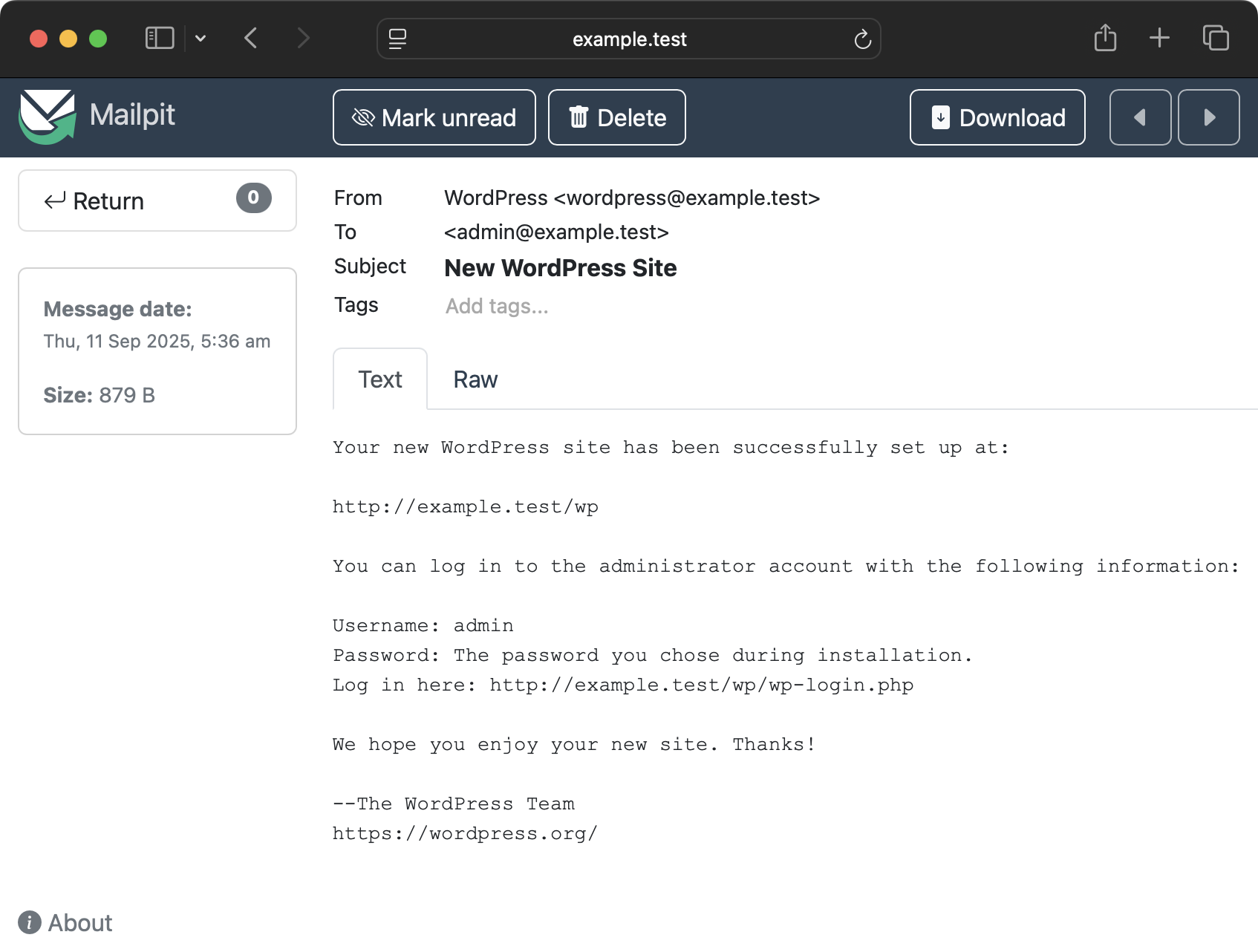\n\nMailpit is automatically set up in development. You can access it at `http://example.test:8025` (replacing the domain with yours that you set up for the WP site host).\n\n::: warning Note\nMail will be automatically captured but you won't ever see it unless you access the Mailpit UI at the address above.\n:::\n\nAnother benefit of using Mailpit is that if you are using real SMTP credentials in development, you can ensure you don't accidentally send emails to real email addresses which might exist in your database.\n\n::: warning Note\nThis is not the case if you have an active WordPress plugin that is configured to send mail. You'll need to disable the mail plugin on development to ensure you don't accidentally send emails to real email addresses. You could also hook into `phpmailer_init` in WordPress for non-production environments to prevent emails from being sent out. Using a service like [Mailtrap](https://mailtrap.io/) is another option.\\*\\*\n:::\n\nTrellis is using the [Mailpit role](https://github.com/roots/ansible-role-mailpit). See that `README` for any extra configuration options although none should be required as Trellis integrates it automatically.\n\n## Remote servers (staging/production)\n\nOutgoing mail is handled by [msmtp](https://marlam.de/msmtp/), a lightweight SMTP client. Trellis uses the [msmtp role](https://github.com/roots/ansible-role-msmtp) to configure it. In order to send external emails, you'll need to configure an SMTP server.\n\nWe always suggest using an external email service rather than your own because it's very difficult to set up a proper email server.\n\nSome suggested services:\n\n- [Sendgrid](https://www.twilio.com/en-us/sendgrid)\n- [Mailgun](https://www.mailgun.com/)\n- [Amazon SES](https://aws.amazon.com/ses/)\n\nAll of these offer around 10k+ emails for free per month. Once you have SMTP credentials, configure them in `group_vars/all/mail.yml`.\n\n- `mail_smtp_server`: hostname:port\n- `mail_hostname`: hostname for mail delivery\n- `mail_user`: username\n- `mail_password`: password or \"API key\" (define in `group_vars/all/vault.yml`)\n\n**Note:** Trellis sends emails through SMTP, which requires a username and password. Some email service providers refer to `mail_password` as an \"API key\", even though it is not actually used to access the email service provider's API. If you prefer to send email through your email service provider's API (instead of via SMTP), you will need to use a plugin.\n\n### Example\n\n```yaml\nmail_smtp_server: smtp.example.com:587\nmail_hostname: example.com\nmail_user: admin@example.com\nmail_password: '{{ vault_mail_password }}' # Define this in group_vars/all/vault.yml\n```\n\nIf your SMTP settings are invalid, WordPress will return the following error message:\n\n```plaintext\nCould not instantiate mail function.\n```\n\nTo fix this error, update your SMTP settings so that they're valid and then re-provision the remote server.\n"
},
{
"path": "trellis/multiple-sites.md",
"content": "---\ndate_modified: 2026-03-10 12:00\ndate_published: 2026-03-10 12:00\ndescription: Learn how to structure your Trellis projects when managing multiple WordPress sites, including shared and separate Trellis configurations.\ntitle: Managing Multiple Trellis Sites\nauthors:\n - ben\n---\n\n# Managing Multiple Sites\n\nTrellis supports hosting multiple WordPress sites on a single server out of the box. But when managing several sites, how you organize your project directories matters. There are two common approaches.\n\n## Shared Trellis\n\nA single Trellis instance manages multiple Bedrock sites on one server:\n\n```plaintext\nprojects/ # → Root folder\n├── trellis/ # → Single Trellis managing all sites\n├── example.com/ # → First Bedrock site\n└── another.com/ # → Second Bedrock site\n```\n\nEach site is defined in `wordpress_sites.yml` with its own `local_path` pointing to the corresponding directory. See the [WordPress Sites](/trellis/docs/wordpress-sites/) docs for configuration details.\n\nThis approach works well when:\n\n- Sites share the same server and server configuration\n- You want to minimize infrastructure costs by running multiple sites on one server\n- You want a single place to manage provisioning and deploys\n\n## Separate Trellis per site\n\nEach site gets its own Trellis instance with independent server configuration:\n\n```plaintext\nexample.com/ # → First project\n├── trellis/\n└── site/\nanother.com/ # → Second project\n├── trellis/\n└── site/\n```\n\nThis approach works well when:\n\n- Sites need different server configurations (PHP versions, Nginx settings, etc.)\n- Sites are hosted on different servers or providers\n- You want fully independent infrastructure per site\n- Different teams manage different sites\n\nThe trade-off is more duplication of Trellis configuration, but you get full isolation between projects.\n"
},
{
"path": "trellis/multisite.md",
"content": "---\ndate_modified: 2023-01-27 13:17\ndate_published: 2015-09-06 07:42\ndescription: Set up WordPress multisite on Trellis by configuring Bedrock for multisite installation before provisioning. Supports subdomain and subdirectory networks.\ntitle: WordPress Multisite Setup with Trellis\nauthors:\n - ben\n - evance\n - iamkarex\n - jmslbam\n - JulienMelissas\n - Log1x\n - MWDelaney\n - nathanielks\n - ned\n - Simeon\n - swalkinshaw\n---\n\n# WordPress Multisite Setup with Trellis\n\nTrellis assumes your WordPress configuration already has multisite set up. If not, ensure the following values are placed somewhere before calling `Config::apply()` in Bedrock's `config/application.php` and **before** provisioning your server:\n\n```php\n/* Multisite */\nConfig::define('WP_ALLOW_MULTISITE', true);\nConfig::define('MULTISITE', true);\nConfig::define('SUBDOMAIN_INSTALL', false); // Set to true if using subdomains\nConfig::define('DOMAIN_CURRENT_SITE', env('DOMAIN_CURRENT_SITE'));\nConfig::define('PATH_CURRENT_SITE', env('PATH_CURRENT_SITE') ?: '/');\nConfig::define('SITE_ID_CURRENT_SITE', env('SITE_ID_CURRENT_SITE') ?: 1);\nConfig::define('BLOG_ID_CURRENT_SITE', env('BLOG_ID_CURRENT_SITE') ?: 1);\n```\n\nYou'll also need to update the multisite settings under your environment directory (`group_vars/<environment>/wordpress_sites.yml`):\n\n```yaml\nmultisite:\n enabled: true\n subdomains: false # Set to true if you're using a subdomain multisite install\n```\n\nYou may also want to define the `env` dictionary for more multisite specific settings such as `DOMAIN_CURRENT_SITE` or `PATH_CURRENT_SITE`.\n\n```yaml\nenv:\n domain_current_site: store1.example.com\n```\n\nThat `env` will be merged in with Trellis' defaults so you don't need to worry about re-defining all of the properties.\n\nHere's an example of a complete entry set up for multisite:\n\n```yaml\n# group_vars/production/wordpress_sites.yml\nwordpress_sites:\n example.com:\n site_hosts:\n - canonical: example.com\n local_path: ../site # path targeting local Bedrock site directory (relative to Ansible root)\n admin_email: admin@example.com\n multisite:\n enabled: true\n subdomains: true\n ssl:\n enabled: false\n cache:\n enabled: false\n env:\n domain_current_site: store1.example.com\n```\n\nAfter provisioning your remote server and deploying your sites, you'll need to install WordPress as a final step in your staging and production environments. SSH into your server as the `web` user with `ssh web@<domain>` and in the `/srv/www/<domain>/current/` directories run the following WP-CLI command to install WordPress:\n\n```shell\n$ wp core multisite-install --title=\"site title\" --admin_user=\"username\" --admin_password=\"password\" --admin_email=\"you@example.com\"\n```\n\nYou may notice that your network's main site URLs contain `/wp/` before the post's or page's pathnames. This is a problem in WP core which occurs when WordPress is located in a subdirectory, as is the case with Bedrock. See issue [Bedrock issue #250](https://github.com/roots/bedrock/issues/250) for details, along with the site URL fix plugin in the [Multisite Fixes](https://github.com/felixarntz/multisite-fixes) plugin collection for a solution.\n\nIf you use [Let's Encrypt](ssl.md#let-s-encrypt) as your SSL provider and your multisite install uses subdomains, currently you have to generate individual certificates for each of your subdomains, but this may change soon as Let's Encrypt will begin issuing [wildcard certificates in January of 2018](https://letsencrypt.org/2017/07/06/wildcard-certificates-coming-jan-2018.html). You can generate SSL certificates for your subdomains if you know these subdomains in advance while provisioning your server. To do this, define multiple `canonical` entries under `site_hosts` in your corresponding `wordpress_sites.yml` file like this:\n\n```yaml\nsite_hosts:\n - canonical: example.com\n redirects:\n - www.example.com\n - canonical: subdomain.example.com\n redirects:\n - www.subdomain.example.com\n```\n"
},
{
"path": "trellis/nginx-includes.md",
"content": "---\ndate_modified: 2023-01-27 13:17\ndate_published: 2020-02-05 16:24\ndescription: Customize Nginx configuration in Trellis by placing files in `includes.d/` subdirectories. Add custom rules, headers, and configuration per WordPress site.\ntitle: Custom Nginx Includes in Trellis\nauthors:\n - alwaysblank\n - ben\n - fullyint\n - Log1x\n - swalkinshaw\n - dalepgrant\n---\n\n# Custom Nginx Includes in Trellis\n\nThe Nginx site conf generated by Trellis is designed to work with a wide range of WordPress installations, but your sites may require customization. For example, perhaps you use custom `rewrite`s to redirect legacy URLs, or maybe you would like to proxy some requests to another server. You may create custom Nginx `include` files or use child templates to extend the Trellis Nginx conf templates.\n\n## `include` files\n\nYou may put your Nginx customizations in Ansible/Jinja2 templates, making full use of variables and logic. Store your template files in a new `nginx-includes` directory in your project's `trellis/` directory (e.g., sibling to `server.yml` playbook). If you prefer to name this directory `some-other-name`, you may define `nginx_includes_templates_path: some-other-name` in your `group_vars/all/main.yml`.\n\nTrellis will recurse `nginx-includes` and template any files ending in `*.conf.j2` to the `/etc/nginx/includes.d/` directory on the remote, preserving the subdirectory structure. If you want to edit, add to, or delete your Nginx include files, edit them on the local machine and re-run the playbook.\n\n::: tip\nAppend `--tags nginx-includes` to your command to run only the relevant portion of the playbook.\n:::\n\n### Default\n\nBy default in Trellis, a WordPress site's Nginx conf will include any `nginx-includes` files found in a subdirectory named after the site. Only the directories that match sites in your `wordpress_sites.yml` will be templated to the remote by default, with the addition of `all/`.\n\nTo illustrate, suppose you have two sites managed by Trellis, defined in `wordpress_sites` as follows:\n\n```yaml\nwordpress_sites:\n site1: ...\n site2: ...\n```\n\nYou could organize your `nginx-includes` templates in corresponding subdirectories:\n\n```plaintext\ntrellis/\n nginx-includes/\n site1/\n rewrites.conf.j2\n proxy.conf.j2\n site2/\n rewrites.conf.j2\n```\n\nYou could also have an \"all\" directory, which would apply conf to all sites:\n\n```plaintext\ntrellis/\n nginx-includes/\n all/\n rewrites.conf.j2\n```\n\nThe above directory structure would be templated to the remote server as follows:\n\n```plaintext\n/\n etc/\n nginx/\n includes.d/\n site1/\n rewrites.conf\n proxy.conf\n site2/\n rewrites.conf\n```\n\nTo explicitly walk through the example, consider just the `site1` site key in the `wordpress_sites` list. The corresponding `nginx-includes/site1/` directory contains two confs which are templated to the remote's `/etc/nginx/includes.d/site1/`. The primary Nginx conf for `site1` will have a statement `include includes.d/site1/*.conf;`, thus including `rewrites.conf` and `proxy.conf`.\n\nThis `include` directive is located inside the primary `server` block, just before the primary `location` block. Explore the [Child templates](#child-templates) section below for more options if this default does not satisfy your needs.\n\n::: warning Note\nThis default `include` directive per site will not recurse subdirectories within `includes.d/site1` so if you place templates in `nginx-includes/site1/somedir/*.conf.j2`, they will be templated to the remote's `includes.d/site1/somedir/*.conf` but will not be included by default. See the [Child templates](#child-templates) section below for how you could include such confs.\n:::\n\n### File cleanup\n\nBy default, Trellis will remove from the remote's `includes.d` directory any `*.conf` file that lacks a corresponding template in your local machine's `nginx-includes`. If removing config files results in an empty directory, that directory is not removed. If you prefer to leave all conf files on the remote, you may disable this file cleanup by defining `nginx_includes_d_cleanup: false` in `group_vars/all/main.yml`.\n\n### Deprecated templates directory\n\nThe original implementation of Trellis Nginx includes required template files to be stored in `roles/wordpress-setup/templates/includes.d`. That directory is now deprecated and will no longer function beginning with Trellis 1.0. Please move your templates to a directory named `nginx-includes` in the root of this project. It is preferable to store user-created templates separate from Trellis core files.\n\nTrellis Nginx includes were originally made possible thanks to @chriszarate in [#242](https://github.com/roots/trellis/pull/242).\n\n## Child templates\n\nYou may use child templates to override any `block` in the two Nginx conf templates:\n\n- [`roles/nginx/templates/nginx.conf.j2`](https://github.com/roots/trellis/blob/master/roles/nginx/templates/nginx.conf.j2) is templated to the server as `/etc/nginx/nginx.conf`\n- [`roles/wordpress-setup/templates/wordpress-site.conf.j2`](https://github.com/roots/trellis/blob/master/roles/wordpress-setup/templates/wordpress-site.conf.j2) is templated to the server as `/etc/nginx/sites-available/example.com.conf` (per each site)\n\nCreate your child templates following the [Jinja template inheritance](https://jinja.palletsprojects.com/en/stable/templates/#template-inheritance) docs and the guidelines below.\n\n::: tip\nOnce you have set up your child templates, append `--tags nginx-includes` to your command to run only the Nginx conf portions of the playbook.\n:::\n\n### Designate a child template\n\nYou will need to inform Trellis of the child templates you have created.\n\n#### `nginx_conf`\n\nUse the `nginx_conf` variable to designate your child template for `nginx.conf.j2`. Given that this template applies to all sites, it would be appropriate to define the variable in a `group_vars/<environment>/main.yml` file (including `group_vars/all/main.yml`).\n\n```yaml\nnginx_conf: nginx-includes/nginx.conf.child\n```\n\nThe example above designates a child template in the `nginx-includes` path on your local machine (i.e., the default path for `nginx_includes_templates_path` variable; see [`include` files](#include-files) section above). You may choose a different path and assign the template any name and file extension you wish. When using the `nginx-includes` path, however, avoid using a filename that matches the `*.conf.j2` pattern required for `include` files described above.\n\n#### `nginx_wordpress_site_conf`\n\nUse the `nginx_wordpress_site_conf` variable to designate your child template for `wordpress-site.conf.j2`, which is used for each of your sites. To designate a global child template for all your sites, you could define the variable in a `group_vars/<environment>/main.yml` file.\n\n```yaml\nnginx_wordpress_site_conf: nginx-includes/wordpress-site.conf.child\n```\n\nYou may designate a child template per site by defining the variable in `group_vars/<environment>/wordpress_sites.yml`.\n\n```yaml\nwordpress_sites:\n example.com:\n ...\n nginx_wordpress_site_conf: nginx-includes/example.com.conf.child\n ...\n```\n\n### Create a Child Template\n\nCreate your child templates at the paths you designated in the `nginx_conf` and `nginx_wordpress_site_conf` variables described above. [Child templates](https://jinja.palletsprojects.com/en/stable/templates/#child-template) must include two elements:\n\n- an `{% extends 'base_template' %}` statement\n- one or more `{% block block_name %}` blocks\n\n#### Child Template Example – Simple\n\nHere is an example child template that replaces the `http_begin` block in the `nginx.conf.j2` base template.\n\n```jinja\n{% extends 'roles/nginx/templates/nginx.conf.j2' %}\n\n{% block http_begin -%}\n server_names_hash_bucket_size 128;\n server_names_hash_max_size 512;\n{% endblock %}\n```\n\nThe path for your base template – referenced in your `extends` statement – must be relative to the `server.yml` playbook (i.e., relative to the Trellis root directory).\n\n#### Child Template Example – Complex\n\nThe first block in the example child template below augments the content of the `fastcgi_basic` block from the `wordpress-site.conf.j2` base template. It inserts <code>{{ super() }}</code>, which represents the original block content from the base template, then adds an extra `fastcgi_param`. The second block in the example rewrites the `redirects_https` block, omitting the `ssl_enabled` conditional and adding a new `listen 8080` directive.\n\n```jinja\n{% extends 'roles/wordpress-setup/templates/wordpress-site.conf.j2' %}\n\n {% block fastcgi_basic -%}\n {{ super() }}\n fastcgi_param HTTPS on;\n {%- endblock %}\n\n{% block redirects_https %}\n\n# Redirect to https\nserver {\n listen 80;\n listen 8080;\n server_name {{ site_hosts | join(' ') }}{% if item.value.multisite.subdomains | default(false) %} *.{{ site_hosts_canonical | join(' *.') }}{% endif %};\n\n {{ self.acme_challenge() -}}\n\n location / {\n return 301 https://$host$request_uri;\n }\n}\n\n{% endblock -%}\n```\n\nYou'll notice that these blocks use indentation and [whitespace control](https://jinja.palletsprojects.com/en/stable/templates/#whitespace-control) (e.g., `-%}`) parallel to their counterparts in the base template `wordpress-site.conf.j2`. This will achieve the best formatting of templated conf files on the server.\n\n## Sites templates\n\nYou may use sites templates to add new sites confs to Nginx in addition to the standard WordPress confs. They are also Ansible/Jinja2 templates and thus can make full use of variables and logic.\n\nCreate your sites templates following the guidelines below.\n\n::: tip\nOnce you have set up your sites templates, append `--tags nginx-sites` to your command to run only the Nginx sites portions of the playbook.\n:::\n\n### Default\n\nBy default in Trellis, a \"no-default\" site Nginx conf is included. Its purpose is to drop requests to unknown server names, preventing host header attacks and other potential problems.\n\nThe `nginx_sites_confs` variable contains the list of confs to be templated to the server's `sites-available` folder.\n\nIts default value only registers the default site (whose template resides in `roles/nginx/templates/no-default.conf.j2`):\n\n```yaml\nnginx_sites_confs:\n - src: no-default.conf.j2\n```\n\nEach entry to this variable also has an `enabled` parameter, which can be omitted, and defaults to `true`.\n\nIt controls whether the conf is linked to the server's `sites-enabled` folder, and thus activated.\n\nThe above default is equivalent to:\n\n```yaml\nnginx_sites_confs:\n - src: no-default.conf.j2\n enabled: true\n```\n\nHowever, you might want to add other sites for specific purposes.\n\n### Designate a site template\n\nYou will need to inform Trellis of the sites templates you have created.\n\n#### `nginx_sites_confs`\n\nUse the `nginx_sites_confs` variable to designate your new site template. Given that this template applies to all environments, it would be appropriate to define the variable in a `group_vars/<environment>/main.yml` file (including `group_vars/all/main.yml`).\nRemember to keep the default site for security purposes if you don't have a specific reason to override it.\n\n```yaml\nnginx_sites_confs:\n - src: no-default.conf.j2\n - src: nginx-includes/example.conf.site.j2\n```\n\nThe example above designates a site template in the `nginx-includes` path on your local machine (i.e., the default path for `nginx_includes_templates_path` variable; see [`include` files](#include-files) section above). You may choose a different path and assign the template any name and file extension you wish. When using the `nginx-includes` path, however, avoid using a filename that matches the `*.conf.j2` pattern required for `include` files described above.\n\n### Create a site template\n\nCreate your site templates at the paths you designated in the `nginx_sites_confs` variable described above. Templates should start with an <code># {{ ansible_managed }}</code> statement to indicate that the file is [managed by ansible](https://docs.ansible.com/projects/ansible/latest/reference_appendices/config.html).\n\n#### Template example\n\nHere is an example site template that hosts nginx default page, listening on `example.com` non-standard port 8080.\n\n```nginx\n# {{ ansible_managed }}\n\nserver {\n listen 8080;\n server_name example.com;\n\n root /var/www/html;\n index index.html index.htm index.nginx-debian.html;\n\n location / {\n # First attempt to serve request as file, then\n # as directory, then fall back to displaying a 404.\n try_files $uri $uri/ =404;\n }\n}\n```\n\n### File cleanup\n\nBy default, Trellis will remove from the remote's `site-enabled` directory any link to a site conf file that has its `enabled` attribute set to `false`.\nThere is no cleanup of the confs in `sites-available`, they're only made mute by being disabled.\n\nThis example shows the addition of the above site template, while also disabling Trellis' default site.\n\n```yaml\nnginx_sites_confs:\n - src: no-default.conf.j2\n enabled: false\n - src: nginx-includes/example.conf.site.j2\n```\n"
},
{
"path": "trellis/passwords.md",
"content": "---\ndate_modified: 2023-01-27 13:17\ndate_published: 2015-09-06 07:42\ndescription: Manage passwords in Trellis for MySQL root, admin users, sudoer access, and WordPress databases. Store securely in Ansible Vault for production environments.\ntitle: Password Management in Trellis\nauthors:\n - alwaysblank\n - ben\n - fullyint\n - Log1x\n - swalkinshaw\n---\n\n# Password Management in Trellis\n\nThere are a few places you'll want to set/change passwords:\n\n`group_vars/<environment>/vault.yml`\n- `vault_mysql_root_password`\n- `vault_users.*.password`\n- `vault_wordpress_sites.*.env.db_password`\n\n`group_vars/development/vault.yml`\n- `vault_wordpress_sites.admin_password`\n\n`group_vars/all/vault.yml`\n- `vault_mail_password`\n\nFor staging/production environments, it's best to randomly generate longer passwords using something like [random.org](https://www.random.org/passwords/).\n\nYou may be concerned about setting plaintext passwords in a Git repository, and you should be. We strongly recommend you encrypt these passwords before committing them to your repo. Trellis is structured to make it easy to enable [Ansible Vault](vault.md) to encrypt select files. Alternatively, you could try an option such as [git-crypt](https://github.com/AGWA/git-crypt).\n\n::: warning Note\nAny type of server configs such as this playbook should always be in a **private** Git repository.\n:::\n"
},
{
"path": "trellis/python.md",
"content": "---\ndate_modified: 2023-01-27 13:17\ndate_published: 2022-02-28 22:16\ndescription: Install and configure Python for using Trellis. Python is required for Ansible automation that powers WordPress server provisioning and deployment.\ntitle: Python Requirements for Trellis\nauthors:\n - swalkinshaw\n---\n\n# Python Requirements for Trellis\n\nTrellis' main requirement is Python because Ansible is built with Python.\nThis page documents the best way to install Python on your computer, how to\nmanage Python package dependencies (like Ansible), common issues to avoid, and\nusing trellis-cli to make your life easier.\n\nWhen dealing with Trellis and Python, there's three key points:\n\n1. Make sure you have a stable version of Python 3 and pip installed\n2. Use [trellis-cli](https://github.com/roots/trellis-cli) since it handles\n dependencies for you\n3. **Never** use `sudo` when installing packages with `pip`\n\n## Python 2 vs Python 3\n\nPython 2 reached end-of-life in 2019 and hasn't been maintained since then. For\nthat reason, newer version of Trellis (and trellis-cli) only support Python 3.\n\nUnlike most languages that have a single version installed at a time, and only\noffer an \"unversioned\" single binary path (such as just `node`), Python can be\nmore confusing because most operating systems treat them separately with\n`python3` and `python` (which can be version 2 or 3 depending on your setup).\n\nRegardless of the OS, it's still possible to symlink `python3` to `python` for\nconvenience as well.\n\n## Installing Python\n\n### macOS\n\nNewer versions of macOS like Monterey and Big Sur come with both versions 2 and\n3. Annoyingly though, the unversioned `python` is 2.7x while `python3` needs to\nbe explicitly used for Python 3.\n\nWhile using the system Python on macOS should work fine, the main downside is\nthat the versions are only updated when macOS itself has a new major version.\n\nIf you want to have more control over Python versions, we recommend using a tool\nlike [pyenv](https://github.com/pyenv/pyenv) or [asdf](https://github.com/asdf-community/asdf-python)\nto install specific versions globally (or even per project if that's needed).\n\nWe **do not recommend** installing Python from Homebrew. This might be\nsurprising since it goes against most guides and recommendations but we believe\nusing Python from Homebrew will cause more problems long-term due to its newer \n\"feature\" of auto-upgrading packages as described in [this article](https://justinmayer.com/posts/homebrew-python-is-not-for-you/).\n\nAfter Python is installed and working, you'll also need to ensure pip is installed. If `pip` or `pip3` does not exist, it can be installed like this:\n\n```shell\n$ python3 -m ensurepip\n```\n\n### Ubuntu\n\nUbuntu 20.04 comes default with Python 3 available as `python3`\nonly. There's no \"unversioned\" `python`.\n\nThe [`python-is-python3`](https://packages.ubuntu.com/focal/python-is-python3) package\nexists solely as an easy way to symlink `/usr/bin/python` to `python3`.\n\n```shell\n$ sudo apt-get install -y python3 python-is-python3 python3-pip\n```\n\n## Installing and managing dependencies\n\nOnce you have Python working, the next step is ensuring you can install Trellis'\ndependencies. They are always declared in the\n[`requirements.txt`](https://github.com/roots/trellis/blob/master/requirements.txt) file,\nbut mainly this involves installing Ansible.\n\n[pip](https://pypi.org/project/pip/) is Python's package installer and what\nTrellis recommends using. But this is where trellis-cli comes in!\n\n### trellis-cli and Virtualenv\nWe **strongly recommend** using trellis-cli whenever possible since it will make\nyour life managing dependencies and installing Ansible much easier.\n\ntrellis-cli uses [Virtualenv](https://virtualenv.pypa.io) to manage dependencies _per_ project.\nIt creates a \"virtual environment\" within each Trellis project so the\ndependencies are completely isolated. This allows different projects to have\ndifferent versions of Ansible installed for example.\n\ntrellis-cli automatically creates a virtualenv and installs dependencies via pip\nat two points:\n\n1. when a new project is created with `trellis new`\n2. when `trellis init` is run for an existing project\n\nOnce the virtualenv exists, all other `trellis` commands automatically use it.\nThis means running `trellis deploy production` will activate the virtualenv\n(within the CLI, for the lifetime of the command) and use the version of Ansible\nwithin the virtual environment.\n\nWhen using trellis-cli, you should almost never have to use `pip` manually\nyourself. There's a more advanced Virtualenv integration offered as well. See\nthe [README](https://github.com/roots/trellis-cli#virtualenv) for more details.\n\n### Manually using pip\nIf you do need to run `pip` manually to install Ansible, here's a few tips:\n\n1. **Never** use `sudo` with `pip`. It will only cause problems.\n2. Make sure you're using the version of pip that corresponds to your Python\n version. If you're using Python 3, then you might need to use `pip3`.\n3. Avoid installing `ansible` directly with pip. Instead run `pip install -r requirements.txt` within a Trellis project to ensure you're getting a supported version of Ansible.\n"
},
{
"path": "trellis/redis.md",
"content": "---\ndate_modified: 2026-03-02 12:00\ndate_published: 2025-10-24 12:00\ndescription: Enable Redis in Trellis for WordPress object caching. Improve site performance by caching database queries and reducing load on MySQL database servers.\ntitle: Redis Object Caching for WordPress in Trellis\nauthors:\n - ben\n - TangRufus\n---\n\n# Redis Object Caching for WordPress in Trellis\n\nTrellis supports two types of caching that work together:\n\n- [**FastCGI Cache**](/trellis/docs/fastcgi-caching/) - Full page caching at the nginx level\n- **Object Cache** - Database query and transient caching (Redis or Memcached)\n\nThese can be used independently or together for optimal performance.\n\n## Configuration\n\n### Maximum Performance (FastCGI + Object Cache)\n\nEnable both FastCGI page caching and Redis object caching:\n\n```yaml\nwordpress_sites:\n example.com:\n cache:\n enabled: true # Enables FastCGI page caching\n duration: 30s # FastCGI cache duration\n object_cache:\n enabled: true # Enables object caching\n provider: redis # Use Redis (or memcached)\n database: 0 # Redis database number\n```\n\n### FastCGI Cache Only (Default/Backward Compatible)\n\nExisting configurations continue to work unchanged:\n\n```yaml\ncache:\n enabled: true # FastCGI page caching only\n duration: 30s\n skip_cache_uri: /wp-admin/|/wp-json/|/xmlrpc.php\n skip_cache_cookie: comment_author|wordpress_[a-f0-9]+\n background_update: \"on\"\n```\n\n### Object Cache Only\n\nIf you need Redis object cache without page caching:\n\n```yaml\ncache:\n enabled: false # Disable FastCGI page caching\nobject_cache:\n enabled: true # Enable object caching\n provider: redis # Use Redis (or memcached)\n database: 0 # Redis database number\n```\n\n## Cache Types\n\n### FastCGI Cache (Page Caching)\n\n- **Purpose**: Caches complete HTML pages\n- **Performance**: Fastest possible page loads for cached content\n- **Best for**: High-traffic sites with mostly static content\n- **Location**: nginx level, bypasses PHP entirely\n\n### Redis Object Cache\n\n- **Purpose**: Caches database queries, transients, and objects\n- **Performance**: Reduces database load significantly\n- **Best for**: Database-heavy sites, complex queries\n- **Features**: Persistent across page loads, shared data\n\n### Memcached Object Cache\n\n- **Purpose**: Alternative to Redis for object caching\n- **Performance**: Similar to Redis, slightly different characteristics\n- **Best for**: When Redis isn't available or preferred\n\n## WordPress Plugin Installation\n\n### For Redis Object Cache\n\nInstall a Redis object cache plugin in your WordPress site:\n\n1. [Redis Object Cache](https://wordpress.org/plugins/redis-cache/)\n\n```bash\ncomposer require wp-plugin/redis-cache\n```\n\n2. After deployment, activate the plugin and enable object caching:\n\n```bash\nwp plugin activate redis-cache\n```\n\n```bash\nwp redis enable\n```\n\n3. If your Redis server requires a password, add the following to your Bedrock config (`config/application.php`):\n\n```php\nConfig::define('WP_REDIS_PASSWORD', env('WP_REDIS_PASSWORD'));\n```\n\n### For Redis Full-Site Cache\n\nInstall [MilliCache](https://github.com/MilliPress/MilliCache) in your WordPress site:\n\n1. Require the package:\n\n```bash\ncomposer require millipress/millicache\n```\n\n2. After deployment, activate the plugin:\n\n```bash\nwp plugin activate millicache\n```\n\n3. Verify the object cache is working:\n\n```bash\nwp millicache test\n```\n\n```bash\nwp millicache status\n```\n\n### For Memcached Object Cache\n\nInstall [Memcached Object Cache](https://github.com/Automattic/wp-memcached):\n\n::: tip\n`reference` and `url` must be pinned to the same commit or tag. Do not reference a branch.\n\nFor a different commit or tag, inspect that revision's `composer.json` in the `automattic/wp-memcached` repository and copy its `require` section here so the requirements match the version you're pinning. Replace `composer/installers` with `\"koodimonni/composer-dropin-installer\":\"^1.4\"`.\n:::\n\n1. Add the package repository:\n\n```bash\ncomposer repo add wp-memcached '{\"type\":\"package\",\"package\":{\"name\":\"automattic/wp-memcached\",\"type\":\"wordpress-dropin\",\"version\":\"dev-master\",\"dist\":{\"type\":\"file\",\"url\":\"https://raw.githubusercontent.com/Automattic/wp-memcached/bb3b9f689dd99df66454b93ece34093556dc37f9/object-cache.php\",\"reference\":\"bb3b9f689dd99df66454b93ece34093556dc37f9\"},\"require\":{\"koodimonni/composer-dropin-installer\":\"^1.4\",\"php\":\">=7.4.0\",\"ext-memcache\":\"*\"}}}' --before wp-packages\n```\n\n2. Configure the install location:\n\n```bash\ncomposer config allow-plugins.koodimonni/composer-dropin-installer true\n```\n\n```bash\ncomposer config --json extra.dropin-paths '{\"web/app/\":[\"type:wordpress-dropin\"]}'\n```\n\n3. Require the package (omit `--ignore-platform-req=ext-memcache` if already installed):\n\n```bash\ncomposer require automattic/wp-memcached:dev-master --ignore-platform-req=ext-memcache\n```\n\n4. Untrack the drop-in because it is now managed by Composer:\n\n```bash\necho 'web/app/object-cache.php' >> .gitignore\n```\n\n## Configuration Examples\n\n### Maximum Performance Setup\n\n```yaml\nwordpress_sites:\n example.com:\n cache:\n enabled: true # FastCGI page caching\n duration: 60s\n object_cache:\n enabled: true # Object caching\n provider: redis # Using Redis\n database: 0\n```\n\n### Multiple Sites with Isolated Object Caches\n\n```yaml\n# Site 1\nwordpress_sites:\n site1.com:\n cache:\n enabled: true\n object_cache:\n enabled: true\n provider: redis\n database: 0 # Redis DB 0\n\n# Site 2\nwordpress_sites:\n site2.com:\n cache:\n enabled: true\n object_cache:\n enabled: true\n provider: redis\n database: 1 # Redis DB 1\n```\n\n### Mixed Cache Strategies\n\n```yaml\n# High-traffic marketing site (page cache only)\nwordpress_sites:\n marketing.com:\n cache:\n enabled: true\n duration: 300s # 5-minute page cache\n\n# Database-heavy app (both caches)\nwordpress_sites:\n app.com:\n cache:\n enabled: true\n duration: 30s\n object_cache:\n enabled: true\n provider: redis # Adds object caching\n database: 0\n```\n\n## Customizing Redis Configuration\n\n### Global Redis Settings\n\nYou can customize Redis settings in `group_vars/all/main.yml`:\n\n```yaml\n# Increase memory allocation (default: 256mb)\nredis_maxmemory: 512mb\n\n# Change eviction policy (default: allkeys-lru)\nredis_maxmemory_policy: allkeys-lru\n\n# Enable Redis password\nredis_requirepass: your_secure_password\n\n# Persistence settings\nredis_appendonly: \"yes\" # Enable AOF persistence\n```\n\n### Advanced Configuration\n\nFor more advanced Redis configuration, you can override any setting in `group_vars/all/main.yml`:\n\n```yaml\nredis_extra_config:\n tcp-backlog: 511\n tcp-keepalive: 300\n supervised: systemd\n```\n\n## Advanced Configurations\n\n### Custom Redis Settings per Site\n\n```yaml\nwordpress_sites:\n example.com:\n cache:\n enabled: true\n object_cache:\n enabled: true\n provider: redis\n host: 127.0.0.1\n port: 6379\n database: 0\n password: secret_password\n prefix: custom_prefix_\n```\n\n### Memcached Sessions + Redis Object Cache\n\n```yaml\n# In group_vars/all/main.yml\nmemcached_sessions: true # Use Memcached for PHP sessions\n\n# In wordpress_sites.yml\nwordpress_sites:\n example.com:\n cache:\n enabled: true # FastCGI page cache\n object_cache:\n enabled: true # Redis object cache\n provider: redis\n database: 0\n```\n\nThis setup uses three different cache systems:\n\n- **Memcached**: PHP sessions\n- **Redis**: WordPress object cache\n- **FastCGI**: Page cache\n\n## Monitoring\n\nMonitor Redis usage:\n\n```bash\nredis-cli\n```\n\n```bash\nredis-cli INFO memory\n```\n\n```bash\nredis-cli INFO stats\n```\n\n```bash\nredis-cli MONITOR\n```\n"
},
{
"path": "trellis/remote-server-setup.md",
"content": "---\ndate_modified: 2024-09-11 10:00\ndate_published: 2015-10-15 12:27\ndescription: Set up remote servers for Trellis requiring bare Ubuntu 24.04 LTS installation on VPS or dedicated servers. Shared hosting is not supported.\ntitle: Remote Server Setup for WordPress with Trellis\nauthors:\n - ben\n - fullyint\n - Log1x\n - MWDelaney\n - nicbovee\n - swalkinshaw\n - MWDelaney\n---\n\n# Remote Server Setup for WordPress with Trellis\n\nTrellis can be used for setting up remote servers (offered by VPS/cloud service providers such as [DigitalOcean](/trellis/docs/deploy-to-digitalocean/) and [Hetzner Cloud](/trellis/docs/deploy-to-hetzner-cloud/)) to host your staging and production environments.\n\n::: tip\nℹ️ Sign up for [Hetzner Cloud](https://console.hetzner.com/refer?pk_campaign=referral-invite&pk_medium=referral-program&pk_source=reflink&pk_content=V6DnI7GDHM4N) through the Roots referral link to receive $20 in cloud credits.\n:::\n\nTrellis CLI includes a `trellis server create` command that can automatically create and provision a server on a supported cloud provider:\n\n```shell\n$ trellis server create production\n```\n\nThis command requires a cloud provider API token. If the token environment variable is not set, the command will prompt for one.\n\n| Provider | Environment Variable | Token Link |\n| --- | --- | --- |\n| DigitalOcean | `DIGITALOCEAN_ACCESS_TOKEN` | [Create a DigitalOcean token](https://cloud.digitalocean.com/account/api/tokens/new) |\n| Hetzner Cloud | `HCLOUD_TOKEN` | [Create a Hetzner API token](https://docs.hetzner.com/cloud/api/getting-started/generating-api-token/) |\n\nSee the [CLI docs](/trellis/docs/cli/) for more details on configuring your cloud provider.\n\n::: warning\n**Trellis cannot provision shared or managed hosts.** Trellis requires a bare server if you want to use it for provisioning.\n:::\n\n## Server requirements\n\n* Ubuntu 24.04 LTS\n* SSH access to the server\n\nYou need a server running a bare/stock version of Ubuntu 24.04 LTS. If you're using a host such as DigitalOcean that lets you pick an OS to start with, then select the Ubuntu 24.04 option.\n\nYou need to be able to connect to your Ubuntu server from your local computer via SSH. We *highly* suggest doing this via SSH keys so you don't have to specify a password every time. Many hosts offer to automatically add your SSH key when creating a server, so take advantage of that. \n\nOnce you have a Ubuntu server up and running, you can provision it.\n\n## Provisioning\n\nProvisioning a server means to set it up with the necessary software and configuration to run a WordPress site. For Trellis this means things like: installing MariaDB, installing Nginx, configuring Nginx, creating a database, etc.\n\nTrellis has two main [playbooks](https://docs.ansible.com/projects/ansible/latest/user_guide/playbooks_intro.html): `dev.yml` and `server.yml`. As mentioned in local development, Trellis automatically runs the `dev.yml` playbook for us.\n\nFor remote servers, you provision a server via the `server.yml` playbook. This leaves you with a server *prepared* to run a WordPress site, but without the actual codebase yet.\n\nBefore provisioning your server, there's a little more configuration to do.\nFirst determine the _environment_ you want to configure; after development,\nyou'll likely be creating a `production` or `staging` environment.\n\n### Configuration\n\n1. Copy your `wordpress_sites` from your working development site in `group_vars/development/wordpress_sites.yml` to `group_vars/<environment>/wordpress_sites.yml`.\n2. Modify your site and add the necessary settings for [remote servers](wordpress-sites.md#remote-servers) since they have a few more settings than local development. Also see the [Passwords docs](passwords.md).\n3. Add your server hostname to `hosts/<environment>` (replacing `your_server_hostname`).\n4. Specify public SSH keys for `users` in `group_vars/all/users.yml`. See the [SSH Keys docs](ssh-keys.md).\n5. Consider setting `sshd_permit_root_login: false` in `group_vars/all/security.yml`. See the [Security docs](security.md).\n\nNow you're ready to provision your server. Ansible connects to the remote server\nvia SSH so run the following command from your local machine:\n\n```shell\n$ trellis provision <environment>\n```\n\n### Re-provisioning\n\nRe-provisioning is always assumed to be a safe operation. When you make changes to your Trellis configuration, you should provision your remote servers again to apply the changes:\n\nRun the following from any directory within your project:\n\n```shell\n$ trellis provision <environment>\n```\n\nYou can also provision with specific tags to only run the relevant roles:\n\nRun the following from any directory within your project:\n\n```shell\n$ trellis provision --tags users <environment>\n```\n"
},
{
"path": "trellis/sage-integration.md",
"content": "---\ndate_modified: 2023-01-27 13:17\ndate_published: 2020-04-07 23:23\ndescription: Use Trellis with Sage themes for complete WordPress development stack. Trellis handles server provisioning and deployment for Sage-based theme development.\ntitle: Sage Theme Integration with Trellis\nauthors:\n - swalkinshaw\n---\n\n# Sage Theme Integration with Trellis\nTrellis is designed to be theme-agnostic and is not tied to Roots' Sage theme at all.\nThat doesn't mean it's hard though; all that's needed is a way to compile assets.\n\n\n## Compiling production theme assets\nSage, like many WordPress themes now, requires a step during deploys to compile production assets.\n\nTrellis includes an *example* `build-before` deploy hook designed to work with Sage. See [`deploy-hooks/build-before.yml`](https://github.com/roots/trellis/blob/master/deploy-hooks/build-before.yml).\nFor Sage users, simply uncomment that built-in example hook file and deploy away. Assets will be compiled *locally* and then copied to the remote server.\n\n## Other themes\nThe Sage example deploy hook can also serve as a blueprint for many other themes that need to run an `npm` or `yarn` command for compiling assets.\n\n## NVM\nIf you use [nvm](https://github.com/nvm-sh/nvm) to manage Node.js versions for running themes locally, the easiest way to use it is via `$NVM_DIR/nvm-exec`.\n\nExample:\n```yaml\n- name: Install npm dependencies\n command: $NVM_DIR/nvm-exec npm install\n delegate_to: localhost\n args:\n chdir: \"{{ project_local_path }}/web/app/themes/mytheme\"\n\n- name: Compile assets for production\n command: $NVM_DIR/nvm-exec npm run build:production\n delegate_to: localhost\n args:\n chdir: \"{{ project_local_path }}/web/app/themes/mytheme\"\n```\n"
},
{
"path": "trellis/security.md",
"content": "---\ndate_modified: 2026-03-05 00:00\ndate_published: 2015-09-06 07:42\ndescription: Secure Trellis WordPress servers by disabling root SSH login, creating admin users with sudo access, configuring secure password authentication, and hardening WordPress runtime file permissions.\ntitle: WordPress Security Features in Trellis\nauthors:\n - ben\n - fullyint\n - Log1x\n - QWp6t\n - swalkinshaw\n---\n\n# WordPress Security Features in Trellis\n\n## Locking down root\n\nThe `sshd` role heightens your server's security by providing better SSH defaults. SSH password authentication will be disabled. We encourage you to disable SSH `root` login as well. You may adjust these two particular options in `group_vars/all/security.yml`. See the [`sshd` role `README.md`](https://github.com/roots/trellis/tree/master/roles/sshd) for more configuration options.\n\n## Admin user\n\nThe first provision via the `server.yml` playbook will create the `admin_user` and set up related [SSH Keys](ssh-keys.md). If you disable `root` login, subsequent connections will be made as the `admin_user`.\n\n## Admin user sudoer password\n\nIf `root` login is disabled and the `server.yml` playbook connects as the `admin_user`, it will invoke `sudo` using the password in `vault_users` (`group_vars/<environment>/vault.yml`). If you run the playbook with `--ask-become-pass`, Trellis will use the password you enter via the CLI. You are strongly encouraged to protect the sensitive `vault_users` information by enabling Ansible [Vault](vault.md).\n\n## WordPress runtime hardening\n\nTrellis supports an opt-in hardening mode that separates the PHP-FPM runtime identity from the deploy user. When enabled, PHP runs as a dedicated user with write access limited to explicitly allowlisted paths. This reduces the impact of a compromised WordPress site by preventing PHP from modifying application code.\n\nBy default, hardening is disabled and Trellis behaves as it always has — PHP-FPM runs as the `web_user`.\n\n### Enabling hardening\n\nAdd the following to `group_vars/all/main.yml` (or an environment-specific file like `group_vars/production/main.yml`):\n\n```yaml\nwordpress_runtime_hardened: true\n```\n\n### Configuration options\n\n| Variable | Default | Description |\n| --- | --- | --- |\n| `wordpress_runtime_hardened` | `false` | Enable runtime hardening mode |\n| `wordpress_runtime_user` | `www-data` | OS user that PHP-FPM runs as when hardened |\n| `wordpress_runtime_group` | `www-data` | OS group that PHP-FPM runs as when hardened |\n| `wordpress_runtime_writable_paths` | `[\"shared/uploads\"]` | Paths the runtime user can write to (relative to the site root) |\n| `wordpress_runtime_cron_as_runtime_user` | `false` | Run WP-CLI cron as the runtime user instead of `web_user` |\n\n### Using a custom runtime user\n\nFor stronger isolation, use a dedicated user instead of `www-data`. The user and group must exist on the server before hardening is enabled — the playbook will fail fast if they don't.\n\nDefine the user in `group_vars/all/users.yml`:\n\n```yaml\nusers:\n - name: php-app\n groups:\n - php-app\n keys: []\n```\n\nThen configure the runtime variables:\n\n```yaml\nwordpress_runtime_hardened: true\nwordpress_runtime_user: php-app\nwordpress_runtime_group: php-app\n```\n\n### Per-site writable paths\n\nThe global `wordpress_runtime_writable_paths` applies to all sites by default. You can override it for individual sites in your [WordPress Sites](/trellis/docs/wordpress-sites/) configuration:\n\n```yaml\nwordpress_sites:\n example.com:\n runtime_writable_paths:\n - shared/uploads\n - current/web/app/cache\n```\n\n### Cron user\n\nBy default, WP-CLI cron jobs continue to run as the `web_user` even when hardening is enabled. To run cron as the runtime user instead:\n\n```yaml\nwordpress_runtime_cron_as_runtime_user: true\n```\n\nThis only takes effect when `wordpress_runtime_hardened` is also `true`.\n"
},
{
"path": "trellis/server-logs.md",
"content": "---\ndate_modified: 2023-01-31 17:40\ndate_published: 2018-04-24 09:59\ndescription: Trellis site logs are located at `/srv/www/example.com/logs/` including Nginx access logs, error logs, and PHP-FPM logs for troubleshooting issues.\ntitle: Accessing Server Logs in Trellis\nauthors:\n - ben\n - Log1x\n - swalkinshaw\n---\n\n# Accessing Server Logs in Trellis\n\n## Accessing logs\n\nTrellis CLI includes a `logs` command for quickly accessing logs. It automatically integrates with [GoAccess](https://goaccess.io/) when the `--goaccess` option is used.\n\n```shell\n$ trellis logs [options] ENVIRONMENT [SITE]\n```\n\n| Description | Command |\n| -------------------------- | ------------------------------------ |\n| View production logs | `trellis logs production` |\n| View access logs only | `trellis logs --access production` |\n| View error logs only | `trellis logs --error production` |\n| View logs in GoAccess | `trellis logs --goaccess production` |\n| View the last 50 log lines | `trellis logs -n 50 production` |\n\nRun `trellis logs --help` for further information.\n\n## Location of logs\n\nServer logs for Trellis sites can be found at `/srv/www/example.com/logs/`:\n\n- `/srv/www/example.com/logs/access.log`\n- `/srv/www/example.com/logs/error.log`\n\nAny server 500 errors or white screen issues should be debugged by viewing the error logs in the `/srv/www/example.com/logs/` directory.\n\nTrellis uses the [ansible-logrotate](https://github.com/nickhammond/ansible-logrotate) role to install and configure logrotate for sites and can be configured by editing [`group_vars/all/logrotate.yml`](https://github.com/roots/trellis/blob/master/group_vars/all/logrotate.yml).\n"
},
{
"path": "trellis/ssh-keys.md",
"content": "---\ndate_modified: 2025-10-16 10:00\ndate_published: 2015-09-06 07:42\ndescription: Configure SSH keys in Trellis for secure server access. Add keys manually or automatically import SSH keys from GitHub users for team member access.\ntitle: SSH Key Management in Trellis\nauthors:\n - ben\n - dalepgrant\n - evance\n - fullyint\n - knowler\n - Log1x\n - swalkinshaw\n - techieshark\n---\n\n# SSH Key Management in Trellis\n\nEach Trellis playbook uses a specific SSH user to connect to your remote machines (or virtual machine in development).\n\n| Playbook | Default User | User Variable | Task |\n| ------------ | ----------------- | ------------- | ------------------------ |\n| `dev.yml` | Your local username | - | create development VMs |\n| `server.yml` | `root` or `admin` | `admin_user` | provision remote servers |\n| `deploy.yml` | `web` | `web_user` | deploy WordPress sites |\n\nThis page reviews how to configure SSH users for the `server.yml` and `deploy.yml` playbooks. If you are looking for general SSH configuration options, see the [`sshd` role `README.md`](https://github.com/roots/trellis/tree/master/roles/sshd) .\n\nIf you will be the only person provisioning and deploying, and your SSH public key is available at `~/.ssh/id_ed25519.pub`, you probably won't need to modify the Trellis defaults for `users`.\n\n## The `users` Dictionary\n\nWhile provisioning, `server.yml` will create the `users` defined in `group_vars/all/users.yml`, assigning their `groups` and public SSH `keys`. The example below defines a single user.\n\n```yaml\nusers:\n - name: username\n groups:\n - primary_group\n - other_group\n keys:\n - \"{{ lookup('file', '/path/to/local/file') }}\"\n - https://github.com/username.keys\n```\n\nSpecify the user's primary group first in the list of `groups`. List `keys` for anyone who will need to make an SSH connection as that user. `server.yml` can `lookup` keys in local files or retrieve them from remote host URLs.\n\n::: tip GitHub example\nUsing `https://github.com/<username>.keys` is a quick way to get all the public SSH keys you have on your GitHub account added onto the server.\n:::\n\nIf needed, you can define different users *per* environment by redefining `users` in any `group_vars/<environment>/users.yml` file.\n\n## `server.yml`\n\nTrellis assumes that when you first create your server you've already added your SSH key to the `root` account. How this happens depends on your cloud provider but here's a few common ones:\n\n- *Digital Ocean*: gives you the option to automatically add your SSH key when creating your droplet\n- *AWS*: provides a `pem` file which needs to be converted to a `pub` file for use with Ansible (example: `ssh-keygen -y -f private_key1.pem > public_key1.pub `)\n\n`server.yml` will try to connect to your server as `root`. If the connection fails, `server.yml` will try to connect as the `admin_user` defined in `group_vars/all/users.yml` (default `admin`). If `root` login will be disabled on your server, it is critical for the `admin_user` to be defined in your list of `users`, with `sudo` first in this user's list of groups (see the [Security docs](security.md)). The default definition for the `admin_user` is shown below.\n\n```yaml\nusers:\n - name: '{{ admin_user }}'\n groups:\n - sudo\n keys:\n - \"{{ lookup('file', '~/.ssh/id_ed25519.pub') }}\"\n # - \"{{ lookup('file', '~/.ssh/id_rsa.pub') }}\"\n # - https://github.com/username.keys\n\nadmin_user: admin\n```\n\n- You may enable colleagues to run `server.yml` by adding their public SSH `keys` to the `admin_user`.\n- If your hosting provider disables root but provides a default user such as `ubuntu`, specify `admin_user: ubuntu`.\n- If you are trying to override the dynamic selection of `root` or `admin_user`, preferring to manually specify the Ansible remote user, review notes in the section [remote user variable precedence](https://github.com/roots/trellis/pull/274#issuecomment-121455761).\n\n## `deploy.yml`\n\nThe `deploy.yml` playbook deploys your site while connecting as the `web_user` (default `web`) because this user owns files in the web root, the deploy destination. The `web_group` must come first in the list of groups for the web_user. The default definition for the `web_user` is shown below.\n\n```yaml\nweb_user: web\nweb_group: www-data\n\nusers:\n - name: \"{{ web_user }}\"\n groups:\n - \"{{ web_group }}\"\n keys:\n - \"{{ lookup('file', '~/.ssh/id_ed25519.pub') }}\"\n # - \"{{ lookup('file', '~/.ssh/id_rsa.pub') }}\"\n # - https://github.com/username.keys\n```\n\nYou may enable colleagues to run `deploy.yml` by adding their public SSH `keys` to the `web_user`. See the example below.\n\n## Example `users`\n\nThe example below adds the SSH keys of GitHub users `swalkinshaw` and `retlehs` to `~/.ssh/authorized_keys` for `admin_user`. This enables `swalkinshaw` and `retlehs` to run `server.yml` to provision the servers. The example also adds their keys, and the keys of GitHub user `austinpray`, to `web_user`. This enables each of them to run `deploy.yml` to deploy sites.\n\n```yaml\nusers:\n - name: '{{ web_user }}'\n groups:\n - '{{ web_group }}'\n keys:\n - https://github.com/swalkinshaw.keys\n - https://github.com/retlehs.keys\n - https://github.com/austinpray.keys\n - name: '{{ admin_user }}'\n groups:\n - sudo\n keys:\n - https://github.com/swalkinshaw.keys\n - https://github.com/retlehs.keys\n - name: another_user\n groups:\n - some_group\n - some_other_group\n keys:\n - https://github.com/swalkinshaw.keys\n```\n\nThe example above also demonstrates the option of creating `another_user` whose primary group is `some_group`, but who is also in `some_other_group`, and who has public SSH keys for `swalkinshaw`.\n\n## Removing keys\n\nRemoving a key from the configuration and re-provisioning the server does not remove the key from the server's `authorized_keys` file by default. To reset SSH keys, Trellis supports an opt-in \"single use\" `reset_user_ssh_keys` variable (as of [#1576](https://github.com/roots/trellis/pull/1576)):\n\n```shell\n$ trellis provision --extra-vars reset_user_ssh_keys=true production\n```\n\n::: tip Note\nThis will first replace all keys on the remote with the _first found_ key from your defined users before re-adding the rest. Make sure you have access with the first key listed in your user dictionary before running this _just in case_ the process is interrupted.\n:::\n\n## Cloning remote repo using SSH agent forwarding\n\nAll the SSH connections discussed above apply to Trellis connecting from your local machine to your server. It is a different type of connection, however, when Trellis clones a remote private repo during deployment. In this case, your remote server is allowed to forward your local machine's SSH credentials to the remote repo to authorize the connection.\n\nThe Trellis `ansible.cfg` file enables this SSH agent forwarding with `ssh_args = -o ForwardAgent=yes`. You should not need auth tokens or private keys for the `web_user`. If you run into trouble cloning a remote repo during deploy, see [Using SSH agent forwarding](https://docs.github.com/en/authentication/connecting-to-github-with-ssh/using-ssh-agent-forwarding) for tips and troubleshooting.\n\n### macOS/OS X users\n\nRemember to import your SSH key password into Keychain. For macOS Monterey (12.0) and later, you should run:\n\n```shell\n$ ssh-add --apple-use-keychain\n```\n\nFor versions prior, you need to run:\n\n```shell\n$ ssh-add -K\n```\n"
},
{
"path": "trellis/ssl.md",
"content": "---\ndate_modified: 2026-05-03 12:00\ndate_published: 2015-09-06 07:42\ndescription: Enable HTTPS in Trellis with automatic Let's Encrypt certificates, manually provided SSL certificates, or self-signed certificates for local development.\ntitle: SSL Certificates in Trellis\nauthors:\n - aitor\n - ben\n - dalepgrant\n - fullyint\n - joshf\n - Log1x\n - MWDelaney\n - qwatts-dev\n - runofthemill\n - swalkinshaw\n---\n\n# SSL Certificates in Trellis\n\nHTTPS is now more important than ever. Strong encryption through HTTPS creates a safer and more secure web while protecting your site's users.\n\nRoots believes in security so we've always made SSL/HTTPS a priority in Trellis. Our implementation is designed to score an A+ on the [Qualys SSL Labs Test](https://www.ssllabs.com/ssltest/).\n\nIn the past many people avoided going HTTPS for technical and convenience reasons:\n\n- Certificates were expensive\n- Annoying and complicated web-server configuration\n- HTTPS sites were much slower than HTTP\n\nTrellis has features to make it as easy, cheap, and painless as possible to use HTTPS giving you no excuse *not* to use it.\n\nThere are three supported certificate *providers* in Trellis:\n\n- [Let's Encrypt](#lets-encrypt)\n- [Manual](#manual)\n- [Self-signed](#self-signed)\n\nHTTPS can be enabled on a per-site basis. However, by default, enabling SSL on a site will make that site HTTPS **only**. Meaning that all HTTP requests will be redirected to HTTPS with the proper HSTS headers set as well. Unless you have a good reason to change this default, you shouldn't. See the section on [HSTS](#hsts) for more details.\n\nCloudFlare Origin CA support can be added with [trellis-cloudflare-origin-ca](https://github.com/TypistTech/trellis-cloudflare-origin-ca).\n\n## Configuration\n\nAny SSL provider starts with the same basic configuration. Add the following to a WP site:\n\n```yaml\n# group_vars/production/wordpress_sites.yml (example)\n\nexample.com:\n # rest of site config\n ssl:\n enabled: true\n provider: <name>\n```\n\n### Let's Encrypt\n\n[Let's Encrypt](https://letsencrypt.org/) (LE) is a new Certificate Authority that is free, automated, and open.\n\nUnless you already have an SSL certificate purchased, Let's Encrypt should be your provider choice. Let's Encrypt is appropriate for your production and staging environments, but not for development (see [DNS records](#dns-records)).\n\nTrellis has complete automated integration. The only required setting is the `provider` itself:\n\n```yaml\n# group_vars/production/wordpress_sites.yml (example)\n\nexample.com:\n # rest of site config\n ssl:\n enabled: true\n provider: letsencrypt\n```\n\nThere is one main difference between LE and other certificate authorities: their certificates expire every *90 days*. Trellis automates by running a cron-job so you never have to manually renew them or worry about them expiring like a paid certificate.\n\n::: warning Note\nLet's Encrypt is ending support for v1 of their ACME protocol. If you are using a Trellis version older than `v1.2.0`, please see [here](https://discourse.roots.io/t/trellis-and-lets-encrypt-v1-end-of-life/16816) for more details.\n:::\n\n#### DNS records\n\nLet's Encrypt verifies and creates certificates through a publicly accessible web server for *every* domain you want on the certificate.\n\nThis means you need valid and working DNS records for every site host/domain you have configured for your WP site.\n\n```yaml\n# group_vars/production/wordpress_sites.yml (example)\n\nmydomain.com:\n site_hosts:\n - canonical: mydomain.com\n redirects:\n - www.mydomain.com\n - mydomaintoredirect.com\n - www.mydomaintoredirect.com\n ssl:\n enabled: true\n provider: letsencrypt\n```\n\nIn the example above, Trellis will try to automatically create 1 certificate with the following hosts: `mydomain.com`, `www.mydomain.com`, `mydomaintoredirect.com` and `www.mydomaintoredirect.com`.\n\nAll you need to do is make sure those DNS records exist and point to the web server's IP. Trellis takes care of the rest.\n\nIf you want \"www\" subdomains to redirect to your canonical domain, they MUST be included in redirects.\n\n#### Challenges\n\nLet's Encrypt certificate process looks roughly like:\n\n1. Generate private account key\n2. Generate private key for each site (could have multiple domains)\n3. Generate CSR (Certificate Signing Request) for each site (single/multiple domains)\n4. Request certificate from LE by sending them the account key and CSR\n5. LE client creates a \"challenge\" file in the web root of your site\n6. LE server verifies it can access the challenge file\n7. LE server sends the certificate if the challenge succeeds\n\nThe above steps is what Trellis handles automatically.\n\n#### Multiple servers\n\nTrellis' LE integration is designed by default for a single server. If you have multiple web servers behind a load balancer, you will *not* want this role/process running on all of them since it would generate different private and account keys for each one.\n\nThis process is beyond the scope of the documentation right now. However, there are two variables which help for this process:\n\n- `letsencrypt_account_key_source_content`\n- `letsencrypt_account_key_source_file`\n\nYou can use either of these to manually define an account key's contents or file. If one of these is set, it will be used and none will be automatically generated.\n\nIt's also up to you to make sure you've manually registered your account key. See [https://gethttpsforfree.com/](https://gethttpsforfree.com/) for a simple site to do this.\n\n#### Staging\n\nLet's Encrypt has rate limits for their production/real certificates. While Trellis will prevent these rate limits from being hit, if you want to test out LE integration, you can use their staging server to get a \"fake\" certificate.\n\n::: warning Note\nNote that browsers will display an error/warning that they don't recognize the Certificate Authority so this should only be used for testing purposes.\n:::\n\nJust set the following variable:\n\n```yaml\n# in a group_vars file\nletsencrypt_ca: \"https://acme-staging-v02.api.letsencrypt.org\"\n```\n\n#### Troubleshooting Let's Encrypt\n\nTrellis versions prior to [Jan 2017](https://github.com/roots/trellis/pull/630) did not detect some changes that should have triggered Let's Encrypt certificate regeneration. The most common example was users adding domain(s) to `site_hosts` (in `wordpress_sites`) and reporting that browsers gave privacy warnings for the new domains. Similar problems occurred for users switching from manual certificates to Let's Encrypt certificates.\n\nIf you see similar privacy warnings after adjusting your SSL configuration in some way, these troubleshooting steps may help.\n\n1. Update trellis to include [`roots/trellis#630`](https://github.com/roots/trellis/pull/630)\n2. Set ssl `enabled: false` for affected sites in `group_vars/<environment>/wordpress_sites.yml`\n3. Run `ansible-playbook server.yml -e env=<environment> --tags wordpress`\n4. Reset ssl `enabled: true` for applicable sites in `group_vars/<environment>/wordpress_sites.yml`\n5. Run `ansible-playbook server.yml -e env=<environment> --tags letsencrypt`\n\n### Manual\n\nThis provider means you're providing both the SSL certificate and private key. This was the original method included in Trellis.\n\n```yaml\n# group_vars/production/wordpress_sites.yml (example)\n\nexample.com:\n # rest of site config\n ssl:\n enabled: true\n provider: manual\n cert: ~/ssl/example.com.crt\n key: ~/ssl/example.com.key\n```\n\n`cert` and `key` are **local** relative paths to those files. They will be copied to the remote servers. This is done so your private key does not need to be stored in your Git repository for security reasons.\n\n### Self-signed\n\nThe self-signed provider **should only be used for development or internal server purposes**. Trellis will generate a \"fake\" (or \"snake-oil\") certificate which is not recognized by browsers.\n\nBrowsers will prompt you with an error/warning that they don't recognize the Certificate Authority (which is yourself in this case).\n\n```yaml\n# group_vars/development/wordpress_sites.yml (example)\n\nexample.com:\n # rest of site config\n ssl:\n enabled: true\n provider: self-signed\n```\n\n#### Lima\n\nTrust the Lima VM's self-signed certificate so browsers and host-side tooling stop showing warnings:\n\n```shell\n$ trellis vm trust\n```\n\nThis pulls the cert and key out of the VM, exports them to `~/.local/share/trellis/ssl/<vm>-<hash>/`, and trusts the cert in the macOS login keychain and every Firefox profile. Re-runs are safe: if the cert is already trusted, the command reports it and does nothing.\n\nFirefox support requires `certutil` (install via `brew install nss` on macOS or `apt install libnss3-tools` on Linux). On Linux, pass `--trust-system` to also add the cert to the system trust store.\n\nAvailable flags:\n\n- `--site` — only trust the cert for the named site\n- `--no-export-key` — skip exporting the private key to the host\n\nTo reverse trust entries added by this project:\n\n```shell\n$ trellis vm untrust\n```\n\nTo print the host paths of the exported cert and key per site:\n\n```shell\n$ trellis vm trust paths\n```\n\n## HSTS\n\nTrellis sets [HSTS](https://developer.mozilla.org/en-US/docs/Web/HTTP/Reference/Headers/Strict-Transport-Security) headers for better security. HSTS will ensure all traffic to your site is being served over HTTPS automatically.\n\nThere are a few defaults set which you can override if need be:\n\n- `hsts_max_age` - how long the header lasts (default: `31536000` (1 year))\n- `hsts_include_subdomains` - also make *all* subdomains be served over HTTPS (default: `false`)\n- `hsts_preload` - indicates the site owner's consent to have their domain preloaded (default: `false`)\n\nThese variables are configured on a site's `ssl` object:\n\n```yaml\n# group_vars/production/wordpress_sites.yml (example)\n\nexample.com:\n # rest of site config\n ssl:\n enabled: true\n provider: letsencrypt\n hsts_max_age: 31536000\n hsts_include_subdomains: true\n hsts_preload: true\n```\n\n### Preload lists\n\nWhat is HSTS Preloading?\n\n> HSTS Preloading is a mechanism whereby a list of hosts that wish to enforce the use of SSL/TLS on their site is built into a browser. This list is compiled by Google and is utilised by Chrome, Firefox, Opera, Safari, IE11 and Edge. These sites do not depend on the issuing of the HSTS response header to enforce the policy, instead the browser is aleady aware that the host requires the use of SSL/TLS before any connection or communication even takes place. This removes the opportunity an attacker has to intercept and tamper with redirects that take place over HTTP. This isn't to say that the host needs to stop issuing the HSTS response header, this must be left in place for those browsers that don't use preloaded HSTS lists.\n>\n> - https://scotthelme.co.uk/hsts-preloading/\n\nUsing preloading is a two-step process:\n\n1. Enable the `preload` option shown above by setting `hsts_preload: true`\n2. Submit your site/domain to the official browser preload list: [https://hstspreload.org/](https://hstspreload.org/)\n\nMore information:\n\n- [https://hstspreload.org/](https://hstspreload.org/)\n- [HSTS Preloading](https://scotthelme.co.uk/hsts-preloading/)\n\n### `max-age`\n\nTrellis defaults to a long `max-age` of `31536000` seconds (1 year).\n\nYou may want to test out HSTS with much shorter max-ages and then ramp up the value in stages until you're confident everything works.\n\nThis deployment ramp up process is detailed here: [https://hstspreload.org/#deployment-recommendations](https://hstspreload.org/#deployment-recommendations)\n\n### Disabling HSTS\n\nThe only way to disable HSTS is to set the `max-age` header to `0`:\n\n```yaml\n# group_vars/production/wordpress_sites.yml (example)\n\nexample.com:\n # rest of site config\n ssl:\n enabled: true\n provider: letsencrypt\n hsts_max_age: 0\n```\n\n### `hsts_include_subdomains`\n\nHSTS should ideally be applied to all subdomains as well when possible. This means that if you have HSTS enabled on `example.com`, then *all- its subdomains (`*.example.com`) will also be forced over HTTPS.\n\nHowever, it's a common enough scenario for a subdomain to host another non-HTTPS\nsite for various reasons (maybe it's externally managed and out of your\ncontrol). For example, you might deploy a Trellis based WordPress site to `example.com` but also host another application from a subdomain such as `internalapp.example.com` which isn't secured by HTTPS.\n\nSince HSTS' `includeSubdomains` option would break any subdomains in those\nsituations, Trellis _disables_ the `hsts_include_subdomains` option by default.\n\n::: tip\nIf you are in control of your domain and all its subdomains, we **highly\nrecommend** you consider enabling the `includeSubdomains` option since it does\nprovide stricter guarantees and security for your users.\n:::\n\nThis can be done by setting the `hsts_include_subdomains` option to `true`\n(either globally or a per-site basis).\n\n\nPer-site:\n```yaml\n# group_vars/production/wordpress_sites.yml (example)\n\nexample.com:\n # rest of site config\n ssl:\n enabled: true\n provider: letsencrypt\n hsts_include_subdomains: true\n```\n\nGlobally:\n```yaml\n# group_vars/production/main.yml\n\nnginx_hsts_include_subdomains: true\n```\n\n## Client certificates\n\nYou may want to set up TLS Client Authentication, especially when using [Cloudflare Authenticated Origin Pulls](https://developers.cloudflare.com/ssl/origin-configuration/authenticated-origin-pull/). To enable, simply set the `client_cert_url` variable to the URL of the certificate authority (CA) that will be used to verify clients with.\n\n```yaml\n# group_vars/production/wordpress_sites.yml (example)\n\nexample.com:\n # rest of site config\n ssl:\n # rest of ssl config\n client_cert_url: https://developers.cloudflare.com/ssl/static/authenticated_origin_pull_ca.pem\n```\n\n## Performance\n\nOur HTTPS implementation uses all performance optimizations possible to ensure your sites remain fast despite the small overhead of SSL. This includes the following features:\n\n- HTTP/3 support with QUIC (fallback to HTTP/2 and HTTP/1.1 for older browsers)\n- SSL session cache\n- OCSP stapling\n- 1400 byte TLS records\n- Longer keepalives\n\nHTTP/3 requires UDP port 443 to be open. If you have a cloud or hardware firewall in front of your server (eg: AWS security groups, DigitalOcean cloud firewalls), ensure it allows UDP/443 inbound traffic.\n\nSee [Is TLS Fast Yet?](https://istlsfastyet.com/) for more information on fast TLS/SSL.\n\n## Browser support\n\nSince our implementation is designed to be modern and score an A+ on the [Qualys SSL Labs Test](https://www.ssllabs.com/ssltest/), this does mean that a few older browsers such as IE6 won't be able to access your site due to the cipher suites used.\n"
},
{
"path": "trellis/troubleshooting.md",
"content": "---\ndate_modified: 2023-01-27 13:17\ndate_published: 2015-09-06 07:42\ndescription: Troubleshoot Trellis installations with debugging tips for Ansible errors, solutions for unresponsive machines, and fixes for common provisioning problems.\ntitle: Troubleshooting Common Trellis Issues\nauthors:\n - ben\n - fullyint\n - Log1x\n - swalkinshaw\n - dalepgrant\n---\n\n# Troubleshooting Common Trellis Issues\n\n## Debugging\n\nGolden rule to debugging any failed command with Ansible:\n\n1. Read the output logs and find the failed task.\n2. Read through error message for the exact issue.\n3. Re-run the command in `verbose` mode `ansible-playbook deploy.yml -vvvv -e \"site=<domain> env=<environment>\"` if necessary to get more details.\n4. SSH into your server and manually run the command where Ansible failed.\n\nExample: if a Git clone task failed during deploys, then SSH into the server as the `web` user (which is what deploys use) and run the manual command such as `git clone <repo>`. This will give you a much better clue as to what's going wrong.\n\n## Let's Encrypt SSL certificates\n\nSee [Troubleshooting Let's Encrypt](ssl.md#troubleshooting-let-s-encrypt).\n\n## Composer install: host key verification failed\n\nSometimes a task that installs Composer dependencies gives an error `host key verification failed`. This can happen when the `known_hosts` file on your Lima VM or remote host is missing a key for one of the host `repositories` in the related `composer.json` file. Ensure that each host from `composer.json` has a key listed in `group_vars/all/known_hosts.yml` then try your `trellis provision development` or `trellis deploy` command again.\n\n## SSH connections\n\nIf you have trouble with SSH connections to your server, consider the tips below. You may also want to review information about [disabling `root` login](security.md#locking-down-root) and how to configure your server's SSH settings via the [`sshd` role](https://github.com/roots/trellis/tree/master/roles/sshd).\n\n### SSH keys\n\n- [Generating a new SSH key and adding it to the ssh-agent](https://docs.github.com/en/authentication/connecting-to-github-with-ssh/generating-a-new-ssh-key-and-adding-it-to-the-ssh-agent)\n- [Testing your SSH connection](https://docs.github.com/en/authentication/connecting-to-github-with-ssh/testing-your-ssh-connection)\n- [Your local `ssh-agent` must be running](https://docs.github.com/en/authentication/connecting-to-github-with-ssh/using-ssh-agent-forwarding#your-local-ssh-agent-must-be-running) (macOS users: remember to run `ssh-add -K`)\n- How to designate [SSH keys](ssh-keys.md) in Trellis\n\nSSH will automatically look for and try a default set of SSH keys, along with keys loaded in your `ssh-agent`. However, the SSH server will only let your SSH client try a limited number of keys before disconnecting (default: 6). If you have many SSH keys and the correct key is not being selected, you can force your SSH client to try only the correct key. Add this to your `~/.ssh/config` (with the correct path to your key):\n\n```plaintext\nHost example.com\n IdentitiesOnly yes\n IdentityFile /users/username/.ssh/id_ed25519\n```\n\n### Host key change\n\nYour server may occasionally offer a different host key than what your local machine has on record in `known_hosts`. This could happen if you rebuild your server or if the `sshd` role configures your server to offer a stronger key.\n\n**Example 1**\n\n```plaintext\nTASK [setup] *******************************************************************\nSystem info:\n Ansible 2.2.1.0; Darwin\n Trellis at \"Add `apt_packages_custom` to customize Apt packages\"\n---------------------------------------------------\nSSH Error: data could not be sent to the remote host. Make sure this host can\nbe reached over ssh\nfatal: [xxx.xxx.xxx.xxx]: UNREACHABLE! => {\"changed\": false, \"unreachable\": true}\n to retry, use: --limit @/Users/yourname/sites/example.com/trellis/deploy.retry\n```\n\n**Example 2**\n\n```plaintext\n@@@@@@@@@@@@@@@@@@@@@@@@@@@@@@@@@@@@@@@@@@@@@@@@@@@@@@@@@@@\n@ WARNING: REMOTE HOST IDENTIFICATION HAS CHANGED! @\n@@@@@@@@@@@@@@@@@@@@@@@@@@@@@@@@@@@@@@@@@@@@@@@@@@@@@@@@@@@\nIT IS POSSIBLE THAT SOMEONE IS DOING SOMETHING NASTY!\nSomeone could be eavesdropping on you right now (man-in-the-middle attack)!\nIt is also possible that a host key has just been changed.\nThe fingerprint for the ED25519 key sent by the remote host is\nSHA256:lv86hFykjn8pnOWE2WDWJo8Mzf6FTDMx/yWXOqzK5PU.\n```\n\nIf this change in host keys is expected, then clear the old host key from your `known_hosts` by running the following command (with your real IP or host name).\n\n```shell\n$ ssh-keygen -R 12.34.56.78\n```\n\nThen try your Trellis playbook or SSH connection again.\n\nIf the host key change is unexpected, cautiously consider why the host identification may have changed and whether you may be victim to a man-in-the-middle attack.\n\n### `git clone` or `composer install` task hangs or fails\n\nThe `sshd` role may cause your server's SSH client to request stronger host keys from hosts of git repos or composer packages. This could create the [host-key-change](#host-key-change) problem, but this time on your server instead of your local machine. Follow the same remediation steps, but on the server.\n\nSimilarly, the `sshd` role may cause your server's SSH client to require stronger [ciphers, kex algorithms, and MACs](https://github.com/roots/trellis/tree/master/roles/sshd#ciphers-kexalgorithms-and-macs) than previously. If your `git clone` or `composer install` connections involve older systems that do not support the stronger protocols, you may need to add more options to `ssh_ciphers_extra`, `ssh_kex_algorithms_extra`, or `ssh_macs_extra`.\n\n### Verbose output\n\nSSH connection issues are often difficult to resolve without verbose output. Use the `-vvvv` option with your `ansible-playbook` command:\n\n```shell\n$ ansible-playbook server.yml -e env=production -vvvv\n```\n\nYou may also use `-v`, `-vv`, and `-vvv` with manual SSH connections:\n\n```shell\n$ ssh -v root@12.34.56.78\n```\n\n### Manual SSH\n\nIf your `ansible-playbook` command is failing its SSH connection, it can be helpful to try a manual SSH connection to narrow down the problem. If manual SSH fails, try again with `-v` for [verbose output](#verbose-output).\n\n```shell\n$ ssh -v root@12.34.56.78\n```\n\n### `Ciphers`, `KexAlgorithms`, or `MACs`\n\nThe `sshd` role will most likely cause your SSH server to discontinue using some older and weaker protocols. If your connections involve older systems that do not support the stronger protocols configured by the `sshd` role, see [`Ciphers`, `KexAlgorithms`, and `MACs`](https://github.com/roots/trellis/tree/master/roles/sshd#ciphers-kexalgorithms-and-macs) for how to add back in any protocols you need.\n\n## APT sources\nYou may need to clean the APT sources to update a package, for example when [updating MariaDB mirrors](https://github.com/roots/trellis/issues/1575). You can set `apt_clean_sources: true` in `group_vars/all/main.yml` to run every provision, or to run this for one provision only, use:\n\n```shell\n$ trellis provision --extra-vars apt_clean_sources=true production\n```\n"
},
{
"path": "trellis/user-contributed-extensions.md",
"content": "---\ndate_modified: 2024-10-12 16:15\ndate_published: 2015-09-06 07:42\ndescription: Explore community-developed Ansible roles and extensions for Trellis that add functionality and features beyond the core WordPress server management.\ntitle: User Contributed Extensions for Trellis\nauthors:\n - ben\n - Log1x\n - MWDelaney\n - strarsis\n - swalkinshaw\n - TangRufus\n - Xilonz\n---\n\n# User Contributed Extensions for Trellis\n\nExtensions (or roles), developed by the community, that complement Trellis.\n\nIssues with extensions should be opened in their respective repositories.\n\n- [bedrock-site-protect](https://github.com/louim/bedrock-site-protect) — Add or remove htpasswd protection to your websites\n- [trellis-backup](https://discourse.roots.io/t/trellis-backup-an-ansible-role-for-local-backups/6497) — Set up automated backups to various locations using duplicity.\n- [trellis-backup](https://github.com/Xilonz/trellis-backup-role) — Set up automated backups to various locations using duply.\n- [trellis-cloudflare-origin-ca](https://typist.tech/portfolio-item/trellis-cloudflare-origin-ca/) — Add Cloudflare Origin CA to Trellis as SSL provider.\n- [trellis-newrelic-php](https://typist.tech/portfolio-item/trellis-newrelic-php/) — Install New Relic PHP agent on Trellis servers\n- [trellis-nixstats](https://github.com/Xilonz/trellis-nixstats/) — Install NIXStats agent on Trellis servers\n- [trellis-database-uploads-migration](https://github.com/valentinocossar/trellis-database-uploads-migration) — Ansible playbook for Trellis that manages database and uploads migration\n- [trellis-db-push-and-pull](https://github.com/hamedb89/trellis-db-push-and-pull) — Push and pull databases with Trellis and Ansible playbooks\n- [trellis-backup-during-deploy](https://github.com/ItinerisLtd/trellis-backup-during-deploy) - Backup WordPress database during Trellis deploys\n- [trellis-purge-kinsta-cache-during-deploy](https://github.com/ItinerisLtd/trellis-purge-kinsta-cache-during-deploy) - Purge Kinsta cache when Trellis deploys Bedrock\n- [trellis-cve-2018-6389](https://github.com/ItinerisLtd/trellis-cve-2018-6389) - Mitigate CVE-2018-6389 WordPress load-scripts / load-styles attacks\n- [trellis-disable-xml-rpc](https://github.com/ItinerisLtd/trellis-disable-xml-rpc) - Disable WordPress XML RPC on Trellis sites\n- [trellis-purge-wp-rocket-cache-during-deploy](https://github.com/ItinerisLtd/trellis-purge-wp-rocket-cache-during-deploy) - Purge WP Rocket cache when Trellis deploys Bedrock\n- [trellis_flush_rewrite_rules_during_deploy](https://github.com/ItinerisLtd/trellis_flush_rewrite_rules_during_deploy) - Resets WordPress' rewrite rules (based on registered post types, etc) during Trellis deploys\n- [trellis-slack-webhook-notify-during-deploy\n](https://github.com/ItinerisLtd/trellis-slack-webhook-notify-during-deploy) - Sends a deployment complete message to a Slack channel when Trellis deploys Bedrock\n- [trellis_install_wp_cli_via_composer](https://github.com/ItinerisLtd/trellis_install_wp_cli_via_composer) - Install WP-CLI via composer on Trellis servers\n- [tiller-circleci-orb](https://github.com/ItinerisLtd/tiller-circleci-orb/) - Deploy Trellis, Bedrock and Sage(optional) via CircleCI\n- [trellis-cyberduck](https://github.com/ItinerisLtd/trellis-cyberduck) - Trellis commands for Cyberduck\n- [trellis-matomo](https://github.com/E-VANCE/trellis-matomo) - Install the latest on-premise version of Matomo with Trellis \n"
},
{
"path": "trellis/vault.md",
"content": "---\ndate_modified: 2026-03-10 17:00\ndate_published: 2015-11-01 14:32\ndescription: Enable Ansible Vault in Trellis to encrypt sensitive data in `vault.yml`. Store passwords, API keys, and confidential variables securely in version control.\ntitle: Ansible Vault for Encrypting Secrets in Trellis\nauthors:\n - ben\n - fullyint\n - Log1x\n - MWDelaney\n - mZoo\n - swalkinshaw\n - TangRufus\n---\n\n# Ansible Vault for Encrypting Secrets in Trellis\n\nSome project variables contain sensitive data like passwords. Trellis keeps these variable definitions in separate files named `vault.yml`. We strongly recommend that you encrypt these `vault.yml` files using to avoid exposing sensitive data in your project repository.\n\n<details>\n<summary>vault.yml example</summary>\n\nTo briefly demonstrate what vault does, consider this example `vault.yml` file.\n\n```yaml\n# example vault.yml file -- unencrypted plain text\nmy_password: example_password\n```\n\nYou should replace the `example_password` then encrypt the file with Ansible Vault before committing it to your repo. The data would be safe in your repo because the encrypted file would look like this:\n\n```yaml\n# example vault.yml file -- encrypted\n$ANSIBLE_VAULT;1.1;AES256\n343163646662643438323831343332626234333233386666333162383265663\n3132306538383762336332376165383530633838643937320a6363343238643\n363065366664316364646561613163653866623566303235666537343437643\n6638363265383831390a6631663239373833636133623333666363643166383\n6237663637353638653266616562616535623465636265316231613331 etc.\n```\n\n</details>\n\n## Encrypt your vault files\n\n```shell\n$ trellis vault encrypt\n```\n\n::: danger\nIf you have unencrypted `vault.yml` files in your project's git history (e.g., passwords in plain text), you will most likely want to change the variable values in your `vault.yml` files before encrypting them and committing them to your repo.\n:::\n\n::: warning Don't forget your vault password\nTrellis automatically generates a vault password for you at `trellis/.vault_pass` (this file **will not** be added to your Git repository), and adds a reference to it to the `ansible.cfg` file.\n:::\n\nYour Trellis commands will be exactly the same as before enabling vault, not requiring any extra flags.\n\n### Adding additional vault files for encryption\n\n```shell\n$ trellis vault encrypt -f path/to/file.yml\n```\n\n## View an encrypted vault file\n\nYou can view a vault file in your terminal with the following command:\n\n```shell\n$ trellis vault view <environment>\n```\n\n## Edit an encrypted vault file\n\nYou can edit a vault file in your terminal with the following command:\n\n```shell\n$ trellis vault edit group_vars/<environment>/vault.yml\n```\n\n## Other vault commands\n\n`trellis-cli` provides a few basic commands that mirror with the official [Ansible Vault](https://docs.ansible.com/projects/ansible/latest/user_guide/vault.html) ones.\n\n- `trellis vault encrypt <args>`\n- `trellis vault view <args>`\n- `trellis vault edit <args>`\n- `trellis vault decrypt <args>` -- Avoid using the `decrypt` command. If your intention is to view or edit an encrypted file, use the `view` or `edit` commands instead. Any time you decrypt a file, you risk forgetting to re-encrypt the file before committing changes to your repo.\n\nRun `trellis vault` to see usage details. \n\n## Working with vault variables\n\nHere are a few tips for working with [variables and vault](https://docs.ansible.com/projects/ansible/latest/tips_tricks/ansible_tips_tricks.html#keep-vaulted-variables-safely-visible) in Trellis.\n\n- Variables with sensitive data such as passwords are defined in files named `vault.yml`.\n- Each environment has its own `vault.yml` file: `group_vars/<environment>/vault.yml`.\n- There is also one `vault.yml` file applicable to all environments: `group_vars/all/vault.yml`.\n- Variables named with the `vault_` prefix are defined in the `vault.yml` files.\n- To view or edit an encrypted `vault.yml` file, use either `trellis vault view <file>` or `trellis vault edit <file>`. Avoid using the `decrypt` command. Any time you decrypt a file, you risk forgetting to re-encrypt the file before committing changes to your repo. You may want to employ a pre-commit hook ([example](https://reinteractive.com/articles/ansible-best-practices)) for added prevention.\n\n## Sharing a project with vault-encrypted files\n\nYour repo with vault-encrypted files is secure from anyone being able to see or use the sensitive data in the `vault.yml` files. To grant a colleague access to the data, you will need to give your colleague your vault password to use in repeating the two password steps in the [Steps to Enable Ansible Vault](#encrypt-your-vault-files) above. It is still recommended to always keep your project in a private repo.\n\n## Disabling Ansible Vault\n\nIt is not recommended to disable Ansible Vault but you can disable it at any time. Simply run `ansible-vault decrypt <file1> <file2> <etc>`. If you then commit the unencrypted files to your repo, the sensitive data will be in your repo in plain text and will be difficult to remove from the git history. If you re-enable vault in the future, you may want to change all the sensitive data, encrypt with vault, then commit the revised and encrypted `vault.yml` files to your repo.\n\n## Storing your password\n\nWithout your password, either entered as a string or stored in your `vault_password_file` file (usually `.vault_pass` and configured in the `ansible.cfg` file), you will not be able to access the encrypted files. The `vault_password_file` should not ever be publicly accessible, or committed to version control. It's a good practice to backup this file on another physical or virtual drive, ideally also encrypted.\n\n## Access recovery\n\nShould you lose access to your vault password, you you can either spin up a new server, or recreate or regenerate the `group_vars/(environment)/vault.yml` files and, on the servers, manually update the following to match new vault strings:\n\n### admin root (sudo) password\n\n```shell\n$ sudo passwd admin\n```\n\n### root mysql password\n\n```sql\nUPDATE mysql.user SET Password=PASSWORD('password_in_vault_file') WHERE USER='root' AND Host='localhost';\n\nflush privileges;\n```\n\n### WordPress database passwords\n\n```sql\nUPDATE mysql.user SET Password=PASSWORD('password_in_vault_file') WHERE USER='example_com' AND Host='localhost';\n\nflush privileges;\n```\n\n## Additional resources\n\n[ansible-toolkit](https://github.com/dellis23/ansible-toolkit#atk-git-diff) provides a `atk-git-diff` command that allows you to do a `git diff` on encrypted files.\n"
},
{
"path": "trellis/wordpress-sites.md",
"content": "---\ndate_modified: 2024-06-19 13:17\ndate_published: 2016-03-28 21:10\ndescription: Configure WordPress sites in Trellis through `wordpress_sites.yml`. Define domains, SSL certificates, cache configuration, and host multiple WordPress sites.\ntitle: Configuring WordPress Sites in Trellis\nauthors:\n - ben\n - dalepgrant\n - fullyint\n - Log1x\n - mockey\n - MWDelaney\n - nathanielks\n - nlemoine\n - swalkinshaw\n - TangRufus\n---\n# Configuring WordPress Sites in Trellis\n\nEverything in Trellis is built around the concept of \"sites\". Each Trellis managed server (local virtual machine or remote server) can support one or more WordPress sites. Trellis will automatically configure everything needed to host a WordPress site such as databases, Nginx confs, folder directories, etc based on the site's configuration.\n\nThese sites are configured in YAML files for each environment such as `group_vars/development/wordpress_sites.yml`.\n\nThere are two components and places to configure sites:\n\n- Basic settings in `group_vars/development/wordpress_sites.yml`\n- Passwords/secrets in `group_vars/development/vault.yml`\n\n::: tip Note\nIf you used Trellis CLI to create your project, the basic configuration settings\nwill already be set for your main site.\n:::\n\n## Site configuration\n\n`wordpress_sites` is a top-level dictionary (object/hash) used to define all the sites you want. Here's an absolute bare-minimum site as an example for development:\n\n```yaml\n# group_vars/development/wordpress_sites.yml\nwordpress_sites:\n example.com:\n site_hosts:\n - canonical: example.test\n local_path: ../site # path targeting local Bedrock site directory (relative to Ansible root)\n admin_email: admin@example.test\n multisite:\n enabled: false\n ssl:\n enabled: false\n cache:\n enabled: false\n```\n\nEach site is defined by a \"key\" (`example.com` in this case). Trellis uses the key internally as the name of the site and as a default value in a lot of variables. We recommend naming your sites after their domain so it's descriptive.\n\nNested under the name/key are the site specific configuration settings. You only need to define a variable/setting if you want to overwrite the default value which can be found below.\n\n## Passwords/secrets\n\nWhen you add or edit a site in `wordpress_sites.yml`, you also need to edit `vault.yml` for the accompanying site/key. `vault.yml` simplifies the use of the Ansible Vault encryption feature for specific files. You never want to include plain-text passwords in a Git repository so we make it easier to optionally encrypt the `vault.yml` file while leaving the normal settings separate. See [Vault](vault.md) for more information on this.\n\n```yaml\n# group_vars/development/vault.yml\nvault_wordpress_sites:\n example.com:\n admin_password: admin\n env:\n db_password: example_dbpassword\n```\n\nNotice the matching site keys in both `wordpress_sites` and `vault_wordpress_sites` for `example.com` which ties together these site settings.\n\n## Options\n\n### Common\n\n- `site_hosts` - List of hosts that Nginx will listen on. At least one is required. Each host item must specify a `canonical` host and may optionally specify a list of corresponding `redirects` (hosts). **Remember to set up DNS for every host listed.** You cannot use just an IP address.\n\n```yaml\n# minimum required\nexample.com:\n site_hosts:\n - canonical: example.com\n\n# multiple hosts and redirects are possible\nexample.com:\n site_hosts:\n - canonical: example.com\n redirects:\n - www.example.com\n - site.com\n - canonical: example.co.uk\n redirects:\n - www.example.co.uk\n```\n\n- `local_path` - path targeting Bedrock-based site directory (*required*)\n- `current_path` - symlink to latest release (default: `current`)\n- `db_create` - whether to auto create a database or not (default: `true`)\n- `composer_authentications` - Composer auth setup. Useful for configuring access to private repositories. See the [Composer Authentication docs](/trellis/docs/composer-authentication/) (optional)\n- `ssl` - SSL options. See the [SSL docs](ssl.md)\n- `multisite` - Multisite options. See the [Multisite docs](multisite.md)\n- `cache` - Nginx FastCGI cache options. See the [Cache docs](fastcgi-caching.md)\n- `h5bp` - Nginx config files from [h5bp server config](https://github.com/h5bp/server-configs-nginx) to include\n - `cache_file_descriptors` - See [h5bp server config](https://github.com/h5bp/server-configs-nginx/blob/2.0.0/h5bp/directive-only/cache-file-descriptors.conf) (default: `not_dev`)\n - `extra_security` - See [h5bp server config](https://github.com/h5bp/server-configs-nginx/blob/2.0.0/h5bp/directive-only/extra-security.conf) (default: `true`)\n - `no_transform` - See [h5bp server config](https://github.com/h5bp/server-configs-nginx/blob/2.0.0/h5bp/directive-only/no-transform.conf) (default: `false`)\n - `x_ua_compatible` - See [h5bp server config](https://github.com/h5bp/server-configs-nginx/blob/2.0.0/h5bp/directive-only/x-ua-compatible.conf) (default: `true`)\n - `cache_busting` - See [h5bp server config](https://github.com/h5bp/server-configs-nginx/blob/2.0.0/h5bp/location/cache-busting.conf) (default: `false`)\n - `cross_domain_fonts` - See [h5bp server config](https://github.com/h5bp/server-configs-nginx/blob/2.0.0/h5bp/location/cross-domain-fonts.conf) (default: `true`)\n - `expires` - See [h5bp server config](https://github.com/h5bp/server-configs-nginx/blob/2.0.0/h5bp/location/expires.conf) (default: `false`)\n - `protect_system_files` - See [h5bp server config](https://github.com/h5bp/server-configs-nginx/blob/2.0.0/h5bp/location/protect-system-files.conf) (default: `true`)\n- `env` - environment variables\n - `disable_wp_cron` - Disable WP cron and use system's (default: `true`)\n - `wp_home` - `WP_HOME` constant (default: `<protocol>://${HTTP_HOST}`)\n - `wp_siteurl` - `WP_SITEURL` constant (default: `${WP_HOME}/wp`)\n - `wp_env` - environment (default: `env` via Ansible)\n - `db_name` - database name (default: `<site name>_<env>`)\n - `db_user` - database username (default: `<site name>`)\n - `db_password` - database password (*required*, in `vault.yml`)\n - `db_host` - database hostname (default: `localhost`)\n - `db_prefix` - database table prefix (defaults to `wp_` if not set)\n - `db_user_host` - hostname or ip range used to restrict connections to database (default: `localhost`)\n\n### Development\n\n- `site_install` - whether to install WordPress or not (default: `true`)\n- `site_title` - WP site title (default: site name)\n- `admin_user` - WP admin user name (default: `admin`)\n- `admin_email` - WP admin email address (*required*)\n- `admin_password` - WP admin user password (*required* in `vault.yml`)\n- `initial_permalink_structure` - permalink structure applied at time of WP install (default: `/%postname%/`)\n\n### Remote servers\n\n- `repo` - URL of the Git repo of your Bedrock project (*required*)\n- `repo_subtree_path` - relative path to your Bedrock/WP directory in your repo (above) if its not the root (like site/ in roots-example-project)\n- `branch` - the branch name, tag name, or commit SHA1 you want to deploy (default: `master`)\n- `env` - environment variables\n - `auth_key` - Generate (*required* in `vault.yml`)\n - `secure_auth_key` - Generate (*required* in `vault.yml`)\n - `logged_in_key` - Generate (*required* in `vault.yml`)\n - `nonce_key` - Generate (*required* in `vault.yml`)\n - `auth_salt` - Generate (*required* in `vault.yml`)\n - `secure_auth_salt` - Generate (*required* in `vault.yml`)\n - `logged_in_salt` - Generate (*required* in `vault.yml`)\n - `nonce_salt` - Generate (*required* in `vault.yml`)\n- `runtime_writable_paths` - list of paths (relative to the site root) the PHP-FPM runtime user can write to when [runtime hardening](/trellis/docs/security/#wordpress-runtime-hardening) is enabled (default: global `wordpress_runtime_writable_paths`)\n- `deploy_keep_releases` - number of releases to keep for rollbacks (default: 5)\n"
}
]