Repository: sb2nov/mac-setup
Branch: main
Commit: 6e73e9212a3a
Files: 73
Total size: 141.9 KB
Directory structure:
gitextract___umaoih/

├── .github/
│   ├── CONTRIBUTING.md
│   ├── CONTRIBUTION_TEMPLATE.md
│   ├── ISSUE_TEMPLATE.md
│   └── workflows/
│       ├── links.yml
│       └── test.yml
├── .gitignore
├── .markdownlint.json
├── ANALYTICS_SETUP.md
├── LICENSE
├── Makefile
├── README.md
├── docs/
│   ├── apps/
│   │   ├── index.md
│   │   ├── octave.md
│   │   └── settings.md
│   ├── bash-completion.md
│   ├── contributors.md
│   ├── cpp.md
│   ├── docker/
│   │   ├── index.md
│   │   ├── tips-and-tricks.md
│   │   └── useful-commands.md
│   ├── emacs.md
│   ├── git/
│   │   ├── gitignore.md
│   │   └── index.md
│   ├── go.md
│   ├── heroku.md
│   ├── homebrew/
│   │   ├── cask.md
│   │   ├── index.md
│   │   └── usage.md
│   ├── intro.md
│   ├── iterm/
│   │   ├── ack.md
│   │   ├── fzf.md
│   │   ├── index.md
│   │   ├── tree.md
│   │   └── zsh.md
│   ├── java/
│   │   ├── index.md
│   │   └── sdkman.md
│   ├── jetbrains-ides.md
│   ├── latex.md
│   ├── mysql.md
│   ├── nodejs.md
│   ├── postgresql.md
│   ├── python/
│   │   ├── index.md
│   │   ├── ipython.md
│   │   ├── numpy.md
│   │   ├── pip.md
│   │   └── virtualenv.md
│   ├── references.md
│   ├── ruby/
│   │   ├── index.md
│   │   └── rubygems.md
│   ├── rust.md
│   ├── scala.md
│   ├── security.md
│   ├── sublime-text/
│   │   ├── index.md
│   │   ├── packages.md
│   │   ├── plugins.md
│   │   ├── preferences.md
│   │   └── sublime-linter.md
│   ├── system-preferences.md
│   ├── vagrant.md
│   ├── vim.md
│   ├── visual-studio-code.md
│   └── xcode.md
├── docusaurus.config.ts
├── package.json
├── scripts/
│   ├── generate_contributors.js
│   └── publish_docusaurus.sh
├── sidebars.ts
├── src/
│   ├── components/
│   │   └── HomepageFeatures/
│   │       ├── index.tsx
│   │       └── styles.module.css
│   ├── css/
│   │   └── custom.css
│   └── pages/
│       └── index.module.css
├── static/
│   └── .nojekyll
└── tsconfig.json
================================================
FILE CONTENTS
================================================
================================================
FILE: .github/CONTRIBUTING.md
================================================
# Contributing to macOS Setup Guide
Contributions to macOS Setup Guide are more than welcome.
## License
By contributing code to macOS Setup Guide, you agree to license your
contribution under the [MIT License](../LICENSE).
## Installing dependencies and linting
Run `make deps` first to make sure all the dependencies are installed in the workspace. Then run `make lint` before submitting your PR to make sure your changes comply
with our styling.
## How to contribute to macOS Setup Guide
If you would like to submit a pull request, please base it on our
[template](CONTRIBUTION_TEMPLATE.md). Not only does this make things easier for
_you_ to know what to include in your contribution, it makes the guide more
consistent which results in a better experience for the user. Thank you.
================================================
FILE: .github/CONTRIBUTION_TEMPLATE.md
================================================
<!--
We strive to follow the guidelines that Homebrew use for their documentation.
Please respect these guidelines: https://docs.brew.sh/Prose-Style-Guidelines
-->
# Tool/library/language name
<!--
Here you should briefly introduce the software and tell the us what it's
used for.
-->
## Installation
<!--
How to install it. If it's available on Homebrew, just include the following:
```sh
brew install <tool>
```
-->
## Usage
<!--
In this section you can add commands/features that are commonly used. It
should _at least_ include the default usage. A bonus is if you add
descriptions for extra features. If it's a command-line tool you are writing
about you could for example write about some useful flags. See iTerm/tree
for an example.
-->
## Customization
<!-- If the tool has any useful customization it can be added here -->
## More
<!-- Add more sections if you think they are useful -->
================================================
FILE: .github/ISSUE_TEMPLATE.md
================================================
<!--
Hi,
Thanks for taking the time to contribute to making this guide even better!
While we do appreciate bug reports, we would love to see a PR fixing the issue even more.
This guide is intended to be built by the community and not only the maintainers :)
We (the maintainers) don't know everything, but if we all work together we can make this
guide the best available. Thank you <3
-->
### I'm Submitting a ...
<!-- Put an "x" in the box for the type of report that apply, like this [x] -->
```
[ ] Bug report
[ ] Tool/language/etc documentation request
```
### Bug Location
<!-- A link or a screenshot with an explanation is sufficient -->
### Tool/Language/etc
<!--
What tool, language or other software that you think this guide
should include and also _why_ you think it should be included.
-->
### Other Information
<!-- Any other information you'd like to include -->
================================================
FILE: .github/workflows/links.yml
================================================
name: Validate URLs
on:
schedule:
- cron: '0 9 * * 1' # Every Monday at 9 AM UTC
workflow_dispatch: # Allow manual trigger
jobs:
validate-urls:
runs-on: ubuntu-latest
name: Validate repository URLs
steps:
- name: Checkout repository
uses: actions/checkout@v4
- name: Validate URLs
id: validate-urls
uses: simeg/urlsup-action@v2.1
with:
files: '.' # Check here
recursive: true # Include sub-dirs
include-extensions: 'md' # File types to check
timeout-seconds: 5 # Request timeout in seconds
retry: 2 # Number of retries
concurrency: 10 # Concurrent requests
allow-status: '200,202,204,429' # Allowed HTTP status codes
allowlist: 'http://localhost' # Trusted domains
create-annotations: true # Show broken URLs in files
fail-on-error: true # Fail workflow on broken URLs
user-agent: 'mac-setup/1.0'
================================================
FILE: .github/workflows/test.yml
================================================
name: Test
on: [push, pull_request]
env:
FORCE_COLOR: 1
jobs:
build:
runs-on: ubuntu-latest
steps:
- uses: actions/checkout@v4
- name: Set up node
uses: actions/setup-node@v4
with:
node-version: '22'
- name: Install dependencies
run: |
make deps
- name: Test
run: |
make ci
================================================
FILE: .gitignore
================================================
# Dependencies
/node_modules
# Production
/build
# Generated files
.docusaurus
.cache-loader
# Misc
.DS_Store
.env.local
.env.development.local
.env.test.local
.env.production.local
npm-debug.log*
yarn-debug.log*
yarn-error.log*
================================================
FILE: .markdownlint.json
================================================
{
"_comment": "Ignore these, they don't fit our style",
"line-length": false,
"no-duplicate-heading": false,
"no-inline-html": false
}
================================================
FILE: ANALYTICS_SETUP.md
================================================
# Analytics Setup Guide
This document explains how to complete the Google Analytics setup for tracking popular sections.
## Google Analytics 4 Configuration
The site has been configured with Google Analytics 4 (GA4) integration using the `@docusaurus/plugin-google-gtag` plugin.
### Final Setup Steps
1. **Create a Google Analytics 4 Property**:
- Go to [Google Analytics](https://analytics.google.com/)
- Create a new GA4 property for your website
- Copy the Measurement ID (format: `G-XXXXXXXXXX`)
2. **Update the Configuration**:
- Edit `docusaurus.config.ts`
- Replace `G-XXXXXXXXXX` on line 70 with your actual Measurement ID
3. **Verify Installation**:
- Deploy the site with your tracking ID
- Check Google Analytics Real-time reports to confirm data collection
## What's Tracked
The current configuration tracks:
- Page views and navigation
- User sessions and demographics
- Popular content sections
- Search queries (from the search functionality)
- Traffic sources and referrals
## Privacy Compliance
The configuration includes `anonymizeIP: true` to comply with privacy regulations by anonymizing visitor IP addresses.
================================================
FILE: LICENSE
================================================
This content is licensed under the Creative Commons Attribution-ShareAlike 4.0 International License. To view a copy of this license, visit http://creativecommons.org/licenses/by-sa/4.0/.
The code is licensed under the MIT License.
Copyright (c) 2018, Sourabh Bajaj
Permission is hereby granted, free of charge, to any person obtaining a copy
of this software and associated documentation files (the "Software"), to deal
in the Software without restriction, including without limitation the rights
to use, copy, modify, merge, publish, distribute, sublicense, and/or sell
copies of the Software, and to permit persons to whom the Software is
furnished to do so, subject to the following conditions:
The above copyright notice and this permission notice shall be included in all
copies or substantial portions of the Software.
THE SOFTWARE IS PROVIDED "AS IS", WITHOUT WARRANTY OF ANY KIND, EXPRESS OR
IMPLIED, INCLUDING BUT NOT LIMITED TO THE WARRANTIES OF MERCHANTABILITY,
FITNESS FOR A PARTICULAR PURPOSE AND NONINFRINGEMENT. IN NO EVENT SHALL THE
AUTHORS OR COPYRIGHT HOLDERS BE LIABLE FOR ANY CLAIM, DAMAGES OR OTHER
LIABILITY, WHETHER IN AN ACTION OF CONTRACT, TORT OR OTHERWISE, ARISING FROM,
OUT OF OR IN CONNECTION WITH THE SOFTWARE OR THE USE OR OTHER DEALINGS IN THE
SOFTWARE.
================================================
FILE: Makefile
================================================
.PHONY: ci build deploy deps lint serve
YARN = $(shell command -v yarn 2> /dev/null)
MARKDOWNLINT = $(shell command -v ./node_modules/.bin/markdownlint 2> /dev/null)
# This is run on CI to verify linting is OK and that the guide builds
ci: lint build
# Build the Docusaurus site
build:
ifeq ($(YARN),)
$(error "yarn is not available, please install Yarn")
else
$(YARN) run build
endif
# Deploy new version of the guide
deploy:
sh ./scripts/publish_docusaurus.sh
# Install dependencies
deps:
ifeq ($(YARN),)
$(error "yarn is not available, please install Yarn")
else
$(YARN) install
endif
# Lint markdown files
lint:
ifeq ($(MARKDOWNLINT),)
$(error "markdownlint is not installed, run 'make deps' to install it")
else
@$(MARKDOWNLINT) . --ignore node_modules --ignore build && echo 'All good 👌'
endif
# Start a development server
serve:
ifeq ($(YARN),)
$(error "yarn is not available, please install Yarn")
else
@$(YARN) start || (echo "❌ Error: 'make serve' failed!" && echo "💡 Try running 'make deps' first to install dependencies" && exit 1)
endif
================================================
FILE: README.md
================================================
# [macOS Setup Guide](https://sourabhbajaj.com/mac-setup)
[](https://github.com/sb2nov/mac-setup/actions?query=workflow%3ATest) [](https://github.com/sb2nov/mac-setup/actions/workflows/links.yml)
This guide covers the basics of setting up a development environment on a new
Mac. Whether you are an experienced programmer or not, this guide is intended
for everyone to use as a reference for setting up your environment or
installing languages/libraries.
[](https://raw.githubusercontent.com/sb2nov/mac-setup/refs/heads/main/static/assets/intro.gif)
Some environments we will set up are [Node](https://nodejs.org)
(JavaScript), [Python](https://www.python.org),
[C++](http://www.cplusplus.com) and [Ruby](https://www.ruby-lang.org).
Even if you don't program in all of them, they are useful to have as many
command-line tools rely on them. We'll also show you some useful daily use
applications. As you read and follow these steps, feel free to post any
feedback or comments you may have.
## Contributing to the guide
All contributions to the guide are welcome. Please help add support for other
libraries and languages. To make a contribution please use our [contribution
template](https://github.com/sb2nov/mac-setup/blob/main/.github/CONTRIBUTION_TEMPLATE.md).
**We're looking for more contributors to maintain and extend the
documentation.**
-------------------------------------------------------------------------------
This guide is [MIT
licensed](https://github.com/sb2nov/mac-setup/blob/main/LICENSE) and has been
generated using [Docusaurus](https://docusaurus.io/). Feel free to contribute or
create new issues on [GitHub](https://github.com/sb2nov/mac-setup/issues).
================================================
FILE: docs/apps/index.md
================================================
---
title: Other Apps
---
Here is a list of apps that are generally good to use and can come in handy in day to day tasks. The apps are separated into 4 broad categories _Developer Tools_, _Productivity Tools_, _Office Apps_ and _Other_.
## Development Tools
- [Brave Browser](https://brave.com/): A privacy-focused browser built on Chromium with built-in ad blocking and full Chrome DevTools.
- [Google Chrome](https://www.google.com/intl/en/chrome/browser/): Chrome is a developer friendly browser with powerful development tools built in to it.
- [Warp](https://www.warp.dev/): A modern terminal built on Rust with AI-powered command suggestions and collaborative features.
- [Cursor](https://www.cursor.com/): An AI-powered code editor built on VS Code.
- [Zed](https://zed.dev/): A high-performance code editor built in Rust with real-time collaboration.
- [GitHub Desktop](https://desktop.github.com/): A GUI for Git that simplifies your development workflow.
- [Valentina Studio](http://www.valentina-db.com/en/valentina-studio-overview): Valentina Studio is a GUI to create, administer and query MySQL, Postgres and SQLite databases.
## AI Tools
- [Claude](https://claude.ai/): Anthropic's AI assistant desktop app.
- [Claude Code](https://docs.anthropic.com/en/docs/claude-code): An agentic coding tool from Anthropic that lives in your terminal.
## Diff and Merge Tools
[FileMerge](https://developer.apple.com/xcode/features/): A free tool which is already installed on your machine. It might not be the most elegant tool, but it's definitely a solid one that does the job of comparing & merging text.

[Beyond Compare](http://www.scootersoftware.com/): Not only can you compare text with this tool but it also supports diffing Word and PDF contents. In the Pro Version it also supports merging.

[Araxis Merge](http://www.araxis.com/merge/): One of the few diff tools that works with more than just text and image files, this one lets you also compare office documents (like MS Word, Excel, PowerPoint, or ODF). A single license is valid for both Windows and Mac.

[DeltaWalker](https://www.deltawalker.com/): Just like Araxis, this app also lets you compare office files. However, it goes one step further by letting you compare file archives like ZIP, JAR, and TAR files. It also has great performance for comparing folders.

### Free alternatives
- [P4Merge](http://www.perforce.com/product/components/perforce-visual-merge-and-diff-tools)
- [DiffMerge](http://www.sourcegear.com/diffmerge/)
Both of these tools can't compare in terms of features and user interface with their commercial competitors - but make for a valid alternative on Mac, Windows and Linux.
## Productivity
- [1Password](https://1password.com/): Cross platform password management tool.
- [Raycast](https://www.raycast.com/): An extendable launcher and productivity tool. A modern alternative to Spotlight and Alfred.
- [Amphetamine](https://apps.apple.com/us/app/amphetamine/id937984704): Stops the machine from going into sleep mode.
- [AppCleaner](http://www.freemacsoft.net/appcleaner/): Uninstall apps cleanly.
- [Dropbox](https://www.dropbox.com/): File syncing to the cloud. It syncs files across all devices (laptop, mobile, tablet), and serves as a backup as well!
- [Google Drive](https://drive.google.com/): File syncing to the cloud too! Google Docs is a popular tool to collaborate with others.
- [Rectangle](https://github.com/rxhanson/Rectangle): Don't waste time resizing and moving your windows. Rectangle makes this very easy and is open source.
- [Shottr](https://shottr.cc/): A small, fast, and feature-rich screenshot tool for Mac.
- [Pocket](https://getpocket.com): Save For Later. Put articles, videos or pretty much anything into Pocket.
- [Timing](http://timingapp.com/): Keep track of the time you spend with your Mac.
- [Transmission](http://www.transmissionbt.com/): A fast, easy and free BitTorrent client.
- [Unarchiver](https://theunarchiver.com/): Compress/Uncompress app. Supported file formats include Zip, Tar-GZip, Tar-BZip2, RAR, 7-zip, LhA, StuffIt and many other old and obscure formats.
## Communication
- [Slack](https://slack.com/): Team messaging and collaboration.
- [WhatsApp](https://www.whatsapp.com/): Desktop client for WhatsApp messaging.
- [Spotify](https://www.spotify.com/): Music streaming.
## Office Apps
- [Keynote](http://www.apple.com/mac/keynote/): Create presentations on Mac, this is supposed to be an alternate to PowerPoint.
- [Microsoft Office](https://www.microsoft.com/en-us/microsoft-365/mac/microsoft-365-for-mac): Microsoft Office for Mac. Includes Microsoft Word, Excel, PowerPoint and Outlook.
- [Numbers](http://www.apple.com/mac/numbers/): Create spreadsheets on Mac, this is supposed to be an alternate to Excel.
- [Pages](http://www.apple.com/mac/pages/): Create text files on Mac, this is supposed to be an alternate to Word.
## Other
- [Skim](https://sourceforge.net/projects/skim-app/): Skim is a PDF reader and note-taker for macOS.
- [SuperDuper](http://www.shirt-pocket.com/SuperDuper/SuperDuperDescription.html): Take backups of your disk and use the backup disk to restore the machine in case of failure.
- [TimeOut](http://www.dejal.com/timeout/): Scheduled work breaks to prevent stress injuries.
- [VLC](http://www.videolan.org/vlc/index.html): VLC Media Player. Enough said.
================================================
FILE: docs/apps/octave.md
================================================
---
title: Octave
---
[Octave](https://octave.org/) is a programming language for scientific computing.
## Prerequisite
You might need `homebrew-cask`; if you don't have it, refer to [this section](/homebrew/cask).
## Installation
### Homebrew Octave.app
[Octave.app](https://octave-app.org) is a project to distribute GNU Octave as a native Mac GUI application, to make it easier to install and use Octave on macOS. Note this is not an official GNU or GNU Octave project.
As this distributes a compiled version of Octave, installation will be much faster.
To [install using homebrew-cask](https://octave-app.org/#installing-with-homebrew-cask) run:
```sh
brew tap octave-app/octave-app
brew install --cask octave-app
```
### Homebrew official
You can also install Octave from the official Homebrew source using the method below.
Install `octave` from core Homebrew (which is available by default):
```sh
brew install octave
```
**Note**: If `brew` complains about not having a formula for Octave, the following command should fix it:
```sh
brew tap --repair
```
The command below upgrades Octave and its dependencies to the latest Homebrew-supported versions:
```sh
brew update && brew upgrade
```
Octave has many dependencies which will be downloaded and installed prior to Octave. **The entire installation process can take a few hours if you are compiling from source.**
**Note:** On Snow Leopard or earlier, Octave requires an X server. You can download one from the [XQuartz project](https://www.xquartz.org/).
You might find that you need to add:
```sh
setenv ("GNUTERM", "X11")
```
to your octaverc file, normally located at `/usr/local/share/octave/site/m/startup`.
================================================
FILE: docs/apps/settings.md
================================================
---
title: App Settings
---
These settings are optional. Some of them are highly subjective and should not be considered as the best settings. To each is own.
## Airmail
- Add all the accounts into airmail
- Update icons and signatures for all the accounts
- Add alias for all the forwarding addresses
- Change appearance to minimal
## CheatSheet
- System Preferences -> Security and Privacy -> Accessibility -> Check
## DoubleTwist
- Add the music folder to the library
## Spectacle
- Update all major combinations to work with `Shift + Control + 1-9`
- Remove the key combinations for the other sizes
- System Preferences -> Security and Privacy -> Accessibility -> Check
## Timing
- System Preferences -> Security and Privacy -> Accessibility -> Check
================================================
FILE: docs/bash-completion.md
================================================
---
title: Bash Completion
---
Bash completion is a bash function that allows you to auto complete commands or
arguments by typing partially commands or arguments, then pressing the [Tab]
key. This will help you when writing the bash command in terminal.
## Install Latest Bash
macOS ships with an outdated version of Bash (3.2). You can install the latest
version using Homebrew:
```sh
brew install bash
```
To use the Homebrew-installed Bash as your default shell, add it to the list of
allowed shells and set it:
```sh
sudo sh -c 'echo "$(brew --prefix)/bin/bash" >> /etc/shells'
chsh -s "$(brew --prefix)/bin/bash"
```
## Installation
Use `bash-completion@2`, which is designed for Bash 4.2+ (the version installed
by Homebrew):
```sh
brew install bash-completion@2
```
For it to work, add this to your `~/.bash_profile`:
```sh
[[ -r "$(brew --prefix)/etc/profile.d/bash_completion.sh" ]] && . "$(brew --prefix)/etc/profile.d/bash_completion.sh"
```
Restart your bash session:
```sh
source ~/.bash_profile
```
## Usage
Once you've done this, you can use bash completion by pressing the tab key
twice after a command. For example:
```console
$ git [tab] [tab]
add blame cherry-pick config format-patch gui merge push repack rm stage whatchanged
am branch citool describe fsck help mergetool range-diff replace send-email stash worktree
apply bundle clean diff gc init mv rebase request-pull shortlog status
archive checkout clone difftool gitk instaweb notes reflog reset show submodule
bisect cherry commit fetch grep log pull remote revert show-branch tag
```
## More
You can list additional completion packages available by typing:
```sh
brew search completion
```
And you can install them using `brew install` commands, for example:
```sh
brew install docker-completion
```
================================================
FILE: docs/contributors.md
================================================
---
title: Contributors
---
Thank you to everyone who has contributed to creating this awesome guide! 🎉
This project exists thanks to all the people who contribute:
<div class="contributors-table">
| | | | | | |
|---|---|---|---|---|---|
| [](https://github.com/simeg)<br/>[simeg](https://github.com/simeg) | [](https://github.com/sb2nov)<br/>[sb2nov](https://github.com/sb2nov) | [](https://github.com/hugovk)<br/>[hugovk](https://github.com/hugovk) | [](https://github.com/nicolashery)<br/>[nicolashery](https://github.com/nicolashery) | [](https://github.com/Kyslik)<br/>[Kyslik](https://github.com/Kyslik) | [](https://github.com/kamleshkc2002)<br/>[kamleshkc2002](https://github.com/kamleshkc2002) |
| [](https://github.com/otkd)<br/>[otkd](https://github.com/otkd) | [](https://github.com/AidHamza)<br/>[AidHamza](https://github.com/AidHamza) | [](https://github.com/michaelbeil)<br/>[michaelbeil](https://github.com/michaelbeil) | [](https://github.com/pomverte)<br/>[pomverte](https://github.com/pomverte) | [](https://github.com/apjanke)<br/>[apjanke](https://github.com/apjanke) | [](https://github.com/luce-carevic)<br/>[luce-carevic](https://github.com/luce-carevic) |
| [](https://github.com/prksu)<br/>[prksu](https://github.com/prksu) | [](https://github.com/Clifton893)<br/>[Clifton893](https://github.com/Clifton893) | [](https://github.com/echernyavskiy)<br/>[echernyavskiy](https://github.com/echernyavskiy) | [](https://github.com/rohitjmathew)<br/>[rohitjmathew](https://github.com/rohitjmathew) | [](https://github.com/sebastianwebber)<br/>[sebastianwebber](https://github.com/sebastianwebber) | [](https://github.com/viniciusbig)<br/>[viniciusbig](https://github.com/viniciusbig) |
| [](https://github.com/at15)<br/>[at15](https://github.com/at15) | [](https://github.com/adolgiy)<br/>[adolgiy](https://github.com/adolgiy) | [](https://github.com/ylt6)<br/>[ylt6](https://github.com/ylt6) | [](https://github.com/raavanan)<br/>[raavanan](https://github.com/raavanan) | [](https://github.com/mateuszroth)<br/>[mateuszroth](https://github.com/mateuszroth) | [](https://github.com/jgreely)<br/>[jgreely](https://github.com/jgreely) |
| [](https://github.com/snood1205)<br/>[snood1205](https://github.com/snood1205) | [](https://github.com/sdavara)<br/>[sdavara](https://github.com/sdavara) | [](https://github.com/ShayMe21)<br/>[ShayMe21](https://github.com/ShayMe21) | [](https://github.com/tychobrailleur)<br/>[tychobrailleur](https://github.com/tychobrailleur) | [](https://github.com/vmalyi)<br/>[vmalyi](https://github.com/vmalyi) | [](https://github.com/williambelle)<br/>[williambelle](https://github.com/williambelle) |
| [](https://github.com/paicha)<br/>[paicha](https://github.com/paicha) | [](https://github.com/OmgImAlexis)<br/>[OmgImAlexis](https://github.com/OmgImAlexis) | [](https://github.com/vishrutkmr7)<br/>[vishrutkmr7](https://github.com/vishrutkmr7) | [](https://github.com/ValentinTrinque)<br/>[ValentinTrinque](https://github.com/ValentinTrinque) | [](https://github.com/ztlevi)<br/>[ztlevi](https://github.com/ztlevi) | [](https://github.com/tiwu)<br/>[tiwu](https://github.com/tiwu) |
| [](https://github.com/TamarIS)<br/>[TamarIS](https://github.com/TamarIS) | [](https://github.com/sofyan-ahmad)<br/>[sofyan-ahmad](https://github.com/sofyan-ahmad) | [](https://github.com/shen-tian)<br/>[shen-tian](https://github.com/shen-tian) | [](https://github.com/sahildua2305)<br/>[sahildua2305](https://github.com/sahildua2305) | [](https://github.com/robindboer)<br/>[robindboer](https://github.com/robindboer) | [](https://github.com/rkday)<br/>[rkday](https://github.com/rkday) |
| [](https://github.com/barmanrajdeep)<br/>[barmanrajdeep](https://github.com/barmanrajdeep) | [](https://github.com/phillipalexander)<br/>[phillipalexander](https://github.com/phillipalexander) | [](https://github.com/pwallrich)<br/>[pwallrich](https://github.com/pwallrich) | [](https://github.com/pelmered)<br/>[pelmered](https://github.com/pelmered) | [](https://github.com/cignoni)<br/>[cignoni](https://github.com/cignoni) | [](https://github.com/nkapliev)<br/>[nkapliev](https://github.com/nkapliev) |
| [](https://github.com/ghostwriternr)<br/>[ghostwriternr](https://github.com/ghostwriternr) | [](https://github.com/woutercx)<br/>[woutercx](https://github.com/woutercx) | [](https://github.com/sslees)<br/>[sslees](https://github.com/sslees) | [](https://github.com/srhrshr)<br/>[srhrshr](https://github.com/srhrshr) | [](https://github.com/shanmoon)<br/>[shanmoon](https://github.com/shanmoon) | [](https://github.com/rowmatrix)<br/>[rowmatrix](https://github.com/rowmatrix) |
| [](https://github.com/pacahon)<br/>[pacahon](https://github.com/pacahon) | [](https://github.com/yagudin)<br/>[yagudin](https://github.com/yagudin) | [](https://github.com/marfarma)<br/>[marfarma](https://github.com/marfarma) | [](https://github.com/wolfcode)<br/>[wolfcode](https://github.com/wolfcode) | [](https://github.com/jsingh-coursera)<br/>[jsingh-coursera](https://github.com/jsingh-coursera) | [](https://github.com/garanaveen)<br/>[garanaveen](https://github.com/garanaveen) |
| [](https://github.com/ecmarsh)<br/>[ecmarsh](https://github.com/ecmarsh) | [](https://github.com/davidpeterh)<br/>[davidpeterh](https://github.com/davidpeterh) | [](https://github.com/dlionz)<br/>[dlionz](https://github.com/dlionz) | [](https://github.com/derekprice)<br/>[derekprice](https://github.com/derekprice) | [](https://github.com/anthuan44)<br/>[anthuan44](https://github.com/anthuan44) | [](https://github.com/yogeshg)<br/>[yogeshg](https://github.com/yogeshg) |
| [](https://github.com/yawaramin)<br/>[yawaramin](https://github.com/yawaramin) | [](https://github.com/fpinzn)<br/>[fpinzn](https://github.com/fpinzn) | [](https://github.com/falkirks)<br/>[falkirks](https://github.com/falkirks) | [](https://github.com/einert)<br/>[einert](https://github.com/einert) | [](https://github.com/deyton)<br/>[deyton](https://github.com/deyton) | [](https://github.com/deepakjadhav288)<br/>[deepakjadhav288](https://github.com/deepakjadhav288) |
| [](https://github.com/cHemingway)<br/>[cHemingway](https://github.com/cHemingway) | [](https://github.com/chengweiv5)<br/>[chengweiv5](https://github.com/chengweiv5) | [](https://github.com/bitdeli-chef)<br/>[bitdeli-chef](https://github.com/bitdeli-chef) | [](https://github.com/bsheikh)<br/>[bsheikh](https://github.com/bsheikh) | [](https://github.com/Potherca)<br/>[Potherca](https://github.com/Potherca) | [](https://github.com/GuGuss)<br/>[GuGuss](https://github.com/GuGuss) |
| [](https://github.com/apicgg)<br/>[apicgg](https://github.com/apicgg) | [](https://github.com/antonioalmeida)<br/>[antonioalmeida](https://github.com/antonioalmeida) | [](https://github.com/Switchxa)<br/>[Switchxa](https://github.com/Switchxa) | [](https://github.com/AlanI-xx)<br/>[AlanI-xx](https://github.com/AlanI-xx) | [](https://github.com/WHFF521)<br/>[WHFF521](https://github.com/WHFF521) | [](https://github.com/hisabimbola)<br/>[hisabimbola](https://github.com/hisabimbola) |
| [](https://github.com/alichtman)<br/>[alichtman](https://github.com/alichtman) | [](https://github.com/naman)<br/>[naman](https://github.com/naman) | [](https://github.com/jk2K)<br/>[jk2K](https://github.com/jk2K) | [](https://github.com/LeonardAukea)<br/>[LeonardAukea](https://github.com/LeonardAukea) | [](https://github.com/adelowo)<br/>[adelowo](https://github.com/adelowo) | [](https://github.com/kaveet)<br/>[kaveet](https://github.com/kaveet) |
| [](https://github.com/krambertech)<br/>[krambertech](https://github.com/krambertech) | [](https://github.com/kasperpeulen)<br/>[kasperpeulen](https://github.com/kasperpeulen) | [](https://github.com/jsingh41)<br/>[jsingh41](https://github.com/jsingh41) | [](https://github.com/rastalamm)<br/>[rastalamm](https://github.com/rastalamm) | [](https://github.com/jfloff)<br/>[jfloff](https://github.com/jfloff) | [](https://github.com/josephfrazier)<br/>[josephfrazier](https://github.com/josephfrazier) |
| [](https://github.com/thederputy)<br/>[thederputy](https://github.com/thederputy) | [](https://github.com/quackduck)<br/>[quackduck](https://github.com/quackduck) | [](https://github.com/sspkmnd)<br/>[sspkmnd](https://github.com/sspkmnd) | [](https://github.com/veteranbv)<br/>[veteranbv](https://github.com/veteranbv) | [](https://github.com/pgilad)<br/>[pgilad](https://github.com/pgilad) | [](https://github.com/gianpaj)<br/>[gianpaj](https://github.com/gianpaj) |
| [](https://github.com/Frederick-S)<br/>[Frederick-S](https://github.com/Frederick-S) | | | | | |
</div>
**103 contributors** • **653 total contributions**
---
*Want to contribute? Check out our [contribution guidelines](https://github.com/sb2nov/mac-setup/blob/main/.github/CONTRIBUTION_TEMPLATE.md) and help make this guide even better!*
================================================
FILE: docs/cpp.md
================================================
---
title: C++
---
Make sure you have installed [Xcode Command Line Tools](/xcode). Verify the compiler is available:
```console
$ c++ --version
Apple clang version 16.0.0 (clang-1600.0.26.6)
Target: arm64-apple-darwin24.3.0
Thread model: posix
```
To be able to compile files from your terminal you can add the following alias in your shell configuration file (e.g. `~/.zshrc`).
```sh
alias cppcompile='c++ -std=c++17 -stdlib=libc++'
```
Then you can run all cpp file directly using `cppcompile main.cpp` and it will use C++17.
================================================
FILE: docs/docker/index.md
================================================
---
title: Docker
---
[Docker](https://docs.docker.com) is a platform for developers and sysadmins to develop, ship, and run applications. Docker lets you quickly assemble applications from components and eliminates the friction that can come when shipping code. Docker lets you get your code tested and deployed into production as fast as possible.
With Docker, developers can build any app in any language using any toolchain. "Dockerized" apps are completely portable and can run anywhere - colleagues' macOS and Windows laptops, QA servers running Ubuntu in the cloud, and production data center VMs running Red Hat.
## Installation
The recommended way to use Docker on macOS is via **Docker Desktop**.
### Using Homebrew
```sh
brew install --cask docker
```
### Manual Download
Alternatively, download Docker Desktop from the [official website](https://www.docker.com/products/docker-desktop/).
### Verify Installation
After installing and launching Docker Desktop, verify the installation:
```sh
docker --version
docker run hello-world
```
You can find more about Docker in the [documentation](https://docs.docker.com/).
================================================
FILE: docs/docker/tips-and-tricks.md
================================================
---
title: Tips and Tricks
---
A collection of useful tips and tricks for Docker.
## Delete all containers
**NOTE:** This will remove ALL your containers.
```sh
docker container prune
```
OR, if you're using an older docker client:
```sh
docker rm $(docker ps -a -q)
```
## Delete all untagged containers
```sh
docker image prune
```
OR, if you're using an older docker client:
```sh
docker rmi $(docker images | grep '^<none>' | awk '{print $3}')
```
## See all space Docker take up
```sh
docker system df
```
## Get IP address of running container
```sh
docker inspect [CONTAINER ID] | grep -wm1 IPAddress | cut -d '"' -f 4
```
## Kill all running containers
```sh
docker kill $(docker ps -q)
```
================================================
FILE: docs/docker/useful-commands.md
================================================
---
title: Useful Commands
---
Here follows a list of useful Docker commands with useful flags for each
command.
## Table of Contents
1. [`docker build`](#docker-build)
2. [`docker exec`](#docker-exec)
3. [`docker images`](#docker-images)
4. [`docker inspect`](#docker-inspect)
5. [`docker logs`](#docker-logs)
6. [`docker ps`](#docker-ps)
7. [`docker rmi`](#docker-rmi)
8. [`docker run`](#docker-run)
9. [Learn More](#learn-more)
## [`docker build`](https://docs.docker.com/engine/reference/commandline/build/)
Build an image from a Dockerfile.
```sh
docker build [DOCKERFILE PATH]
```
### Example
Build an image tagged `my-org/my-image` where the Dockerfile can be found at
`/tmp/Dockerfile`.
```sh
docker build -t my-org:my-image -f /tmp/Dockerfile
```
### Useful flags
- `--file -f` Path where to find the Dockerfile
- `--force-rm` Always remove intermediate containers
- `--no-cache` Do not use cache when building the image
- `--rm` Remove intermediate containers after a successful build (this is
`true`) by default
- `--tag -t` Name and optionally a tag in the ‘name:tag’ format
## [`docker exec`](https://docs.docker.com/engine/reference/commandline/exec/)
Execute a command inside a **running** container.
```sh
docker exec [CONTAINER ID]
```
### Example
```sh
docker exec [CONTAINER ID] touch /tmp/exec_works
```
### Useful flags
- `--detach -d` Detached mode: run command in the background
- `-it` This will not make the container you started shut down immediately, as
it will create a pseudo-TTY session (`-t`) and keep STDIN open (`-i`)
## [`docker images`](https://docs.docker.com/engine/reference/commandline/images/)
List all downloaded/created images.
```sh
docker images
```
### Useful flags
- `-q` Only show numeric IDs
## [`docker inspect`](https://docs.docker.com/engine/reference/commandline/inspect)
Shows all the info of a container.
```sh
docker inspect [CONTAINER ID]
```
## [`docker logs`](https://docs.docker.com/engine/reference/commandline/logs/)
Gets logs from container.
```sh
docker logs [CONTAINER ID]
```
### Useful flags
- `--details` Log extra details
- `--follow -f` Follow log output. Do not stop when end of file is reached, but
rather wait for additional data to be appended to the input.
- `--timestamps -t` Show timestamps
## [`docker ps`](https://docs.docker.com/engine/reference/commandline/ps/)
Shows information about all running containers.
```sh
docker ps
```
### Useful flags
- `--all -a` Show all containers (default shows just running)
- `--filter -f` Filter output based on conditions provided, `docker ps -f="name="example"`
- `--quiet -q` Only display numeric IDs
## [`docker rmi`](https://docs.docker.com/engine/reference/commandline/rmi/)
Remove one or more images.
```sh
docker rmi [IMAGE ID]
```
### Useful flags
- `--force -f` Force removal of the image
## [`docker run`](https://docs.docker.com/engine/reference/commandline/run/)
Creates and starts a container in one operation. Could be used to execute a
single command as well as start a long-running container.
Example:
```sh
docker run -it ubuntu:latest /bin/bash
```
This will start a ubuntu container with the entrypoint `/bin/bash`. Note that
if you do not have the `ubuntu` image downloaded it will download it before
running it.
### Useful flags
- `-it` This will not make the container you started shut down immediately, as
it will create a pseudo-TTY session (`-t`) and keep STDIN open (`-i`)
- `--rm` Automatically remove the container when it exit. Otherwise it will be
stored and visible running `docker ps -a`.
- `--detach -d` Run container in background and print container ID
- `--volume -v` Bind mount a volume. Useful for accessing folders on your local
disk inside your docker container, like configuration files or storage that
should be persisted (database, logs etc.).
## Learn More
A list of more useful Docker commands can be found in the
[docker-cheat-sheet](https://github.com/wsargent/docker-cheat-sheet).
================================================
FILE: docs/emacs.md
================================================
---
title: Emacs
---
[Emacs](https://www.gnu.org/software/emacs/) is a family of text editors that are characterized by their extensibility. The manual for the most widely used variant, GNU Emacs, describes it as the extensible, customizable, self-documenting, real-time display editor.
Development of the first Emacs began in the mid-1970s, and work on its direct descendant, GNU Emacs, continues actively.
## Installation
There are many Emacs clients on macOS. The recommended version on macOS is Emacs Mac Port, but others are good as well.
### [Emacs Mac port](https://bitbucket.org/mituharu/emacs-mac/overview) (Recommended)
Many useful features are built with Emacs Mac Port, e.g. environment variables, full screen, visual enhancements and so on.
Link the Homebrew tap first.
```sh
brew tap railwaycat/emacsmacport
```
* Method 1: Install with `brew cask`.
```sh
brew install --cask emacs-mac
```
There are three available versions, `emacs-mac`, `emacs-mac-official-icon`, `emacs-mac-spacemacs-icon`.
* Method 2: Install using `brew`.
```sh
brew install emacs-mac [options]
```
<details>
<summary>Click here to see available options: </summary>
1. `--with-dbus`, Build with d-bus support
2. `--with-modules`, Build with dynamic modules support
3. `--with-xml2`, Build with libxml2 support
4. `--with-ctags`, Don't remove the ctags executable that emacs provides
5. `--with-no-title-bars`, Build with a patch for no title bars on frames (--HEAD is not supported)
6. `--with-natural-title-bar`, Build with a patch for title bar color inferred by your theme (--HEAD is not supported). [More info is provided here](https://github.com/railwaycat/homebrew-emacsmacport/wiki/Natural-Title-Bar)
7. `--with-official-icon`, Using official Emacs icon
8. `--with-modern-icon`, Using a modern style Emacs icon by @tpanum
9. `--with-spacemacs-icon`, Using the spacemacs Emacs icon by Nasser Alshammari
10. `--with-icon-for-documents`, Using official icon for documents which default open with Emacs
</details>
### [Emacs plus](https://github.com/d12frosted/homebrew-emacs-plus#emacs-plus)
Start off by tapping the official emacs-plus cask.
```sh
brew tap d12frosted/emacs-plus
```
Install the latest version of Emacs Plus:
```sh
brew install emacs-plus [options]
```
You can also install specific versions (e.g. `emacs-plus@29`, `emacs-plus@30`).
<details>
<summary>Click here to see available options: </summary>
1. <code>--with-24bit-color</code>: Experimental: build with 24 bit color support
2. <code>--with-ctags</code>: Don't remove the ctags executable that Emacs provides
3. <code>--with-dbus</code>: Build with dbus support
4. <code>--with-mailutils</code>: Build with mailutils support
5. <code>--with-natural-title-bar</code>: Experimental: use a title bar colour inferred by your theme
6. <code>--with-no-title-bars</code>: Experimental: build with a patch for no title bars on frames (--HEAD has this built-in via undecorated flag)
7. <code>--with-x11</code>: Experimental: build with x11 support
8. <code>--without-cocoa</code>: Build a non-Cocoa version of Emacs
9. <code>--without-gnutls</code>: Build without gnutls support
10. <code>--without-imagemagick@6</code>: Build without imagemagick@6 support
11. <code>--without-librsvg</code>: Build without librsvg support
12. <code>--without-libxml2</code>: Build without libxml2 support
13. <code>--without-modules</code>: Build without dynamic modules support
14. <code>--without-multicolor-fonts</code>: Build without a patch that enables multicolor font support
15. <code>--without-spacemacs-icon</code>: Build without Spacemacs icon by Nasser Alshammari
16. <code>--HEAD</code>: Install HEAD version
</details>
> **Note**: 1) You might want to install [exec-path-from-shell](https://github.com/purcell/exec-path-from-shell) if you are using Emacs plus. It takes care of your environment variables.
> 2) To have the title bar match your theme background color, consider using instead:
> `brew install emacs-plus --HEAD --with-natural-title-bars`
## Spacemacs
[Spacemacs](https://github.com/syl20bnr/spacemacs/blob/master/README.md) is a new way to experience Emacs -- a sophisticated and polished set-up focused on ergonomics, mnemonics and consistency.
Spacemacs can be used naturally by both Emacs and Vim users -- you can even mix the two editing styles. Switching easily between input styles makes Spacemacs a great tool for pair-programming.
### Installation
1. If you have an existing Emacs configuration, back it up first:
```sh
cd ~
mv .emacs.d .emacs.d.bak
mv .emacs .emacs.bak
```
Don't forget to backup and _remove_ `~/.emacs` file otherwise Spacemacs
**WILL NOT** load since that file prevents Emacs from loading the proper
initialization file.
2. Clone the repository:
```sh
git clone https://github.com/syl20bnr/spacemacs ~/.emacs.d
```
`master` is the stable branch and it is _immutable_, **DO NOT** make any
modification to it or you will break the update mechanism. If you want to
fork Spacemacs safely use the `develop` branch where you handle the update
manually.
3. (Optional) Install the [Source Code Pro](https://github.com/adobe-fonts/source-code-pro) font.
If you are running in terminal you'll also need to change font settings of
your terminal.
4. Launch Emacs. Spacemacs will automatically install the packages it requires.
If you get an error regarding package downloads then you may try to disable
the HTTPS protocol by starting Emacs with
```sh
emacs --insecure
```
Or you can set the `dotspacemacs-elpa-https` to `nil` in your dotfile to
remove the need to start Emacs with `--insecure` argument. You may wish to
clear out your `.emacs.d/elpa` directory before doing this, so that any
corrupted packages you may have downloaded will be re-installed.
5. Restart Emacs to complete the installation.
## Purcell's Emacs configuration
This is [Purcell's](https://github.com/purcell/emacs.d) emacs configuration tree, continually used and tweaked since 2000, and it may be a good starting point for other Emacs users, especially those who are web developers. These days it's somewhat geared towards macOS, but it is known to also work on Linux and Windows.
### Installation
To install, clone this repository to `~/.emacs.d`, i.e. ensure that the `init.el` contained in this repository ends up at `~/.emacs.d/init.el`:
```sh
git clone https://github.com/purcell/emacs.d.git ~/.emacs.d
```
Upon starting up Emacs for the first time, further third-party packages will be automatically downloaded and installed. If you encounter any errors at that stage, try restarting Emacs, and possibly running `M-x package-refresh-contents` before doing so.
## Doom Emacs
[Doom Emacs](https://github.com/doomemacs/doomemacs) is a configuration framework for GNU Emacs. It can be considered a hacker's starter kit.
### Installation
```sh
git clone --depth 1 https://github.com/doomemacs/doomemacs ~/.config/emacs
~/.config/emacs/bin/doom install
```
Visit the [documentation](https://github.com/doomemacs/doomemacs/blob/master/docs/getting_started.org) for a more detailed guide on installing and customizing Doom.
================================================
FILE: docs/git/gitignore.md
================================================
---
title: Git Ignore
---
Create the file `~/.gitignore` as shown below
```gitignore
# Folder view configuration files
.DS_Store
Desktop.ini
# Thumbnail cache files
._*
Thumbs.db
# Files that might appear on external disks
.Spotlight-V100
.Trashes
# Compiled Python files
*.pyc
# Compiled C++ files
*.out
# Application specific files
venv
node_modules
.sass-cache
```
followed by running the command below, in terminal:
```sh
git config --global core.excludesfile ~/.gitignore
```
to not track files that are almost always ignored in all Git repositories.
Or simply download [macOS specific .gitignore](https://github.com/github/gitignore/blob/master/Global/macOS.gitignore) maintained by GitHub itself and put contents of it to `~/.gitignore`.
* You can also use a default gitignore using Curl
```sh
curl https://raw.githubusercontent.com/github/gitignore/master/Global/macOS.gitignore -o ~/.gitignore
```
## Generate gitignore
Visit [gitignore.io](https://www.gitignore.io/?templates=macos) and fill it with your needs.
================================================
FILE: docs/git/index.md
================================================
---
title: Git
---
What's a developer without [Git](http://git-scm.com/)? To install, run:
```sh
brew install git
```
When done, to test that it installed properly you can run:
```sh
git --version
```
And `which git` should output `/opt/homebrew/bin/git` (Apple Silicon) or `/usr/local/bin/git` (Intel).
### Git LFS
[Git Large File Storage](https://git-lfs.github.com/) replaces large files with text pointers inside Git while storing the file contents on a remote server.
```sh
brew install git-lfs
git lfs install
```
### GitHub CLI
The [GitHub CLI](https://cli.github.com/) (`gh`) brings GitHub to your terminal. You can create PRs, review code, manage issues, and more without leaving the command line.
```sh
brew install gh
```
Authenticate with your GitHub account:
```sh
gh auth login
```
Next, we'll define your Git user (should be the same name and email you use for [GitHub](https://github.com/)):
```sh
git config --global user.name "Your Name Here"
git config --global user.email "your_email@youremail.com"
```
They will get added to your `.gitconfig` file.
To push code to your GitHub repositories, we will use the recommended HTTPS method. There are also instructions for using SSH. To prevent `git` from asking for your username and password every time you push a commit you can cache your credentials by running the following command, as described in the [instructions](https://docs.github.com/en/get-started/getting-started-with-git/caching-your-github-credentials-in-git).
```sh
git config --global credential.helper osxkeychain
```
## Using HTTPS for GitHub (recommended)
These instructions are from [the official documentation](https://docs.github.com/en/get-started/getting-started-with-git/about-remote-repositories#cloning-with-https-urls).
### Clone repositories using HTTPS
After creating a new repo on GitHub, clone it using:
```sh
git clone https://github.com/<username>/<repo-name>.git
```
\- if you had initialized with a README.
If you did not, follow the instructions in the section below.
### Set up a new or existing repo with HTTPS for GitHub
If you are setting up a new repo, add at least one file and commit first. Then, configure the remote and push to GitHub by running:
```sh
git remote add origin https://github.com/<username>/<repo-name>.git
git push -u origin main
```
## SSH Config for GitHub
These instructions are for those who wish to use SSH and not HTTPS, and are from [the official documentation](https://docs.github.com/en/authentication/connecting-to-github-with-ssh).
### Check for existing SSH keys
First check for existing SSH keys on your computer by running:
```sh
ls -al ~/.ssh
# Lists the files in your .ssh directory, if they exist
```
Check the directory listing to see if you have files named either `id_ed25519.pub` or `id_rsa.pub`. If you don't have either of those files then read on, otherwise skip the next section.
### Generate a new SSH key
If you don't have an SSH key you need to generate one. To do that you need to run the commands below, and make sure to substitute the placeholder with your email. The default settings are preferred, so when you're asked to enter a file in which to save the key, just press Enter to continue.
```sh
ssh-keygen -t ed25519 -C "your_email@example.com"
# Creates a new ssh key, using the provided email as a label
```
### Add your SSH key to the ssh-agent
Run the following commands to add your SSH key to the `ssh-agent`.
```sh
eval "$(ssh-agent -s)"
```
Modify your `~/.ssh/config` file to automatically load keys into the ssh-agent and store passphrases in your keychain:
```ssh-config
Host *
AddKeysToAgent yes
UseKeychain yes
IdentityFile ~/.ssh/id_ed25519
```
Then add your SSH key to the ssh-agent:
```sh
ssh-add --apple-use-keychain ~/.ssh/id_ed25519
```
### Adding a new SSH key to your GitHub account
The last step is to let GitHub know about your SSH key so GitHub can recognize you. Run this command to copy your key to your clipboard:
```sh
pbcopy < ~/.ssh/id_ed25519.pub
```
Then go to GitHub and [input your new SSH key](https://github.com/settings/ssh/new). Paste your key in the "Key" text-box and pick a name that represents the computer you're currently using.
We are now ready to use SSH with GitHub!
### Clone repositories using SSH
After creating a new repo on GitHub, clone it using
```sh
git clone git@github.com:<username>/<repo-name>.git
```
\- if you had initialized with a README.
If you did not, follow the instructions in the section below.
### Set up a new or existing repo with SSH for GitHub
If you are setting up a new repo, add at least one file and commit first. Then, configure the remote and push to GitHub by running:
```sh
git remote add origin git@github.com:<username>/<repo-name>.git
git push -u origin main
```
================================================
FILE: docs/go.md
================================================
---
title: Go
---
[Go](https://go.dev) is an open source programming language that makes it easy to build simple, reliable, and efficient software.
## Installation
You can follow the [official instructions on how to install Go](https://go.dev/doc/install), or you can use Homebrew instead:
```sh
brew install go
```
When installed, run `go version` to see the installed version of Go.
Add `GOPATH/bin` directory to your `PATH` environment variable so you can run Go programs anywhere. Add this to your `~/.zshrc` (or `~/.bash_profile`):
```sh
export PATH=$PATH:$(go env GOPATH)/bin
```
## Write your first program
Modern Go uses **modules** for dependency management. Create a new project:
```sh
mkdir hello && cd hello
go mod init hello
```
Create a file `main.go`:
```go
package main
func main() {
println("Hello World!")
}
```
Run the program by running:
```console
$ go run .
Hello World!
```
## Import a Go package
With Go modules, you simply import packages in your code and run `go mod tidy` to download them:
```go
package main
import (
"github.com/gorilla/mux" // Your imported package
"net/http"
)
func yourHandler(w http.ResponseWriter, r *http.Request) {
w.Write([]byte("Gorilla!\n"))
}
func main() {
r := mux.NewRouter()
// Routes consist of a path and a handler function.
r.HandleFunc("/", yourHandler)
// Bind to a port and pass our router in
panic(http.ListenAndServe(":8000", r))
}
```
Then run:
```sh
go mod tidy
```
This will automatically download and add the dependency to your `go.mod` file.
## Tooling and learning
### Format your code
Go has a built-in tool that automatically formats Go source code.
To format a single file run:
```sh
gofmt -w yourcode.go
```
You can also format an entire package:
```sh
go fmt path/to/your/package
```
### Learn more
The [interactive tutorial](https://go.dev/tour/) will let you learn more about Go.
================================================
FILE: docs/heroku.md
================================================
---
title: Heroku
---
[Heroku](http://www.heroku.com/) is a [Platform-as-a-Service](http://en.wikipedia.org/wiki/Platform_as_a_service) (PaaS) that simplifies deploying your apps online.
## Installation
Assuming you have a Heroku account ([sign up](https://signup.heroku.com) if you don't), let's install the [Heroku Client](https://devcenter.heroku.com/articles/using-the-cli) for the command-line using Homebrew.
```sh
brew install heroku/brew/heroku
```
The formula might not have the latest version of the Heroku Client, which is updated pretty often. Let's update it now:
```sh
heroku update
```
Don't be afraid to run `heroku update` every now and then to always have the most recent version.
## Setup
Login to your Heroku account using your email and password:
```sh
heroku login
```
If this is a new account, and since you don't already have a public **SSH key** in your `~/.ssh` directory, it will offer to create one for you. It will also upload the key to your Heroku account, which will allow you to deploy apps from this computer.
If it didn't offer create the SSH key for you (i.e. your Heroku account already has SSH keys associated with it), you can do so manually by running:
```sh
mkdir ~/.ssh
ssh-keygen -t rsa
```
Keep the default file name and skip the passphrase by just hitting Enter both times. Then, add the key to your Heroku account:
```sh
heroku keys:add
```
## Usage
Once your keys are in place and you are authorized, you're ready to deploy apps. Heroku has a [getting started guide](https://devcenter.heroku.com/articles/python), which has all the information you need (the one linked here is for Python, but there is one for every popular language). Heroku uses Git to push code for deployment, so make sure your app is under Git version control.
A cheat sheet for deployment:
```console
$ cd myapp/
# Create the app on Heroku
$ heroku create myapp
# Deploy it
$ git push heroku master
# Check its status
$ heroku ps
# Check the logs
$ heroku logs -t
```
The [Heroku Dev Center](https://devcenter.heroku.com/) is where you will find more information.
================================================
FILE: docs/homebrew/cask.md
================================================
---
title: Cask
---
[Homebrew-Cask](https://github.com/Homebrew/homebrew-cask) extends Homebrew and allows you to
install large binary files via a command-line tool. You can for example install
applications like Brave Browser, Slack, VLC and Rectangle. No more
downloading `.dmg` files and dragging them to your Applications folder!
## Search
To see if an app is available on Cask you can search on the [official Cask
website](https://formulae.brew.sh/cask/). You can also search in your terminal:
```sh
brew search <package>
```
## Example Applications
### Quick Look plugins
These plugins add support for the corresponding file type to Mac Quick Look
(In Finder, mark a file and press Space to start Quick Look). The plugins
includes features like syntax highlighting, Markdown rendering, preview of
JSON, patch files, CSV, ZIP files and more.
```sh
brew install --cask \
qlmarkdown \
betterzip \
webpquicklook \
suspicious-package \
syntax-highlight
```
### Browsers
```sh
brew install --cask brave-browser
```
### Terminals
```sh
brew install --cask warp
```
### Editors and IDEs
```sh
brew install --cask \
cursor \
zed \
sublime-text
```
### AI Tools
```sh
brew install --cask \
claude \
claude-code
```
### Productivity
```sh
brew install --cask \
raycast \
rectangle \
caffeine \
shottr \
appcleaner
```
### Developer Tools
```sh
brew install --cask \
docker \
github \
conductor
```
### Communication and Media
```sh
brew install --cask \
slack \
whatsapp \
spotify
```
### Other Useful Apps
```sh
brew install --cask \
1password \
dropbox \
transmission \
vlc
```
================================================
FILE: docs/homebrew/index.md
================================================
---
title: Homebrew
---
[Homebrew](https://brew.sh/) calls itself _The missing package manager for
macOS_ and is an essential tool for any developer.
## Installation
Before you can run Homebrew you need to have the **Command Line Tools for
Xcode** installed. It include compilers and other tools that will allow you
to build things from source. You can install it from the terminal
by running the following:
```sh
xcode-select --install
```
To install Homebrew run the following in a terminal:
```sh
/bin/bash -c "$(curl -fsSL https://raw.githubusercontent.com/Homebrew/install/HEAD/install.sh)"
```
hit **Enter**, and follow the steps on the screen.
### Setting up your `PATH`
On Apple Silicon Macs (M1/M2/M3/M4), Homebrew installs to `/opt/homebrew`. The
installer will print instructions to add Homebrew to your `PATH`. Typically you
need to add this to your `~/.zprofile` (or `~/.bash_profile` if using Bash):
```sh
eval "$(/opt/homebrew/bin/brew shellenv)"
```
On Intel Macs, Homebrew installs to `/usr/local` and is generally already on
your `PATH`.
Then, to be able to use `brew` you need to start a new terminal session. After that
you should make sure everything is working by running:
```sh
brew doctor
```
If everything is good, you should see no warnings, and a message that you are
"ready to brew!".
================================================
FILE: docs/homebrew/usage.md
================================================
---
title: Usage
---
To install a package (or **Formula** in Homebrew vocabulary) simply type:
```sh
brew install <formula>
```
To update Homebrew's directory of formulae, run:
```sh
brew update
```
**Note**: If that command fails you can manually download the directory of
formulas like this:
```sh
cd "$(brew --prefix)/Homebrew/"
git fetch origin
git reset --hard origin/main
```
To see if any of your formulas need to be updated:
```sh
brew outdated
```
To update a formula:
```sh
brew upgrade <formula>
```
Homebrew keeps older versions of formulas installed on your system, in case you
want to roll back to an older version. That is rarely necessary, so you can do
some cleanup to get rid of those old versions:
```sh
brew cleanup
```
If you want to see what formulae Homebrew would delete _without actually
deleting them_, you can run:
```sh
brew cleanup --dry-run
```
To see what you have installed (with their version numbers):
```sh
brew list --versions
```
To search for formulas you run:
```sh
brew search <formula>
```
To get more information about a formula you run:
```sh
brew info <formula>
```
To uninstall a formula you can run:
```sh
brew uninstall <formula>
```
## Recommended Formulas
Here are some useful formulas for enhancing your command-line experience:
### Core Utilities
macOS ships with outdated or BSD versions of many command-line tools. These formulas install the latest GNU versions:
```sh
brew install \
coreutils \
moreutils \
findutils \
gnu-sed \
grep \
wget \
bash \
base64
```
> **Note**: GNU tools are installed with a `g` prefix by default (e.g. `gsed`, `gfind`). To use them without the prefix, add their `libexec/gnubin` directories to your `PATH`. For example, Homebrew will display instructions after installing each formula.
### Search Tools
```sh
brew install the_silver_searcher
```
[The Silver Searcher](https://github.com/ggreer/the_silver_searcher) (`ag`) is a code searching tool similar to `ack`, but faster.
================================================
FILE: docs/intro.md
================================================
---
slug: /
title: macOS Setup Guide
description: Installing Development environment on macOS
id: intro
---
[](https://github.com/sb2nov/mac-setup/actions?query=workflow%3ATest) [](https://github.com/sb2nov/mac-setup/actions/workflows/links.yml)
This guide covers the basics of setting up a development environment on a new
Mac. Whether you are an experienced programmer or not, this guide is intended
for everyone to use as a reference for setting up your environment or
installing languages/libraries.

Some environments we will set up are [Node](https://nodejs.org)
(JavaScript), [Python](https://www.python.org),
[C++](http://www.cplusplus.com) and [Ruby](https://www.ruby-lang.org).
Even if you don't program in all of them, they are useful to have as many
command-line tools rely on them. We'll also show you some useful daily use
applications. As you read and follow these steps, feel free to post any
feedback or comments you may have.
## Contributing to the guide
All contributions to the guide are welcome. Please help add support for other
libraries and languages. To make a contribution please use our [contribution
template](https://github.com/sb2nov/mac-setup/blob/main/.github/CONTRIBUTION_TEMPLATE.md).
**We're looking for more contributors to maintain and extend the
documentation.**
---
This guide is [MIT
licensed](https://github.com/sb2nov/mac-setup/blob/main/LICENSE) and has been
generated using [Docusaurus](https://docusaurus.io/). Feel free to contribute or
create new issues on [GitHub](https://github.com/sb2nov/mac-setup/issues).
================================================
FILE: docs/iterm/ack.md
================================================
---
title: ack
---
`ack` is a search tool designed for code. It's built to be a replacement for
`grep` with higher speed and more options.
## Installation
To install the latest version, use homebrew.
```sh
brew install ack
```
## Why use `ack` over `grep`
- Faster
- Skips unimportant files by default
- It searches recursively by default
- Customizable
## Usage
```sh
ack [OPTION]... PATTERN [FILES OR DIRECTORIES]
```
Let's say you want to find all JavaScript files that are using the module
`pancakes` in your project, with `ack` it's as easy as
```sh
ack --js pancakes
```
Or you may want to find all files that _does not_ contain the word _brew_
```sh
ack -L brew
```
## Customization
You can customize `ack` to behave the way you want it to, this configuration i
s stored in `/.ackrc`.
For example, you can add a custom type to use as a flag when searching. The
following configuration will allow you to only search in `.md`, `.mkd` and
`.markdown` files using the `--markdown` flag.
```sh
--type-set=markdown=.md,.mkd,.markdown
```
You can also tell ack to always sort and use colors in the result.
```sh
--sort-files
--color
```
To see what configuration `ack` uses you can use the `dump` flag.
```sh
ack --dump
```
## Alternatives to `ack`
### The Silver Searcher
[The Silver Searcher](https://github.com/ggreer/the_silver_searcher) (`ag`) is a code searching tool similar to `ack`, with a focus on speed.
```sh
brew install the_silver_searcher
```
Usage is similar to `ack`:
```sh
ag pancakes
```
================================================
FILE: docs/iterm/fzf.md
================================================
---
title: fzf
---
[`fzf`](https://github.com/junegunn/fzf) is a general-purpose command-line
fuzzy finder. On it's own it's not very useful but when combined with other
tools it becomes super powerful.
## Installation
Use [Homebrew](/homebrew) to
install `fzf`:
```sh
brew install fzf
```
If you want to use shell extensions (better shell integration):
```sh
$(brew --prefix)/opt/fzf/install
```
which gives you:
- Key bindings (`CTRL-T`, `CTRL-R`, and `ALT-C`) (available for _bash_, _zsh_
and _fish_)
- Fuzzy auto-completion (available for _bash_ and _zsh_)
## Example Usages
Add any of these functions to your shell configuration file and apply the
changes to try them out. Or just paste the function in your terminal if you
just want to try it out without saving it.
```sh
# fd - cd to selected directory
fd() {
local dir
dir=$(find ${1:-.} -path '*/\.*' -prune \
-o -type d -print 2> /dev/null | fzf +m) &&
cd "$dir"
}
```
```sh
# fh - search in your command history and execute selected command
fh() {
eval $( ([ -n "$ZSH_NAME" ] && fc -l 1 || history) | fzf +s --tac | sed 's/ *[0-9]* *//')
}
```
### Chrome history from your terminal
Open up your shell config and add following function:
```sh
# ch - browse chrome history
ch() {
local cols sep
cols=$(( COLUMNS / 3 ))
sep='{::}'
cp -f ~/Library/Application\ Support/Google/Chrome/Profile\ 1/History /tmp/h
sqlite3 -separator $sep /tmp/h \
"select substr(title, 1, $cols), url
from urls order by last_visit_time desc" |
awk -F $sep '{printf "%-'$cols's \x1b[36m%s\x1b[m\n", $1, $2}' |
fzf --ansi --multi | sed 's#.*\(https*://\)#\1#' | xargs open
}
```
**Note**: Ensure that path to `History` file is correct; read more information
on [StackOverflow](https://stackoverflow.com/a/16742333/1564365).
================================================
FILE: docs/iterm/index.md
================================================
---
title: iTerm2
---
[iTerm2](http://www.iterm2.com/) is an open source replacement for Apple's Terminal. It's highly customizable and comes with a lot of useful features.
## Installation
Use [Homebrew](/homebrew) to download and install:
```sh
brew install --cask iterm2
```
## Customization
### Colors and Font Settings
Here are some suggested settings you can change or set, **they are all optional**.
- Set hot-key to open and close the terminal to `command + option + i`
- Go to profiles -> Default -> Terminal -> Check silence bell to disable the terminal session from making any sound
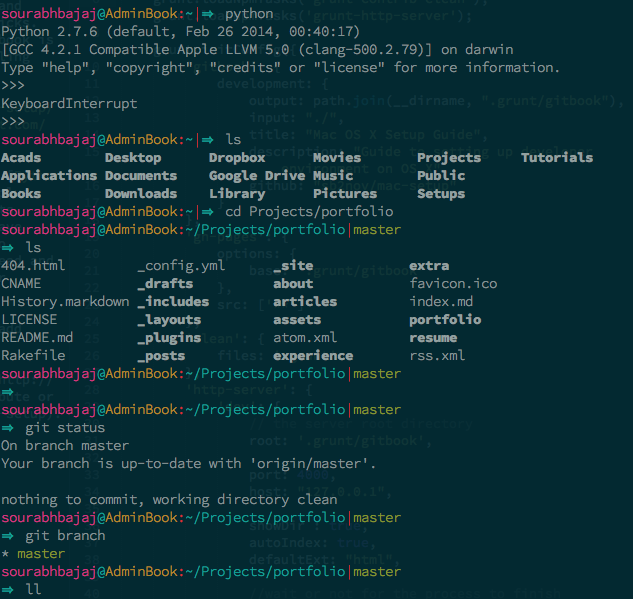
- Download [one of iTerm2 color schemes](https://github.com/mbadolato/iTerm2-Color-Schemes/tree/master/schemes) and then set these to your default profile colors
- Change the cursor text and cursor color to yellow make it more visible
- Change the font to 14pt Source Code Pro Lite. Source Code Pro can be downloaded using [Homebrew](/homebrew) `brew install --cask font-source-code-pro`
- If you're using BASH instead of ZSH you can add `export CLICOLOR=1` line to your `~/.bash_profile` file for nice coloring of listings
[](https://raw.githubusercontent.com/sb2nov/mac-setup/refs/heads/main/static/assets/Iterm.png)
### MacOS shortcuts ⌘←, ⌘→ and ⌥←, ⌥→
You might be familiar with shortcuts to skip a word (⌥) or go to start/end of the line (⌘). iTerm is not set up to work with these shortcuts by default but here's how you set them up:
Open up iTerm2 preferences (⌘ + ,) -> Profiles -> Keys -> Click on `+` icon (add new Keyboard shortcut).
| shortcut | action | Esc+ |
|:--------:|:--------------------:|:----:|
| ⌘← | Send Escape Sequence | OH |
| ⌘→ | Send Escape Sequence | OF |
| ⌥← | Send Escape Sequence | b |
| ⌥→ | Send Escape Sequence | f |
### Touch ID sudo workaround
If you have enabled sudo authentication with Touch ID you will also need to set `Preferences -> Advanced -> Allow sessions to survive logging out and back in` to `No` in iTerm2 preferences.
================================================
FILE: docs/iterm/tree.md
================================================
---
title: tree
---
`tree` is a recursive directory listing command that produces a depth indented listing of files.
## Installation
To install the latest version, use homebrew:
```sh
brew install tree
```
## Usage
Running `tree` will produce output like this:
```console
$ tree
.
├── Apps
│ ├── Octave.md
│ ├── README.md
│ ├── Settings.md
│ ├── araxis-merge.jpg
│ ├── beyond-compare.png
│ ├── delta-walker.jpg
│ ├── filemerge.png
│ └── kaleidoscope.png
├── CONTRIBUTING.md
├── Cpp
│ └── README.md
├── Docker
│ └── README.md
├── Git
│ ├── README.md
│ └── gitignore.md
└── Go
└── README.md
5 directories, 14 files
```
To limit the recursion you can pass an `-L` flag and specify the maximum depth `tree` will use when searching.
```sh
tree -L 1
```
will output:
```sh
.
├── Apps
├── CONTRIBUTING.md
├── Cpp
├── Docker
├── Git
└── Go
5 directories, 1 files
```
================================================
FILE: docs/iterm/zsh.md
================================================
---
title: Zsh
---
The Z shell (also known as `zsh`) is a Unix shell that is built on top of `bash`
and is the **default** shell for macOS (since Catalina). It's highly recommended
to install a framework with `zsh` as it makes dealing with configuration,
plugins and themes a lot nicer.
We've also included an `env.sh` file where we store our aliases, exports, path
changes etc. We put this in a separate file to not pollute our main
configuration file too much. This file is found in the bottom of this page.
Install `zsh` using Homebrew:
```sh
brew install zsh
```
Now you should install a framework, we recommend to use [Oh My Zsh](https://github.com/ohmyzsh/ohmyzsh)
or [Prezto](https://github.com/sorin-ionescu/prezto). **Note that you should
pick one of them, not use both.**
The configuration file for `zsh` is called `.zshrc` and lives in your home
folder (`~/.zshrc`).
## Oh My Zsh
[Oh My Zsh](https://github.com/ohmyzsh/ohmyzsh) is an open source,
community-driven framework for managing your `zsh` configuration. It comes
with a bunch of features out of the box and improves your terminal experience.
Install Oh My Zsh:
```sh
sh -c "$(curl -fsSL https://raw.githubusercontent.com/ohmyzsh/ohmyzsh/master/tools/install.sh)"
```
The installation script should set `zsh` to your default shell, but if it
doesn't you can do it manually:
```sh
chsh -s $(which zsh)
```
### Configuration
The out-of-the-box configuration is usable but you probably want to customise
it to suit your needs. The [Official Wiki](https://github.com/ohmyzsh/ohmyzsh/wiki)
contains a lot of useful information if you want to deep dive into what you
can do with Oh My Zsh, but we'll cover the basics here.
To apply the changes you make you need to either **start new shell instance**
or run:
```sh
source ~/.zshrc
```
#### Plugins
Add plugins to your shell by adding the name of the plugin to the `plugin`
array in your `.zshrc`.
```sh
plugins=(git colored-man-pages colorize pip python brew macos)
```
You'll find a list of all plugins on the [Oh My Zsh Wiki](https://github.com/ohmyzsh/ohmyzsh/wiki/Plugins).
Note that adding plugins can cause your shell startup time to increase.
##### zsh-syntax-highlighting
The Syntax Highlighting plugin adds beautiful colors to the commands you are typing.
Clone the zsh-syntax-highlighting plugin’s repo and copy it to the “Oh My ZSH” plugins directory.
```sh
git clone https://github.com/zsh-users/zsh-syntax-highlighting.git ${ZSH_CUSTOM:-~/.oh-my-zsh/custom}/plugins/zsh-syntax-highlighting
```
##### zsh-autosuggestions
This plugin auto suggests any of the previous commands. Pretty handy! To select the completion, simply press → key.
Clone the zsh-autosuggestions plugin’s repo and copy it to the “Oh My ZSH” plugins directory.
```sh
git clone https://github.com/zsh-users/zsh-autosuggestions $ZSH_CUSTOM/plugins/zsh-autosuggestions
```
##### Enforce Changes
To apply the changes you make you need to either **start new shell instance**
or run:
```sh
source ~/.zshrc
```
#### Themes
Changing theme is as simple as changing a string in your configuration file.
The default theme is `robbyrussell`. Just change that value to change theme,
and don't forget to apply your changes.
```sh
ZSH_THEME=pygmalion
```
You'll find a list of themes with screenshots on the
[Oh My Zsh Wiki](https://github.com/ohmyzsh/ohmyzsh/wiki/themes).
## Prezto
[Prezto](https://github.com/sorin-ionescu/prezto) is a configuration framework
for `zsh`; it enriches the command line interface environment with sane
defaults, aliases, functions, auto completion, and prompt themes.
Install Prezto:
```sh
git clone --recursive https://github.com/sorin-ionescu/prezto.git "${ZDOTDIR:-$HOME}/.zprezto"
```
Next create your `~/.zshrc` by running:
```sh
setopt EXTENDED_GLOB
for rcfile in "${ZDOTDIR:-$HOME}"/.zprezto/runcoms/^README.md(.N); do
ln -s "$rcfile" "${ZDOTDIR:-$HOME}/.${rcfile:t}"
done
```
For more information on customisation visit the [GitHub repository for
Prezto](https://github.com/sorin-ionescu/prezto).
### Modules
Add modules to Prezto by editing `~/.zpreztorc` and adding the modules as
strings to the list:
```sh
zstyle ':prezto:load' pmodule \
'environment' \
'terminal' \
'editor' \
'history' \
'directory' \
'spectrum' \
'utility' \
'completion' \
'git' \
'syntax-highlighting' \
'history-substring-search' \
'prompt'
```
And don't forget to apply your changes by **starting a new shell instance**.
### Themes
To list all available themes run:
```sh
prompt -l
```
Then open up your config file (`~/.zpreztorc`) and change to the theme you want:
```sh
zstyle ':prezto:module:prompt' theme 'minimal'
```
## `env.sh`
To include `env.sh`, open `~/.zshrc` and add the following:
```sh
source ~/<path to file>/env.sh
```
This file comes with some pre-defined settings, **they are all optional**.
Please review them before you use them as your configuration. These are just
examples to show you what you can customise in your shell.
```sh
#!/bin/zsh
# Add commonly used folders to $PATH
export PATH="/usr/local/bin:/usr/bin:/bin:/usr/sbin:/sbin"
# Specify default editor. Possible values: vim, nano, ed etc.
export EDITOR=vim
# File search functions
function f() { find . -iname "*$1*" ${@:2} }
function r() { grep "$1" ${@:2} -R . }
# Create a folder and move into it in one command
function mkcd() { mkdir -p "$@" && cd "$_"; }
# Example aliases
alias cppcompile='c++ -std=c++11 -stdlib=libc++'
alias g='git'
```
================================================
FILE: docs/java/index.md
================================================
---
title: Java
---
Using Java requires you to install a JDK ("Java Development Kit") or JRE ("Java Runtime Environment").
We'll use a JDK since it can do everything a JRE can, plus more.
## Choosing a JDK
There are two major JDKs: OpenJDK and the Oracle JDK.
OpenJDK and Oracle JDK provide the same functionality, and are even built from the same code base.
They differ only in their packaging and licensing.
OpenJDK is free for use in all situations.
Oracle JDK requires a paid-for commercial license when used in a production setting.
Most personal users will probably want to use OpenJDK, since it's easier to acquire and install
and that's what we'll be covering here.
## Installation
First you should check if Java is already installed
```sh
java -version
```
If you see a non-empty output like below then Java is already installed on your machine and you are good to go
```sh
openjdk version "21.0.2" 2024-01-16
OpenJDK Runtime Environment Homebrew (build 21.0.2)
OpenJDK 64-Bit Server VM Homebrew (build 21.0.2, mixed mode, sharing)
```
If you don't see the output like above then you need to install Java on your system
### Installing OpenJDK
#### Installing OpenJDK using Homebrew
```sh
brew install openjdk
```
If you're curious, you can list all the available JDK versions via:
```sh
brew search jdk
```
There will be a lot of options here! If you are not a serious Java developer, don't worry about them, and just use the default `openjdk`.
Once you've done that, check if Java is correctly installed by running the `java -version` command again.
#### Downloading and installing OpenJDK manually
Open a web browser and go to [Adoptium](https://adoptium.net/). Select the latest LTS version and download the installer for macOS.
Once you've done that, check if Java is correctly installed by opening a new Terminal session and running the `java -version` command again.
================================================
FILE: docs/java/sdkman.md
================================================
---
title: SDKMAN!
---
SDKMAN! is a tool for managing parallel versions of multiple software development kits on most Unix-based systems. It provides a convenient command line interface (CLI) and API for installing, switching, removing and listing candidates.
## Installation
Open a new terminal and enter:
```sh
curl -s "https://get.sdkman.io" | bash
```
Follow the instructions on-screen to complete installation.
Next, open a new terminal or enter:
```sh
source "$HOME/.sdkman/bin/sdkman-init.sh"
```
Lastly, run the following code snippet to ensure that installation succeeded:
```sh
sdk version
```
If all went well, the version should be displayed. Something like:
```sh
sdkman 5.0.0+51
```
## Usage
### Installing an SDK
#### Latest stable
Install the latest stable version of your SDK of choice (say, Java JDK) by running the following command:
```sh
sdk install java
```
You will see something like the following output:
```sh
Downloading: java 8u111
In progress...
######################################################################## 100.0%
Installing: java 8u111
Done installing!
```
Now you will be prompted if you want this version to be set as default.
```sh
Do you want java 8u111 to be set as default? (Y/n):
Answering yes (or hitting enter) will ensure that all subsequent shells opened will have this version of the SDK in use by default.
Setting java 8u111 as default.
```
## More commands
* To install a specific version
qualify the version you require:
```sh
sdk install scala 2.12.1
```
* To remove a version
```sh
sdk uninstall scala 2.11.6
```
Note that removing a local version will not remove the local installation.
* To list candidates
```sh
sdk list
```
More useful commands and usages can be found at [SDKMAN Usage](https://sdkman.io/usage).
================================================
FILE: docs/jetbrains-ides.md
================================================
---
title: JetBrains IDEs
---
JetBrains is a company creating tools for developers. Their mission is: _We make professional software development a more productive and enjoyable experience_. In this section a number of IDEs (integrated development environment) as well as a selection of features will be presented.
## Selection of Features
**Note that these features apply to _all_ IDEs mentioned.**
### Shared Key Mappings
If you use different programming languages you might also use different IDEs/editors. This forces you to learn different key mappings for each individual IDE/editor. With IDEs from JetBrains you only need to learn one key mapping because it's shared between all of their IDEs. If you customize your key mapping you can even export it from one IDE and import in the other one.
### Highly Customizable
Not only can you do lots of customization when it comes to appearance, key mapping and a lot more, you also have plugins. These plugins cover everything from dealing with different file types to using external tools such as Git, Docker, databases, linters and time tracking. JetBrains offer a bunch of their own plugins but you can also develop and publish your own plugins.
### Integrated Tools
Their IDEs offer so many tools that you never have to leave it if you don't want to. It supports a number of different VCSs (Git, Subversion, Perforce etc.), a terminal window, database browser, debuggers, SSH sessions and more.
### Powerful Refactoring
Rename a method used all over your project with a few clicks, or change a method signature in the same way. With statically typed languages like Java and C the refactoring becomes even more powerful.
## Useful Shortcuts
* Search for a file -- `CMD + SHIFT + O`
* Search for a string -- `CMD + SHIFT + F`
* Search everything, press `SHIFT` two (2) times
* Context based action -- `ALT + ENTER` (this one is very contextual, you have to just try it out having your cursor in different places)
* Refactor this -- `CTRL + T` (place your cursor on what you want to refactor)
## Supported Languages
Their IDEs support a number of languages, here's a list covering all of the listed ones sorted alphabetically.
* C, C#, C++
* CSS, Less, Sass, Stylus
* F#
* Go
* Groovy
* Java
* JavaScript, TypeScript
* Kotlin
* Objective-C
* PHP
* Python
* Ruby
* Scala
* SQL
* Swift
* VB.NET
They offer support for more languages using plugins such as Rust, Dart, Haxe, Markdown, Pug/Jade, Slim, Twig and more.
## Installation
Go to [their website](https://www.jetbrains.com/products.html?fromMenu#type=ide) and select what product you'd like to download.
Alternatively, use the [Jetbrains Toolbox App](https://www.jetbrains.com/toolbox-app/) to manage product installations.
## Pricing
If you're a **student** or an **instructor** (teaching staff members) all IDEs from JetBrains are free to use. You can read more on [their website](https://www.jetbrains.com/student/). If you're not a student they still offer a few free Community Edition (CE) IDEs. Check out [IntelliJ](https://www.jetbrains.com/idea/) (Java) or [PyCharm Edu](https://www.jetbrains.com/pycharm-edu/).
If you as an individual want to have an [IntelliJ subscription](https://www.jetbrains.com/idea/buy/#edition=personal), for example, it's €14.90/$14.90 every month. Before buying a subscription you should [see if you apply for a free/discounted license](https://www.jetbrains.com/idea/buy/#edition=discounts).
================================================
FILE: docs/latex.md
================================================
---
title: LaTeX
---
[LaTeX](https://www.latex-project.org/about/), which is pronounced «Lah-tech» or «Lay-tech», is a document preparation system for high-quality typesetting. It is most often used for medium-to-large technical or scientific documents but it can be used for almost any form of publishing.
## Installation
When installing LaTex, two following options are given to users:
1. Install MacTeX with builtin editor (TexLive) - (3.2GB)
2. Install BasicTeX only (100MB) + your personal LaTeX editor
### MacTeX vs BasicTeX
MacTeX includes additional programs such as an editor and a BibTeX reference manager that help users to work with TeX outside of the command line. BasicTeX does not include these GUI programs. The trade-off that comes with using BasicTeX is that you will have to download and install additional packages and programs as the need arises- and BasicTeX is so basic that the need will arise. So, after installing BasicTeX you will be faced with the tasks of installing additional programs and installing missing packages.
#### MacTex
Download [MacTex](http://www.tug.org/mactex/), or use `brew install --cask mactex`.
You can read more about MacTex in [What is installed (pdf)](https://www.tug.org/mactex/What_Is_Installed.pdf).
Since MacTex installs a LaTex editor ([TexMaker](http://www.xm1math.net/texmaker/download.html)) already, installing another LaTeX editor is unnecessary.
#### BasicTeX
Download [BasicTeX](http://tug.org/mactex/morepackages.html), or use `brew install --cask basictex`. You can read more about BasicTex in [BasicTeX (pdf)](https://www.tug.org/mactex/BasicTeX.pdf).
You may use `tlmgr` to install tools/packages that you need.
> **Note**: You may find CLI tool `tlmgr` cumbersome to use, in that case install GUI for `tlmgr` - [*TeX Live Utility*](https://amaxwell.github.io/tlutility/) - `brew install --cask tex-live-utility`.
Now you should pick a LaTeX editor, here are some to choose from:
1. [TexMaker](http://www.xm1math.net/texmaker/)
2. [TeXstudio](http://texstudio.sourceforge.net/)
3. [TeXworks](https://github.com/TeXworks/texworks/releases)
4. [TeXShop](http://pages.uoregon.edu/koch/texshop/)
5. [LyX](http://www.lyx.org/)
6. [TeXlipse](http://texlipse.sourceforge.net/)
7. [Sublime Text 3 - LaTeXTools](https://github.com/SublimeText/LaTeXTools)
8. [Visual Studio Code - LaTeX-Workshop](https://github.com/James-Yu/LaTeX-Workshop)
> **Note**: You may want to use a PDF reader that watches your PDF files, like Skim (can be installed by `brew install --cask skim` and *Sync* feature can be enabled in Preferences -> Sync).
================================================
FILE: docs/mysql.md
================================================
---
title: MySQL
---
## Installation
We will install MySQL using Homebrew, which will also install some header files needed for MySQL bindings in different programming languages (MySQL-Python for one).
```sh
brew install mysql
```
## Usage
To have launchd start MySQL now and restart at login:
```sh
brew services start mysql
```
Or, if you don't want/need a background service you can just use the `mysql.server` tool:
```sh
mysql.server start
```
To stop it when you are done, run:
```sh
mysql.server stop
```
You can see the different commands available for `mysql.server` with:
```sh
mysql.server --help
```
To connect with the command-line client, run:
```sh
mysql -uroot
```
(Use `exit` to quit the MySQL shell)
**Note**: By default, the MySQL user `root` has no password. It doesn't really matter for a local development database. If you wish to change it though, you can use `mysqladmin -u root password 'new-password'`.
================================================
FILE: docs/nodejs.md
================================================
---
title: Node.js
---
Node.js is a JavaScript runtime built on Chrome's V8 JavaScript engine.
## Installation
### Using Homebrew
```sh
brew install node
```
### Using Node Version Manager (nvm)
Download and install [nvm](https://github.com/nvm-sh/nvm) by running:
```sh
curl -o- https://raw.githubusercontent.com/nvm-sh/nvm/v0.40.1/install.sh | bash
```
or via Homebrew:
```sh
brew install nvm
```
Then download Node and select your version by running:
```sh
source ~/.bashrc # source your bashrc/zshrc to add nvm to PATH
command -v nvm # check the nvm use message
nvm install node # install most recent Node stable version
nvm ls # list installed Node version
nvm use node # use stable as current version
nvm ls-remote # list all the Node versions you can install
nvm alias default node # set the installed stable version as the default Node
```
See the [documentation](https://github.com/nvm-sh/nvm#installing-and-updating) for information.
## npm usage
To install a package:
```sh
npm install <package> # Install locally
npm install -g <package> # Install globally
```
To see what's installed:
```sh
npm list [-g]
```
To find outdated packages:
```sh
npm outdated [-g]
```
To upgrade all or a particular package:
```sh
npm update [-g] [<package>]
```
To uninstall a package:
```sh
npm uninstall [-g] <package>
```
## yarn
Yarn is another package manager built by Facebook. Yarn stands for Yet Another
Resource Negotiator. It provides similar functionalities as NPM. It is an
alternative to NPM when installing, uninstalling, and managing package
dependencies from the NPM registry or GitHub repositories.
```sh
brew install yarn
```
================================================
FILE: docs/postgresql.md
================================================
---
title: PostgreSQL
---
PostgreSQL is an open source relational database management system (RDBMS). It is the default database for macOS server.
## Installation
```sh
brew install postgresql
```
After this, we can test the installation status by checking the version of installed PostgreSQL
```sh
postgres -V
```
## Usage
### Start PostgreSQL server
The recommended way to manage PostgreSQL is via Homebrew services:
```sh
brew services start postgresql
```
This starts the server now and also sets it to start automatically at login.
### Stop PostgreSQL server
```sh
brew services stop postgresql
```
### Restart PostgreSQL server
```sh
brew services restart postgresql
```
### Start PostgreSQL console
```sh
psql postgres
```
### GUI tool
[Postico](https://eggerapps.at/postico2/) is a popular GUI client for PostgreSQL on macOS. Alternatively, [TablePlus](https://tableplus.com/) supports PostgreSQL and many other databases.
================================================
FILE: docs/python/index.md
================================================
---
title: Python
---
macOS ships with [Python](https://python.org/) already installed.
But you don't want to mess with the system Python (some system tools rely on
it, etc.), so we'll install our own version(s). There are two ways to install
Python, (1) Homebrew and (2) Pyenv. If you plan to use multiple versions of
Python then you should use pyenv.
## Installation
### Homebrew method
```sh
brew install python
```
Installing Python also installs [pip](https://pip.pypa.io/)
(and its dependency [Setuptools](https://pypi.org/project/setuptools/)),
which is the package manager for Python. Let's upgrade them both:
```sh
pip3 install --upgrade setuptools
pip3 install --upgrade pip
```
### Pyenv method
[`pyenv`](https://github.com/pyenv/pyenv) is a Python version manager that can
manage and install different versions of Python. Works very much like `rbenv`
for Ruby. First, we must install `pyenv` using Homebrew:
```sh
brew install pyenv
```
To upgrade `pyenv` in the future, use `upgrade` instead of `install`. After
installing, add `pyenv init` to your shell to enable shims and autocompletion.
Add the following to your `~/.zshrc` (or `~/.bash_profile` if using Bash):
```sh
eval "$(pyenv init -)"
```
Restart your shell to make sure the path changes take effect.
```sh
exec $SHELL
```
You can now begin using `pyenv`. To list the all available versions of Python,
including Anaconda, Jython, PyPy and Stackless, use:
```sh
pyenv install --list
```
Then install the desired versions:
```sh
pyenv install 3.12
pyenv install 3.11
```
Use the `global` command to set global version(s) of Python to be used in all
shells:
```sh
pyenv global 3.12
pyenv rehash
```
All installed Python versions can be
located in `~/.pyenv/versions`. Alternatively, you can run:
```console
$ pyenv versions
system (set by /Users/your_account/.pyenv/version)
* 3.12
3.11
```
This shows an asterisk `*` next to the currently active version.
### Application-specific Python version
The `local` command will set local application-specific Python version(s) by
writing the version name to a `.python-version` file in the current directory.
This version overrides the global version. For example:
```console
$ cd path/to/directory
$ pyenv local 3.11
$ pyenv versions
system
3.12
* 3.11 (set by /Users/your_account/path/to/directory/.python-version)
```
================================================
FILE: docs/python/ipython.md
================================================
---
title: IPython
---
[IPython](http://ipython.org/) is an improved Python shell than the one you get from running `python` in the command-line. It has many cool functions (running Unix commands from the Python shell, easy copy & paste, creating Matplotlib charts in-line etc.). You can find all functions in the [documentation](http://ipython.readthedocs.io/en/stable/).
IPython is a kernel for Jupyter Notebook. If you are confused IPython with Jupyter, refer to the [Jupyter documentation](https://jupyter.readthedocs.io/en/latest/)
## Installation
```sh
pip install ipython
```
If you want a more fine-grained command you can try the following:
For zsh ->
```sh
pip install 'ipython[zmq,qtconsole,notebook,test]'
```
For bash ->
```sh
pip install ipython[zmq,qtconsole,notebook,test]
```
================================================
FILE: docs/python/numpy.md
================================================
---
title: Numpy
---
The [NumPy](https://numpy.org/), [SciPy](https://scipy.org/) and [Matplotlib](https://matplotlib.org/) scientific libraries for Python are always a little tricky to install from source because they have all these dependencies they need to build correctly.
There are two ways to install these libraries:
* Using `pip`
Python provides an inbuilt package management system `pip` which can be used to install these libraries
```sh
python -m pip install --user numpy scipy matplotlib ipython jupyter pandas sympy nose
```
* Using [MacPorts](https://www.macports.org/) and Python 3.5
```sh
sudo port install py35-numpy py35-scipy py35-matplotlib py35-ipython +notebook py35-pandas py35-sympy py35-nose
```
================================================
FILE: docs/python/pip.md
================================================
---
title: Pip
---
[pip](https://pip.pypa.io/) is the package manager for Python. If you installed Python via Homebrew or pyenv, `pip` is already included.
## Verify Installation
```sh
pip3 --version
```
If it returns a version `pip` was successfully installed.
## Usage
Here are a few `pip` commands to get you started.
Install a Python package
```sh
pip3 install <package>
```
Upgrade a package
```sh
pip3 install --upgrade <package>
```
See what's installed
```sh
pip3 freeze
```
Uninstall a package
```sh
pip3 uninstall <package>
```
================================================
FILE: docs/python/virtualenv.md
================================================
---
title: Virtualenv
---
[Virtualenv](http://www.virtualenv.org/) is a tool that lets you create an
isolated Python environment for your project. It creates an environment that
has its own installation directories, that doesn’t share dependencies with
other `virtualenv` environments (and optionally doesn’t access the globally
installed dependencies either). You can even configure what version of Python
you want to use for each individual environment. It's very much recommended to
use `virtualenv` when dealing with Python applications.
## Installation
To install `virtualenv` run:
```sh
pip install virtualenv
```
## Usage
If you have a project in a directory called `my-project` you can set up
`virtualenv` for that project by running:
```sh
cd my-project/
virtualenv venv
```
If you want your `virtualenv` to also inherit globally installed packages run:
```sh
virtualenv venv --system-site-packages
```
These commands create a `venv/` directory in your project where all
dependencies are installed. You need to **activate** it first though (in every
terminal instance where you are working on your project):
```sh
source venv/bin/activate
```
You should see a `(venv)` appear at the beginning of your terminal prompt
indicating that you are working inside the `virtualenv`. Now when you install
something like this:
```sh
pip install <package>
```
It will get installed in the `venv/` folder, and not conflict with other
projects.
To leave the virtual environment run:
```sh
deactivate
```
**Important**: Remember to add `venv` to your project's `.gitignore` file so
you don't include all of that in your source code.
It is preferable to install big packages (like Numpy), or packages you always
use (like IPython) globally. All the rest can be installed in a `virtualenv`.
## Virtualenvwrapper
To make it easier to work on multiple projects that has separate environments
you can install `virtualenvwrapper`. It's an extension to `virtualenv` and
makes it easier to create and delete virtual environments without creating
dependency conflicts.
To install `virtualenvwrapper` run:
```sh
pip install virtualenvwrapper
```
Depending on your setup you might need to install it using `sudo`. Read the
[installation
documentation](https://virtualenvwrapper.readthedocs.io/en/latest/install.html)
for more information.
**Note**: `virtualenvwrapper` keeps all the virtual environments in
`~/.virtualenv` while `virtualenv` keeps them in the project directory.
================================================
FILE: docs/references.md
================================================
---
title: References
---
Thank you for all the awesome pages and documentation below which helped set this up.
- [Nicolashery](https://github.com/nicolashery/mac-dev-setup)
- [GitHub Docs](https://docs.github.com)
- [Docusaurus](https://docusaurus.io/)
- [Sublime Plugins](https://packagecontrol.io/)
## Contributing
Please feel free to send [Pull Requests](https://github.com/sb2nov/mac-setup/pulls) fixing any mistakes in the guide or adding additional information.
================================================
FILE: docs/ruby/index.md
================================================
---
title: Ruby
---
macOS comes with Ruby installed, but as we don't want to be messing with operating system core files we're going to use the tools `rbenv` and `ruby-build` to manage and install our Ruby versions for our development environment.
## Installation
```sh
brew install rbenv ruby-build rbenv-default-gems rbenv-gemset
echo 'eval "$(rbenv init -)"' >> ~/Projects/config/env.sh
source ~/.zshrc # Apply changes
```
The packages we just installed allow us to install different versions of Ruby and specify which version to use on a per project basis and globally. This is very useful to keep a consistent development environment if you need to work in a particular Ruby version.
## Switching versions
We can install version `3.1.1` and use it as our global version by running:
```sh
rbenv install 3.1.1
rbenv global 3.1.1
```
On M1 Macs to install older version of Ruby eg. `<2.7.3`, `<2.6.7` you first need to run:
```sh
export optflags="-Wno-error=implicit-function-declaration"
```
## Managing gems in application
Bundler provides a consistent environment for Ruby projects by tracking and installing the exact gems and versions that are needed.
```sh
gem install bundler
echo 'bundler' >> "$(brew --prefix rbenv)/default-gems"
```
When starting a Ruby project, you can have sandboxed collections of gems. This lets you have multiple collections of gems installed in different sandboxes, and specify (on a per-application basis) which sets of gems should be used. To have gems install into a sub-folder in your project directory for easy later removal / editing / testing, you can use a project gemset.
```sh
echo '.gems' > <my_project_path>/.rbenv-gemsets
```
Your gems will then get installed in `project/.gems`.
## Configuration
If you use Google for finding your Gem documentation then you might want to consider saving a bit of time when installing gems by not including the documentation.
```sh
echo 'gem: --no-document' >> ~/.gemrc
```
================================================
FILE: docs/ruby/rubygems.md
================================================
---
title: RubyGems
---
[RubyGems](http://rubygems.org/), the Ruby package manager, should be installed on your machine if you previously have installed Ruby. Verify this by running:
```sh
which gem
```
## Update RubyGems
To update to its latest version with:
```sh
gem update --system
```
## Install gems
To install a _gem_ (Ruby package), run:
```sh
gem install <gemname>
```
To install without generating the documentation for each gem (faster):
```sh
gem install <gemname> --no-document
```
## List installed gems
```sh
gem list
```
To check if any installed gems are outdated:
```sh
gem outdated
```
## Update installed gems
To update all gems or a particular gem:
```sh
gem update [<gemname>]
```
## Remove old gem versions
RubyGems keeps old versions of gems, so feel free to do some cleaning after updating:
```sh
gem cleanup
```
================================================
FILE: docs/rust.md
================================================
---
title: Rust
---
[Rust](https://www.rust-lang.org) is a systems programming language that runs blazingly fast, prevents segfaults, and guarantees thread safety.
## Installation
For installation it's advised to use `rustup` as it will (among other things)
allow you to switch between versions of Rust without having to download
anything additional.
```sh
brew install rustup-init
```
Use rustup to install the Rust compiler (rustc) and the Rust package manager (cargo).
```sh
rustup-init
```
To verify you can run:
```sh
rustc --version
```
[The official documentation on how to install Rust](https://www.rust-lang.org/tools/install).
================================================
FILE: docs/scala.md
================================================
---
title: Scala
---
Make sure you have Java installed, [the instructions are provided here](/java).
## Installation
```sh
brew install scala sbt
```
Verify the installation:
```sh
scala -version
```
## IDE Support
For Scala development, [IntelliJ IDEA](https://www.jetbrains.com/idea/) with the Scala plugin is the most popular choice. Alternatively, [VS Code](https://code.visualstudio.com/) with the [Metals](https://scalameta.org/metals/) extension provides good Scala support.
================================================
FILE: docs/security.md
================================================
---
title: Security
---
A development machine should be secured against threats as well as any other machine \(or even _especially_ a development machine\). Therefore we will setup
* a firewall
* disk encryption
## Firewall
If you run potentially vulnerable software you don't want to be accessed from other machines, consider turning the built-in firewall on. This particularly applies if you develop network software.
To turn the built-in firewall on:
1. Choose Apple menu \(\) > System Settings, then click Network.
2. Click Firewall.
3. Turn on Firewall.
4. Click Options to configure which apps are allowed incoming connections.
> **Note**: On macOS versions before Ventura, this is under System Preferences > Security & Privacy > Firewall.
## Disk Encryption
If you travel a lot and take your notebook with you \(including all your source codes\), you should enable disk encryption.
The following steps were taken from the [official apple support page](https://support.apple.com/en-us/HT204837) on this:
1. Choose Apple menu \(\) > System Settings, then click Privacy & Security.
2. Scroll down to the FileVault section.
3. Click Turn On FileVault.
4. Follow the instructions. You should create a local and offline possibility to disable encryption, when you are asked how to regain access in case of anything.
> **Note**: On newer Apple Silicon Macs, data encryption is enabled by default.
================================================
FILE: docs/sublime-text/index.md
================================================
---
title: Sublime Text
---
[Sublime Text](http://www.sublimetext.com/) is a widely used editor that describes it self as _a sophisticated text editor for code, markup and prose_.
## Installation
Install using Homebrew:
```sh
brew install --cask sublime-text
```
Or [download](https://www.sublimetext.com/) the **.dmg** file and drag-and-drop it to the **Applications** folder.
## Use CLI to open file
Let's create a shortcut through which we can launch Sublime Text from the command-line
```sh
ln -s /Applications/Sublime\ Text.app/Contents/SharedSupport/bin/subl /usr/local/bin/subl
```
Now you can open a file with `subl myfile.py` or start a new project in the current directory with `subl .`.
## Pricing
Sublime Text is not free but it has an unlimited evaluation period that comes with notification pop-ups asking you to buy it, [if you wish to remove the pop-ups you can purchase the tool here](http://www.sublimetext.com/buy).
================================================
FILE: docs/sublime-text/packages.md
================================================
---
title: Packages
---
## Install Package Control
The simplest method of installation is through the Sublime Text console. The console is accessed via `View > Show Console` menu. Once open, paste the appropriate Python code for your version of Sublime Text into the console.
This snippet changes each version and older versions will return an error.
To get the current versions code, go to [packagecontrol.io](https://packagecontrol.io/installation)
================================================
FILE: docs/sublime-text/plugins.md
================================================
---
title: Plugins
---
- [Alignment](https://github.com/wbond/sublime_alignment/issues): Easy alignment of multiple selections and multi-line selections
- [All Autocomplete](https://github.com/alienhard/SublimeAllAutocomplete): Extend Sublime Text 2 auto-completion to find matches in all open files of the current window
- [AutoFileName](https://github.com/BoundInCode/AutoFileName): Plugin that auto-completes filenames
- [Bootstrap 3 Snippets](https://github.com/JasonMortonNZ/bs3-sublime-plugin): Twitter Bootstrap 3 snippets plugin for Sublime Text 2 and 3
- [BracketHighlighter](https://github.com/facelessuser/BracketHighlighter): Bracket and tag highlighter
- [Dictionaries](https://github.com/SublimeText/Dictionaries): Hunspell UTF8 dictionaries
- [DictionaryAutoComplete](https://github.com/Zinggi/DictionaryAutoComplete): Plugin that adds dictionary entries to the completions inside comments
- [EncodingHelper](https://github.com/SublimeText/EncodingHelper): Guess encoding of files, show in status bar, convert to UTF-8 from a variety of encodings
- [FileDiffs](https://github.com/colinta/SublimeFileDiffs): Shows diffs between the current file, or selection(s) in the current file, and clipboard, another file, or unsaved changes
- [Git](https://github.com/kemayo/sublime-text-git): Plugin for some Git integration
- [GitGutter](https://github.com/jisaacks/GitGutter): A Sublime Text 2 and 3 plugin to see git diff in gutter
- [IndentXML](https://github.com/alek-sys/sublimetext_indentxml): Plugin for re-indenting XML and JSON files
- [Jade](https://github.com/davidrios/jade-tmbundle): A comprehensive bundle for the Jade template language
- [Jedi - Python autocompletion](https://github.com/srusskih/SublimeJEDI): Jedi is an autocompletion tool for Python
- [Jekyll](https://github.com/23maverick23/sublime-jekyll): A plugin for Jekyll static sites
- [LaTeXTools](https://github.com/SublimeText/LaTeXTools): A LaTeX Plugin for Sublime Text 2 and 3
- [Python Auto-Complete](https://github.com/eliquious/Python-Auto-Complete): Sublime Text 2 plugin which adds additional auto-completion capability to Python scripts
- [Python Imports Sorter](https://github.com/vi4m/sublime_python_imports): Sublime Text 2 plugin to organize your imports easily
- [PythonTraceback](https://github.com/kedder/sublime-python-traceback): Easy navigation in your python tracebacks
- [SideBarEnhancements](https://github.com/titoBouzout/SideBarEnhancements): Enhancements to sidebar. Files and folders.
- [SublimeCodeIntel](https://packagecontrol.io/packages/SublimeCodeIntel): Full-featured code intelligence and smart auto-complete engine
- [SublimeLinter](http://sublimelinter.readthedocs.org/): Interactive code linting framework for Sublime Text 3
- [SublimeLinter-pep8](https://github.com/SublimeLinter/SublimeLinter-pep8): Linter plugin for python using PEP8
- [TrailingSpaces](https://github.com/SublimeText/TrailingSpaces): Highlight trailing spaces and delete them in a flash
================================================
FILE: docs/sublime-text/preferences.md
================================================
---
title: Preferences
---
This is an example of User Settings for a basic development but please feel free to modify or update as per your choice.
```json
{
"auto_complete_delay": 5,
"auto_complete_selector": "source, text",
"color_scheme": "Packages/User/Monokai (SL).tmTheme",
"create_window_at_startup": false,
"folder_exclude_patterns":
[
".svn",
".git",
".DS_Store",
"__pycache__",
"*.pyc",
"*.pyo",
"*.exe",
"*.dll",
"*.obj",
"*.o",
"*.a",
"*.lib",
"*.so",
"*.dylib",
"*.ncb",
"*.sdf",
"*.suo",
"*.pdb",
"*.idb",
"*.psd"
],
"font_face": "Source Code Pro",
"font_size": 13,
"ignored_packages":
[
"Markdown",
"Vintage"
],
"open_files_in_new_window": false,
"rulers":
[
80
],
"translate_tabs_to_spaces": true,
"word_wrap": true
}
```
================================================
FILE: docs/sublime-text/sublime-linter.md
================================================
---
title: Sublime Linter
---
```json
{
"user": {
"debug": false,
"delay": 0.25,
"error_color": "D02000",
"gutter_theme": "none",
"gutter_theme_excludes": [],
"lint_mode": "background",
"linters": {
"pep8": {
"@disable": false,
"args": [],
"disable": "",
"enable": "",
"excludes": [],
"ignore": "",
"max-line-length": null,
"rcfile": "",
"select": ""
}
},
"mark_style": "outline",
"no_column_highlights_line": false,
"paths": {
"linux": [],
"osx": [
"/usr/local/bin/"
],
"windows": []
},
"python_paths": {
"linux": [],
"osx": [
"/usr/local/bin/"
],
"windows": []
},
"rc_search_limit": 3,
"shell_timeout": 10,
"show_errors_on_save": false,
"show_marks_in_minimap": true,
"syntax_map": {
"html (django)": "html",
"html (rails)": "html",
"html 5": "html",
"php": "html",
"python django": "python"
},
"warning_color": "DDB700",
"wrap_find": true
}
}
```
================================================
FILE: docs/system-preferences.md
================================================
---
title: System Settings
---
## First Time Setup
The first thing you should do is update your system. To do that go:
**Apple menu () > System Settings > General > Software Update.**
Also upgrade your OS to the latest version to have a more secure OS. macOS
upgrades are usually free so you might as well keep your machine up to date.
If this is a new computer there are a couple tweaks you could make to the
System Settings. **These settings are all optional, consider them
suggestions. Always choose the setting that makes the most sense to you.**
> **Note**: On macOS Ventura (13) and later, "System Preferences" has been
> renamed to "System Settings" with a redesigned interface.
## Users & Groups
- _Login Options_ -> _Change fast user switching menu as Icon_
- Set up _Password_, _Apple ID_, _Picture_, etc.
## Trackpad
- _Point & Click_
- Enable _Tap to click with one finger_
- Change _Secondary click_ to _Right corner_
- Uncheck _Three Finger Drag_
- _Scroll & Zoom_
- Uncheck _all_ apart from _Zoom in and out_
## Dock
- _Visual Settings_
- _Change position_ to _Left_ and _make the size_ of icons _Small_
- _Other settings_
- Remove _workspace auto-switching_ by running the following command:
```sh
defaults write com.apple.dock workspaces-auto-swoosh -bool NO
killall Dock # Restart the Dock process
```
## Finder
- General
- Change _New finder window show_ to open in your _Home Directory_
- Sidebar
- Add _Home_ and your _Code Directory_
- Uncheck all _Shared_ boxes
## Menubar
- Remove the _Display_ and _Bluetooth_ icons
- Change _battery_ to _Show percentage symbols_
## Spotlight
- Uncheck _fonts_, _images_, _files_ etc.
- Uncheck the _keyboard shortcuts_ as we'll be replacing them with
[_Raycast_](https://www.raycast.com/)
## Accounts
- Add an _iCloud account_ and sync _Calendar_, _Find my Mac_, _Contacts_ etc.
## User Defaults
- Enable _repeating keys by pressing and holding down keys_: `defaults write
NSGlobalDomain ApplePressAndHoldEnabled -bool false` (and restart any app
that you need to repeat keys in)
- Change the _default folder for screenshots_
- Open the terminal and create the folder where you would like to store
your screenshots: `mkdir -p /path/to/screenshots/`
- Then run the following command: `defaults write com.apple.screencapture
location /path/to/screenshots/ && killall SystemUIServer`
## Security & Privacy
- Set `Require Password ... after sleep or screen saver begins` to `immediately`
- Enable FileVault to encrypt your hard drive
- Turn on Firewall
================================================
FILE: docs/vagrant.md
================================================
---
title: Vagrant
---
Create and configure lightweight, reproducible, and portable development environments. [Vagrant](https://www.vagrantup.com/) is a tool for managing virtual machines via a simple to use command line interface.
> **Note**: For most use cases, [Docker](/docker) is now the preferred way to create
> reproducible development environments. Vagrant is still useful when you need
> full virtual machines.
## Installation
Vagrant uses a virtualization provider. You can use [VirtualBox](https://www.virtualbox.org/) (free) or other providers like VMware or Parallels.
```sh
brew install --cask virtualbox
```
Now install Vagrant:
```sh
brew install --cask vagrant
```
## Usage
Add the Vagrant box you want to use. We'll use Ubuntu 22.04 for the following example.
```sh
vagrant box add ubuntu/jammy64
```
You can find more boxes at [Vagrant Cloud](https://app.vagrantup.com/boxes/search).
Now create a test directory and `cd` into the test directory. Then we'll initialize the vagrant machine.
```sh
vagrant init ubuntu/jammy64
```
Now lets start the machine using the following command.
```sh
vagrant up
```
You can ssh into the machine now.
```sh
vagrant ssh
```
Halt the vagrant machine now.
```sh
vagrant halt
```
Other useful commands are `suspend` and `destroy`.
================================================
FILE: docs/vim.md
================================================
---
title: Vim
---
[Vim](http://www.vim.org/) is a highly configurable text editor built to make creating and changing any kind of text very efficient. It is included as "vi" with most UNIX systems and with Apple macOS.
## Installation
To install the latest version, use homebrew:
```sh
brew install vim
```
## The Ultimate vimrc
[The Ultimate vimrc](https://github.com/amix/vimrc) is a collection of vimrc configurations to make easy the usage of vim.
To download the The Ultimate vimrc, you need to install the git client. If you need install it, use home brew:
```sh
brew install git
```
Now, download the vimrc files:
```sh
git clone https://github.com/amix/vimrc.git ~/.vim_runtime
```
To install the complete version, run:
```sh
sh ~/.vim_runtime/install_awesome_vimrc.sh
```
To install the _basic_ version, run:
```sh
sh ~/.vim_runtime/install_basic_vimrc.sh
```
### Update
To update the vimrc scripts, run:
```sh
cd ~/.vim_runtime && git pull --rebase && cd -
```
## Maximum Awesome
[Maximum Awesome](https://github.com/square/maximum-awesome) is a collection of vim configuration and plugins, like a configuration manager for the vim environment.
### Installation
To install it, just make a clone of the repository with the git client:
```sh
git clone https://github.com/square/maximum-awesome.git
```
Then install it:
```sh
cd maximum-awesome
rake
```
> **NOTE:** the rake command will install all dependencies needed.
================================================
FILE: docs/visual-studio-code.md
================================================
---
title: Visual Studio Code
---
[Visual Studio Code](https://code.visualstudio.com/) is a lightweight code editor with support for many programming languages through [extensions](https://code.visualstudio.com/docs/editor/extension-gallery)
## Installation
To install the latest version, use Homebrew:
```sh
brew install --cask visual-studio-code
```
## macOS integration
Launch VS Code from the [command line](https://code.visualstudio.com/docs/setup/mac#_launching-from-the-command-line).
After that, you can launch VS Code from your terminal:
* `code .` will open VS Code in the current directory
* `code myfile.txt` will open `myfile.txt` in VS Code
## Useful Extensions
### Python
* [Python](https://marketplace.visualstudio.com/items?itemName=ms-python.python) - Python code highlighting
To enable auto-formatting on "Save", i.e. `⌘ + S`, configure the following:
1. Change the default formatter to `Black` instead of `Autopep8`. Critical to avoid large diffs. Go to _Preferences_ -> _User Settings_ and update the setting `python.formatter.provider` to `Black`
2. Enable `Format on Save` Setting: _Editor: Format On Save_ setting on _Code_ -> _Preferences_ -> _Settings_
### JavaScript
* [ESLint](https://marketplace.visualstudio.com/items?itemName=dbaeumer.vscode-eslint
) - Useful to check JavaScript errors and helps in auto-formatting the code
* [Prettier](https://marketplace.visualstudio.com/items?itemName=esbenp.prettier-vscode
) - JavaScript code formatter
### SQL
* [PostgreSQL formatter](https://marketplace.visualstudio.com/items?itemName=bradymholt.pgformatter)
### Markdown
* [Markdown Preview](https://marketplace.visualstudio.com/items?itemName=shd101wyy.markdown-preview-enhanced) - Read Markdown files in VSCode
### GitLens
* [GitLens](https://marketplace.visualstudio.com/items?itemName=eamodio.gitlens
) - Supercharge the Git capabilities built into VSCode
### Docker
* [Docker](https://marketplace.visualstudio.com/items?itemName=ms-azuretools.vscode-docker) - Create, manage, and debug images from within VSCode
### JSON
* [Paste JSON as Code](https://marketplace.visualstudio.com/items?itemName=quicktype.quicktype) - Infers types from sample JSON data, then outputs strongly typed models and serializers for working with that data in your desired programming language
### Live Server
* [Live Server](https://marketplace.visualstudio.com/items?itemName=ritwickdey.LiveServer) - Launches a local development server with live reloading for both static and dynamic
### VS Code Icons
* [vscode-icons](https://marketplace.visualstudio.com/items?itemName=vscode-icons-team.vscode-icons) - Adds unique icons to distinguish different file extensions (easier to glance through your directories)
================================================
FILE: docs/xcode.md
================================================
---
title: Xcode
---
[Xcode](https://developer.apple.com/xcode/) is an integrated development environment for macOS containing a suite of software development tools developed by Apple for developing software for macOS, iOS, watchOS and tvOS.
Download and install it from the App Store or from [Apple's website](https://developer.apple.com/xcode/).
For installing Xcode command line tools run:
```sh
xcode-select --install
```
It'll prompt you to install the command line tools. Follow the instructions and you'll have Xcode and Xcode command line tools both installed.
## XQuartz
XQuartz is Apple Inc.'s version of the X server, a component of the X Window System for macOS. It might be useful if you are developing software that uses X11, [it's available for download here](https://www.xquartz.org/) or via Homebrew:
```sh
brew install --cask xquartz
```
================================================
FILE: docusaurus.config.ts
================================================
import {themes as prismThemes} from 'prism-react-renderer';
import type {Config} from '@docusaurus/types';
import type * as Preset from '@docusaurus/preset-classic';
// This runs in Node.js - Don't use client-side code here (browser APIs, JSX...)
const config: Config = {
title: 'macOS Setup Guide',
tagline: 'Installing Development environment on macOS',
favicon: 'img/favicon.ico',
// Future flags, see https://docusaurus.io/docs/api/docusaurus-config#future
future: {
v4: true, // Improve compatibility with the upcoming Docusaurus v4
},
// Set the production url of your site here
url: 'https://sourabhbajaj.com',
// Set the /<baseUrl>/ pathname under which your site is served
// For GitHub pages deployment, it is often '/<projectName>/'
baseUrl: '/mac-setup/',
// GitHub pages deployment config.
// If you aren't using GitHub pages, you don't need these.
organizationName: 'sb2nov', // Usually your GitHub org/user name.
projectName: 'mac-setup', // Usually your repo name.
onBrokenLinks: 'throw',
onBrokenMarkdownLinks: 'warn',
// Even if you don't use internationalization, you can use this field to set
// useful metadata like html lang. For example, if your site is Chinese, you
// may want to replace "en" with "zh-Hans".
i18n: {
defaultLocale: 'en',
locales: ['en'],
},
presets: [
[
'classic',
{
docs: {
sidebarPath: './sidebars.ts',
routeBasePath: '/', // Serve the docs at the site's root
editUrl: 'https://github.com/sb2nov/mac-setup/tree/main/',
sidebarCollapsed: false,
},
blog: false, // Disable the blog plugin
theme: {
customCss: './src/css/custom.css',
},
} satisfies Preset.Options,
],
],
plugins: [
[
'@easyops-cn/docusaurus-search-local',
{
hashed: true,
language: ['en'],
highlightSearchTermsOnTargetPage: true,
explicitSearchResultPath: true,
indexDocs: true,
indexBlog: false,
indexPages: false,
docsRouteBasePath: '/',
},
],
[
'@docusaurus/plugin-google-gtag',
{
trackingID: 'G-XXXXXXXXXX', // Replace with your Google Analytics 4 tracking ID
anonymizeIP: true,
},
],
],
themeConfig: {
// Replace with your project's social card
image: 'img/docusaurus-social-card.jpg',
navbar: {
title: 'macOS Setup Guide',
items: [
{
href: 'https://github.com/sb2nov/mac-setup',
label: 'GitHub',
position: 'right',
},
{
href: 'https://sourabhbajaj.com',
label: 'About',
position: 'right',
},
],
},
footer: {
style: 'dark',
links: [
{
title: 'Guide',
items: [
{
label: 'System Settings',
to: '/system-preferences',
},
{
label: 'Homebrew',
to: '/homebrew',
},
{
label: 'Git',
to: '/git',
},
],
},
{
title: 'Development Tools',
items: [
{
label: 'Python',
to: '/python',
},
{
label: 'Node.js',
to: '/nodejs',
},
{
label: 'Docker',
to: '/docker',
},
],
},
{
title: 'More',
items: [
{
label: 'GitHub',
href: 'https://github.com/sb2nov/mac-setup',
},
{
label: 'Issues',
href: 'https://github.com/sb2nov/mac-setup/issues',
},
],
},
],
copyright: `This guide is MIT licensed. Built with Docusaurus.`,
},
prism: {
theme: prismThemes.github,
darkTheme: prismThemes.dracula,
},
} satisfies Preset.ThemeConfig,
};
export default config;
================================================
FILE: package.json
================================================
{
"name": "mac-setup",
"version": "0.0.0",
"homepage": "https://sourabhbajaj.com/mac-setup/",
"description": "Installing Development environment on macOS",
"private": true,
"scripts": {
"start": "docusaurus start",
"build": "docusaurus build",
"serve": "docusaurus serve",
"lint": "markdownlint . --ignore node_modules --ignore build",
"install-deps": "yarn install",
"_below_here_is_from": "docusaurus_",
"docusaurus": "docusaurus",
"swizzle": "docusaurus swizzle",
"deploy": "docusaurus deploy",
"clear": "docusaurus clear",
"write-translations": "docusaurus write-translations",
"write-heading-ids": "docusaurus write-heading-ids",
"typecheck": "tsc"
},
"dependencies": {
"@docusaurus/core": "3.8.1",
"@docusaurus/plugin-google-gtag": "^3.8.1",
"@docusaurus/preset-classic": "3.8.1",
"@easyops-cn/docusaurus-search-local": "^0.52.1",
"@mdx-js/react": "^3.0.0",
"clsx": "^2.0.0",
"prism-react-renderer": "^2.3.0",
"react": "^18.0.0",
"react-dom": "^18.0.0"
},
"devDependencies": {
"markdownlint-cli": "0.45.0",
"node-fetch": "^3.3.1",
"@docusaurus/module-type-aliases": "3.8.1",
"@docusaurus/tsconfig": "3.8.1",
"@docusaurus/types": "3.8.1",
"typescript": "~5.6.2"
},
"repository": {
"type": "git",
"url": "https://github.com/sb2nov/mac-setup.git"
},
"keywords": [
"Install",
"Mac",
"macOS",
"Git",
"Docusaurus",
"Setup",
"Instruction"
],
"author": "Sourabh Bajaj",
"license": "MIT",
"bugs": {
"url": "https://github.com/sb2nov/mac-setup/issues"
},
"browserslist": {
"production": [
">0.5%",
"not dead",
"not op_mini all"
],
"development": [
"last 3 chrome version",
"last 3 firefox version",
"last 5 safari version"
]
},
"engines": {
"node": ">=18.0"
}
}
================================================
FILE: scripts/generate_contributors.js
================================================
#!/usr/bin/env node
/*
* This script fetches contributors and writes their usernames, profile pictures,
* and URLs to the Contributors.md file.
*/
// Use native fetch in Node.js 18+ or fallback to node-fetch
const fetch = globalThis.fetch || require('node-fetch');
const fs = require('fs').promises;
const path = require('path');
// Configuration
const CONFIG = {
PAGE_COUNT: 6, // Increased to get more contributors
FILE_NAME: "docs/contributors.md",
BASE_URL: "https://api.github.com/repos/sb2nov/mac-setup/contributors?page=",
MIN_CONTRIBUTIONS: 1, // Minimum contributions to be included
AVATAR_SIZE: 80, // Size of GitHub avatar images (larger for better visibility)
CONTRIBUTORS_PER_ROW: 8, // Number of contributors per row in the grid
};
const HEADER = `---
title: Contributors
---
Thank you to everyone who has contributed to creating this awesome guide! 🎉
This project exists thanks to all the people who contribute:
`;
const FOOTER = `
---
*Want to contribute? Check out our [contribution guidelines](https://github.com/sb2nov/mac-setup/blob/main/.github/CONTRIBUTION_TEMPLATE.md) and help make this guide even better!*
`;
/**
* Validates that the script is run from the correct directory
*/
const validateWorkingDirectory = async () => {
const cwd = process.cwd();
try {
await fs.access(path.join(cwd, 'package.json'));
} catch {
throw new Error("Script must be run from the repository root directory");
}
};
/**
* Fetches data from a URL with error handling and rate limiting respect
*/
const fetchWithRetry = async (url, retries = 3) => {
for (let i = 0; i < retries; i++) {
try {
const response = await fetch(url, {
headers: {
'User-Agent': 'mac-setup-contributors-script',
// Add GitHub token if available for higher rate limits
...(process.env.GITHUB_TOKEN && {
'Authorization': `token ${process.env.GITHUB_TOKEN}`
})
}
});
if (!response.ok) {
if (response.status === 403) {
console.warn('Rate limit hit, waiting before retry...');
await new Promise(resolve => setTimeout(resolve, 2000));
continue;
}
throw new Error(`HTTP ${response.status}: ${response.statusText}`);
}
return await response.json();
} catch (err) {
console.warn(`Attempt ${i + 1} failed:`, err.message);
if (i === retries - 1) throw err;
await new Promise(resolve => setTimeout(resolve, 1000));
}
}
};
/**
* Fetches all contributors from GitHub API
*/
const fetchContributors = async () => {
console.log('Fetching contributors...');
const promises = [];
for (let page = 1; page <= CONFIG.PAGE_COUNT; page++) {
const url = `${CONFIG.BASE_URL}${page}&per_page=100`;
promises.push(fetchWithRetry(url));
}
const results = await Promise.all(promises);
const allContributors = results.flatMap(contributors => contributors || []);
console.log(`Fetched ${allContributors.length} contributors`);
return allContributors;
};
/**
* Validates and sanitizes contributor data
*/
const isValidContributor = (contributor) => {
const { login, html_url, avatar_url, contributions } = contributor;
// Basic validation
if (!login || !html_url || !avatar_url) return false;
// Security: prevent script injection
if (login.includes('<script') || login.includes('javascript:')) return false;
// Filter out bots and non-human users
const botPatterns = [
'dependabot[bot]',
'github-actions[bot]',
'renovate[bot]',
'greenkeeper[bot]',
'codecov[bot]'
];
if (botPatterns.some(pattern => login.includes(pattern))) return false;
// Filter by minimum contributions
if (contributions < CONFIG.MIN_CONTRIBUTIONS) return false;
return true;
};
/**
* Generates Markdown table layout for contributors with profile pictures
*/
const generateContributorGrid = (contributors) => {
const sortedContributors = contributors
.filter(isValidContributor)
.sort((a, b) => b.contributions - a.contributions); // Sort by contributions (highest first)
if (sortedContributors.length === 0) {
return 'No contributors found.';
}
const COLUMNS = 6; // Number of contributors per row (reduced for better mobile experience)
let markdown = '';
// Add CSS class for styling
markdown += '<div class="contributors-table">\n\n';
// Create table header (empty headers that will be hidden by CSS)
markdown += '|' + ' |'.repeat(COLUMNS) + '\n';
markdown += '|' + '---|'.repeat(COLUMNS) + '\n';
// Group contributors into rows
for (let i = 0; i < sortedContributors.length; i += COLUMNS) {
const row = sortedContributors.slice(i, i + COLUMNS);
const rowCells = [];
for (let j = 0; j < COLUMNS; j++) {
if (j < row.length) {
const { login, html_url, avatar_url, contributions } = row[j];
const avatarUrl = `${avatar_url}&s=${CONFIG.AVATAR_SIZE}`;
// Create cell with avatar and username
const cell = `[](${html_url})<br/>[${login}](${html_url})`;
rowCells.push(cell);
} else {
// Empty cell for incomplete rows
rowCells.push(' ');
}
}
markdown += `| ${rowCells.join(' | ')} |\n`;
}
// Close the div wrapper
markdown += '\n</div>\n';
// Add summary statistics
const totalContributions = sortedContributors.reduce((sum, c) => sum + c.contributions, 0);
markdown += `\n**${sortedContributors.length} contributors** • **${totalContributions} total contributions**\n`;
return markdown;
};
/**
* Writes content to file with error handling
*/
const writeToFile = async (content) => {
try {
// Ensure directory exists
const dir = path.dirname(CONFIG.FILE_NAME);
await fs.mkdir(dir, { recursive: true });
await fs.writeFile(CONFIG.FILE_NAME, content, 'utf8');
console.log(`✅ Successfully wrote contributors to ${CONFIG.FILE_NAME}`);
} catch (err) {
throw new Error(`Failed to write file: ${err.message}`);
}
};
/**
* Checks for GitHub token and provides instructions if missing
*/
const checkGitHubToken = () => {
if (!process.env.GITHUB_TOKEN) {
console.warn('⚠️ No GitHub token found!');
console.warn('');
console.warn('To avoid rate limiting, please set up a GitHub Personal Access Token:');
console.warn('');
console.warn('1. Go to: https://github.com/settings/tokens/new');
console.warn('2. Generate a token with these scopes:');
console.warn(' - public_repo (or repo if you need private repo access)');
console.warn(' - read:user');
console.warn('3. Set the token as an environment variable:');
console.warn(' export GITHUB_TOKEN=your_token_here');
console.warn('');
console.warn('Without a token, you may hit rate limits (60 requests/hour).');
console.warn('With a token, you get 5,000 requests/hour.');
console.warn('');
console.warn('Continuing without token...');
console.warn('');
} else {
console.log('✅ GitHub token found - using authenticated requests');
}
};
/**
* Main execution function
*/
const run = async () => {
try {
console.log('🚀 Starting contributors generation...');
checkGitHubToken();
await validateWorkingDirectory();
const contributors = await fetchContributors();
if (!contributors || contributors.length === 0) {
throw new Error('No contributors data received');
}
console.log('📝 Generating contributor grid...');
const contributorGrid = generateContributorGrid(contributors);
const fileContent = HEADER + contributorGrid + FOOTER;
await writeToFile(fileContent);
console.log('✨ Contributors page generated successfully!');
} catch (error) {
console.error('❌ Error:', error.message);
process.exit(1);
}
};
// Handle process termination gracefully
process.on('SIGINT', () => {
console.log('\n⚠️ Process interrupted');
process.exit(1);
});
// Run the script
run();
================================================
FILE: scripts/publish_docusaurus.sh
================================================
#!/bin/bash -e
# -----------------------------------------------------------------------------
# publish_docusaurus.sh
#
# This script automates building and deploying the Docusaurus documentation
# site to the `gh-pages` branch.
#
# Steps:
# 1. Verifies that required binaries are available.
# 2. Aborts if there are any uncommitted changes in the working directory
# to avoid pushing unrelated changes.
# 3. Runs the contributor list generator (`scripts/generate_contributors.js`)
# and commits any changes to `docs/contributors.md` to `main`.
# 4. Installs dependencies with Yarn and builds the Docusaurus site.
# 5. Saves the current commit hash (used later in the deploy commit message).
# 6. Switches to the `gh-pages` branch and rebases with `origin/gh-pages`.
# 7. Removes previous site artifacts from the repo root on `gh-pages`
# (HTML/CSS/JS plus `assets`, `img`, `docs`, `static`).
# 8. Copies the freshly built site from `build/` into the repo root.
# 9. Cleans untracked directories like `node_modules` and `build` on
# `gh-pages` to avoid committing extra junk.
# 10. Stages changes and commits them with a message that includes the short
# hash of the source commit from `main` (e.g., “Deploy …
# from main@abc123”).
# 11. Pushes the update to `origin/gh-pages`.
# 12. Switches back to `main`.
#
# Usage:
# ./scripts/publish_docusaurus.sh
#
# Requirements:
# - git
# - yarn
# - node
#
# Note: This script has room for improvement, you could say. It's not an atomic
# operation to deploy a new version which can lead to some annoyances. We
# should probably let ChatGPT or some other LLM write a better script but
# I'll let someone else do that, I've shared enough pain with this script
# over the years :) /simeg
#
# -----------------------------------------------------------------------------
readonly required_bins=(git yarn node)
# Make sure we don't push unrelated changes
if [[ $(git status -s | wc -l) -gt 0 ]]; then
echo "🚨 You have changed files. Aborting."
exit 1
fi
function is_available {
command -v "$1" >/dev/null 2>&1 ||
{ echo >&2 "🚨 I require $1 but it's not installed. Aborting."; exit 1; }
}
# Make sure all executables are available on $PATH
for cmd in "${required_bins[@]}"; do is_available "$cmd"; done
echo "✅ All required packages are available, will continue"
echo "👥 Updating list of contributors.."
node ./scripts/generate_contributors.js
if git diff --quiet docs/contributors.md; then
echo "👥 No contributor changes to commit"
else
git add docs/contributors.md
git commit -m "Update list of contributors"
git push origin main
echo "👥 Completed updating list of contributors"
fi
echo "📖 Building the guide using Docusaurus.."
yarn install
yarn run build
echo "📖 Done building guide"
# Get current commit hash before switching branches
declare MAIN_HASH
MAIN_HASH=$(git rev-parse --short HEAD)
readonly MAIN_HASH
git checkout gh-pages
git pull origin gh-pages --rebase
# Clean old files and copy new build
rm -rf ./*.html ./*.css ./*.js ./assets ./img ./docs ./static
cp -R build/* .
echo "🌲 Cleaning untracked files from working tree.."
git clean -fx node_modules
git clean -fx node_modules
git clean -fx build
echo "🌲 Done cleaning untracked files"
git add .
git commit -a -m "Deploy Docusaurus version from main@$MAIN_HASH"
git push origin gh-pages
git checkout main
echo "😎 Finished building and deploying new version of guide"
================================================
FILE: sidebars.ts
================================================
import type {SidebarsConfig} from '@docusaurus/plugin-content-docs';
// This runs in Node.js - Don't use client-side code here (browser APIs, JSX...)
/**
* Creating a sidebar enables you to:
- create an ordered group of docs
- render a sidebar for each doc of that group
- provide next/previous navigation
The sidebars can be generated from the filesystem, or explicitly defined here.
Create as many sidebars as you want.
*/
const sidebars: SidebarsConfig = {
tutorialSidebar: [
'intro',
'system-preferences',
'xcode',
{
type: 'category',
label: 'Homebrew',
items: ['homebrew/index', 'homebrew/usage', 'homebrew/cask'],
},
{
type: 'category',
label: 'iTerm2',
items: ['iterm/index', 'iterm/zsh', 'iterm/tree', 'iterm/fzf', 'iterm/ack'],
},
{
type: 'category',
label: 'Git',
items: ['git/index', 'git/gitignore'],
},
'bash-completion',
'vim',
'emacs',
{
type: 'category',
label: 'Sublime Text',
items: ['sublime-text/index', 'sublime-text/preferences', 'sublime-text/packages', 'sublime-text/plugins', 'sublime-text/sublime-linter'],
},
'visual-studio-code',
'jetbrains-ides',
'postgresql',
{
type: 'category',
label: 'Python',
items: ['python/index', 'python/pip', 'python/virtualenv', 'python/numpy', 'python/ipython'],
},
'mysql',
'cpp',
{
type: 'category',
label: 'Java',
items: ['java/index', 'java/sdkman'],
},
'scala',
{
type: 'category',
label: 'Ruby',
items: ['ruby/index', 'ruby/rubygems'],
},
'rust',
'nodejs',
'go',
'heroku',
'vagrant',
{
type: 'category',
label: 'Docker',
items: ['docker/index', 'docker/useful-commands', 'docker/tips-and-tricks'],
},
'latex',
{
type: 'category',
label: 'Other Apps',
items: ['apps/index', 'apps/octave', 'apps/settings'],
},
'security',
'references',
'contributors',
],
};
export default sidebars;
================================================
FILE: src/components/HomepageFeatures/index.tsx
================================================
import type {ReactNode} from 'react';
import clsx from 'clsx';
import Heading from '@theme/Heading';
import styles from './styles.module.css';
type FeatureItem = {
title: string;
Svg: React.ComponentType<React.ComponentProps<'svg'>>;
description: ReactNode;
};
const FeatureList: FeatureItem[] = [
{
title: 'Easy to Use',
Svg: require('@site/static/img/undraw_docusaurus_mountain.svg').default,
description: (
<>
Docusaurus was designed from the ground up to be easily installed and
used to get your website up and running quickly.
</>
),
},
{
title: 'Focus on What Matters',
Svg: require('@site/static/img/undraw_docusaurus_tree.svg').default,
description: (
<>
Docusaurus lets you focus on your docs, and we'll do the chores. Go
ahead and move your docs into the <code>docs</code> directory.
</>
),
},
{
title: 'Powered by React',
Svg: require('@site/static/img/undraw_docusaurus_react.svg').default,
description: (
<>
Extend or customize your website layout by reusing React. Docusaurus can
be extended while reusing the same header and footer.
</>
),
},
];
function Feature({title, Svg, description}: FeatureItem) {
return (
<div className={clsx('col col--4')}>
<div className="text--center">
<Svg className={styles.featureSvg} role="img" />
</div>
<div className="text--center padding-horiz--md">
<Heading as="h3">{title}</Heading>
<p>{description}</p>
</div>
</div>
);
}
export default function HomepageFeatures(): ReactNode {
return (
<section className={styles.features}>
<div className="container">
<div className="row">
{FeatureList.map((props, idx) => (
<Feature key={idx} {...props} />
))}
</div>
</div>
</section>
);
}
================================================
FILE: src/components/HomepageFeatures/styles.module.css
================================================
.features {
display: flex;
align-items: center;
padding: 2rem 0;
width: 100%;
}
.featureSvg {
height: 200px;
width: 200px;
}
================================================
FILE: src/css/custom.css
================================================
/**
* Any CSS included here will be global. The classic template
* bundles Infima by default. Infima is a CSS framework designed to
* work well for content-centric websites.
*/
/* You can override the default Infima variables here. */
:root {
--ifm-color-primary: #2e8555;
--ifm-color-primary-dark: #29784c;
--ifm-color-primary-darker: #277148;
--ifm-color-primary-darkest: #205d3b;
--ifm-color-primary-light: #33925d;
--ifm-color-primary-lighter: #359962;
--ifm-color-primary-lightest: #3cad6e;
--ifm-code-font-size: 95%;
--docusaurus-highlighted-code-line-bg: rgba(0, 0, 0, 0.1);
}
/* For readability concerns, you should choose a lighter palette in dark mode. */
[data-theme='dark'] {
--ifm-color-primary: #25c2a0;
--ifm-color-primary-dark: #21af90;
--ifm-color-primary-darker: #1fa588;
--ifm-color-primary-darkest: #1a8870;
--ifm-color-primary-light: #29d5b0;
--ifm-color-primary-lighter: #32d8b4;
--ifm-color-primary-lightest: #4fddbf;
--docusaurus-highlighted-code-line-bg: rgba(0, 0, 0, 0.3);
}
/* Contributors page styling */
.contributors-table {
width: 100% !important;
max-width: 100% !important;
margin: 0 !important;
}
.contributors-table table {
width: 100% !important;
table-layout: fixed;
border-collapse: collapse;
}
.contributors-table img {
width: 80px !important;
height: 80px !important;
border-radius: 50%;
object-fit: cover;
border: 3px solid var(--ifm-color-primary-light);
transition: transform 0.2s ease;
}
.contributors-table img:hover {
transform: scale(1.1);
border-color: var(--ifm-color-primary);
}
.contributors-table td {
text-align: center;
vertical-align: top;
padding: 16px 8px;
word-wrap: break-word;
min-width: 0;
width: 16.66%; /* 100% / 6 columns */
}
.contributors-table a {
text-decoration: none;
font-size: 0.9rem;
font-weight: 500;
display: block;
margin-top: 8px;
color: var(--ifm-color-primary);
}
.contributors-table a:hover {
color: var(--ifm-color-primary-dark);
text-decoration: underline;
}
/* Remove table borders and header */
.contributors-table table,
.contributors-table th,
.contributors-table td {
border: none !important;
}
.contributors-table thead {
display: none;
}
/* Responsive design for contributors table */
@media (max-width: 768px) {
.contributors-table img {
width: 60px !important;
height: 60px !important;
}
.contributors-table a {
font-size: 0.8rem;
}
.contributors-table td {
padding: 12px 4px;
}
}
@media (max-width: 480px) {
.contributors-table img {
width: 50px !important;
height: 50px !important;
}
.contributors-table a {
font-size: 0.7rem;
}
.contributors-table td {
padding: 8px 2px;
}
}
================================================
FILE: src/pages/index.module.css
================================================
/**
* CSS files with the .module.css suffix will be treated as CSS modules
* and scoped locally.
*/
.heroBanner {
padding: 4rem 0;
text-align: center;
position: relative;
overflow: hidden;
}
@media screen and (max-width: 996px) {
.heroBanner {
padding: 2rem;
}
}
.buttons {
display: flex;
align-items: center;
justify-content: center;
}
================================================
FILE: static/.nojekyll
================================================
================================================
FILE: tsconfig.json
================================================
{
// This file is not used in compilation. It is here just for a nice editor experience.
"extends": "@docusaurus/tsconfig",
"compilerOptions": {
"baseUrl": "."
},
"exclude": [".docusaurus", "build"]
}
gitextract___umaoih/ ├── .github/ │ ├── CONTRIBUTING.md │ ├── CONTRIBUTION_TEMPLATE.md │ ├── ISSUE_TEMPLATE.md │ └── workflows/ │ ├── links.yml │ └── test.yml ├── .gitignore ├── .markdownlint.json ├── ANALYTICS_SETUP.md ├── LICENSE ├── Makefile ├── README.md ├── docs/ │ ├── apps/ │ │ ├── index.md │ │ ├── octave.md │ │ └── settings.md │ ├── bash-completion.md │ ├── contributors.md │ ├── cpp.md │ ├── docker/ │ │ ├── index.md │ │ ├── tips-and-tricks.md │ │ └── useful-commands.md │ ├── emacs.md │ ├── git/ │ │ ├── gitignore.md │ │ └── index.md │ ├── go.md │ ├── heroku.md │ ├── homebrew/ │ │ ├── cask.md │ │ ├── index.md │ │ └── usage.md │ ├── intro.md │ ├── iterm/ │ │ ├── ack.md │ │ ├── fzf.md │ │ ├── index.md │ │ ├── tree.md │ │ └── zsh.md │ ├── java/ │ │ ├── index.md │ │ └── sdkman.md │ ├── jetbrains-ides.md │ ├── latex.md │ ├── mysql.md │ ├── nodejs.md │ ├── postgresql.md │ ├── python/ │ │ ├── index.md │ │ ├── ipython.md │ │ ├── numpy.md │ │ ├── pip.md │ │ └── virtualenv.md │ ├── references.md │ ├── ruby/ │ │ ├── index.md │ │ └── rubygems.md │ ├── rust.md │ ├── scala.md │ ├── security.md │ ├── sublime-text/ │ │ ├── index.md │ │ ├── packages.md │ │ ├── plugins.md │ │ ├── preferences.md │ │ └── sublime-linter.md │ ├── system-preferences.md │ ├── vagrant.md │ ├── vim.md │ ├── visual-studio-code.md │ └── xcode.md ├── docusaurus.config.ts ├── package.json ├── scripts/ │ ├── generate_contributors.js │ └── publish_docusaurus.sh ├── sidebars.ts ├── src/ │ ├── components/ │ │ └── HomepageFeatures/ │ │ ├── index.tsx │ │ └── styles.module.css │ ├── css/ │ │ └── custom.css │ └── pages/ │ └── index.module.css ├── static/ │ └── .nojekyll └── tsconfig.json
SYMBOL INDEX (6 symbols across 2 files)

FILE: scripts/generate_contributors.js
  constant CONFIG (line 14) | const CONFIG = {
  constant HEADER (line 23) | const HEADER = `---
  constant FOOTER (line 33) | const FOOTER = `

FILE: src/components/HomepageFeatures/index.tsx
  type FeatureItem (line 6) | type FeatureItem = {
  function Feature (line 45) | function Feature({title, Svg, description}: FeatureItem) {
  function HomepageFeatures (line 59) | function HomepageFeatures(): ReactNode {
Condensed preview — 73 files, each showing path, character count, and a content snippet. Download the .json file or copy for the full structured content (154K chars).
[
{
"path": ".github/CONTRIBUTING.md",
"chars": 793,
"preview": "# Contributing to macOS Setup Guide\n\nContributions to macOS Setup Guide are more than welcome.\n\n## License\n\nBy contribut"
},
{
"path": ".github/CONTRIBUTION_TEMPLATE.md",
"chars": 928,
"preview": "<!--\n We strive to follow the guidelines that Homebrew use for their documentation.\n Please respect these guidelines: "
},
{
"path": ".github/ISSUE_TEMPLATE.md",
"chars": 904,
"preview": "<!--\n Hi,\n Thanks for taking the time to contribute to making this guide even better!\n While we do appreciate bug "
},
{
"path": ".github/workflows/links.yml",
"chars": 1114,
"preview": "name: Validate URLs\n\non:\n schedule:\n - cron: '0 9 * * 1' # Every Monday at 9 AM UTC\n workflow_dispatch: # Allo"
},
{
"path": ".github/workflows/test.yml",
"chars": 379,
"preview": "name: Test\n\non: [push, pull_request]\n\nenv:\n FORCE_COLOR: 1\n\njobs:\n build:\n runs-on: ubuntu-latest\n\n steps:\n "
},
{
"path": ".gitignore",
"chars": 233,
"preview": "# Dependencies\n/node_modules\n\n# Production\n/build\n\n# Generated files\n.docusaurus\n.cache-loader\n\n# Misc\n.DS_Store\n.env.lo"
},
{
"path": ".markdownlint.json",
"chars": 143,
"preview": "{\n \"_comment\": \"Ignore these, they don't fit our style\",\n \"line-length\": false,\n \"no-duplicate-heading\": false,\n \"no"
},
{
"path": "ANALYTICS_SETUP.md",
"chars": 1164,
"preview": "# Analytics Setup Guide\n\nThis document explains how to complete the Google Analytics setup for tracking popular sections"
},
{
"path": "LICENSE",
"chars": 1291,
"preview": "This content is licensed under the Creative Commons Attribution-ShareAlike 4.0 International License. To view a copy of "
},
{
"path": "Makefile",
"chars": 1069,
"preview": ".PHONY: ci build deploy deps lint serve\n\nYARN\t\t\t= $(shell command -v yarn 2> /dev/null)\nMARKDOWNLINT\t= $(shell command -"
},
{
"path": "README.md",
"chars": 1960,
"preview": "# [macOS Setup Guide](https://sourabhbajaj.com/mac-setup)\n\n[ is a programming language for scientific computing.\n\n## Prerequisi"
},
{
"path": "docs/apps/settings.md",
"chars": 767,
"preview": "---\ntitle: App Settings\n---\n\n\nThese settings are optional. Some of them are highly subjective and should not be consider"
},
{
"path": "docs/bash-completion.md",
"chars": 2227,
"preview": "---\ntitle: Bash Completion\n---\n\n\nBash completion is a bash function that allows you to auto complete commands or\nargumen"
},
{
"path": "docs/contributors.md",
"chars": 16021,
"preview": "---\ntitle: Contributors\n---\n\nThank you to everyone who has contributed to creating this awesome guide! 🎉\n\nThis project e"
},
{
"path": "docs/cpp.md",
"chars": 535,
"preview": "---\ntitle: C++\n---\n\n\nMake sure you have installed [Xcode Command Line Tools](/xcode). Verify the compiler is available:\n"
},
{
"path": "docs/docker/index.md",
"chars": 1140,
"preview": "---\ntitle: Docker\n---\n\n\n[Docker](https://docs.docker.com) is a platform for developers and sysadmins to develop, ship, a"
},
{
"path": "docs/docker/tips-and-tricks.md",
"chars": 716,
"preview": "---\ntitle: Tips and Tricks\n---\n\n\nA collection of useful tips and tricks for Docker.\n\n## Delete all containers\n\n**NOTE:**"
},
{
"path": "docs/docker/useful-commands.md",
"chars": 3997,
"preview": "---\ntitle: Useful Commands\n---\n\n\nHere follows a list of useful Docker commands with useful flags for each\ncommand.\n\n## T"
},
{
"path": "docs/emacs.md",
"chars": 7215,
"preview": "---\ntitle: Emacs\n---\n\n\n[Emacs](https://www.gnu.org/software/emacs/) is a family of text editors that are characterized b"
},
{
"path": "docs/git/gitignore.md",
"chars": 1038,
"preview": "---\ntitle: Git Ignore\n---\n\n\nCreate the file `~/.gitignore` as shown below\n\n```gitignore\n# Folder view configuration file"
},
{
"path": "docs/git/index.md",
"chars": 4823,
"preview": "---\ntitle: Git\n---\n\n\nWhat's a developer without [Git](http://git-scm.com/)? To install, run:\n\n```sh\nbrew install git\n```"
},
{
"path": "docs/go.md",
"chars": 1931,
"preview": "---\ntitle: Go\n---\n\n\n[Go](https://go.dev) is an open source programming language that makes it easy to build simple, reli"
},
{
"path": "docs/heroku.md",
"chars": 2108,
"preview": "---\ntitle: Heroku\n---\n\n\n[Heroku](http://www.heroku.com/) is a [Platform-as-a-Service](http://en.wikipedia.org/wiki/Platf"
},
{
"path": "docs/homebrew/cask.md",
"chars": 1699,
"preview": "---\ntitle: Cask\n---\n\n\n[Homebrew-Cask](https://github.com/Homebrew/homebrew-cask) extends Homebrew and allows you to\ninst"
},
{
"path": "docs/homebrew/index.md",
"chars": 1328,
"preview": "---\ntitle: Homebrew\n---\n\n\n[Homebrew](https://brew.sh/) calls itself _The missing package manager for\nmacOS_ and is an es"
},
{
"path": "docs/homebrew/usage.md",
"chars": 2025,
"preview": "---\ntitle: Usage\n---\n\n\nTo install a package (or **Formula** in Homebrew vocabulary) simply type:\n\n```sh\nbrew install <fo"
},
{
"path": "docs/intro.md",
"chars": 1767,
"preview": "---\nslug: /\ntitle: macOS Setup Guide\ndescription: Installing Development environment on macOS\nid: intro\n---\n\n[ is a general-purpose command-line\nfuzzy finder. On it's ow"
},
{
"path": "docs/iterm/index.md",
"chars": 2133,
"preview": "---\ntitle: iTerm2\n---\n\n\n[iTerm2](http://www.iterm2.com/) is an open source replacement for Apple's Terminal. It's highly"
},
{
"path": "docs/iterm/tree.md",
"chars": 902,
"preview": "---\ntitle: tree\n---\n\n\n`tree` is a recursive directory listing command that produces a depth indented listing of files.\n\n"
},
{
"path": "docs/iterm/zsh.md",
"chars": 5521,
"preview": "---\ntitle: Zsh\n---\n\n\nThe Z shell (also known as `zsh`) is a Unix shell that is built on top of `bash`\nand is the **defau"
},
{
"path": "docs/java/index.md",
"chars": 1904,
"preview": "---\ntitle: Java\n---\n\n\nUsing Java requires you to install a JDK (\"Java Development Kit\") or JRE (\"Java Runtime Environmen"
},
{
"path": "docs/java/sdkman.md",
"chars": 1809,
"preview": "---\ntitle: SDKMAN!\n---\n\n\nSDKMAN! is a tool for managing parallel versions of multiple software development kits on most "
},
{
"path": "docs/jetbrains-ides.md",
"chars": 3456,
"preview": "---\ntitle: JetBrains IDEs\n---\n\n\nJetBrains is a company creating tools for developers. Their mission is: _We make profess"
},
{
"path": "docs/latex.md",
"chars": 2628,
"preview": "---\ntitle: LaTeX\n---\n\n\n[LaTeX](https://www.latex-project.org/about/), which is pronounced «Lah-tech» or «Lay-tech», is a"
},
{
"path": "docs/mysql.md",
"chars": 946,
"preview": "---\ntitle: MySQL\n---\n\n\n## Installation\n\nWe will install MySQL using Homebrew, which will also install some header files "
},
{
"path": "docs/nodejs.md",
"chars": 1726,
"preview": "---\ntitle: Node.js\n---\n\n\nNode.js is a JavaScript runtime built on Chrome's V8 JavaScript engine.\n\n## Installation\n\n### U"
},
{
"path": "docs/postgresql.md",
"chars": 950,
"preview": "---\ntitle: PostgreSQL\n---\n\n\nPostgreSQL is an open source relational database management system (RDBMS). It is the defaul"
},
{
"path": "docs/python/index.md",
"chars": 2368,
"preview": "---\ntitle: Python\n---\n\n\nmacOS ships with [Python](https://python.org/) already installed.\nBut you don't want to mess wit"
},
{
"path": "docs/python/ipython.md",
"chars": 802,
"preview": "---\ntitle: IPython\n---\n\n\n[IPython](http://ipython.org/) is an improved Python shell than the one you get from running `p"
},
{
"path": "docs/python/numpy.md",
"chars": 729,
"preview": "---\ntitle: Numpy\n---\n\n\nThe [NumPy](https://numpy.org/), [SciPy](https://scipy.org/) and [Matplotlib](https://matplotlib."
},
{
"path": "docs/python/pip.md",
"chars": 553,
"preview": "---\ntitle: Pip\n---\n\n\n[pip](https://pip.pypa.io/) is the package manager for Python. If you installed Python via Homebrew"
},
{
"path": "docs/python/virtualenv.md",
"chars": 2487,
"preview": "---\ntitle: Virtualenv\n---\n\n\n[Virtualenv](http://www.virtualenv.org/) is a tool that lets you create an\nisolated Python e"
},
{
"path": "docs/references.md",
"chars": 474,
"preview": "---\ntitle: References\n---\n\n\nThank you for all the awesome pages and documentation below which helped set this up.\n\n- [Ni"
},
{
"path": "docs/ruby/index.md",
"chars": 1975,
"preview": "---\ntitle: Ruby\n---\n\n\nmacOS comes with Ruby installed, but as we don't want to be messing with operating system core fil"
},
{
"path": "docs/ruby/rubygems.md",
"chars": 859,
"preview": "---\ntitle: RubyGems\n---\n\n\n[RubyGems](http://rubygems.org/), the Ruby package manager, should be installed on your machin"
},
{
"path": "docs/rust.md",
"chars": 647,
"preview": "---\ntitle: Rust\n---\n\n\n[Rust](https://www.rust-lang.org) is a systems programming language that runs blazingly fast, prev"
},
{
"path": "docs/scala.md",
"chars": 490,
"preview": "---\ntitle: Scala\n---\n\n\nMake sure you have Java installed, [the instructions are provided here](/java).\n\n## Installation\n"
},
{
"path": "docs/security.md",
"chars": 1410,
"preview": "---\ntitle: Security\n---\n\n\nA development machine should be secured against threats as well as any other machine \\(or even"
},
{
"path": "docs/sublime-text/index.md",
"chars": 947,
"preview": "---\ntitle: Sublime Text\n---\n\n\n[Sublime Text](http://www.sublimetext.com/) is a widely used editor that describes it self"
},
{
"path": "docs/sublime-text/packages.md",
"chars": 456,
"preview": "---\ntitle: Packages\n---\n\n\n## Install Package Control\n\nThe simplest method of installation is through the Sublime Text co"
},
{
"path": "docs/sublime-text/plugins.md",
"chars": 2982,
"preview": "---\ntitle: Plugins\n---\n\n\n- [Alignment](https://github.com/wbond/sublime_alignment/issues): Easy alignment of multiple se"
},
{
"path": "docs/sublime-text/preferences.md",
"chars": 997,
"preview": "---\ntitle: Preferences\n---\n\n\nThis is an example of User Settings for a basic development but please feel free to modify "
},
{
"path": "docs/sublime-text/sublime-linter.md",
"chars": 1392,
"preview": "---\ntitle: Sublime Linter\n---\n\n\n```json\n{\n \"user\": {\n \"debug\": false,\n \"delay\": 0.25,\n \"error_co"
},
{
"path": "docs/system-preferences.md",
"chars": 2569,
"preview": "---\ntitle: System Settings\n---\n\n## First Time Setup\n\nThe first thing you should do is update your system. To do that go:"
},
{
"path": "docs/vagrant.md",
"chars": 1305,
"preview": "---\ntitle: Vagrant\n---\n\n\nCreate and configure lightweight, reproducible, and portable development environments. [Vagrant"
},
{
"path": "docs/vim.md",
"chars": 1455,
"preview": "---\ntitle: Vim\n---\n\n\n[Vim](http://www.vim.org/) is a highly configurable text editor built to make creating and changing"
},
{
"path": "docs/visual-studio-code.md",
"chars": 2754,
"preview": "---\ntitle: Visual Studio Code\n---\n\n\n[Visual Studio Code](https://code.visualstudio.com/) is a lightweight code editor wi"
},
{
"path": "docs/xcode.md",
"chars": 865,
"preview": "---\ntitle: Xcode\n---\n\n\n[Xcode](https://developer.apple.com/xcode/) is an integrated development environment for macOS co"
},
{
"path": "docusaurus.config.ts",
"chars": 4098,
"preview": "import {themes as prismThemes} from 'prism-react-renderer';\nimport type {Config} from '@docusaurus/types';\nimport type *"
},
{
"path": "package.json",
"chars": 1914,
"preview": "{\n \"name\": \"mac-setup\",\n \"version\": \"0.0.0\",\n \"homepage\": \"https://sourabhbajaj.com/mac-setup/\",\n \"description\": \"In"
},
{
"path": "scripts/generate_contributors.js",
"chars": 8008,
"preview": "#!/usr/bin/env node\n\n/*\n * This script fetches contributors and writes their usernames, profile pictures,\n * and URLs to"
},
{
"path": "scripts/publish_docusaurus.sh",
"chars": 3493,
"preview": "#!/bin/bash -e\n\n# -----------------------------------------------------------------------------\n# publish_docusaurus.sh\n"
},
{
"path": "sidebars.ts",
"chars": 2080,
"preview": "import type {SidebarsConfig} from '@docusaurus/plugin-content-docs';\n\n// This runs in Node.js - Don't use client-side co"
},
{
"path": "src/components/HomepageFeatures/index.tsx",
"chars": 1923,
"preview": "import type {ReactNode} from 'react';\nimport clsx from 'clsx';\nimport Heading from '@theme/Heading';\nimport styles from "
},
{
"path": "src/components/HomepageFeatures/styles.module.css",
"chars": 138,
"preview": ".features {\n display: flex;\n align-items: center;\n padding: 2rem 0;\n width: 100%;\n}\n\n.featureSvg {\n height: 200px;\n"
},
{
"path": "src/css/custom.css",
"chars": 2749,
"preview": "/**\n * Any CSS included here will be global. The classic template\n * bundles Infima by default. Infima is a CSS framewor"
},
{
"path": "src/pages/index.module.css",
"chars": 365,
"preview": "/**\n * CSS files with the .module.css suffix will be treated as CSS modules\n * and scoped locally.\n */\n\n.heroBanner {\n "
},
{
"path": "static/.nojekyll",
"chars": 0,
"preview": ""
},
{
"path": "tsconfig.json",
"chars": 215,
"preview": "{\n // This file is not used in compilation. It is here just for a nice editor experience.\n \"extends\": \"@docusaurus/tsc"
}
]
About this extraction
This page contains the full source code of the sb2nov/mac-setup GitHub repository, extracted and formatted as plain text for AI agents and large language models (LLMs). The extraction includes 73 files (141.9 KB), approximately 39.7k tokens, and a symbol index with 6 extracted functions, classes, methods, constants, and types. Use this with OpenClaw, Claude, ChatGPT, Cursor, Windsurf, or any other AI tool that accepts text input. You can copy the full output to your clipboard or download it as a .txt file.
Extracted by GitExtract — free GitHub repo to text converter for AI. Built by Nikandr Surkov.