Repository: scrimba/learn-html-and-css Branch: main Commit: 0241fc3da83f Files: 165 Total size: 94.7 KB Directory structure: gitextract_ffi8nvge/ ├── 1. Build and deploy your first website/ │ ├── 1. Welcome to the HTML and CSS course/ │ │ ├── index.html.html │ │ └── styles.css │ ├── 10. Aside - Anchor Tags/ │ │ ├── index.html │ │ └── work.html │ ├── 11. Add an anchor tag to Google.com/ │ │ ├── blog.html │ │ ├── index.html │ │ └── styles.css │ ├── 12. Proper document structure/ │ │ ├── blog.html │ │ ├── index.html │ │ └── styles.css │ ├── 13. Aside - Lists/ │ │ └── index.html │ ├── 14. Build a Personal Website/ │ │ ├── index.html │ │ ├── index.js │ │ └── styles.css │ ├── 2. HTML tags/ │ │ └── index.html │ ├── 3. Write a news article/ │ │ └── index.html │ ├── 4. The img tag/ │ │ └── index.html │ ├── 5. Nesting/ │ │ └── index.html │ ├── 7. Interactive elements - button/ │ │ └── index.html │ ├── 8. Interactive elements - input tags - input types/ │ │ └── index.html │ └── 9. Lets build Google/ │ ├── index.html │ └── styles.css ├── 2. Build a Google.com clone/ │ ├── 1. Lets Learn CSS/ │ │ ├── index.html │ │ └── styles.css │ ├── 10. CSS classes/ │ │ ├── index.html │ │ └── styles.css │ ├── 11. Aside - Learn margins via flags/ │ │ ├── index.html │ │ └── styles.css │ ├── 12. Add space between our elements/ │ │ ├── index.html │ │ └── styles.css │ ├── 13. Aside - centering with margins/ │ │ ├── index.html │ │ └── styles.css │ ├── 14. Centering our content/ │ │ ├── index.html │ │ └── styles.css │ ├── 15. Aside - padding/ │ │ ├── index.html │ │ └── styles.css │ ├── 16. Aside - border and border-radius/ │ │ ├── index.html │ │ └── styles.css │ ├── 17. Aside challenge - style Twitter button/ │ │ ├── index.html │ │ └── styles.css │ ├── 18. Fix the input field/ │ │ ├── index.html │ │ └── styles.css │ ├── 19. Center the button/ │ │ ├── index.html │ │ └── styles.css │ ├── 2. Write your first lines of CSS/ │ │ ├── index.html │ │ └── styles.css │ ├── 20. Style the button/ │ │ ├── index.html │ │ └── styles.css │ ├── 21. Why we cant have two block-level buttons/ │ │ ├── index.html │ │ └── styles.css │ ├── 22. Aside - flexbox/ │ │ ├── index.html │ │ └── styles.css │ ├── 23. Centering both buttons with flexbox/ │ │ ├── index.html │ │ └── styles.css │ ├── 3. Write your first lines of CSS - Solution/ │ │ ├── index.html │ │ └── styles.css │ ├── 5. Link to the CSS file/ │ │ ├── index.html │ │ └── styles.css │ ├── 6. Set the width of the elements/ │ │ ├── index.html │ │ └── styles.css │ ├── 7. Inline vs block elements/ │ │ ├── index.html │ │ └── styles.css │ ├── 8. Margin top/ │ │ ├── index.html │ │ └── styles.css │ └── 9. Divs rule the world/ │ ├── index.html │ └── styles.css ├── 3. Build a digital Business Card/ │ ├── 1. Building your digital Business Card/ │ │ ├── index.html │ │ └── styles.css │ ├── 10. Center the card/ │ │ ├── index.html │ │ └── styles.css │ ├── 11. Aside - inheritance/ │ │ ├── index.html │ │ └── styles.css │ ├── 12. Center the text via inheritance/ │ │ ├── index.html │ │ └── styles.css │ ├── 13. Add colors/ │ │ ├── index.html │ │ └── styles.css │ ├── 14. Web-safe fonts/ │ │ ├── index.html │ │ └── styles.css │ ├── 15. Aside - Margin padding shorthand/ │ │ ├── index.html │ │ └── styles.css │ ├── 16. Use the margin and padding shorthands/ │ │ ├── index.html │ │ └── styles.css │ ├── 17. Make it your own/ │ │ ├── index.html │ │ └── styles.css │ ├── 2. Fix the image path/ │ │ ├── index.html │ │ └── styles.css │ ├── 3. Add alt attribute/ │ │ ├── index.html │ │ └── styles.css │ ├── 4. Make image smaller/ │ │ ├── index.html │ │ └── styles.css │ ├── 5. Add a border and padding/ │ │ ├── index.html │ │ └── styles.css │ ├── 6. Aside - flexbox child containers/ │ │ └── index.html │ ├── 7. Flex item containers/ │ │ ├── index.html │ │ └── styles.css │ ├── 8. Add a utility class/ │ │ ├── index.html │ │ └── styles.css │ └── 9. Justify the items/ │ ├── index.html │ └── styles.css ├── 4. Build a Space Exploration Site/ │ ├── 1. Lets go to space/ │ │ ├── index.html │ │ └── styles.css │ ├── 11. Add the terms and conditions section/ │ │ ├── index.html │ │ └── styles.css │ ├── 12. Aside - text shadow/ │ │ ├── index.css │ │ └── index.html │ ├── 13. Improving the readability with text shadows/ │ │ ├── index.html │ │ └── styles.css │ ├── 2. Add a background image from unsplash/ │ │ ├── index.html │ │ └── styles.css │ ├── 3. Center elements and style button/ │ │ ├── index.html │ │ └── styles.css │ ├── 4. Add a Google Font/ │ │ ├── index.html │ │ └── styles.css │ ├── 5. font-face/ │ │ ├── index.css │ │ ├── index.html │ │ └── index.js │ ├── 6. Aside - spans/ │ │ ├── index.html │ │ └── styles.css │ ├── 7. Add an underline using a span/ │ │ ├── index.html │ │ └── styles.css │ ├── 8. Use an ID for the logo/ │ │ ├── index.html │ │ └── styles.css │ └── 9. Replace the jpg with a webp/ │ ├── index.html │ └── styles.css ├── 5. Build a Birthday GIFt Site/ │ ├── 1. Let's build a birthday GIFt site/ │ │ ├── index.html │ │ └── styles.css │ ├── 10. Create the first gift/ │ │ ├── index.html │ │ └── styles.css │ ├── 11. Replacing the img with a div/ │ │ ├── index.html │ │ └── styles.css │ ├── 12. Aside - make elements change on hover/ │ │ ├── index.html │ │ └── styles.css │ ├── 13. Add the hover effect/ │ │ ├── index.html │ │ └── styles.css │ ├── 14. Create the next GIFt/ │ │ ├── index.html │ │ └── styles.css │ ├── 15. Create two more GIFts/ │ │ ├── index.html │ │ └── styles.css │ ├── 16. Create the final GIFt/ │ │ ├── index.html │ │ └── styles.css │ ├── 17. Add the footer/ │ │ ├── index.html │ │ └── styles.css │ ├── 18. Add a background gradient/ │ │ ├── index.html │ │ └── styles.css │ ├── 19. Personalize the Birthday GIFt Site/ │ │ ├── index.html │ │ └── styles.css │ ├── 2. Add basic header styling/ │ │ ├── index.html │ │ └── styles.css │ ├── 3. Set the colors/ │ │ ├── index.html │ │ └── styles.css │ ├── 4. Add shadow on text/ │ │ ├── index.html │ │ └── styles.css │ ├── 5. We have a problem that flexbox can fix/ │ │ ├── index.html │ │ └── styles.css │ ├── 6. Aside - align-items/ │ │ ├── index.css │ │ └── index.html │ ├── 7. Aside - flex-direction/ │ │ ├── index.css │ │ └── index.html │ ├── 8. Turn the header into a flexbox/ │ │ ├── index.html │ │ └── styles.css │ └── 9. Fix date and age design/ │ ├── index.html │ └── styles.css ├── 6. Solo Project Hometown Homepage/ │ └── 2. Solo Project - Hometown Homepage/ │ ├── index.html │ └── styles.css └── README.md ================================================ FILE CONTENTS ================================================ ================================================ FILE: 1. Build and deploy your first website/1. Welcome to the HTML and CSS course/index.html.html ================================================

Here's how happy I am for you today 🥳

(Hover over the gift)

How people react when you enter the room 😍

If I had to describe you with ONE word 👇

The only person as badass as you 💪

This one's for you, my friend 🥂

================================================ FILE: 1. Build and deploy your first website/1. Welcome to the HTML and CSS course/styles.css ================================================ /* Challenge: Change the site's background into a gradient that goes from blue at the top to pink at the bottom. */ body { text-align: center; font-family: 'Happy Monkey', cursive; background: linear-gradient(#a2d2ff, #EFB0C9); color: #ffffff; } h1, h2, h3, h4, p { text-shadow: 0 0 1px black; } #bff-img { width: 150px; border-radius: 50%; border: 6px solid #EFB0C9; margin-bottom: 10px; } #bday-age { background: #EFB0C9; padding: 5px 10px; border-radius: 5px; margin: 5px 0 10px 0; } #bday-date { margin: 0; background: #EFB0C9; padding: 5px 10px; border-radius: 5px; } #header { display: flex; flex-direction: column; align-items: center; } .gift-section { margin-top: 50px; } .gift-title { margin-bottom: 10px; } .gift-hint { margin-top: 0; } #gift-img-cheers { height: 200px; } .gift-img { margin: 20px auto; max-width: 400px; height: 400px; border: 6px solid white; border-radius: 10px; background-image: url("images/gift-cover.jpg"); background-size: cover; } #gift-img-happy:hover { background-image: url("images/happy.gif"); } #gift-img-hot:hover { background-image: url("images/hot.gif"); } #gift-img-genius:hover { background-image: url("images/genius.gif"); } #gift-img-badass:hover { background-image: url("images/badass.gif"); } #gift-img-cheers:hover { background-image: url("images/cheers.gif"); } #footer { font-style: italic; width: 400px; margin: 40px auto 20px; } a { color: white; } /* Add the footer paragraph according to the design. Configure the anchor tag to open the link in a new tab. Forgotten how to do it? Google it! Link: https://scrimba.com/learn/htmlandcss Text: Want to create your own Birthday GIFt site? Take this HTML & CSS course. */ ================================================ FILE: 1. Build and deploy your first website/10. Aside - Anchor Tags/index.html ================================================

Per Harald Borgen 👨‍💻

Developer | Teacher | Procrastinator

================================================ FILE: 1. Build and deploy your first website/10. Aside - Anchor Tags/work.html ================================================

My work ️💅

Project 1: Google.com

I built this one as a part of Scrimba's HTML&CSS course.

================================================ FILE: 1. Build and deploy your first website/11. Add an anchor tag to Google.com/blog.html ================================================

Not much to see here

Return back to Google.

================================================ FILE: 1. Build and deploy your first website/11. Add an anchor tag to Google.com/index.html ================================================ ================================================ FILE: 1. Build and deploy your first website/11. Add an anchor tag to Google.com/styles.css ================================================ body, html { margin: 0; padding: 0; } img { width: 30%; display: block; margin: 100px auto 20px; min-width: 272px; } input { box-sizing: border-box; display: block; border-radius: 24px; border: 1px solid rgb(223, 225, 229); height: 44px; margin: 0 auto 29px; max-width: 564px; width: 90%; padding-left: 30px; font-size: 16px; } button { box-sizing: border-box; margin-top: 0; padding: 0 16px; font-size: 14px; height: 36px; background-color: #f8f9fa; border: 1px solid #f8f9fa; cursor: pointer; } button:first-of-type { margin-right: 8px; margin-left: calc(50% - 131.5px); } button::hover { cursor: pointer; } p { text-align: center; margin-top:40px; } ================================================ FILE: 1. Build and deploy your first website/12. Proper document structure/blog.html ================================================

Not much to see here

Return back to Google.

================================================ FILE: 1. Build and deploy your first website/12. Proper document structure/index.html ================================================

We protect your privacy. Learn how.

================================================ FILE: 1. Build and deploy your first website/12. Proper document structure/styles.css ================================================ body, html { margin: 0; padding: 0; } img { width: 30%; display: block; margin: 100px auto 20px; min-width: 272px; } input { box-sizing: border-box; display: block; border-radius: 24px; border: 1px solid rgb(223, 225, 229); height: 44px; margin: 0 auto 29px; max-width: 564px; width: 90%; padding-left: 30px; font-size: 16px; } button { box-sizing: border-box; margin-top: 0; padding: 0 16px; font-size: 14px; height: 36px; background-color: #f8f9fa; border: 1px solid #f8f9fa; cursor: pointer; } button:first-of-type { margin-right: 8px; margin-left: calc(50% - 131.5px); } button::hover { } p { margin-top: 40px; text-align: center; } a { } ================================================ FILE: 1. Build and deploy your first website/13. Aside - Lists/index.html ================================================ ================================================ FILE: 1. Build and deploy your first website/14. Build a Personal Website/index.html ================================================ ================================================ FILE: 1. Build and deploy your first website/14. Build a Personal Website/index.js ================================================ // Challenge 2: // Replace the parameters below according to your preference. // space, scary, military, romantic, cowboy, fantasy, superhero favouriteMovieGenre("regular") // watermelon, tomato, banana, orange, avocado, blueberry favouriteFruit("regular") // light, dark favouriteMode("light") // sharp, soft, round favouriteEdgeStyle("sharp") //////////////////////////////////// // IGONE THE CODE BELOW THIS LINE // //////////////////////////////////// function setProp(prop, value) { document.documentElement.style.setProperty(prop, value) } function favouriteEdgeStyle(style) { setProp("--image", "var(--" + style + ")"); } function favouriteMovieGenre(font) { if (font) { setProp("--font", "var(--" + font + ")"); } } function favouriteMode(mode) { if (mode === "light" || !mode) { setProp('--background', "var(--light)"); setProp('--text', "var(--dark)"); } else if (mode === "dark") { setProp('--background', "var(--dark)"); setProp('--text', "var(--light)"); } } function favouriteFruit(theme) { if (theme === "pastel") { setProp('--light', "#f2f6c3") setProp('--dark', "#68c4af") } else if (theme === "muted") { setProp('--light', "#4c5b64") setProp('--dark', "#45241c") } else if (theme === "love") { setProp('--light', "#f06836") setProp('--dark', "#ba0001") } else if (theme === "sky") { setProp('--light', "#99ccff") setProp('--dark', "#3366ff") } else if (theme === "forrest") { setProp('--light', "#91B247") setProp('--dark', "#597C2B") } else if (theme === "shiny") { setProp('--light', "#2e9afe") setProp('--dark', "#02197c") } else if (theme === "banana") { setProp('--light', "#fbec5d") setProp('--dark', "#6b3e26") } else if (theme === "watermelon") { setProp('--light', "#75b855") setProp('--dark', "#ad3838") } else if (theme === "tomato") { setProp('--light', "#d62e2e") setProp('--dark', "#600000") } else if (theme === "avocado") { setProp('--light', "#6b8c21") setProp('--dark', "#704012") } else if (theme === "orange") { setProp('--light', "#ffca16") setProp('--dark', "#f97300") } else if (theme === "blueberry") { setProp('--light', "#41a8f9") setProp('--dark', "#064490") } else { setProp('--light', "#f5f5f5") setProp('--dark', "#222222") } } ================================================ FILE: 1. Build and deploy your first website/14. Build a Personal Website/styles.css ================================================ :root { --superhero: 'Bangers', cursive; --fantasy: 'MedievalSharp', cursive; --space: 'Orbitron', sans-serif; --military: 'Black Ops One', cursive; --romantic: 'La Belle Aurore', cursive; --scary: 'Creepster', cursive; --cowboy: 'Rye', cursive; --regular: sans-serif; --fantasy: 'MedievalSharp', cursive; --font: var(--regular); --sharp: 0; --soft: 10px; --round: 100px; --image: var(--soft); --background: #f5f5f5; --text: #222222; --light: var(--background); --dark: var(--text); } body, html { margin: 0; padding: 10px; background: var(--background); color: var(--text); font-family: var(--font); } img { width: 30%; border-radius: calc(var(--image) * 2); border: 4px solid var(--text); } a { color: var(--text); } input { display: block; margin: 20px 0 0; width: 160px; box-sizing: border-box; padding: 4px 8px; border-width: 1px; border-style: solid; border-color: var(--text); color: var(--text); background: none; border-radius: var(--image); font-family: var(--font); } ::placeholder { color: var(--text); } button { border-radius: var(--image); padding: 5px 10px; border: none; background: var(--text); color: var(--background); font-weight: bold; box-sizing: border-box; display: block; margin: 8px 0; cursor: pointer; font-family: var(--font); width: 160px; } ================================================ FILE: 1. Build and deploy your first website/2. HTML tags/index.html ================================================

I code, therefore, I am

René Descartes ================================================ FILE: 1. Build and deploy your first website/3. Write a news article/index.html ================================================ ================================================ FILE: 1. Build and deploy your first website/4. The img tag/index.html ================================================

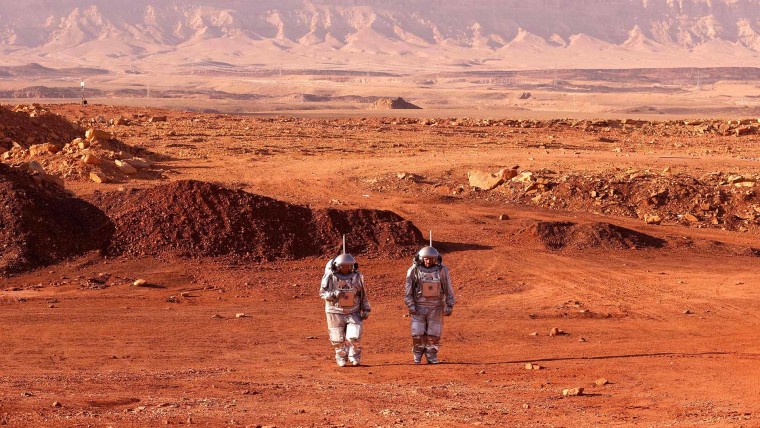
Humans have reached Mars

The Starship rocket successfully landed on the red planet this morning.

After a 115 days long journey, the crew of 12 finally arrived at their destination. This is the first time humans have set foot on a planet other than Earth.

================================================ FILE: 1. Build and deploy your first website/5. Nesting/index.html ================================================

Humans have reached Mars

The Starship rocket successfully landed on the red planet this morning.

After a 115 days long journey, the crew of 12 finally arrived to their destination. This is the first time humans have set foot on a planet other than Earth.

================================================ FILE: 1. Build and deploy your first website/7. Interactive elements - button/index.html ================================================ ================================================ FILE: 1. Build and deploy your first website/8. Interactive elements - input tags - input types/index.html ================================================

Welcome!

You have been granted access to the platform. Please create an account.

================================================ FILE: 1. Build and deploy your first website/9. Lets build Google/index.html ================================================ ================================================ FILE: 1. Build and deploy your first website/9. Lets build Google/styles.css ================================================ body, html { margin: 0; padding: 0; } img { width: 30%; display: block; margin: 100px auto 20px; min-width: 272px; } input { box-sizing: border-box; display: block; border-radius: 24px; border: 1px solid rgb(223, 225, 229); height: 44px; margin: 0 auto 29px; max-width: 564px; width: 90%; padding-left: 30px; font-size: 16px; } button { box-sizing: border-box; margin-top: 0; padding: 0 16px; font-size: 14px; height: 36px; background-color: #f8f9fa; border: 1px solid #f8f9fa; cursor: pointer; } button:first-of-type { margin-right: 8px; margin-left: calc(50% - 131.5px); } button::hover { cursor: pointer; } ================================================ FILE: 2. Build a Google.com clone/1. Lets Learn CSS/index.html ================================================
================================================ FILE: 2. Build a Google.com clone/1. Lets Learn CSS/styles.css ================================================ .main { margin-top: 100px; } .logo-img { display: block; width: 300px; margin-bottom: 20px; margin-left: auto; margin-right: auto; } .search-input { display: block; width: 400px; margin-left: auto; margin-right: auto; line-height: 24px; padding-top: 10px; padding-bottom: 10px; padding-left: 30px; padding-right: 30px; border: 1px solid #dfe1e5; border-radius: 24px; } .btn-wrapper { display: flex; justify-content: center; } .btn { margin-left: 4px; margin-right: 4px; margin-top: 30px; background: #dfe1e5; border: none; padding-top: 8px; padding-bottom: 8px; padding-left: 16px; padding-right: 16px; border-radius: 4px; font-size: 14px; } ================================================ FILE: 2. Build a Google.com clone/10. CSS classes/index.html ================================================
================================================ FILE: 2. Build a Google.com clone/10. CSS classes/styles.css ================================================ div { margin-top: 100px; } img { display: block; width: 300px; } input { display: block; width: 400px; } ================================================ FILE: 2. Build a Google.com clone/11. Aside - Learn margins via flags/index.html ================================================
================================================ FILE: 2. Build a Google.com clone/11. Aside - Learn margins via flags/styles.css ================================================ .red { background: #c71226; height: 100px; } .blue { background: #0d1b88; height: 100px; } .green { background: #397327; height: 100px; } ================================================ FILE: 2. Build a Google.com clone/12. Add space between our elements/index.html ================================================
================================================ FILE: 2. Build a Google.com clone/12. Add space between our elements/styles.css ================================================ /* Challenge: Add some space between the logo and the search field. What are the two different ways we can do this with margins? */ .main { margin-top: 100px; } .logo-img { display: block; width: 300px; } .search-input { display: block; width: 400px; } ================================================ FILE: 2. Build a Google.com clone/13. Aside - centering with margins/index.html ================================================ ================================================ FILE: 2. Build a Google.com clone/13. Aside - centering with margins/styles.css ================================================ img { width: 200px; } ================================================ FILE: 2. Build a Google.com clone/14. Centering our content/index.html ================================================
================================================ FILE: 2. Build a Google.com clone/14. Centering our content/styles.css ================================================ /* Challenge: Center the logo and the search field. */ .main { margin-top: 100px; } .logo-img { display: block; width: 300px; margin-bottom: 20px; } .search-input { display: block; width: 400px; } ================================================ FILE: 2. Build a Google.com clone/15. Aside - padding/index.html ================================================
A purely peer-to-peer version of electronic cash would allow online payments to be sent directly from one party to another without going through a financial institution. Digital signatures provide part of the solution, but the main benefits are lost if a trusted third party is still required to prevent double-spending.
================================================ FILE: 2. Build a Google.com clone/15. Aside - padding/styles.css ================================================ .card { color: #222222; } ================================================ FILE: 2. Build a Google.com clone/16. Aside - border and border-radius/index.html ================================================
A purely peer-to-peer version of electronic cash would allow online payments to be sent directly from one party to another without going through a financial institution. Digital signatures provide part of the solution, but the main benefits are lost if a trusted third party is still required to prevent double-spending.
================================================ FILE: 2. Build a Google.com clone/16. Aside - border and border-radius/styles.css ================================================ .card { color: #222222; background: lightgray; width: 300px; margin-top: 50px; margin-left: auto; margin-right: auto; padding-top: 20px; padding-right: 20px; padding-bottom: 20px; padding-left: 20px; } ================================================ FILE: 2. Build a Google.com clone/17. Aside challenge - style Twitter button/index.html ================================================ ================================================ FILE: 2. Build a Google.com clone/17. Aside challenge - style Twitter button/styles.css ================================================ /* Challenge: Make the button look like Twitter's "Following" button! (Except for the font) Hints: border color: #cfd9de text color: #0f1419 Remember the font-weight! */ ================================================ FILE: 2. Build a Google.com clone/18. Fix the input field/index.html ================================================
================================================ FILE: 2. Build a Google.com clone/18. Fix the input field/styles.css ================================================ .main { margin-top: 100px; } .logo-img { display: block; width: 300px; margin-bottom: 20px; margin-left: auto; margin-right: auto; } .search-input { display: block; width: 400px; margin-left: auto; margin-right: auto; /* Challenge: Design the search field according to the spec */ } ================================================ FILE: 2. Build a Google.com clone/19. Center the button/index.html ================================================
================================================ FILE: 2. Build a Google.com clone/19. Center the button/styles.css ================================================ .main { margin-top: 100px; } .logo-img { display: block; width: 300px; margin-bottom: 20px; margin-left: auto; margin-right: auto; } .search-input { display: block; width: 400px; margin-left: auto; margin-right: auto; line-height: 24px; padding-top: 10px; padding-bottom: 10px; padding-left: 30px; padding-right: 30px; border: 1px solid #dfe1e5; border-radius: 24px; } /* Challenge: Center the button and add some space above it */ ================================================ FILE: 2. Build a Google.com clone/2. Write your first lines of CSS/index.html ================================================ Please accept our cookies! ================================================ FILE: 2. Build a Google.com clone/2. Write your first lines of CSS/styles.css ================================================ /* Challenge: Re-design the cookie widget! PS: Make sure you change ALL of the listed CSS properties. */ body { background: yellow; /* red, blue, yellow, etc */ color: blue; /* red, blue, yellow, etc */ font-size: 20px; /* 0px - 100px and beyond */ font-weight: lighter; /* lighter, normal, bold */ text-align: right; /* left, center or right */ margin-top: 5px; /* From 0px and upwards */ } ================================================ FILE: 2. Build a Google.com clone/20. Style the button/index.html ================================================
================================================ FILE: 2. Build a Google.com clone/20. Style the button/styles.css ================================================ .main { margin-top: 100px; } .logo-img { display: block; width: 300px; margin-bottom: 20px; margin-left: auto; margin-right: auto; } .search-input { display: block; width: 400px; margin-left: auto; margin-right: auto; line-height: 24px; padding-top: 10px; padding-bottom: 10px; padding-left: 30px; padding-right: 30px; border: 1px solid #dfe1e5; border-radius: 24px; } .btn { display: block; margin-left: auto; margin-right: auto; margin-top: 30px; /* Challenge: Style the button according to the provided design. Hint: Use padding, font-size, border-radius, border, and background PS: The real background is #f8f9fa but it is failing our contrast check. So here's the background color we will use: #dfe1e5 */ } ================================================ FILE: 2. Build a Google.com clone/21. Why we cant have two block-level buttons/index.html ================================================
================================================ FILE: 2. Build a Google.com clone/21. Why we cant have two block-level buttons/styles.css ================================================ .main { margin-top: 100px; } .logo-img { display: block; width: 300px; margin-bottom: 20px; margin-left: auto; margin-right: auto; } .search-input { display: block; width: 400px; margin-left: auto; margin-right: auto; line-height: 24px; padding-top: 10px; padding-bottom: 10px; padding-left: 30px; padding-right: 30px; border: 1px solid #dfe1e5; border-radius: 24px; } .btn { display: block; margin-left: auto; margin-right: auto; margin-top: 30px; background: #dfe1e5; border: none; padding-top: 8px; padding-bottom: 8px; padding-left: 16px; padding-right: 16px; border-radius: 4px; font-size: 14px; } ================================================ FILE: 2. Build a Google.com clone/22. Aside - flexbox/index.html ================================================
▽ Shoes
▽ Hoodies
▽ T Shirts
================================================ FILE: 2. Build a Google.com clone/22. Aside - flexbox/styles.css ================================================ .item { text-align: center; border: 1px solid black; padding: 10px; margin-top: 10px; margin-bottom: 10px; } ================================================ FILE: 2. Build a Google.com clone/23. Centering both buttons with flexbox/index.html ================================================
================================================ FILE: 2. Build a Google.com clone/23. Centering both buttons with flexbox/styles.css ================================================ /* Challenge: Wrap the buttons in a flexbox div and center them. Give the div a "btn-wrapper" class. */ .main { margin-top: 100px; } .logo-img { display: block; width: 300px; margin-bottom: 20px; margin-left: auto; margin-right: auto; } .search-input { display: block; width: 400px; margin-left: auto; margin-right: auto; line-height: 24px; padding-top: 10px; padding-bottom: 10px; padding-left: 30px; padding-right: 30px; border: 1px solid #dfe1e5; border-radius: 24px; } .btn { display: block; margin-left: auto; margin-right: auto; margin-top: 30px; background: #dfe1e5; border: none; padding-top: 8px; padding-bottom: 8px; padding-left: 16px; padding-right: 16px; border-radius: 4px; font-size: 14px; } ================================================ FILE: 2. Build a Google.com clone/3. Write your first lines of CSS - Solution/index.html ================================================ Please accept our cookies! ================================================ FILE: 2. Build a Google.com clone/3. Write your first lines of CSS - Solution/styles.css ================================================ /* Challenge: Re-design the cookie widget! PS: Make sure you change ALL of the listed CSS properties. */ body { background: yellow; /* red, blue, yellow, etc */ color: red; /* red, blue, yellow, etc */ font-size: 20px; /* 0px - 100px and beyond */ font-weight: lighter; /* lighter, normal, bold */ text-align: right; /* left, center or right */ margin-top: 5px; /* From 0px and upwards */ } ================================================ FILE: 2. Build a Google.com clone/5. Link to the CSS file/index.html ================================================ ================================================ FILE: 2. Build a Google.com clone/5. Link to the CSS file/styles.css ================================================ body { background: red; } ================================================ FILE: 2. Build a Google.com clone/6. Set the width of the elements/index.html ================================================ ================================================ FILE: 2. Build a Google.com clone/6. Set the width of the elements/styles.css ================================================ /* Challenge: Select the img tag and set the width of the Google logo to be 300px. */ ================================================ FILE: 2. Build a Google.com clone/7. Inline vs block elements/index.html ================================================ ================================================ FILE: 2. Build a Google.com clone/7. Inline vs block elements/styles.css ================================================ /* Challenge: Turn the elements into blocks! */ img { width: 300px; } input { width: 400px; } ================================================ FILE: 2. Build a Google.com clone/8. Margin top/index.html ================================================ ================================================ FILE: 2. Build a Google.com clone/8. Margin top/styles.css ================================================ img { /* Challenge: Add some space (margin) above our image! Do you remember how we added spacing in the cookie widget example? */ display: block; width: 300px; } input { display: block; width: 400px; } ================================================ FILE: 2. Build a Google.com clone/9. Divs rule the world/index.html ================================================ ================================================ FILE: 2. Build a Google.com clone/9. Divs rule the world/styles.css ================================================ img { margin-top: 100px; display: block; width: 300px; } input { display: block; width: 400px; } ================================================ FILE: 3. Build a digital Business Card/1. Building your digital Business Card/index.html ================================================

Per Harald Borgen

Frontend Developer

Oslo, Norway

================================================ FILE: 3. Build a digital Business Card/1. Building your digital Business Card/styles.css ================================================ body { margin: 20px; font-family: Verdana, Geneva, Tahoma, sans-serif; } .avatar { width: 150px; } .card { width: 400px; margin: 0 auto; padding: 20px; display: flex; justify-content: space-around; text-align: center; background: #ddebf8; color: #2b2839; border-bottom: 6px solid #d8cefe; /* Challenge: Find a color palette you like on Coolors.co and use it in your business card. */ } .border-blue { border: 1px dotted blue; } ================================================ FILE: 3. Build a digital Business Card/10. Center the card/index.html ================================================
Per Harald Borgen smiling at the camera with a colorful background

Per Harald Borgen

Frontend Developer

Oslo, Norway

================================================ FILE: 3. Build a digital Business Card/10. Center the card/styles.css ================================================ body { margin: 20px; } .avatar { width: 150px; } .card { /* Challenge: Give the card a width of 400px wide and center it. */ padding: 20px; display: flex; justify-content: space-around } .border-blue { border: 1px dotted blue; } ================================================ FILE: 3. Build a digital Business Card/11. Aside - inheritance/index.html ================================================

Dancing plague of 1518

The dancing plague of 1518, or dance epidemic of 1518, was a case of dancing mania that occurred in Strasbourg, Alsace (modern-day France), in the Holy Roman Empire from July 1518 to September 1518. Somewhere between 50 and 400 people took to dancing for days.

Events

The outbreak began in July 1518 when a woman began to dance fervently in a street in Strasbourg.[1] By early September, the outbreak began to subside.[2]

Historical documents, including "physician notes, cathedral sermons, local and regional chronicles, and even notes issued by the Strasbourg city council" are clear that the victims danced;[1] it is not known why. Historical sources agree that there was an outbreak of dancing after a single woman started dancing,[3] a group of mostly young women joined in, and the dancing did not seem to die down. It lasted for such a long time that it attracted the attention of the Strasbourg magistrate and bishop, and some number of doctors ultimately intervened, putting the afflicted in a hospital.[citation needed]

Events similar to this are said to have occurred throughout the medieval age including 11th century in Kölbigk Saxony, where it was believed to be the cause of demonic possession or divine judgment.[4] In 15th century Apulia Italy,[5] a woman was bitten by a tarantula, the venom making her dance convulsively. The only way to cure the bite was to "shimmy" and to have the right sort of music available, which was an accepted remedy by scholars like Athanasius Kircher.[6]

Drawing of the dancing plague in France in 1518.

Modern theories

Food poisoning

Some believe[2] the dancing could have been brought on by food poisoning caused by the toxic and psychoactive chemical products of ergot fungi (ergotism), which grows commonly on grains (such as rye) used for baking bread. Ergotamine is the main psychoactive product of ergot fungi; it is structurally related to the drug lysergic acid diethylamide (LSD-25) and is the substance from which LSD-25 was originally synthesized. The same fungus has also been implicated in other major historical anomalies, including the Salem witch trials.[10][11]

In The Lancet, John Waller argues that "this theory does not seem tenable, since it is unlikely that those poisoned by ergot could have danced for days at a time. Nor would so many people have reacted to its psychotropic chemicals in the same way. The ergotism theory also fails to explain why virtually every outbreak occurred somewhere along the Rhine and Moselle rivers, areas linked by water but with quite different climates and crops".[7]

Stress-induced mass hysteria

This could have been a florid example of psychogenic movement disorder happening in mass hysteria or mass psychogenic illness, which involves many individuals suddenly exhibiting the same bizarre behavior. The behavior spreads rapidly and broadly in an epidemic pattern.[12] This kind of comportment could have been caused by elevated levels of psychological stress, caused by the ruthless years (even by the rough standards of the early modern period) the people of Alsace were suffering.[7]

Waller speculates that the dancing was "stress-induced psychosis" on a mass level, since the region where the people danced was riddled with starvation and disease, and the inhabitants tended to be superstitious. Seven other cases of dancing plague were reported in the same region during the medieval era.[13]

This psychogenic illness could have created a chorea (from the Greek khoreia meaning "to dance"), a situation comprising random and intricate unintentional movements that flit from body part to body part. Diverse choreas (St. Vitus' dance, St. John's dance, and tarantism) were labeled in the Middle Ages referring to the independent epidemics of "dancing mania" that happened in central Europe, particularly at the time of the plague.[14][15][16]

================================================ FILE: 3. Build a digital Business Card/11. Aside - inheritance/styles.css ================================================ body { margin: 10px; } ================================================ FILE: 3. Build a digital Business Card/12. Center the text via inheritance/index.html ================================================
Per Harald Borgen smiling at the camera with a colorful background

Per Harald Borgen

Frontend Developer

Oslo, Norway

================================================ FILE: 3. Build a digital Business Card/12. Center the text via inheritance/styles.css ================================================ /* Challenge: Center the text in the

and

elements. Note: you should only add ONE property, as inheritance should take care of applying it to both elements. */ body { margin: 20px; } .avatar { width: 150px; } .card { width: 400px; margin-left: auto; margin-right: auto; padding: 20px; display: flex; justify-content: space-around; } .border-blue { border: 1px dotted blue; } ================================================ FILE: 3. Build a digital Business Card/13. Add colors/index.html ================================================
Per Harald Borgen smiling at the camera with a colorful background

Per Harald Borgen

Frontend Developer

Oslo, Norway

================================================ FILE: 3. Build a digital Business Card/13. Add colors/styles.css ================================================ body { margin: 20px; } .avatar { width: 150px; } .card { width: 400px; margin-left: auto; margin-right: auto; padding: 20px; display: flex; justify-content: space-around; text-align: center; /* Challenge: Add colors to the card according to the design. black - #2b2839 (the text color) blue - #ddebf8 purple - #d8cefe */ } .border-blue { border: 1px dotted blue; } ================================================ FILE: 3. Build a digital Business Card/14. Web-safe fonts/index.html ================================================
Per Harald Borgen smiling at the camera with a colorful background

Per Harald Borgen

Frontend Developer

Oslo, Norway

================================================ FILE: 3. Build a digital Business Card/14. Web-safe fonts/styles.css ================================================ body { margin: 20px; /* Challenge: Set the font to Verdana. */ } .avatar { width: 150px; } .card { width: 400px; margin-left: auto; margin-right: auto; padding: 20px; display: flex; justify-content: space-around; text-align: center; background: #ddebf8; color: #2b2839; border-bottom: 6px solid #d8cefe; } .border-blue { border: 1px dotted blue; } ================================================ FILE: 3. Build a digital Business Card/15. Aside - Margin padding shorthand/index.html ================================================
================================================ FILE: 3. Build a digital Business Card/15. Aside - Margin padding shorthand/styles.css ================================================ .red-circle { height: 150px; width: 150px; border-radius: 100%; background: #BC002D; /* Challenge: Translate this into using the margin shorthand. */ margin-top: 40px; margin-right: 0; margin-bottom: 0; margin-left: 100px; } ================================================ FILE: 3. Build a digital Business Card/16. Use the margin and padding shorthands/index.html ================================================

Per Harald Borgen

Frontend Developer

Oslo, Norway

================================================ FILE: 3. Build a digital Business Card/16. Use the margin and padding shorthands/styles.css ================================================ body { margin: 20px; font-family: Verdana, Geneva, Tahoma, sans-serif; } .avatar { width: 150px; } .card { width: 400px; /* Challenge: Replace the two margin properties with a single margin shorthand. */ margin-left: auto; margin-right: auto; padding: 20px; display: flex; justify-content: space-around; text-align: center; background: #ddebf8; color: #2b2839; border-bottom: 6px solid #d8cefe; } .border-blue { border: 1px dotted blue; } ================================================ FILE: 3. Build a digital Business Card/17. Make it your own/index.html ================================================

Per Harald Borgen

Frontend Developer

Oslo, Norway

================================================ FILE: 3. Build a digital Business Card/17. Make it your own/styles.css ================================================ body { margin: 20px; /* Challenge: Find a web safe font you like, and add it to your card. */ font-family: Verdana, Geneva, Tahoma, sans-serif; } .avatar { width: 150px; } .card { width: 400px; margin: 0 auto; padding: 20px; display: flex; justify-content: space-around; text-align: center; background: #ddebf8; color: #2b2839; border-bottom: 6px solid #d8cefe; /* Challenge: Find a color palette you like on Coolors.co and use it in your business card. */ } .border-blue { border: 1px dotted blue; } /* Stretch goals: Find other ways you can personalize the design of your business card, e.g.: - change the border(s) - add border radius - shuffle the layout - shadows 🤯 - hover effects 🤯🤯 - animations 🤯🤯🤯 */ /* Final challenge: Download the code to your local computer and place it in a folder called "business-card" */ ================================================ FILE: 3. Build a digital Business Card/2. Fix the image path/index.html ================================================

Per Harald Borgen

Frontend Developer

Oslo, Norway

================================================ FILE: 3. Build a digital Business Card/2. Fix the image path/styles.css ================================================ body { margin: 20px; } ================================================ FILE: 3. Build a digital Business Card/3. Add alt attribute/index.html ================================================

Per Harald Borgen

Frontend Developer

Oslo, Norway

================================================ FILE: 3. Build a digital Business Card/3. Add alt attribute/styles.css ================================================ body { margin: 20px; } ================================================ FILE: 3. Build a digital Business Card/4. Make image smaller/index.html ================================================
Per Harald Borgen smiling at the camera with a colorful background

Per Harald Borgen

Frontend Developer

Oslo, Norway

================================================ FILE: 3. Build a digital Business Card/4. Make image smaller/styles.css ================================================ body { margin: 20px; } /* Challenge: Set the width of the image to 150px. PS: Use a class to select the img element. */ ================================================ FILE: 3. Build a digital Business Card/5. Add a border and padding/index.html ================================================
Per Harald Borgen smiling at the camera with a colorful background

Per Harald Borgen

Frontend Developer

Oslo, Norway

================================================ FILE: 3. Build a digital Business Card/5. Add a border and padding/styles.css ================================================ body { margin: 20px; } .avatar { width: 150px; } /* Challenge: 1. Give the card div a class (name it "card") 2. Select the card class and give it a dotted blue border 3. Add 20 pixels of padding on all sides of the card */ ================================================ FILE: 3. Build a digital Business Card/6. Aside - flexbox child containers/index.html ================================================

Upgrade to Pro

For individuals

For enterprise

================================================ FILE: 3. Build a digital Business Card/7. Flex item containers/index.html ================================================
Per Harald Borgen smiling at the camera with a colorful background

Per Harald Borgen

Frontend Developer

Oslo, Norway

================================================ FILE: 3. Build a digital Business Card/7. Flex item containers/styles.css ================================================ body { margin: 20px; } .avatar { width: 150px; } .card { border: 1px dotted blue; padding: 20px; display: flex; } ================================================ FILE: 3. Build a digital Business Card/8. Add a utility class/index.html ================================================
Per Harald Borgen smiling at the camera with a colorful background

Per Harald Borgen

Frontend Developer

Oslo, Norway

================================================ FILE: 3. Build a digital Business Card/8. Add a utility class/styles.css ================================================ body { margin: 20px; } .avatar { width: 150px; } .card { border: 1px dotted blue; padding: 20px; display: flex; } /* Challenge: Create a utility class for the dotted blue border. Give the class to both flexbox children in the HTML. */ ================================================ FILE: 3. Build a digital Business Card/9. Justify the items/index.html ================================================
Per Harald Borgen smiling at the camera with a colorful background

Per Harald Borgen

Frontend Developer

Oslo, Norway

================================================ FILE: 3. Build a digital Business Card/9. Justify the items/styles.css ================================================ body { margin: 20px; } .avatar { width: 150px; } .card { padding: 20px; display: flex; /* Challenge: Add horizontal space around the flex children. Hint: google "justify content" */ } .border-blue { border: 1px dotted blue; } ================================================ FILE: 4. Build a Space Exploration Site/1. Lets go to space/index.html ================================================

Join the exploration

Terms and conditions apply

================================================ FILE: 4. Build a Space Exploration Site/1. Lets go to space/styles.css ================================================ body { margin: 0; color: #82a5ca; text-align: center; font-family: 'Orbitron', sans-serif; } #hero { background-image: url("images/galaxy.webp"); background-size: cover; padding: 10px 0 40px 0; } #main-logo { width: 100px; } /* Challenge: Add a blurred border around the

using the text-shadow technique you just learned. Set the blur to 4px and the color to black. */ #title { text-shadow: 0px 0px 4px black; } .btn { padding: 6px 12px; background: white; border: none; font-family: 'Orbitron', sans-serif; color: #82a5ca; font-weight: 800; } .underline { border-bottom: 4px solid white; } ================================================ FILE: 4. Build a Space Exploration Site/11. Add the terms and conditions section/index.html ================================================

Join the exploration

================================================ FILE: 4. Build a Space Exploration Site/11. Add the terms and conditions section/styles.css ================================================ /* Challenge: Wrap the "hero" section (title, button, logo) in a
and set its background image to the galaxy image. This will force you to also add some padding on the "hero"
. Add a "Terms and conditions apply"

below the "hero" section. PS: your layout will likely be disturbed by the tag's default margin. */ body { color: #82a5ca; background-image: url("images/galaxy.webp"); background-size: cover; text-align: center; font-family: 'Orbitron', sans-serif; } #main-logo { width: 100px; } .btn { padding: 6px 12px; background: white; border: none; font-family: 'Orbitron', sans-serif; color: #82a5ca; font-weight: 800; } .underline { border-bottom: 4px solid white; } ================================================ FILE: 4. Build a Space Exploration Site/12. Aside - text shadow/index.css ================================================ body { letter-spacing: 4px; background: #b7111b; color: #fafbf4; text-align: center; font-family: 'Kanit', sans-serif; } h1 { font-size: 80px; } /* Challenge: Try to achieve the shadow from the provided design. */ ================================================ FILE: 4. Build a Space Exploration Site/12. Aside - text shadow/index.html ================================================

NETFLIX

================================================ FILE: 4. Build a Space Exploration Site/13. Improving the readability with text shadows/index.html ================================================

Join the exploration

Terms and conditions apply

================================================ FILE: 4. Build a Space Exploration Site/13. Improving the readability with text shadows/styles.css ================================================ body { margin: 0; color: #82a5ca; text-align: center; font-family: 'Orbitron', sans-serif; } #hero { background-image: url("images/galaxy.webp"); background-size: cover; padding: 10px 0 40px 0; } #main-logo { width: 100px; } /* Challenge: Add a blurred border around the

using the text-shadow technique you just learned. Set the blur to 4px and the color to black. */ .btn { padding: 6px 12px; background: white; border: none; font-family: 'Orbitron', sans-serif; color: #82a5ca; font-weight: 800; } .underline { border-bottom: 4px solid white; } ================================================ FILE: 4. Build a Space Exploration Site/2. Add a background image from unsplash/index.html ================================================

Join the exploration

================================================ FILE: 4. Build a Space Exploration Site/2. Add a background image from unsplash/styles.css ================================================ body { color: white; background-image: url("images/universe.jpg"); background-size: cover; } ================================================ FILE: 4. Build a Space Exploration Site/3. Center elements and style button/index.html ================================================

Join the exploration

================================================ FILE: 4. Build a Space Exploration Site/3. Center elements and style button/styles.css ================================================ /* Challenge: 1. Center the text and button 2. Style the button according to the design. Use a class to select the button. */ body { color: white; background-image: url("images/universe.jpg"); background-size: cover; } ================================================ FILE: 4. Build a Space Exploration Site/4. Add a Google Font/index.html ================================================

Join the exploration

================================================ FILE: 4. Build a Space Exploration Site/4. Add a Google Font/styles.css ================================================ body { color: white; background-image: url("images/universe.jpg"); background-size: cover; text-align: center; /* Set the font family here. */ } .btn { padding: 6px 12px; background: white; border: none; /* You'll need to do something here as well! Can you spot what it is? */ } ================================================ FILE: 4. Build a Space Exploration Site/5. font-face/index.css ================================================ @font-face { src: url("Corleone.ttf"); font-family: Corleone; } h1 { } ================================================ FILE: 4. Build a Space Exploration Site/5. font-face/index.html ================================================

The Godfather

================================================ FILE: 4. Build a Space Exploration Site/5. font-face/index.js ================================================ // javascript ================================================ FILE: 4. Build a Space Exploration Site/6. Aside - spans/index.html ================================================

You got the joker 🃏

Click here to get your prize! 💰

================================================ FILE: 4. Build a Space Exploration Site/6. Aside - spans/styles.css ================================================ body { background: whitesmoke; color: whitesmoke; font-family: 'Rammetto One', cursive; } .ad { background: #35654d; border: 5px solid #A3BC71; text-align: center; } ================================================ FILE: 4. Build a Space Exploration Site/7. Add an underline using a span/index.html ================================================

Join the exploration

================================================ FILE: 4. Build a Space Exploration Site/7. Add an underline using a span/styles.css ================================================ body { color: white; background-image: url("images/universe.jpg"); background-size: cover; text-align: center; font-family: 'Orbitron', sans-serif; } .btn { padding: 6px 12px; background: white; border: none; font-family: 'Orbitron', sans-serif; } /* Challenge: Add the underline to the title using a and a class. */ ================================================ FILE: 4. Build a Space Exploration Site/8. Use an ID for the logo/index.html ================================================

Join the exploration

================================================ FILE: 4. Build a Space Exploration Site/8. Use an ID for the logo/styles.css ================================================ body { color: white; background-image: url("images/universe.jpg"); background-size: cover; text-align: center; font-family: 'Orbitron', sans-serif; } /* Challenge 2: Select the logo using its "id", and reduce its width to a suitable level. */ .btn { padding: 6px 12px; background: white; border: none; font-family: 'Orbitron', sans-serif; } .underline { border-bottom: 4px solid white; } ================================================ FILE: 4. Build a Space Exploration Site/9. Replace the jpg with a webp/index.html ================================================

Join the exploration

================================================ FILE: 4. Build a Space Exploration Site/9. Replace the jpg with a webp/styles.css ================================================ body { color: white; background-image: url("images/galaxy.webp"); background-size: cover; text-align: center; font-family: 'Orbitron', sans-serif; } #main-logo { width: 100px; } .btn { padding: 6px 12px; background: white; border: none; font-family: 'Orbitron', sans-serif; } .underline { border-bottom: 4px solid white; } ================================================ FILE: 5. Build a Birthday GIFt Site/1. Let's build a birthday GIFt site/index.html ================================================

Here's how happy I am for you today 🥳

(Hover over the gift)

How people react when you enter the room 😍

If I had to describe you with ONE word 👇

The only person as badass as you 💪

This one's for you, my friend 🥂

================================================ FILE: 5. Build a Birthday GIFt Site/1. Let's build a birthday GIFt site/styles.css ================================================ /* Challenge: Change the site's background into a gradient that goes from blue at the top to pink at the bottom. */ body { text-align: center; font-family: 'Happy Monkey', cursive; background: linear-gradient(#a2d2ff, #EFB0C9); color: #ffffff; } h1, h2, h3, h4, p { text-shadow: 0 0 1px black; } #bff-img { width: 150px; border-radius: 50%; border: 6px solid #EFB0C9; margin-bottom: 10px; } #bday-age { background: #EFB0C9; padding: 5px 10px; border-radius: 5px; margin: 5px 0 10px 0; } #bday-date { margin: 0; background: #EFB0C9; padding: 5px 10px; border-radius: 5px; } #header { display: flex; flex-direction: column; align-items: center; } .gift-section { margin-top: 50px; } .gift-title { margin-bottom: 10px; } .gift-hint { margin-top: 0; } #gift-img-cheers { height: 200px; } .gift-img { margin: 20px auto; max-width: 400px; height: 400px; border: 6px solid white; border-radius: 10px; background-image: url("images/gift-cover.jpg"); background-size: cover; } #gift-img-happy:hover { background-image: url("images/happy.gif"); } #gift-img-hot:hover { background-image: url("images/hot.gif"); } #gift-img-genius:hover { background-image: url("images/genius.gif"); } #gift-img-badass:hover { background-image: url("images/badass.gif"); } #gift-img-cheers:hover { background-image: url("images/cheers.gif"); } #footer { font-style: italic; width: 400px; margin: 40px auto 20px; } a { color: white; } /* Add the footer paragraph according to the design. Configure the anchor tag to open the link in a new tab. Forgotten how to do it? Google it! Link: https://scrimba.com/learn/htmlandcss Text: Want to create your own Birthday GIFt site? Take this HTML & CSS course. */ ================================================ FILE: 5. Build a Birthday GIFt Site/10. Create the first gift/index.html ================================================ ================================================ FILE: 5. Build a Birthday GIFt Site/10. Create the first gift/styles.css ================================================ body { text-align: center; font-family: 'Happy Monkey', cursive; background: #a2d2ff; color: #ffffff; } h1, h2, h3, h4, p { text-shadow: 0 0 1px black; } #bff-img { width: 150px; border-radius: 50%; border: 6px solid #EFB0C9; margin-bottom: 10px; } #bday-age { background: #EFB0C9; padding: 5px 10px; border-radius: 5px; margin: 5px 0 10px 0; } #bday-date { margin: 0; background: #EFB0C9; padding: 5px 10px; border-radius: 5px; } #header { display: flex; flex-direction: column; align-items: center; } /* Challenge: 1. Create a "gift-section"
that will wrap all the elements for the first gift. 2. Add the

,

, and elements, and give all of them their own classes. 3. Style the elements according to the design. PS: the image should be 400px wide. */ ================================================ FILE: 5. Build a Birthday GIFt Site/11. Replacing the img with a div/index.html ================================================

Here's how happy I am for you today 🥳

(Hover over the gift)

================================================ FILE: 5. Build a Birthday GIFt Site/11. Replacing the img with a div/styles.css ================================================ body { text-align: center; font-family: 'Happy Monkey', cursive; background: #a2d2ff; color: #ffffff; } h1, h2, h3, h4, p { text-shadow: 0 0 1px black; } #bff-img { width: 150px; border-radius: 50%; border: 6px solid #EFB0C9; margin-bottom: 10px; } #bday-age { background: #EFB0C9; padding: 5px 10px; border-radius: 5px; margin: 5px 0 10px 0; } #bday-date { margin: 0; background: #EFB0C9; padding: 5px 10px; border-radius: 5px; } #header { display: flex; flex-direction: column; align-items: center; } .gift-section { margin-top: 50px; } .gift-title { margin-bottom: 10px; } .gift-hint { margin-top: 0; } .gift-img { width: 400px; border: 6px solid white; border-radius: 10px; } /* Challenge: "Fix" the "gift-img"
so that it looks like the provided design again. It needs a height (should be a square), a background image, and to be centered again. */ ================================================ FILE: 5. Build a Birthday GIFt Site/12. Aside - make elements change on hover/index.html ================================================
Menu
Book a table
Catering
================================================ FILE: 5. Build a Birthday GIFt Site/12. Aside - make elements change on hover/styles.css ================================================ div { text-align: center; color: white; margin: 5px; padding: 25px 0; background: #e5383b; font-size: 30px; font-weight: bold; } ================================================ FILE: 5. Build a Birthday GIFt Site/13. Add the hover effect/index.html ================================================

Here's how happy I am for you today 🥳

(Hover over the gift)

================================================ FILE: 5. Build a Birthday GIFt Site/13. Add the hover effect/styles.css ================================================ body { text-align: center; font-family: 'Happy Monkey', cursive; background: #a2d2ff; color: #ffffff; } h1, h2, h3, h4, p { text-shadow: 0 0 1px black; } #bff-img { width: 150px; border-radius: 50%; border: 6px solid #EFB0C9; margin-bottom: 10px; } #bday-age { background: #EFB0C9; padding: 5px 10px; border-radius: 5px; margin: 5px 0 10px 0; } #bday-date { margin: 0; background: #EFB0C9; padding: 5px 10px; border-radius: 5px; } #header { display: flex; flex-direction: column; align-items: center; } .gift-section { margin-top: 50px; } .gift-title { margin-bottom: 10px; } .gift-hint { margin-top: 0; } .gift-img { margin: 0 auto; width: 400px; height: 400px; border: 6px solid white; border-radius: 10px; background-image: url("images/gift-cover.jpg"); background-size: cover; } /* Challenge: Swap the gift paper image out with the happy.gif when you hover over it! */ ================================================ FILE: 5. Build a Birthday GIFt Site/14. Create the next GIFt/index.html ================================================

Here's how happy I am for you today 🥳

(Hover over the gift)

================================================ FILE: 5. Build a Birthday GIFt Site/14. Create the next GIFt/styles.css ================================================ body { text-align: center; font-family: 'Happy Monkey', cursive; background: #a2d2ff; color: #ffffff; } h1, h2, h3, h4, p { text-shadow: 0 0 1px black; } #bff-img { width: 150px; border-radius: 50%; border: 6px solid #EFB0C9; margin-bottom: 10px; } #bday-age { background: #EFB0C9; padding: 5px 10px; border-radius: 5px; margin: 5px 0 10px 0; } #bday-date { margin: 0; background: #EFB0C9; padding: 5px 10px; border-radius: 5px; } #header { display: flex; flex-direction: column; align-items: center; } .gift-section { margin-top: 50px; } .gift-title { margin-bottom: 10px; } .gift-hint { margin-top: 0; } .gift-img { margin: 0 auto; width: 400px; height: 400px; border: 6px solid white; border-radius: 10px; background-image: url("images/gift-cover.jpg"); background-size: cover; } .gift-img:hover { background-image: url("images/happy.gif"); } /* Challenge: Create the next GIFt (hot.gif). Its HTML structure should be like the previous one, but without the "gift-hint" element. However, now that you have multiple GIFts on the page, you cannot use the "gift-img" class to set the GIF background-image(s) on :hover. Each GIFt will need a unique id that controls which background image that should be shown when hovering over the element. */ ================================================ FILE: 5. Build a Birthday GIFt Site/15. Create two more GIFts/index.html ================================================

Here's how happy I am for you today 🥳

(Hover over the gift)

How people react when you enter the room 😍

================================================ FILE: 5. Build a Birthday GIFt Site/15. Create two more GIFts/styles.css ================================================ body { text-align: center; font-family: 'Happy Monkey', cursive; background: #a2d2ff; color: #ffffff; } h1, h2, h3, h4, p { text-shadow: 0 0 1px black; } #bff-img { width: 150px; border-radius: 50%; border: 6px solid #EFB0C9; margin-bottom: 10px; } #bday-age { background: #EFB0C9; padding: 5px 10px; border-radius: 5px; margin: 5px 0 10px 0; } #bday-date { margin: 0; background: #EFB0C9; padding: 5px 10px; border-radius: 5px; } #header { display: flex; flex-direction: column; align-items: center; } .gift-section { margin-top: 50px; } .gift-title { margin-bottom: 10px; } .gift-hint { margin-top: 0; } .gift-img { margin: 20px auto; width: 400px; height: 400px; border: 6px solid white; border-radius: 10px; background-image: url("images/gift-cover.jpg"); background-size: cover; } #gift-img-happy:hover { background-image: url("images/happy.gif"); } #gift-img-hot:hover { background-image: url("images/hot.gif"); } /* Challenge: Create the "genius" and "badass" GIFt sections. Texts: If I had to describe you with ONE word 👇 The only person as badass as you 💪 */ ================================================ FILE: 5. Build a Birthday GIFt Site/16. Create the final GIFt/index.html ================================================

Here's how happy I am for you today 🥳

(Hover over the gift)

How people react when you enter the room 😍

If I had to describe you with ONE word 👇

The only person as badass as you 💪

================================================ FILE: 5. Build a Birthday GIFt Site/16. Create the final GIFt/styles.css ================================================ body { text-align: center; font-family: 'Happy Monkey', cursive; background: #a2d2ff; color: #ffffff; } h1, h2, h3, h4, p { text-shadow: 0 0 1px black; } #bff-img { width: 150px; border-radius: 50%; border: 6px solid #EFB0C9; margin-bottom: 10px; } #bday-age { background: #EFB0C9; padding: 5px 10px; border-radius: 5px; margin: 5px 0 10px 0; } #bday-date { margin: 0; background: #EFB0C9; padding: 5px 10px; border-radius: 5px; } #header { display: flex; flex-direction: column; align-items: center; } .gift-section { margin-top: 50px; } .gift-title { margin-bottom: 10px; } .gift-hint { margin-top: 0; } .gift-img { margin: 20px auto; width: 400px; height: 400px; border: 6px solid white; border-radius: 10px; background-image: url("images/gift-cover.jpg"); background-size: cover; } #gift-img-happy:hover { background-image: url("images/happy.gif"); } #gift-img-hot:hover { background-image: url("images/hot.gif"); } #gift-img-genius:hover { background-image: url("images/genius.gif"); } #gift-img-badass:hover { background-image: url("images/badass.gif"); } /* Challenge: Create the "cheers" GIFt section. Note: this GIFt should have a height of 200px. Select the #gift-img-cheers id and override the height that the element got from the .gift-img class. Text: This one's for you, my friend 🥂 */ ================================================ FILE: 5. Build a Birthday GIFt Site/17. Add the footer/index.html ================================================

Here's how happy I am for you today 🥳

(Hover over the gift)

How people react when you enter the room 😍

If I had to describe you with ONE word 👇

The only person as badass as you 💪

This one's for you, my friend 🥂

================================================ FILE: 5. Build a Birthday GIFt Site/17. Add the footer/styles.css ================================================ body { text-align: center; font-family: 'Happy Monkey', cursive; background: #a2d2ff; color: #ffffff; } h1, h2, h3, h4, p { text-shadow: 0 0 1px black; } #bff-img { width: 150px; border-radius: 50%; border: 6px solid #EFB0C9; margin-bottom: 10px; } #bday-age { background: #EFB0C9; padding: 5px 10px; border-radius: 5px; margin: 5px 0 10px 0; } #bday-date { margin: 0; background: #EFB0C9; padding: 5px 10px; border-radius: 5px; } #header { display: flex; flex-direction: column; align-items: center; } .gift-section { margin-top: 50px; } .gift-title { margin-bottom: 10px; } .gift-hint { margin-top: 0; } #gift-img-cheers { height: 200px; } .gift-img { margin: 20px auto; max-width: 400px; height: 400px; border: 6px solid white; border-radius: 10px; background-image: url("images/gift-cover.jpg"); background-size: cover; } #gift-img-happy:hover { background-image: url("images/happy.gif"); } #gift-img-hot:hover { background-image: url("images/hot.gif"); } #gift-img-genius:hover { background-image: url("images/genius.gif"); } #gift-img-badass:hover { background-image: url("images/badass.gif"); } #gift-img-cheers:hover { background-image: url("images/cheers.gif"); } /* Add the footer paragraph according to the design. Configure the anchor tag to open the link in a new tab. Forgotten how to do it? Google it! Link: https://scrimba.com/learn/htmlandcss Text: Want to create your own Birthday GIFt site? Take this HTML & CSS course. */ ================================================ FILE: 5. Build a Birthday GIFt Site/18. Add a background gradient/index.html ================================================

Here's how happy I am for you today 🥳

(Hover over the gift)

How people react when you enter the room 😍

If I had to describe you with ONE word 👇

The only person as badass as you 💪

This one's for you, my friend 🥂

================================================ FILE: 5. Build a Birthday GIFt Site/18. Add a background gradient/styles.css ================================================ /* Challenge: Change the site's background into a gradient that goes from blue at the top to pink at the bottom. */ body { text-align: center; font-family: 'Happy Monkey', cursive; background: #a2d2ff; color: #ffffff; } h1, h2, h3, h4, p { text-shadow: 0 0 1px black; } #bff-img { width: 150px; border-radius: 50%; border: 6px solid #EFB0C9; margin-bottom: 10px; } #bday-age { background: #EFB0C9; padding: 5px 10px; border-radius: 5px; margin: 5px 0 10px 0; } #bday-date { margin: 0; background: #EFB0C9; padding: 5px 10px; border-radius: 5px; } #header { display: flex; flex-direction: column; align-items: center; } .gift-section { margin-top: 50px; } .gift-title { margin-bottom: 10px; } .gift-hint { margin-top: 0; } #gift-img-cheers { height: 200px; } .gift-img { margin: 20px auto; max-width: 400px; height: 400px; border: 6px solid white; border-radius: 10px; background-image: url("images/gift-cover.jpg"); background-size: cover; } #gift-img-happy:hover { background-image: url("images/happy.gif"); } #gift-img-hot:hover { background-image: url("images/hot.gif"); } #gift-img-genius:hover { background-image: url("images/genius.gif"); } #gift-img-badass:hover { background-image: url("images/badass.gif"); } #gift-img-cheers:hover { background-image: url("images/cheers.gif"); } #footer { font-style: italic; width: 400px; margin: 40px auto 20px; } a { color: white; } /* Add the footer paragraph according to the design. Configure the anchor tag to open the link in a new tab. Forgotten how to do it? Google it! Link: https://scrimba.com/learn/htmlandcss Text: Want to create your own Birthday GIFt site? Take this HTML & CSS course. */ ================================================ FILE: 5. Build a Birthday GIFt Site/19. Personalize the Birthday GIFt Site/index.html ================================================

Here's how happy I am for you today 🥳

(Hover over the gift)

How people react when you enter the room 😍

If I had to describe you with ONE word 👇

The only person as badass as you 💪

This one's for you, my friend 🥂

================================================ FILE: 5. Build a Birthday GIFt Site/19. Personalize the Birthday GIFt Site/styles.css ================================================ body { text-align: center; font-family: 'Happy Monkey', cursive; background: linear-gradient(#a2d2ff, #EFB0C9); color: #ffffff; } h1, h2, h3, h4, p { text-shadow: 0 0 1px black; } #bff-img { width: 150px; border-radius: 50%; border: 6px solid #EFB0C9; margin-bottom: 10px; } #bday-age { background: #EFB0C9; padding: 5px 10px; border-radius: 5px; margin: 5px 0 10px 0; } #bday-date { margin: 0; background: #EFB0C9; padding: 5px 10px; border-radius: 5px; } #header { display: flex; flex-direction: column; align-items: center; } .gift-section { margin-top: 50px; } .gift-title { margin-bottom: 10px; } .gift-hint { margin-top: 0; } #gift-img-cheers { height: 200px; } .gift-img { margin: 20px auto; max-width: 400px; height: 400px; border: 6px solid white; border-radius: 10px; background-image: url("images/gift-cover.jpg"); background-size: cover; } #gift-img-happy:hover { background-image: url("images/happy.gif"); } #gift-img-hot:hover { background-image: url("images/hot.gif"); } #gift-img-genius:hover { background-image: url("images/genius.gif"); } #gift-img-badass:hover { background-image: url("images/badass.gif"); } #gift-img-cheers:hover { background-image: url("images/cheers.gif"); } #footer { font-style: italic; width: 400px; margin: 40px auto 20px; } a { color: white; } /* Add the footer paragraph according to the design. Configure the anchor tag to open the link in a new tab. Forgotten how to do it? Google it! Link: https://scrimba.com/learn/htmlandcss Text: Want to create your own Birthday GIFt site? Take this HTML & CSS course. */ ================================================ FILE: 5. Build a Birthday GIFt Site/2. Add basic header styling/index.html ================================================

Today is Nick's birthday 🎉

24 years old

01.11.2022

================================================ FILE: 5. Build a Birthday GIFt Site/2. Add basic header styling/styles.css ================================================ /* Challenge: Style the app according to the provided design. The font is called "Happy Monkey" and can be embedded via Google Fonts. Don't know how to make an image round? Google it! Also, consider how you should select the image (class vs id vs element selector). */ ================================================ FILE: 5. Build a Birthday GIFt Site/3. Set the colors/index.html ================================================

Today is Nick's birthday 🎉

24 years old

01.11.2022

================================================ FILE: 5. Build a Birthday GIFt Site/3. Set the colors/styles.css ================================================ /* Challenge: Add colors to the site based on the provided design. pink: #EFB0C9 blue: #a2d2ff white: #ffffff */ body { text-align: center; font-family: 'Happy Monkey', cursive; } #bff-img { width: 150px; border-radius: 50%; } ================================================ FILE: 5. Build a Birthday GIFt Site/4. Add shadow on text/index.html ================================================

Today is Nick's birthday 🎉

24 years old

01.11.2022

================================================ FILE: 5. Build a Birthday GIFt Site/4. Add shadow on text/styles.css ================================================ body { text-align: center; font-family: 'Happy Monkey', cursive; background: #a2d2ff; color: #ffffff; } /* Challenge: Add a thin blurred border around the

,

, and

using the text-shadow technique you learned in the Space Exploration section. Set the blur to 1px and the color to black. */ #bff-img { width: 150px; border-radius: 50%; border: 6px solid #EFB0C9; } ================================================ FILE: 5. Build a Birthday GIFt Site/5. We have a problem that flexbox can fix/index.html ================================================

Today is Nick's birthday 🎉

24 years old

01.11.2022

================================================ FILE: 5. Build a Birthday GIFt Site/5. We have a problem that flexbox can fix/styles.css ================================================ body { text-align: center; font-family: 'Happy Monkey', cursive; background: #a2d2ff; color: #ffffff; } h1, h2, h3, h4, p { text-shadow: 0px 0px 1px black; } #bff-img { width: 150px; border-radius: 50%; border: 6px solid #EFB0C9; } h2, h4 { background: #EFB0C9; } ================================================ FILE: 5. Build a Birthday GIFt Site/6. Aside - align-items/index.css ================================================ .container { border: 8px solid #016a26; height: 260px; /* Challenge: Follow my orders on where we should leave up our lab equipment! justify-content: start, center, end, space-around, space-evenly, space-between align-items: start, center, end */ } .item { width: 50px; height: 50px; margin: 2px; padding: 10px; font-size: 50px; border: 2px solid black; background: linear-gradient(#14463d, #016a26); } ================================================ FILE: 5. Build a Birthday GIFt Site/6. Aside - align-items/index.html ================================================
🥽
🧪
🧫
================================================ FILE: 5. Build a Birthday GIFt Site/7. Aside - flex-direction/index.css ================================================ .container { border: 8px solid #016a26; height: 360px; /* Challenge: Follow my orders on where we should leave our lab equipment! justify-content: start, center, end, space-around, space-evenly, space-between align-items: start, center, end */ display: flex; justify-content: start; align-items: start; } .item { width: 50px; height: 50px; margin: 2px; padding: 10px; font-size: 50px; border: 2px solid black; background: linear-gradient(#14463d, #016a26); } ================================================ FILE: 5. Build a Birthday GIFt Site/7. Aside - flex-direction/index.html ================================================
🥽
🧪
🧫
================================================ FILE: 5. Build a Birthday GIFt Site/8. Turn the header into a flexbox/index.html ================================================

Today is Nick's birthday 🎉

24 years old

01.11.2022

================================================ FILE: 5. Build a Birthday GIFt Site/8. Turn the header into a flexbox/styles.css ================================================ body { text-align: center; font-family: 'Happy Monkey', cursive; background: #a2d2ff; color: #ffffff; } h1, h2, h3, h4, p { text-shadow: 0 0 1px black; } #bff-img { width: 150px; border-radius: 50%; border: 6px solid #EFB0C9; } h2, h4 { background: #EFB0C9; } /* Challenge: First, wrap the HTML elements in a
with an id called "header". Then, select the "header" and use flexbox to achieve the layout you've been provided in the design slide. */ ================================================ FILE: 5. Build a Birthday GIFt Site/9. Fix date and age design/index.html ================================================ ================================================ FILE: 5. Build a Birthday GIFt Site/9. Fix date and age design/styles.css ================================================ body { text-align: center; font-family: 'Happy Monkey', cursive; background: #a2d2ff; color: #ffffff; } h1, h2, h3, h4, p { text-shadow: 0 0 1px black; } #bff-img { width: 150px; border-radius: 50%; border: 6px solid #EFB0C9; margin-bottom: 10px; } h2, h4 { background: #EFB0C9; } #header { display: flex; flex-direction: column; align-items: center; } ================================================ FILE: 6. Solo Project Hometown Homepage/2. Solo Project - Hometown Homepage/index.html ================================================

Visit Torshov

Enjoy culture and sports in this vibrant district close to the center of Oslo.

Top three activities to do at Torshov

Your guide

"I have lived at Torshov for over 30 years, so I can show you all of its best parts and hidden secrets."

Per Harald Borgen

================================================ FILE: 6. Solo Project Hometown Homepage/2. Solo Project - Hometown Homepage/styles.css ================================================ /** Palette: https://scrimba.com/links/hometown-palette RED: #E63946 LIGHT: #F1FAEE AQUA: #A8DADC LIGHT BLUE: #457B9D DARK BLUE: #1D3557 */ body { margin: 0; text-align: center; } img { width: 100px; } ================================================ FILE: README.md ================================================ ## Welcome to [Learn HTML and CSS](https://scrimba.com/learn/htmlandcss) Here, you can find the starter files for all the challenges in the course. To get started, download the entire repo and then navigate to the folder you need - the folders are structured just like the course. If you have any problems at all, send an email to help@scrimba.com or join our [Discord server](scrimba.com/discord) and we'll give you a hand. Happy coding!