Showing preview only (4,503K chars total). Download the full file or copy to clipboard to get everything.
Repository: xwmx/nb
Branch: master
Commit: 2714a83671ee
Files: 229
Total size: 4.3 MB
Directory structure:
gitextract_n6j93f7o/

├── .github/
│   ├── FUNDING.yml
│   └── workflows/
│       ├── release.yml
│       └── tests.yml
├── .gitignore
├── .shellcheckrc
├── Baskfile
├── LICENSE
├── Makefile
├── README.md
├── bin/
│   ├── bookmark
│   └── notes
├── docs/
│   ├── .gitignore
│   ├── .rubocop.yml
│   ├── .rubocop_todo.yml
│   ├── .ruby-version
│   ├── .tool-versions
│   ├── 404.html
│   ├── Gemfile
│   ├── _config.yml
│   ├── _includes/
│   │   ├── favicon.html
│   │   ├── head.html
│   │   ├── js/
│   │   │   └── custom.js
│   │   ├── nav.html
│   │   └── toc.html
│   ├── _layouts/
│   │   └── default.html
│   ├── _sass/
│   │   └── custom/
│   │       └── custom.scss
│   ├── assets/
│   │   └── js/
│   │       ├── link-img-elements.js
│   │       └── scroll-highlight.js
│   ├── color-themes.md
│   ├── index.markdown
│   └── index.previous.html
├── etc/
│   ├── README.md
│   ├── Vagrantfile
│   ├── debian/
│   │   ├── changelog
│   │   ├── control
│   │   ├── copyright
│   │   └── rules
│   ├── nb-completion.bash
│   ├── nb-completion.fish
│   └── nb-completion.zsh
├── nb
├── nb.go/
│   ├── README.md
│   ├── configure_notebook_paths_test.go
│   ├── configure_test.go
│   ├── contains_test.go
│   ├── go.mod
│   ├── go.sum
│   ├── helpers_test.go
│   ├── main.go
│   ├── present_test.go
│   ├── run_sub_cmd_run_test.go
│   └── test/
│       ├── nb-go.bats
│       └── test_helper.bash
├── nb.ksh/
│   ├── README.md
│   ├── nb
│   └── test/
│       ├── nb-ksh.bats
│       └── test_helper.bash
├── nb.zsh/
│   ├── README.md
│   ├── nb
│   └── test/
│       ├── nb-zsh.bats
│       └── test_helper.bash
├── package.json
├── package.sh
├── plugins/
│   ├── annotate.dev.nb-plugin
│   ├── backlink.nb-plugin
│   ├── bump.nb-plugin
│   ├── clip.nb-plugin
│   ├── daily.nb-plugin
│   ├── ebook.nb-plugin
│   ├── example.nb-plugin
│   ├── turquoise.nb-theme
│   └── weather.nb-plugin
└── test/
    ├── add-template.bats
    ├── add.bats
    ├── archive-unarchive.bats
    ├── bookmark-command.bats
    ├── bookmark-processing.bats
    ├── bookmark.bats
    ├── bookmarks.bats
    ├── browse-add.bats
    ├── browse-containers.bats
    ├── browse-delete.bats
    ├── browse-edit.bats
    ├── browse-header-crumbs.bats
    ├── browse-items.bats
    ├── browse-notebooks.bats
    ├── browse-pagination.bats
    ├── browse-responses.bats
    ├── browse-search.bats
    ├── browse-serve.bats
    ├── browse.bats
    ├── configuration.bats
    ├── copy.bats
    ├── count.bats
    ├── delete.bats
    ├── do-undo.bats
    ├── edit.bats
    ├── env.bats
    ├── export.bats
    ├── fixtures/
    │   ├── Example Folder/
    │   │   ├── example.com.html
    │   │   └── example.md
    │   ├── bin/
    │   │   ├── bookmark
    │   │   ├── mock_editor
    │   │   ├── mock_editor_no_op
    │   │   ├── nb
    │   │   └── notes
    │   ├── copy-deprecated.nb-plugin
    │   ├── example-chrome-bookmarks.html
    │   ├── example-edge-bookmarks.html
    │   ├── example-firefox-bookmarks-backup.json
    │   ├── example-firefox-bookmarks.html
    │   ├── example.asciidoc
    │   ├── example.com-og.html
    │   ├── example.com-titles-newlines.html
    │   ├── example.com-titles.html
    │   ├── example.com.html
    │   ├── example.com.md
    │   ├── example.edu.html
    │   ├── example.md
    │   ├── example.net.html
    │   ├── example.org
    │   └── example.org.html
    ├── folders-add-scoped.bats
    ├── folders-add.bats
    ├── folders-bookmark.bats
    ├── folders-count.bats
    ├── folders-delete.bats
    ├── folders-edit.bats
    ├── folders-export.bats
    ├── folders-history.bats
    ├── folders-import-download.bats
    ├── folders-import-move.bats
    ├── folders-import.bats
    ├── folders-index-rebuild.bats
    ├── folders-index-reconcile.bats
    ├── folders-index.bats
    ├── folders-list-pinned.bats
    ├── folders-list.bats
    ├── folders-ls-pinned.bats
    ├── folders-ls.bats
    ├── folders-move.bats
    ├── folders-search.bats
    ├── folders-show.bats
    ├── folders-subcommand.bats
    ├── git.bats
    ├── help.bats
    ├── helpers-build-related-list.bats
    ├── helpers-file-is-text.bats
    ├── helpers-get-content.bats
    ├── helpers-get-id-selector.bats
    ├── helpers-get-unique-relative-path.bats
    ├── helpers-get-uri.bats
    ├── helpers-highlight-syntax.bats
    ├── helpers-normalize-options.bats
    ├── helpers-render.bats
    ├── helpers-resolve-links.bats
    ├── helpers-selector-resolve-folders.bats
    ├── helpers-selector-resolve-path.bats
    ├── helpers-spinner.bats
    ├── helpers-string-is-email.bats
    ├── helpers-string-is-url.bats
    ├── helpers-web-browser.bats
    ├── helpers.bats
    ├── history.bats
    ├── import-bookmarks.bats
    ├── import.bats
    ├── index-rebuild.bats
    ├── index-reconcile.bats
    ├── index.bats
    ├── init.bats
    ├── list-pagination.bats
    ├── list.bats
    ├── ls-pagination.bats
    ├── ls.bats
    ├── move-rename.bats
    ├── move.bats
    ├── notebook-resolution.bats
    ├── notebooks-add.bats
    ├── notebooks-author.bats
    ├── notebooks-current.bats
    ├── notebooks-delete.bats
    ├── notebooks-export.bats
    ├── notebooks-import.bats
    ├── notebooks-init.bats
    ├── notebooks-notebook.bats
    ├── notebooks-rename.bats
    ├── notebooks-show.bats
    ├── notebooks-use.bats
    ├── notebooks.bats
    ├── open.bats
    ├── pin-unpin.bats
    ├── plugin-backlink.bats
    ├── plugin-bump.bats
    ├── plugin-daily.bats
    ├── plugin-ebook.bats
    ├── plugin-example.bats
    ├── plugin-weather.bats
    ├── plugins.bats
    ├── remote-delete.bats
    ├── remote-remove.bats
    ├── remote-rename.bats
    ├── remote-reset.bats
    ├── remote-set.bats
    ├── remote.bats
    ├── run.bats
    ├── scope.bats
    ├── search-list-tags.bats
    ├── search-logic.bats
    ├── search-pagination.bats
    ├── search-tags.bats
    ├── search.bats
    ├── settings.bats
    ├── show-info-line.bats
    ├── show-render.bats
    ├── show.bats
    ├── status.bats
    ├── subcommands.bats
    ├── sync-branches.bats
    ├── sync-folders.bats
    ├── sync.bats
    ├── t.bats
    ├── test_helper.bash
    ├── todo-add.bats
    ├── todo-delete.bats
    ├── todo-tasks.bats
    ├── todo.bats
    ├── unset.bats
    ├── use.bats
    └── version.bats
================================================
FILE CONTENTS
================================================
================================================
FILE: .github/FUNDING.yml
================================================
github: xwmx
custom: https://paypal.me/WilliamMelody
================================================
FILE: .github/workflows/release.yml
================================================
name: Release
on:
push:
tags:
- "[0-9]+.[0-9]+.[0-9]+*"
jobs:
release:
name: Release
runs-on: ubuntu-latest
steps:
- name: Checkout code # to upload release assets
uses: actions/checkout@v4
- id: major_version
run: >
echo major_version=$(
echo ${{ github.ref }} | cut -d'v' -f2 | cut -d'.' -f1
) >> $GITHUB_OUTPUT
- id: is_release_candidate
run: >
echo is_release_candidate=$(
echo ${{ github.ref }} | grep -c 'rc'
) >> $GITHUB_OUTPUT
- name: Create release
uses: softprops/action-gh-release@v2
with:
prerelease: ${{ steps.major_version.outputs.major_version == 0 || steps.is_release_candidate.outputs.is_release_candidate == 1 }}
generate_release_notes: true
files: nb
================================================
FILE: .github/workflows/tests.yml
================================================
###############################################################################
# .github/workflows/tests.yml
#
# NOTE: GitHub Actions does not allocate a TTY, preventing `nb` from detecting
# piped input using `[[ -t 0 ]]` in the `_interactive_input()` function.
#
# More information:
#
# https://github.com/actions/runner/issues/241
#
# faketty is a GitHub action that uses work-arounds to provide a tty:
#
# https://github.com/marketplace/actions/faketty
#
# Scripts used by faketty for each platform:
#
# linux: `faketty`
#
# ```bash
# #!/bin/bash
#
# script -q -e -c "$*"
# ```
#
# win32: `faketty.ps1`
#
# ```posh
# Invoke-Expression "$args"
# ```
#
# darwin: `faketty`
#
# requires: `brew install expect`
#
# ```bash
# #!/bin/bash
#
# unbuffer $*
# ```
###############################################################################
name: "nb · Test Suite"
on:
pull_request:
branches: [ master ]
# push:
# branches: [ master ]
workflow_dispatch:
jobs:
# test-ubuntu-aarch64:
# name: "Test: Ubuntu AArch64"
# runs-on: ubuntu-20.04
# steps:
# - uses: actions/checkout@v2.1.0
# - uses: uraimo/run-on-arch-action@v2
# # https://github.com/marketplace/actions/run-on-architecture
# name: Run commands
# id: runcmd
# with:
# arch: aarch64
# distro: ubuntu20.04
# # Not required, but speeds up builds by storing container images in
# # a GitHub package registry.
# # githubToken: ${{ github.token }}
# # Set an output parameter `uname` for use in subsequent steps
# run: |
# uname -a
# echo ::set-output name=uname::$(uname -a)
# - name: "Setup"
# run: |
# sudo apt-get update
# sudo apt-get install bats -y
# sudo apt-get install ncat -y
# sudo apt-get install python-pygments -y
# sudo apt-get install w3m -y
# curl -LO https://github.com/jgm/pandoc/releases/download/2.17.0.1/pandoc-2.17.0.1-1-amd64.deb
# sudo dpkg -i pandoc-2.17.0.1-1-amd64.deb
# curl -LO https://github.com/sharkdp/bat/releases/download/v0.16.0/bat_0.16.0_amd64.deb
# sudo dpkg -i bat_0.16.0_amd64.deb
# git config --global user.name "Example Name"
# git config --global user.email "example@example.com"
# - name: "Install bats-core"
# run: |
# git clone https://github.com/bats-core/bats-core.git "${HOME}/bats-core" &&
# cd "${HOME}/bats-core"
# git checkout 2e2e5df6adf0b846b411b6b2f7bb654cbc3e2c4e
# sudo ./install.sh /usr/local
# - name: "Set $TERM=xterm"
# run: printf "TERM=xterm\\n" >> $GITHUB_ENV
# - name: "Run bats tests"
# run: script -q -e -c "bats test/bookmark.bats"
# # - name: "Install Go"
# # uses: actions/setup-go@v2
# # - name: "Run go test"
# # run: cd nb.go && go test
# # - name: "Run nb.go bats tests"
# # run: script -q -e -c "bats test"
# test-ubuntu-armv7:
# name: "Test: Ubuntu armv7"
# runs-on: ubuntu-20.04
# steps:
# - uses: actions/checkout@v2.1.0
# - uses: uraimo/run-on-arch-action@v2
# # https://github.com/marketplace/actions/run-on-architecture
# name: Run commands
# id: runcmd
# with:
# arch: armv7
# distro: ubuntu20.04
# # Not required, but speeds up builds by storing container images in
# # a GitHub package registry.
# # githubToken: ${{ github.token }}
# # Set an output parameter `uname` for use in subsequent steps
# run: |
# uname -a
# echo ::set-output name=uname::$(uname -a)
# - name: "Setup"
# run: |
# sudo apt-get update
# sudo apt-get install bats -y
# sudo apt-get install ncat -y
# sudo apt-get install python-pygments -y
# sudo apt-get install w3m -y
# curl -LO https://github.com/jgm/pandoc/releases/download/2.17.0.1/pandoc-2.17.0.1-1-amd64.deb
# sudo dpkg -i pandoc-2.17.0.1-1-amd64.deb
# curl -LO https://github.com/sharkdp/bat/releases/download/v0.16.0/bat_0.16.0_amd64.deb
# sudo dpkg -i bat_0.16.0_amd64.deb
# git config --global user.name "Example Name"
# git config --global user.email "example@example.com"
# - name: "Install bats-core"
# run: |
# git clone https://github.com/bats-core/bats-core.git "${HOME}/bats-core" &&
# cd "${HOME}/bats-core"
# git checkout 2e2e5df6adf0b846b411b6b2f7bb654cbc3e2c4e
# sudo ./install.sh /usr/local
# - name: "Set $TERM=xterm"
# run: printf "TERM=xterm\\n" >> $GITHUB_ENV
# - name: "Run bats tests"
# run: script -q -e -c "bats test/bookmark.bats"
# # - name: "Install Go"
# # uses: actions/setup-go@v2
# # - name: "Run go test"
# # run: cd nb.go && go test
# # - name: "Run nb.go bats tests"
# # run: script -q -e -c "bats test"
test-macos-14:
name: "Test: macOS 14 Sonoma"
runs-on: macos-14
steps:
- uses: actions/checkout@v4
- name: "Setup"
run: |
brew update
brew install bat
brew install bats-core
brew install expect
brew install gpg
brew install nmap
brew install pandoc
brew install ripgrep
brew install w3m
gem install asciidoctor
git config --global user.name "Example Name"
git config --global user.email "example@example.com"
- uses: browser-actions/setup-chrome@v1
id: setup-chrome
- run: |
${{ steps.setup-chrome.outputs.chrome-path }} --version
- name: "Set $TERM=xterm"
run: printf "TERM=xterm\\n" >> $GITHUB_ENV
- name: "Run bats tests"
run: unbuffer bats test
# - name: "Install Go"
# uses: actions/setup-go@v2
# - name: "Run go test"
# run: cd nb.go && go test
# - name: "Run nb.go bats test"
# run: unbuffer bats test
# test-macos-12:
# name: "Test: macOS 12 Monterey"
# runs-on: macos-12
# steps:
# - uses: actions/checkout@v3
# - name: "Setup"
# run: |
# brew update
# brew install bat
# brew install bats-core
# brew install expect
# brew install gpg
# brew install nmap
# brew install pandoc
# brew install ripgrep
# brew install w3m
# gem install asciidoctor
# git config --global user.name "Example Name"
# git config --global user.email "example@example.com"
# - uses: browser-actions/setup-chrome@v1
# id: setup-chrome
# - run: |
# ${{ steps.setup-chrome.outputs.chrome-path }} --version
# - name: "Set $TERM=xterm"
# run: printf "TERM=xterm\\n" >> $GITHUB_ENV
# - name: "Run bats tests"
# run: unbuffer bats test
# # - name: "Install Go"
# # uses: actions/setup-go@v2
# # - name: "Run go test"
# # run: cd nb.go && go test
# # - name: "Run nb.go bats test"
# # run: unbuffer bats test
# test-macos-11:
# name: "Test: macOS Big Sur 11.0"
# runs-on: macos-11.0
# steps:
# - uses: actions/checkout@v3
# - name: "Setup"
# run: |
# brew update
# brew install bat
# brew install bats-core
# brew install expect
# brew install gpg
# brew install nmap
# brew install pandoc
# brew install ripgrep
# brew install w3m
# gem install asciidoctor
# git config --global user.name "Example Name"
# git config --global user.email "example@example.com"
# - name: "Set $TERM=xterm"
# run: printf "TERM=xterm\\n" >> $GITHUB_ENV
# - name: "Run bats tests"
# run: unbuffer bats test
# # - name: "Install Go"
# # uses: actions/setup-go@v2
# # - name: "Run go test"
# # run: cd nb.go && go test
# # - name: "Run nb.go bats test"
# # run: unbuffer bats test
# test-macos-10-15:
# name: "Test: macOS Catalina 10.15"
# runs-on: macos-10.15
# steps:
# - uses: actions/checkout@v1
# - name: "Setup"
# run: |
# brew update
# brew install bat
# brew unlink bats
# brew install bats-core
# brew install expect
# brew install gpg
# brew install nmap
# brew install pandoc
# brew install w3m
# git config --global user.name "Example Name"
# git config --global user.email "example@example.com"
# - name: "Set $TERM=xterm"
# run: printf "TERM=xterm\\n" >> $GITHUB_ENV
# - name: "Run bats tests"
# run: unbuffer bats test
# # - name: "Install Go"
# # uses: actions/setup-go@v2
# # - name: "Run go test"
# # run: cd nb.go && go test
# # - name: "Run nb.go bats test"
# # run: unbuffer bats test
test-ubuntu-2404:
name: "Test: Ubuntu 24.04"
runs-on: ubuntu-24.04
env:
LANG: C.UTF-8
LC_ALL: C.UTF-8
LC_TYPE: C.UTF-8
steps:
- uses: actions/checkout@v1
- name: "Setup"
run: |
sudo apt-get update
sudo apt-get install bats -y
sudo apt-get install ncat -y
sudo apt-get install python3-pygments -y
sudo apt-get install ripgrep -y
sudo apt-get install w3m -y
curl -LO https://github.com/jgm/pandoc/releases/download/3.2/pandoc-3.2-1-amd64.deb
sudo dpkg -i pandoc-3.2-1-amd64.deb
curl -LO https://github.com/sharkdp/bat/releases/download/v0.24.0/bat_0.24.0_amd64.deb
sudo dpkg -i bat_0.24.0_amd64.deb
sudo gem install asciidoctor
git config --global user.name "Example Name"
git config --global user.email "example@example.com"
- uses: browser-actions/setup-chrome@v1
id: setup-chrome
- run: |
${{ steps.setup-chrome.outputs.chrome-path }} --version
- name: "Set $TERM=xterm"
run: printf "TERM=xterm\\n" >> $GITHUB_ENV
- name: "Print encoding variables"
run: |
echo "'$LANG'"
echo "'$LC_ALL'"
echo "'$LC_TYPE'"
- name: "Run bats tests"
run: script -q -e -c "bats test"
# - name: "Install Go"
# uses: actions/setup-go@v2
# - name: "Run go test"
# run: cd nb.go && go test
# - name: "Run nb.go bats tests"
# run: script -q -e -c "bats test"
================================================
FILE: .gitignore
================================================
.vagrant
nb.*
!nb.go
!nb.ksh
!nb.zsh
tmp
================================================
FILE: .shellcheckrc
================================================
###############################################################################
# .shellcheckrc
#
# https://github.com/koalaman/shellcheck
# https://github.com/koalaman/shellcheck/wiki/Ignore
###############################################################################
# Disable SC1090
#
# > Shellcheck can't follow non-constant source.
#
# Sourced paths are dependent on the environment in this program.
#
# https://github.com/koalaman/shellcheck/wiki/SC1090
disable=SC1090
# Disable SC2002
#
# I like cats 😸. Redirection is also used in this project.
#
# https://github.com/koalaman/shellcheck/wiki/SC2002
disable=SC2002
# Disable SC2015
#
# This is used in some places as intended.
#
# https://github.com/koalaman/shellcheck/wiki/SC2015
disable=SC2015
# Disable SC2088
#
# "${HOME}" is preferred in this project, so tildes in quotes are intended as
# tildes and are not expected to expand.
#
# https://github.com/koalaman/shellcheck/wiki/SC2088
disable=SC2088
# Disable SC2120
#
# This is being triggered on `_ls`, which is passed arguments in `_main()`.
# This is likely being triggered because `_ls` is called separately explicitly
# without arguments.
#
# https://github.com/koalaman/shellcheck/wiki/SC2120
# disable=SC2120
# Disable SC2206 and SC2207
#
# `IFS` and `noglob` are set.
#
# https://github.com/koalaman/shellcheck/wiki/SC2206
# https://github.com/koalaman/shellcheck/wiki/SC2207
disable=SC2206,SC2207
# Disable SC2317
#
# Many commands are invoked indirectly.
#
# https://www.shellcheck.net/wiki/SC2317
disable=SC2317
# Disable SC2317 and SC2329
#
# Many commands are invoked indirectly.
#
# https://www.shellcheck.net/wiki/SC2317
# https://www.shellcheck.net/wiki/SC2329
disable=SC2317,SC2329
================================================
FILE: Baskfile
================================================
#!/usr/bin/env bash
###############################################################################
# Baskfile
#
# Run With Bask: https://github.com/xwmx/bask
###############################################################################
export LANG=en_us.UTF-8
export LC_ALL=en_us.UTF-8
###############################################################################
# Helpers
###############################################################################
# _sed_i()
#
# `sed -i` takes an extension on macOS, but that extension can cause errors in
# GNU `sed`.
#
# https://stackoverflow.com/q/43171648
# https://stackoverflow.com/a/16746032
_sed_i() {
if sed --help >/dev/null 2>&1
then # GNU
sed -i "${@}"
else # BSD
sed -i '' "${@}"
fi
}
###############################################################################
# Tasks
###############################################################################
# g:web ################################################################# g:web
desc "g:web" <<HEREDOC
Usage:
bask g:web
Description:
Regenerate index.markdown from README.md combined with existing front matter.
HEREDOC
g:web() {
local _front_matter_lines=()
local _in_front_matter=0
local _target_file="./docs/index.markdown"
[[ ! -f "${_target_file:?}" ]] &&
_exit_1 printf "./docs/index.markdown not found.\\n"
while IFS= read -r __line || [[ -n "${__line}" ]]
do
if [[ "${__line}" =~ ^---$ ]]
then
if ((_in_front_matter))
then
_in_front_matter=0
else
_in_front_matter=1
fi
elif ((_in_front_matter))
then
_front_matter_lines+=("${__line}")
elif [[ -n "${_front_matter_lines[*]:-}" ]]
then
break
fi
done < "${_target_file:?}"
if [[ -z "${_front_matter_lines[*]:?}" ]]
then
_exit_1 printf "Front matter not found.\\n"
fi
{
cat ./README.md
} | {
# remove last 6 lines
sed -n -e ':a' -e "1,6"'!{P;N;D;};N;ba'
} | {
cat << HEREDOC > "${_target_file:?}"
---
${_front_matter_lines[*]}
---
$(cat)
HEREDOC
}
printf "Rebuilt: %s\\n" "${_target_file:?}"
}
# npm:publish ##################################################### npm:publish
desc "npm:publish" <<HEREDOC
Usage:
bask npm:publish
Description"
npm mangles HTML h1 elements, so convert to a normal markdown h1, publish
to npm, then revert the heading back to the HTML h1.
HEREDOC
npm:publish() {
local _h1="<h1 align=\"center\" id=\"nb\"><code>nb<\/code><\/h1>"
printf "Publishing to npm.\\n"
while true
do
read -r -p "Proceed? [y/N] " __yn
case ${__yn} in
[Yy]*)
break
;;
*)
printf "Exiting...\\n"
exit 0
;;
esac
done
_sed_i -e "s/^${_h1}$/# \`nb\`/g" "README.md"
npm publish
_sed_i -e "s/^# \`nb\`$/${_h1}/g" "./README.md"
}
# v ######################################################################### v
desc "v" <<HEREDOC
Usage:
bask v
bask v down
bask v halt
bask v ssh
bask v up
Description:
Shortcuts for Vagrant that can be called from any subdirectory.
HEREDOC
v() {
local _baskfile_path="${BASH_SOURCE[0]}"
local _root_dir="${_baskfile_path%/Baskfile}"
local _vagrant_dir="${_root_dir}/etc"
case "${1:-}" in
d*) # destroy / down
(cd "${_vagrant_dir}" && vagrant destroy)
;;
h*) # halt
(cd "${_vagrant_dir}" && vagrant halt)
;;
s*) # ssh
(cd "${_vagrant_dir}" && vagrant ssh)
;;
u*) # up
(cd "${_vagrant_dir}" && vagrant up)
;;
*)
(
cd "${_vagrant_dir}" && {
vagrant ssh || {
vagrant up && vagrant ssh
}
}
)
;;
esac
}
================================================
FILE: LICENSE
================================================
GNU AFFERO GENERAL PUBLIC LICENSE
Version 3, 19 November 2007
Copyright (C) 2007 Free Software Foundation, Inc. <https://fsf.org/>
Everyone is permitted to copy and distribute verbatim copies
of this license document, but changing it is not allowed.
Preamble
The GNU Affero General Public License is a free, copyleft license for
software and other kinds of works, specifically designed to ensure
cooperation with the community in the case of network server software.
The licenses for most software and other practical works are designed
to take away your freedom to share and change the works. By contrast,
our General Public Licenses are intended to guarantee your freedom to
share and change all versions of a program--to make sure it remains free
software for all its users.
When we speak of free software, we are referring to freedom, not
price. Our General Public Licenses are designed to make sure that you
have the freedom to distribute copies of free software (and charge for
them if you wish), that you receive source code or can get it if you
want it, that you can change the software or use pieces of it in new
free programs, and that you know you can do these things.
Developers that use our General Public Licenses protect your rights
with two steps: (1) assert copyright on the software, and (2) offer
you this License which gives you legal permission to copy, distribute
and/or modify the software.
A secondary benefit of defending all users' freedom is that
improvements made in alternate versions of the program, if they
receive widespread use, become available for other developers to
incorporate. Many developers of free software are heartened and
encouraged by the resulting cooperation. However, in the case of
software used on network servers, this result may fail to come about.
The GNU General Public License permits making a modified version and
letting the public access it on a server without ever releasing its
source code to the public.
The GNU Affero General Public License is designed specifically to
ensure that, in such cases, the modified source code becomes available
to the community. It requires the operator of a network server to
provide the source code of the modified version running there to the
users of that server. Therefore, public use of a modified version, on
a publicly accessible server, gives the public access to the source
code of the modified version.
An older license, called the Affero General Public License and
published by Affero, was designed to accomplish similar goals. This is
a different license, not a version of the Affero GPL, but Affero has
released a new version of the Affero GPL which permits relicensing under
this license.
The precise terms and conditions for copying, distribution and
modification follow.
TERMS AND CONDITIONS
0. Definitions.
"This License" refers to version 3 of the GNU Affero General Public License.
"Copyright" also means copyright-like laws that apply to other kinds of
works, such as semiconductor masks.
"The Program" refers to any copyrightable work licensed under this
License. Each licensee is addressed as "you". "Licensees" and
"recipients" may be individuals or organizations.
To "modify" a work means to copy from or adapt all or part of the work
in a fashion requiring copyright permission, other than the making of an
exact copy. The resulting work is called a "modified version" of the
earlier work or a work "based on" the earlier work.
A "covered work" means either the unmodified Program or a work based
on the Program.
To "propagate" a work means to do anything with it that, without
permission, would make you directly or secondarily liable for
infringement under applicable copyright law, except executing it on a
computer or modifying a private copy. Propagation includes copying,
distribution (with or without modification), making available to the
public, and in some countries other activities as well.
To "convey" a work means any kind of propagation that enables other
parties to make or receive copies. Mere interaction with a user through
a computer network, with no transfer of a copy, is not conveying.
An interactive user interface displays "Appropriate Legal Notices"
to the extent that it includes a convenient and prominently visible
feature that (1) displays an appropriate copyright notice, and (2)
tells the user that there is no warranty for the work (except to the
extent that warranties are provided), that licensees may convey the
work under this License, and how to view a copy of this License. If
the interface presents a list of user commands or options, such as a
menu, a prominent item in the list meets this criterion.
1. Source Code.
The "source code" for a work means the preferred form of the work
for making modifications to it. "Object code" means any non-source
form of a work.
A "Standard Interface" means an interface that either is an official
standard defined by a recognized standards body, or, in the case of
interfaces specified for a particular programming language, one that
is widely used among developers working in that language.
The "System Libraries" of an executable work include anything, other
than the work as a whole, that (a) is included in the normal form of
packaging a Major Component, but which is not part of that Major
Component, and (b) serves only to enable use of the work with that
Major Component, or to implement a Standard Interface for which an
implementation is available to the public in source code form. A
"Major Component", in this context, means a major essential component
(kernel, window system, and so on) of the specific operating system
(if any) on which the executable work runs, or a compiler used to
produce the work, or an object code interpreter used to run it.
The "Corresponding Source" for a work in object code form means all
the source code needed to generate, install, and (for an executable
work) run the object code and to modify the work, including scripts to
control those activities. However, it does not include the work's
System Libraries, or general-purpose tools or generally available free
programs which are used unmodified in performing those activities but
which are not part of the work. For example, Corresponding Source
includes interface definition files associated with source files for
the work, and the source code for shared libraries and dynamically
linked subprograms that the work is specifically designed to require,
such as by intimate data communication or control flow between those
subprograms and other parts of the work.
The Corresponding Source need not include anything that users
can regenerate automatically from other parts of the Corresponding
Source.
The Corresponding Source for a work in source code form is that
same work.
2. Basic Permissions.
All rights granted under this License are granted for the term of
copyright on the Program, and are irrevocable provided the stated
conditions are met. This License explicitly affirms your unlimited
permission to run the unmodified Program. The output from running a
covered work is covered by this License only if the output, given its
content, constitutes a covered work. This License acknowledges your
rights of fair use or other equivalent, as provided by copyright law.
You may make, run and propagate covered works that you do not
convey, without conditions so long as your license otherwise remains
in force. You may convey covered works to others for the sole purpose
of having them make modifications exclusively for you, or provide you
with facilities for running those works, provided that you comply with
the terms of this License in conveying all material for which you do
not control copyright. Those thus making or running the covered works
for you must do so exclusively on your behalf, under your direction
and control, on terms that prohibit them from making any copies of
your copyrighted material outside their relationship with you.
Conveying under any other circumstances is permitted solely under
the conditions stated below. Sublicensing is not allowed; section 10
makes it unnecessary.
3. Protecting Users' Legal Rights From Anti-Circumvention Law.
No covered work shall be deemed part of an effective technological
measure under any applicable law fulfilling obligations under article
11 of the WIPO copyright treaty adopted on 20 December 1996, or
similar laws prohibiting or restricting circumvention of such
measures.
When you convey a covered work, you waive any legal power to forbid
circumvention of technological measures to the extent such circumvention
is effected by exercising rights under this License with respect to
the covered work, and you disclaim any intention to limit operation or
modification of the work as a means of enforcing, against the work's
users, your or third parties' legal rights to forbid circumvention of
technological measures.
4. Conveying Verbatim Copies.
You may convey verbatim copies of the Program's source code as you
receive it, in any medium, provided that you conspicuously and
appropriately publish on each copy an appropriate copyright notice;
keep intact all notices stating that this License and any
non-permissive terms added in accord with section 7 apply to the code;
keep intact all notices of the absence of any warranty; and give all
recipients a copy of this License along with the Program.
You may charge any price or no price for each copy that you convey,
and you may offer support or warranty protection for a fee.
5. Conveying Modified Source Versions.
You may convey a work based on the Program, or the modifications to
produce it from the Program, in the form of source code under the
terms of section 4, provided that you also meet all of these conditions:
a) The work must carry prominent notices stating that you modified
it, and giving a relevant date.
b) The work must carry prominent notices stating that it is
released under this License and any conditions added under section
7. This requirement modifies the requirement in section 4 to
"keep intact all notices".
c) You must license the entire work, as a whole, under this
License to anyone who comes into possession of a copy. This
License will therefore apply, along with any applicable section 7
additional terms, to the whole of the work, and all its parts,
regardless of how they are packaged. This License gives no
permission to license the work in any other way, but it does not
invalidate such permission if you have separately received it.
d) If the work has interactive user interfaces, each must display
Appropriate Legal Notices; however, if the Program has interactive
interfaces that do not display Appropriate Legal Notices, your
work need not make them do so.
A compilation of a covered work with other separate and independent
works, which are not by their nature extensions of the covered work,
and which are not combined with it such as to form a larger program,
in or on a volume of a storage or distribution medium, is called an
"aggregate" if the compilation and its resulting copyright are not
used to limit the access or legal rights of the compilation's users
beyond what the individual works permit. Inclusion of a covered work
in an aggregate does not cause this License to apply to the other
parts of the aggregate.
6. Conveying Non-Source Forms.
You may convey a covered work in object code form under the terms
of sections 4 and 5, provided that you also convey the
machine-readable Corresponding Source under the terms of this License,
in one of these ways:
a) Convey the object code in, or embodied in, a physical product
(including a physical distribution medium), accompanied by the
Corresponding Source fixed on a durable physical medium
customarily used for software interchange.
b) Convey the object code in, or embodied in, a physical product
(including a physical distribution medium), accompanied by a
written offer, valid for at least three years and valid for as
long as you offer spare parts or customer support for that product
model, to give anyone who possesses the object code either (1) a
copy of the Corresponding Source for all the software in the
product that is covered by this License, on a durable physical
medium customarily used for software interchange, for a price no
more than your reasonable cost of physically performing this
conveying of source, or (2) access to copy the
Corresponding Source from a network server at no charge.
c) Convey individual copies of the object code with a copy of the
written offer to provide the Corresponding Source. This
alternative is allowed only occasionally and noncommercially, and
only if you received the object code with such an offer, in accord
with subsection 6b.
d) Convey the object code by offering access from a designated
place (gratis or for a charge), and offer equivalent access to the
Corresponding Source in the same way through the same place at no
further charge. You need not require recipients to copy the
Corresponding Source along with the object code. If the place to
copy the object code is a network server, the Corresponding Source
may be on a different server (operated by you or a third party)
that supports equivalent copying facilities, provided you maintain
clear directions next to the object code saying where to find the
Corresponding Source. Regardless of what server hosts the
Corresponding Source, you remain obligated to ensure that it is
available for as long as needed to satisfy these requirements.
e) Convey the object code using peer-to-peer transmission, provided
you inform other peers where the object code and Corresponding
Source of the work are being offered to the general public at no
charge under subsection 6d.
A separable portion of the object code, whose source code is excluded
from the Corresponding Source as a System Library, need not be
included in conveying the object code work.
A "User Product" is either (1) a "consumer product", which means any
tangible personal property which is normally used for personal, family,
or household purposes, or (2) anything designed or sold for incorporation
into a dwelling. In determining whether a product is a consumer product,
doubtful cases shall be resolved in favor of coverage. For a particular
product received by a particular user, "normally used" refers to a
typical or common use of that class of product, regardless of the status
of the particular user or of the way in which the particular user
actually uses, or expects or is expected to use, the product. A product
is a consumer product regardless of whether the product has substantial
commercial, industrial or non-consumer uses, unless such uses represent
the only significant mode of use of the product.
"Installation Information" for a User Product means any methods,
procedures, authorization keys, or other information required to install
and execute modified versions of a covered work in that User Product from
a modified version of its Corresponding Source. The information must
suffice to ensure that the continued functioning of the modified object
code is in no case prevented or interfered with solely because
modification has been made.
If you convey an object code work under this section in, or with, or
specifically for use in, a User Product, and the conveying occurs as
part of a transaction in which the right of possession and use of the
User Product is transferred to the recipient in perpetuity or for a
fixed term (regardless of how the transaction is characterized), the
Corresponding Source conveyed under this section must be accompanied
by the Installation Information. But this requirement does not apply
if neither you nor any third party retains the ability to install
modified object code on the User Product (for example, the work has
been installed in ROM).
The requirement to provide Installation Information does not include a
requirement to continue to provide support service, warranty, or updates
for a work that has been modified or installed by the recipient, or for
the User Product in which it has been modified or installed. Access to a
network may be denied when the modification itself materially and
adversely affects the operation of the network or violates the rules and
protocols for communication across the network.
Corresponding Source conveyed, and Installation Information provided,
in accord with this section must be in a format that is publicly
documented (and with an implementation available to the public in
source code form), and must require no special password or key for
unpacking, reading or copying.
7. Additional Terms.
"Additional permissions" are terms that supplement the terms of this
License by making exceptions from one or more of its conditions.
Additional permissions that are applicable to the entire Program shall
be treated as though they were included in this License, to the extent
that they are valid under applicable law. If additional permissions
apply only to part of the Program, that part may be used separately
under those permissions, but the entire Program remains governed by
this License without regard to the additional permissions.
When you convey a copy of a covered work, you may at your option
remove any additional permissions from that copy, or from any part of
it. (Additional permissions may be written to require their own
removal in certain cases when you modify the work.) You may place
additional permissions on material, added by you to a covered work,
for which you have or can give appropriate copyright permission.
Notwithstanding any other provision of this License, for material you
add to a covered work, you may (if authorized by the copyright holders of
that material) supplement the terms of this License with terms:
a) Disclaiming warranty or limiting liability differently from the
terms of sections 15 and 16 of this License; or
b) Requiring preservation of specified reasonable legal notices or
author attributions in that material or in the Appropriate Legal
Notices displayed by works containing it; or
c) Prohibiting misrepresentation of the origin of that material, or
requiring that modified versions of such material be marked in
reasonable ways as different from the original version; or
d) Limiting the use for publicity purposes of names of licensors or
authors of the material; or
e) Declining to grant rights under trademark law for use of some
trade names, trademarks, or service marks; or
f) Requiring indemnification of licensors and authors of that
material by anyone who conveys the material (or modified versions of
it) with contractual assumptions of liability to the recipient, for
any liability that these contractual assumptions directly impose on
those licensors and authors.
All other non-permissive additional terms are considered "further
restrictions" within the meaning of section 10. If the Program as you
received it, or any part of it, contains a notice stating that it is
governed by this License along with a term that is a further
restriction, you may remove that term. If a license document contains
a further restriction but permits relicensing or conveying under this
License, you may add to a covered work material governed by the terms
of that license document, provided that the further restriction does
not survive such relicensing or conveying.
If you add terms to a covered work in accord with this section, you
must place, in the relevant source files, a statement of the
additional terms that apply to those files, or a notice indicating
where to find the applicable terms.
Additional terms, permissive or non-permissive, may be stated in the
form of a separately written license, or stated as exceptions;
the above requirements apply either way.
8. Termination.
You may not propagate or modify a covered work except as expressly
provided under this License. Any attempt otherwise to propagate or
modify it is void, and will automatically terminate your rights under
this License (including any patent licenses granted under the third
paragraph of section 11).
However, if you cease all violation of this License, then your
license from a particular copyright holder is reinstated (a)
provisionally, unless and until the copyright holder explicitly and
finally terminates your license, and (b) permanently, if the copyright
holder fails to notify you of the violation by some reasonable means
prior to 60 days after the cessation.
Moreover, your license from a particular copyright holder is
reinstated permanently if the copyright holder notifies you of the
violation by some reasonable means, this is the first time you have
received notice of violation of this License (for any work) from that
copyright holder, and you cure the violation prior to 30 days after
your receipt of the notice.
Termination of your rights under this section does not terminate the
licenses of parties who have received copies or rights from you under
this License. If your rights have been terminated and not permanently
reinstated, you do not qualify to receive new licenses for the same
material under section 10.
9. Acceptance Not Required for Having Copies.
You are not required to accept this License in order to receive or
run a copy of the Program. Ancillary propagation of a covered work
occurring solely as a consequence of using peer-to-peer transmission
to receive a copy likewise does not require acceptance. However,
nothing other than this License grants you permission to propagate or
modify any covered work. These actions infringe copyright if you do
not accept this License. Therefore, by modifying or propagating a
covered work, you indicate your acceptance of this License to do so.
10. Automatic Licensing of Downstream Recipients.
Each time you convey a covered work, the recipient automatically
receives a license from the original licensors, to run, modify and
propagate that work, subject to this License. You are not responsible
for enforcing compliance by third parties with this License.
An "entity transaction" is a transaction transferring control of an
organization, or substantially all assets of one, or subdividing an
organization, or merging organizations. If propagation of a covered
work results from an entity transaction, each party to that
transaction who receives a copy of the work also receives whatever
licenses to the work the party's predecessor in interest had or could
give under the previous paragraph, plus a right to possession of the
Corresponding Source of the work from the predecessor in interest, if
the predecessor has it or can get it with reasonable efforts.
You may not impose any further restrictions on the exercise of the
rights granted or affirmed under this License. For example, you may
not impose a license fee, royalty, or other charge for exercise of
rights granted under this License, and you may not initiate litigation
(including a cross-claim or counterclaim in a lawsuit) alleging that
any patent claim is infringed by making, using, selling, offering for
sale, or importing the Program or any portion of it.
11. Patents.
A "contributor" is a copyright holder who authorizes use under this
License of the Program or a work on which the Program is based. The
work thus licensed is called the contributor's "contributor version".
A contributor's "essential patent claims" are all patent claims
owned or controlled by the contributor, whether already acquired or
hereafter acquired, that would be infringed by some manner, permitted
by this License, of making, using, or selling its contributor version,
but do not include claims that would be infringed only as a
consequence of further modification of the contributor version. For
purposes of this definition, "control" includes the right to grant
patent sublicenses in a manner consistent with the requirements of
this License.
Each contributor grants you a non-exclusive, worldwide, royalty-free
patent license under the contributor's essential patent claims, to
make, use, sell, offer for sale, import and otherwise run, modify and
propagate the contents of its contributor version.
In the following three paragraphs, a "patent license" is any express
agreement or commitment, however denominated, not to enforce a patent
(such as an express permission to practice a patent or covenant not to
sue for patent infringement). To "grant" such a patent license to a
party means to make such an agreement or commitment not to enforce a
patent against the party.
If you convey a covered work, knowingly relying on a patent license,
and the Corresponding Source of the work is not available for anyone
to copy, free of charge and under the terms of this License, through a
publicly available network server or other readily accessible means,
then you must either (1) cause the Corresponding Source to be so
available, or (2) arrange to deprive yourself of the benefit of the
patent license for this particular work, or (3) arrange, in a manner
consistent with the requirements of this License, to extend the patent
license to downstream recipients. "Knowingly relying" means you have
actual knowledge that, but for the patent license, your conveying the
covered work in a country, or your recipient's use of the covered work
in a country, would infringe one or more identifiable patents in that
country that you have reason to believe are valid.
If, pursuant to or in connection with a single transaction or
arrangement, you convey, or propagate by procuring conveyance of, a
covered work, and grant a patent license to some of the parties
receiving the covered work authorizing them to use, propagate, modify
or convey a specific copy of the covered work, then the patent license
you grant is automatically extended to all recipients of the covered
work and works based on it.
A patent license is "discriminatory" if it does not include within
the scope of its coverage, prohibits the exercise of, or is
conditioned on the non-exercise of one or more of the rights that are
specifically granted under this License. You may not convey a covered
work if you are a party to an arrangement with a third party that is
in the business of distributing software, under which you make payment
to the third party based on the extent of your activity of conveying
the work, and under which the third party grants, to any of the
parties who would receive the covered work from you, a discriminatory
patent license (a) in connection with copies of the covered work
conveyed by you (or copies made from those copies), or (b) primarily
for and in connection with specific products or compilations that
contain the covered work, unless you entered into that arrangement,
or that patent license was granted, prior to 28 March 2007.
Nothing in this License shall be construed as excluding or limiting
any implied license or other defenses to infringement that may
otherwise be available to you under applicable patent law.
12. No Surrender of Others' Freedom.
If conditions are imposed on you (whether by court order, agreement or
otherwise) that contradict the conditions of this License, they do not
excuse you from the conditions of this License. If you cannot convey a
covered work so as to satisfy simultaneously your obligations under this
License and any other pertinent obligations, then as a consequence you may
not convey it at all. For example, if you agree to terms that obligate you
to collect a royalty for further conveying from those to whom you convey
the Program, the only way you could satisfy both those terms and this
License would be to refrain entirely from conveying the Program.
13. Remote Network Interaction; Use with the GNU General Public License.
Notwithstanding any other provision of this License, if you modify the
Program, your modified version must prominently offer all users
interacting with it remotely through a computer network (if your version
supports such interaction) an opportunity to receive the Corresponding
Source of your version by providing access to the Corresponding Source
from a network server at no charge, through some standard or customary
means of facilitating copying of software. This Corresponding Source
shall include the Corresponding Source for any work covered by version 3
of the GNU General Public License that is incorporated pursuant to the
following paragraph.
Notwithstanding any other provision of this License, you have
permission to link or combine any covered work with a work licensed
under version 3 of the GNU General Public License into a single
combined work, and to convey the resulting work. The terms of this
License will continue to apply to the part which is the covered work,
but the work with which it is combined will remain governed by version
3 of the GNU General Public License.
14. Revised Versions of this License.
The Free Software Foundation may publish revised and/or new versions of
the GNU Affero General Public License from time to time. Such new versions
will be similar in spirit to the present version, but may differ in detail to
address new problems or concerns.
Each version is given a distinguishing version number. If the
Program specifies that a certain numbered version of the GNU Affero General
Public License "or any later version" applies to it, you have the
option of following the terms and conditions either of that numbered
version or of any later version published by the Free Software
Foundation. If the Program does not specify a version number of the
GNU Affero General Public License, you may choose any version ever published
by the Free Software Foundation.
If the Program specifies that a proxy can decide which future
versions of the GNU Affero General Public License can be used, that proxy's
public statement of acceptance of a version permanently authorizes you
to choose that version for the Program.
Later license versions may give you additional or different
permissions. However, no additional obligations are imposed on any
author or copyright holder as a result of your choosing to follow a
later version.
15. Disclaimer of Warranty.
THERE IS NO WARRANTY FOR THE PROGRAM, TO THE EXTENT PERMITTED BY
APPLICABLE LAW. EXCEPT WHEN OTHERWISE STATED IN WRITING THE COPYRIGHT
HOLDERS AND/OR OTHER PARTIES PROVIDE THE PROGRAM "AS IS" WITHOUT WARRANTY
OF ANY KIND, EITHER EXPRESSED OR IMPLIED, INCLUDING, BUT NOT LIMITED TO,
THE IMPLIED WARRANTIES OF MERCHANTABILITY AND FITNESS FOR A PARTICULAR
PURPOSE. THE ENTIRE RISK AS TO THE QUALITY AND PERFORMANCE OF THE PROGRAM
IS WITH YOU. SHOULD THE PROGRAM PROVE DEFECTIVE, YOU ASSUME THE COST OF
ALL NECESSARY SERVICING, REPAIR OR CORRECTION.
16. Limitation of Liability.
IN NO EVENT UNLESS REQUIRED BY APPLICABLE LAW OR AGREED TO IN WRITING
WILL ANY COPYRIGHT HOLDER, OR ANY OTHER PARTY WHO MODIFIES AND/OR CONVEYS
THE PROGRAM AS PERMITTED ABOVE, BE LIABLE TO YOU FOR DAMAGES, INCLUDING ANY
GENERAL, SPECIAL, INCIDENTAL OR CONSEQUENTIAL DAMAGES ARISING OUT OF THE
USE OR INABILITY TO USE THE PROGRAM (INCLUDING BUT NOT LIMITED TO LOSS OF
DATA OR DATA BEING RENDERED INACCURATE OR LOSSES SUSTAINED BY YOU OR THIRD
PARTIES OR A FAILURE OF THE PROGRAM TO OPERATE WITH ANY OTHER PROGRAMS),
EVEN IF SUCH HOLDER OR OTHER PARTY HAS BEEN ADVISED OF THE POSSIBILITY OF
SUCH DAMAGES.
17. Interpretation of Sections 15 and 16.
If the disclaimer of warranty and limitation of liability provided
above cannot be given local legal effect according to their terms,
reviewing courts shall apply local law that most closely approximates
an absolute waiver of all civil liability in connection with the
Program, unless a warranty or assumption of liability accompanies a
copy of the Program in return for a fee.
END OF TERMS AND CONDITIONS
How to Apply These Terms to Your New Programs
If you develop a new program, and you want it to be of the greatest
possible use to the public, the best way to achieve this is to make it
free software which everyone can redistribute and change under these terms.
To do so, attach the following notices to the program. It is safest
to attach them to the start of each source file to most effectively
state the exclusion of warranty; and each file should have at least
the "copyright" line and a pointer to where the full notice is found.
<one line to give the program's name and a brief idea of what it does.>
Copyright (C) <year> <name of author>
This program is free software: you can redistribute it and/or modify
it under the terms of the GNU Affero General Public License as published
by the Free Software Foundation, either version 3 of the License, or
(at your option) any later version.
This program is distributed in the hope that it will be useful,
but WITHOUT ANY WARRANTY; without even the implied warranty of
MERCHANTABILITY or FITNESS FOR A PARTICULAR PURPOSE. See the
GNU Affero General Public License for more details.
You should have received a copy of the GNU Affero General Public License
along with this program. If not, see <https://www.gnu.org/licenses/>.
Also add information on how to contact you by electronic and paper mail.
If your software can interact with users remotely through a computer
network, you should also make sure that it provides a way for users to
get its source. For example, if your program is a web application, its
interface could display a "Source" link that leads users to an archive
of the code. There are many ways you could offer source, and different
solutions will be better for different programs; see section 13 for the
specific requirements.
You should also get your employer (if you work as a programmer) or school,
if any, to sign a "copyright disclaimer" for the program, if necessary.
For more information on this, and how to apply and follow the GNU AGPL, see
<https://www.gnu.org/licenses/>.
================================================
FILE: Makefile
================================================
BIN ?= nb
BIN_BOOKMARK ?= bookmark
PREFIX ?= /usr/local
install:
install $(BIN) $(PREFIX)/bin
install bin/$(BIN_BOOKMARK) $(PREFIX)/bin
./$(BIN) env install
uninstall:
rm -f $(PREFIX)/bin/$(BIN)
rm -f $(PREFIX)/bin/$(BIN_BOOKMARK)
./$(BIN) env uninstall
================================================
FILE: README.md
================================================
<p align="center"></p><!-- spacer -->
<div align="center">
<img src="https://raw.githubusercontent.com/xwmx/nb/master/docs/assets/images/nb.png"
alt="nb"
width="200">
</div>
<p align="center"></p><!-- spacer -->
<div align="center">
<a href="https://github.com/xwmx/nb/actions" rel="nofollow">
<img src="https://img.shields.io/github/actions/workflow/status/xwmx/nb/tests.yml?branch=master"
alt="Build Status"
style="max-width:100%;">
</a>
</div>
<div align="center"> </div><!-- spacer -->
<br/>
`nb` is a command line and local web
note‑taking, bookmarking, archiving,
and knowledge base application
with:
- plain text data storage,
- [encryption](#password-protected-encrypted-notes-and-bookmarks),
- [filtering](#listing--filtering), [pinning](#-pinning), [#tagging](#-tagging), and [search](#-search),
- [Git](https://git-scm.com/)-backed [versioning](#-revision-history) and [syncing](#-git-sync),
- [Pandoc](https://pandoc.org/)-backed [conversion](#%EF%B8%8F-import--export),
- <a href="#-linking">[[wiki-style linking]]</a>,
- terminal and GUI web [browsing](#-browsing),
- inline [images](#-images),
- [todos](#-todos) with [tasks](#%EF%B8%8F-tasks),
- global and local [notebooks](#-notebooks),
- organization with [folders](#-folders),
- customizable [color themes](#-color-themes),
- extensibility through [plugins](#-plugins),
and more, in a single portable script.
`nb` creates notes in text-based formats like
[Markdown](https://en.wikipedia.org/wiki/Markdown),
[Org](https://orgmode.org/),
[LaTeX](https://www.latex-project.org/),
and [AsciiDoc](https://asciidoc.org/),
can work with files in any format,
can import and export notes to many document formats,
and can create private, password-protected encrypted notes and bookmarks.
With `nb`, you can write notes using
Vim,
Emacs,
VS Code,
Sublime Text,
and any other text editor you like,
as well as terminal and GUI web browsers.
`nb` works in any standard Linux / Unix environment,
including macOS and Windows via WSL, MSYS, and Cygwin.
[Optional dependencies](#optional) can be installed to enhance functionality,
but `nb` works great without them.
<div align="center">
<img src="https://xwmx.github.io/misc/nb/images/nb-theme-nb-home.png"
alt="home"
width="450">
</div>
`nb` is also a powerful [bookmarking](#-bookmarks) system featuring:
- locally-served, text-centric, distraction-free bookmark [browsing](#-browsing)
in terminal and GUI web browsers,
- local full-text search of cached page content with regular expression support,
- convenient filtering and listing,
- [Internet Archive Wayback Machine](https://archive.org/web/) snapshot lookup
for broken links,
- tagging, pinning, linking, and full integration with other `nb` features.
Page information is
downloaded,
cleaned up,
structured,
and saved
into normal Markdown documents made for humans,
so bookmarks are easy to view and edit just like any other note.
<div align="center">
<img src="https://xwmx.github.io/misc/nb/images/gui-terminal-browse.png"
alt="nb browse"
width="500">
</div>
`nb` uses [Git](https://git-scm.com/) in the background to
automatically record changes and sync notebooks with remote repositories.
`nb` can also be configured to
sync notebooks using a general purpose syncing utility like Dropbox
so notes can be edited in other apps on any device.
<div align="center">
<img src="https://xwmx.github.io/misc/nb/images/terminal-empty.png"
alt="nb list empty"
width="450">
</div>
`nb` is designed to be portable, future-focused, and vendor independent,
providing a full-featured and intuitive experience within
a highly composable multimodal user-centric text interface.
The entire program is contained within
a single [well-tested](#tests) shell script
that can be
installed, copied, or `curl`ed almost anywhere and just work,
using a strategy inspired by
[progressive enhancement](https://en.wikipedia.org/wiki/Progressive_enhancement)
for various experience improvements in more capable environments.
`nb` works great whether you have one notebook with just a few notes
or dozens of notebooks containing thousands of notes, bookmarks, and other items.
`nb` makes it easy to incorporate other tools, writing apps, and workflows.
`nb` can be used a little, a lot, once in a while, or for just a subset of features.
`nb` is flexible.
<div align="center"> </div><!-- spacer -->
<div align="center">
<sub>
📝
🔖
🔍
🌍
🔒
✅
🔄
🎨
📚
📌
📂
🌄
</sub>
</div>
<p align="center"> </p><!-- spacer -->
<div align="center">
<h1 align="center" id="nb"><code>nb</code></h1>
</div>
<div align="center">
<a href="#installation">Installation</a> ·
<a href="#overview">Overview</a>
</div>
<p align="center"></p><!-- spacer -->
<div align="center">
<a href="#-help">Help</a>
</div>
<p align="center"></p><!-- spacer -->
<div align="center">
<a href="#top"> ↑ </a>
</div>
### Installation
#### Dependencies
##### Required
- [Bash](https://en.wikipedia.org/wiki/Bash_(Unix_shell))
- `nb` works perfectly with Zsh, fish, and any other shell
set as your primary login shell,
the system just needs to have Bash available on it.
- [Git](https://git-scm.com/)
- A text editor with command line support, such as:
- [Vim](https://en.wikipedia.org/wiki/Vim_\(text_editor\)),
- [Emacs](https://en.wikipedia.org/wiki/Emacs),
- [Visual Studio Code](https://code.visualstudio.com/),
- [Sublime Text](https://www.sublimetext.com/),
- [Helix](https://helix-editor.com/),
- [micro](https://github.com/zyedidia/micro),
- [nano](https://en.wikipedia.org/wiki/GNU_nano),
- [Atom](https://atom.io/),
- [TextMate](https://macromates.com/),
- [MacDown](https://macdown.uranusjr.com/),
- [some of these](https://github.com/topics/text-editor),
- [and many of these.](https://en.wikipedia.org/wiki/List_of_text_editors)
##### Optional
`nb` leverages standard command line tools
and works in standard Linux / Unix environments.
`nb` also checks the environment for some additional optional tools and
uses them to enhance the experience whenever they are available.
Recommended:
- [`bat`](https://github.com/sharkdp/bat)
- [`ncat`](https://nmap.org/ncat/) or [`socat`](https://www.kali.org/tools/socat/)
- [`pandoc`](https://pandoc.org/)
- [`rg`](https://github.com/BurntSushi/ripgrep)
- [`tig`](https://github.com/jonas/tig)
- [`w3m`](https://en.wikipedia.org/wiki/W3m)
Also supported for various enhancements:
[Ack](https://beyondgrep.com/),
[`afplay`](https://ss64.com/osx/afplay.html),
[`asciidoctor`](https://asciidoctor.org/),
[The Silver Searcher (`ag`)](https://github.com/ggreer/the_silver_searcher),
[`catimg`](https://github.com/posva/catimg),
[Chafa](https://github.com/hpjansson/chafa),
[Chromium](https://www.chromium.org) / [Chrome](https://www.google.com/chrome/),
[`eza`](https://github.com/eza-community/eza),
[`ffplay`](https://ffmpeg.org/ffplay.html),
[ImageMagick](https://imagemagick.org/),
[`glow`](https://github.com/charmbracelet/glow),
[GnuPG](https://en.wikipedia.org/wiki/GNU_Privacy_Guard),
[`highlight`](http://www.andre-simon.de/doku/highlight/en/highlight.php),
[`imgcat`](https://www.iterm2.com/documentation-images.html),
[`joshuto`](https://github.com/kamiyaa/joshuto),
[kitty's `icat` kitten](https://sw.kovidgoyal.net/kitty/kittens/icat.html),
[`lowdown`](https://kristaps.bsd.lv/lowdown),
[`lsd`](https://github.com/lsd-rs/lsd),
[Links](https://en.wikipedia.org/wiki/Links_(web_browser)),
[Lynx](https://en.wikipedia.org/wiki/Lynx_(web_browser)),
[`mdcat`](https://github.com/swsnr/mdcat),
[`mdless`](https://github.com/ttscoff/mdless),
[`mdv`](https://github.com/axiros/terminal_markdown_viewer),
[Midnight Commander (`mc`)](https://en.wikipedia.org/wiki/Midnight_Commander),
[`mpg123`](https://en.wikipedia.org/wiki/Mpg123),
[MPlayer](https://en.wikipedia.org/wiki/MPlayer),
[`ncat`](https://nmap.org/ncat/),
[`netcat`](https://netcat.sourceforge.net/),
[note-link-janitor](https://github.com/andymatuschak/note-link-janitor)
(via [plugin](https://github.com/xwmx/nb/blob/master/plugins/backlink.nb-plugin)),
[`pdftotext`](https://en.wikipedia.org/wiki/Pdftotext),
[Pygments](https://pygments.org/),
[Ranger](https://ranger.github.io/),
[readability-cli](https://gitlab.com/gardenappl/readability-cli),
[`rga` / ripgrep-all](https://github.com/phiresky/ripgrep-all),
[`sc-im`](https://github.com/andmarti1424/sc-im),
[`socat`](https://www.kali.org/tools/socat/),
[`termvisage`](https://github.com/AnonymouX47/termvisage),
[`termpdf.py`](https://github.com/dsanson/termpdf.py),
[Tidy-Viewer (`tv`)](https://github.com/alexhallam/tv),
[`timg`](https://github.com/hzeller/timg),
[vifm](https://vifm.info/),
[`viu`](https://github.com/atanunq/viu),
[VisiData](https://www.visidata.org/)
#### macOS / Homebrew
```bash
brew install xwmx/taps/nb
```
Installing `nb` with Homebrew also installs
the recommended dependencies above
and completion scripts for Bash, Zsh, and Fish.
Install the latest development version from the repository with:
```bash
brew install xwmx/taps/nb --head
```
`nb` is also available in
[homebrew-core](https://github.com/Homebrew/homebrew-core).
Installing it together with the `bash` formula is recommended:
```bash
brew install nb bash
```
#### Ubuntu, Windows, and others
##### npm
```bash
npm install -g nb.sh
```
After `npm` installation completes, run
`sudo "$(which nb)" completions install`
to install Bash and Zsh completion scripts (recommended).
On Ubuntu and WSL, you can
run [`sudo "$(which nb)" env install`](#env)
to install the optional dependencies.
When `nb` is installed on Windows,
`socat` ([MSYS](https://packages.msys2.org/package/socat),
[Cygwin](https://cygwin.com/packages/summary/socat.html)) is recommended.
*`nb` is also available under its original package name,
[notes.sh](https://www.npmjs.com/package/notes.sh),
which comes with an extra `notes` executable wrapping `nb`.*
##### Download and Install
To install as an administrator,
copy and paste one of the following multi-line commands:
```bash
# install using wget
sudo wget https://raw.github.com/xwmx/nb/master/nb -O /usr/local/bin/nb &&
sudo chmod +x /usr/local/bin/nb &&
sudo nb completions install --download
# install using curl
sudo curl -L https://raw.github.com/xwmx/nb/master/nb -o /usr/local/bin/nb &&
sudo chmod +x /usr/local/bin/nb &&
sudo nb completions install --download
```
On Ubuntu and WSL, you can
run [`sudo nb env install`](#env) to install the optional dependencies.
###### User-only Installation
To install with just user permissions, simply
add the `nb` script to your `$PATH`.
If you already have a `~/bin` directory, for example, you can
use one of the following commands:
```bash
# download with wget
wget https://raw.github.com/xwmx/nb/master/nb -O ~/bin/nb && chmod +x ~/bin/nb
# download with curl
curl -L https://raw.github.com/xwmx/nb/master/nb -o ~/bin/nb && chmod +x ~/bin/nb
```
Installing with just user permissions doesn't include
the optional dependencies or completions,
but `nb` core functionality works without them.
If you have `sudo` access and want
to install the completion scripts and dependencies, run the following command:
```bash
sudo nb env install
```
##### Make
To install with [Make](https://en.wikipedia.org/wiki/Make_(software)),
clone this repository, navigate to the clone's root directory, and run:
```bash
sudo make install
```
This will also install the completion scripts on all systems and
the recommended dependencies on Ubuntu and WSL.
##### bpkg
To install with [bpkg](https://github.com/bpkg/bpkg):
```bash
bpkg install xwmx/nb
```
##### basher
To install with [basher](https://www.basher.it/):
```bash
basher install xwmx/nb
```
#### Tab Completion
Bash, Fish, and Zsh tab completion should be enabled
when `nb` is installed using the methods above,
assuming you have the appropriate system permissions or installed with `sudo`.
If completion isn't working after installing `nb`, see the
[completion installation instructions](https://github.com/xwmx/nb/tree/master/etc).
#### Updating
When `nb` is installed using a package manager like npm or Homebrew,
use the package manager's upgrade functionality to update `nb` to
the latest version.
When installed via other methods,
`nb` can be updated to the latest version using
the [`nb update`](#update) subcommand.
## Overview
<div align="center">
<a href="#-notes"><code>📝</code> Notes</a> ·
<a href="#adding">Adding</a> ·
<a href="#listing--filtering">Listing</a> ·
<a href="#editing">Editing</a> ·
<a href="#viewing">Viewing</a> ·
<a href="#deleting">Deleting</a> ·
<a href="#-bookmarks"><code>🔖</code> Bookmarks</a> ·
<a href="#-todos"><code>✅</code> Todos</a> ·
<a href="#%EF%B8%8F-tasks"><code>✔️</code> Tasks</a> ·
<a href="#-tagging"><code>🏷</code> Tagging</a> ·
<a href="#-linking"><code>🔗</code> Linking</a> ·
<a href="#-browsing"><code>🌍</code> Browsing</a> ·
<a href="#-images"><code>🌄</code> Images</a> ·
<a href="#-zettelkasten"><code>🗂</code> Zettelkasten</a> ·
<a href="#-folders"><code>📂</code> Folders</a> ·
<a href="#-pinning"><code>📌</code> Pinning</a> ·
<a href="#-search"><code>🔍</code> Search</a> ·
<a href="#-moving--renaming"><code>↔</code> Moving & Renaming</a> ·
<a href="#-revision-history"><code>🗒</code> History</a> ·
<a href="#-notebooks"><code>📚</code> Notebooks</a> ·
<a href="#-git-sync"><code>🔄</code> Git Sync</a> ·
<a href="#%EF%B8%8F-import--export"><code>↕️</code> Import / Export</a> ·
<a href="#%EF%B8%8F-set--settings"><code>⚙️</code><code>set</code>&<code>settings</code></a> ·
<a href="#-color-themes"><code>🎨</code> Color Themes</a> ·
<a href="#-plugins"><code>🔌</code> Plugins</a> ·
<a href="#-selectors"><code>:/</code> Selectors</a> ·
<a href="#01-metadata"><code>01</code> Metadata</a> ·
<a href="#-interactive-shell"><code>❯</code> Shell</a> ·
<a href="#shortcut-aliases">Shortcuts</a> ·
<a href="#-help"><code>?</code> Help</a> ·
<a href="#-variables"><code>$</code> Variables</a> ·
<a href="#specifications">Specifications</a> ·
<a href="#tests">Tests</a>
</div>
<p align="center"></p><!-- spacer -->
<div align="center">
<a href="#nb"> ↑ </a>
</div>
<p align="center"></p><!-- spacer -->
To get started, simply run:
```bash
nb
```
`nb` sets up your initial `home` notebook the first time it runs.
By default, notebooks and notes are global (at `~/.nb`),
so they are always available to `nb`
regardless of the current working directory.
`nb` also supports [local notebooks](#global-and-local-notebooks).
### 📝 Notes
#### Adding
<p>
<sup>
<a href="#overview">↑</a> ·
<a href="#add"><code>nb add</code></a>,
<a href="#browse"><code>nb browse add</code></a>
</sup>
</p>
Use [`nb add`](#add) (shortcuts: [`nb a`](#add), [`nb +`](#add))
to create new notes:
```bash
# create a new note in your text editor
nb add
# create a new note with the filename "example.md"
nb add example.md
# create a new note containing "This is a note."
nb add "This is a note."
# create a new note with piped content
echo "Note content." | nb add
# create a new password-protected, encrypted note titled "Secret Document"
nb add --title "Secret Document" --encrypt
# create a new note in the notebook named "example"
nb example:add "This is a note."
# create a new note in the folder named "sample"
nb add sample/
```
[`nb add`](#add) with no arguments or input will open the new, blank note
in your environment's preferred text editor.
You can change your editor using
the `$EDITOR` environment variable
or [`nb set editor`](#editor).
`nb` files are [Markdown](https://daringfireball.net/projects/markdown/)
files by default. The default file type can be changed to
whatever you like
using [`nb set default_extension`](#default_extension).
[`nb add`](#add) has intelligent argument parsing
and behaves differently depending on the types of arguments it receives.
When a filename with extension is specified,
a new note with that filename is opened in the editor:
```bash
nb add example.md
```
When a string is specified, a new note is immediately created
with that string as the content and without opening the editor:
```bash
❯ nb add "This is a note."
Added: [1] 20200101000000.md
```
[`nb add <string>`](#add) is useful for quickly jotting down notes directly
via the command line. Quoting content is optional, but recommended.
When no filename is specified, [`nb add`](#add) uses the current datetime as
the filename.
[`nb add`](#add) can also receive piped content, which behaves the same as
[`nb add <string>`](#add):
```bash
# create a new note containing "Note content."
❯ echo "Note content." | nb add
Added: [6] 20200101000100.md
# create a new note containing the clipboard contents on macOS
❯ pbpaste | nb add
Added: [7] 20200101000200.md
# create a new note containing the clipboard contents using xclip
❯ xclip -o | nb add
Added: [8] 20200101000300.md
```
Content can be passed with the [`--content <content>`](#add) option,
which also creates a new note without opening the editor:
```bash
nb add --content "Note content."
```
When content is piped,
specified with [`--content <content>`](#add),
or passed as a string argument,
use the [`--edit`](#add) flag to open the file in the editor
before the change is committed.
The title, filename, and content can also be specified with long and
short options:
```bash
❯ nb add --filename "example.md" -t "Example Title" -c "Example content."
Added: [9] example.md "Example Title"
```
The [`-t <title>`](#add) / [`--title <title>`](#add) option also
sets the filename to the title,
lowercased with spaces and non-filename characters replaced with underscores:
```bash
❯ nb add --title "Example Title" "Example content."
Added: [10] example_title.md "Example Title"
```
Tags can be added with the [`--tags <tag1>,<tag2>...`](#add) option, which
takes a comma separated list of tags,
converts them to [#hashtags](#-tagging),
and inserts them between the title and content:
```bash
❯ nb add "Example content." --title "Tagged Example" --tags tag1,tag2
Added: [11] tagged_example.md "Tagged Example"
❯ nb show 11 --print
# Tagged Example
#tag1 #tag2
Example content.
```
[Search](#-search) for tagged items with
[`nb search`](#search) / [`nb q`](#search):
```bash
# search for items tagged with "#tag1"
nb search --tag tag1
# search for items tagged with "#tag1" AND "#tag2", short options
nb q -t tag1 -t tag2
# search for items tagged with "#tag1" OR "#tag2", arguments
nb q \#tag1 --or \#tag2
```
Files can be created with any file type by specifying the extension either
in the filename (`example.md`),
the extension by itself (`.md`),
or via the [`--type <type>`](#add) option (`--type md`):
```bash
# open a new Org file in the editor
nb add example.org
# open a new reStructuredText file in the editor
nb add --type rst
# open a new JavaScript file in the editor
nb add .js
```
Combining a type argument with piped clipboard content provides
a very convenient way to save code snippets using a clipboard utility such as
`pbpaste`,
`xclip`,
or [`pb`](https://github.com/xwmx/pb):
```bash
# save the clipboard contents as a JavaScript file in the current notebook
pb | nb add .js
# save the clipboard contents as a Rust file in the "rust" notebook
# using the shortcut alias `nb a`
pb | nb a rust: .rs
# save the clipboard contents as a Haskell file named "example.hs" in the
# "snippets" notebook using the shortcut alias `nb +`
pb | nb + snippets: example.hs
```
Use [`nb show`](#show) and [`nb browse`](#browse) to view code snippets
with automatic syntax highlighting and
use [`nb edit`](#edit) to open in your editor.
The [`clip` plugin](#clip) can also be used to
create notes from clipboard content.
Piping,
[`--title <title>`](#add),
[`--tags <tag-list>`](#add),
[`--content <content>`](#add),
and content passed in an argument
can be combined as needed
to create notes with content from multiple input methods and sources
using a single command:
```bash
❯ pb | nb add "Argument content." \
--title "Sample Title" \
--tags tag1,tag2 \
--content "Option content."
Added: [12] sample_title.md "Sample Title"
❯ nb show 12 --print
# Sample Title
#tag1 #tag2
Argument content.
Option content.
Clipboard content.
```
For a full list of options available for [`nb add`](#add), run
[`nb help add`](#add).
##### Password-Protected Encrypted Notes and Bookmarks
Password-protected notes and [bookmarks](#-bookmarks) are
created with the [`-e`](#add) / [`--encrypt`](#add) flag and
encrypted with AES-256 using OpenSSL by default.
GPG is also supported and can be configured with
[`nb set encryption_tool`](#encryption_tool).
Each protected note and bookmark is
encrypted individually with its own password.
When an encrypted item is viewed, edited, or opened,
`nb` will simply prompt for the item's password before proceeding.
After an item is edited,
`nb` automatically re-encrypts it and saves the new version.
Encrypted notes can be decrypted
using the OpenSSL and GPG command line tools directly, so
you aren't dependent on `nb` to decrypt your files.
##### Templates
Create a note based on a template by assigning a template string
or path to a template file with [`add --template <template>`](#add):
<!-- {% raw %} -->
```bash
# create a new note based on a template specified by path
nb add --template /path/to/example/template
# create a new note based on a template defined as a string
nb add --template "{{title}} • {{content}}"
```
<!-- {% endraw %} -->
`nb` template tags are enclosed in double curly brackets.
Supported tags include:
<dl>
<dt><code>{{title}}</code></dt>
<dd>The note title, as specified with
<a href="#add"><code>add --title <title></code></a></dd>
<dt><code>{{tags}}</code></dt>
<dd>A list of hashtags, as specified with
<a href="#add"><code>add --tags <tag1>,<tag2></code></a></dd>
<dt><code>{{content}}</code></dt>
<dd>The note content, as specified with
<a href="#add"><code>add <content></code></a>,
<a href="#add"><code>add --content <content></code></a>,
and piped content.</dd>
<dt><code>{{date}}</code></dt>
<dd>The ouput of the system's <code>date</code> command. Use the
<a href="https://man7.org/linux/man-pages/man1/date.1.html"><code>date</code>
command options</a> to control formatting, e.g.,
<code>{{date +"%Y-%m-%d"}}</code>.
</dd>
</dl>
An example complete markdown template could look like the following:
<!-- {% raw %} -->
```
# {{title}}
{{date +"%Y-%m-%d"}}
{{tags}}
{{content}}
```
<!-- {% endraw %} -->
Templates are Bash strings processed with `eval`, so you can use
command substitution (`$(echo "Example command")`) to include
the output from command line tools and shell code.
A default template can be configured by assigning a string or path
to the [`$NB_DEFAULT_TEMPLATE`](#nb_default_template) variable
in your `~/.nbrc` file:
<!-- {% raw %} -->
```bash
# set the default template to a path
export NB_DEFAULT_TEMPLATE="/path/to/example/template"
# set the default template with a string
export NB_DEFAULT_TEMPLATE="{{title}} • {{content}}"
```
<!-- {% endraw %} -->
Use [`nb add --no-template`](#add) to skip using a template when
one is assigned.
##### Shortcut Aliases: `nb a`, `nb +`
`nb` includes shortcuts for many commands, including
[`nb a`](#add) and [`nb +`](#add) for [`nb add`](#add):
```bash
# create a new note in your text editor
nb a
# create a new note with the filename "example.md"
nb a example.md
# create a new note containing "This is a note."
nb + "This is a note."
# create a new note containing the clipboard contents with xclip
xclip -o | nb +
# create a new note in the notebook named "example"
nb example:a
```
##### Other Aliases: `nb create`, `nb new`
[`nb add`](#add) can also be invoked with
[`nb create`](#add) and [`nb new`](#add) for convenience:
```bash
# create a new note containing "Example note content."
nb new "Example note content."
# create a new note with the title "Example Note Title"
nb create --title "Example Note Title"
```
##### Adding with `nb browse`
Items can also be added within terminal and GUI web browsers using
[`nb browse add`](#browse) / [`nb b a`](#browse):
```bash
❯ nb browse add
❯nb · home : +
[ ]
[ ]
[ ]
[ ]
[ ]
[ ]
[ ]
[ ]
[ ]
[ ]
[add]
```
Pass a filename, relative path, and / or notebook name to
create a new note at that location:
```bash
# open the add form in the browser to create the file "file.md" in the folder "example"
nb browse add "example/file.md"
```
[`nb browse add`](#browse) includes options for quickly
pre-populating new notes with content:
```bash
❯ nb browse add --title "Example Title" --content "Example content." --tags tag1,tag2
❯nb · home : +
[# Example Title ]
[ ]
[#tag1 #tag2 ]
[ ]
[Example content. ]
[ ]
[ ]
[ ]
[ ]
[ ]
[add]
```
[`nb browse add`](#browse) can also be opened with
[`nb add --browse`](#add) / [`nb a -b`](#add).
For more information, see [Browsing](#-browsing).
#### Listing & Filtering
<p>
<sup>
<a href="#overview">↑</a> ·
<a href="#ls"><code>nb ls</code></a>,
<a href="#list"><code>nb list</code></a>,
<a href="#browse"><code>nb browse</code></a>
</sup>
</p>
To list notes and notebooks, run [`nb ls`](#ls) (shortcut alias: `nb`):
<div align="center">
<img src="https://xwmx.github.io/misc/nb/images/nb-theme-utility-home.png"
alt="nb ls"
width="450">
</div>
Notebooks are listed above the line,
with the current notebook highlighted and/or underlined,
depending on terminal capabilities.
[`nb ls`](#ls) also includes a footer with example commands for easy reference.
The notebook header and command footer can be configured or hidden with
[`nb set header`](#header) and
[`nb set footer`](#footer).
```bash
❯ nb ls
home
----
[3] example.md · "Example content."
[2] sample.md · "Sample content."
[1] demo.md · "- Demo list item one."
```
Notes from the current notebook are listed in the order they were last modified.
By default, each note is listed with its
id, filename, and an excerpt from the first line of the note.
When a note has a title, the title is displayed
instead of the filename and first line.
Markdown titles can be defined within a note using
[either Markdown `h1` style](https://daringfireball.net/projects/markdown/syntax#header)
or [YAML front matter](#front-matter):
```markdown
# Example Title
```
```markdown
Sample Title
============
```
```markdown
---
title: Demo Title
---
```
[Org](https://orgmode.org/),
[LaTeX](https://www.latex-project.org/),
and [AsciiDoc](https://asciidoc.org/)
titles are recognized in `.org`,`.latex`, and `.asciidoc` / `.adoc` files:
```text
#+title: Example Org Title
```
```latex
\title{Example LaTeX Title}
```
```asciidoc
= Example AsciiDoc Title
```
Once defined, titles are displayed in place of the filename and first line
in the output of [`nb ls`](#ls):
```bash
❯ nb ls
home
----
[3] Example Title
[2] Sample Title
[1] Demo Title
```
Pass an id, filename, or title to view the listing for that note:
```bash
❯ nb ls Sample\ Title
[2] Sample Title
❯ nb ls 3
[3] Example Title
```
If there is no exact match, `nb` will list items with
titles and filenames that fuzzy match the query:
```bash
❯ nb ls exa
[3] Example Title
❯ nb ls ample
[3] Example Title
[2] Sample Title
```
Multiple words act like an `OR` filter, listing any
titles or filenames that match any of the words:
```bash
❯ nb ls example demo
[3] Example Title
[1] Demo Title
```
When multiple words are quoted, filter titles and filenames for that phrase:
```bash
❯ nb ls "example title"
[3] Example Title
```
For full text search, see [Search](#-search).
To view excerpts of notes, use the [`--excerpt`](#ls) or [`-e`](#ls) option,
which optionally accepts a length:
```bash
❯ nb ls 3 --excerpt
[3] Example Title
-----------------
# Example Title
This is an example excerpt.
❯ nb ls 3 -e 8
[3] Example Title
-----------------
# Example Title
This is an example excerpt.
More example content:
- one
- two
```
Several classes of file types are represented with emoji
[indicators](#indicators) to make them easily identifiable in lists.
For example, bookmarks and encrypted notes are listed with `🔖` and `🔒`:
```bash
❯ nb ls
home
----
[4] Example Note
[3] 🔒 encrypted-note.md.enc
[2] 🔖 Example Bookmark (example.com)
[1] 🔖 🔒 encrypted.bookmark.md.enc
```
File types include:
```text
🔉 Audio
📖 Book
🔖 Bookmark
🔒 Encrypted
📂 Folder
🌄 Image
📄 PDF, Word, or Open Office document
📹 Video
```
By default, items are listed starting with the most recently modified.
To reverse the order, use the [`-r`](#ls) or [`--reverse`](#ls) flag:
```bash
❯ nb ls
home
----
[2] Todos
[3] Example Title
[1] Ideas
❯ nb ls --reverse
[1] Ideas
[3] Example Title
[2] Todos
```
Notes can be sorted with the [`-s`](#ls) / [`--sort`](#ls) flag,
which can be combined with [`-r`](#ls) / [`--reverse`](#ls):
```bash
❯ nb ls
home
----
[2] Sample Title
[3] Example Title
[1] Demo Title
❯ nb ls --sort
[1] Demo Title
[2] Sample Title
[3] Example Title
❯ nb ls --sort --reverse
[3] Example Title
[2] Sample Title
[1] Demo Title
```
`nb` with no subcommand behaves like an alias for [`nb ls`](#ls),
so the examples above can be run without the `ls`:
```bash
❯ nb
home
----
[2] Sample Title
[3] Example Title
[1] Demo Title
❯ nb example
[3] Example Title
❯ nb 3 --excerpt
[3] Example Title
-----------------
# Example Title
This is an example excerpt.
❯ nb 3 -e 8
[3] Example Title
-----------------
# Example Title
This is an example excerpt.
More example content:
- one
- two
❯ nb --sort
[1] Demo Title
[2] Sample Title
[3] Example Title
❯ nb --sort --reverse
[3] Example Title
[2] Sample Title
[1] Demo Title
```
Short options can be combined for brevity:
```bash
# equivalent to `nb --sort --reverse --excerpt 2` and `nb -s -r -e 2`:
❯ nb -sre 2
[3] Example Title
-----------------
# Example Title
[2] Sample Title
----------------
Sample Title
============
[1] Demo Title
--------------
---
title: Demo Title
```
`nb` and [`nb ls`](#ls) display the 15 most recently modified items.
The default limit can be changed with [`nb set limit <number>`](#limit).
To list a different number of items on a per-command basis, use the
[`-n <limit>`](#ls),
[`--limit <limit>`](#ls),
[`--<limit>`](#ls),
[`-a`](#ls),
and [`--all`](#ls)
flags:
```bash
❯ nb -n 1
home
----
[5] Example Five
4 omitted. 5 total.
❯ nb --limit 2
home
----
[5] Example Five
[4] Example Four
3 omitted. 5 total.
❯ nb --3
home
----
[5] Example Five
[4] Example Four
[3] Example Three
2 omitted. 5 total.
❯ nb --all
home
----
[5] Example Five
[4] Example Four
[3] Example Three
[2] Example Two
[1] Example One
```
Lists can be paginated with
[`-p <number>`](#ls) / [`--page <number>`](#ls),
which paginates by the value of [`nb set limit`](#limit) by
default, or the value of
[`-n <limit>`](#ls),
[`--limit <limit>`](#ls),
or [`--<limit>`](#ls)
when present:
```bash
❯ nb
home
----
[6] Example Six
[5] Example Five
[4] Example Four
[3] Example Three
[2] Example Two
[1] Example One
❯ nb set limit 3
NB_LIMIT set to 3
❯ nb --page 1
[6] Example Six
[5] Example Five
[4] Example Four
❯ nb -p 2
[3] Example Three
[2] Example Two
[1] Example One
❯ nb -p 2 --limit 2
[4] Example Four
[3] Example Three
❯ nb -p 3 --2
[2] Example Two
[1] Example One
```
List [#tagged](#tagging) items by passing `\#escaped` or `"#quoted"` hashtags
or tags specified with the [`--tags`](#ls) option. Multiple tags perform an
`AND` query:
```bash
# list items in the current notebook tagged with "#tag1", escaped
nb \#tag1
# list items in the "example" notebook tagged with "#tag2", quoted
nb example: "#tag2"
# list items in all notebooks tagged with "#tag1", long option
nb \#tag1 --all
# list items in the current notebook tagged with "#tag1" AND "#tag2"
nb \#tag1 "#tag2"
# list items in all notebooks tagged with "#tag2" AND "#tag3", short option
nb --tags tag2,tag3 -a
```
[`nb ls`](#ls) is a combination of
[`nb notebooks`](#notebooks) and [`nb list`](#list)
in one view and accepts the same arguments as [`nb list`](#list),
which lists only notes without the notebook list and with no limit by default:
```bash
❯ nb list
[100] Example One Hundred
[99] Example Ninety-Nine
[98] Example Ninety-Eight
... lists all notes ...
[2] Example Two
[1] Example One
```
For more information about options for listing notes, run
[`nb help ls`](#ls)
and
[`nb help list`](#list).
##### Listing with `browse`
Items can be listed within terminal and GUI web browsers using
[`nb browse`](#browse) / [`nb b`](#browse):
```bash
❯ nb browse example:sample/demo/
❯nb · example : sample / demo / +
search: [ ]
[example:sample/demo/7] Title Seven
[example:sample/demo/6] Title Six
[example:sample/demo/5] Title Five
[example:sample/demo/4] Title Four
[example:sample/demo/3] Title Three
next ❯
```
For more information, see [Browsing](#-browsing).
#### Editing
<p>
<sup>
<a href="#overview">↑</a> ·
<a href="#edit"><code>nb edit</code></a>,
<a href="#browse"><code>nb browse edit</code></a>
</sup>
</p>
You can edit an item in your editor with
[`nb edit`](#edit) (shortcut: [`nb e`](#edit)):
```bash
# edit note by id
nb edit 3
# edit note by filename
nb edit example.md
# edit note by title
nb edit "A Document Title"
# edit note 12 in the notebook named "example"
nb edit example:12
# edit note 12 in the notebook named "example", alternative
nb example:12 edit
# edit note 12 in the notebook named "example", alternative
nb example:edit 12
# edit the last modified item
nb edit --last
```
[`edit`](#edit) and other subcommands that take an identifier
can be called with the identifier and subcommand name reversed:
```bash
# edit note by id
nb 3 edit
```
[`nb edit`](#edit) can also receive piped content, which it
appends to the specified note without opening the editor:
```bash
echo "Content to append." | nb edit 1
```
Content can be passed with the [`--content <content>`](#edit) option,
which also appends the content without opening the editor:
```bash
nb edit 1 --content "Content to append."
```
Use the [`--overwrite`](#edit) option to overwrite existing file content
and the [`--prepend`](#edit) option to prepend the new content before existing content.
When content is piped or specified with [`--content <content>`](#edit),
use the [`--edit`](#edit) flag to open the file in the editor
before the change is committed.
Edit the last modified item with [`--last`](#edit) / [`-l`](#edit):
```bash
# edit the last modified item
nb edit --last
# edit the last modified item, short option
nb edit -l
```
##### Editing Encrypted Notes
When a note is encrypted,
[`nb edit`](#edit) prompts you for the note password,
opens the unencrypted content in your editor,
and then automatically reencrypts the note when you are done editing.
##### Shortcut Alias: `nb e`
[`nb edit`](#edit) can be called by the shortcut alias, [`nb e`](#edit):
```bash
# edit note by id
nb e 3
# edit note by filename
nb e example.md
# edit note by title
nb e "A Document Title"
# edit note by id, alternative
nb 3 e
# edit note 12 in the notebook named "example"
nb e example:12
# edit note 12 in the notebook named "example", alternative
nb example:12 e
# edit note 12 in the notebook named "example", alternative
nb example:e 12
# edit the last modified item, short option
nb e -l
```
For [`nb edit`](#edit) help information, run [`nb help edit`](#edit).
##### Editing with `browse`
Items can be edited within terminal and GUI web browsers using
[`nb browse edit`](#browse) / [`nb b e`](#browse):
```bash
❯ nb browse edit text:formats/markdown/123
❯nb · text : formats / markdown / 123 · ↓ · editing · - | +
[# Daring Fireball: Markdown (daringfireball.net) ]
[ ]
[<https://daringfireball.net/projects/markdown/> ]
[ ]
[## Related ]
[ ]
[- <https://en.wikipedia.org/wiki/Markdown> ]
[ ]
[## Comments ]
[ ]
[See also: ]
[ ]
[- [[text:formats/org]] ]
[- [[cli:apps/nb]] ]
[ ]
[## Tags ]
[ ]
[save] · last: 2021-01-01 01:00:00
```
For more information, see
[`browse edit`](#browse-edit) and [Browsing](#-browsing).
#### Viewing
<p>
<sup>
<a href="#overview">↑</a> ·
<a href="#show"><code>nb show</code></a>,
<a href="#browse"><code>nb browse</code></a>,
<a href="#open"><code>nb open</code></a>,
<a href="#peek"><code>nb peek</code></a>
</sup>
</p>
Notes and other items can be viewed using
[`nb show`](#show) (shortcut: [`nb s`](#show)):
```bash
# show note by id
nb show 3
# show note by filename
nb show example.md
# show note by title
nb show "A Document Title"
# show note by id, alternative
nb 3 show
# show note 12 in the notebook named "example"
nb show example:12
# show note 12 in the notebook named "example", alternative
nb example:12 show
# show note 12 in the notebook named "example", alternative
nb example:show 12
```
By default, [`nb show`](#show) opens notes in
[`less`](https://linux.die.net/man/1/less),
with syntax highlighting if
[`bat`](https://github.com/sharkdp/bat),
[`highlight`](http://www.andre-simon.de/doku/highlight/en/highlight.php),
or
[Pygments](https://pygments.org/)
is installed.
You can navigate in `less` using the following keys:
```text
Key Function
--- --------
mouse scroll Scroll up or down
arrow up or down Scroll one line up or down
f Jump forward one window
b Jump back one window
d Jump down one half window
u Jump up one half window
/<query> Search for <query>
n Jump to next <query> match
q Quit
```
*If `less` scrolling isn't working in [iTerm2](https://www.iterm2.com/),
go to*
"Settings"
-> "Advanced"
-> "Scroll wheel sends arrow keys when in alternate screen mode"
*and change it to* "Yes".
*[More Info](https://stackoverflow.com/a/37610820)*
Use the [`-p`](#show) / [`--print`](#show) option
to print to standard output with syntax highlighting:
```bash
❯ nb show 123 --print
# Example Title
Example content:
- one
- two
- three
```
Use [`nb show --print --no-color`](#show) to print without syntax highlighting.
When [Pandoc](https://pandoc.org/) is available,
use the [`-r`](#show) / [`--render`](#show) option to
render the note to HTML and open it in your terminal browser:
```bash
nb show example.md --render
# opens example.md as an HTML page in w3m, links, or lynx
```
[`nb show`](#show) also supports previewing other file types in the terminal,
depending on the tools available in the environment. To prefer specific tools
for certain file types, `nb` provides configuration variables that can be
set in your `~/.nbrc` file,
which can be opened in your editor with [`nb settings edit`](#settings).
Supported file types and tools include:
- Markdown files ([`$NB_MARKDOWN_TOOL`](#nb_markdown_tool)):
- [`bat`](https://github.com/sharkdp/bat)
- [`glow`](https://github.com/charmbracelet/glow)
- [`lowdown`](https://kristaps.bsd.lv/lowdown)
- [`mdcat`](https://github.com/swsnr/mdcat)
- [`mdless`](https://github.com/ttscoff/mdless)
- [`mdv`](https://github.com/axiros/terminal_markdown_viewer)
- PDF files:
- [`termpdf.py`](https://github.com/dsanson/termpdf.py)
with [kitty](https://sw.kovidgoyal.net/kitty/)
- [`pdftotext`](https://en.wikipedia.org/wiki/Pdftotext)
- Audio files ([`$NB_AUDIO_TOOL`](#nb_audio_tool)):
- [`mplayer`](https://en.wikipedia.org/wiki/MPlayer)
- [`afplay`](https://ss64.com/osx/afplay.html)
- [`mpg123`](https://en.wikipedia.org/wiki/Mpg123)
- [`ffplay`](https://ffmpeg.org/ffplay.html)
- [Images](#-images) ([`$NB_IMAGE_TOOL`](#nb_image_tool)):
- [`catimg`](https://github.com/posva/catimg)
- [Chafa](https://github.com/hpjansson/chafa)
- [ImageMagick](https://imagemagick.org/) with a terminal that
supports [sixels](https://en.wikipedia.org/wiki/Sixel)
- [`imgcat`](https://www.iterm2.com/documentation-images.html) with
[iTerm2](https://www.iterm2.com/)
- [kitty's `icat` kitten](https://sw.kovidgoyal.net/kitty/kittens/icat.html)
- [`termvisage`](https://github.com/AnonymouX47/termvisage)
- [`timg`](https://github.com/hzeller/timg)
- [`viu`](https://github.com/atanunq/viu)
- Folders, Directories, Notebooks ([`$NB_DIRECTORY_TOOL`](#nb_directory_tool)):
- [`eza`](https://github.com/eza-community/eza)
- [`joshuto`](https://github.com/kamiyaa/joshuto)
- [`lsd`](https://github.com/lsd-rs/lsd)
- [Midnight Commander (`mc`)](https://en.wikipedia.org/wiki/Midnight_Commander)
- [`ranger`](https://ranger.github.io/)
- [`vifm`](https://vifm.info/)
- Word Documents:
- [Pandoc](https://pandoc.org/) with
[`w3m`](https://en.wikipedia.org/wiki/W3m) or
[`links`](https://en.wikipedia.org/wiki/Links_(web_browser))
- Excel, CSV, TSV, and data files ([`$NB_DATA_TOOL`](#nb_data_tool)):
- [VisiData](https://www.visidata.org/)
- [`sc-im`](https://github.com/andmarti1424/sc-im)
- [Tidy-Viewer (`tv`)](https://github.com/alexhallam/tv)
- EPUB ebooks:
- [Pandoc](https://pandoc.org/) with
[`w3m`](https://en.wikipedia.org/wiki/W3m) or
[`links`](https://en.wikipedia.org/wiki/Links_(web_browser))
When using [`nb show`](#show) with other file types or
if the above tools are not available,
[`nb show`](#show) opens files in
your system's preferred application for each type.
[`nb show`](#show) also provides [options](#show) for
querying information about an item. For example, use the
[`--added`](#show) / [`-a`](#show) and [`--updated`](#show) / [`-u`](#show)
flags to print the date and time that an item was added or updated:
```bash
❯ nb show 2 --added
2020-01-01 01:01:00 -0700
❯ nb show 2 --updated
2020-02-02 02:02:00 -0700
```
[`nb show`](#show) is primarily intended for viewing items within the terminal.
To view a file in the system's preferred GUI application, use
[`nb open`](#open).
To [browse](#-browsing) rendered items in terminal and GUI web browsers, use
[`nb browse`](#browse).
For full [`nb show`](#show) usage information, run [`nb help show`](#show).
##### Shortcut Alias: `nb s`
[`nb show`](#show) can be called using the shortcut alias [`nb s`](#show):
```bash
# show note by id
nb s 3
# show note by filename
nb s example.md
# show note by title
nb s "A Document Title"
# show note by id, alternative
nb 3 s
# show note 12 in the notebook named "example"
nb s example:12
# show note 12 in the notebook named "example", alternative
nb example:12 s
# show note 12 in the notebook named "example", alternative
nb example:s 12
```
##### Alias: `nb view`
[`nb show`](#show) can also be invoked with [`nb view`](#show) for convenience:
```bash
# show note by id
nb view 3
# show note by filename
nb view example.md
# show note by title
nb view "A Document Title"
# show note by id, alternative
nb 3 view
```
##### Viewing with `browse`
Items can be viewed within terminal and GUI web browsers using
[`nb browse`](#browse) / [`nb b`](#browse):
```bash
❯ nb browse text:formats/markdown/123
❯nb · text : formats / markdown / 123 · ↓ · edit | +
Daring Fireball: Markdown (daringfireball.net)
https://daringfireball.net/projects/markdown/
Related
• https://en.wikipedia.org/wiki/Markdown
Comments
See also:
• [[text:formats/org]]
• [[cli:apps/nb]]
Tags
#markup #plain-text
Content
Daring Fireball: Markdown
Download
Markdown 1.0.1 (18 KB) — 17 Dec 2004
Introduction
Markdown is a text-to-HTML conversion tool for web writers. Markdown allows
you to write using an easy-to-read, easy-to-write plain text format, then
convert it to structurally valid XHTML (or HTML).
```
For more information, see [Browsing](#-browsing).
#### Deleting
<p>
<sup>
<a href="#overview">↑</a> ·
<a href="#delete"><code>nb delete</code></a>,
<a href="#browse"><code>nb browse delete</code></a>
</sup>
</p>
To delete one or more notes, pass any number of
ids, filenames, titles, and other [selectors](#-selectors)
to [`nb delete`](#delete) (shortcuts: [`nb d`](#delete), [`nb -`](#delete)):
```bash
# delete item by id
nb delete 3
# delete item by filename
nb delete example.md
# delete item by title
nb delete "A Document Title"
# delete item by id, alternative
nb 3 delete
# delete item 12 in the notebook named "example"
nb delete example:12
# delete item 12 in the notebook named "example", alternative
nb example:12 delete
# delete item 12 in the notebook named "example", alternative
nb example:delete 12
# delete item 345 in the folder named "example"
nb delete example/345
# delete items with the ids 89, 56, and 21
nb delete 89 56 21
```
By default, [`nb delete`](#delete) will display a confirmation prompt.
To skip, use the [`--force`](#delete) / [`-f`](#delete) option:
```bash
nb delete 3 --force
```
##### Shortcut Aliases: `nb d`, `nb -`
[`nb delete`](#delete) has the aliases [`nb d`](#delete) and [`nb -`](#delete):
```bash
# delete note by id
nb d 3
# delete note by filename
nb d example.md
# delete note by title
nb - "A Document Title"
# delete note by id, alternative
nb 3 d
# delete note 12 in the notebook named "example"
nb - example:12
# delete note 12 in the notebook named "example", alternative
nb example:12 d
# delete note 12 in the notebook named "example", alternative
nb example:d 12
```
For [`nb delete`](#delete) help information, run [`nb help delete`](#delete).
##### Deleting with `nb browse`
Items can be deleted within terminal and GUI web browsers using
[`nb browse delete`](#browse) / [`nb b d`](#browse):
```bash
❯ nb browse delete example:4
❯nb · example : 4 · ↓ · edit · - | +
deleting
[4] example_file.md "Example Title"
[delete]
```
For more information, see [Browsing](#-browsing).
### 🔖 Bookmarks
<p>
<sup>
<a href="#overview">↑</a> ·
<a href="#nb-help"><code>nb <url></code></a>,
<a href="#browse"><code>nb browse</code></a>,
<a href="#bookmark"><code>nb bookmark</code></a>,
<a href="#open"><code>nb open</code></a>,
<a href="#peek"><code>nb peek</code></a>,
<a href="#show"><code>nb show</code></a>
</sup>
</p>
`nb` includes a bookmarking system to conveniently
create, annotate, view, search, [browse](#-browsing), and manage
collections of bookmarks.
<div align="center">
<img src="https://xwmx.github.io/misc/nb/images/nb-bookmarks-gui-gui-terminal.png"
alt="nb bookmarks"
width="450">
</div>
Bookmarks in `nb` are stored as
[simple structured Markdown files](#nb-markdown-bookmark-file-format)
containing information extracted from the bookmarked pages.
To create a new bookmark, pass a URL as the first argument to `nb`:
```bash
nb https://example.com
```
`nb` automatically generates a bookmark using information from the page:
```markdown
# Example Title (example.com)
<https://example.com>
## Description
Example description.
## Content
Example Title
=============
This domain is for use in illustrative examples in documents. You may
use this domain in literature without prior coordination or asking for
permission.
[More information\...](https://www.iana.org/domains/example)
```
`nb` embeds the page content in the bookmark, making it available for
[full text search](#-search) with [`nb search`](#search) and
locally-served, distraction-free [reading and browsing](#-browsing)
with [`nb browse`](#browse).
When [Pandoc](https://pandoc.org/) is installed,
the HTML page content is converted to Markdown.
When [readability-cli](https://gitlab.com/gardenappl/readability-cli)
is installed, markup is cleaned up to focus on content. When
[Chromium](https://www.chromium.org) or
[Chrome](https://www.google.com/chrome/) is installed on the system,
`nb` automatically renders JavaScript-dependent pages
and saves the resulting markup.
Many shells automatically escape special characters in URLs. If a
URL contains characters that are preventing it from being saved in full,
URLs can also be enclosed in quotes when passed to `nb`:
```bash
nb "https://example.com#sample-anchor"
```
In addition to caching the page content,
you can also include a quote from the page in a
[`## Quote`](#-quote) section
using the
[`-q <quote>`](#bookmark) / [`--quote <quote>`](#bookmark) option:
```bash
nb https://example.com --quote "Example quote line one.
Example quote line two."
```
```markdown
# Example Title (example.com)
<https://example.com>
## Description
Example description.
## Quote
> Example quote line one.
>
> Example quote line two.
## Content
Example Title
=============
This domain is for use in illustrative examples in documents. You may
use this domain in literature without prior coordination or asking for
permission.
[More information\...](https://www.iana.org/domains/example)
```
Add a comment in a [`## Comment`](#-comment) section using the
[`-c <comment>`](#bookmark) / [`--comment <comment>`](#bookmark) option:
```bash
nb https://example.com --comment "Example comment."
```
```markdown
# Example Title (example.com)
<https://example.com>
## Description
Example description.
## Comment
Example comment.
## Content
Example Title
=============
This domain is for use in illustrative examples in documents. You may
use this domain in literature without prior coordination or asking for
permission.
[More information\...](https://www.iana.org/domains/example)
```
Add related URLs and [linked](#-linking) [selectors](#-selectors)
to a [`## Related`](#-related) section using the
[`-r (<url> | <selector>)`](#bookmark) /
[`--related (<url> | <selector>)`](#bookmark)
option:
```bash
nb https://example.com --related example:123 -r https://example.net
```
```markdown
# Example Title (example.com)
<https://example.com>
## Description
Example description.
## Related
- [[example:123]]
- <https://example.net>
## Content
Example Title
=============
This domain is for use in illustrative examples in documents. You may
use this domain in literature without prior coordination or asking for
permission.
[More information\...](https://www.iana.org/domains/example)
```
Bookmarks can be tagged using the
[`-t <tag1>,<tag2>...`](#bookmark) /
[`--tags <tag1>,<tag2>...`](#bookmark) option.
Tags are converted into [#hashtags](#-tagging) and
added to a [`## Tags`](#-tags) section:
```bash
nb https://example.com --tags tag1,tag2
```
```markdown
# Example Title (example.com)
<https://example.com>
## Description
Example description.
## Tags
#tag1 #tag2
## Content
Example Title
=============
This domain is for use in illustrative examples in documents. You may
use this domain in literature without prior coordination or asking for
permission.
[More information\...](https://www.iana.org/domains/example)
```
[Search](#-search) for tagged bookmarks with
[`nb search`](#search) / [`nb q`](#search):
```bash
nb search --tag tag1
nb q -t tag1
nb q \#tag1
```
[`nb search`](#search) / [`nb q`](#search)
automatically searches archived page content:
```bash
❯ nb q "example query"
[10] 🔖 example.bookmark.md "Example Bookmark (example.com)"
------------------------------------------------------------
5:Lorem ipsum example query.
```
Bookmarks can also be encrypted:
```bash
# create a new password-protected, encrypted bookmark
nb https://example.com --encrypt
```
Encrypted bookmarks require a password before they can be viewed or
opened.
Multiple URLs can be bookmarked with a single command by passing
multiple [`<url>`](#bookmark) arguments. Additional arguments will be reused
for each bookmark:
```bash
❯ nb https://example.com https://example.net --tags tag1,tag2 --filename example
Added: [1] 🔖 example.bookmark.md "Example Domain (example.com)"
Added: [2] 🔖 example-1.bookmark.md "Example Domain (example.net)"
```
#### Listing and Filtering Bookmarks
<div align="center">
<img src="https://xwmx.github.io/misc/nb/images/nb-bookmarks-gui-terminal-terminal.png"
alt="nb bookmark lists"
width="500">
</div>
Bookmarks are included in
`nb`,
[`nb ls`](#ls),
[`nb list`](#list),
and [`nb browse`](#browse)
along with items of other types.
[`nb bookmark`](#bookmark) and [`nb bookmark list`](#bookmark) can be used to
list and filter only bookmarks:
```bash
❯ nb bookmark
Add: nb <url> Help: nb help bookmark
------------------------------------
[3] 🔖 🔒 example.bookmark.md.enc
[2] 🔖 Bookmark Two (example.com)
[1] 🔖 Bookmark One (example.com)
❯ nb bookmark list two
[2] 🔖 Bookmark Two (example.com)
```
Bookmarks are also included in `nb`, [`nb ls`](#ls), and [`nb list`](#list):
```bash
❯ nb
home
----
[7] 🔖 Bookmark Three (example.com)
[6] Example Note
[5] 🔖 Bookmark Two (example.net)
[4] Sample Note
[3] 🔖 🔒 example-encrypted.bookmark.md.enc
[2] Demo Note
[1] 🔖 Bookmark One (example.com)
```
Use the [`--type <type>`](#ls) / [`--<type>`](#ls)
option as a filter to display only bookmarks:
```bash
❯ nb --type bookmark
[7] 🔖 Bookmark Three (example.com)
[5] 🔖 Bookmark Two (example.net)
[3] 🔖 🔒 example-encrypted.bookmark.md.enc
[1] 🔖 Bookmark One (example.com)
❯ nb --bookmark
[7] 🔖 Bookmark Three (example.com)
[5] 🔖 Bookmark Two (example.net)
[3] 🔖 🔒 example-encrypted.bookmark.md.enc
[1] 🔖 Bookmark One (example.com)
```
`nb` saves the domain in the title, making it easy to filter by domain
using any list subcommands:
```bash
❯ nb example.com
[7] 🔖 Bookmark Three (example.com)
[1] 🔖 Bookmark One (example.com)
```
For more listing options, see
[`nb help ls`](#ls),
[`nb help list`](#list),
and [`nb help bookmark`](#bookmark).
##### Shortcut Aliases: `nb bk`, `nb bm`
[`nb bookmark`](#bookmark) can also be used with the aliases
[`nb bk`](#bookmark) and [`nb bm`](#bookmark):
```bash
❯ nb bk
Add: nb <url> Help: nb help bookmark
------------------------------------
[7] 🔖 Bookmark Three (example.com)
[5] 🔖 Bookmark Two (example.net)
[3] 🔖 🔒 example-encrypted.bookmark.md.enc
[1] 🔖 Bookmark One (example.com)
❯ nb bm example.net
[5] 🔖 Bookmark Two (example.net)
```
#### Viewing Bookmarks
<p>
<sup>
<a href="#overview">↑</a> ·
<a href="#browse"><code>nb browse</code></a>,
<a href="#open"><code>nb open</code></a>,
<a href="#peek"><code>nb peek</code></a>,
<a href="#show"><code>nb show</code></a>
</sup>
</p>
`nb` provides multiple ways to view bookmark files, bookmarked content,
and bookmarked URLs.
Use [`nb browse`](#browse) (shortcut: [`nb b`](#browse))
to [browse](#-browsing) bookmarks with cached content,
<a href="#-linking">[[wiki-style links]]</a>,
linked [#tags](#-tagging), and external links:
```bash
❯ nb browse text:formats/markdown/123
❯nb · text : formats / markdown / 123 · ↓ · edit | +
Daring Fireball: Markdown (daringfireball.net)
https://daringfireball.net/projects/markdown/
Related
• https://en.wikipedia.org/wiki/Markdown
Comments
See also:
• [[text:formats/org]]
• [[cli:apps/nb]]
Tags
#markup #plain-text
Content
Daring Fireball: Markdown
Download
Markdown 1.0.1 (18 KB) — 17 Dec 2004
Introduction
Markdown is a text-to-HTML conversion tool for web writers. Markdown allows
you to write using an easy-to-read, easy-to-write plain text format, then
convert it to structurally valid XHTML (or HTML).
```
For more information, see [Browsing](#-browsing).
[`nb open`](#open) (shortcut: [`nb o`](#open)) opens the bookmarked URL in
your system's primary web browser:
```bash
# open bookmark by id
nb open 3
# open bookmark 12 in the notebook named "example"
nb open example:12
# open bookmark 12 in the notebook named "example", alternative
nb example:12 open
# open bookmark 12 in the notebook named "example", alternative
nb example:open 12
```
*N.B. To use [`nb open`](#open) with
[WSL](https://docs.microsoft.com/en-us/windows/wsl/install),
install [wslu](https://github.com/wslutilities/wslu).*
[`nb peek`](#peek) (shortcut: [`nb p`](#peek), alias: [`nb preview`](#peek))
opens the bookmarked URL in your terminal web browser,
such as
[w3m](https://en.wikipedia.org/wiki/W3m),
[Links](https://en.wikipedia.org/wiki/Links_(web_browser)), or
[Lynx](https://en.wikipedia.org/wiki/Lynx_(web_browser)):
```bash
# peek bookmark by id
nb peek 3
# peek bookmark 12 in the notebook named "example"
nb peek example:12
# peek bookmark 12 in the notebook named "example", alternative
nb example:12 peek
# peek bookmark 12 in the notebook named "example", alternative
nb example:peek 12
```
[`nb open`](#open) and [`nb peek`](#peek)
work seamlessly with encrypted bookmarks.
`nb` simply prompts you for the bookmark's password.
[`nb open`](#open) and [`nb peek`](#peek)
automatically check whether the URL is still valid.
If the page has been removed, `nb` can check
the [Internet Archive Wayback Machine](https://archive.org/web/)
for an archived copy.
The preferred terminal web browser can be set using
the `$BROWSER` environment variable,
assigned in `~/.bashrc`, `~/.zshrc`, or similar:
```bash
export BROWSER=lynx
```
When `$BROWSER` is not set, `nb` looks for
[`w3m`](https://en.wikipedia.org/wiki/W3m),
[`links`](https://en.wikipedia.org/wiki/Links_(web_browser)), and
[`lynx`](https://en.wikipedia.org/wiki/Lynx_(web_browser))
and uses the first one it finds.
`$BROWSER` can also be used to easy specify the terminal browser for
an individual command:
```bash
❯ BROWSER=links nb 12 peek
# opens the URL from bookmark 12 in links
❯ BROWSER=w3m nb 12 peek
# opens the URL from bookmark 12 in w3m
```
[`nb show`](#show) and [`nb edit`](#edit)
can also be used to view and edit bookmark files,
which include the cached page converted to Markdown.
[`nb show <id> --render`](#show) / [`nb show <id> -r`](#show)
displays the bookmark file converted to HTML in the terminal web browser,
including all bookmark fields and the cached page content,
providing a cleaned-up, distraction-free, locally-served view of
the page content along with all of your notes.
##### Shortcut Aliases: `nb o` and `nb p`
[`nb open`](#open) and [`nb peek`](#peek)
can also be used with the shortcut aliases
[`nb o`](#open) and [`nb p`](#peek):
```bash
# open bookmark by id
nb o 3
# open bookmark 12 in the notebook named "example"
nb o example:12
# open bookmark 12 in the notebook named "example", alternative
nb example:12 o
# peek bookmark by id
nb p 3
# peek bookmark 12 in the notebook named "example"
nb p example:12
# peek bookmark 12 in the notebook named "example", alternative
nb example:12 p
```
#### Bookmark File Format
Bookmarks are identified by a `.bookmark.md` file extension.
The bookmark URL is the first URL in the file within `<` and `>` characters.
To create a minimally valid bookmark file with [`nb add`](#add):
```bash
nb add example.bookmark.md --content "<https://example.com>"
```
For a full overview, see
[`nb` Markdown Bookmark File Format](#nb-markdown-bookmark-file-format).
#### `bookmark` -- A command line tool for managing bookmarks.
`nb` includes [`bookmark`](#bookmark-help), a full-featured
command line interface for creating, viewing, searching, and editing bookmarks.
[`bookmark`](#bookmark-help) is a shortcut for the
[`nb bookmark`](#bookmark) subcommand,
accepting all of the same subcommands and options with identical behavior.
Bookmark a page:
```bash
❯ bookmark https://example.com --tags tag1,tag2
Added: [3] 🔖 20200101000000.bookmark.md "Example Title (example.com)"
```
List and filter bookmarks with
[`bookmark`](#bookmark) and [`bookmark list`](#bookmark):
```bash
❯ bookmark
Add: bookmark <url> Help: bookmark help
---------------------------------------
[3] 🔖 🔒 example.bookmark.md.enc
[2] 🔖 Example Two (example.com)
[1] 🔖 Example One (example.com)
❯ bookmark list two
[2] 🔖 Example Two (example.com)
```
View a bookmark in your terminal web browser:
```bash
bookmark peek 2
```
Open a bookmark in your system's primary web browser:
```bash
bookmark open 2
```
Perform a full text search of bookmarks and archived page content:
```bash
❯ bookmark search "example query"
[10] 🔖 example.bookmark.md "Example Bookmark (example.com)"
------------------------------------------------------------
5:Lorem ipsum example query.
```
See [`bookmark help`](#bookmark-help) for more information.
### ✅ Todos
<p>
<sup>
<a href="#overview">↑</a> ·
<a href="#do"><code>nb do</code></a>,
<a href="#tasks"><code>nb tasks</code></a>,
<a href="#todo"><code>nb todo</code></a>,
<a href="#undo"><code>nb undo</code></a>
</sup>
</p>
Use [`nb todo`](#todo) (shortcut: [`nb to`](#todo))
to create, list, and update todos.
`nb` todos are [structured Markdown documents](#nb-markdown-todo-file-format)
referencing a single primary todo,
with optional [tasks](#%EF%B8%8F-tasks).
Use [`nb todo add`](#todo) to create a new todo:
```bash
# create a new todo titled "Example todo one."
❯ nb todo add "Example todo one."
Added: [1] ✔️ [ ] Example todo one.
❯ nb show 1 --print
# [ ] Example todo one.
```
Use the [`--due <date>`](#todo) option to add an optional due date in a
[`## Due`](#-due) section:
```bash
# create a new todo titled "Example todo two." with a due date of "2100-01-01"
❯ nb todo add "Example todo two." --due "2100-01-01"
Added: [2] ✔️ [ ] Example todo two.
❯ nb show 2 --print
# [ ] Example todo two.
## Due
2100-01-01
```
Add an optional [description](#-description-1) with the
[`--description <description>`](#todo)
option:
```bash
❯ nb todo add "Example todo three." --description "Example description."
Added: [3] ✔️ [ ] Example todo three.
❯ nb show 3 --print
# [ ] Example todo three.
## Description
Example description.
```
Todos can have [tasks](#%EF%B8%8F-tasks).
Tasks added with one or more [`--task <task>`](#todo) options
are represented as a markdown task list and placed in a
[`## Tasks`](#-tasks) section:
```bash
❯ nb todo add "Example todo seven." --task "Task one." --task "Task two." --task "Task three."
Added: [7] ✔️ [ ] Example todo seven.
❯ nb show 7 --print
# [ ] Example todo seven.
## Tasks
- [ ] Task one.
- [ ] Task two.
- [ ] Task three.
```
Related URLs and [linked](#-linking) [selectors](#-selectors)
can be added to a [`## Related`](#-related-1) field using the
[`-r (<url> | <selector>)`](#todo) / [`--related (<url> | <selector>)`](#todo)
option:
```bash
❯ nb todo add "Example todo four." --related example:123 -r https://example.com
Added: [4] ✔️ [ ] Example todo four.
❯ nb show 4 --print
# [ ] Example todo four.
## Related
- [[example:123]]
- <https://example.com>
```
[Tags](#-tagging) can be added to todos with the
[`--tags <tag1>,<tag2>...`](#todo) option:
```bash
❯ nb todo add "Example todo five." --tags tag1,tag2
Added: [5] ✔️ [ ] Example todo five.
❯ nb show 5 --print
# [ ] Example todo five.
## Tags
#tag1 #tag2
```
[Tags](#-tagging), [links](#-linking), and URLs can be
[browsed](#-browsing)
in terminal and GUI web browsers with [`nb browse`](#browse).
#### Listing Todos
List todos in with [`nb todos`](#todo):
```bash
# list todos in the current notebook
❯ nb todos
[6] ✔️ [ ] Example todo six.
[5] ✅ [x] Example todo five.
[4] ✔️ [ ] Example todo four.
[3] ✅ [x] Example todo three.
[2] ✅ [x] Example todo two.
[1] ✔️ [ ] Example todo one.
# list todos in the notebook named "sample"
❯ nb todos sample:
[sample:4] ✅ [x] Sample todo four.
[sample:3] ✔️ [ ] Sample todo three.
[sample:2] ✔️ [ ] Sample todo two.
[sample:1] ✅ [x] Sample todo one.
```
Open / undone todos can be listed with [`nb todos open`](#todo):
```bash
# list open todos in the current notebook
❯ nb todos open
[6] ✔️ [ ] Example todo six.
[4] ✔️ [ ] Example todo four.
[1] ✔️ [ ] Example todo one.
# list open todos in the notebook named "sample"
❯ nb tasks open sample:
[sample:3] ✔️ [ ] Sample todo three.
[sample:2] ✔️ [ ] Sample todo two.
```
Closed / done todos can be listed with [`nb todos closed`](#todo):
```bash
# list closed todos in the current notebook
❯ nb todos closed
[5] ✅ [x] Example todo five.
[3] ✅ [x] Example todo three.
[2] ✅ [x] Example todo two.
# list closed todos in the notebook named "sample"
❯ nb tasks closed sample:
[sample:4] ✅ [x] Sample todo four.
[sample:1] ✅ [x] Sample todo one.
```
See
[`nb help todo`](#todo)
for more information.
#### `do` / `undo`
Mark a todo as done or closed with [`nb do`](#do):
```bash
# add a new todo titled "Example todo six."
❯ nb todo add "Example todo six."
Added: [6] ✔️ [ ] Example todo six.
# mark todo 6 as done / closed
❯ nb do 6
Done: [6] ✅ [x] Example todo six.
```
Re-open a closed todo with [`nb undo`](#undo):
```bash
# mark todo 6 as undone / open
❯ nb undo 6
Undone: [6] ✔️ [ ] Example todo six.
```
See
[`nb help do`](#do)
and
[`nb help undo`](#undo)
for more information.
### ✔️ Tasks
<p>
<sup>
<a href="#overview">↑</a> ·
<a href="#do"><code>nb do</code></a>,
<a href="#tasks"><code>nb tasks</code></a>,
<a href="#todo"><code>nb todo</code></a>,
<a href="#undo"><code>nb undo</code></a>
</sup>
</p>
`nb` can list and update tasks in [todos](#-todos) and other Markdown documents.
Tasks are defined as one or more Markdown list items starting with
`- [ ]` to indicate an open task or `- [x]` to indicate a done / closed task:
```markdown
- [ ] Example open task.
- [x] Example closed task.
```
List tasks in items, folders, and notebooks with
[`nb tasks`](#tasks) (shortcut: [`nb t`](#tasks)),
which lists both tasks and todos:
```bash
# list tasks in item 7
❯ nb tasks 7
[7] ✔️ [ ] Example todo seven.
------------------------------
[7 1] [x] Task one.
[7 2] [x] Task two.
[7 3] [ ] Task three.
# list tasks and todos in the notebook named "example"
❯ nb tasks example:
[example:9] ✔️ [ ] Example todo nine.
[example:8] ✅ [x] Example todo eight.
--------------------------------------
[example:8 1] [x] Task one.
[example:8 2] [x] Task two.
[example:6] ✔️ [ ] Example todo six.
[example:4] Example Note Title
------------------------------
[example:4 1] [ ] Task one.
[example:4 2] [x] Task two.
[example:4 3] [ ] Task three.
[example:3] ✔️ [ ] Example todo three.
```
Open / undone tasks can be listed with [`nb tasks open`](#tasks):
```bash
# list open tasks in item 7
❯ nb tasks open 7
[7] ✔️ [ ] Example todo seven.
------------------------------
[7 3] [ ] Task three.
# list open tasks and todos in the notebook named "example"
❯ nb tasks open example:
[example:9] ✔️ [ ] Example todo nine.
[example:6] ✔️ [ ] Example todo six.
[example:4] Example Note Title
------------------------------
[example:4 1] [ ] Task one.
[example:4 3] [ ] Task three.
[example:3] ✔️ [ ] Example todo three.
```
Closed / done tasks can be listed with [`nb tasks closed`](#tasks):
```bash
# list closed tasks in item 7
❯ nb tasks closed 7
[7] ✔️ [ ] Example todo seven.
------------------------------
[7 1] [x] Task one.
[7 2] [x] Task two.
# list closed tasks and todos in the notebook named "example"
❯ nb tasks closed example:
[example:8] ✅ [x] Example todo eight.
--------------------------------------
[example:8 1] [x] Task one.
[example:8 2] [x] Task two.
[example:4] Example Note Title
------------------------------
[example:4 2] [x] Task two.
```
Tasks are identified by the item [selector](#-selectors), followed by
a space, then followed by the sequential number of the task in the file.
Use [`nb do`](#do) to mark tasks as done / closed:
```bash
# list tasks in item 9
❯ nb tasks 9
[9] ✔️ [ ] Example todo nine.
-----------------------------
[9 1] [ ] Task one.
[9 2] [ ] Task two.
[9 3] [ ] Task three.
# mark task 2 in item 9 as done / closed
❯ nb do 9 2
[9] ✔️ [ ] Example todo nine.
-----------------------------
Done: [9 2] [x] Task two.
# list tasks in item 9
❯ nb tasks 9
[9] ✔️ [ ] Example todo nine.
-----------------------------
[9 1] [ ] Task one.
[9 2] [x] Task two.
[9 3] [ ] Task three.
```
Undo a done / closed task with [`nb undo`](#undo):
```bash
# mark task 2 in item 9 as undone / open
❯ nb undo 9 2
[9] ✔️ [ ] Example todo nine.
-----------------------------
Undone: [9 2] [ ] Task two.
# list tasks in item 9
❯ nb tasks 9
[9] ✔️ [ ] Example todo nine.
-----------------------------
[9 1] [ ] Task one.
[9 2] [ ] Task two.
[9 3] [ ] Task three.
```
See
[`nb help tasks`](#tasks)
for more information.
### 🏷 #tagging
<p>
<sup>
<a href="#overview">↑</a> ·
<a href="#add"><code>nb add</code></a>,
<a href="#bookmark"><code>nb bookmark</code></a>,
<a href="#browse"><code>nb browse</code></a>,
<a href="#list"><code>nb list</code></a>,
<a href="#ls"><code>nb ls</code></a>,
<a href="#search"><code>nb search</code></a>
</sup>
</p>
Tagging is a flexible and powerful way to organize, filter, and discover your
notes, bookmarks, and todos in `nb`.
Tags in `nb` are written as `#hashtags`
and can be placed anywhere within a document. A hashtag is defined as a `#`
character followed by any number of letters, numbers, underscores, or dashes,
allowing you to create custom categories or keywords tailored to your workflow.
Tagging lets you group related items, quickly search for topics, set up ad hoc
collections, and create multi-dimensional taxonomies that complement notebooks
and folders.
Tags can be added when creating or editing items, or embedded
directly in your note content.
#### Nested Tagging
In addition to standard hashtags, `nb` supports hierarchical tags using
slashes, such as `#project/design/ui`. This enables an organizational structure
where tags can represent parent-child relationships. For example, tagging a
note with `#topic/subtopic/detail` lets you group related notes at different
levels of specificity.
When searching for tags, nested tags are matched by prefix:
- Searching for `#project` matches notes tagged with `#project`,
`#project/design`, and `#project/design/ui`.
- Searching for `#project/design` matches `#project/design` and any deeper
descendants like `#project/design/ui`.
- Searching for an exact nested tag like `#project/design/ui` matches only
that tag.
- Searching for a branch that doesn't exist, such as `#project/ui` when only
`#project/design/ui` exists, will match nothing.
This makes it easy to filter, organize, and browse notes and bookmarks using
either broad or specific tag queries.
#### Adding Tags
Notes and bookmarks can be tagged when they are created using the
`--tags <tag1>,<tag2>...` option,
which is available with
[`nb add`](#add),
[`nb <url>`](#nb-help),
[`nb browse add`](#browse),
[`nb bookmark`](#bookmark),
and
[`nb todo`](#todo).
`--tags` takes a comma-separated list of tags, converts them to
`#hashtags`,
and adds them to the document.
Tags added to notes with [`nb add --tags`](#add) are placed between the title
and body text:
```bash
❯ nb add --title "Example Title" "Example note content." --tags tag1,tag2
```
```markdown
# Example Title
#tag1 #tag2
Example note content.
```
Tags added to [bookmarks](#bookmarks) with
[`nb <url> --tags`](#nb-help) and [`nb bookmark <url> --tags`](#bookmark)
are placed in a [`## Tags`](#-tags) section:
```bash
❯ nb https://example.com --tags tag1,tag2
```
```markdown
# Example Title (example.com)
<https://example.com>
## Description
Example description.
## Tags
#tag1 #tag2
## Content
Example Title
=============
This domain is for use in illustrative examples in documents. You may
use this domain in literature without prior coordination or asking for
permission.
[More information\...](https://www.iana.org/domains/example)
```
Tags added to [todos](#-todos) with
[`nb todo add --tags`](#todo)
are placed in a [`## Tags`](#-tags-1) section:
```bash
❯ nb todo add --tags tag1,tag2 "Example todo."
```
```markdown
# [ ] Example todo.
## Tags
#tag1 #tag2
```
#### Listing and Searching Tags
Use [`nb --tags`](#nb-help), [`nb ls --tags`](#ls),
and [`nb list --tags`](#list)
to list the tags present in a notebook, folder, or item:
```bash
# list all tags found in items in the current notebook
nb --tags
# list all tags found in the folder named "example"
nb example/ --tags
# list all tags in the item with id 123 in the notebook named "sample"
nb sample:123 --tags
```
List tagged items by passing `\#escaped` or `"#quoted"` hashtags or tags
specified with the [`--tags`](#ls) option to [`nb`](#ls) / [`nb ls`](#ls):
```bash
# list items in the current notebook tagged with "#tag1", escaped
nb \#tag1
# list items in the "example" notebook tagged with "#tag2", quoted
nb example: "#tag2"
# list items in all notebooks tagged with "#tag3", long option
nb --tags tag3 --all
# list items in all notebooks tagged with "#tag3", short option
nb --tags tag3 -a
```
Combine multiple tags to search for items containing all specified tags:
```bash
# list items in the current notebook tagged with "#tag1" AND "#tag2"
nb \#tag1 "#tag2"
# list items in the current notebook tagged with "#tag2" AND "#tag3"
nb --tags tag2,tag3
# list items in all notebooks tagged with "#tag1" AND "#tag2" AND "#tag3" AND "#tag4"
nb \#tag1 "#tag2" --tags tag3,tag4 --all
```
Tagged items can be [searched](#-search) with
[`nb search`](#search) / [`nb q`](#search):
```bash
# search for items tagged with "#tag1"
nb search --tag tag1
# search for items tagged with "#tag1", shortcut and short option
nb q -t tag1
# search for items tagged with "#tag1", shortcut and argument
nb q \#tag1
# search for items tagged with "#tag1", shortcut and argument, alternative
nb q "#tag1"
# search for items tagged with "#tag1" AND "#tag2"
nb q --tag tag1 --tag tag2
# search for items tagged with "#tag1" AND "#tag2", short options
nb q -t tag1 -t tag2
# search for items tagged with "#tag1" AND "#tag2", arguments
nb q \#tag1 \#tag2
# search for items tagged with "#tag1" AND "#tag2", tag list
nb q --tags tag1,tag2
# search for items tagged with either "#tag1" OR "#tag2", options
nb q -t tag1 --or -t tag2
# search for items tagged with either "#tag1" OR "#tag2", arguments
nb q \#tag1 --or \#tag2
# search for items tagged with either "#tag1" OR "#tag2", single argument
nb q "#tag1|#tag2"
# search for items tagged with "#tag1" AND "#tag2" AND "#tag3"
nb q -t tag1 --tags tag2,tag3
# search for items tagged with "#tag1" OR "#tag2" OR "#tag3"
nb q -t tag1 --or --tags tag2,tag3
# search for items tagged with "#tag1" OR "#tag2" OR "#tag3"
nb q \#tag1 --or -t tag2 --or "#tag3"
```
#### Browsing Tags
Linked tags can be [browsed](#-browsing) with [`nb browse`](#browse),
providing another dimension of browsability in terminal and GUI web browsers,
complimenting <a href="#-linking">[[wiki-style linking]]</a>.
Tags in notes,
bookmarks,
files in text-based formats,
Word `.docx` documents,
and [Open Document](https://en.wikipedia.org/wiki/OpenDocument) `.odt` files
are rendered as links to the list of items in the notebook sharing that tag:
```bash
❯nb · example : 321
Example Title
#tag1 #tag2
Example content with link to [[Sample Title]].
More example content:
- one
- two
- three
```
Use the [`-t <tag>`](#browse) / [`--tag <tag>`](#browse) option
to open [`nb browse`](#browse) to the list of
all items in the current notebook or a specified notebook or folder that
share a tag:
```bash
# open to a list of items tagged with "#tag2" in the "example" notebook
❯ nb browse example: --tag tag2
❯nb · example
search: [#tag2 ]
[example:321] Example Title
[example:654] Sample Title
[example:789] Demo Title
# shortcut alias and short option
❯ nb b example: -t tag2
❯nb · example
search: [#tag2 ]
[example:321] Example Title
[example:654] Sample Title
[example:789] Demo Title
```
For more information about full-text search, see
[Search](#-search) and [`nb search`](#search).
For more information about browsing, see
[Browsing](#-browsing) and [`nb browse`](#browse).
### 🔗 Linking
<p>
<sup>
<a href="#overview">↑</a> ·
<a href="#browse"><code>nb browse</code></a>
</sup>
</p>
Notes,
bookmarks,
files in text-based formats,
Word `.docx` documents,
and [Open Document](https://en.wikipedia.org/wiki/OpenDocument) `.odt` files
can reference other items using
<a href="#-linking">[[wiki-style links]]</a>,
making `nb` a powerful terminal-first platform for
[Zettelkasten](#-zettelkasten),
wiki-style knowledge mapping,
and other link-based note-taking methods.
To add a link from a note or bookmark to another in the same notebook,
include the id, title, or relative path for the target item
within double square brackets anywhere in the linking document:
```bash
# link to the item with id 123 in the root level of current notebook
[[123]]
# link to the item titled "Example Title" in the root level of the current notebook
[[Example Title]]
# link to the item with id 456 in the folder named "Sample Folder"
[[Sample Folder/456]]
# link to the item titled "Demo Title" in the folder named "Sample Folder"
[[Sample Folder/Demo Title]]
```
To link to an item in another notebook,
add the notebook name with a colon before the identifier:
```bash
# link to the item with id 123 in the "sample" folder in the "example" notebook
[[example:sample/123]]
# link to the item titled "Example Title" in the "demo" notebook
[[demo:Example Title]]
# link to the item with filename "Example File.md" in the "sample" notebook
[[sample:Example File.md]]
```
The text for a link can be specified after a pipe `|` character:
```bash
# render link to item 123 in the "example" notebook as [[Example Link Text]]
[[example:123|Example Link Text]]
```
<a href="#-linking">[[wiki-style links]]</a> cooperate well with
[Org links](https://orgmode.org/guide/Hyperlinks.html),
which have a similar syntax,
providing a convenient option for linking collections of Org files.
Linked items can be [browsed](#-browsing) with [`nb browse`](#browse).
For more information about identifying items, see [Selectors](#-selectors).
### 🌍 Browsing
<p>
<sup>
<a href="#overview">↑</a> ·
<a href="#browse"><code>nb browse</code></a>
</sup>
</p>
Use [`nb browse`](#browse) (shortcut: [`nb b`](#browse)) to
browse, view, edit, and search linked notes, bookmarks, notebooks, folders,
and other items using terminal and GUI web browsers.
<div align="center">
<img src="https://xwmx.github.io/misc/nb/images/gui-gui-terminal-browse.png"
alt="nb browse"
width="500">
</div>
[`nb browse`](#browse) includes an embedded, terminal-first web application
that renders
<a href="#-linking">[[wiki-style links]]</a>
and
[#hashtags](#-tagging)
as internal links, enabling you to browse your notes and notebooks in web
browsers, including seamlessly browsing to and from the offsite links in
bookmarks and notes.
```bash
❯ nb browse
❯nb · home : +
search: [ ]
[home:6] 📌 Example Markdown Title
[home:12] 🔒 example-encrypted.md.enc
[home:11] 🔖 Example Bookmark (example.com)
[home:10] 🔖 🔒 example-encrypted.bookmark.md.enc
[home:9] Example .org Title
[home:8] 🌄 example-image.png
[home:7] 📄 example.pdf
[home:5] 🔉 example-audio.mp3
[home:4] Example LaTeX Title
[home:3] 📹 example-video.mp4
[home:2] example.md
[home:1] 📂 Example Folder
```
Lists are displayed using the same format as `nb` and [`nb ls`](#ls),
including [pinned](#-pinning) items, with each list item linked.
Lists are automatically paginated to fit the height of the terminal window.
```bash
❯ nb browse example:sample/demo/
❯nb · example : sample / demo / +
search: [ ]
[example:sample/demo/7] Title Seven
[example:sample/demo/6] Title Six
[example:sample/demo/5] Title Five
[example:sample/demo/4] Title Four
[example:sample/demo/3] Title Three
next ❯
```
[`nb browse`](#browse) is designed to make it easy to navigate within
terminal web browsers using only keyboard commands,
while also supporting mouse interactions.
The [`nb browse`](#browse) interface includes links
to quickly jump to parent folders,
the current notebook,
and other notebooks.
[`nb browse`](#browse) opens in
[w3m](https://en.wikipedia.org/wiki/W3m),
[Links](https://en.wikipedia.org/wiki/Links_\(web_browser\)),
or in the browser set in the `$BROWSER` environment variable.
Use [`nb browse --gui`](#browse) / [`nb b -g`](#browse) to
open in the system's primary [GUI web browser](#browse---gui).
To open a specific item in [`nb browse`](#browse),
pass the [selector](#-selectors) for the item, folder, or notebook
to [`nb browse`](#browse):
```bash
# open the item with id 42 in the folder named "sample" in the "example" notebook
❯ nb browse example:sample/42
❯nb · example : sample / 42 · ↓ · edit | +
Example Title
#tag1 #tag2
Example content with link to [[Demo Title]].
More example content:
• one
• two
• three
```
Items can also be browsed with
[`nb show --browse`](#show) / [`nb s -b`](#show),
which behaves identically.
[`nb browse`](#browse) is particularly useful for [bookmarks](#-bookmarks).
Cached content is rendered in the web browser along with comments and notes.
Internal and external links are easily accessible directly in the terminal,
providing a convenient, distraction-free approach for browsing collections
of bookmarks.
```bash
❯ nb browse text:formats/markdown/123
❯nb · text : formats / markdown / 123 · ↓ · edit | +
Daring Fireball: Markdown (daringfireball.net)
https://daringfireball.net/projects/markdown/
Related
• https://en.wikipedia.org/wiki/Markdown
Comments
See also:
• [[text:formats/org]]
• [[cli:apps/nb]]
Tags
#markup #plain-text
Content
Daring Fireball: Markdown
Download
Markdown 1.0.1 (18 KB) — 17 Dec 2004
Introduction
Markdown is a text-to-HTML conversion tool for web writers. Markdown allows
you to write using an easy-to-read, easy-to-write plain text format, then
convert it to structurally valid XHTML (or HTML).
```
Notes, bookmarks, files in text-based formats, source code,
Word `.docx` documents, and
[Open Document](https://en.wikipedia.org/wiki/OpenDocument) `.odt`
files are converted into HTML and rendered in the browser. Use the down
arrow (`↓`) link to view or download the original file.
[MathJax](https://www.mathjax.org/) support can be enabled by setting
the [`$NB_MATHJAX_ENABLED`](https://github.com/xwmx/nb#nb_mathjax_enabled)
variable in your `~/.nbrc` file:
```bash
export NB_MATHJAX_ENABLED=1
```
With this variable set, `nb` will automatically download and install MathJax
from [GitHub](https://github.com/mathjax/MathJax) and enable it when items
are viewed in [`nb browse --gui`](#browse).
#### `browse edit`
<div align="center">
<img src="https://xwmx.github.io/misc/nb/images/gui-terminal-browse-edit.png"
alt="nb browse edit"
width="500">
</div>
Items in text formats can be edited within terminal and GUI web browsers using
the `edit` link on the item page or by opening the item with
[`nb browse edit`](#browse) / [`nb b e`](#browse),
which automatically resizes the form to fit the current terminal window:
```bash
❯ nb browse edit text:formats/markdown/123
❯nb · text : formats / markdown / 123 · ↓ · editing · - | +
[# Daring Fireball: Markdown (daringfireball.net) ]
[ ]
[<https://daringfireball.net/projects/markdown/> ]
[ ]
[## Related ]
[ ]
[- <https://en.wikipedia.org/wiki/Markdown> ]
[ ]
[## Comments ]
[ ]
[See also: ]
[ ]
[- [[text:formats/org]] ]
[- [[cli:apps/nb]] ]
[ ]
[## Tags ]
[ ]
[save] · last: 2021-01-01 01:00:00
```
Terminal web browsers provide different editing workflows.
[`w3m`](https://en.wikipedia.org/wiki/W3m) opens items in your `$EDITOR`,
then returns you back to the browser to save changes and continue browsing.
Edits in [`links`](https://en.wikipedia.org/wiki/Links_(web_browser))
are performed directly in the browser.
Syntax highlighting, block selection, and other
[advanced editor features](#browse---gui-editing)
are available with [`nb browse --gui`](#browse).
#### `browse add`
Add an item within the browser using the `+` link or
[`nb browse add`](#browse) / [`nb b a`](#browse).
Pass a notebook, folder, and / or filename selector to create a new note
in that location:
```bash
❯ nb browse add text:formats/
❯nb · text : formats / +
[ ]
[ ]
[ ]
[ ]
[ ]
[ ]
[ ]
[ ]
[ ]
[ ]
[add]
```
[`nb browse add`](#browse) includes options for quickly pre-populating
new notes with content:
```bash
❯ nb browse add --title "Example Title" --content "Example content." --tags tag1,tag2
❯nb · home : +
[# Example Title ]
[ ]
[#tag1 #tag2 ]
[ ]
[Example content. ]
[ ]
[ ]
[ ]
[ ]
[ ]
[add]
```
#### `browse delete`
Use the `-` link on the [`nb browse edit`](#browse) page or
[`nb browse delete`](#browse) / [`nb b d`](#browse)
to delete an item:
```bash
❯ nb browse delete example:4
❯nb · example : 4 · ↓ · edit · - | +
deleting
[4] example_file.md "Example Title"
[delete]
```
#### `browse` Search
[`nb browse`](#browse) includes a search field powered by
[`nb search`](#search)
that can be used to search the current notebook or folder.
Search queries are treated as command line arguments for
[`nb search`](#search),
providing the ability to perform `AND` and `OR` queries.
Use the
[`-q <query>`](#browse) / [`--query <query>`](#browse)
option to open [`nb browse`](#browse) to
the results page for a search:
```bash
# open to a list of items containing "example" in the current notebook
❯ nb browse --query "example"
❯nb · home
search: [example ]
[home:321] Test Title
[home:654] Sample Title
[home:789] Demo Title
# using shortcut alias and short option
❯ nb b -q "example"
❯nb · home
search: [example ]
[home:321] Test Title
[home:654] Sample Title
[home:789] Demo Title
```
Search for [#tags](#-tagging) with the
[`-t`](#browse) / [`--tag`](#browse) / [`--tags`](#browse) options:
```bash
# open to a list of items tagged with "#tag2" in the current notebook
❯ nb browse --tag tag2
❯nb · home
search: [#tag2 ]
[home:654] Sample Title
[home:789] Demo Title
# using shortcut alias and short option
❯ nb b -t tag2
❯nb · home
search: [#tag2 ]
[home:654] Sample Title
[home:789] Demo Title
```
For more information about search options, see [Search](#-search) and
[`nb search`](#search).
#### `browse --gui`
To open any [`nb browse`](#browse) view in
the system's primary GUI web browser,
add the [`nb browse --gui`](#browse) / [`nb b -g`](#browse) option:
```bash
# open the item with id 123 in the "sample" notebook in the system's primary GUI browser
nb browse sample:123 --gui
# open the folder named "example" in the system's primary GUI browser,
# short option
nb browse example/ -g
# open the current notebook in the system's primary GUI browser,
# shortcut alias and short option
nb b -g
```
##### `browse --gui` Editing
By default,
[`nb browse --gui`](#browse)
uses the browser's default `<textarea>` for editing items.
[Ace](https://ace.c9.io/) is a text editor for GUI web browsers
that provides advanced text editing functionality,
including block selection and
[syntax highlighting](#gui-web-syntax-highlighting).
To use Ace as the editor for [`nb browse --gui`](#browse),
add the following line to set the
[`$NB_ACE_ENABLED`](https://github.com/xwmx/nb#nb_ace_enabled)
variable in your `~/.nbrc` file:
```bash
export NB_ACE_ENABLED=1
```
The next time a form is loaded in [`nb browse`](#browse),
`nb` will automatically download
(from [GitHub](https://github.com/ajaxorg/ace-builds/)),
install,
and enable the Ace editor in
[`nb browse edit --gui`](#browse) and [`nb browse add --gui`](#browse).
#### `browse` Portability
[`nb browse`](#browse) depends on
either [`socat`](https://www.kali.org/tools/socat/)
or
[`ncat`](https://nmap.org/ncat/) (available as part of
the `ncat` or `nmap` package in most package managers) and
[`pandoc`](https://pandoc.org/). When neither `socat` nor `ncat` is
available and the Bash version is 5.2 or higher, [`nb browse`](#browse)
falls back to a pure Bash implementation that supports all features
except the Ace editor. When only `pandoc` is available,
the current note is rendered and
<a href="#-linking">[[wiki-style links]]</a>
go to unrendered, original files.
When `socat`,`ncat`, or Bash 5.2+ is available without `pandoc`,
files in plain text formats are rendered with the original markup unconverted.
If neither `ncat`, `socat`, Bash 5.2+, nor `pandoc` is available,
[`nb browse`](#browse) falls back to the default behavior of [`nb show`](#show).
When `nb` is installed on Windows,
`socat` ([MSYS](https://packages.msys2.org/package/socat),
[Cygwin](https://cygwin.com/packages/summary/socat.html)) is recommended.
#### `browse` Privacy
[`nb browse`](#browse) is completely local and self-contained within `nb`,
from the CSS and JavaScript
all the way down through the HTTP request parsing and response building,
with no imports, libraries, frameworks, or third-party code
outside of the few binary dependencies
(`bash`, `git`, `ncat` / `socat`, `pandoc`),
the Linux / Unix environment,
and the optional [Ace editor](#ace-editor).
Terminal web browsers don't use JavaScript, so visits from them are not
visible to some web analytics tools.
[`nb browse`](#browse) includes a number of additional features
to enhance privacy and avoid leaking information:
- Page content is cached locally within each bookmark file,
making it readable in terminal and GUI web browsers
without requesting the page again or needing to be connected to the internet.
- `<img>` tags in bookmarked content are removed to avoid requests.
- Outbound links are automatically rewritten to use an
[exit page redirect](https://geekthis.net/post/hide-http-referer-headers/#exit-page-redirect)
to mitigate leaking information via the
[referer header](https://developer.mozilla.org/en-US/docs/Web/HTTP/Headers/Referer).
- All pages include the `<meta name="referrer" content="no-referrer" />` tag.
- Links include a `rel="noopener noreferrer"` attribute.
- `lynx` is opened with the `-noreferer` option.
#### `browse` AsciiDoc
To [`browse`](#browse) items in [AsciiDoc](https://asciidoc.org/) format,
install [`asciidoctor`](https://asciidoctor.org/).
#### Shortcut Alias: `nb b`
[`nb browse`](#browse) can also be used with the alias [`nb b`](#browse):
```bash
# open the current notebook in the terminal web browser
nb b
# open the item with id 123 in the "example" notebook using the terminal web browser
nb b example:123
# open the notebook named "sample" in the GUI web browser
nb b sample: -g
```
For more information, see [`nb browse`](#browse).
### 🌄 Images
<p>
<sup>
<a href="#overview">↑</a> ·
<a href="#browse"><code>nb browse</code></a>,
<a href="#import"><code>nb import</code></a>,
<a href="#open"><code>nb open</code></a>,
<a href="#show"><code>nb show</code></a>
</sup>
</p>
`nb` can be used to view, organize, browse, reference, and work with images in
terminals,
web browsers,
and GUI applications.
#### Image Items
[Import](#%EF%B8%8F-import--export) images with [`nb import`](#import):
```bash
# import the image file "example.png" into the current notebook
nb import example.png
# import an image file from a URL into the current notebook
nb import https://raw.githubusercontent.com/xwmx/nb/master/docs/images/nb.png
# nb import "sample.jpg" into the "demo" folder in the "example" notebook
nb import sample.jpg example:demo/
```
Imported images are displayed with [`🌄` indicators](#indicators) in
[lists](#listing--filtering):
```bash
❯ nb
home
----
[5] Example Five
[4] 🌄 example-image.png
[3] Example Three
[2] Example Two
[1] Example One
```
Imported image items can be opened in the system GUI application for
the item's file type using [`nb open`](#open):
```bash
# open the image "example-image.png" in the system GUI photo viewer
nb open example-image.png
# open the image with id "4" in the system GUI photo viewer
nb 4 o
```
Image items can be viewed in web browsers with [`nb browse`](#browse),
providing a convenient mechanism for
[browsing](#-browsing) notebooks and folders containing image collections.
[`nb browse`](#browse) renders image items within in an `<img>` tag
on the item page. Open the item page for an image item by passing a
[selector](#-selectors) to [`nb browse`](#browse), optionally including the
[`-g`](#browse) / [`--gui`](#browse) option
to open the page in the system GUI web browser:
```bash
# open item with id "123" in the terminal web browser
nb browse 123
# open item with id "456" in the "example" notebook in the GUI web browser
nb browse example:456 --gui
# open item "example:456" in the GUI web browser, alternative
nb example:456 b -g
```
The original file can be viewed or downloaded from the item page
by either clicking the image item or using the down arrow (`↓`) link.
[`nb browse --gui`](#browse---gui) displays images in any GUI web browser.
Some terminal web browsers, such as [`w3m`](http://w3m.sourceforge.net/),
can be configured to display images.
[`nb show`](#show) can display images directly in the terminal with
supported tools and configurations, including:
- [`catimg`](https://github.com/posva/catimg)
- [Chafa](https://github.com/hpjansson/chafa)
- [ImageMagick](https://imagemagick.org/) with a terminal that
supports [sixels](https://en.wikipedia.org/wiki/Sixel)
- [`imgcat`](https://www.iterm2.com/documentation-images.html) with
[iTerm2](https://www.iterm2.com/)
- [kitty's `icat` kitten](https://sw.kovidgoyal.net/kitty/kittens/icat.html)
- [`termvisage`](https://github.com/AnonymouX47/termvisage)
- [`timg`](https://github.com/hzeller/timg)
- [`viu`](https://github.com/atanunq/viu)
A preferred image viewer tool can be set with the
[`$NB_IMAGE_TOOL`](#nb_image_tool) variable in your `~/.nbrc` file,
which can be opened in your editor with [`nb settings edit`](#settings).
#### Inline Images
Images can be referenced and rendered inline within
notes, bookmarks, and other items.
To reference an image in the same notebook,
specify the image's relative path within the notebook:
```markdown
# reference "example.jpg" from markdown

# reference "demo.png" in the "sample" folder from markdown

```
Images in any notebook can be referenced using the `--original` URL,
obtainable from the image's [`nb browse`](#browse) item page
by either clicking the image item or using the down arrow (`↓`) link.
```markdown
# reference "example.jpg" in the "home" notebook with the --original URL

```
Image references in content are rendered inline within web browsers with
[`nb browse`](#browse) and [`nb show --render`](#show).
`<img>` tags are stripped from bookmarked content when rendering to HTML.
Inline images can still be used in other bookmark sections like
[`## Comment`](#-comment).
### 🗂 Zettelkasten
<p>
<sup>
<a href="#overview">↑</a>
</sup>
</p>
Zettelkasten (German: "slip box") is a method of note-taking and
personal knowledge management modeled around a few key features:
- Notes are taken liberally on index cards.
- Each note is numbered for easy reference.
- Index cards are organized into boxes.
- Index cards can reference other index cards.
- Cards can include tags and other metadata.
Since `nb` works directly on plain text files
organized in normal system directories in normal git repositories,
`nb` is a very close digital analogue to physical zettelkasten note-taking.
| Zettelkasten | `nb` |
|:-----------------:|:-----------------------------------------------:|
| index cards | [notes](#-notes) & [bookmarks](#-bookmarks) |
| numbering | ids & [selectors](#-selectors) |
| slip boxes | [notebooks](#-notebooks) |
| tags | [#tags](#-tagging) |
| metadata | [front matter](#front-matter) |
| cross-references | <a href="#-linking">[[wiki-style links]]</a> |
| fast note-taking | [`nb add`](#adding)/[`nb <url>`](#-bookmarks) |
For more information about Zettelkasten, see
[Wikipedia](https://en.wikipedia.org/wiki/Zettelkasten).
### 📂 Folders
<p>
<sup>
<a href="#overview">↑</a> ·
<a href="#add"><code>nb add</code></a>,
<a href="#browse"><code>nb browse</code></a>,
<a href="#folders"><code>nb folders</code></a>,
<a href="#list"><code>nb list</code></a>,
<a href="#ls"><code>nb ls</code></a>
</sup>
</p>
Items can be organized in folders.
To add a note to a folder,
call [`nb add`](#add) with the folder's relative path within the notebook
followed by a slash:
```bash
# add a new note in the folder named "example"
nb add example/
# add a new note in the folder named "demo" in "example"
nb add example/demo/
```
`nb` automatically creates any intermediate folders as needed.
Folders can be created directly using [`nb add folder`](#add),
[`nb folders add`](#folders), and [`nb add --type folder`](#add):
```bash
# create a new folder named "sample"
nb add folder sample
# create a new folder named "sample", alternative
nb folders add sample
# create a new folder named "demo"
nb add demo --type folder
# create a folder named "example" containing a folder named "test"
nb add example/test --type folder
```
To list the items in a folder, pass the folder relative path to
`nb`,
[`nb ls`](#ls),
[`nb list`](#list),
or [`nb browse`](#browse)
with a trailing slash:
```bash
❯ nb example/demo/
home
----
[example/demo/3] Title Three
[example/demo/2] Title Two
[example/demo/1] Title One
```
Folders can also be identified by the folder's id
and listed with a trailing slash:
```bash
❯ nb list
[1] 📂 example
❯ nb list 1/
[example/2] 📂 demo
[example/1] document.md
❯ nb list 1/2/
[example/demo/3] Title Three
[example/demo/2] Title Two
[example/demo/1] Title One
```
Items in folders can be idenitified with
the folder's relative path using either folder ids or names,
followed by the id, title, or filename of the item:
```bash
# list item 1 ("Title One", one.md) in the example/demo/ folder
nb list example/demo/1
# edit item 1 ("Title One", one.md) in the example/demo/ folder
nb edit example/2/one.md
# show item 1 ("Title One", one.md) in the example/demo/ folder
nb show 1/2/Title\ One
# delete item 1 ("Title One", one.md) in the example/demo/ folder
nb delete 1/demo/1
```
For folders and items in other notebooks,
combine the relative path with the notebook name, separated by a colon:
```bash
# list the contents of the "sample" folder in the "example" notebook
nb example:sample/
# add an item to the "sample/demo" folder in the "example" notebook
nb add example:sample/demo/
# edit item 3 in the "sample/demo" folder in the "example" notebook
nb edit example:sample/demo/3
```
[Browse](#-browsing) starting at any folder with [`nb browse`](#browse):
```bash
❯ nb browse example:sample/demo/
❯nb · example : sample / demo /
search: [ ]
[example:sample/demo/5] Title Five
[example:sample/demo/4] Title Four
[example:sample/demo/3] Title Three
[example:sample/demo/2] Title Two
[example:sample/demo/1] Title One
```
For more information about identifying folders, see [Selectors](#-selectors).
### 📌 Pinning
<p>
<sup>
<a href="#overview">↑</a> ·
<a href="#pin"><code>nb pin</code></a>,
<a href="#unpin"><code>nb unpin</code></a>,
<a href="#ls"><code>nb ls</code></a>,
<a href="#browse"><code>nb browse</code></a>
</sup>
</p>
Items can be pinned so they appear first in
`nb`, [`nb ls`](#ls), and [`nb browse`](#browse):
```bash
❯ nb
home
----
[2] 📌 Title Two
[5] Title Five
[4] Title Four
[3] Title Three
[1] Title One
```
Use [`nb pin`](#pin) and [`nb unpin`](#unpin) to pin and unpin items:
```bash
❯ nb
home
----
[5] Title Five
[4] Title Four
[3] Title Three
[2] Title Two
[1] Title One
❯ nb pin 4
Pinned: [4] four.md "Title Four"
❯ nb pin 1
Pinned: [1] one.md "Title One"
❯ nb
home
----
[4] 📌 Title Four
[1] 📌 Title One
[5] Title Five
[3] Title Three
[2] Title Two
❯ nb unpin 4
Unpinned: [4] four.md "Title Four"
❯ nb
home
----
[1] 📌 Title One
[5] Title Five
[4] Title Four
[3] Title Three
[2] Title Two
```
`nb` can also be configured to pin notes that contain
a specified [#hashtag](#-tagging) or other search pattern.
To enable tag / search-based pinning,
set the [`$NB_PINNED_PATTERN`](#nb_pinned_pattern) environment variable to
the desired [#tag](#-tagging) or pattern.
For example, to treat all items tagged with `#pinned` as pinned items,
add the following line to your `~/.nbrc` file,
which can be opened in your editor with [`nb settings edit`](#settings):
```bash
export NB_PINNED_PATTERN="#pinned"
```
All [indicator icons](#indicators) in `nb` can be customized, so
to use a different character as the pindicator,
simply add a line like the following to your `~/.nbrc` file:
```bash
export NB_INDICATOR_PINNED="💖"
```
```bash
❯ nb
home
----
[1] 💖 Title One
[5] Title Five
[4] Title Four
[3] Title Three
[2] Title Two
```
To bump an item to the top of the list without pinning, use the
[`bump` plugin](#bump).
### 🔍 Search
<p>
<sup>
<a href="#overview">↑</a> ·
<a href="#search"><code>nb search</code></a>
</sup>
</p>
Use [`nb search`](#search) (shortcut: [`nb q`](#search)) to
perform full text searches, with support for regular expressions,
[#tags](#-tagging), and `AND`, `OR`, and `NOT` queries:
```bash
# search current notebook for "example query"
nb search "example query"
# search the notebook "example" for "example query"
nb search example: "example query"
# search the folder named "demo" for "example query"
nb search demo/ "example query"
# search all unarchived notebooks for "example query" and list matching items
nb search "example query" --all --list
# search for "example" AND "demo" with multiple arguments
nb search "example" "demo"
# search for "example" AND "demo" with option
nb search "example" --and "demo"
# search for "example" OR "sample" with argument
nb search "example|sample"
# search for "example" OR "sample" with option
nb search "example" --or "sample"
# search for items matching both "Example" AND "Sample", and NOT "Demo"
nb search "Example" --and "Sample" --not "Demo"
# search items containing the hashtag "#example"
nb search "#example"
# search with a regular expression
nb search "\d\d\d-\d\d\d\d"
# search bookmarks for "example"
nb search "example" --type bookmark
# search bookmarks for "example", alternative
nb bk q "example"
# search the current notebook for "example query"
nb q "example query"
# search the notebook named "example" for "example query"
nb q example: "example query"
# search all unarchived notebooks for "example query" and list matching items
nb q -la "example query"
```
[`nb search`](#search) prints the id number, filename,
and title of each matched file,
followed by each search query match and its line number,
with color highlighting:
```bash
❯ nb search "example"
[314] 🔖 example.bookmark.md "Example Bookmark (example.com)"
--------------------------------------------------------------
1:# Example Bookmark (example.com)
3:<https://example.com>
[2718] example.md "Example Note"
--------------------------------
1:# Example Note
```
To just print the note information line without the content matches,
use the [`-l`](#search) or [`--list`](#search) option:
```bash
❯ nb search "example" --list
[314] 🔖 example.bookmark.md "Example Bookmark (example.com)"
[2718] example.md "Example Note"
```
Multiple query arguments are treated as `AND` queries,
returning items that match all queries.
`AND` queries can also be specified with the
[`--and <query>`](#search) option:
```bash
# search for items tagged with "#example" AND "#demo" AND "#sample" using
# multiple arguments
nb q "#example" "#demo" "#sample"
# options
nb q "#example" --and "#demo" --and "#sample"
```
`nb` matches `AND` query terms regardless of where they appear in a document,
an improvement over most approaches for performing `AND` queries
with command line tools,
which typically only match terms appearing on the same line.
`OR` queries return items that match at least one of the queries
and can be created by separating terms in a single argument
with a pipe character `|` or with the [`--or <query>`](#search) option:
```bash
# search for "example" OR "sample" with argument
nb q "example|sample"
# search for "example" OR "sample" with option
nb q "example" --or "sample"
```
[`--or`](#search) and [`--and`](#search) queries can be used together:
```bash
nb q "example" --or "sample" --and "demo"
# equivalent: example|sample AND demo|sample
```
`NOT` queries exclude items that match the specified query and are
specified with [`--not <query>`](#search), which can be used with
`--and` and `--or`:
```bash
# search for items that match "Example", excluding items that also match "Sample"
nb search "Example" --not "Sample"
# search for items matching both "Example" AND "Sample", and NOT "Demo"
nb search "Example" --and "Sample" --not "Demo"
```
Search for [#tags](#-tagging) with flexible
[`nb search --tags [<tags>]`](#search) / [`nb q -t [<tags>]`](#search) options:
```bash
# search for tags in the current notebook
nb search --tags
# search for tags in the "sample" notebook, shortcut alias
nb sample:q --tags
# search for items tagged with "#tag1"
nb search --tag tag1
# search for items tagged with "#tag1", shortcut alias and short option
nb q -t tag1
# search for items tagged with "#tag1", shortcut alias and argument
nb q \#tag1
# search for items tagged with "#tag1", shortcut alias and argument, alternative
nb q "#tag1"
# search for items in the "sample" notebook tagged with "#tag1" AND "#tag2"
nb sample:search --tag tag1 --tag tag2
# search for items in the "sample" notebook tagged with "#tag1" AND "#tag2"
nb sample:q --tags tag1,tag2
# search for items in the current notebook tagged with "#tag1" AND "#tag2"
nb q --tag tag1 --tag tag2
# search for items in the current notebook tagged with "#tag1" OR "#tag2"
nb q -t tag1 --or -t tag2
# search for items tagged with "#tag1" AND "#tag2" AND "#tag3"
nb q -t tag1 --tags tag2,tag3
# search for items tagged with "#tag1" OR "#tag2" OR "#tag3"
nb q -t tag1 --or --tags tag2,tag3
# search for items tagged with "#tag1" OR "#tag2" OR "#tag3"
nb q \#tag1 --or -t tag2 --or "#tag3"
```
[`nb search`](#search) leverages Git's powerful built-in
[`git grep`](https://git-scm.com/docs/git-grep).
`nb` also supports performing searches with alternative search tools
using the [`--utility <name>`](#search) option.
Supported alternative search tools:
- [`rga`](https://github.com/phiresky/ripgrep-all)
- [`rg`](https://github.com/BurntSushi/ripgrep)
- [`ag`](https://github.com/ggreer/the_silver_searcher)
- [`ack`](https://beyondgrep.com/)
- [`grep`](https://en.wikipedia.org/wiki/Grep)
##### Shortcut Alias: `nb q`
[`nb search`](#search) can also be used with the alias
[`nb q`](#search) (for "query"):
```bash
# search for "example" and print matching excerpts
nb q "example"
# search for "example" and list each matching file
nb q -l "example"
# search for "example" in all unarchived notebooks
nb q -a "example"
# search for "example" in the notbook named "sample"
nb sample:q "example"
```
For more information about search, see [`nb help search`](#search).
##### Searching with `browse`
Searches can be performed within terminal and GUI web browsers using
[`nb browse --query`](#browse) / [`nb b -q`](#browse):
```bash
❯ nb browse --query "#example"
❯nb · home : +
search: [#example ]
[home:7] Title Seven
[home:32] Title Thirty-Two
[home:56] Title Fifty-Six
[home:135] Title One Hundred and Thirty-Five
```
For more information, see [Browsing](#-browsing).
### ↔ Moving & Renaming
<p>
<sup>
<a href="#overview">↑</a> ·
<a href="#move"><code>nb move</code></a>,
<a href="#copy"><code>nb copy</code></a>
</sup>
</p>
Use [`nb move`](#move) (alias: [`nb rename`](#move), shortcut: [`nb mv`](#move))
to move and rename items:
```bash
# move "example.md" to "sample.org"
nb move example.md sample.org
# rename note 2 ("example.md") to "New Name.md"
nb rename 2 "New Name"
```
Items can be moved between notebooks and folders:
```bash
# move note 12 from the "example" notebook into "Sample Folder" in the "demo" notebook
nb move example:12 demo:Sample\ Folder/
```
When the file extension is omitted, the existing extension is used:
```bash
# rename "example.bookmark.md" to "New Name.bookmark.md"
nb move example.bookmark.md "New Name"
```
When only a file extension is specified, only the extension is updated:
```bash
# change the file extension of note 5 ("demo file.md") to .org ("demo file.org")
nb rename 5 .org
```
Use [`nb rename --to-bookmark`](#move) to change the extension of a note
to `.bookmark.md`,
[`nb rename --to-todo`](#move) to change the extension to `.todo.md`,
and [`nb rename --to-note`](#move) to change the extension
of a bookmark or todo to either `.md` or the extension set with
[`nb set default_extension`](#default_extension):
```bash
# rename note 3 ("example.md") to a bookmark named "example.bookmark.md"
nb rename 3 --to-bookmark
# rename bookmark 6 ("sample.bookmark.md") to a note named "sample.md"
nb rename 6 --to-note
# rename note 7 ("demo.md") to a todo named "demo.todo.md"
nb rename 7 --to-todo
```
Use [`nb rename --to-title`](#move) to set the filename to the note title,
lowercased with spaces and disallowed filename characters replaced
with underscores:
```bash
❯ nb rename 12 --to-title
Moving: [12] 20210101010000.md "Example Title"
To: example_title.md
Proceed? [y/N]
```
Copy an item to a destination notebook, folder path, or filename
with [`nb copy`](#copy) (alias: [`nb duplicate`](#copy)):
```bash
# copy item 456 to "sample.md"
nb copy 456 sample.md
# copy item 678 to the "example" notebook
nb copy 678 example:
# copy item 789 to the "demo" folder
nb copy 789 demo/
# copy item 543 to test.md in the "sample" folder in the "example" notebook
nb copy 543 example:sample/test.md
```
Omit a destination to copy the item in place:
```bash
# copy item 123 ("example.md") to example-1.md
❯ nb copy 123
Added: [124] example-1.md
# copy item 123 ("example.md") to example-2.md, alias
❯ nb duplicate 123
Added: [125] example-2.md
```
For more information about moving, renaming, and copying items, see
[`nb help move`](#move) and [`nb help copy`](#copy).
### 🗒 Revision History
<p>
<sup>
<a href="#overview">↑</a> ·
<a href="#history"><code>nb history</code></a>,
<a href="#notebooks"><code>nb notebooks</code></a>
</sup>
</p>
Whenever a note is added, modified, or deleted,
`nb` automatically commits the change to git transparently in the background.
Use [`nb history`](#history) to view the revision history of
any notebook, folder, or item:
```bash
# show history for current notebook
nb history
# show history for note number 4
nb history 4
# show history for note with filename example.md
nb history example.md
# show history for note titled "Example"
nb history Example
# show history for the notebook named "example"
nb example:history
# show history for the notebook named "example", alternative
nb history example:
# show the history for note 12 in the notebook named "example"
nb history example:12
```
[`nb history`](#history) uses `git log` by default and prefers
[`tig`](https://github.com/jonas/tig) when available.
#### Authorship
By default, git commits are attributed to the email and name configured in your
[global `git` configuration](https://git-scm.com/book/en/v2/Customizing-Git-Git-Configuration).
Change the email and name used for a notebook with
[`nb notebooks author`](#notebooks):
```bash
# edit the commit author email and name for the current notebook
❯ nb notebooks author
Current configuration for: home
--------------------------
email (global): example@example.test
name (global): Example Name
Update? [y/N]
# edit the commit author email and name for the notebook named "example"
❯ nb notebooks author example
Current configuration for: example
--------------------------
email (global): example@example.test
name (global): Example Name
Update? [y/N]
```
The updated author email and name applies to subsequent commits.
To use a different email and name from the beginning of a notebook's
history, create the new notebook using
[`nb notebooks add --author`](#notebooks) or
[`nb notebooks init --author`](#notebooks).
### 📚 Notebooks
<p>
<sup>
<a href="#overview">↑</a> ·
<a href="#notebooks"><code>nb notebooks</code></a>,
<a href="#archive"><code>nb archive</code></a>,
<a href="#unarchive"><code>nb unarchive</code></a>,
<a href="#use"><code>nb use</code></a>
</sup>
</p>
You can create additional notebooks, each of which has its own version history.
Create a new notebook with [`nb notebooks add`](#notebooks):
```bash
# add a notebook named example
nb notebooks add example
```
`nb` and [`nb ls`](#ls) list the available notebooks above the list of notes:
```bash
❯ nb
example · home
--------------
[3] Title Three
[2] Title Two
[1] Title One
```
Commands in `nb` run within the current notebook, and identifiers
such as ids, filenames, and titles refer to notes within the current notebook.
`nb edit 3`, for example, tells `nb` to
[`edit`](#edit) note with id `3` within the current notebook.
To switch to a different notebook, use [`nb use`](#use):
```bash
# switch to the notebook named "example"
nb use example
```
If you are in one notebook and you want
to perform a command in a different notebook without switching to it,
add the notebook name with a colon before the command name:
```bash
# add a new note in the notebook "example"
nb example:add
# add a new note in the notebook "example", shortcut alias
nb example:a
# show note 5 in the notebook "example"
nb example:show 5
# show note 5 in the notebook "example", shortcut alias
nb example:s 5
# edit note 12 in the notebook "example"
nb example:edit 12
# edit note 12 in the notebook "example", shortcut alias
nb example:e 12
# search for "example query" in the notebook "example"
nb example:search "example query"
# search for "example query" in the notebook "example", shortcut alias
nb example:q "example query"
# show the revision history of the notebook "example"
nb example:history
```
The notebook name with colon can also be used as a modifier to
the id, filename, or title:
```bash
# edit note 12 in the notebook "example"
nb edit example:12
# edit note 12 in the notebook "example", shortcut alias
nb e example:12
# edit note 12 in the notebook "example", alternative
nb example:12 edit
# edit note 12 in the notebook "example", alternative, shortcut alias
nb example:12 e
# show note titled "misc" in the notebook "example"
nb show example:misc
# show note titled "misc" in the notebook "example", shortcut alias
nb s example:misc
# delete note with filename "todos.md" in the notebook "example", alternative
nb example:todos.md delete
# delete note with filename "todos.md" in the notebook "example", alternative,
# shortcut alias
nb example:todos.md d
```
When a notebook name with colon is called without a subcommand,
`nb` runs [`nb ls`](#ls) in the specified notebook:
```bash
❯ nb example:
example · home
--------------
[example:3] Title Three
[example:2] Title Two
[example:1] Title One
```
A bookmark can be created in another notebook by specifying
the notebook name with colon, then a space, then the URL and bookmark options:
```bash
# create a new bookmark in a notebook named "sample"
❯ nb sample: https://example.com --tags tag1,tag2
```
Notes can also be moved between notebooks:
```bash
# move note 3 from the current notebook to "example"
nb move 3 example:
# move note 5 in the notebook "example" to the notebook "sample"
nb move example:5 sample:
```
##### Example Workflow
The flexibility of `nb`'s argument handling makes it easy to
build commands step by step as items are listed, filtered, viewed, and edited,
particularly in combination with shell history:
```bash
# list items in the "example" notebook
❯ nb example:
example · home
--------------
[example:3] Title Three
[example:2] Title Two
[example:1] Title One
# filter list
❯ nb example: three
[example:3] Title Three
# view item
❯ nb example:3 show
# opens item in `less`
# edit item
❯ nb example:3 edit
# opens item in $EDITOR
```
##### Notebooks and Tab Completion
[`nb` tab completion](#tab-completion) is optimized for
frequently running commands in various notebooks using the colon syntax,
so installing the completion scripts is recommended
and makes working with notebooks easy, fluid, and fun.
For example, listing the contents of a notebook is usually as simple as typing
the first two or three characters of the name,
then pressing the `<tab>` key,
then pressing `<enter>` / `<return>`:
```bash
❯ nb exa<tab>
# completes to "example:"
❯ nb example:
example · home
--------------
[example:3] Title Three
[example:2] Title Two
[example:1] Title One
```
Scoped notebook commands are also available in tab completion:
```bash
❯ nb exa<tab>
# completes to "example:"
❯ nb example:hi<tab>
# completes to "example:history"
```
#### Notebooks, Tags, and Taxonomy
`nb` is optimized to work well with a collection of notebooks, so
notebooks are a good way to organize notes and bookmarks by top-level topic.
[#tags](#-tagging) are searchable across notebooks and can be created ad hoc,
making notebooks and tags distinct and complementary organizational systems
in `nb`.
Search for a tag in or across notebooks with
[`nb search`](#search) / [`nb q`](#search):
```bash
# search for #tag in the current notebook
nb q --tag tag
# search for #tag in all notebooks, short options
nb q -t tag -a
# search for #tag in the "example" notebook, argument
nb q example: "#tag"
```
#### Global and Local Notebooks
##### Global Notebooks
By default, all `nb` notebooks are global, making them
always accessible in the terminal regardless of the current working directory.
Global notebooks are stored in the directory configured in
[`nb set nb_dir`](#nb_dir),
which is `~/.nb` by default.
##### Local Notebooks
`nb` also supports creating and working with local notebooks.
Local notebooks are notebooks that are
anywhere on the system outside of [`$NB_DIR`](#nb_dir-1).
Any folder can be an `nb` local notebook, which is just a normal folder
that has been initialized as a git repository and contains an `nb` .index file.
Initializing a folder as an `nb` local notebook is a very easy way to
add structured git versioning to any folder of documents and other files.
When `nb` runs within a local notebook,
the local notebook is set as the current notebook:
```bash
❯ nb
local · example · home
----------------------
[3] Title Three
[2] Title Two
[1] Title One
```
A local notebook is always referred to by the name `local`
and otherwise behaves just like a global notebook
whenever a command is run from within it:
```bash
# add a new note in the local notebook
nb add
# edit note 15 in the local notebook
nb edit 15
# move note titled "Todos" from the home notebook to the local notebook
nb move home:Todos local:
# move note 1 from the local notebook to the home notebook
nb move 1 home:
# search the local notebook for <query string>
nb search "query string"
# search the local notebook and all unarchived global notebooks for <query string>
nb search "query string" --all
```
Local notebooks can be created with [`nb notebooks init`](#notebooks):
```bash
# initialize the current directory as a notebook
nb notebooks init
# create a new notebook at ~/example
nb notebooks init ~/example
# clone an existing notebook to ~/example
nb notebooks init ~/example https://github.com/example/example.git
```
Local notebooks can also be created by exporting a global notebook:
```bash
# export global notebook named "example" to "../path/to/destination"
nb notebooks export example ../path/to/destination
# alternative
nb export example ../path/to/destination
```
Local notebooks can also be imported, making them global:
```bash
# import notebook or folder at "../path/to/notebook"
nb notebooks import ../path/to/notebook
# alternative
nb import ../path/to/notebook
```
[`nb notebooks init`](#notebooks) and [`nb notebooks import`](#notebooks)
can be used together to easily turn any directory of existing files
into a global `nb` notebook:
```bash
❯ ls
example-directory
❯ nb notebooks init example-directory
Initialized local notebook: /home/username/example-directory
❯ nb notebooks import example-directory
Imported notebook: example-directory
❯ nb notebooks
example-directory
home
```
#### Archiving Notebooks
<p>
<sup>
<a href="#-notebooks">↑</a> ·
<a href="#archive"><code>nb archive</code></a>,
<a href="#status"><code>nb status</code></a>,
<a href="#unarchive"><code>nb unarchive</code></a>
</sup>
</p>
Notebooks can be archived using
[`nb archive`](#archive) (shortcut: [`nb ar`](#archive)):
```bash
# archive the current notebook
nb archive
# archive the notebook named "example"
nb archive example
# archive the current notebook, shortcut alias
nb ar
# archive the notebook named "example", shortcut alias
nb ar example
```
When a notebook is archived it is not included in
[`nb`](#ls) / [`nb ls`](#ls) output,
[`nb search --all`](#search),
or tab completion,
nor synced automatically with [`nb sync --all`](#sync).
```bash
❯ nb
example1 · example2 · example3 · [1 archived]
---------------------------------------------
[3] Title Three
[2] Title Two
[1] Title One
```
Archived notebooks can still be used individually
using normal notebook commands:
```bash
# switch the current notebook to the archived notebook "example"
nb use example
# run the `list` subcommand in the archived notebook "example"
nb example:list
```
Check a notebook's archival status with
[`nb status`](#status) (shortcut: [`nb st`](#status)) and
[`nb notebooks status`](#notebooks):
```bash
# print status information, including archival status, for the current notebook
nb status
# print status information, including archival status, for the notebook named "example"
nb status example
# print status information, including archival status, for the current notebook,
# shortcut alias
nb st
# print status information, including archival status, for the notebook named "example",
# shortcut alias
nb st example
# print the archival status of the current notebook
nb notebooks status
# print the archival status of the notebook named "example"
nb notebooks status example
```
Use [`nb unarchive`](#unarchive) (shortcut: [`nb unar`](#unarchive))
to unarchive a notebook:
```bash
# unarchive the current notebook
nb unarchive
# unarchive the notebook named "example"
nb unarchive example
```
For more information about working with notebooks, see
[`nb help notebooks`](#notebooks),
[`nb help archive`](#archive),
and [`nb help unarchive`](#unarchive).
For technical details about notebooks, see
[`nb` Notebook Specification](#nb-notebook-specification).
### 🔄 Git Sync
<p>
<sup>
<a href="#overview">↑</a> ·
<a href="#remote"><code>nb remote</code></a>,
<a href="#sync"><code>nb sync</code></a>
</sup>
</p>
Each notebook can be synced with a remote git repository by
setting the remote URL using [`nb remote`](#remote):
```bash
# set the current notebook's remote to a private GitHub repository
nb remote set https://github.com/example/example
# set the remote for the notebook named "example"
nb example:remote set https://github.com/example/example
```
Any notebook with a remote URL will sync automatically
every time a command is run in that notebook.
When you use `nb` on multiple systems, you can
set a notebook on each system to the same remote
and `nb` will keep everything in sync in the background
every time there's a change in that notebook.
Since each notebook has its own git history,
you can have some notebooks syncing with remotes
while other notebooks are only available locally on that system.
Many services provide free private git repositories, so
git syncing with `nb` is easy, free, and vendor-independent.
You can also sync your notes using
Dropbox, Drive, Box, Syncthing, or another syncing tool
by changing your `nb` directory with
[`nb set nb_dir <path>`](#nb_dir),
and git syncing will still work simultaneously.
Clone an existing notebook by passing the URL to
[`nb notebooks add`](#notebooks):
```bash
# create a new notebook named "example" cloned from a private GitLab repository
nb notebooks add example https://gitlab.com/example/example.git
```
Turn off syncing for a notebook by removing the remote:
```bash
# remove the remote from the current notebook
nb remote remove
# remove the remote from the notebook named "example"
nb example:remote remove
```
Automatic git syncing can be turned on or off with
[`nb set auto_sync`](#auto_sync).
To sync manually, use [`nb sync`](#sync):
```bash
# manually sync the current notebook
nb sync
# manually sync the notebook named "example"
nb example:sync
```
To bypass `nb` syncing and run `git` commands directly within a
notebook, use [`nb git`](#git):
```bash
# run `git fetch` in the current notebook
nb git fetch origin
# run `git status` in the notebook named "example"
nb example:git status
```
#### Syncing Multiple Notebooks with One Remote
Multiple notebooks can be synced to one remote using orphan branches.
An
[orphan branch](https://git-scm.com/docs/git-checkout#Documentation/git-checkout.txt---orphanltnewbranchgt)
is a branch with a history that is independent
from the repository's `main`, `master`,
or equivalent primary branch history.
To sync a notebook with a new orphan branch,
add the remote using [`nb remote set`](#remote)
and select the option to create a new orphan branch.
The name of orphan branch is derived from notebook name
and can alternatively be specified as an argument to
[`nb remote set`](#remote):
```bash
# set the remote for the current notebook to a remote URL and branch
nb remote set https://github.com/xwmx/example demo-branch
```
To create a notebook using an existing orphan branch on a remote,
pass the branch name to
[`nb init`](#init),
[`nb notebooks add`](#notebooks), or
[`nb notebooks init`](#notebooks) after the URL:
```bash
# initialize new "home" notebook with the branch "sample-branch" on the remote
nb init https://github.com/xwmx/example sample-branch
# add a new "example" notebook from the branch "example-branch" on the remote
nb notebooks add example https://github.com/xwmx/example example-branch
```
To list all branches on a remote, use [`nb remote branches`](#remote):
```bash
# list all branches on the current remote
nb remote branches
# list all branches on a remote repository identified by a URL
nb remote branches "https://github.com/xwmx/example"
```
For information about assigning remotes, see [`nb help remote`](#remote).
#### Private Repositories and Git Credentials
Syncing with private repositories requires
configuring git to not prompt for credentials.
For repositories cloned over HTTPS,
[credentials can be cached with git
](https://docs.github.com/en/free-pro-team@latest/github/using-git/caching-your-github-credentials-in-git).
For repositories cloned over SSH,
[keys can be added to the ssh-agent
](https://docs.github.com/en/free-pro-team@latest/github/authenticating-to-github/generating-a-new-ssh-key-and-adding-it-to-the-ssh-agent).
Use [`nb sync`](#sync) within a notebook to determine
whether your configuration is working.
If `nb sync` displays a password prompt,
then follow the instructions above to configure your credentials.
The password prompt can be used to authenticate, but
`nb` does not cache or otherwise handle git credentials in any way,
so there will likely be multiple password prompts during each sync
if credentials are not configured.
#### Sync Conflict Resolution
`nb` handles git operations automatically, so
you shouldn't ever need to use the `git` command line tool directly.
`nb` merges changes when syncing
and handles conflicts using a couple different strategies.
When [`nb sync`](#sync) encounters a conflict in a text file
and can't cleanly merge overlapping local and remote changes,
`nb` saves both versions within the file separated by git conflict markers
and prints a message indicating which files contain conflicting text.
Use [`nb edit`](#edit) to remove the conflict markers
and delete any unwanted text.
For example, in the following file, the second list item was changed
on two systems, and git has no way to determine which one we want to keep:
```
# Example Title
- List Item apple
<<<<<<< HEAD
- List Item apricot
=======
- List Item pluot
>>>>>>> 719od01... [nb] Commit
- List Item plum
```
The local change is between the lines starting with
`<<<<<<<` and `=======`,
while the remote change is between the
`=======` and `>>>>>>>`
lines.
To resolve this conflict by keeping both items, simply
edit the file with [`nb edit`](#edit) and
remove the lines starting with `<<<<<<<`, `=======`, and `>>>>>>>`:
```
# Example Title
- List Item apple
- List Item apricot
- List Item pluot
- List Item plum
```
When `nb` encounters a conflict in a binary file,
such as an encrypted note,
both versions of the file are saved in the notebook as individual files,
with `--conflicted-copy` appended to the filename
of the version from the remote.
To resolve a conflicted copy of a binary file,
compare both versions and merge them manually,
then delete the `--conflicted-copy`.
If you do encounter a conflict that `nb` says it can't merge at all,
[`nb git`](#git) and [`nb run`](#run) can be used to
perform git and shell operations within the notebook
to resolve the conflict manually.
Please also
[open an issue](https://github.com/xwmx/nb/issues/new)
with any relevant details
that could inform a strategy for handling any such cases automatically.
### ↕️ Import / Export
<p>
<sup>
<a href="#overview">↑</a> ·
<a href="#import"><code>nb import</code></a>,
<a href="#export"><code>nb export</code></a>,
<a href="#browse"><code>nb browse</code></a>
</sup>
</p>
#### Importing
Files of any type can be imported into a notebook using
[`nb import`](#import) (shortcut: [`nb i`](#import)).
[`nb edit`](#edit) and [`nb open`](#open) open files in
your system's default application for that file type.
```bash
# import an image file
nb import ~/Pictures/example.png
# open image in your default image viewer
nb open example.png
# import a .docx file
nb import ~/Documents/example.docx
# open .docx file in Word or your system's .docx viewer
nb open example.docx
```
Multiple filenames and globbing are supported:
```bash
# import all files and directories in the current directory
nb import ./*
# import all markdown files in the current directory
nb import ./*.md
# import example.md and sample.md in the current directory
nb import example.md sample.md
```
[`nb import`](#import) can also download and import files directly from the web:
```bash
# import a PDF file from the web
nb import https://example.com/example.pdf
# Imported "https://example.com/example.pdf" to "example.pdf"
# open example.pdf in your system's PDF viewer
nb open example.pdf
```
Some imported file types have [indicators](#indicators) to make them
easier to identify in lists:
```bash
❯ nb
home
----
[6] 📖 example-ebook.epub
[5] 🌄 example-picture.png
[4] 📄 example-document.docx
[3] 📹 example-video.mp4
[2] 🔉 example-audio.mp3
[1] 📂 Example Folder
```
#### Importing Bookmarks
Bookmarks exported from Chrome, Firefox, and Edge can be imported with
[`nb import bookmarks`](#import). A new `nb` bookmark file is created for
each bookmark.
#### Exporting
Notes, bookmarks, and other files can be exported using [`nb export`](#export).
If [Pandoc](https://pandoc.org/) is installed,
notes can be automatically converted to any of the
[formats supported by Pandoc](https://pandoc.org/MANUAL.html#option--to).
By default, the output format is determined by the file extension:
```bash
# export a Markdown note to a .docx Microsoft Office Word document
nb export example.md /path/to/example.docx
# export a note titled "Movies" to an HTML web page.
nb export Movies /path/to/example.html
```
For more control over the `pandoc` options, use the
[`nb export pandoc`](#export) subcommand:
```bash
# export note 42 as an epub with pandoc options
nb export pandoc 42 --from markdown_strict --to epub -o path/to/example.epub
```
[`nb export notebook`](#export) and [`nb import notebook`](#import) can be
used to export and import notebooks:
```bash
# export global notebook named "example" to "../path/to/destination"
nb export notebook example ../path/to/destination
# import notebook or folder at "../path/to/notebook"
nb import notebook ../path/to/notebook
```
[`nb export notebook`](#export) and [`nb import notebook`](#import)
behave like aliases for
[`nb notebooks export`](#notebooks) and [`nb notebooks import`](#notebooks),
and the subcommands can be used interchangeably.
For more information about imported and exported notebooks, see
[Global and Local Notebooks](#global-and-local-notebooks).
For [`nb import`](#import) and [`nb export`](#export) help information, see
[`nb help import`](#import) and [`nb help export`](#export).
#### Exporting with `browse`
Items can be exported using terminal and GUI [web browsers](#-browsing).
Use the down arrow (`↓`) link
on the [`nb browse`](#browse) item page
to download the original file:
```bash
❯ nb browse 123
❯nb · home : 123 · ↓ | +
example.pdf
```
### ⚙️ `set` & `settings`
<p>
<sup>
<a href="#overview">↑</a> ·
<a href="#-variables">Variables</a>,
<a href="#settings"><code>nb settings</code></a>,
<a href="#unset"><code>nb unset</code></a>
</sup>
</p>
[`nb set`](#settings) and [`nb settings`](#settings)
open the settings prompt,
which provides an easy way to change your `nb` settings.
```bash
nb set
```
To update a setting in the prompt,
enter the setting name or number and then enter the new value.
`nb` will add the setting to your `~/.nbrc` configuration file.
#### Example: editor
`nb` can be configured to use a specific command line editor
using the `editor` setting.
The settings prompt for a setting can be started by passing
the setting name or number to [`nb set`](#settings):
```bash
❯ nb set editor
[6] editor
------
The command line text editor used by `nb`.
• Example Values:
atom
code
emacs
hx
macdown
mate
micro
nano
pico
subl
vi
vim
EDITOR is currently set to vim
Enter a new value, unset to set to the default value, or q to quit.
Value:
```
A setting can also be updated without the prompt by
passing both the name and value to [`nb set`](#settings):
```bash
# set editor with setting name
❯ nb set editor code
EDITOR set to code
# set editor with setting number (6)
❯ nb set 6 code
EDITOR set to code
# set the color theme to blacklight
❯ nb set color_theme blacklight
NB_COLOR_THEME set to blacklight
# set the default `ls` limit to 10
❯ nb set limit 10
NB_LIMIT set to 10
```
Use [`nb settings get`](#settings) to print the value of a setting:
```bash
❯ nb settings get editor
code
❯ nb settings get 6
code
```
Use
[`nb unset`](#unset) or
[`nb settings unset`](#settings)
to unset a setting and revert to the default:
```bash
❯ nb unset editor
EDITOR restored to the default: vim
❯ nb settings get editor
vim
```
[`nb set`](#settings) and [`nb settings`](#settings)
are aliases that refer to the same subcommand,
so the two subcommand names can be used interchangeably.
For more information about [`set`](#settings) and [`settings`](#settings), see
[`nb help settings`](#settings).
### 🎨 Color Themes
<p>
<sup>
<a href="#overview">↑</a> ·
<a href="#color_theme"><code>nb set color_theme</code></a>,
<a href="#syntax_theme"><code>nb set syntax_theme</code></a>,
<a href="#color_primary"><code>nb set color_primary</code></a>,
<a href="#color_secondary"><code>nb set color_secondary</code></a>
</sup>
</p>
`nb` uses color to highlight various interface elements, including
ids and [selectors](#-selectors),
the current notebook name,
the shell prompt,
divider lines,
[syntax elements](#terminal-syntax-highlighting-theme),
and links.
`nb` includes several built-in color themes
and also supports user-defined themes.
The current color theme can be set using [`nb set color_theme`](#color_theme):
```bash
nb set color_theme
```
#### Built-in Color Themes
##### `blacklight`
| 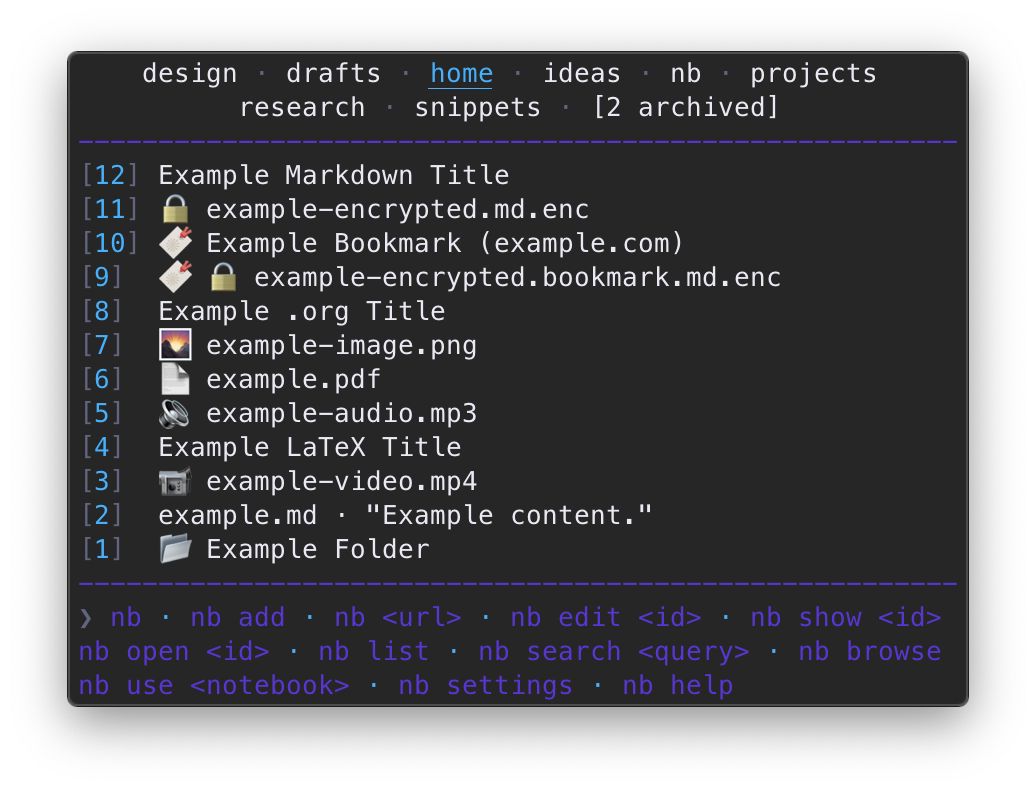 | 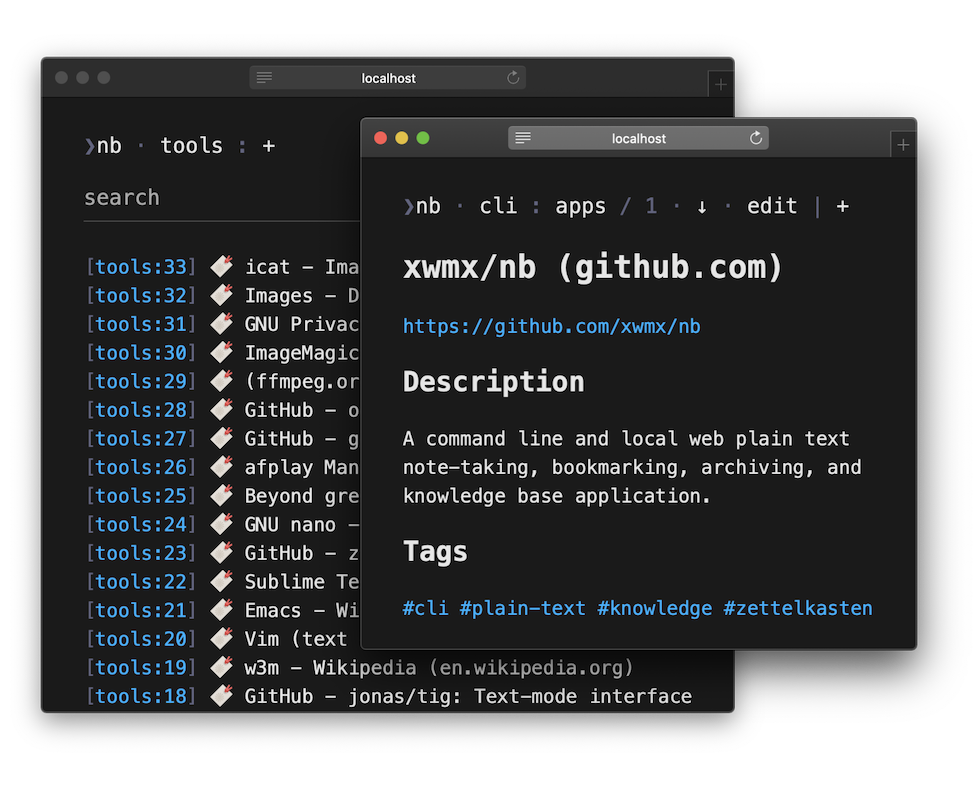 |
|:--:|:--:|
| | |
##### `console`
| 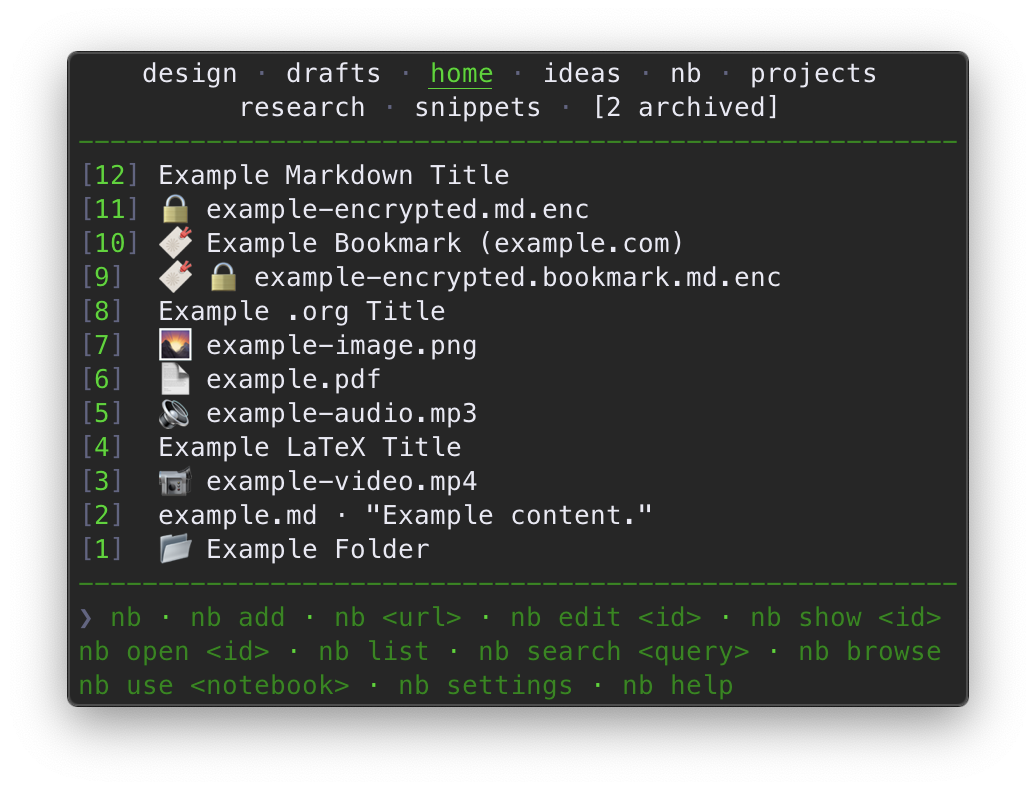 | 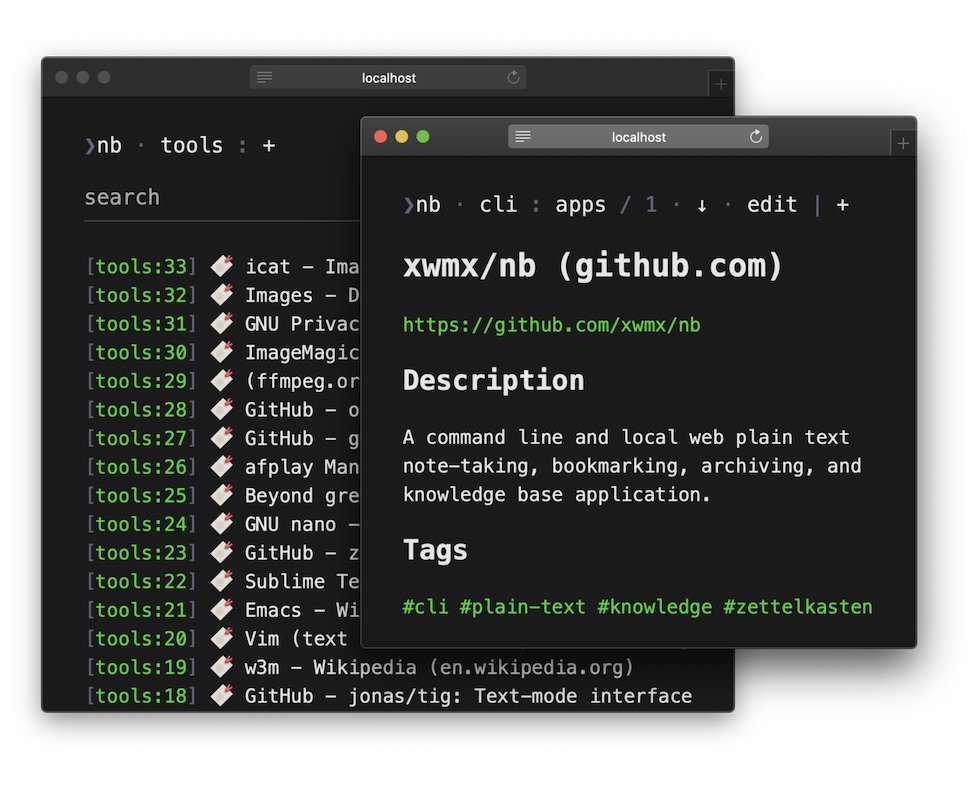 |
|:--:|:--:|
| | |
##### `desert`
| 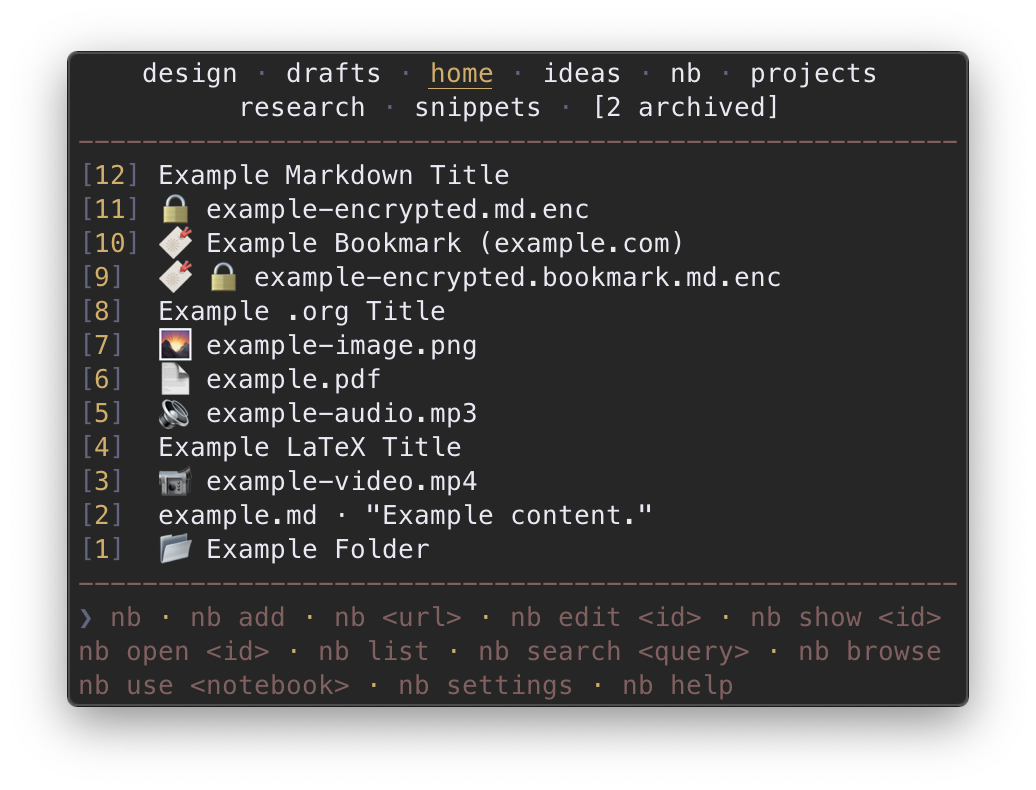 | 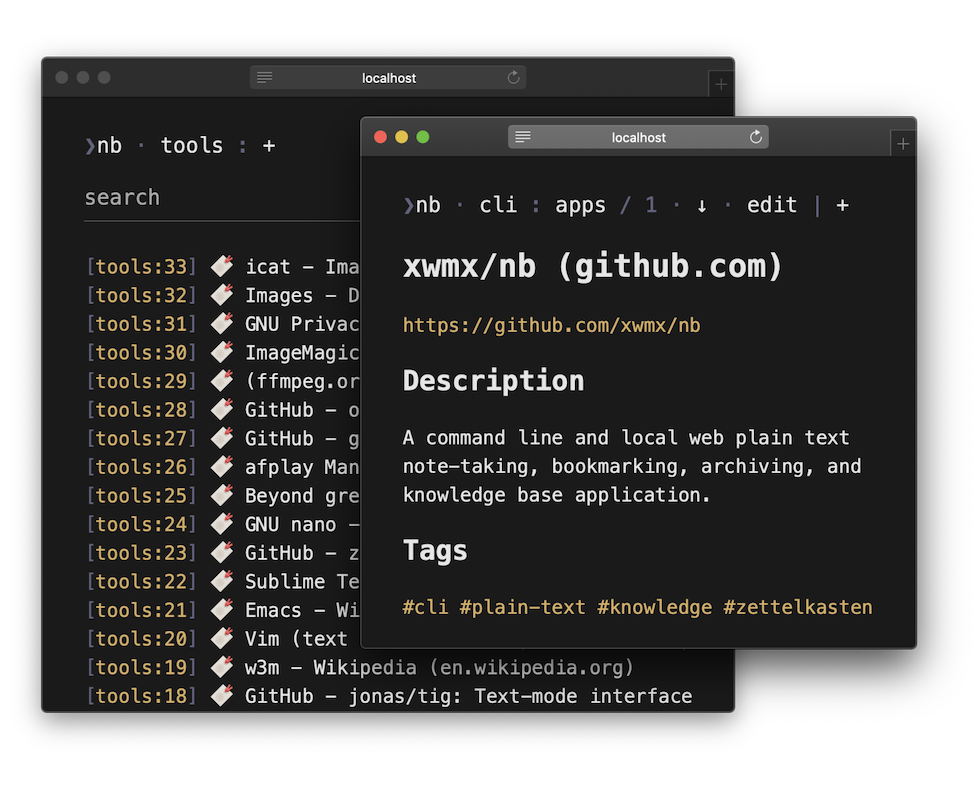 |
|:--:|:--:|
| | |
##### `electro`
| 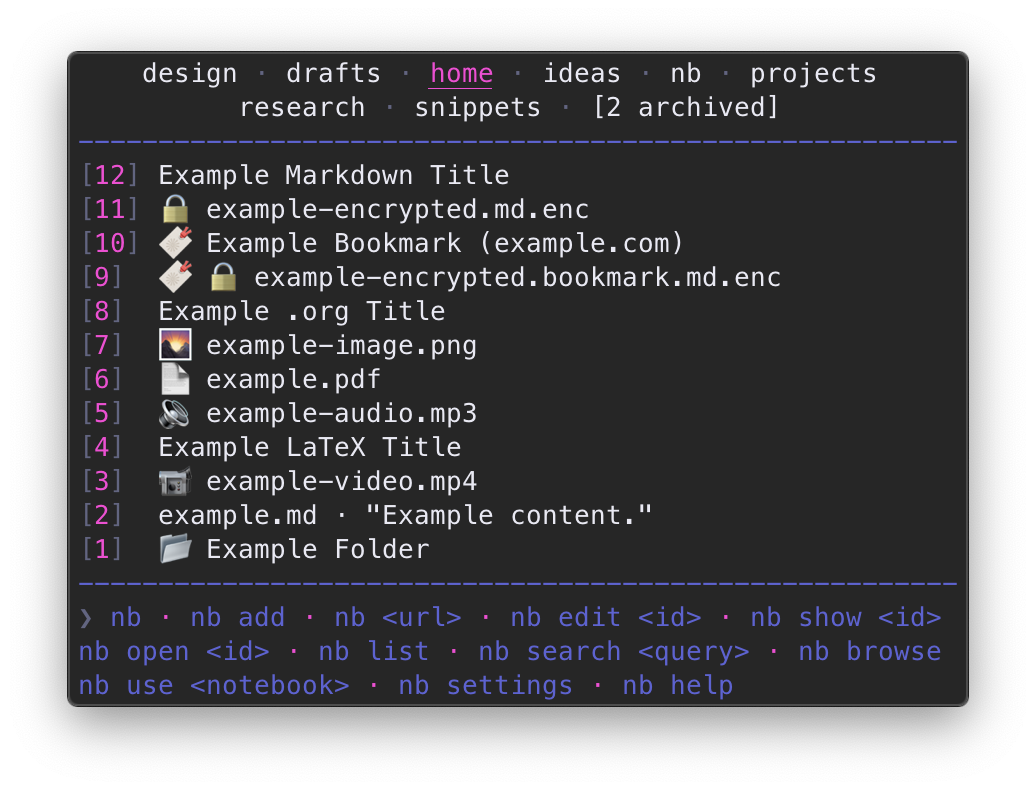 | 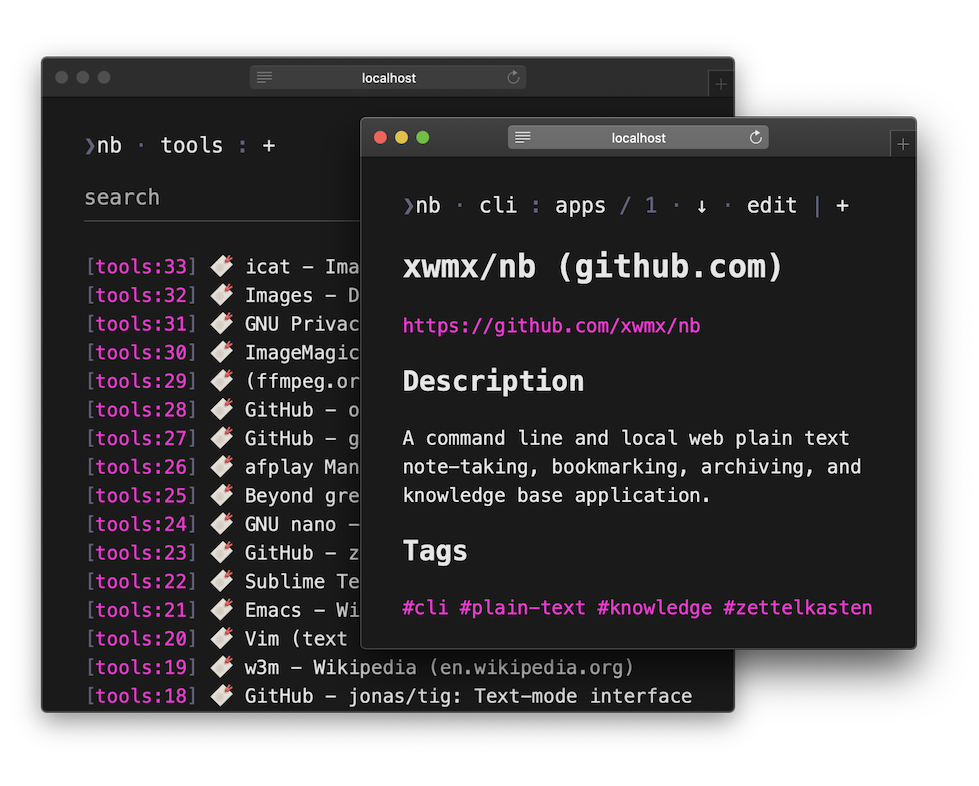 |
|:--:|:--:|
| | |
##### `forest`
| 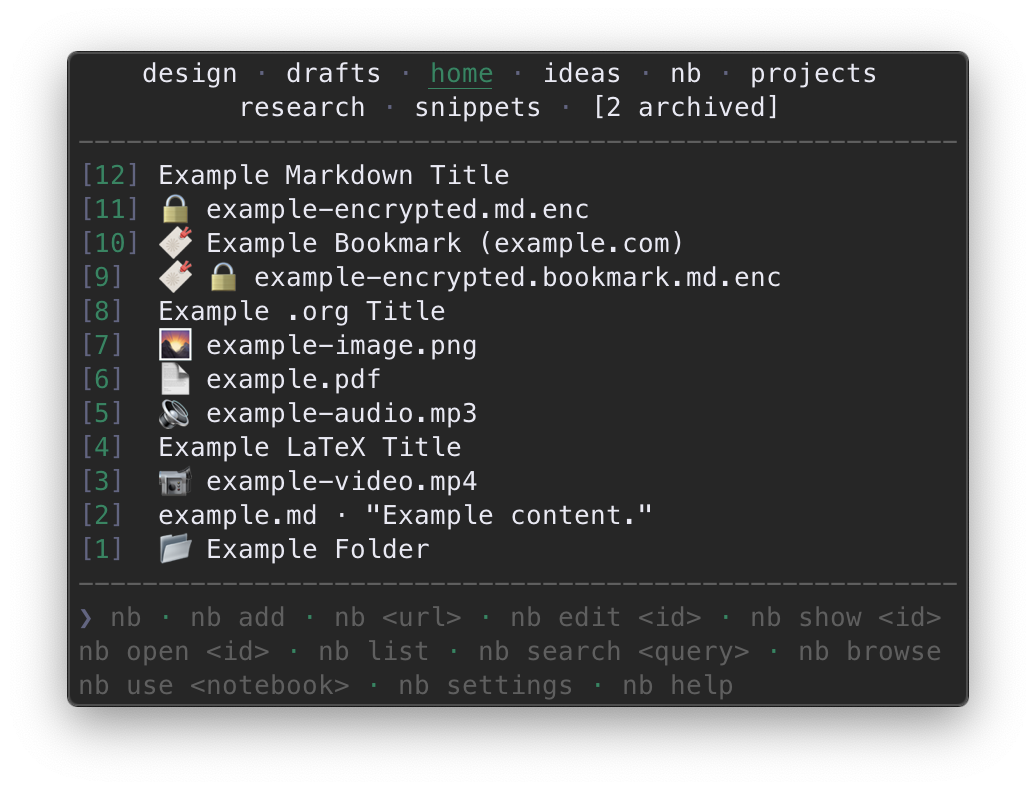 | 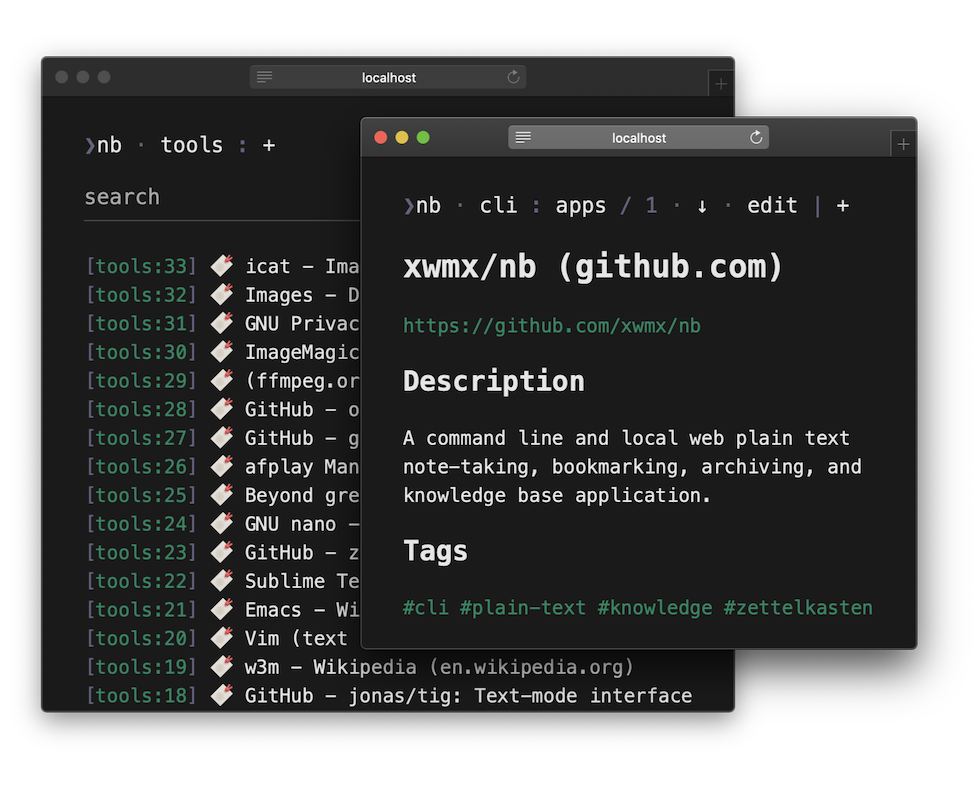 |
|:--:|:--:|
| | |
##### `nb` (default)
| 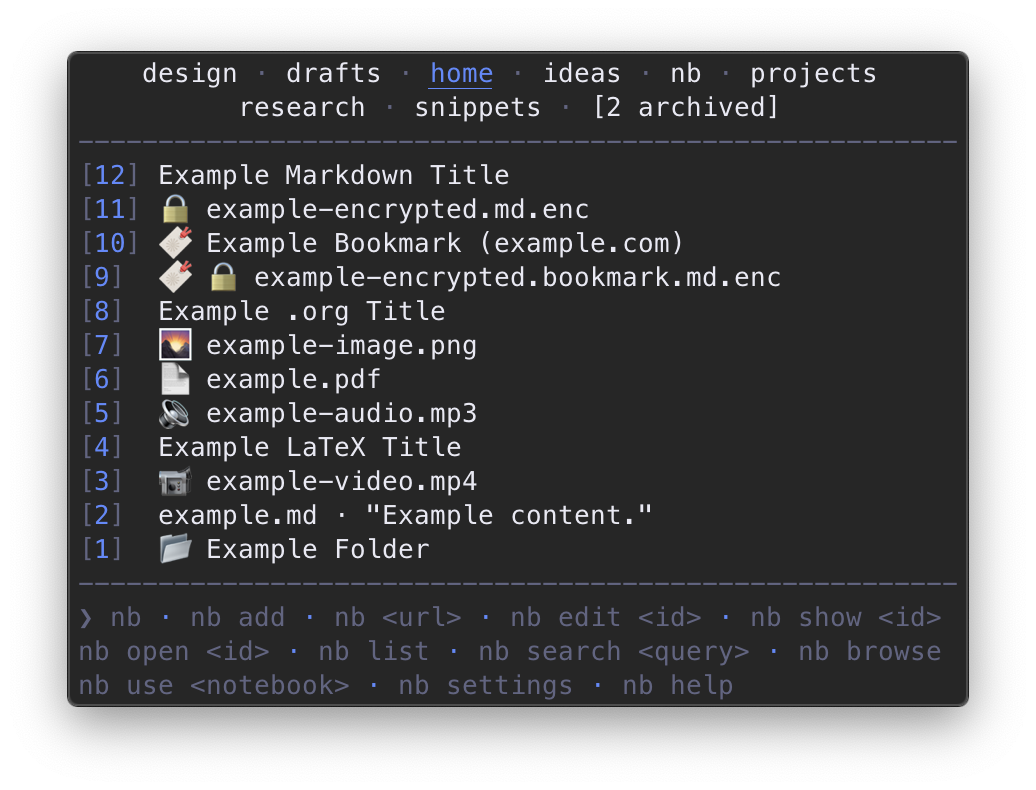 | 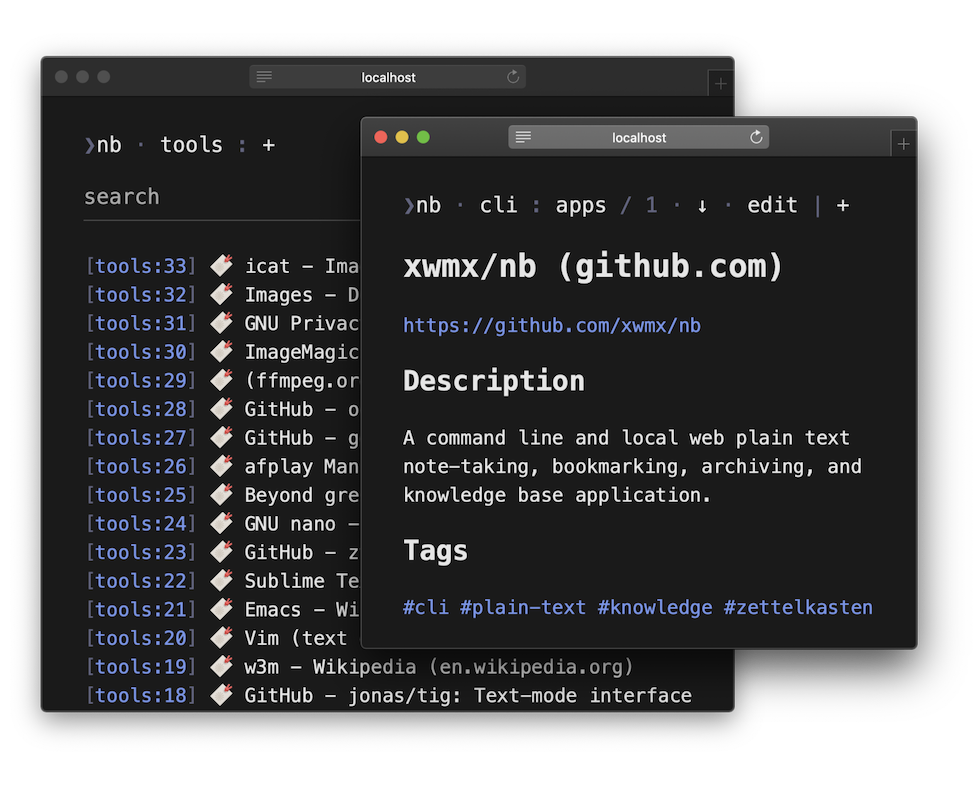 |
|:--:|:--:|
| | |
##### `ocean`
| 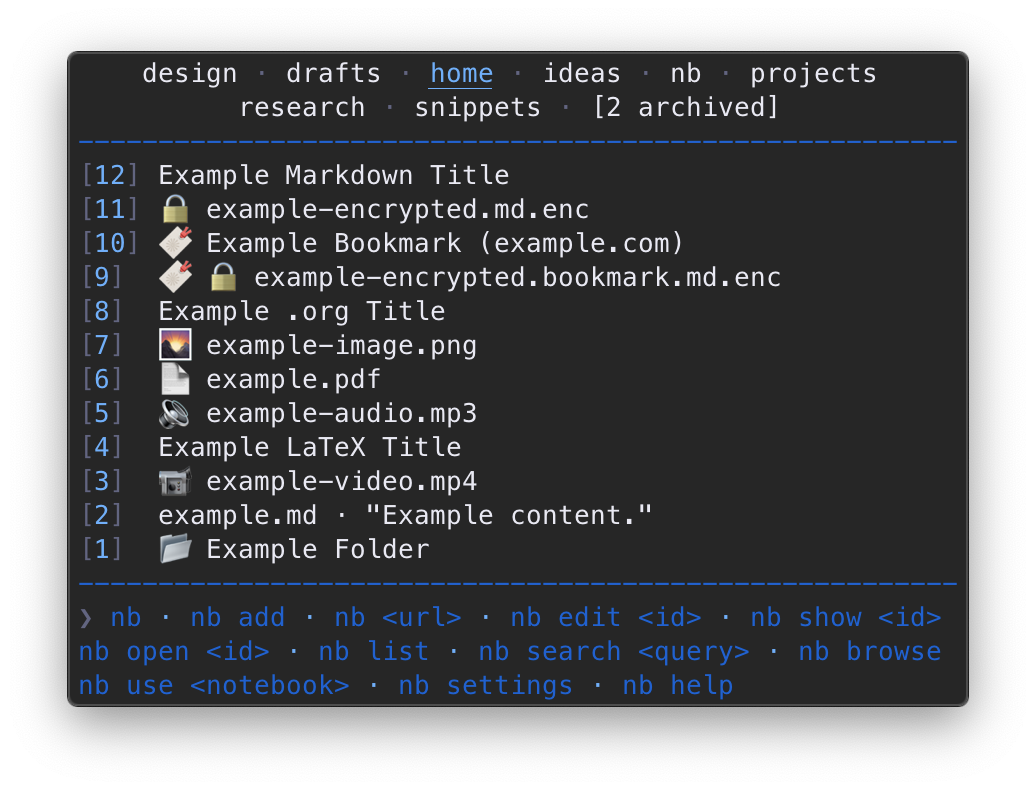 | 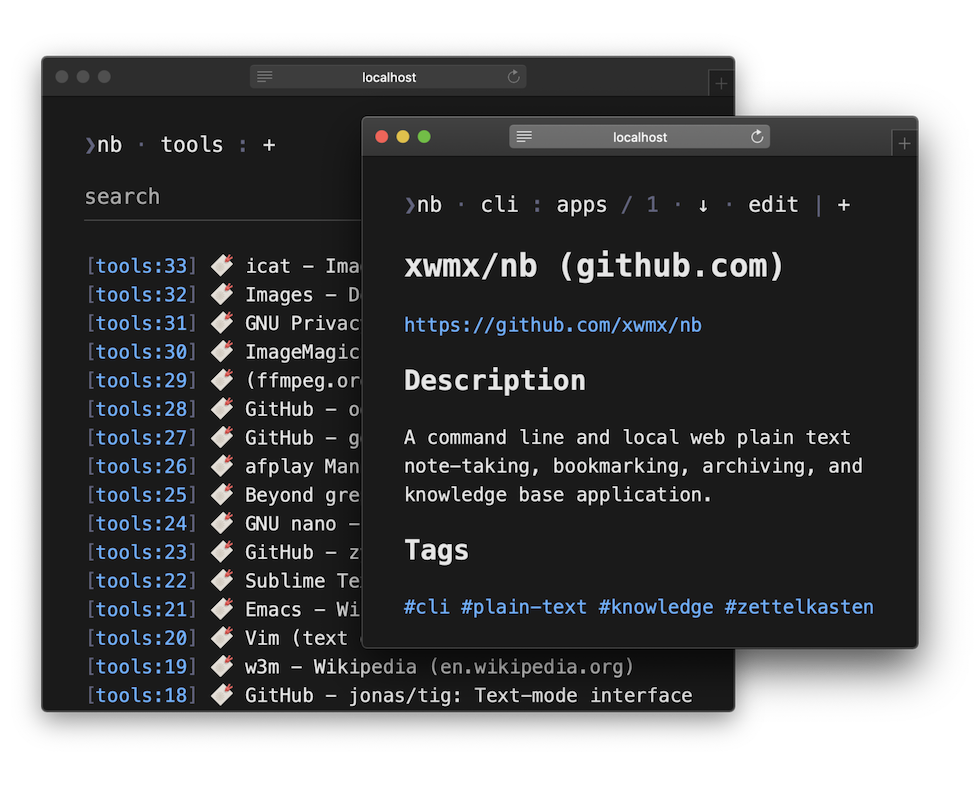 |
|:--:|:--:|
| | |
##### `raspberry`
| 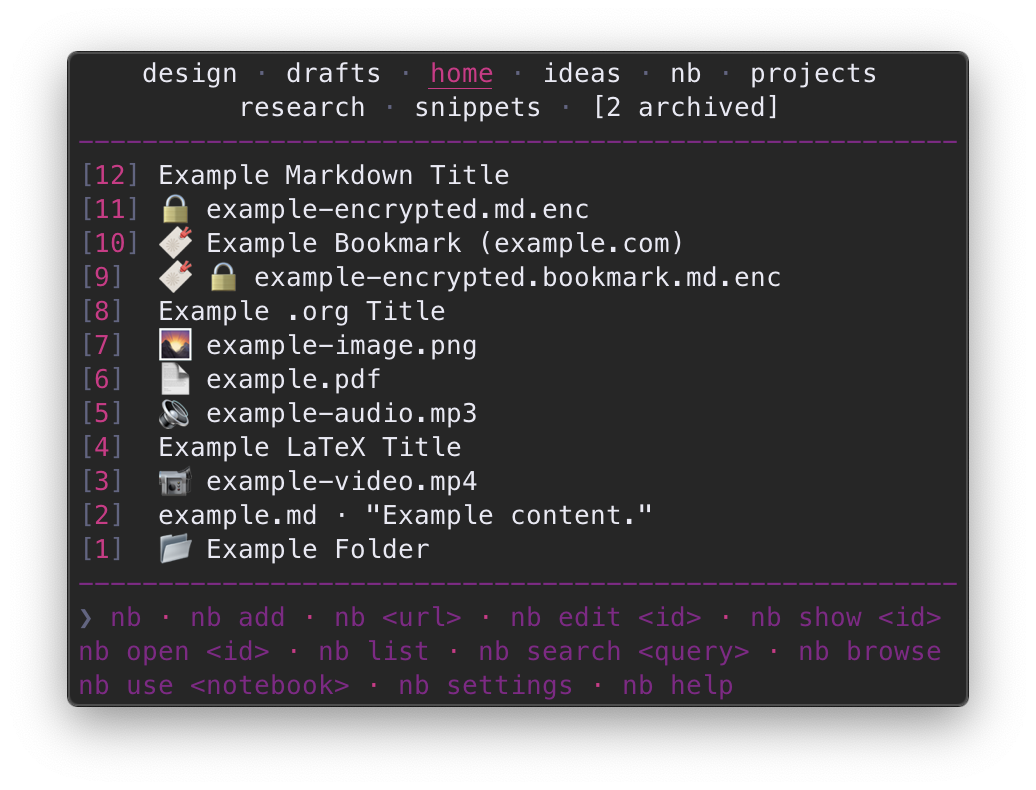 | 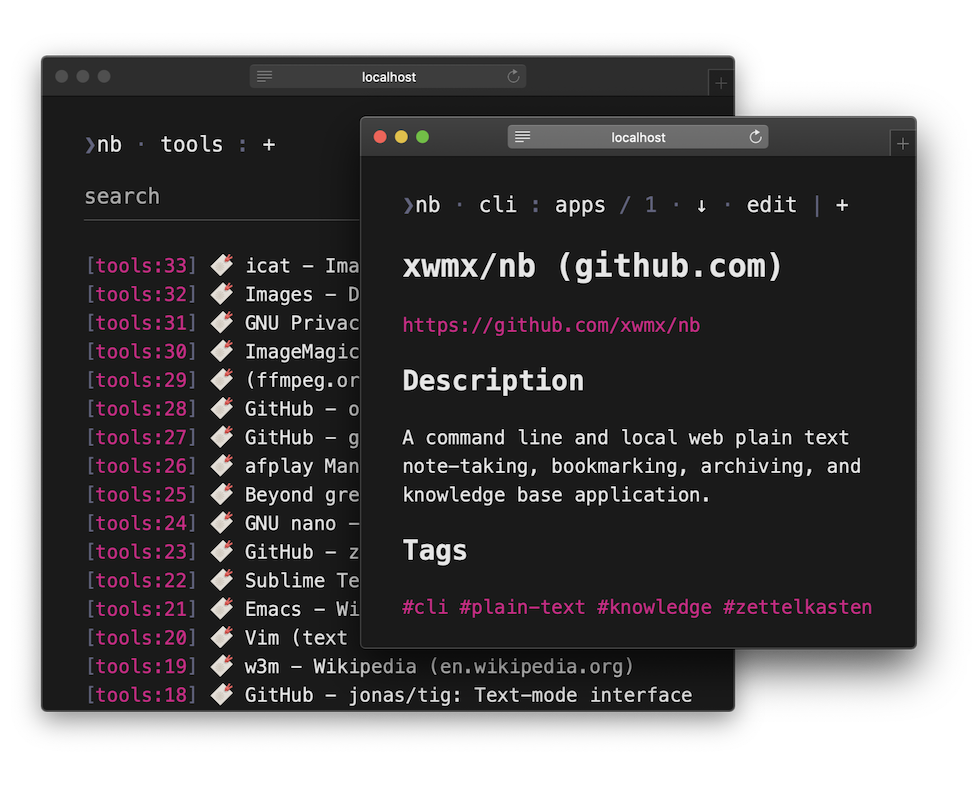 |
|:--:|:--:|
| | |
##### `smoke`
| 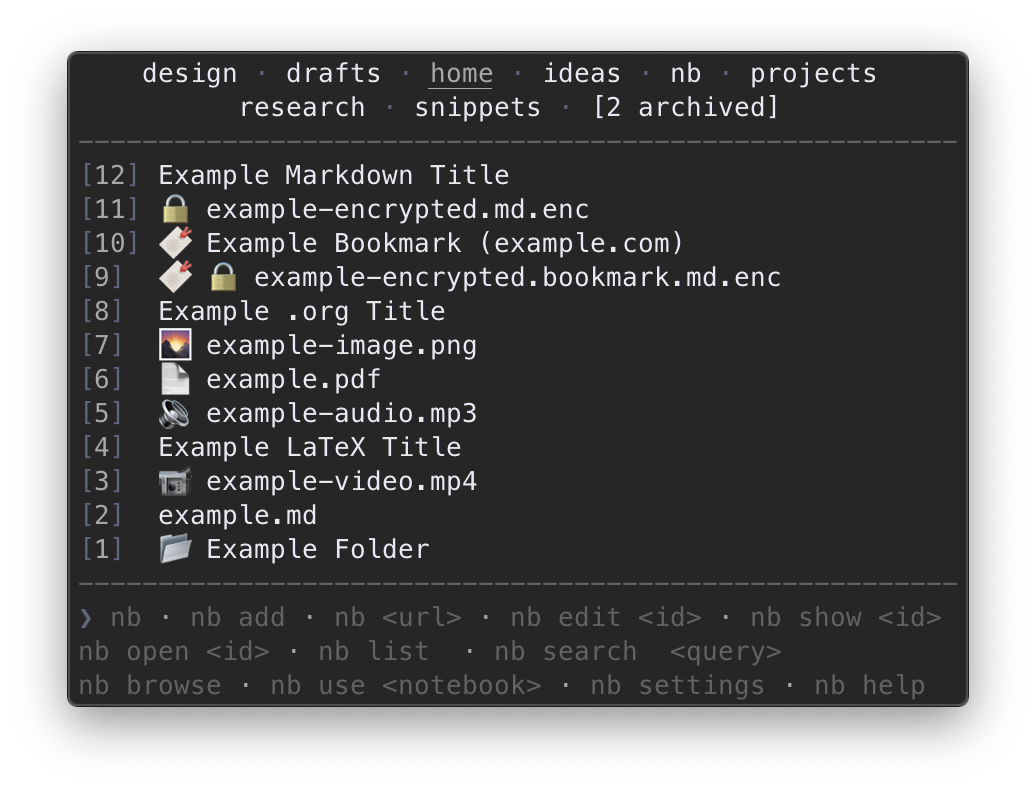 | 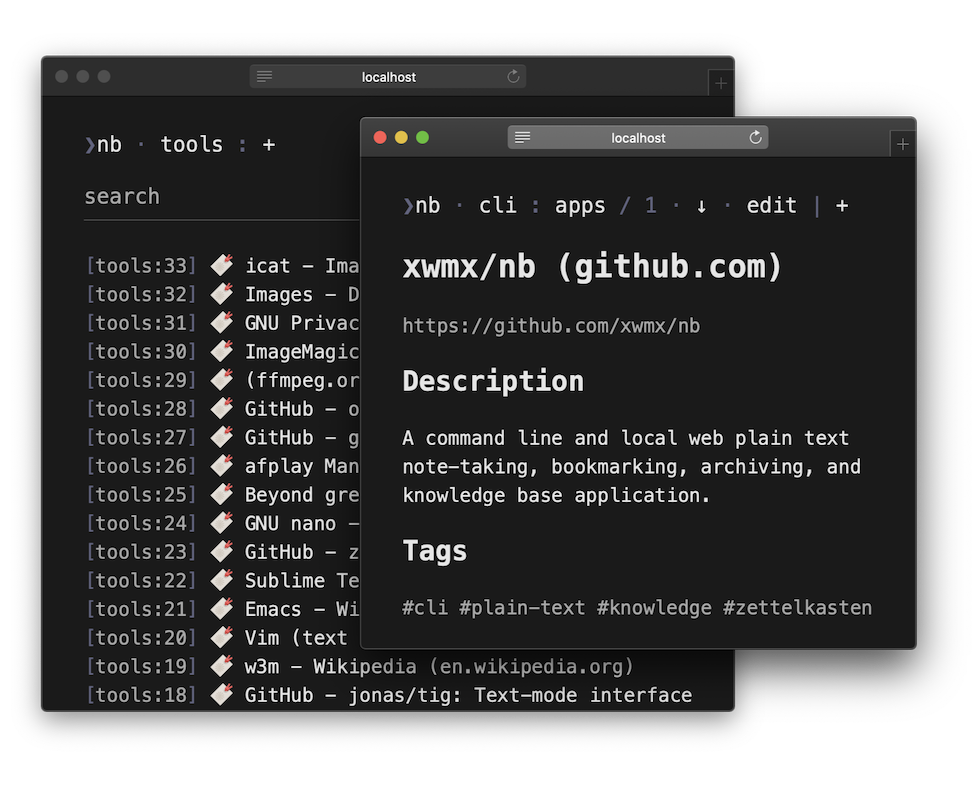 |
|:--:|:--:|
| | |
##### `unicorn`
| 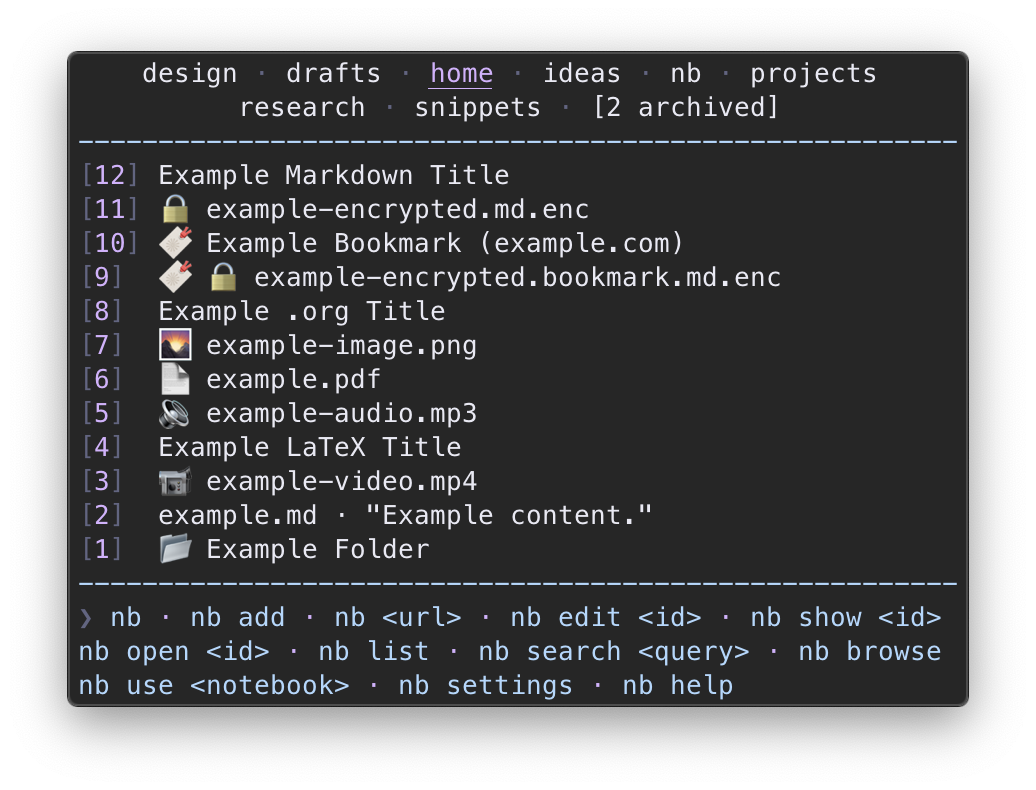 | 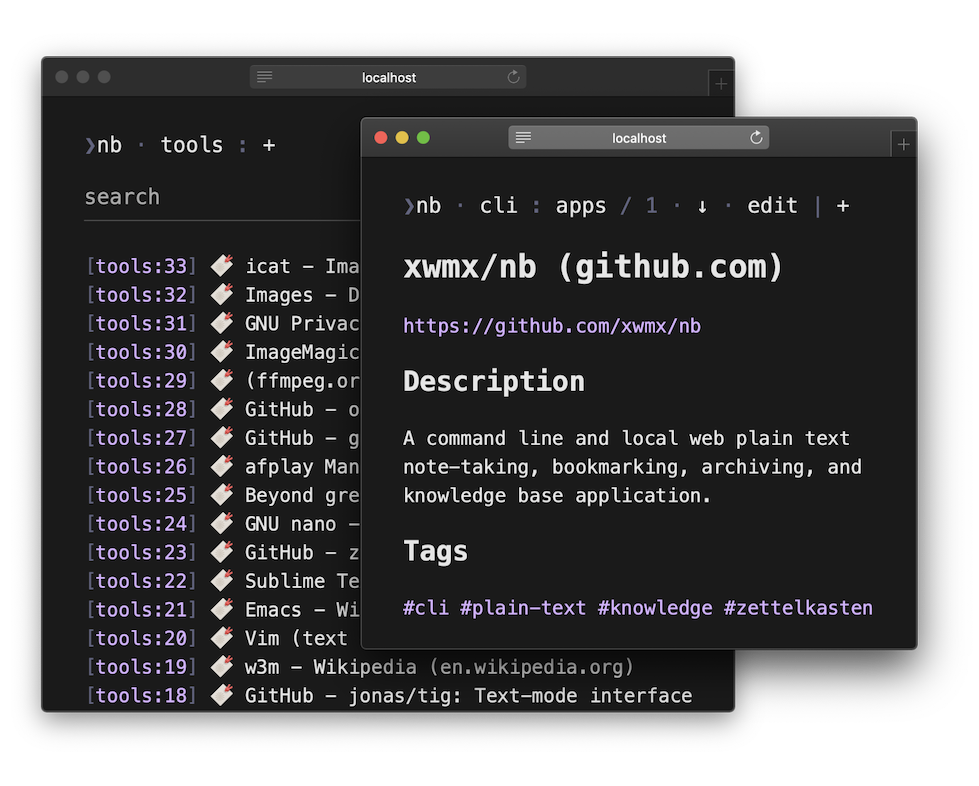 |
|:--:|:--:|
| | |
##### `utility`
| 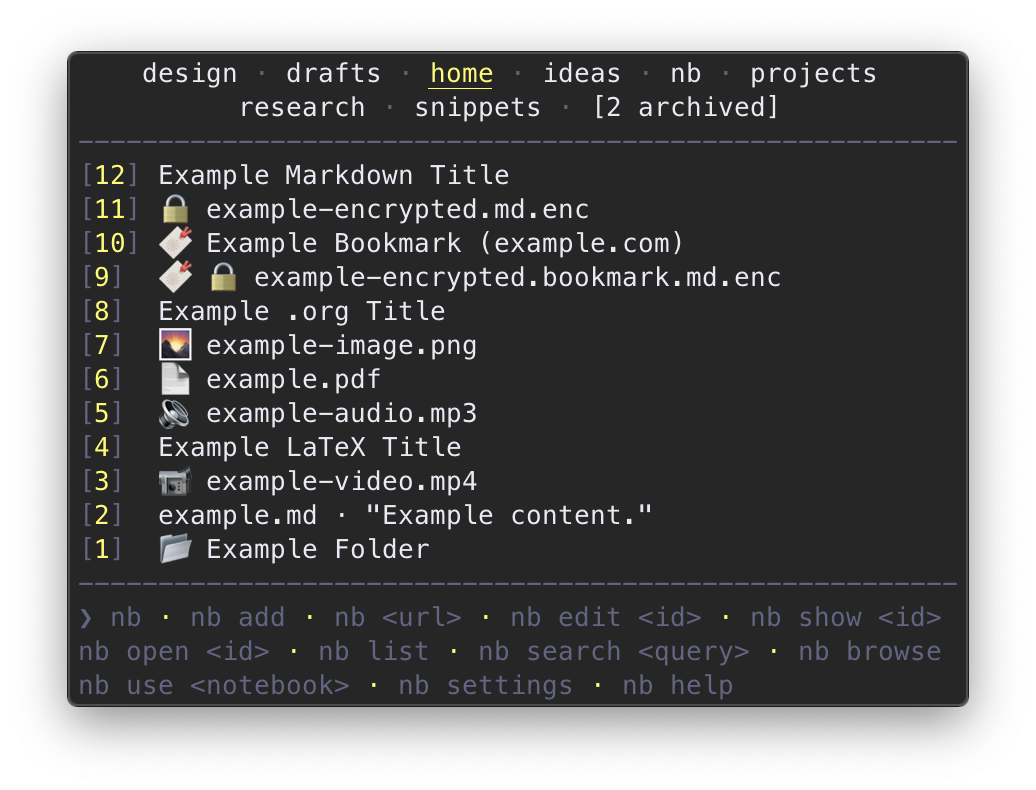 | 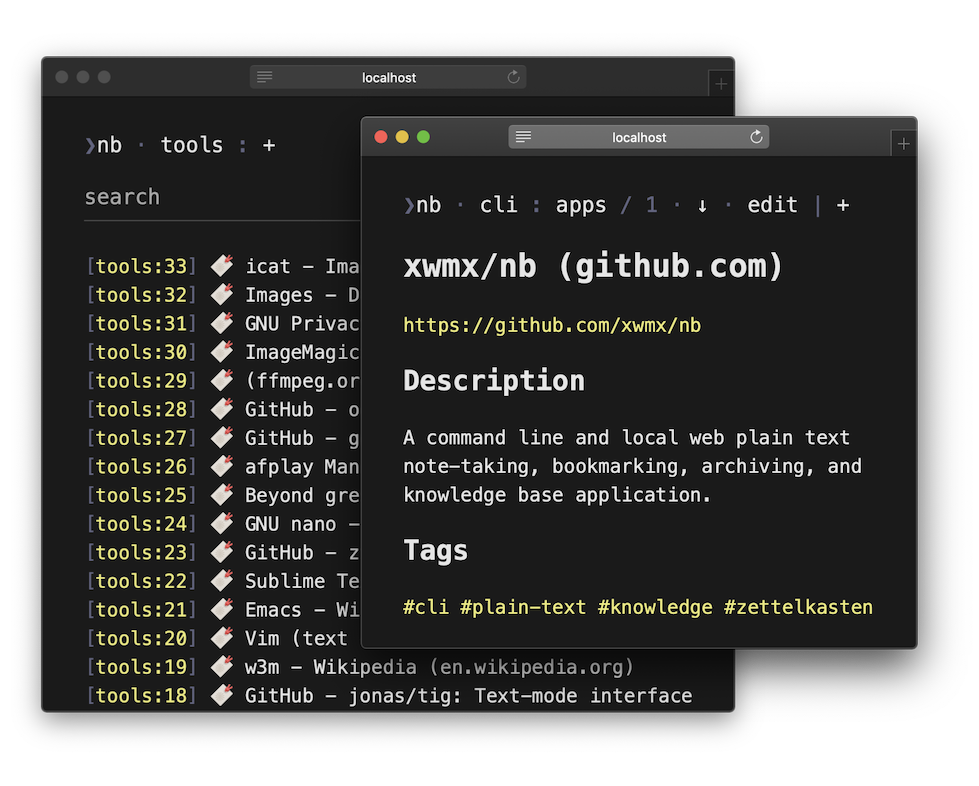 |
|:--:|:--:|
| | |
#### Custom Color Themes
Color themes are
[`nb` plugins](#-plugins) with a `.nb-theme` file extension.
`.nb-theme` files are expected to contain one `if` statement
testing for the theme name
and setting the color environment variables to `tput` ANSI color numbers:
```bash
# turquoise.nb-theme
if [[ "${NB_COLOR_THEME}" == "turquoise" ]]
then
export NB_COLOR_PRIMARY=43
export NB_COLOR_SECONDARY=38
fi
```
View this theme as a complete file:
[`plugins/turquoise.nb-theme`](https://github.com/xwmx/nb/blob/master/plugins/turquoise.nb-theme)
Themes can be installed using [`nb plugins`](#plugins):
```bash
❯ nb plugins install https://github.com/xwmx/nb/blob/master/plugins/turquoise.nb-theme
Plugin installed:
/home/example/.nb/.plugins/turquoise.nb-theme
```
Once a theme is installed,
use [`nb set color_theme`](#color_theme) to set it as the current theme:
```bash
❯ nb set color_theme turquoise
NB_COLOR_THEME set to turquoise
```
The primary and secondary colors can also be overridden individually,
making color themes easily customizable:
```bash
# open the settings prompt for the primary color
nb set color_primary
# open the settings prompt for the secondary color
nb set color_secondary
```
To view a table of available colors and numbers, run:
```bash
nb set colors
```
#### Terminal Syntax Highlighting Theme
`nb` displays files with syntax highlighting when
[`bat`](https://github.com/sharkdp/bat),
[`highlight`](http://www.andre-simon.de/doku/highlight/en/highlight.php),
or
[Pygments](https://pygments.org/)
is installed.
When `bat` is installed, syntax highlighting
color themes are available for both light and dark terminal backgrounds.
To view a list of available themes
and set the syntax highlighting color theme,
use [`nb set syntax_theme`](#syntax_theme).
#### GUI Web Syntax Highlighting
Syntax highlighting is also available when
viewing and editing items in text formats with
[`nb browse --gui`](#browse---gui),
which incorporates the color theme's primary color into the syntax theme:
<div align="center">
<img src="https://xwmx.github.io/misc/nb/images/nb-web-pandoc-ruby-utility.png"
alt="nb syntax highlighting"
width="500">
</div>
#### Indicators
`nb` uses emoji characters to represent information about files in lists.
These characters are referred to internally as "indicators"
and can be customized by assigning a different character to
the indicator's environment variable in your `~/.nbrc` file,
which can be opened with [`nb settings edit`](#settings).
For example, to use a different indicator for pinned items,
add a line like the following to your `~/.nbrc` file:
```bash
export NB_INDICATOR_PINNED="✨"
```
To turn off an indicator, assign the variable to an empty string:
```bash
export NB_INDICATOR_PINNED=""
```
Available indicator [variables](#-variables) with default values:
```bash
export NB_INDICATOR_AUDIO="🔉"
export NB_INDICATOR_BOOKMARK="🔖"
export NB_INDICATOR_DOCUMENT="📄"
export NB_INDICATOR_EBOOK="📖"
export NB_INDICATOR_ENCRYPTED="🔒"
export NB_INDICATOR_FOLDER="📂"
export NB_INDICATOR_IMAGE="🌄"
export NB_INDICATOR_PINNED="📌"
export NB_INDICATOR_TODO="✔️ "
export NB_INDICATOR_TODO_DONE="✅"
export NB_INDICATOR_VIDEO="📹"
```
### $ Shell Theme Support
- [`astral` Zsh Theme](https://github.com/xwmx/astral) - Displays the
current notebook name in the context line of the prompt.
### 🔌 Plugins
<p>
<sup>
<a href="#overview">↑</a> ·
<a href="#plugin-help">Plugin Help</a>,
<a href="#plugins"><code>nb plugins</code></a>
</sup>
</p>
`nb` includes support for plugins, which can be used to create new
subcommands, design themes, and otherwise extend the functionality of `nb`.
`nb` supports two types of plugins, identified by their file extensions:
<dl>
<dt><code>.nb-theme</code></dt>
<dd>Plugins defining <a href="#custom-color-themes">color themes</a>.</dd>
<dt><code>.nb-plugin</code></dt>
<dd>Plugins defining new subcommands and adding functionality.</dd>
</dl>
Plugins are managed with the [`nb plugins`](#plugins) subcommand and
are ins
gitextract_n6j93f7o/
├── .github/
│ ├── FUNDING.yml
│ └── workflows/
│ ├── release.yml
│ └── tests.yml
├── .gitignore
├── .shellcheckrc
├── Baskfile
├── LICENSE
├── Makefile
├── README.md
├── bin/
│ ├── bookmark
│ └── notes
├── docs/
│ ├── .gitignore
│ ├── .rubocop.yml
│ ├── .rubocop_todo.yml
│ ├── .ruby-version
│ ├── .tool-versions
│ ├── 404.html
│ ├── Gemfile
│ ├── _config.yml
│ ├── _includes/
│ │ ├── favicon.html
│ │ ├── head.html
│ │ ├── js/
│ │ │ └── custom.js
│ │ ├── nav.html
│ │ └── toc.html
│ ├── _layouts/
│ │ └── default.html
│ ├── _sass/
│ │ └── custom/
│ │ └── custom.scss
│ ├── assets/
│ │ └── js/
│ │ ├── link-img-elements.js
│ │ └── scroll-highlight.js
│ ├── color-themes.md
│ ├── index.markdown
│ └── index.previous.html
├── etc/
│ ├── README.md
│ ├── Vagrantfile
│ ├── debian/
│ │ ├── changelog
│ │ ├── control
│ │ ├── copyright
│ │ └── rules
│ ├── nb-completion.bash
│ ├── nb-completion.fish
│ └── nb-completion.zsh
├── nb
├── nb.go/
│ ├── README.md
│ ├── configure_notebook_paths_test.go
│ ├── configure_test.go
│ ├── contains_test.go
│ ├── go.mod
│ ├── go.sum
│ ├── helpers_test.go
│ ├── main.go
│ ├── present_test.go
│ ├── run_sub_cmd_run_test.go
│ └── test/
│ ├── nb-go.bats
│ └── test_helper.bash
├── nb.ksh/
│ ├── README.md
│ ├── nb
│ └── test/
│ ├── nb-ksh.bats
│ └── test_helper.bash
├── nb.zsh/
│ ├── README.md
│ ├── nb
│ └── test/
│ ├── nb-zsh.bats
│ └── test_helper.bash
├── package.json
├── package.sh
├── plugins/
│ ├── annotate.dev.nb-plugin
│ ├── backlink.nb-plugin
│ ├── bump.nb-plugin
│ ├── clip.nb-plugin
│ ├── daily.nb-plugin
│ ├── ebook.nb-plugin
│ ├── example.nb-plugin
│ ├── turquoise.nb-theme
│ └── weather.nb-plugin
└── test/
├── add-template.bats
├── add.bats
├── archive-unarchive.bats
├── bookmark-command.bats
├── bookmark-processing.bats
├── bookmark.bats
├── bookmarks.bats
├── browse-add.bats
├── browse-containers.bats
├── browse-delete.bats
├── browse-edit.bats
├── browse-header-crumbs.bats
├── browse-items.bats
├── browse-notebooks.bats
├── browse-pagination.bats
├── browse-responses.bats
├── browse-search.bats
├── browse-serve.bats
├── browse.bats
├── configuration.bats
├── copy.bats
├── count.bats
├── delete.bats
├── do-undo.bats
├── edit.bats
├── env.bats
├── export.bats
├── fixtures/
│ ├── Example Folder/
│ │ ├── example.com.html
│ │ └── example.md
│ ├── bin/
│ │ ├── bookmark
│ │ ├── mock_editor
│ │ ├── mock_editor_no_op
│ │ ├── nb
│ │ └── notes
│ ├── copy-deprecated.nb-plugin
│ ├── example-chrome-bookmarks.html
│ ├── example-edge-bookmarks.html
│ ├── example-firefox-bookmarks-backup.json
│ ├── example-firefox-bookmarks.html
│ ├── example.asciidoc
│ ├── example.com-og.html
│ ├── example.com-titles-newlines.html
│ ├── example.com-titles.html
│ ├── example.com.html
│ ├── example.com.md
│ ├── example.edu.html
│ ├── example.md
│ ├── example.net.html
│ ├── example.org
│ └── example.org.html
├── folders-add-scoped.bats
├── folders-add.bats
├── folders-bookmark.bats
├── folders-count.bats
├── folders-delete.bats
├── folders-edit.bats
├── folders-export.bats
├── folders-history.bats
├── folders-import-download.bats
├── folders-import-move.bats
├── folders-import.bats
├── folders-index-rebuild.bats
├── folders-index-reconcile.bats
├── folders-index.bats
├── folders-list-pinned.bats
├── folders-list.bats
├── folders-ls-pinned.bats
├── folders-ls.bats
├── folders-move.bats
├── folders-search.bats
├── folders-show.bats
├── folders-subcommand.bats
├── git.bats
├── help.bats
├── helpers-build-related-list.bats
├── helpers-file-is-text.bats
├── helpers-get-content.bats
├── helpers-get-id-selector.bats
├── helpers-get-unique-relative-path.bats
├── helpers-get-uri.bats
├── helpers-highlight-syntax.bats
├── helpers-normalize-options.bats
├── helpers-render.bats
├── helpers-resolve-links.bats
├── helpers-selector-resolve-folders.bats
├── helpers-selector-resolve-path.bats
├── helpers-spinner.bats
├── helpers-string-is-email.bats
├── helpers-string-is-url.bats
├── helpers-web-browser.bats
├── helpers.bats
├── history.bats
├── import-bookmarks.bats
├── import.bats
├── index-rebuild.bats
├── index-reconcile.bats
├── index.bats
├── init.bats
├── list-pagination.bats
├── list.bats
├── ls-pagination.bats
├── ls.bats
├── move-rename.bats
├── move.bats
├── notebook-resolution.bats
├── notebooks-add.bats
├── notebooks-author.bats
├── notebooks-current.bats
├── notebooks-delete.bats
├── notebooks-export.bats
├── notebooks-import.bats
├── notebooks-init.bats
├── notebooks-notebook.bats
├── notebooks-rename.bats
├── notebooks-show.bats
├── notebooks-use.bats
├── notebooks.bats
├── open.bats
├── pin-unpin.bats
├── plugin-backlink.bats
├── plugin-bump.bats
├── plugin-daily.bats
├── plugin-ebook.bats
├── plugin-example.bats
├── plugin-weather.bats
├── plugins.bats
├── remote-delete.bats
├── remote-remove.bats
├── remote-rename.bats
├── remote-reset.bats
├── remote-set.bats
├── remote.bats
├── run.bats
├── scope.bats
├── search-list-tags.bats
├── search-logic.bats
├── search-pagination.bats
├── search-tags.bats
├── search.bats
├── settings.bats
├── show-info-line.bats
├── show-render.bats
├── show.bats
├── status.bats
├── subcommands.bats
├── sync-branches.bats
├── sync-folders.bats
├── sync.bats
├── t.bats
├── test_helper.bash
├── todo-add.bats
├── todo-delete.bats
├── todo-tasks.bats
├── todo.bats
├── unset.bats
├── use.bats
└── version.bats
SYMBOL INDEX (25 symbols across 7 files)

FILE: nb.go/configure_notebook_paths_test.go
  function TestConfigureNotebookPathsSetsNotebookPathFields (line 10) | func TestConfigureNotebookPathsSetsNotebookPathFields(t *testing.T) {

FILE: nb.go/configure_test.go
  function TestConfigureSetsCurrentWorkingDir (line 13) | func TestConfigureSetsCurrentWorkingDir(t *testing.T) {
  function TestConfigureSetsNbDir (line 51) | func TestConfigureSetsNbDir(t *testing.T) {

FILE: nb.go/contains_test.go
  function TestContainsWithMatchReturnsTrue (line 9) | func TestContainsWithMatchReturnsTrue(t *testing.T) {
  function TestContainsWithNoMatchReturnsFalse (line 22) | func TestContainsWithNoMatchReturnsFalse(t *testing.T) {

FILE: nb.go/helpers_test.go
  function captureLogOutput (line 10) | func captureLogOutput(f func()) string {

FILE: nb.go/main.go
  type config (line 50) | type config struct
  function configure (line 75) | func configure() (config, error) {
  function configureNotebookPaths (line 288) | func configureNotebookPaths(cfg config) config {
  function contains (line 298) | func contains(slice []string, query string) bool {
  function run (line 308) | func run() (io.Reader, chan int, error) {
  function main (line 345) | func main() {
  function pipedInputIsPresent (line 349) | func pipedInputIsPresent() bool {
  function present (line 367) | func present(output io.Reader, exitStatusChannel chan int, err error) int {
  type subCmd (line 387) | type subCmd struct
  type subCmdCall (line 396) | type subCmdCall struct
  type subCmdFunc (line 404) | type subCmdFunc
  function runSubCmdList (line 414) | func runSubCmdList(call subCmdCall) (io.Reader, chan int, error) {
  function runSubCmdLs (line 426) | func runSubCmdLs(call subCmdCall) (io.Reader, chan int, error) {
  function runSubCmdRun (line 438) | func runSubCmdRun(call subCmdCall) (io.Reader, chan int, error) {

FILE: nb.go/present_test.go
  function TestPresentWithErrorReturns1 (line 13) | func TestPresentWithErrorReturns1(t *testing.T) {
  function TestPresentWithNoErrorReturns0 (line 21) | func TestPresentWithNoErrorReturns0(t *testing.T) {

FILE: nb.go/run_sub_cmd_run_test.go
  function TestRunSubCmdRunPrintsOutput (line 11) | func TestRunSubCmdRunPrintsOutput(t *testing.T) {
  function TestRunSubCmdRunRequiresCommand (line 94) | func TestRunSubCmdRunRequiresCommand(t *testing.T) {
  function TestRunSubCmdRunRunsInNbNotebookPath (line 143) | func TestRunSubCmdRunRunsInNbNotebookPath(t *testing.T) {
Condensed preview — 229 files, each showing path, character count, and a content snippet. Download the .json file or copy for the full structured content (4,857K chars).
[
{
"path": ".github/FUNDING.yml",
"chars": 53,
"preview": "github: xwmx\ncustom: https://paypal.me/WilliamMelody\n"
},
{
"path": ".github/workflows/release.yml",
"chars": 856,
"preview": "name: Release\n\non:\n push:\n tags:\n - \"[0-9]+.[0-9]+.[0-9]+*\"\n\njobs:\n release:\n name: Release\n runs-on: ub"
},
{
"path": ".github/workflows/tests.yml",
"chars": 10850,
"preview": "###############################################################################\n# .github/workflows/tests.yml\n#\n# NOTE: "
},
{
"path": ".gitignore",
"chars": 41,
"preview": ".vagrant\nnb.*\n!nb.go\n!nb.ksh\n!nb.zsh\ntmp\n"
},
{
"path": ".shellcheckrc",
"chars": 1724,
"preview": "###############################################################################\n# .shellcheckrc\n#\n# https://github.com/k"
},
{
"path": "Baskfile",
"chars": 3714,
"preview": "#!/usr/bin/env bash\n###############################################################################\n# Baskfile\n#\n# Run W"
},
{
"path": "LICENSE",
"chars": 34523,
"preview": " GNU AFFERO GENERAL PUBLIC LICENSE\n Version 3, 19 November 2007\n\n Copyright (C)"
},
{
"path": "Makefile",
"chars": 262,
"preview": "BIN ?= nb\nBIN_BOOKMARK ?= bookmark\nPREFIX ?= /usr/local\n\ninstall:\n\tinstall $(BIN) $(PREFIX)/bin\n\tinstall bin/$(BIN_BOOKM"
},
{
"path": "README.md",
"chars": 279995,
"preview": "<p align=\"center\"></p><!-- spacer -->\n\n<div align=\"center\">\n <img src=\"https://raw.githubusercontent.com/xwmx/nb/maste"
},
{
"path": "bin/bookmark",
"chars": 4135,
"preview": "#!/usr/bin/env bash\n###############################################################################\n# __ "
},
{
"path": "bin/notes",
"chars": 2598,
"preview": "#!/usr/bin/env bash\n###############################################################################\n# __ "
},
{
"path": "docs/.gitignore",
"chars": 56,
"preview": "_site\n.sass-cache\n.jekyll-cache\n.jekyll-metadata\nvendor\n"
},
{
"path": "docs/.rubocop.yml",
"chars": 32,
"preview": "inherit_from: .rubocop_todo.yml\n"
},
{
"path": "docs/.rubocop_todo.yml",
"chars": 1447,
"preview": "# This configuration was generated by\n# `rubocop --auto-gen-config`\n# on 2020-09-25 20:07:34 UTC using RuboCop version 0"
},
{
"path": "docs/.ruby-version",
"chars": 6,
"preview": "3.4.8\n"
},
{
"path": "docs/.tool-versions",
"chars": 11,
"preview": "ruby 3.4.8\n"
},
{
"path": "docs/404.html",
"chars": 419,
"preview": "---\npermalink: /404.html\nlayout: default\n---\n\n<style type=\"text/css\" media=\"screen\">\n .container {\n margin: 10px aut"
},
{
"path": "docs/Gemfile",
"chars": 1248,
"preview": "source \"https://rubygems.org\"\nruby \"3.4.8\"\n# Hello! This is where you manage which Jekyll version is used to run.\n# When"
},
{
"path": "docs/_config.yml",
"chars": 2612,
"preview": "# Welcome to Jekyll!\n#\n# This config file is meant for settings that affect your whole blog, values\n# which you are expe"
},
{
"path": "docs/_includes/favicon.html",
"chars": 1706,
"preview": "<!-- <link rel=\"shortcut icon\" href=\"{{ 'favicon.ico' | relative_url }}\" type=\"image/x-icon\"> -->\n\n<link rel=\"icon\" type"
},
{
"path": "docs/_includes/head.html",
"chars": 1434,
"preview": "<head>\n <meta charset=\"UTF-8\">\n <meta http-equiv=\"X-UA-Compatible\" content=\"IE=Edge\">\n\n {% unless site.plugins contai"
},
{
"path": "docs/_includes/js/custom.js",
"chars": 0,
"preview": ""
},
{
"path": "docs/_includes/nav.html",
"chars": 6161,
"preview": "{% comment %}{% include toc.html html=content class=\"navigation-list\" h_max=3 %}{% endcomment %}\n\n<ul class=\"nav-list\">\n"
},
{
"path": "docs/_includes/toc.html",
"chars": 8133,
"preview": "{% capture tocWorkspace %}\n {% comment %}\n Copyright (c) 2017 Vladimir \"allejo\" Jimenez\n\n Permission is"
},
{
"path": "docs/_layouts/default.html",
"chars": 10022,
"preview": "---\nlayout: table_wrappers\n---\n\n<!DOCTYPE html>\n\n<html lang=\"{{ site.lang | default: 'en-US' }}\">\n{% include head.html %"
},
{
"path": "docs/_sass/custom/custom.scss",
"chars": 12218,
"preview": "///////////////////////////////////////////////////////////////////////////////\n// docs/_sass/custom/custom.scss\n//\n// C"
},
{
"path": "docs/assets/js/link-img-elements.js",
"chars": 302,
"preview": "(function linkImgElements($, window, document) {\n $(document).ready(function() {\n $('img').each(function() {\n $"
},
{
"path": "docs/assets/js/scroll-highlight.js",
"chars": 1108,
"preview": "$(function() {\n $(window).scroll(function() {\n $(\"#home, h2, h3\").each(function() {\n if ($(window).scrollTop() "
},
{
"path": "docs/color-themes.md",
"chars": 2784,
"preview": "# `nb` Color Themes\n\n`nb` includes several built-in color themes. The colors for built-in themes can be overridden with "
},
{
"path": "docs/index.markdown",
"chars": 280065,
"preview": "---\nlayout: home\ntitle: nb · command line and local web plain text note-taking, bookmarking, archiving, and knowledge ba"
},
{
"path": "docs/index.previous.html",
"chars": 5219,
"preview": "<!DOCTYPE html>\n<!--\n__ _\n\\ \\ _ __ | |__\n \\ \\ | '_ \\| '_ \\\n / / | | | | |_) |\n/_/ |_| |_|_.__/\n-->\n<html>\n "
},
{
"path": "etc/README.md",
"chars": 3346,
"preview": "# `nb` Tab Completion\n\n## Homebrew\n\nInstalling via Homebrew with `brew install nb` will also\ninstall the completion scri"
},
{
"path": "etc/Vagrantfile",
"chars": 16052,
"preview": "# frozen_string_literal: true\n\n# -*- mode: ruby -*-\n# vi: set ft=ruby :\n\n# rubocop:disable all\n\n# NOTE: Uncomment box co"
},
{
"path": "etc/debian/changelog",
"chars": 136,
"preview": "nb (4.1.5-1) unstable; urgency=medium\n\n * Initial release.\n\n -- William Melody <hi@williammelody.com> Sun, 24 May 2020"
},
{
"path": "etc/debian/control",
"chars": 605,
"preview": "Source: nb\nSection: misc\nPriority: optional\nMaintainer: William Melody <hi@williammelody.com>\nBuild-Depends: debhelper-c"
},
{
"path": "etc/debian/copyright",
"chars": 912,
"preview": "Format: https://www.debian.org/doc/packaging-manuals/copyright-format/1.0/\nUpstream-Name: nb\nUpstream-Contact: William M"
},
{
"path": "etc/debian/rules",
"chars": 677,
"preview": "#!/usr/bin/make -f\n# See debhelper(7) (uncomment to enable)\n# output every command that modifies files on the build syst"
},
{
"path": "etc/nb-completion.bash",
"chars": 4125,
"preview": "#!/usr/bin/env bash\n###############################################################################\n# __ _\n# \\ "
},
{
"path": "etc/nb-completion.fish",
"chars": 3125,
"preview": "#!/usr/bin/env fish\n###############################################################################\n# __ _\n# \\ "
},
{
"path": "etc/nb-completion.zsh",
"chars": 4124,
"preview": "#compdef nb\n###############################################################################\n# __ _\n# \\ \\ _ __"
},
{
"path": "nb",
"chars": 754089,
"preview": "#!/usr/bin/env bash\n###############################################################################\n# __ _\n# \\ "
},
{
"path": "nb.go/README.md",
"chars": 956,
"preview": "# `nb.go`\n\n`nb.go` is an implementation of [`nb`](https://github.com/xwmx/nb) written in\n[Go](https://golang.org/).\n\n## "
},
{
"path": "nb.go/configure_notebook_paths_test.go",
"chars": 600,
"preview": "// revive:disable:error-strings Errors should match existing `nb` formatting.\n\npackage main\n\nimport (\n\t\"path/filepath\"\n\t"
},
{
"path": "nb.go/configure_test.go",
"chars": 1305,
"preview": "// revive:disable:error-strings Errors should match existing `nb` formatting.\n\npackage main\n\nimport (\n\t\"os\"\n\t\"os/exec\"\n\t"
},
{
"path": "nb.go/contains_test.go",
"chars": 625,
"preview": "// revive:disable:error-strings Errors should match existing `nb` formatting.\n\npackage main\n\nimport (\n\t\"testing\"\n)\n\nfunc"
},
{
"path": "nb.go/go.mod",
"chars": 78,
"preview": "module nb.go\n\ngo 1.23.0\n\ntoolchain go1.23.4\n\nrequire golang.org/x/sys v0.31.0\n"
},
{
"path": "nb.go/go.sum",
"chars": 153,
"preview": "golang.org/x/sys v0.31.0 h1:ioabZlmFYtWhL+TRYpcnNlLwhyxaM9kWTDEmfnprqik=\ngolang.org/x/sys v0.31.0/go.mod h1:BJP2sWEmIv4K"
},
{
"path": "nb.go/helpers_test.go",
"chars": 226,
"preview": "package main\n\nimport (\n\t\"bytes\"\n\t\"log\"\n\t\"os\"\n)\n\n// https://stackoverflow.com/a/26806093\nfunc captureLogOutput(f func()) "
},
{
"path": "nb.go/main.go",
"chars": 11440,
"preview": "// __ _\n// \\ \\ _ __ | |__ __ _ ___\n// \\ \\ | '_ \\| '_ \\ / _` |/ _ \\\n// / / | | | | |_) | _ | (_| "
},
{
"path": "nb.go/present_test.go",
"chars": 532,
"preview": "// revive:disable:error-strings Errors should match existing `nb` formatting.\n\npackage main\n\nimport (\n\t\"errors\"\n\t\"os\"\n\t\""
},
{
"path": "nb.go/run_sub_cmd_run_test.go",
"chars": 4385,
"preview": "package main\n\nimport (\n\t\"fmt\"\n\t\"io/ioutil\"\n\t\"os\"\n\t// \"path/filepath\"\n\t\"testing\"\n)\n\nfunc TestRunSubCmdRunPrintsOutput(t *"
},
{
"path": "nb.go/test/nb-go.bats",
"chars": 481,
"preview": "#!/usr/bin/env bats\n\nload test_helper\n\n@test \"'nb.go' with no arguments exits with status 0 and prints ls output.\" {\n {"
},
{
"path": "nb.go/test/test_helper.bash",
"chars": 727,
"preview": "#!/usr/bin/env bash\n###############################################################################\n# nb.go/test/test_he"
},
{
"path": "nb.ksh/README.md",
"chars": 103,
"preview": "# `nb.ksh`\n\n---\n\n<p align=\"center\">\n <a href=\"https://github.com/xwmx/nb\">github.com/xwmx/nb</a>\n</p>\n"
},
{
"path": "nb.ksh/nb",
"chars": 143,
"preview": "#!/usr/bin/env ksh\n\nalias local=\"typeset\"\n\n# no-op placeholder for Bash `shopt`.\nshopt() { :; }\n\nsource \"$(cd \"$(dirname"
},
{
"path": "nb.ksh/test/nb-ksh.bats",
"chars": 496,
"preview": "#!/usr/bin/env bats\n\nload test_helper\n\n@test \"'nb.ksh' with no arguments exits with status 0 and prints ls output.\" {\n "
},
{
"path": "nb.ksh/test/test_helper.bash",
"chars": 621,
"preview": "#!/usr/bin/env bash\n###############################################################################\n# nb.go/test/test_he"
},
{
"path": "nb.zsh/README.md",
"chars": 103,
"preview": "# `nb.zsh`\n\n---\n\n<p align=\"center\">\n <a href=\"https://github.com/xwmx/nb\">github.com/xwmx/nb</a>\n</p>\n"
},
{
"path": "nb.zsh/nb",
"chars": 159,
"preview": "#!/usr/bin/env zsh\n\nsetopt BASH_REMATCH\nsetopt KSH_ARRAYS\n\n# no-op placeholder for Bash `shopt`.\nshopt() { :; }\n\nsource "
},
{
"path": "nb.zsh/test/nb-zsh.bats",
"chars": 496,
"preview": "#!/usr/bin/env bats\n\nload test_helper\n\n@test \"'nb.ksh' with no arguments exits with status 0 and prints ls output.\" {\n "
},
{
"path": "nb.zsh/test/test_helper.bash",
"chars": 621,
"preview": "#!/usr/bin/env bash\n###############################################################################\n# nb.go/test/test_he"
},
{
"path": "package.json",
"chars": 1077,
"preview": "{\n \"name\": \"nb.sh\",\n \"version\": \"7.25.3\",\n \"description\": \"CLI and local web note-taking, bookmarking, and archiving "
},
{
"path": "package.sh",
"chars": 387,
"preview": "###############################################################################\n# package.sh\n#\n# Configuration for bashe"
},
{
"path": "plugins/annotate.dev.nb-plugin",
"chars": 3955,
"preview": "#!/usr/bin/env bash\n###############################################################################\n# annotate.dev.nb-pl"
},
{
"path": "plugins/backlink.nb-plugin",
"chars": 2151,
"preview": "#!/usr/bin/env bash\n###############################################################################\n# backlink.nb-plugin"
},
{
"path": "plugins/bump.nb-plugin",
"chars": 1458,
"preview": "#!/usr/bin/env bash\n###############################################################################\n# bump.nb-plugin\n#\n#"
},
{
"path": "plugins/clip.nb-plugin",
"chars": 3312,
"preview": "#!/usr/bin/env bash\n###############################################################################\n# clip\n#\n# A plugin "
},
{
"path": "plugins/daily.nb-plugin",
"chars": 4529,
"preview": "#!/usr/bin/env bash\n###############################################################################\n# daily.nb-plugin\n#\n"
},
{
"path": "plugins/ebook.nb-plugin",
"chars": 7845,
"preview": "#!/usr/bin/env bash\n###############################################################################\n# ebook.nb-plugin\n#\n"
},
{
"path": "plugins/example.nb-plugin",
"chars": 763,
"preview": "#!/usr/bin/env bash\n###############################################################################\n# example.nb-plugin\n"
},
{
"path": "plugins/turquoise.nb-theme",
"chars": 488,
"preview": "#!/usr/bin/env bash\n###############################################################################\n# turquoise.nb-theme"
},
{
"path": "plugins/weather.nb-plugin",
"chars": 879,
"preview": "#!/usr/bin/env bash\n###############################################################################\n# weather.nb-plugin\n"
},
{
"path": "test/add-template.bats",
"chars": 13480,
"preview": "#!/usr/bin/env bats\n# shellcheck disable=SC2030,SC2031,SC2063\n\nload test_helper\n\n# --no-template #######################"
},
{
"path": "test/add.bats",
"chars": 57199,
"preview": "#!/usr/bin/env bats\n# shellcheck disable=SC2030,SC2031,SC2063\n\nload test_helper\n\n# --quiet #############################"
},
{
"path": "test/archive-unarchive.bats",
"chars": 10502,
"preview": "#!/usr/bin/env bats\n\nload test_helper\n\n# <name> validation ###########################################################\n\n"
},
{
"path": "test/bookmark-command.bats",
"chars": 5559,
"preview": "#!/usr/bin/env bats\n\nload test_helper\n\n# no argument #################################################################\n\n"
},
{
"path": "test/bookmark-processing.bats",
"chars": 5798,
"preview": "#!/usr/bin/env bats\n\nload test_helper\n\n@test \"'bookmark' extracts title when tags are separated by newlines.\" {\n {\n "
},
{
"path": "test/bookmark.bats",
"chars": 65084,
"preview": "#!/usr/bin/env bats\n\nload test_helper\n\n# --quiet #####################################################################\n\n"
},
{
"path": "test/bookmarks.bats",
"chars": 2306,
"preview": "#!/usr/bin/env bats\n\nload test_helper\n\n# `bookmarks` #################################################################\n\n"
},
{
"path": "test/browse-add.bats",
"chars": 33000,
"preview": "#!/usr/bin/env bats\n\nload test_helper\n\n# HTML <title> ################################################################\n\n"
},
{
"path": "test/browse-containers.bats",
"chars": 31759,
"preview": "#!/usr/bin/env bats\n\nload test_helper\n\n# escaping / HTML entities ####################################################\n\n"
},
{
"path": "test/browse-delete.bats",
"chars": 14658,
"preview": "#!/usr/bin/env bats\n\nload test_helper\n\n# HTML <title> ################################################################\n\n"
},
{
"path": "test/browse-edit.bats",
"chars": 26806,
"preview": "#!/usr/bin/env bats\n\nload test_helper\n\n@test \"'browse edit <id>' with todo item does not mark up done / closed checkbox "
},
{
"path": "test/browse-header-crumbs.bats",
"chars": 16723,
"preview": "#!/usr/bin/env bats\n\nload test_helper\n\n# --add #######################################################################\n\n"
},
{
"path": "test/browse-items.bats",
"chars": 51669,
"preview": "#!/usr/bin/env bats\n\nload test_helper\n\n@test \"'browse <selector>' processes markdown with \\$NB_BROWSE_MARKDOWN_READER va"
},
{
"path": "test/browse-notebooks.bats",
"chars": 10909,
"preview": "#!/usr/bin/env bats\n\nload test_helper\n\n# terminal formatting #########################################################\n\n"
},
{
"path": "test/browse-pagination.bats",
"chars": 40053,
"preview": "#!/usr/bin/env bats\n\nload test_helper\n\n@test \"'browse' only includes next page link when there are remaining items.\" {\n "
},
{
"path": "test/browse-responses.bats",
"chars": 5202,
"preview": "#!/usr/bin/env bats\n\nload test_helper\n\n# --local #####################################################################\n\n"
},
{
"path": "test/browse-search.bats",
"chars": 31211,
"preview": "#!/usr/bin/env bats\n\nload test_helper\n\n# --and / --or ################################################################\n\n"
},
{
"path": "test/browse-serve.bats",
"chars": 5483,
"preview": "#!/usr/bin/env bats\n\nload test_helper\n\n# browse --serve ##############################################################\n\n"
},
{
"path": "test/browse.bats",
"chars": 21381,
"preview": "#!/usr/bin/env bats\n\nload test_helper\n\n# vustom css and javascript ####################################################\n"
},
{
"path": "test/configuration.bats",
"chars": 3754,
"preview": "#!/usr/bin/env bats\n\nload test_helper\n\n# configuration validation ####################################################\n\n"
},
{
"path": "test/copy.bats",
"chars": 36318,
"preview": "#!/usr/bin/env bats\n\nload test_helper\n\n# templates ###################################################################\n\n"
},
{
"path": "test/count.bats",
"chars": 1743,
"preview": "#!/usr/bin/env bats\n\nload test_helper\n\n_setup_count() {\n \"${_NB}\" init\n cat <<HEREDOC | \"${_NB}\" add \"first.md\"\n# one\n"
},
{
"path": "test/delete.bats",
"chars": 29106,
"preview": "#!/usr/bin/env bats\n\nload test_helper\n\n# --quiet #####################################################################\n\n"
},
{
"path": "test/do-undo.bats",
"chars": 22957,
"preview": "#!/usr/bin/env bats\n# shellcheck disable=SC2030,SC2031,SC2063\n\nload test_helper\n\n# error handling ######################"
},
{
"path": "test/edit.bats",
"chars": 51668,
"preview": "#!/usr/bin/env bats\n# shellcheck disable=SC2030,SC2031\n\nload test_helper\n\n# --quiet ####################################"
},
{
"path": "test/env.bats",
"chars": 1149,
"preview": "#!/usr/bin/env bats\n\nload test_helper\n\n@test \"'env' exits with status 0 and prints output.\" {\n run \"${_NB}\" env\n\n prin"
},
{
"path": "test/export.bats",
"chars": 10470,
"preview": "#!/usr/bin/env bats\n\nload test_helper\n\n# edge cases ##################################################################\n\n"
},
{
"path": "test/fixtures/Example Folder/example.com.html",
"chars": 1319,
"preview": "<!doctype html>\n<html>\n<head>\n <title>Example Domain</title>\n\n <meta charset=\"utf-8\" />\n <meta http-equiv=\"Cont"
},
{
"path": "test/fixtures/Example Folder/example.md",
"chars": 49,
"preview": "# Example Title\n\nExample body with *formatting*.\n"
},
{
"path": "test/fixtures/bin/bookmark",
"chars": 20,
"preview": "#!/usr/bin/env bash\n"
},
{
"path": "test/fixtures/bin/mock_editor",
"chars": 1219,
"preview": "#!/usr/bin/env bash\n###############################################################################\n# mock_editor\n######"
},
{
"path": "test/fixtures/bin/mock_editor_no_op",
"chars": 340,
"preview": "#!/usr/bin/env bash\n\n# _mock_editor_no_op()\n#\n# Usage:\n# _mock_editor_no_op <filename>\n#\n# Description:\n# Take a fil"
},
{
"path": "test/fixtures/bin/nb",
"chars": 20,
"preview": "#!/usr/bin/env bash\n"
},
{
"path": "test/fixtures/bin/notes",
"chars": 20,
"preview": "#!/usr/bin/env bash\n"
},
{
"path": "test/fixtures/copy-deprecated.nb-plugin",
"chars": 3904,
"preview": "#!/usr/bin/env bash\n###############################################################################\n# copy / duplicate\n#"
},
{
"path": "test/fixtures/example-chrome-bookmarks.html",
"chars": 2144,
"preview": "<!DOCTYPE NETSCAPE-Bookmark-file-1>\n<!-- This is an automatically generated file.\n It will be read and overwritten.\n"
},
{
"path": "test/fixtures/example-edge-bookmarks.html",
"chars": 2271,
"preview": "<!DOCTYPE NETSCAPE-Bookmark-file-1>\n<!-- This is an automatically generated file.\n It will be read and overwritten.\n"
},
{
"path": "test/fixtures/example-firefox-bookmarks-backup.json",
"chars": 6814,
"preview": "{\"guid\":\"root________\",\"title\":\"\",\"index\":0,\"dateAdded\":1597805921435000,\"lastModified\":1659320551346000,\"id\":1,\"typeCod"
},
{
"path": "test/fixtures/example-firefox-bookmarks.html",
"chars": 16988,
"preview": "<!DOCTYPE NETSCAPE-Bookmark-file-1>\n<!-- This is an automatically generated file.\n It will be read and overwritten.\n"
},
{
"path": "test/fixtures/example.asciidoc",
"chars": 252,
"preview": "= Example AsciiDoc Title\n\nExample AsciiDoc content.\n\n[[example-inline-anchor]]Example Inline Anchor\n\nSample subsequent A"
},
{
"path": "test/fixtures/example.com-og.html",
"chars": 1373,
"preview": "<!doctype html>\n<html>\n<head>\n <meta charset=\"utf-8\" />\n <meta http-equiv=\"Content-type\" content=\"text/html; chars"
},
{
"path": "test/fixtures/example.com-titles-newlines.html",
"chars": 1406,
"preview": "<!doctype html>\n<html>\n<head>\n <meta http-equiv=\"Content-type\" content=\"text/html; charset=utf-8\" />\n\n <title example>"
},
{
"path": "test/fixtures/example.com-titles.html",
"chars": 1363,
"preview": "<!doctype html>\n<html>\n<head>\n <meta http-equiv=\"Content-type\" content=\"text/html; charset=utf-8\" /><title> Title "
},
{
"path": "test/fixtures/example.com.html",
"chars": 1306,
"preview": "<!doctype html>\n<html>\n<head>\n <title>Example Domain</title>\n\n <meta charset=\"utf-8\" />\n <meta http-equiv=\"Cont"
},
{
"path": "test/fixtures/example.com.md",
"chars": 233,
"preview": "# Example Domain\n\nThis domain is for use in illustrative examples in documents. You may use this\ndomain in literature wi"
},
{
"path": "test/fixtures/example.edu.html",
"chars": 1278,
"preview": "<!DOCTYPE html>\n<!-- saved from url=(0020)https://example.edu/ -->\n<html><head><meta http-equiv=\"Content-Type\" content=\""
},
{
"path": "test/fixtures/example.md",
"chars": 49,
"preview": "# Example Title\n\nExample body with *formatting*.\n"
},
{
"path": "test/fixtures/example.net.html",
"chars": 1278,
"preview": "<!DOCTYPE html>\n<!-- saved from url=(0020)https://example.net/ -->\n<html><head><meta http-equiv=\"Content-Type\" content=\""
},
{
"path": "test/fixtures/example.org",
"chars": 422,
"preview": "#+BEGIN_COMMENT\nExample Org mode file.\n\nResources:\n https://writequit.org/denver-emacs/presentations/files/example.org."
},
{
"path": "test/fixtures/example.org.html",
"chars": 1278,
"preview": "<!DOCTYPE html>\n<!-- saved from url=(0020)https://example.org/ -->\n<html><head><meta http-equiv=\"Content-Type\" content=\""
},
{
"path": "test/folders-add-scoped.bats",
"chars": 10917,
"preview": "#!/usr/bin/env bats\n\nload test_helper\n\n@test \"'add <notebook>:<folder-name>/<folder-name>/<filename>' with existing file"
},
{
"path": "test/folders-add.bats",
"chars": 90472,
"preview": "#!/usr/bin/env bats\n\nload test_helper\n\n# aliases #####################################################################\n\n"
},
{
"path": "test/folders-bookmark.bats",
"chars": 22648,
"preview": "#!/usr/bin/env bats\n\nload test_helper\n\n# no argument #################################################################\n\n"
},
{
"path": "test/folders-count.bats",
"chars": 11083,
"preview": "#!/usr/bin/env bats\n\nload test_helper\n\n# default #####################################################################\n\n"
},
{
"path": "test/folders-delete.bats",
"chars": 19866,
"preview": "#!/usr/bin/env bats\n\nload test_helper\n\n# error handling ##############################################################\n\n"
},
{
"path": "test/folders-edit.bats",
"chars": 17548,
"preview": "#!/usr/bin/env bats\n\nload test_helper\n\n# <filename> ##################################################################\n\n"
},
{
"path": "test/folders-export.bats",
"chars": 16858,
"preview": "#!/usr/bin/env bats\n\nload test_helper\n\n# error handling ##############################################################\n\n"
},
{
"path": "test/folders-history.bats",
"chars": 9081,
"preview": "#!/usr/bin/env bats\n\nload test_helper\n\n@test \"'history <folder>/' (slash) exits with status 0 and prints folder history."
},
{
"path": "test/folders-import-download.bats",
"chars": 13075,
"preview": "#!/usr/bin/env bats\n\nload test_helper\n\n# import download | <url> <folder>/ ###########################################\n\n"
},
{
"path": "test/folders-import-move.bats",
"chars": 14361,
"preview": "#!/usr/bin/env bats\n\nload test_helper\n\n# import move <path> <folder>/ ################################################\n\n"
},
{
"path": "test/folders-import.bats",
"chars": 12960,
"preview": "#!/usr/bin/env bats\n\nload test_helper\n\n# import <path> <folder>/ #####################################################\n\n"
},
{
"path": "test/folders-index-rebuild.bats",
"chars": 7197,
"preview": "#!/usr/bin/env bats\n\nload test_helper\n\n# rebuild #####################################################################\n\n"
},
{
"path": "test/folders-index-reconcile.bats",
"chars": 7217,
"preview": "#!/usr/bin/env bats\n\nload test_helper\n\n# reconcile ###################################################################\n\n"
},
{
"path": "test/folders-index.bats",
"chars": 31254,
"preview": "#!/usr/bin/env bats\n\nload test_helper\n\n# #############################################################################\n\n"
},
{
"path": "test/folders-list-pinned.bats",
"chars": 27370,
"preview": "#!/usr/bin/env bats\n\nload test_helper\n\n# --pinned ####################################################################\n\n"
},
{
"path": "test/folders-list.bats",
"chars": 49222,
"preview": "#!/usr/bin/env bats\n\nload test_helper\n\n# empty #######################################################################\n\n"
},
{
"path": "test/folders-ls-pinned.bats",
"chars": 3424,
"preview": "#!/usr/bin/env bats\n\nload test_helper\n\n# search-based pinning ########################################################\n\n"
},
{
"path": "test/folders-ls.bats",
"chars": 104399,
"preview": "#!/usr/bin/env bats\n\nload test_helper\n\n# $_FOLDER_HEADER_ENABLED\n#\n# See also: $NB_FOLDER_HEADER in _ls().\n_FOLDER_HEADE"
},
{
"path": "test/folders-move.bats",
"chars": 69886,
"preview": "#!/usr/bin/env bats\n\nload test_helper\n\n# shortcut alias ##############################################################\n\n"
},
{
"path": "test/folders-search.bats",
"chars": 49194,
"preview": "#!/usr/bin/env bats\n\nload test_helper\n\n_setup_folders_and_files() {\n local _title_prefix=\n\n if [[ \"${1:-}\" == \"--local"
},
{
"path": "test/folders-show.bats",
"chars": 18391,
"preview": "#!/usr/bin/env bats\n\nload test_helper\n\n# show error handling #########################################################\n\n"
},
{
"path": "test/folders-subcommand.bats",
"chars": 14968,
"preview": "#!/usr/bin/env bats\n\nload test_helper\n\n# alias #######################################################################\n\n"
},
{
"path": "test/git.bats",
"chars": 7978,
"preview": "#!/usr/bin/env bats\n# shellcheck disable=SC2030,SC2031\n\nload test_helper\n\n# git checkpoint #############################"
},
{
"path": "test/help.bats",
"chars": 6218,
"preview": "#!/usr/bin/env bats\n# shellcheck disable=SC2089,SC2090\n\nload test_helper\n\n# error handling #############################"
},
{
"path": "test/helpers-build-related-list.bats",
"chars": 1015,
"preview": "#!/usr/bin/env bats\n\nload test_helper\n\n@test \"'_build_related_list()' builds a Markdown-formatted list of related URLs a"
},
{
"path": "test/helpers-file-is-text.bats",
"chars": 1159,
"preview": "#!/usr/bin/env bats\n\nload test_helper\n\n@test \"'_file_is_text()' returns status 0 for text file.\" {\n run \"${_NB}\" helper"
},
{
"path": "test/helpers-get-content.bats",
"chars": 12592,
"preview": "#!/usr/bin/env bats\n\nload test_helper\n\n# `_get_content()` ##############################################################"
},
{
"path": "test/helpers-get-id-selector.bats",
"chars": 16313,
"preview": "#!/usr/bin/env bats\n\nload test_helper\n\n# local #######################################################################\n\n"
},
{
"path": "test/helpers-get-unique-relative-path.bats",
"chars": 16798,
"preview": "#!/usr/bin/env bats\n\nload test_helper\n\n# `_get_unique_relative_path()` ###############################################\n\n"
},
{
"path": "test/helpers-get-uri.bats",
"chars": 1154,
"preview": "#!/usr/bin/env bats\n\nload test_helper\n\n@test \"'_get_uri()' encodes unencoded URLs.\" {\n run \"${_NB}\" helpers get-uri htt"
},
{
"path": "test/helpers-highlight-syntax.bats",
"chars": 3449,
"preview": "#!/usr/bin/env bats\n\nload test_helper\n\n@test \"'_highlight_syntax_if_available()' with piped content and no arguments hig"
},
{
"path": "test/helpers-normalize-options.bats",
"chars": 1997,
"preview": "#!/usr/bin/env bats\n\nload test_helper\n\n@test \"'_normalize_options()' separates joined single-letter options.\" {\n run \"$"
},
{
"path": "test/helpers-render.bats",
"chars": 25687,
"preview": "#!/usr/bin/env bats\n# shellcheck disable=SC1072,SC1073\n\nload test_helper\n\n# checkboxes #################################"
},
{
"path": "test/helpers-resolve-links.bats",
"chars": 48545,
"preview": "#!/usr/bin/env bats\n\nload test_helper\n\n# error handling ##############################################################\n\n"
},
{
"path": "test/helpers-selector-resolve-folders.bats",
"chars": 31768,
"preview": "#!/usr/bin/env bats\n\nload test_helper\n\n# --build #####################################################################\n\n"
},
{
"path": "test/helpers-selector-resolve-path.bats",
"chars": 7676,
"preview": "#!/usr/bin/env bats\n\nload test_helper\n\n# conflicting id / name #######################################################\n\n"
},
{
"path": "test/helpers-spinner.bats",
"chars": 929,
"preview": "#!/usr/bin/env bats\n\nload test_helper\n\n@test \"'_spinner()' displays color spinner for the duration of the specified proc"
},
{
"path": "test/helpers-string-is-email.bats",
"chars": 1056,
"preview": "#!/usr/bin/env bats\n\nload test_helper\n\n@test \"'_string_is_email()' matches email addresses.\" {\n run \"${_NB}\" helpers st"
},
{
"path": "test/helpers-string-is-url.bats",
"chars": 39980,
"preview": "#!/usr/bin/env bats\n\nload test_helper\n\n@test \"'_string_is_url()' matches URLs.\" {\n run \"${_NB}\" helpers string_is_url \""
},
{
"path": "test/helpers-web-browser.bats",
"chars": 1444,
"preview": "#!/usr/bin/env bats\n\nload test_helper\n\n# checks ######################################################################\n\n"
},
{
"path": "test/helpers.bats",
"chars": 12737,
"preview": "#!/usr/bin/env bats\n\nload test_helper\n\n# `_clear_cache()` ############################################################\n\n"
},
{
"path": "test/history.bats",
"chars": 4178,
"preview": "#!/usr/bin/env bats\n\nload test_helper\n\n@test \"'history' exits with status 0 and prints notebook history.\" {\n {\n \"${_"
},
{
"path": "test/import-bookmarks.bats",
"chars": 54558,
"preview": "#!/usr/bin/env bats\n\nload test_helper\n\n# import bookmarks ############################################################\n\n"
},
{
"path": "test/import.bats",
"chars": 85303,
"preview": "#!/usr/bin/env bats\n\nload test_helper\n\n# shortcut alias ##############################################################\n\n"
},
{
"path": "test/index-rebuild.bats",
"chars": 3266,
"preview": "#!/usr/bin/env bats\n# shellcheck disable=SC2012\n\nload test_helper\n\n# index rebuild #####################################"
},
{
"path": "test/index-reconcile.bats",
"chars": 7602,
"preview": "#!/usr/bin/env bats\n\nload test_helper\n\n# reconcile ###################################################################\n\n"
},
{
"path": "test/index.bats",
"chars": 13153,
"preview": "#!/usr/bin/env bats\n\nload test_helper\n\n# #############################################################################\n\n"
},
{
"path": "test/init.bats",
"chars": 14733,
"preview": "#!/usr/bin/env bats\n\nload test_helper\n\n# _GIT_ENABLED ################################################################\n\n"
},
{
"path": "test/list-pagination.bats",
"chars": 20186,
"preview": "#!/usr/bin/env bats\n\nload test_helper\n\n# --per-page <lmit> ###########################################################\n\n"
},
{
"path": "test/list.bats",
"chars": 86274,
"preview": "#!/usr/bin/env bats\n\nload test_helper\n\n# folders first ###############################################################\n\n"
},
{
"path": "test/ls-pagination.bats",
"chars": 32862,
"preview": "#!/usr/bin/env bats\n\nload test_helper\n\n# --per-page ##################################################################\n\n"
},
{
"path": "test/ls.bats",
"chars": 70211,
"preview": "#!/usr/bin/env bats\n# shellcheck disable=SC2030,SC2031\n\nload test_helper\n\n_setup_ls() {\n \"${_NB}\" init\n\n cat <<HEREDOC"
},
{
"path": "test/move-rename.bats",
"chars": 39452,
"preview": "#!/usr/bin/env bats\n\nload test_helper\n\n_setup_rename() {\n \"${_NB}\" init\n \"${_NB}\" add \"initial example name.md\"\n}\n\n# e"
},
{
"path": "test/move.bats",
"chars": 37816,
"preview": "#!/usr/bin/env bats\n\nload test_helper\n\n# multiple files and globbing #################################################\n\n"
},
{
"path": "test/notebook-resolution.bats",
"chars": 7038,
"preview": "#!/usr/bin/env bats\n# shellcheck disable=SC2030,SC2031\n\nload test_helper\n\n# edge cases #################################"
},
{
"path": "test/notebooks-add.bats",
"chars": 55423,
"preview": "#!/usr/bin/env bats\n\nload test_helper\n\n_setup_notebooks() {\n \"${_NB}\" init\n\n mkdir -p \"${NB_DIR}/one\"\n cd \"${NB_DIR}/"
},
{
"path": "test/notebooks-author.bats",
"chars": 29682,
"preview": "#!/usr/bin/env bats\n\nload test_helper\n\n# prompt ######################################################################\n\n"
},
{
"path": "test/notebooks-current.bats",
"chars": 15939,
"preview": "#!/usr/bin/env bats\n\nload test_helper\n\n_setup_notebooks() {\n \"${_NB}\" init\n \"${_NB}\" notebooks add one\n\n cd \"${NB_DIR"
},
{
"path": "test/notebooks-delete.bats",
"chars": 7230,
"preview": "#!/usr/bin/env bats\n\nload test_helper\n\n_setup_notebooks() {\n \"${_NB}\" init\n\n mkdir -p \"${NB_DIR}/one\"\n cd \"${NB_DIR}/"
},
{
"path": "test/notebooks-export.bats",
"chars": 5391,
"preview": "#!/usr/bin/env bats\n\nload test_helper\n\n_setup_notebooks() {\n \"${_NB}\" init\n mkdir -p \"${NB_DIR}/one\"\n cd \"${NB_DIR}/o"
},
{
"path": "test/notebooks-import.bats",
"chars": 4674,
"preview": "#!/usr/bin/env bats\n\nload test_helper\n\n_setup_notebooks() {\n \"${_NB}\" init\n mkdir -p \"${NB_DIR}/one\"\n cd \"${NB_DIR}/o"
},
{
"path": "test/notebooks-init.bats",
"chars": 25986,
"preview": "#!/usr/bin/env bats\n\nload test_helper\n\n_setup_notebooks() {\n \"${_NB}\" init\n\n mkdir -p \"${NB_DIR}/one\"\n cd \"${NB_DIR}/"
},
{
"path": "test/notebooks-notebook.bats",
"chars": 6430,
"preview": "#!/usr/bin/env bats\n\nload test_helper\n\n_setup_notebook() {\n {\n \"${_NB}\" init\n\n mkdir -p \"${NB_DIR}/one\"\n\n cd \""
},
{
"path": "test/notebooks-rename.bats",
"chars": 7167,
"preview": "#!/usr/bin/env bats\n\nload test_helper\n\n_setup_notebooks() {\n \"${_NB}\" init\n\n mkdir -p \"${NB_DIR}/one\"\n\n cd \"${NB_DIR}"
},
{
"path": "test/notebooks-show.bats",
"chars": 11960,
"preview": "#!/usr/bin/env bats\n\nload test_helper\n\n# show <full-paths> ###########################################################\n\n"
},
{
"path": "test/notebooks-use.bats",
"chars": 5642,
"preview": "#!/usr/bin/env bats\n\nload test_helper\n\n_setup_notebooks() {\n \"${_NB}\" init\n mkdir -p \"${NB_DIR}/one\"\n cd \"${NB_DIR}/o"
},
{
"path": "test/notebooks.bats",
"chars": 19564,
"preview": "#!/usr/bin/env bats\n\nload test_helper\n\n_setup_notebooks() {\n \"${_NB}\" init\n\n mkdir -p \"${NB_DIR}/one\"\n cd \"${NB_DIR}/"
},
{
"path": "test/open.bats",
"chars": 450,
"preview": "#!/usr/bin/env bats\n\nload test_helper\n\n# error handling ##############################################################\n\n"
},
{
"path": "test/pin-unpin.bats",
"chars": 40951,
"preview": "#!/usr/bin/env bats\n\nload test_helper\n\n# search-based pinning integration ############################################\n\n"
},
{
"path": "test/plugin-backlink.bats",
"chars": 3820,
"preview": "#!/usr/bin/env bats\n\nload test_helper\n\n# `backlink` ##################################################################\n\n"
},
{
"path": "test/plugin-bump.bats",
"chars": 7133,
"preview": "#!/usr/bin/env bats\n\nload test_helper\n\n# `bump` ###################################################################\n\n@te"
},
{
"path": "test/plugin-daily.bats",
"chars": 8276,
"preview": "#!/usr/bin/env bats\n\nload test_helper\n\n# `daily --prev` ##############################################################\n\n"
},
{
"path": "test/plugin-ebook.bats",
"chars": 6383,
"preview": "#!/usr/bin/env bats\n\nload test_helper\n\n# `ebook init <name>` #########################################################\n\n"
},
{
"path": "test/plugin-example.bats",
"chars": 965,
"preview": "#!/usr/bin/env bats\n\nload test_helper\n\n# `example` ###################################################################\n\n"
},
{
"path": "test/plugin-weather.bats",
"chars": 945,
"preview": "#!/usr/bin/env bats\n\nload test_helper\n\n# help ########################################################################\n\n"
},
{
"path": "test/plugins.bats",
"chars": 9092,
"preview": "#!/usr/bin/env bats\n\nload test_helper\n\n# help ########################################################################\n\n"
},
{
"path": "test/remote-delete.bats",
"chars": 44624,
"preview": "#!/usr/bin/env bats\n\nload test_helper\n\n# error handling ##############################################################\n\n"
},
{
"path": "test/remote-remove.bats",
"chars": 18561,
"preview": "#!/usr/bin/env bats\n\nload test_helper\n\n# alias #######################################################################\n\n"
}
]
// ... and 29 more files (download for full content)
About this extraction
This page contains the full source code of the xwmx/nb GitHub repository, extracted and formatted as plain text for AI agents and large language models (LLMs). The extraction includes 229 files (4.3 MB), approximately 1.1M tokens, and a symbol index with 25 extracted functions, classes, methods, constants, and types. Use this with OpenClaw, Claude, ChatGPT, Cursor, Windsurf, or any other AI tool that accepts text input. You can copy the full output to your clipboard or download it as a .txt file.
Extracted by GitExtract — free GitHub repo to text converter for AI. Built by Nikandr Surkov.