Repository: TTyb/Baiduindex
Branch: master
Commit: 056f2e330bf1
Files: 6
Total size: 19.2 KB
Directory structure:
gitextract_uvpj2ktq/

├── README.md
├── baidu/
│   ├── account.txt
│   ├── index.txt
│   └── viewbox.md
├── py/
│   └── Baiduindex.py
└── update_log.md
================================================
FILE CONTENTS
================================================
================================================
FILE: README.md
================================================
## 百度指数抓取,再用图像识别得到指数
## 前言:
土福曾说,百度指数很难抓,在淘宝上面是20块1个关键字:
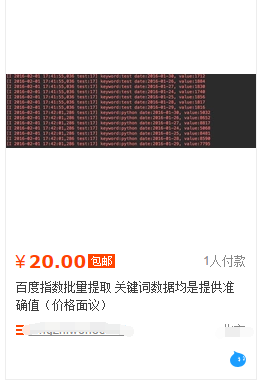
哥那么叼的人怎么会被他吓到,于是乎花了零零碎碎加起来大约2天半搞定,在此鄙视一下土福
### 安装的库很多:
>谷歌图像识别tesseract-ocr
>pip3 install pillow
>pip3 install pyocr
>selenium2.45
>Chrome47.0.2526.106 m or Firebox32.0.1
>chromedriver.exe
### 图像识别验证码请参考我的博客:
[python图像识别--验证码](http://www.cnblogs.com/TTyb/p/5996847.html)
### selenium用法请参考我的博客:
[python之selenium](http://www.cnblogs.com/TTyb/p/5842015.html)
### 进入百度指数需要登陆,登陆的账号密码写在文本account里面:

### 万能登陆代码如下:
```
# 打开浏览器
def openbrowser():
global browser
# https://passport.baidu.com/v2/?login
url = "https://passport.baidu.com/v2/?login&tpl=mn&u=http%3A%2F%2Fwww.baidu.com%2F"
# 打开谷歌浏览器
# Firefox()
# Chrome()
browser = webdriver.Chrome()
# 输入网址
browser.get(url)
# 打开浏览器时间
# print("等待10秒打开浏览器...")
# time.sleep(10)
# 找到id="TANGRAM__PSP_3__userName"的对话框
# 清空输入框
browser.find_element_by_id("TANGRAM__PSP_3__userName").clear()
browser.find_element_by_id("TANGRAM__PSP_3__password").clear()
# 输入账号密码
# 输入账号密码
account = []
try:
fileaccount = open("../baidu/account.txt")
accounts = fileaccount.readlines()
for acc in accounts:
account.append(acc.strip())
fileaccount.close()
except Exception as err:
print(err)
input("请正确在account.txt里面写入账号密码")
exit()
browser.find_element_by_id("TANGRAM__PSP_3__userName").send_keys(account[0])
browser.find_element_by_id("TANGRAM__PSP_3__password").send_keys(account[1])
# 点击登陆登陆
# id="TANGRAM__PSP_3__submit"
browser.find_element_by_id("TANGRAM__PSP_3__submit").click()
# 等待登陆10秒
# print('等待登陆10秒...')
# time.sleep(10)
print("等待网址加载完毕...")
select = input("请观察浏览器网站是否已经登陆(y/n):")
while 1:
if select == "y" or select == "Y":
print("登陆成功!")
print("准备打开新的窗口...")
# time.sleep(1)
# browser.quit()
break
elif select == "n" or select == "N":
selectno = input("账号密码错误请按0,验证码出现请按1...")
# 账号密码错误则重新输入
if selectno == "0":
# 找到id="TANGRAM__PSP_3__userName"的对话框
# 清空输入框
browser.find_element_by_id("TANGRAM__PSP_3__userName").clear()
browser.find_element_by_id("TANGRAM__PSP_3__password").clear()
# 输入账号密码
account = []
try:
fileaccount = open("../baidu/account.txt")
accounts = fileaccount.readlines()
for acc in accounts:
account.append(acc.strip())
fileaccount.close()
except Exception as err:
print(err)
input("请正确在account.txt里面写入账号密码")
exit()
browser.find_element_by_id("TANGRAM__PSP_3__userName").send_keys(account[0])
browser.find_element_by_id("TANGRAM__PSP_3__password").send_keys(account[1])
# 点击登陆sign in
# id="TANGRAM__PSP_3__submit"
browser.find_element_by_id("TANGRAM__PSP_3__submit").click()
elif selectno == "1":
# 验证码的id为id="ap_captcha_guess"的对话框
input("请在浏览器中输入验证码并登陆...")
select = input("请观察浏览器网站是否已经登陆(y/n):")
else:
print("请输入“y”或者“n”!")
select = input("请观察浏览器网站是否已经登陆(y/n):")
```
### 登陆的页面:

### 登陆过后需要打开新的窗口,也就是打开百度指数,并且切换窗口,在selenium用:
```
# 新开一个窗口,通过执行js来新开一个窗口
js = 'window.open("http://index.baidu.com");'
browser.execute_script(js)
# 新窗口句柄切换,进入百度指数
# 获得当前打开所有窗口的句柄handles
# handles为一个数组
handles = browser.window_handles
# print(handles)
# 切换到当前最新打开的窗口
browser.switch_to_window(handles[-1])
```
### 清空输入框,构造点击天数:
```
# 清空输入框
browser.find_element_by_id("schword").clear()
# 写入需要搜索的百度指数
browser.find_element_by_id("schword").send_keys(keyword)
# 点击搜索
# <input type="submit" value="" id="searchWords" onclick="searchDemoWords()">
browser.find_element_by_id("searchWords").click()
time.sleep(2)
# 最大化窗口
browser.maximize_window()
# 构造天数
sel = int(input("查询7天请按0,30天请按1,90天请按2,半年请按3:"))
day = 0
if sel == 0:
day = 7
elif sel == 1:
day = 30
elif sel == 2:
day = 90
elif sel == 3:
day = 180
sel = '//a[@rel="' + str(day) + '"]'
browser.find_element_by_xpath(sel).click()
# 太快了
time.sleep(2)
```
### 天数也就是这里:

### 找到图形框:
```
xoyelement = browser.find_elements_by_css_selector("#trend rect")[2]
```
### 图形框就是:

### 根据坐标点的不同构造偏移量:
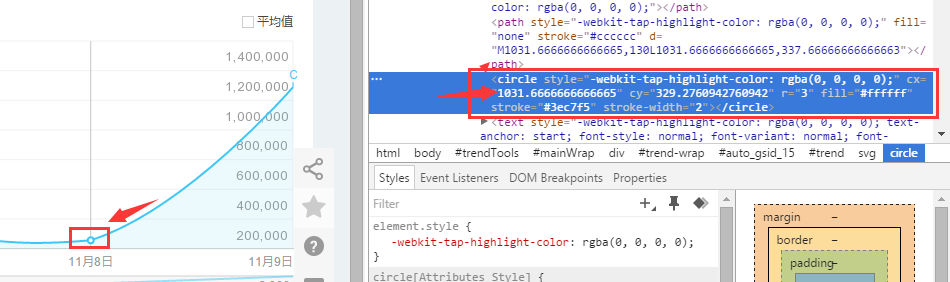
### 选取7天的坐标来观察:
>第一个点的横坐标为1031.66666
>第二个点的横坐标为1234

所以7天两个坐标之间的差为:202.33,其他的天数类似
### 用selenium库来模拟鼠标滑动悬浮:
```
from selenium.webdriver.common.action_chains import ActionChains
ActionChains(browser).move_to_element_with_offset(xoyelement,x_0,y_0).perform()
```
### 但是这样子确定的点指出是在这个位置:
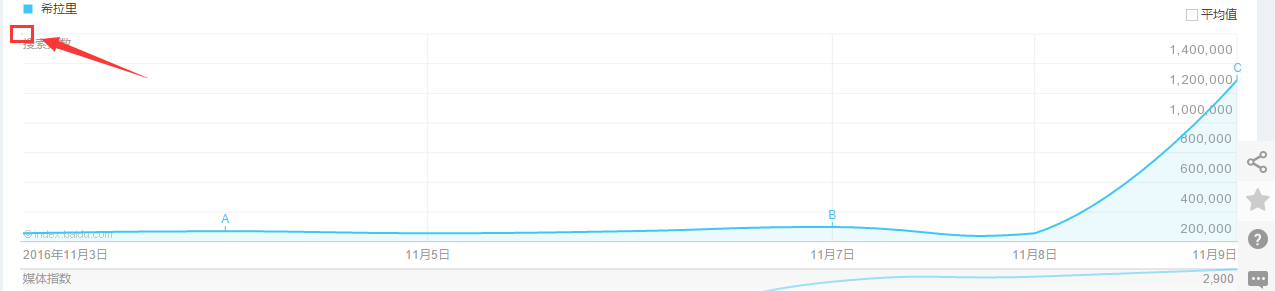
也就是矩形的左上角,这里是不会加载js显示弹出框的,所以要给横坐标+1:
```
x_0 = 1
y_0 = 0
```
### 写个按照天数的循环,让横坐标累加:
```
# 按照选择的天数循环
for i in range(day):
# 构造规则
if day == 7:
x_0 = x_0 + 202.33
elif day == 30:
x_0 = x_0 + 41.68
elif day == 90:
x_0 = x_0 + 13.64
elif day == 180:
x_0 = x_0 + 6.78
```
### 鼠标横移时会弹出框,在网址里面找到这个框:

### selenium自动识别之...:
```
# <div class="imgtxt" style="margin-left:-117px;"></div>
imgelement = browser.find_element_by_xpath('//div[@id="viewbox"]')
```
### 并且确定这个框的大小位置:
```
# 找到图片坐标
locations = imgelement.location
print(locations)
# 找到图片大小
sizes = imgelement.size
print(sizes)
# 构造指数的位置
rangle = (int(locations['x']), int(locations['y']), int(locations['x'] + sizes['width']),
int(locations['y'] + sizes['height']))
```
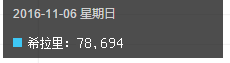
截取的图形为:
### 下面的思路就是:
>1. 将整个屏幕截图下来
>2. 打开截图用上面得到的这个坐标rangle进行裁剪
### 但是最后裁剪出来的是上面的那个黑框,我想要的效果是:
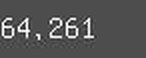
### 本次更新加入了对于关键词长度的判断,能够自动识别关键词长度而进行截取:
```
add_length = (len(keyword) - 2) * sizes['width'] / 15
```
### 找到位置:
```
# 跨浏览器兼容
scroll = browser.execute_script("return window.scrollY;")
top = locations['y'] - scroll
# 构造指数的位置
rangle = (
int(locations['x'] + sizes['width'] / 4 + add_length), int(top + sizes['height'] / 2),
int(locations['x'] + sizes['width'] * 2 / 3), int(top + sizes['height']))
```
### 后面的完整代码是:
```
# <div class="imgtxt" style="margin-left:-117px;"></div>
imgelement = browser.find_element_by_xpath('//div[@id="viewbox"]')
# 找到图片坐标
locations = imgelement.location
print(locations)
# 找到图片大小
sizes = imgelement.size
print(sizes)
# 构造指数的位置
rangle = (int(locations['x'] + sizes['width']/3), int(locations['y'] + sizes['height']/2), int(locations['x'] + sizes['width']*2/3),
int(locations['y'] + sizes['height']))
# 截取当前浏览器
path = "../baidu/" + str(num)
browser.save_screenshot(str(path) + ".png")
# 打开截图切割
img = Image.open(str(path) + ".png")
jpg = img.crop(rangle)
jpg.save(str(path) + ".jpg")
```
### 但是后面发现裁剪的图片太小,识别精度太低,所以需要对图片进行扩大:
```
# 将图片放大一倍
# 原图大小73.29
jpgzoom = Image.open(str(path) + ".jpg")
(x, y) = jpgzoom.size
x_s = 146
y_s = 58
out = jpgzoom.resize((x_s, y_s), Image.ANTIALIAS)
out.save(path + 'zoom.jpg', 'png', quality=95)
```
原图大小请 **右键->属性->详细信息** 查看,我的是长73像素,宽29像素
### 最后就是图像识别
```
# 图像识别
index = []
image = Image.open(str(path) + "zoom.jpg")
code = pytesseract.image_to_string(image)
if code:
index.append(code)
```
### 最后效果图:
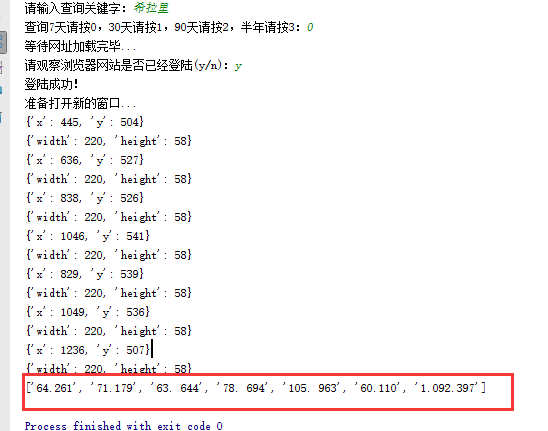

## 详细解说请观看我的博客:
[TTyb](http://www.cnblogs.com/TTyb)
# 更新日志:
> 2017-10-23修复截图位置不对的bug,优化关键词自动识别长度的漏洞
================================================
FILE: baidu/account.txt
================================================
你的账号
你的密码
================================================
FILE: baidu/index.txt
================================================
64.261
71.179
63. 644
78. 694
105. 963
60.110
1.092.397
================================================
FILE: baidu/viewbox.md
================================================
<div id="viewbox" class="viewbox" style="display: none; left: 183px; top: 626px;">
<div class="view-bd">
<div class="view-table-wrap">2016-10-10 һ</div>
<div class="view-bg"></div>
</div>
<div class="view-bd">
<div class="view-table-wrap">
<table id="trendPopTab" class="view-table" style="font-family:simsun;">
<tbody>
<tr>
<td class="view-dot">
<span style="background:#3ec7f5"></span>
</td>
<td class="view-label">ϣ</td>
<td class="view-value">
<span class="imgval" style="width:7px;">
<div class="imgtxt" style="margin-left:-40px;"></div>
</span>
<span class="imgval" style="width:17px;">
<div class="imgtxt" style="margin-left:-103px;"></div>
</span>
<span class="imgval" style="width:6px;">
<div class="imgtxt" style="margin-left:-144px;"></div>
</span>
<span class="imgval" style="width:10px;">
<div class="imgtxt" style="margin-left:-174px;"></div>
</span>
<span class="imgval" style="width:5px;">
<div class="imgtxt" style="margin-left:-248px;"></div>
</span>
<span class="imgval" style="width:3px;">
<div class="imgtxt" style="margin-left:-269px;"></div>
</span>
<br>
<style>.view-value .imgval .imgtxt{background:url("/Interface/IndexShow/img/?res=KVFuNyZlI0ADFh0Vd2olfCoQZzgsPQ5ePgI7Qkg4G3d0WGB%2FHzkCTkUrRmNKImEvF2AoLCtbESR%2FSDBmQ2ciH39KCmREDAwAc0FwHjcMCQ80ZVYBMiALFwNkYHoWD2AxQyMRfFEmVW0uAiA3XDBmNBI8NRR5djEHIwAbB0FrQWoUCRJ2CVUqPBcLSTADcD0seyxmJkprD3VBBXlTejoJNCY5K1oLZB1XBS9ZdnQ2IjRXH3MWNkdwWSdUCA4aHgVyNVIjMSIRAFQACxRuaDAjZQJCIhYE&res2=71EXSTRxmQJZ763rT54WluYAUyq3D8Y1Nkqh1SwQ0g1ymkMtmEJXg6n201.3NT&res3=XQ5%2FdQIRZBAfFAYvPl5nfEBhMSRjfSdzIm0Ldh1wcQcURlJhRBk%2FB1ZdRRUUVhNxB3VFRFIkL3hgEBdQADxydA9nL2kjFHNxEWhZA2gFEF1WdxsRHX0tBGgAA3lmYA91ZURQHkdPBAJCFGNjIwEGQWJESFIRRjVzBHRHenBobmtzA21gAnVLYFxzfXR4BU9GV2FyY1pAYnswV3ELHVFAA0F0UnIFCgVKbgJhOm1FZUFuYXVEYQctQXRQRwEdcRZxViUFFHN1FRsfRRdmY0RcHmthf3V7U1dnMzpxHVB1RBclBBJfBG50OmRGZW5GPiE5bkIWXBBYJiFiWgpLATF7FTcCVzQDYyFUM35TExc8Vmt2HnIjAjU9YQ%3D%3D&type=1")}</style></td>
</tr>
</tbody>
</table>
</div>
<div class="view-bg"></div>
</div>
</div>
================================================
FILE: py/Baiduindex.py
================================================
# !/usr/bin/python3.4
# -*- coding: utf-8 -*-
# 百度指数的抓取
# 截图教程:http://www.myexception.cn/web/2040513.html
#
# 登陆百度地址:https://passport.baidu.com/v2/?login&tpl=mn&u=http%3A%2F%2Fwww.baidu.com%2F
# 百度指数地址:http://index.baidu.com
import time
from selenium import webdriver
from selenium.webdriver.common.action_chains import ActionChains
from PIL import Image
import pytesseract
# 打开浏览器
def openbrowser():
global browser
# https://passport.baidu.com/v2/?login
url = "https://passport.baidu.com/v2/?login&tpl=mn&u=http%3A%2F%2Fwww.baidu.com%2F"
# 打开谷歌浏览器
# Firefox()
# Chrome()
browser = webdriver.Chrome()
# 输入网址
browser.get(url)
# 打开浏览器时间
# print("等待10秒打开浏览器...")
# time.sleep(10)
# 找到id="TANGRAM__PSP_3__userName"的对话框
# 清空输入框
browser.find_element_by_id("TANGRAM__PSP_3__userName").clear()
browser.find_element_by_id("TANGRAM__PSP_3__password").clear()
# 输入账号密码
# 输入账号密码
account = []
try:
fileaccount = open("../baidu/account.txt", encoding='UTF-8')
accounts = fileaccount.readlines()
for acc in accounts:
account.append(acc.strip())
fileaccount.close()
except Exception as err:
print(err)
input("请正确在account.txt里面写入账号密码")
exit()
browser.find_element_by_id("TANGRAM__PSP_3__userName").send_keys(account[0])
browser.find_element_by_id("TANGRAM__PSP_3__password").send_keys(account[1])
# 点击登陆登陆
# id="TANGRAM__PSP_3__submit"
browser.find_element_by_id("TANGRAM__PSP_3__submit").click()
# 等待登陆10秒
# print('等待登陆10秒...')
# time.sleep(10)
print("等待网址加载完毕...")
select = input("请观察浏览器网站是否已经登陆(y/n):")
while 1:
if select == "y" or select == "Y":
print("登陆成功!")
print("准备打开新的窗口...")
# time.sleep(1)
# browser.quit()
break
elif select == "n" or select == "N":
selectno = input("账号密码错误请按0,验证码出现请按1...")
# 账号密码错误则重新输入
if selectno == "0":
# 找到id="TANGRAM__PSP_3__userName"的对话框
# 清空输入框
browser.find_element_by_id("TANGRAM__PSP_3__userName").clear()
browser.find_element_by_id("TANGRAM__PSP_3__password").clear()
# 输入账号密码
account = []
try:
fileaccount = open("../baidu/account.txt", encoding='UTF-8')
accounts = fileaccount.readlines()
for acc in accounts:
account.append(acc.strip())
fileaccount.close()
except Exception as err:
print(err)
input("请正确在account.txt里面写入账号密码")
exit()
browser.find_element_by_id("TANGRAM__PSP_3__userName").send_keys(account[0])
browser.find_element_by_id("TANGRAM__PSP_3__password").send_keys(account[1])
# 点击登陆sign in
# id="TANGRAM__PSP_3__submit"
browser.find_element_by_id("TANGRAM__PSP_3__submit").click()
elif selectno == "1":
# 验证码的id为id="ap_captcha_guess"的对话框
input("请在浏览器中输入验证码并登陆...")
select = input("请观察浏览器网站是否已经登陆(y/n):")
else:
print("请输入“y”或者“n”!")
select = input("请观察浏览器网站是否已经登陆(y/n):")
def getindex(keyword, day):
openbrowser()
time.sleep(2)
# 这里开始进入百度指数
# 要不这里就不要关闭了,新打开一个窗口
# http://blog.csdn.net/DongGeGe214/article/details/52169761
# 新开一个窗口,通过执行js来新开一个窗口
js = 'window.open("http://index.baidu.com");'
browser.execute_script(js)
# 新窗口句柄切换,进入百度指数
# 获得当前打开所有窗口的句柄handles
# handles为一个数组
handles = browser.window_handles
# print(handles)
# 切换到当前最新打开的窗口
browser.switch_to_window(handles[-1])
# 在新窗口里面输入网址百度指数
# 清空输入框
time.sleep(5)
browser.find_element_by_id("schword").clear()
# 写入需要搜索的百度指数
browser.find_element_by_id("schword").send_keys(keyword)
# 点击搜索
# <input type="submit" value="" id="searchWords" onclick="searchDemoWords()">
browser.find_element_by_id("searchWords").click()
time.sleep(5)
# 最大化窗口
browser.maximize_window()
time.sleep(2)
# 构造天数
sel = '//a[@rel="' + str(day) + '"]'
browser.find_element_by_xpath(sel).click()
# 太快了
time.sleep(2)
# 滑动思路:http://blog.sina.com.cn/s/blog_620987bf0102v2r8.html
# 滑动思路:http://blog.csdn.net/zhouxuan623/article/details/39338511
# 向上移动鼠标80个像素,水平方向不同
# ActionChains(browser).move_by_offset(0,-80).perform()
# <div id="trend" class="R_paper" style="height:480px;_background-color:#fff;"><svg height="460" version="1.1" width="954" xmlns="http://www.w3.org/2000/svg" style="overflow: hidden; position: relative; left: -0.5px;">
# <rect x="20" y="130" width="914" height="207.66666666666666" r="0" rx="0" ry="0" fill="#ff0000" stroke="none" opacity="0" style="-webkit-tap-highlight-color: rgba(0, 0, 0, 0); opacity: 0;"></rect>
# xoyelement = browser.find_element_by_xpath('//rect[@stroke="none"]')
xoyelement = browser.find_elements_by_css_selector("#trend rect")[2]
num = 0
# 获得坐标长宽
# x = xoyelement.location['x']
# y = xoyelement.location['y']
# width = xoyelement.size['width']
# height = xoyelement.size['height']
# print(x,y,width,height)
# 常用js:http://www.cnblogs.com/hjhsysu/p/5735339.html
# 搜索词:selenium JavaScript模拟鼠标悬浮
x_0 = 1
y_0 = 0
if day == "all":
day = 1000000
# 储存数字的数组
index = []
try:
# webdriver.ActionChains(driver).move_to_element().click().perform()
# 只有移动位置xoyelement[2]是准确的
for i in range(day):
# 坐标偏移量???
ActionChains(browser).move_to_element_with_offset(xoyelement, x_0, y_0).perform()
# 构造规则
if day == 7:
x_0 = x_0 + 202.33
elif day == 30:
x_0 = x_0 + 41.68
elif day == 90:
x_0 = x_0 + 13.64
elif day == 180:
x_0 = x_0 + 6.78
elif day == 1000000:
x_0 = x_0 + 3.37222222
time.sleep(2)
# <div class="imgtxt" style="margin-left:-117px;"></div>
imgelement = browser.find_element_by_xpath('//div[@id="viewbox"]')
# 找到图片坐标
locations = imgelement.location
# 跨浏览器兼容
scroll = browser.execute_script("return window.scrollY;")
top = locations['y'] - scroll
# 找到图片大小
sizes = imgelement.size
# 构造关键词长度
add_length = (len(keyword) - 2) * sizes['width'] / 15
# 构造指数的位置
rangle = (
int(locations['x'] + sizes['width'] / 4 + add_length), int(top + sizes['height'] / 2),
int(locations['x'] + sizes['width'] * 2 / 3), int(top + sizes['height']))
# 截取当前浏览器
path = "../baidu/" + str(num)
browser.save_screenshot(str(path) + ".png")
# 打开截图切割
img = Image.open(str(path) + ".png")
jpg = img.crop(rangle)
jpg.save(str(path) + ".jpg")
# 将图片放大一倍
# 原图大小73.29
jpgzoom = Image.open(str(path) + ".jpg")
(x, y) = jpgzoom.size
x_s = 146
y_s = 58
out = jpgzoom.resize((x_s, y_s), Image.ANTIALIAS)
out.save(path + 'zoom.jpg', 'png', quality=95)
# 图像识别
try:
image = Image.open(str(path) + "zoom.jpg")
code = pytesseract.image_to_string(image)
if code:
index.append(code)
else:
index.append("")
except:
index.append("")
num = num + 1
except Exception as err:
print(err)
print(num)
print(index)
# 日期也是可以图像识别下来的
# 只是要构造rangle就行,但是我就是懒
file = open("../baidu/index.txt", "w")
for item in index:
file.write(str(item) + "\n")
file.close()
if __name__ == "__main__":
# 每个字大约占横坐标12.5这样
# 按照字节可自行更改切割横坐标的大小rangle
keyword = input("请输入查询关键字:")
sel = int(input("查询7天请按0,30天请按1,90天请按2,半年请按3,全部请按4:"))
day = 0
if sel == 0:
day = 7
elif sel == 1:
day = 30
elif sel == 2:
day = 90
elif sel == 3:
day = 180
elif sel == 4:
day = "all"
getindex(keyword, day)
================================================
FILE: update_log.md
================================================
# 更新日志:
> 2017-12-07修复截图位置不对的bug,自适应不同分辨率的浏览器
> 2017-11-27增加全部选项抓取
> 2017-10-23修复截图位置不对的bug,优化关键词自动识别长度的漏洞
gitextract_uvpj2ktq/ ├── README.md ├── baidu/ │ ├── account.txt │ ├── index.txt │ └── viewbox.md ├── py/ │ └── Baiduindex.py └── update_log.md
SYMBOL INDEX (2 symbols across 1 files)

FILE: py/Baiduindex.py
  function openbrowser (line 19) | def openbrowser():
  function getindex (line 112) | def getindex(keyword, day):
Condensed preview — 6 files, each showing path, character count, and a content snippet. Download the .json file or copy for the full structured content (24K chars).
[
{
"path": "README.md",
"chars": 8517,
"preview": "## 百度指数抓取,再用图像识别得到指数\n\n## 前言:\n土福曾说,百度指数很难抓,在淘宝上面是20块1个关键字:\n\n. The extraction includes 6 files (19.2 KB), approximately 6.9k tokens, and a symbol index with 2 extracted functions, classes, methods, constants, and types. Use this with OpenClaw, Claude, ChatGPT, Cursor, Windsurf, or any other AI tool that accepts text input. You can copy the full output to your clipboard or download it as a .txt file.
Extracted by GitExtract — free GitHub repo to text converter for AI. Built by Nikandr Surkov.